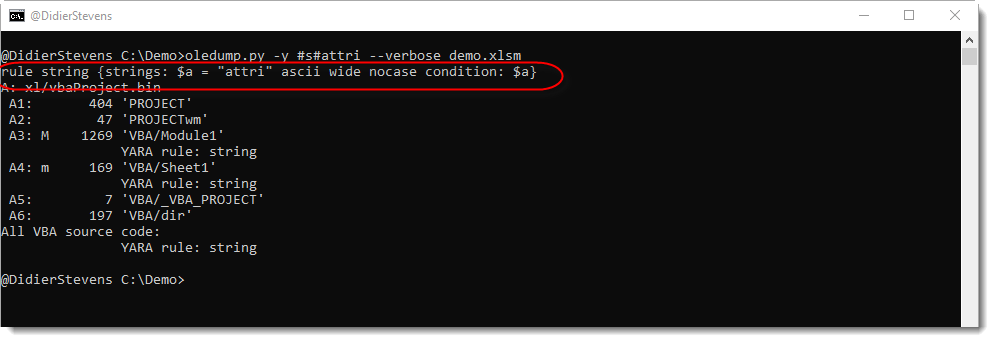
In this example, I show a string Ad Hoc YARA rule to search for string attri (-y #s#attri). By including option –verbose, the YARA rule generated by oledump for string attri is displayed first:
Plugin plugin_http_heuristics has a new option: -c –contains.
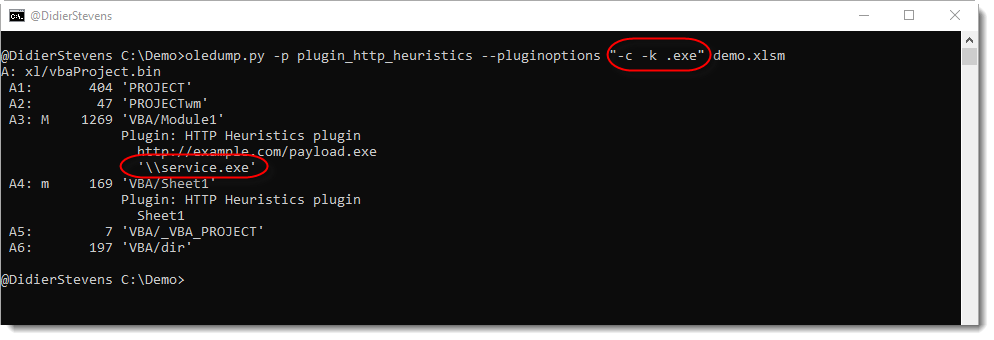
By default, plugin_http_heuristics looks for (obfuscated) strings that start with keywords (http:// and https:// by default). Option -c changes this behavior: when this option is used, the keywords are searched in the entire string, and not just at the start.
In this example, I use this feature to search for the filename of the dropped executable (strings containing “.exe”):
And I also include plugin_vba: this is an old plugin that I failed to release. It searches for string concatenation in VBA code.
In comes etl2pcapng, a new open-source utility from Microsoft that converts an .etl file to .pcapng format:
“Utility that converts an .etl file containing a Windows network packet capture into .pcapng format“.
I contributed to version 1.3.0 of etl2pcapng, by adding a comment containing the Process ID to each packet. etl files contain metadata (like the PID of the process associated with the network traffic) that got lost when translating to pcapng format. As the pcapng format has no option to store the PID for each packet, but it supports packet comments, I stored the PID inside packet comments:
The output pcapng file will have a comment on each packet indicating the PID of the current process when the packet was logged. WARNING: this is frequently not the same as the actual PID of the process which caused the packet to be sent or to which the packet was delivered, since the packet capture provider often runs in a DPC (which runs in an arbitrary process). The user should keep this in mind when using the PID information.
In this new version of hash.py, a tool to calculate hashes, I add “hash” checksum8.
Checksum8 calculates the sum of all bytes contained in the provided file(s), each byte is interpreted as an unsigned, 8-bit integer.
I recently had to validate that the path of a URL was a “valid” Meterpreter identifier. When the least significant byte of the 8-bit checksum of the path is equal to 92 (0x5C), then we have a valid URL for a Windows Meterpreter stager.
Take this URL: http://127.0.0.1/RVdP. Could this be a “Windows Meterpreter” URL? Let’s calculate the checksum of RVdP:
The 8-bit checksum of RVdP is 0x015C. The least significant byte is 0x5C, or 92: this matches URI_CHECKSUM_INITW, e.g. this could indeed be a URL used by a reverse http Meterpreter payload.
Besides this new feature, hash.py comes with other features like “pack expressions” and various bug fixes.
As announced in my previous blog post, this new version of format-bytes.py adds a pack expression (#p#) and other features and (Python 3) bug fixes.
A pack expression is another “here filename”, like #h# for hexadecimal data (which now accepts spaces too).
When format-bytes.py is given a filename as argument, the content of that file is read and processed.
File arguments that start with character # have special meaning. These are not processed as actual files on disk (except when option –literalfilenames is used), but as file arguments that specify how to “generate” the file content. Generating the file content with a # file argument means that the file content is not read from disk, but generated in memory based on the characteristics provided via the file argument. For example, file argument #ABCDE specifies a file containing exactly 5 bytes: ASCII characters A, B, C, D and E.
File arguments that start with #p# are a notational convention to pack a Python expression to generate data (using Python module struct): a “pack expression”.
The string after #p# must contain 2 expressions separated by a # character, like #p#I#123456.
The first expression (I in this example) is the format string for the Python struct.pack function, and the second expression (123456 in this example) is a Python expression that needs to be packed by struct.pack.
In this example, format string I represents an unsigned, 32-bit, little-endian integer, and thus #p#I#123456 generates byte sequence 40E20100 (hexadecimal).
Remark that the Python expression is evaluated with Python’s eval function: this can be abused to achieve arbitrary code execution. Don’t use this in a situation where you have no control over arguments.
I introduced “pack expressions” because I had an IPv4 number represented as a decimal integer, and I needed the dotted quad representation. format-bytes.py will represent 4 bytes as a dotted quad, but I still had to convert a decimal integer to 4 bytes. Hence the introduction of pack expressions (#p#).
For example, number 3232235786 is IPv4 address 192.168.1.10.
Pack expression #p#>I#3232235786 converts number 3232235786 to 4 bytes: >I is the struct format specifier for a big-endian, unsigned 32-bit integer. Remark that I enclose this pack expression in double-quotes (“), as most shells will interpret character > as file redirection if not escaped.
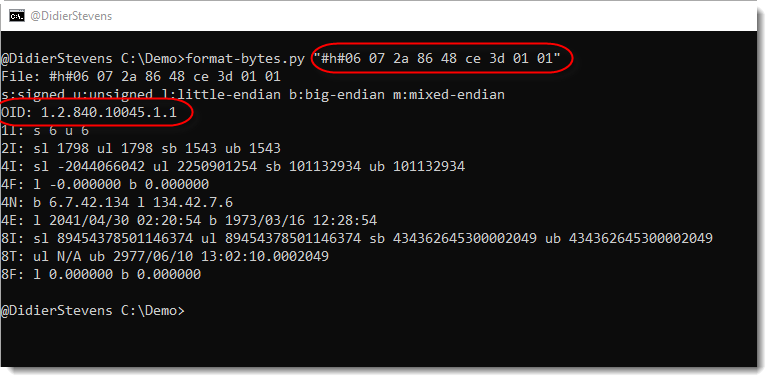
Because of CVE-2020-0601, I also introduced Object Identifier aka OID (DER) decoding. In DER encoding, an OID starts with byte 6 (excluding flags) followed by one byte indicating the length of the bytes representing the OID.
Hexadecimal sequence “06 07 2a 86 48 ce 3d 01 01” is the DER value for OID 1.2.840.10045.1.1.
I also added support for environment variable DSS_DEFAULT_HASH_ALGORITHMS to let you choose your favorite hashing algorithm, in case it is no longer MD5 🙂 .
Some bug fixes and new features (pack expression #p# and spaces allowed for #h#), to be covered in more detail in the next blog post on format-bytes.py.
Microsoft’s patch for CVE-2020-0601 introduces a call to CveEventWrite in CryptoAPI when a faked certificate is detected.
This will write a Windows event entry in the Application event log.
For all of you out there in restricted corporate environments who need to test the processing of this event log entry, I wrote some VBA code to generate this event. The generated event will mimic a CVE-2020-0601 warning to some extent (didn’t bother getting para and otherPara right).
Copy the VBA code below in an Office application that supports VBA, like Word, and run the code. Then check your Application event log.
Option Explicit

'VBA7
Declare PtrSafe Sub CveEventWrite Lib "advapi32" (ByVal CveId As String, ByVal AdditionalDetails As String)

Sub TestCveEventWrite()
    Dim strCveId As String
    Dim strAdditionalDetails As String

    strCveId = "[CVE-2020-0601] cert validation"
    strAdditionalDetails = "CA: <@DidierStevens> sha1: 7A036FBBDBF7F29A3821A8087CE177E60927A6F3 para: something otherPara: something"
    CveEventWrite StrConv(strCveId, vbUnicode), StrConv(strAdditionalDetails, vbUnicode)
End Sub
That special ZIP file is a concatenation of 2 ZIP files, the first containing a single PNG file (with extension .jpg) and the second a single EXE file (malware). Various archive managers and security products handle this file differently, some “seeing” only the PNG file, others only the EXE file.
My zipdump.py tool reports the following for this special ZIP file:
zipdump.py is essentially a wrapper for Python’s zipfile module, and this module parses ZIP files “starting from the end of the file”. That’s why it finds the second ZIP file (appended to the first ZIP file), containing the malicious EXE file.
To help with the analysis of such special/malformed ZIP files, I added an option (-f –find) to zipdump. This option scans the content of the provided file looking for ZIP records. ZIP records start with ASCII string PK followed by 2 bytes to indicate the record type (byte values less than 16).
Here I use option “-f list” to list all PK records found in a ZIP file containing a single text file:
This is how a normal ZIP file containing a single file looks on the inside.
The file starts with a “local file header”, a PK record that starts with ASCII characters PK followed by bytes 0x03 and 0x04 (that’s 50 4B 03 04 in hexadecimal). In zipdump’s report, such a PK record is identified with PK0304. This header is followed by the contained file (usually compressed).
Then there is a “central directory header”, a PK record that starts with ASCII characters PK followed by bytes 0x01 and 0x02 (that’s 50 4B 01 02 in hexadecimal). In zipdump’s report, such a PK record is identified with PK0102. This header contains an offset pointing to the corresponding PK0304 record.
And at the end of the ZIP file, there is a “end of central directory”, a PK record that starts with ASCII characters PK followed by bytes 0x05 and 0x06 (that’s 50 4B 05 06 in hexadecimal). In zipdump’s report, such a PK record is identified with PK0506. This header contains an offset pointing to the first PK0102 record.
A ZIP file containing 2 files looks like this, when scanned with zipdump’s option -f list:
Starting with 2 PK0304 records (one for each contained file), followed by 2 PK0102 records, and 1 PK0506 record.
Armed with this knowledge, we take a look at our malicious ZIP file:
We see 2 PK0506 records, and this is unusual.
We see the following sequence of records twice: PK0304, PK0102, PK0506.
From our previous examples, we can now understand that this sample contains 2 ZIP files.
Remark that zipdump assigned an index to both PK0506 records: 1 and 2. This index can be used to select one of the 2 ZIP files for further analysis. Like in this example, where I select the first ZIP file:
Using option “-f 1” (in stead of “-f list”) selects the first ZIP file in the provide sample, and lists its content.
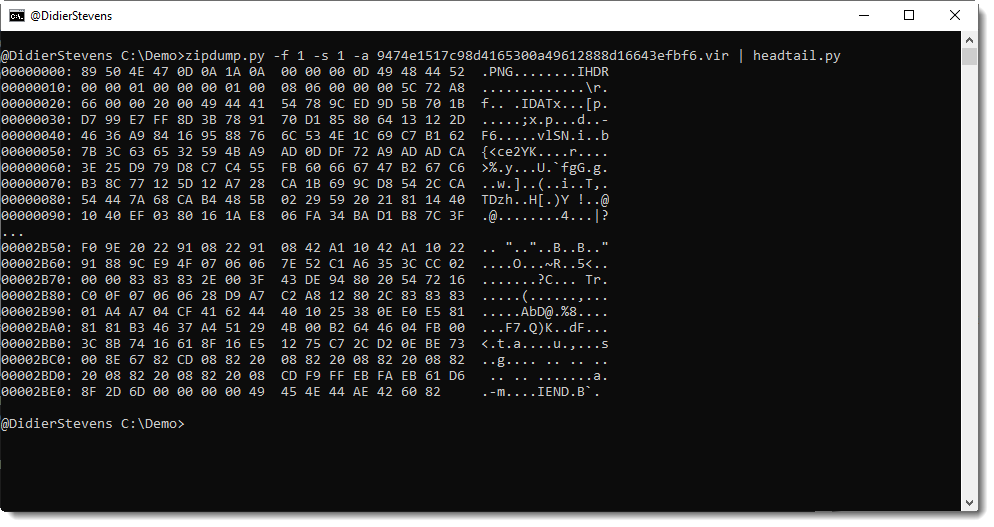
It can then be further analyzed with zipdump like usual, for example, selecting the first file (order.jpg) inside the first ZIP file for an hex/ascii dump:
Likewise, “-f 2” will select the second ZIP file found inside the sample:
-f is a new option that I added for special/malformed ZIP files, but this is a work in progress, as there are many ways to malform ZIP files.
For example, I created a PoC malformed ZIP file that contains a single file, with reversed PK record order. Here is the output for the normal and “reversed” zip files (malformed, e.g. PK records order reversed):
This file can be opened with Windows Explorer, but there are tools and libraries than can not handle it. Like Python’s zipfile module:
I will further develop zipdump to handle malformed ZIP files as best as possible.