Didier Stevens

Wednesday 31 January 2018

Update: rtfdump.py Version 0.0.7

Filed under: My Software,Update — Didier Stevens @ 0:00

In this version, I’ve changed the output for “level 0”. Level 0 is actually the remainder, e.g. what comes after the last balanced curly brace. In a normal RTF document, there should be no remainder.

rtfdump_V0_0_7.zip (https)
MD5: 59F86BA57D67CB78B9D863AFEA710709
SHA256: 1A8EDD4F73F020F44B0AAB39FC3A1C313C81BF8A1E031A76D8B8C85E34116DD6

Tuesday 30 January 2018

Update: translate.py Version 2.5.2

Filed under: My Software,Update — Didier Stevens @ 0:00

Yesterday I had to analyze a malicious document, carrying embedded PowerShell scripts with Gzip compression. I use translate.py to do the Gzib decompression as I explained in this blog post.

But it’s still not that practical, copying that onliner from my blog post, so I’m releasing a new version of translate.py where I defined function GzipD as that onliner (and I also defined ZlibD).

Here is how I use build-in function GzipD to decompress the malicious payload:


translate_v2_5_2.zip (https)
MD5: 1499C7D9C03928F2CE90BAA813A982DA
SHA256: 34451966781CA9821CD66AEF54379A3B47576CD4FCE8CBEFD9EFA3DA06E49CE9

Monday 29 January 2018

New Tool: jpegdump.py

Filed under: My Software — Didier Stevens @ 0:00

jpegdump.py is a tool I developed to analyze JPEG images. I have used it for a couple of ISC diary entries: Analyzing JPEG files, It is a resume – Part 3 and A strange JPEG file.

This tool reads binary files and parses the JPEG markers inside them:

It can help with corrupted images, here is an example of a JPEG file that was partially overwritten by ransomware:

The partial image starts from marker 3.

With options -f and -c, one can search through binary files with embedded JPEG images, like this Google Chrome process dump:

For more information, take a look at the man page: jpegdump.py -m


jpegdump_V0_0_3.zip (https)
MD5: 929F3EC096AEBEC642C44C6A6EE2895E
SHA256: C5C1CA151C7E24FB6E305E5116BE7B6BC4C417810217249D3831BE5805BBAA9F

Sunday 21 January 2018

Quickpost: Retrieving Malware Via Tor On Windows

Filed under: Malware,Quickpost — Didier Stevens @ 22:46

I sometimes retrieve malware over Tor, just as a simple trick to use another IP address than my own. I don’t do anything particular to be anonymous, just use Tor in its default configuration.

On Linux, its easy: I install tor and torsocks packages, then start tor, and use wget or curl with torsocks, like this:

torsocks wget URL

torsocks curl URL

On Windows, its a bit more difficult, because the torsocks trick doesn’t work.

I run Tor (Windows Expert Bundle) without any configuration:

This will give me a Socks listener, that curl can use:

curl --socks5-hostname 127.0.0.1:9050 http://www.didierstevens.com

option –socks5-hostname makes curl use the Socks listener provided by Tor to make connections and perform DNS requests (option –socks5 does not use the Socks listener for DNS request, just for connections).

wget has no option to use a Socks listener, but it can use an HTTP(S) proxy.

Privoxy is a filtering proxy that I can use to help wget to talk to Tor like this.

I make 2 changes to Privoxy’s configuration config.txt:

1) I change line 811 from “toggle 1” to “toggle 0” to configure Privoxy as a normal proxy, without filtering.

2) I add this line 1363: “forward-socks5t / 127.0.0.1:9050 .”, this makes Privoxy use Tor.

Then I launch Privoxy:
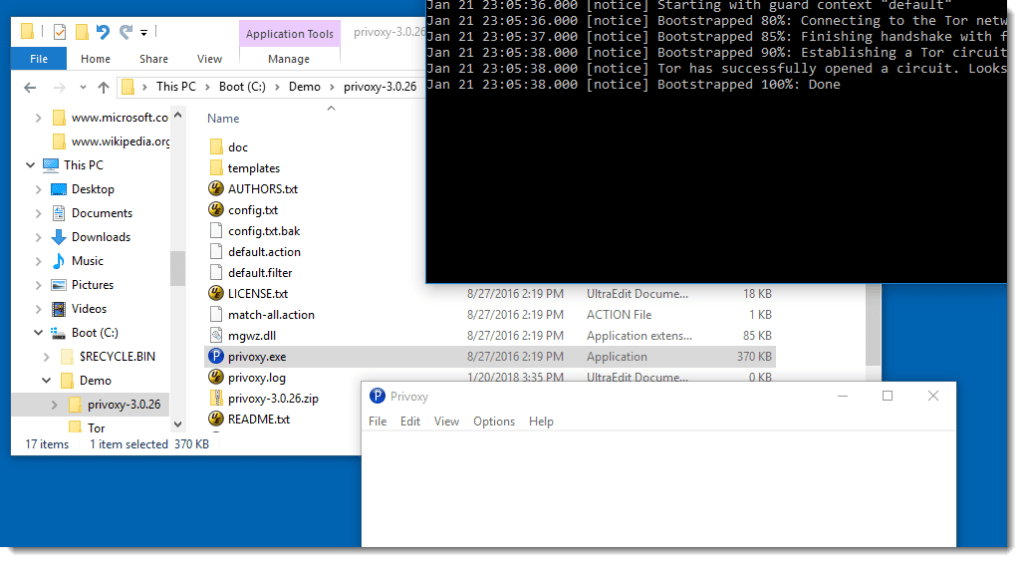
And then I can use wget like this:

wget -e use_proxy=yes -e http_proxy=127.0.0.1:8118 -e https_proxy=127.0.0.1:8118 URL

Port 8118 is Privoxy’s port. If you want, you can also put these options in a configuration file.

Often, my wget command will be a bit more complex (I’ll explain this in another blog post, but it’s based on this ISC diary entry):

wget -d -o 01.log -U "Mozilla/4.0 (compatible; MSIE 6.0; Windows NT 5.1; SV1)" -e use_proxy=yes -e http_proxy=127.0.0.1:8118 -e https_proxy=127.0.0.1:8118 --no-check-certificate URL


I can also use Tor browser in stead of Tor, but then I need to connect to port 9150.


Quickpost info


Saturday 20 January 2018

Quickpost: Data Exfiltration With Tor Browser And Domain Fronting

Filed under: Quickpost — Didier Stevens @ 23:46

Some notes, mainly for myself.

Installing the Tor Browser on Windows can be done without administrative rights.

Start the Tor Browser and configure it:

Meek is a Tor pluggable transport for domain fronting, I select Amazon for domain fronting:

Tor Browser supports proxies:

Then I can connect to the Tor network with TLS via an Amazon server:

And then go to a web site to exfiltrate data:

In the packet capture, I just see DNS requests for a0.awsstatic.com followed by a TLS connection:


Quickpost info


Friday 19 January 2018

Update: format-bytes.py Version 0.0.4

Filed under: My Software,Update — Didier Stevens @ 21:48

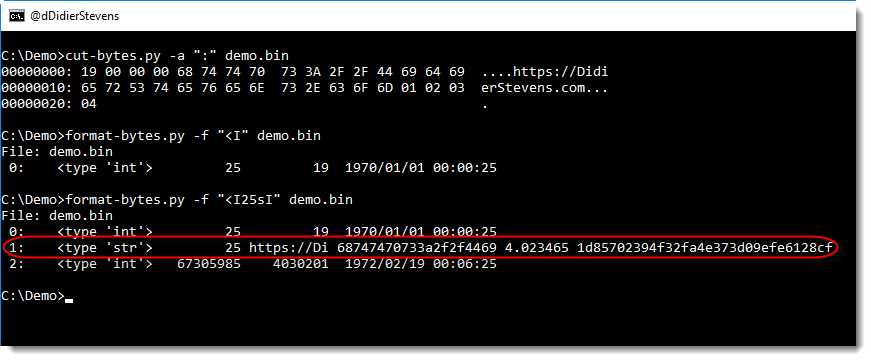
This new version of format-bytes.py display extra information when unpacking strings: string length, first 10 bytes of the string (ASCII and HEX), entropy and MD5 hash.

In this example, a small binary file starts with an integer with the string length (25 bytes), followed by the string (like a Pascal string):

format-bytes_V0_0_4.zip (https)
MD5: EBCF854E9525D470171D7D8E99F836FD
SHA256: CEE2E5B71E1BE8E5D5C934ACCD10BC0FEE2B60DFB6FDB6472F1014CEC4E509EC

Monday 15 January 2018

Update: xmldump.py Version 0.0.2

Filed under: My Software,Update — Didier Stevens @ 0:00

This new version of xmldump introduces 2 new commands to extract information from XML files: elementtext and attributes.

The following video shows how to use these commands:


xmldump_V0_0_2.zip (https)
MD5: 8ABFA4FFE259F61B7C42B2D19EADD8CB
SHA256: 0A8B94EE8C77B404A507F4BEA4C5464146F3745A1FA9017ED3DCE8D7C2D18C15

Tuesday 2 January 2018

Overview of Content Published In December

Filed under: Announcement — Didier Stevens @ 0:00

Here is an overview of content I published in December:

Blog posts:

YouTube videos:

Videoblog posts:

SANS ISC Diary entries:

Monday 1 January 2018

New Tool: What Is New?

Filed under: My Software — Didier Stevens @ 0:00

Isn’t the beginning of a new year a good moment to release a new tool called what-is-new.py? 🙂

It’s actually an old tool, I started this in 2012, because it’s something I have to do often: I have a recurring list, and I need to know what items on that list are new (in a nutshell, that’s the problem I tried to solve).

For example, every week I produce a list of User Agent Strings for the requests to my web servers. With a single what-is-new.py command, I can see what User Agent Strings have never hit my servers before.

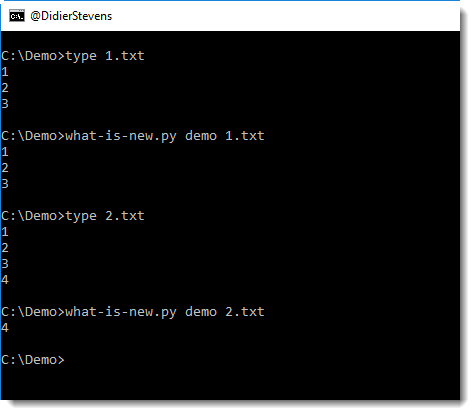
what-is-new.py takes one argument and a bunch of files. The argument is the name of the database (a Python pickle file). The input can be a single file, several files or stdin. Every line in these files that was not seen before (i.e. not in the database) will be listed by what-is-new.py

In the following example, I run 2 files through what-is-new (files 1.txt and 2.txt) with database demo. The database doesn’t exist yet, hence all lines of the first file are considered new. But with the second invocation, you can see that only line 4 is new.

The tool has several options, I invite you to take a look at the help (-h) and manual (-m).


what-is-new_V0_0_1.zip (https)
MD5: 02067A60EA2EBEE29E98CAF31CEDDF37
SHA256: A4499A230D1925C164531A68C0E8F4FE016882A44D6EDBFF9F4D7BFFA29D14A4

Friday 29 December 2017

Cracking Encrypted PDFs – Conclusion

Filed under: Encryption,Forensics,Hacking,PDF — Didier Stevens @ 0:00

TL;DR: PDFs protected with 40-bit keys can not guarantee confidentiality, even with strong passwords. When you protect your PDFs with a password, you have to encrypt your PDFs with strong passwords and use long enough keys. The PDF specification has evolved over time, and with it, the encryption options you have. There are many encryption options today, you are no longer restricted to 40-bit keys. You can use 128-bit or 256-bit keys too.

There is a trade-off too: the more advanced encryption option you use, the more recent the PDF reader must be to support the encryption option you selected. Older PDF readers are not able to handle 256-bit AES for example.

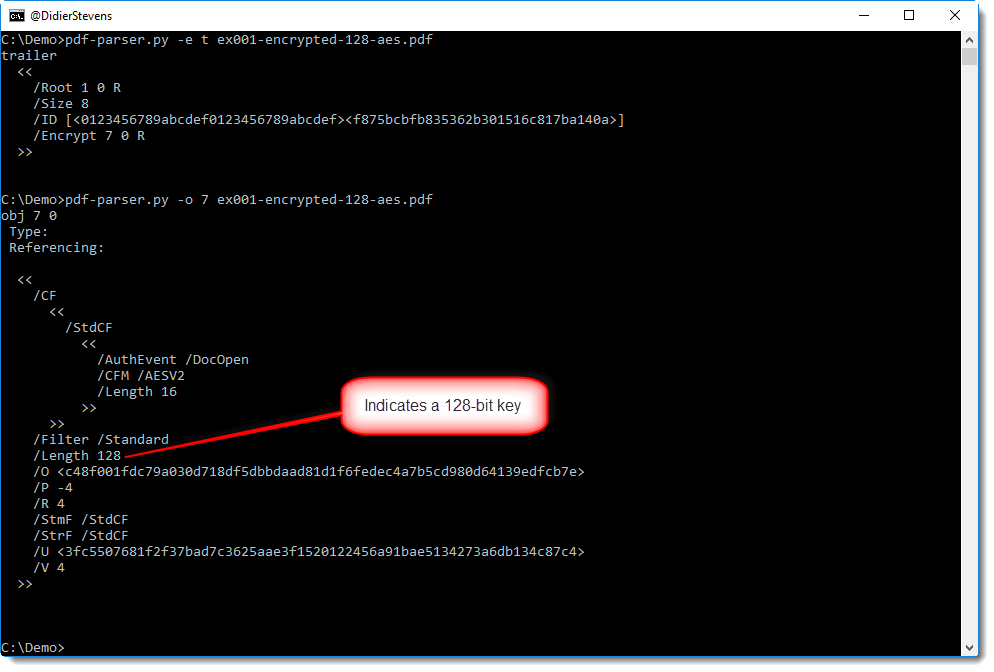
Since each application capable of creating PDFs will have different options and descriptions for encryption, I can not tell you what options to use for your particular application. There are just too many different applications and versions. But if you are not sure if you selected an encryption option that will use long enough keys, you can always check the /Encrypt dictionary of the PDF you created, for example with my pdf-parser (in this example /Length 128 tells us a 128-bit key is used):

Or you can use QPDF to encrypt an existing PDF (I’ll publish a blog post later with encryption examples for QPDF).

But don’t use 40-bit keys, unless confidentiality is not important to you:

I first showed (almost 4 years ago) how PDFs with 40-bit keys can be decrypted in minutes, using a commercial tool with rainbow tables. This video illustrates this.

Later I showed how this can be done with free, open source tools: Hashcat and John the Ripper. But although I could recover the encryption key using Hashcat, I still had to use a commercial tool to do the actual decryption with the key recovered by Hashcat.

Today, this is no longer the case: in this series of blog posts, I show how to recover the password, how to recover the key and how to decrypt with the key, all with free, open source tools.

Overview of the complete blog post series:


« Previous PageNext Page »

Blog at WordPress.com.