Didier Stevens

Sunday 29 October 2017

Update: pdf-parser.py Version 0.6.8

Filed under: My Software,PDF,Update — Didier Stevens @ 15:32

This is a bugfix version.

pdf-parser_V0_6_8.zip (https)
MD5: 7702EEA1C6173CB2E91AB88C5013FAF1
SHA256: 3424E6939E79CB597D32F405E2D75B2E42EF7629750D5DFB39927D5C132446EF

Saturday 21 October 2017

Update: base64dump.py Version 0.0.8

Filed under: My Software,Update — Didier Stevens @ 20:24

This new version of base64dump adds support to decode strings like UNICODE strings (-t).

base64dump_V0_0_8.zip (https)
MD5: 1B379A08FBC6E7686A89AF099699B076
SHA256: A81AE1AACCB168787CAF6355D582BB5096760893F5CB60E93E408A0475B4FDAC

Monday 16 October 2017

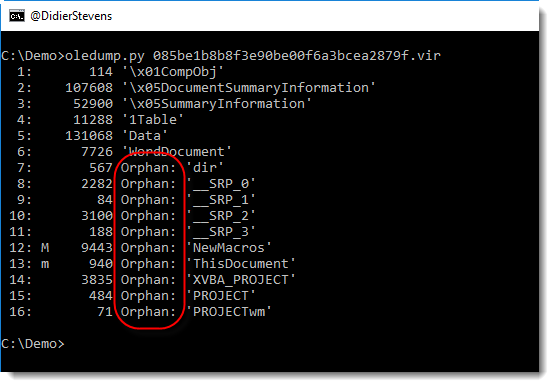
Update: oledump.py Version 0.0.29

Filed under: My Software,Update — Didier Stevens @ 0:00

This new version of oledump adds support to decode strings like UNICODE strings (-t), and can dump strings (-S).

oledump_V0_0_29.zip (https)
MD5: 7F98DB95E0E9FF645B8411F421387214
SHA256: E00567490A48A7749DF07F0E7ECD8FD24B3C90DC52E18AFE36253E0B37A543C5

Sunday 15 October 2017

Overview of Content Published In September

Filed under: Announcement — Didier Stevens @ 16:09

Here is an overview of content I published in September:

Blog posts:

YouTube videos:

SANS ISC Diary entries:

NVISO Blog posts:

Sunday 8 October 2017

Quickpost: Mimikatz DCSync Detection

Filed under: Hacking,Networking,Quickpost — Didier Stevens @ 22:40

Benjamin Delpy/@gentilkiwi’s Brucon workshop on Mimikatz inspired me to resume my work on detecting DCSync usage inside networks.

Here are 2 Suricata rules to detect Active Directory replication traffic between a domain controller and a domain member like a workstation (e.g. not a domain controller):


alert tcp !$DC_SERVERS any -> $DC_SERVERS any (msg:"Mimikatz DRSUAPI"; flow:established,to_server; content:"|05 00 0b|"; depth:3; content:"|35 42 51 e3 06 4b d1 11 ab 04 00 c0 4f c2 dc d2|"; depth:100; flowbits:set,drsuapi; flowbits:noalert; reference:url,blog.didierstevens.com; classtype:policy-violation; sid:1000001; rev:1;)
alert tcp !$DC_SERVERS any -> $DC_SERVERS any (msg:"Mimikatz DRSUAPI DsGetNCChanges Request"; flow:established,to_server; flowbits:isset,drsuapi; content:"|05 00 00|"; depth:3; content:"|03 00|"; offset:22; depth:2; reference:url,blog.didierstevens.com; classtype:policy-violation; sid:1000002; rev:1;)

Variable DC_SERVERS should be set to the IP addresses of the domain controllers.

The first rule will set a flowbit (drsuapi) when DCE/RPC traffic is detected to bind to the directory replication interface (DRSUAPI).

The second rule will detect a DCE/RPC DsGetNCChanges request if the flowbit drsuapi is set.

These rules were tested in a test environment with normal traffic between a workstation and a domain controller, and with Mimikatz DCSync traffic. They were not tested in a production network.


Quickpost info


Tuesday 19 September 2017

Quickpost: Creating A Simple Flow Graph With GNU Radio Companion

Filed under: Hardware,Quickpost — Didier Stevens @ 0:00

If you installed GNU Radio and want to know how to create the Flow Graph I used to test my SDR, follow along:

Start GNU Radio Companion, and create a new WX GUI file:

You will see 2 blocks, Options and Variable:

Notice that the ID is “top_block” (that’s the default), and that the Generate Options is “WX GUI” (QT GUI is the default).

Variable is a block that defines a variable for the sample rate: samp_rate. By default, it’s 32k (32000), but that’s too small.

For my RTL-SDR, I will use 2 MHz (2000000 Hz). Double click the Variable block, change the value and click OK:

Now we will add a block that represents our SDR as a source of data. Go to the right menu and select “RTL-SDR Source” (you can click the search button on the toolbar to search for this block).

Drag this block into the flow graph:

Notice that the title of this block is in red: that’s to indicate that there is an error with this block (it’s not connected). We will fix that soon.

Next select the “WX GUI Waterfall Sink” block:

Drag this block into the flow graph:

Hover with your mouse over the blue port of block “RTL-SDR Source”, the word “out” will appear:

Click on the blue port:

Now hover with your mouse over the blue port of block “WX GUI Waterfall Sink”, the word “in” will appear:

Click on the blue port:

An arrow connects the 2 ports, and the titles turn black (no errors).

The default frequency of block “RTL-SDR Source” is 100 MHz. I will tune this to a local FM radio station at 100.6 MHz. Double click the “RTL-SDR Source” block, and edit the Ch0 Frequency: 100.6e6 is 100600000 or 100.6 MHz (e6 is the exponent notation for 1000000, 6 zeroes).

We can now save the flow graph. A flow graph has to be saved before it can be executed, if it is not saved, GNU Radio Companion will display a save dialog box when you execute the flow graph.

The extension for flow graph files is .grc:

A .grc file is an XML file:

Now we can execute the flow graph by clicking on the Play button:

When everything works fine, you should see output like this:

The green bands represent the signals of broadcast stations, and in the terminal you can see that a top_block.py program was generated and executed, and that GNU Radio is able to connect to the SDR device and get data.

GNU Radio Companion creates the top_block.py program (the name comes from the ID in the Options block), and executes it with GNU Radio:

If GNU Radio is not able to get data from your SDR device, it will generate null values: the waterfall plot will be uniform blue, and the terminal will report errors:

You can stop the Python program from running by clicking the stop button:

If there are errors in your flow graph, you will not be able to click the play button. Click the error button to get more info:


Quickpost info


Monday 18 September 2017

Quickpost: GNU Radio On Windows

Filed under: Hardware,Quickpost — Didier Stevens @ 20:43

I’ve been using GNU Radio & GNU Radio Companion with the GNU Radio Live SDR Environment, but now I’ve switched to GNU Radio on Windows (I’ve seen posts that it’s stable now).

The installation was easy, I downloaded the GNURadio 3.7.11.1 x64 binaries and proceeded with a default install:

Next, install drivers for my HackRF One and RTL-SDR with Zadig.

Zadig can auto-update:

When I plug in my HackRF One, no driver is installed automatically (Windows 10), I use Zadig to install a WinUSB driver:

The same for my RTL-SDR, although the name of the device is “Bulk-In, Interface (Interface 0)”. A driver was automatically installed after connecting it (RTL2832UUSB), but I need WinUSB here too:

If you don’t see your device listed, make sure that all devices are listed:

Now I can use GNU Radio on my Windows machine. I start GNU Radio Companion, and get a one time warning about xterm missing, that I can ignore:

A quick flow graph connecting my RTL-SDR (tuned to a local FM station) to a waterfall plot shows my SDR is working (the terminal output confirms that too):

If GNU Radio is not receiving I/Q data from your SDR, the waterfall plot will be pure blue, and you will see a message attesting to that in the terminal.


Quickpost info


Sunday 17 September 2017

Quickpost: Update: Infinite Control For Bash Bunny

Filed under: Bash Bunny,Hardware,My Software,Quickpost,Update — Didier Stevens @ 16:39

This is an update to my Bash Bunny payload Infinite Control: it sends a CONTROL keypress every 10 seconds. I changed the LED colors, and if you uncomment line 27 the BREAK key will be used (function key 15, as some people suggested).

You can find it on HAK5’s GitHub Bash Bunny repository too.

#!/bin/bash
# Title:         Infinite Control
# Author:        Didier Stevens (https://DidierStevens.com)
# Version:       0.0.2 2017/09/02
# History:       0.0.1 2017/04/08 start
#                0.0.2 2017/09/02 changed LED colors, added BREAK
#
# Hit the CONTROL key every 10 seconds in an infinite loop,
# while blinking the CYAN LED with every keypress.
#
# Can be used to prevent a machine from sleeping or auto-locking.
#
# Some users have suggested to hit F15 (BREAK) in stead of CTRL.
# This can be done by uncommenting line #INFINITE_KEY=BREAK.
#
# WARNING: Do not type on the machine's keyboard while this script
#          is running, or your keystrokes might become commands,
#          for example CTRL-Q: Quit
#
# Cyan ..............Hitting CONTROL key
# Yellow Blinking ...Sleeping
# Red Blinking.......Wow! We broke out of the infinite while loop!

ATTACKMODE HID

INFINITE_KEY=CTRL
#INFINITE_KEY=BREAK

# infinite while loop
while true
do
	LED SPECIAL
	QUACK $INFINITE_KEY
	sleep 1
	LED ATTACK
	sleep 9
done

# this code will never be reached
LED FAIL


Quickpost info


Saturday 16 September 2017

PyBoard LCD160CR Text Scrolling Window 8

Filed under: Hacking,Hardware — Didier Stevens @ 13:38

I used my PyBoard microcontroller + LCD160CD screen as a name tag at 44CON.

I had to do some research, as I could not find example code to get the text scrolling working. The key to the solution was to set the direction to 2 (-x).

This is the code I put in main.py:

# main.py -- put your code here!

# Didier Stevens 2017/09/13 https://DidierStevens.com

# https://docs.micropython.org/en/latest/pyboard/library/lcd160cr.html
import lcd160cr

# http://micropython.org/resources/LCD160CRv10-refmanual.pdf page 7
def LCDVector(frame_mode, direction, step):
    return frame_mode << 15 | direction << 12 | step

# http://micropython.org/resources/LCD160CRv10-refmanual.pdf page 8
def LCDFont(pixel_replication, soft_scroll_flag, transparency_flag, font_number, horizontal_bold_offst, vertical_bold_offst):
    return pixel_replication << 8 | soft_scroll_flag << 7 | transparency_flag << 6 | font_number << 4 | horizontal_bold_offst << 2 | vertical_bold_offst

lcd = lcd160cr.LCD160CR('X')
lcd.set_orient(lcd160cr.PORTRAIT)
lcd.set_scroll_buf('Didier NVISO.BE ')
lcd.set_scroll_win(8, 0, 0, 128, 128, LCDVector(0, 2, 4), LCDFont(7, 0, 0, 3, 0, 0), 0x0000, 0xFFFF)
lcd.set_scroll(1)

Saturday 9 September 2017

Quickpost: Keyboard Setting For pfSense

Filed under: Quickpost — Didier Stevens @ 0:00

Here’s how I configured a belgian keyboard on pfSense: I added the command “kbdcontrol -l be.iso.kbd” to my profile (.profile):

Mappings for keyboards can be found in folder /usr/share/syscons/keymaps:


Quickpost info


« Previous PageNext Page »

Blog at WordPress.com.