This update brings a new plugin to analyze MSI files: plugin_msi_info

MD5: 27CBB0D67EA90DD02875081785B50CB4
SHA256: 3E20C06B40222DAB69951D13159E063E9AF8766291D15362C0E39026B3923DC2
This update brings a new plugin to analyze MSI files: plugin_msi_info
I had a locksmith make a duplicate key of my mailbox lock, and it didn’t work (didn’t open the lock).
The cutting looked good, I saw no difference with the original key.
Until I noticed this notch:
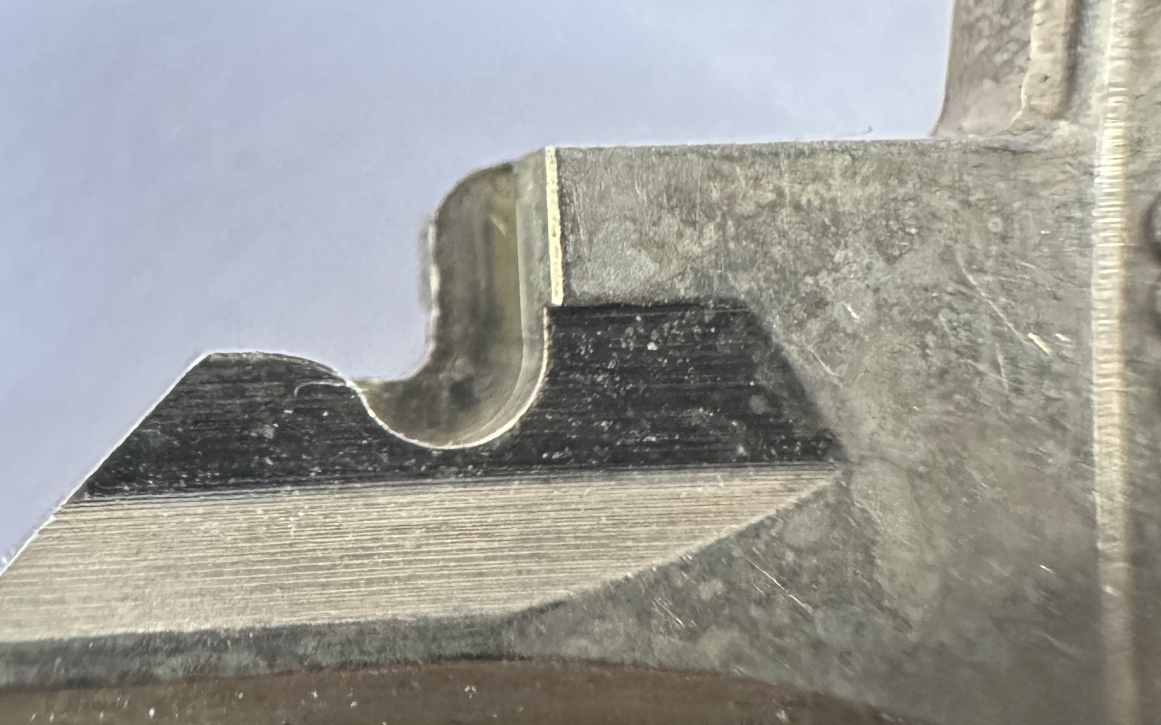
Turns out this notch accepts this tiny “bump” on the cylinder:
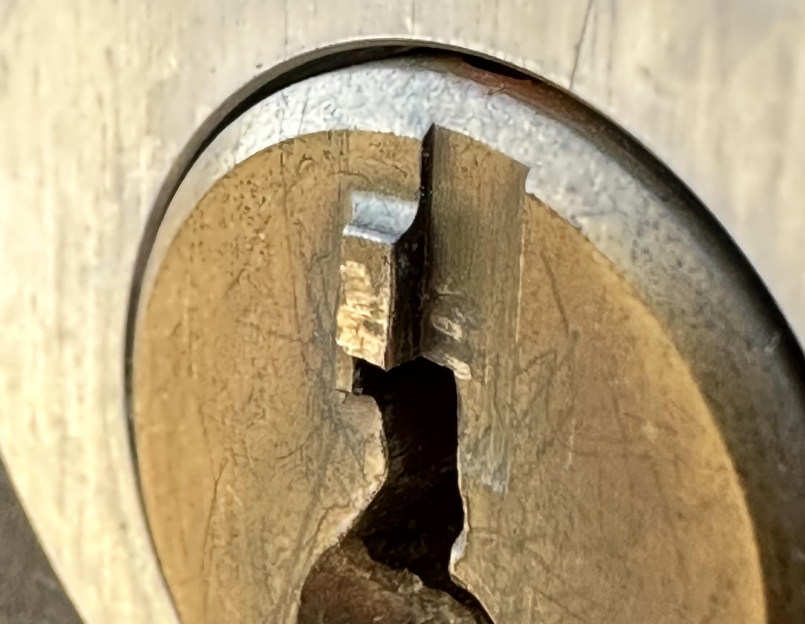
This notch was missing on the duplicate. I milled a notch and now the duplicate key opens the lock:

I explain how to create certificates with OpenSSL on your Windows computer in my blog post “How-to: Make Your Own Cert With OpenSSL on Windows (Reloaded)“.
If you can’t or don’t want to install OpenSSL, there is a solution now with Web OpenSSL.
With Web OpenSSL, you can just run OpenSSL and the commands in your browser, like this (for more info on these commands , read my blog post).
Go to Web OpenSSL:

Scroll down a bit:

Click “Enter split screen”. You will now have a command-line interface to the left and the folder with files to the right:

Enter this command:
openssl genrsa -out ca.key 4096

Notice that 2 files have been created. You can take a look at them, for example ca.key:

Enter this command and answer the questions:
openssl req -new -x509 -days 1826 -key ca.key -out ca.crt

Enter this command:
openssl genrsa -out ia.key 4096

Enter this command and answer the questions:
openssl req -new -key ia.key -out ia.csr

Create a text file named altname.cnf and enter your domain name, this is the content for my domain name: subjectAltName=DNS:www.didierstevens.com
Upload this file (button Browse in Files) and check it was properly uploaded:

Enter this command:
openssl x509 -req -days 730 -in ia.csr -CA ca.crt -CAkey ca.key -set_serial 01 -out ia.crt -extfile altname.cnf

Enter this command:
openssl pkcs12 -export -out ia.p12 -inkey ia.key -in ia.crt -chain -CAfile ca.crt
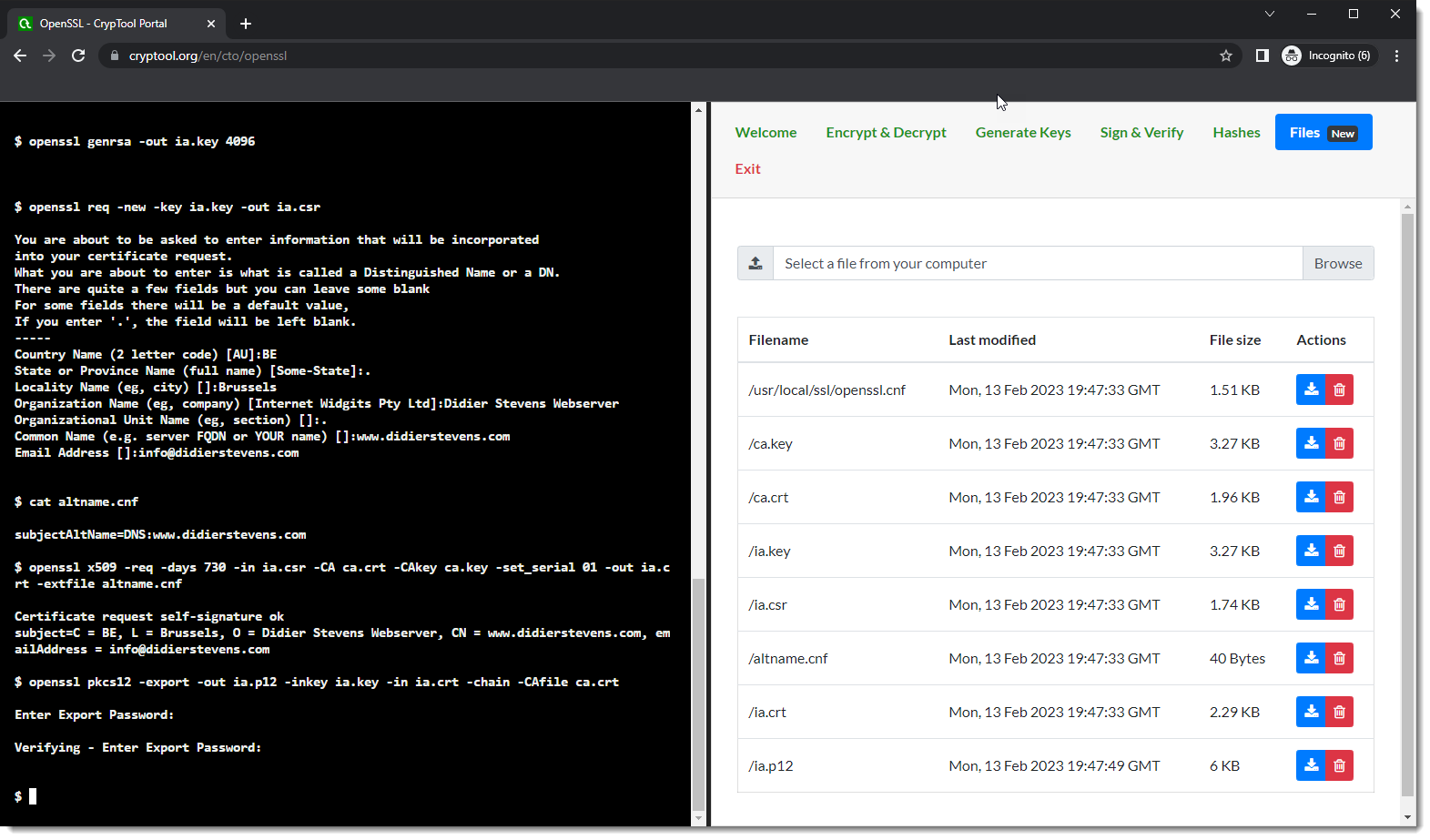
You can then download all your files:

Verify and start using them:

If you want to understand what these commands exactly do, read my blog post “How-to: Make Your Own Cert With OpenSSL on Windows (Reloaded)“.
This is a bug fix update.
python-templates_V0_0_10.zip (http)In this new version of cut-bytes.py, I add support for custom Python transforms (options -P and -S), pyzipper and fixed a bug.
cut-bytes_V0_0_16.zip (http)I added extra plaintexts for the modulus of Cobalt Strike’s public RSA key.
xor-kpa_V0_0_7.zip (http)This new version of file-magic.py adds a definition to identify OneNote .one files:

And adds support for pyzipper.
file-magic_V0_0_6.zip (http)A small feature update for pdf-parser.py Statistics include unreferenced objects now:

About a week ago, I was asked if I had tools for OneNote files.
I don’t, and I had no time to take a closer look.
But last Thursday night, I had some time to take a look. I looked at this OneNote maldoc sample.
I opened the file in the binary editor I use often (010 Editor):

I expected to see some magic header, a special sequence of byte that would tell me which file type is used. I didn’t see that, but I noticed that the first 16 bytes look random. And they were the same for another sample. So this could be a GUID. GUIDs in Microsoft’s representation are a mix of little- and big-endian hexadecimal integers. That’s why 010 Editor has an entry for GUIDs in its inspector tab:

This is the GUID represented as a string: {7B5C52E4-D88C-4DA7-AEB1-5378D02996D3}
Looking this up with Google:

That’s great, Microsoft has a document [MS-ONESTORE] describing this file format.
Unfortunately, I did a quick search but didn’t find a pure Python module to read this file format. Maybe it exists, but I didn’t find it.
Next I tried my pecheck.py tool to locate the executable inside the onenote sample. That worked well:
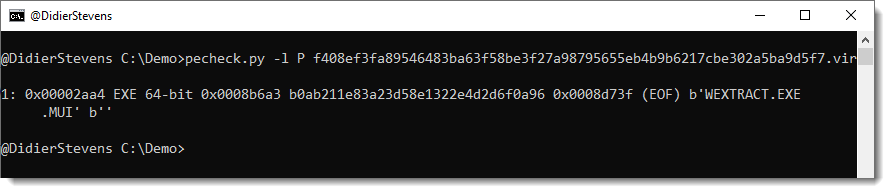
At position 0x2aa4, here’s an embedded PE file. Taking a look with the binary editor:

I see the MZ header, and 36 bytes in front of that, another random looking sequence of 16 bytes. Maybe another GUID:
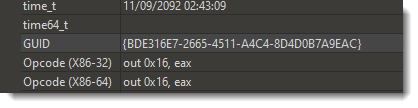
{BDE316E7-2665-4511-A4C4-8D4D0B7A9EAC}
A bit of Google search:
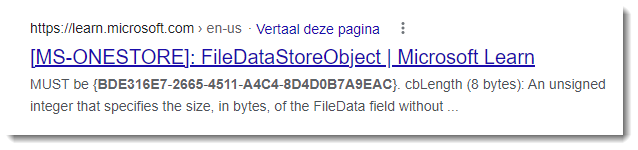
Turns out that this is a FileDataStoreObject structure.
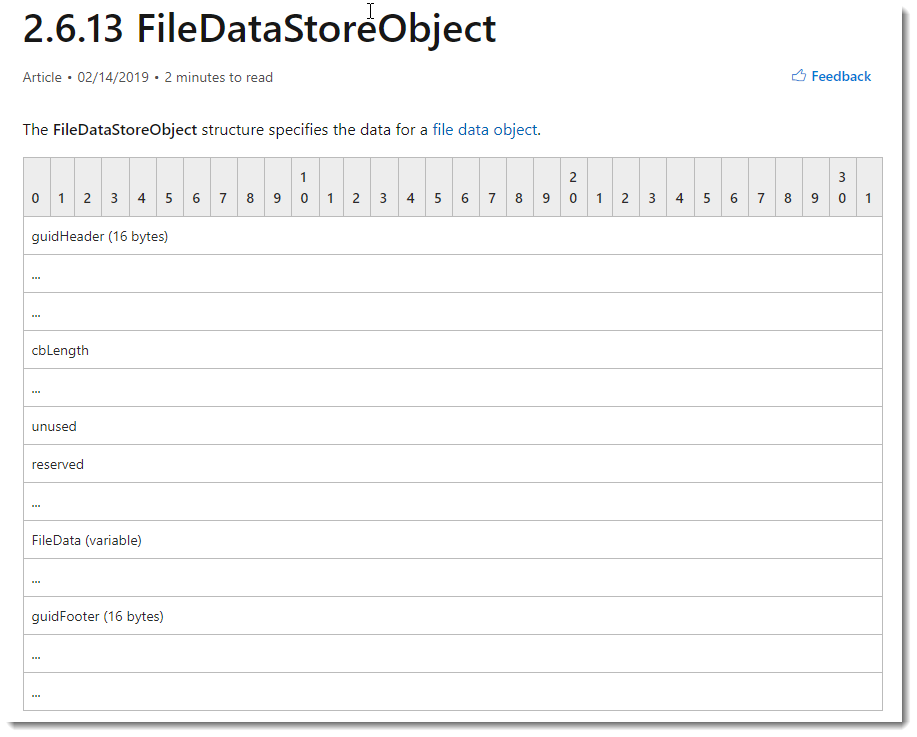
So looking for this GUID in any file, one can find (and extract) embedded files. So that’s what I quickly coded using my Python template for binary files (there are some issues with this GUID-search method, I’ll address these in an upcoming blog post or video)

A new tool: onedump.py


