New functions and classes have been added to process-binary-file.py.
python-templates_V0_0_9.zip (http)MD5: 7C5E8602F225735015E9A431C5818762
SHA256: CAEEEBB1E402E5127A431446A01BBE607B22AA0EB1F6FA12B8E7703275BE6F15
New functions and classes have been added to process-binary-file.py.
python-templates_V0_0_9.zip (http)This is a new tool (based on my Python template for binary files) to analyze OneNote files.
This version is limited to handling embedded files (for the moment).

As I might still make significant changes to the user interface, I’ve put this tool in my GitHub beta repository.
In this blog post, I show how you can combine my tools zipdump.py, file-magic.py and myjson-filter.py to select and analyze files of a particular type.
I start with a daily batch of malware files published by Malware Bazaar.

I let it produce JSON output using option –jsonoutput, that can be consumed by some of my tools, like file-magic.py, my tool to identify files based on the content using the libmagic library.

In the output above, we can see that most files are PE files (Windows executables).
For this example, I’m interested in Office files (ole files). I can filter the output of file-magic.py for that with option -r. Libmagic identifies this type of file as “Composite Document File …”, thus I filter for Composite:

This gives me a list of malicious Office documents. I want to extract URLs from them, but I don’t want to extract all of these files from the ZIP container to disk, and do the URL extraction file per file.
I want to do this with a one-liner. 🙂
What I’m going to do, is use file-magic’s option –jsonoutput, so that it augments the json output of zipdump with the file type, and then I use my tool myjson-filter.py to filter that json output for files that are only of a type that contains the word Composite. With this command:

This produces JSON output that contains the content of each file of type Composite, found inside the ZIP container.

This output can be consumed by my tool strings.py, to extract all the strings.
Side note: if you want to know first which files were selected for processing, use option -l:

Let’s pipe the filtered JSON output into strings.py, with options to produce a list of unique strings (-u) that contain the word http (-s http), like this:

I use my tool re-search.py to extract a list of unique URLs:

I filter out common URLs found in Office documents:

And finally, I sort the URLs by domain name using my tool sortcanon.py:

The adobe URLs are not malicious, but the other ones could be.
This one-liner allows me to quickly process daily malware batches, looking for easy IOCs (cleartext URLs in Office documents) without writing any malicious file to disk.
zipdump.py --jsonoutput 2020-10-24.zip | file-magic.py --jsoninput --jsonoutput | myjson-filter.py -t Composite | strings.py --jsoninput -u -s http | re-search.py -u -n url -F officeurls | sortcanon.py -c domainRemark that by using an option to search for strings with the word http (-s http), I reduce the output of strings to be processed by re-search.py, so that the search is faster. But that limits you (mostly) to URLs with protocol http or https.
Leave out this option if you want to search for all possible protocols, or try -s “://”.

A small update to option -W of zipdump.py.
Next to value vir, you can now also specify values hash and hashvir.
hash: write each file with name equal to the SHA256 of the content of the file.
hashvir: write each file with name equal to the SHA256 of the content of the file plus extension .vir.
zipdump_v0_0_24.zip (http)There are powerstrips with a switch that lights up when the switch is turned on. Like this one:

These switches (certainly older models) often use a neon lamp as light source.
I measured the electric energy consumption of a powerstrip with switch on and neon lamp burning (without anything plugged into the powerstrip’s outlets).
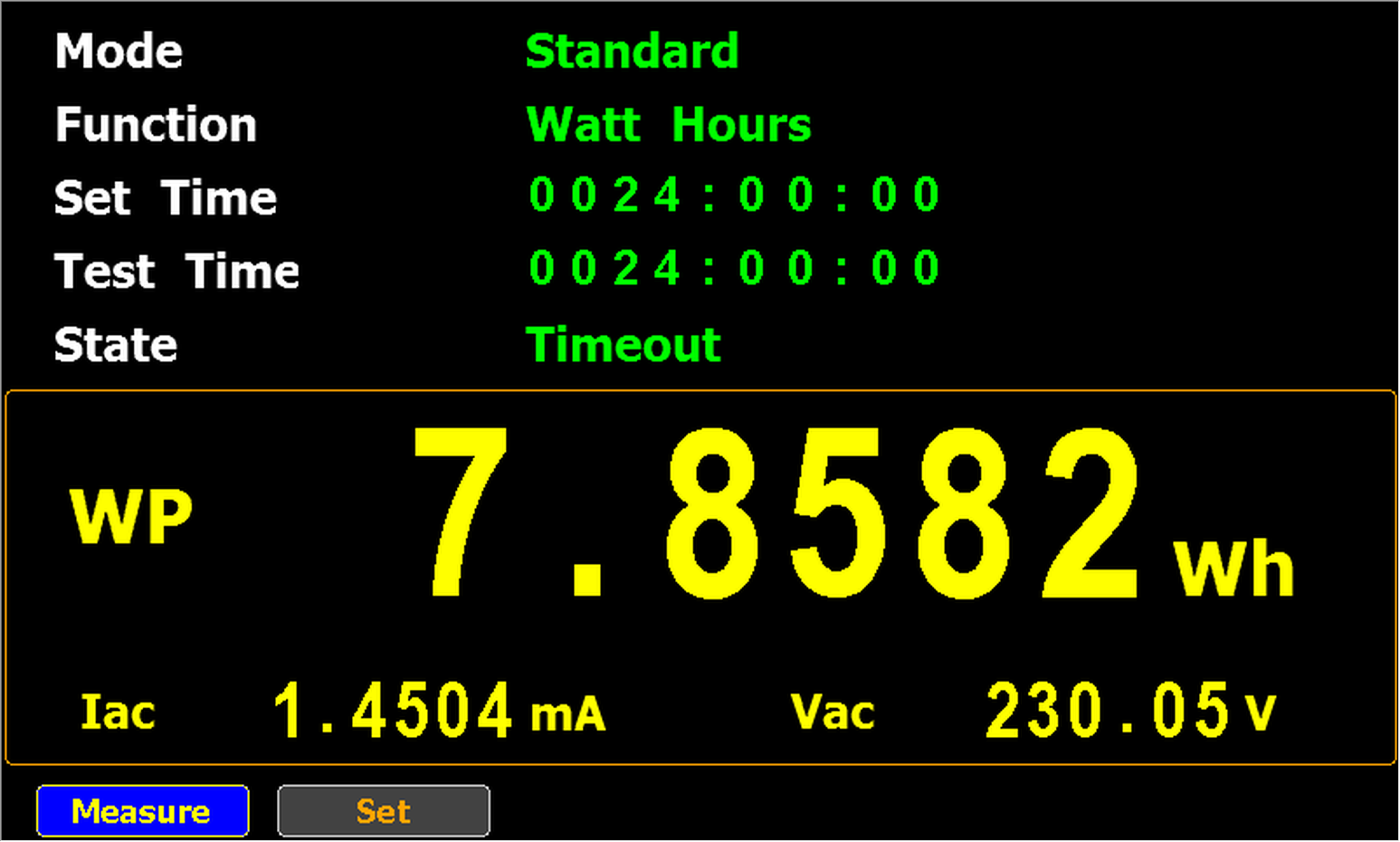
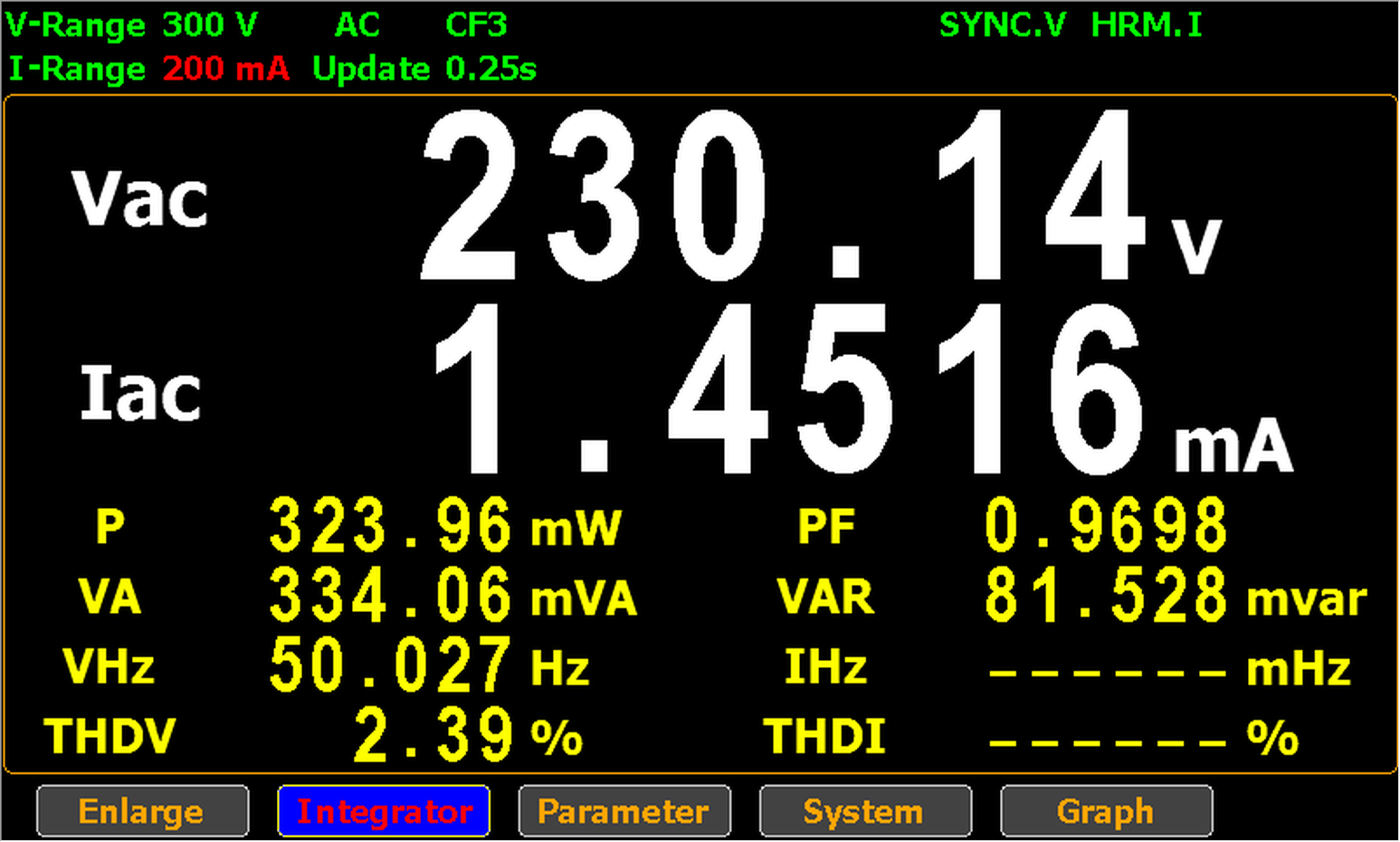
It consumed 7,8582 Wh over 24 hours, thus it drew on average 0,327 W.
That’s about 6 times more than the standby power of my Apple USB charger A2347 (0,0530 W).

FYI: although the switch is turned on in the above picture, you don’t see the neon lamp burning.
That’s because of the AC power here in Belgium is 230V and 50Hz.
50Hz means that the current is 0 A 100 times per second, and thus the neon lamp does not light up around these 0 A current values.
So the picture above was taken at a moment that the lamp wasn’t lighting up because the current was (almost) 0 A.
I will go into more details in an upcoming blog post.
I did not conduct tests with powerstrips that use LEDs in stead of neon lamps yet, because all the powerstrips with LEDs I have, also have a builtin USB charger, and that draws power too.
I use my tools dns-pydivert and dnsresolver.py for dynamic analysis of software (malware and benign software).
On the virtual machine where I’m doing dynamic analysis, I disable IPv6 support.
I install dnslib and run dnsresolver.py with a command like this, for example:
dnsresolver.py "type=resolve,label=example.com,answer=. 1 IN A 127.0.0.1" "type=forwarder,server=8.8.8.8"

The first command is a resolve command: DNS A queries for example.com will be resolved to IPv4 address 127.0.0.1 with TTL 1 minute.
The second command is a forwarder command: all DNS requests not handled by other commands, are forwarded to 8.8.8.8. Make sure that the IPv4 address of the DNS server you forward requests to, is different from the VM’s default DNS server, otherwise this forwarding will be redirected by dns-pydivert too.
I don’t use this second resolver command if the VM is isolated from the Internet, I only use it when I want to allow some interaction with the Internet.
Then I install pydivert and run dns-pydivert.py as administrator.


You can’t run dns-pydivert.py properly without administrative permissions:
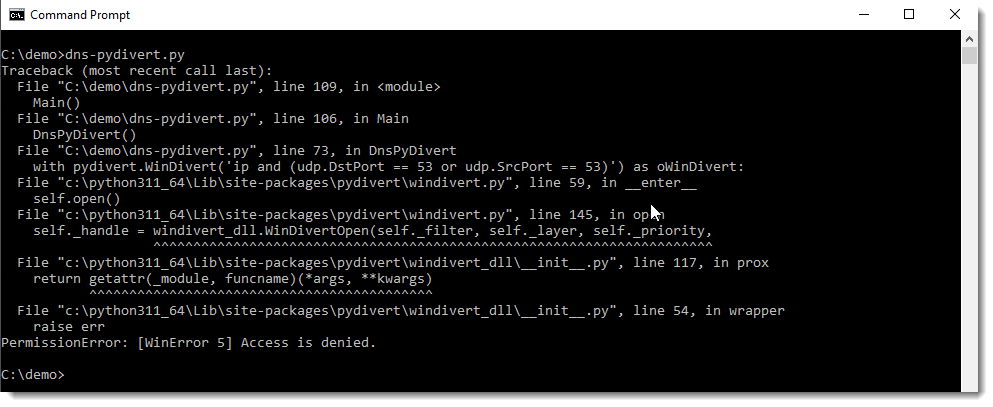
When dns-pydivert.py and dnsresolver.py are running, DNS traffic is altered according to our settings.
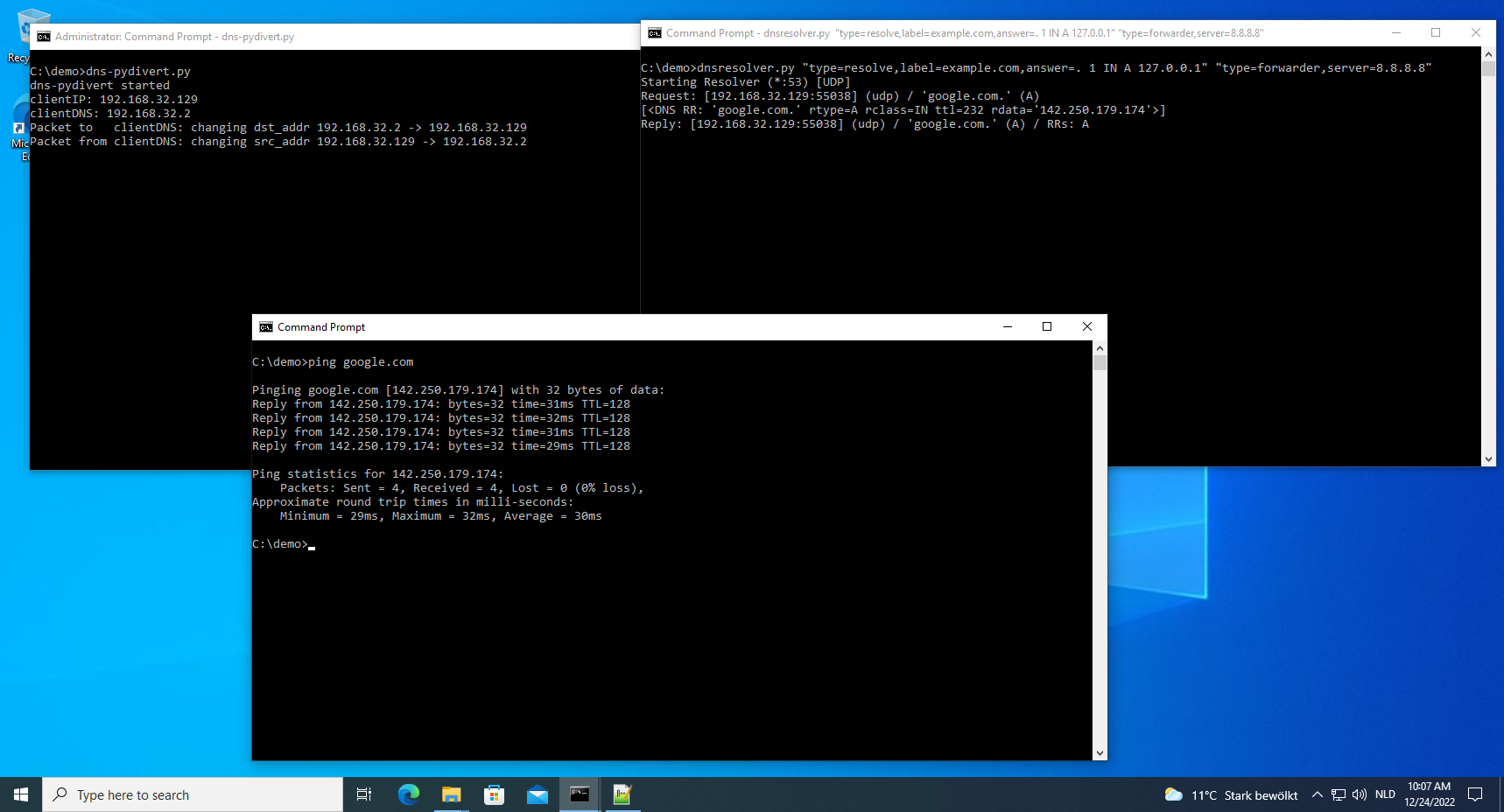
For example (picture above), when I issue a “ping google.com” command inside the VM, dns-pydivert sees this first DNS packet and configures itself with the addresses in this packet: 192.168.32.129 is the IPv4 address of the Windows VM and 192.168.32.2 is the IPv4 address of this Windows VM’s DNS server.
It alters this first request to be redirected to the VM itself (192.168.32.2 -> 192.168.32.129).
Then dnsresolver receives this packet, and forwards it to DNS server 8.8.8.8. It receives a reply from DNS server 8.8.8.8, and forwards it to the Windows VM (192.168.32.129).
Then dns-pydivert sees this reply, and changes its source from 192.168.32.129 to 192.168.32.2, so that it appears to come from the Windows VM’s default DNS server.
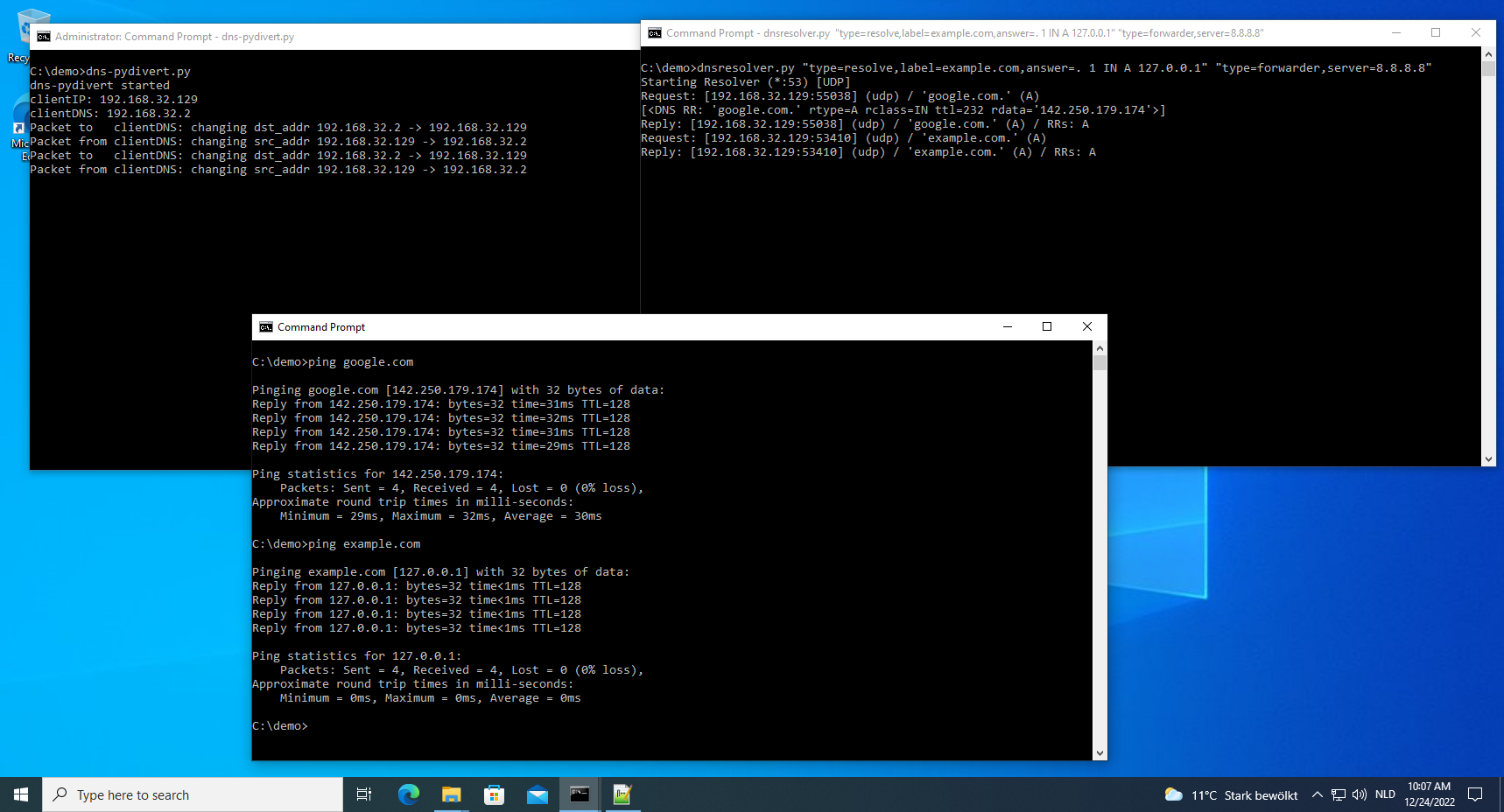
When I do the same (picture above) for example.com (ping example.com), the query is redirected to dnsresolver, which resolves this to 127.0.0.1 with a TTL of 1 minute (per resolve commands configuration).
Thus the ping command pings the localhost, instead of example.com’s web server.

And when I kill dns-pydivert (picture above) and issue a “ping example.com” again after waiting for 1 minute, the query is no longer redirected and example.com’s web server is pinged this time.
I used ping here to illustrate the process, but often it’s HTTP(S) traffic that I want to redirect, and then I also use my simple-listener.py tool to emulate simple web servers.
Remark that this will only redirect DNS traffic (per the configuration). This does not redirect traffic “directed” at IPv4 addresses (as opposed to hostnames).
This can be done too with pydivert, and I will probably release a tool for that too.
dns-pydivert is a tool that uses WinDivert, a “user-mode packet capture-and-divert package for Windows” to divert IPv4 DNS packets to and from the machine it is running on.
This tool requires admin rights.
When started, it listens for IPv4 UDP packets with source and/or destination port equal to 53.
When this tools processes its first UDP packet with destination port 53, it considers the source address of this packet as the DNS client’s IPv4 address (e.g., the Windows machine this tool is running on) and the destination address to be the IPv4 address of the DNS server used by the client.
From then on, all IPv4 UDP packets with source or destination port 53 (including that first packet) are altered by the tool.
All IPv4 UDP packets with destination port 53, have their destination address changed to the IPv4 address of the client.
All IPv4 UDP packets with source port 53, have their source address changed to the IPv4 address of the DNS server.
This tool can be used to redirect all DNS IPv4 traffic to the machine itself, where a tool like dnsresolver.py can handle the DNS requests.

Caveats:
This update to dnsresolver.py, my custom DNS server, adds a command to forward DNS request.
With this forward command, all requests that are not handled by other commands, are forwarded to the provided DNS server.
dnsresolver_V0_0_2.zip (http)

