Didier Stevens

Monday 28 September 2009

Quickpost: SAFER and Malicious Documents

Filed under: My Software,Quickpost — Didier Stevens @ 17:50

I wasn’t going to mention SAFER to restrict the rights of an application, because Software Restriction Policies can be bypassed. But a Tweet by Edi Strosar made me review my viewpoint. In this particular case, bypassing SRP is a non-issue, because the user is already local admin!

Software Restriction Policies allow you to force specific applications to run with a restricted token. As Michael explained it with AD GPOs, I’ll show it with local policies.

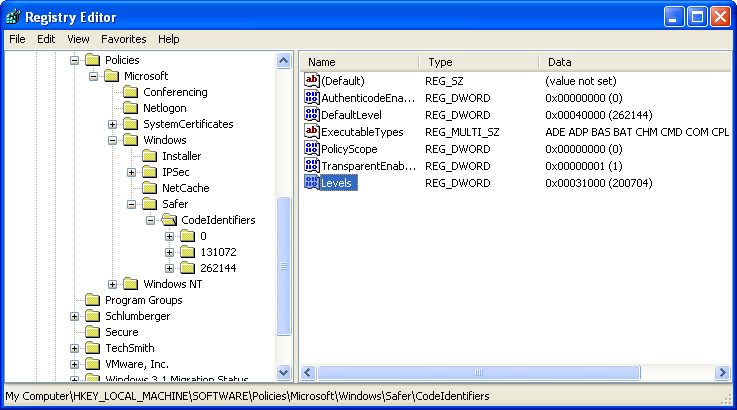
Enable SAFER policies for SRPs by adding DWORD registry key Levels (value 0x31000) to HKLM\SOFTWARE\Policies\Microsoft\Windows\Safer\CodeIdentifiers:

20090928-184852

Start the Local Security Policy administration tool and go to the Software Restriction Policies. You’ll have to create new policies if this is the first time you configure SRPs.

20090928-180154

Create a new rule in Additional Rules. We’ll identify the application to restrict by its path and name, so create a Path Rule:

20090928-185739

For the security level, select Basic User:

20090928-184938

If you have no Basic User option, you forgot to update the registry before launching the administration tool:

20090928-184657

Select the application to restrict:

20090928-185830

This rule will force Adobe Reader to run with a restricted token:

20090928-180534

Writing to SYSTEM32 is denied:

20090928-180742


Quickpost info


Sunday 27 September 2009

Preventing Malicious Documents from Compromising Windows Machines

Filed under: My Software — Didier Stevens @ 13:33

Almost all shellcode I see in malicious documents (PDF, Word, Powerpoint, …) found “in the wild” does the following:

  1. download a trojan from the Internet using HTTP
  2. write the downloaded executable to SYSTEM32
  3. execute the downloaded executable

This infection method only works if the user is local admin. If the exploited program has no rights to write to SYSTEM32, the shellcode will just fail and the trojan will not infect the machine.

To protect yourself and/or your users against this type of attack (I’m not talking about targeted attacks), restrict the user rights. Windows Vista and later versions do this for you with UAC, even if you’re an administrator.

On Windows XP, you have to use a normal user account in stead of an admin account to achieve this. But running non-admin on Windows XP is not always easy. If you really need to allow admin rights on Windows XP, you can still prevent high-risk applications (like Adobe Acrobat and Microsoft Office) from having full control over the system by restricting their rights. This is done by using a restricted token for the processes of these applications.

There are 2 popular tools to launch programs with a restricted token:

Both tools create a restricted token (by removing privileges and denying groups that provide local admin rights) and then launch the target program with this restricted token.

It’s not always easy to launch a program with DropMyRights, as there are many ways a program can be launched on Windows. For example with a file-type association or from a browser. To help you configure Windows to always restrict the rights of a specific program, StripMyRights also support the “Image File Execution Options” method with the /D option. The “Image File Execution Options” is designed to allow you to launch a program automatically inside a debugger. In the “Image File Execution Options” registry key, you specify the debugger to use. But this can really be any executable.

Example: to restrict the rights of Adobe Reader, add StripMyRights to the AcroRd32.exe Image Execution path like this:

[HKEY_LOCAL_MACHINE\SOFTWARE\Microsoft\Windows NT\CurrentVersion\Image File Execution Options\acrord32.exe]
"Debugger"="StripMyRights.exe /D /L N"

This way, each time AcroRd32.exe is executed, StripMyRights executes first, creates a restricted token and then launches AcroRd32.exe with this restricted token.

20090927-001

But executing StripMyRights before executing the target application doesn’t always yield satisfactory results, sometimes it breaks the application, because of the broken process tree.

That’s why I developed an alternative, LowerMyRights.dll, to be presented in an upcoming blogpost.

Friday 21 August 2009

Update: Time Lapse Photography with a Nokia Mobile

Filed under: My Software,Update — Didier Stevens @ 14:51

I’ve debugged the issues some people had with my Nokia time lapse Python script, you can find a new version here.

Tuesday 11 August 2009

Update: UserAssist Tool Version 2.4.3

Filed under: Forensics,My Software,Update — Didier Stevens @ 16:07

I had an interesting discussion with Hans Heins concerning the timestamp displayed by my UserAssist tool.

The first version of the UserAssist tool would only decode the UserAssist registry keys of the account under which it was running. And thus it made sense to display the timestamp in local time format, even if the entry is stored in UTC.

I added a warning about the time zones when I added registry file import functions, but this was confusing.

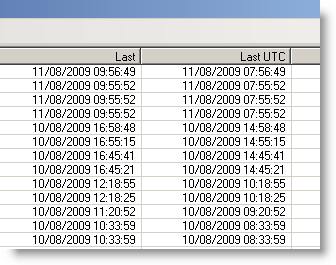
This new version of the UserAssist tool adds an extra column, with the timestamp in UTC:

20090811-175725

And I’ll be posting a new version to support the new UserAssist registry key format of Windows 7 and Windows 2008 R2.

Download:

UserAssist_V2_4_3.zip (https)

MD5: A5244C7F83E0DE70600E27F5D3B8AD7D

SHA256: 7E2D107BE84FBBF7E79F1BD11703401A374B5138B2F77E4FF8AFE1A3E749CCDA

Thursday 6 August 2009

Update: pdf-parser Version 0.3.5

Filed under: My Software,PDF,Update — Didier Stevens @ 0:05

After PDFiD, it’s pdf-parser’s turn to get updated.

The major change is support for /Names obfuscation through canonicalization. Now that these obfuscation techniques are found in in-the-wild samples, this feature became a necessity. For example, searching for /JavaScript when the PDF document contains /Java#53cript will also retrieve this obfuscated instance.

And if you need to see the obfuscated names like they are, use option –nocanonicalizedoutput

Support for filter ASCII85Decode has been added.

And option –hash displays the MD5 hash value of objects, making it easier to compare 2 PDF documents.

Download:

pdf-parser_V0_3_5.zip (https)

MD5: 07EA2C47766ADF248102E378C65D03F3

SHA256: 5EAD0F9BE9693EF836CF67FF2B796324ED5E7053D34BF4FA588D250A7DA2E761

Wednesday 5 August 2009

Update: PDFiD Version 0.0.8

Filed under: My Software,PDF,Update — Didier Stevens @ 12:33

PDFiD is updated.

Changes:

  • It detects Flash in PDF (/RichMedia)
  • Actions launched by Forms (/AcroForm)
  • Less stringent %PDF header checking, because I saw some samples designed to bypass pddfid
  • Updated the date format
  • New option –force:  force the scanning of a file, even if no valid %PDF header was found
  • Accepts stdin for pipes, example:  pdf-parser.py –filter –type /ObjStm flash.pdf | pdfid.py –force
    This will scan objects “hidden” in object streams (/objStm)

Download:

pdfid_v0_0_8.zip (https)

MD5: 9769FB96899F3AD15510C903A4FB29EF

SHA256: 542734C2613439851AF99B59725B1607F96A6E9396B447C5BD3AF197AABB0231

Wednesday 22 July 2009

The Ultimate Disaster Recovery Plan

Filed under: Encryption,My Software — Didier Stevens @ 20:34

The ultimate disaster recovery plan is not a corporate plan.

This plan is for your family, to help them take over from you, when you’re not able to take up your role in the family. Hopefully, this will only be a temporary situation, but you have to plan for the worse too: your demise.

List all critical tasks you perform for your family. Think about the information a family member needs to take over your tasks. Document this. Communicate this to your family members.

Most of this documentation is private but not confidential. You don’t want an outsider to read it, but it contains no real secrets. You’ll only want to use encryption for the real secrets, and communicate the key and decryption procedure to your family members and/or lawyer (or another trustworthy outsider). You don’t have to trust a single person with your key if you don’t want to, you can split it over several persons, like Cory Doctorow did.

2 years ago, a very good friend of mine died suddenly. That’s what motivated me to develop a html/javascript page with AES encryption to record and encrypt my will. The advantage of html/javascript is that it’s standalone and very portable.

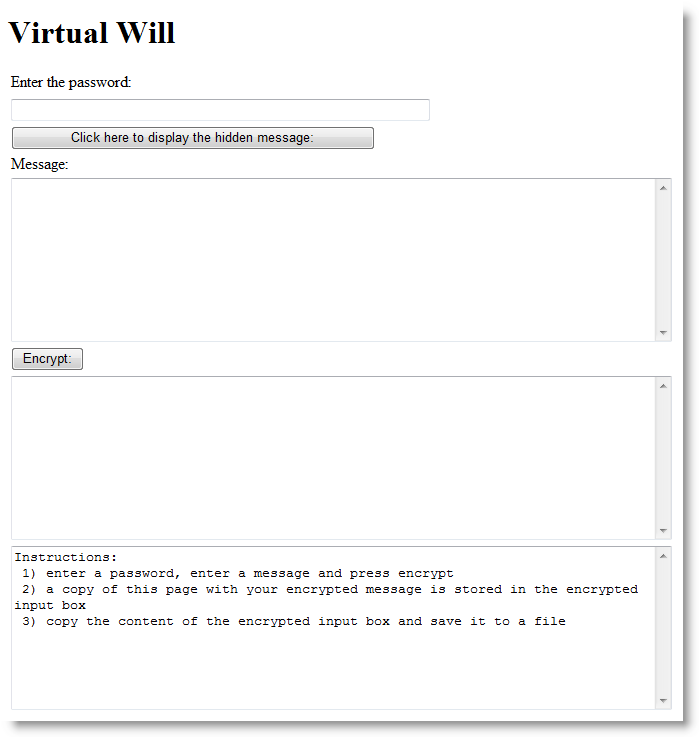
When you open my Virtual Will page, it will detect that it contains no encrypted content, and display the following dialog:
20090722-214245

Use this dialog to create and encrypt your message.

20090722-214421

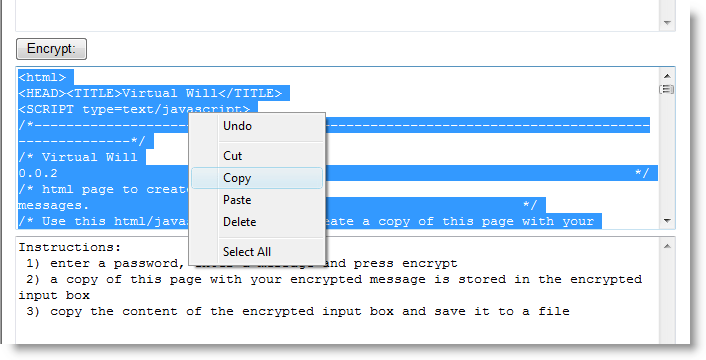
Copy all html code from the encrypt textbox, and save it as an html file. This html file is identical to the original, but it also contains your message encrypted with AES.
20090722-214458

Provide this document to your family members, together with the (partial) key. For example, you could burn it to a CD-ROM and use autorun to open the page automatically.

To decrypt it, open the html file:

20090722-214601

and enter the password:

20090722-214630

You can also use a Virtual Will page with ciphertext to create a new page or update your will: type encrypt in the password field, and you’ll see the encryption fields appear.

I obtained the JavaScript AES code from Chris Veness.

Some limitations:

  • Chris’ implementation doesn’t use a standard key derivation algorithm (and is limited to first 32 characters of the password)
  • the ciphertext is not compatible with the openssl format
  • it works with many browsers on different operating systems, but not on my S60 Nokia
  • get the enter key to work correctly

I’ll improve these limitations if my software proves to be useful.

Of course, you can use this html page to encrypt anything and then pass it along, it doesn’t have to be a disaster recovery plan.

Download: virtualwill.html

Tuesday 21 July 2009

Quickpost: More Picture-Taking with Python

Filed under: Hardware,My Software,Quickpost — Didier Stevens @ 9:24

Per @TimelessP’s request, here’s so more Python code that can be used for time-lapse photography.

It’s code I wrote to take surveillance pictures from IP-cameras:

20090720-171815

You have to update 2 config files with the data of your IP-cameras: vs.config and credentials.config. Fields in the config files are tab-separated.

vs.config contains the IP cameras, example:

Hall.jpg    http://192.168.1.1/IMAGE.JPG    -

First field is the prefix for the name when saving the picture (suffix is a timestamp). Second field is the URL to access the picture on the IP camera (depends on the model your using). Third field is a fixed name for the picture, use a hyphen (-) if not used.

credentials.config contains the passwords to access the IP-cameras, example:

192.168.1.1    admin    password

Download:

vs_v0_2.zip (https)

MD5: DB806B49705D544F4B928A8F76622125

SHA256: 042FA2CE1F5AEBD433D59B9D4755783E6CE58014FE59086C6A2A8E8781C63B45


Quickpost info


Wednesday 1 July 2009

Embedding and Hiding Files in PDF Documents

Filed under: My Software,PDF — Didier Stevens @ 6:28

My corrupted PDF quip inspired me to program another steganography trick: embed a file in a PDF document and corrupt the reference, thereby effectively making the embedded file invisible to the PDF reader.

The PDF specification provides ways to embed files in PDF documents. I’m releasing my Python program to create a PDF file with embedded file (I used make-pdf-embedded.py to create my EICAR.pdf).

Here’s how a PDF document with an embedded file looks like:

20090630-220314

/EmbeddedFiles points to the dictionary with the embedded files:

20090630-220228

As names defined in the PDF specification are case sensitive, changing the case changes the semantics: /Embeddedfiles has no meaning, and thus the PDF reader ignores it and doesn’t find the embedded file.

20090630-220137

20090630-215901

Actually, I used this trick in my Brucon puzzle. I used the –stego option of make-pdf-embedded.py:

20090630-222453

Of course, once you know the stego trick, it’s easy to recover the embedded file: edit the PDF document with an hex editor and change the case back to /EmbeddedFiles.

But if you want to make it harder to detect, use PDF obfuscation techniques. Or embed the file twice with incremental updates. First version is the file you want to hide, second version is a decoy…

The PDF language offers so many features to hide and obfuscate data!

Download:

make-pdf_V0_1_2.zip (https)

MD5: 305D57692C27DD3CD91D8C85A3932948

SHA256: A030BBCB8B54137D8047A4CB5C350725599383A4B113CABBA8871AC221378C5B

Tuesday 30 June 2009

MessageBox Shellcode

Filed under: My Software — Didier Stevens @ 5:40

Per request, I release my assembly code I’ve used in my previous blogposts to display a message box when the injected shellcode gets executed. It’s nothing special, but it will save you some time when you need a similar program.

Assemble the code with nasm like this:

nasm -o sc-mba-hello.bin sc-mba-hello.asm

I use the DLL locating code published in The Shellcoder’s Handbook, you can find it in the include file sc-api-functions.asm. MessageBoxA is located in user32.dll, this dll has to be loaded in the process you’re injecting with sc-mba-hello.

sc-ods.asm is a similar program, calling OutputDebugStringA in stead of MessageBoxA.

Download:

my-shellcode_v0_0_1.zip (https)

MD5: F215B29BA3C8F24CFBA5C24BED65B68A

SHA256: EA1DB8028954CEB18B8AD2EB37CA6BA0CD7CDC6B9A64F10561382152701C013F

The shellcode:

sc-mba-hello

« Previous PageNext Page »

Blog at WordPress.com.