Didier Stevens

Wednesday 13 July 2016

Practice ntds.dit File Part 2: Extracting Hashes

Filed under: Encryption — Didier Stevens @ 0:00

There are several how-tos on the Internet explaining you how to extract hashes from the Active Directory database file. I used this how-to for Kali Linux: https://blog.joelj.org/windows-password-audit-with-kali-linux/

The tools libesedb and ntdsxtract are used in this how-to.

I encountered an error when making libesedb:

libcfile_support.c:742:2: error: #error Missing file remove function

Make sure to read the comment from May 6, 2016 for this how-to: it offers a solution for this error. Edit libcfile/libcfile_support.c and add this line at the top:

#define HAVE_UNLINK 1

First we get the Active Directory database file I published and unzip it:

20160710-210725

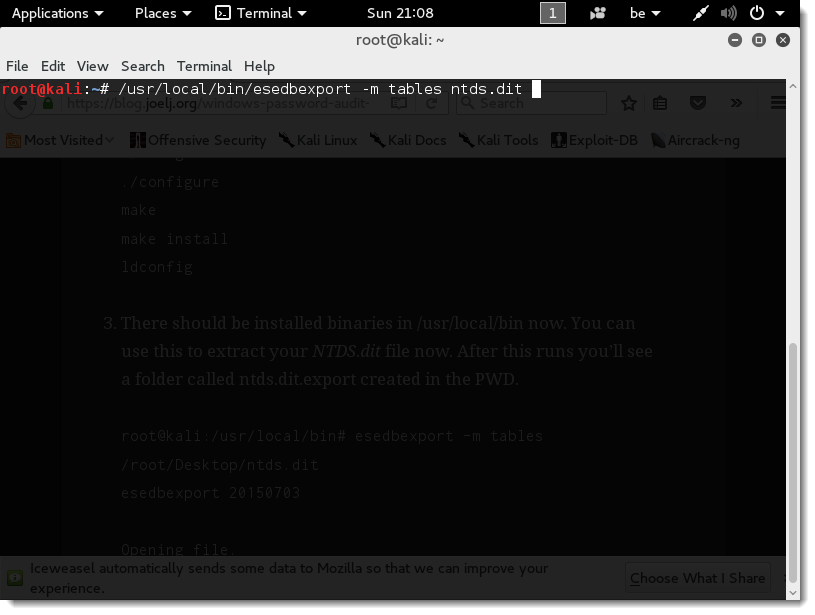
Next we use libesedb (command esedbexport) to export the tables from ntds.dit:

20160710-210856

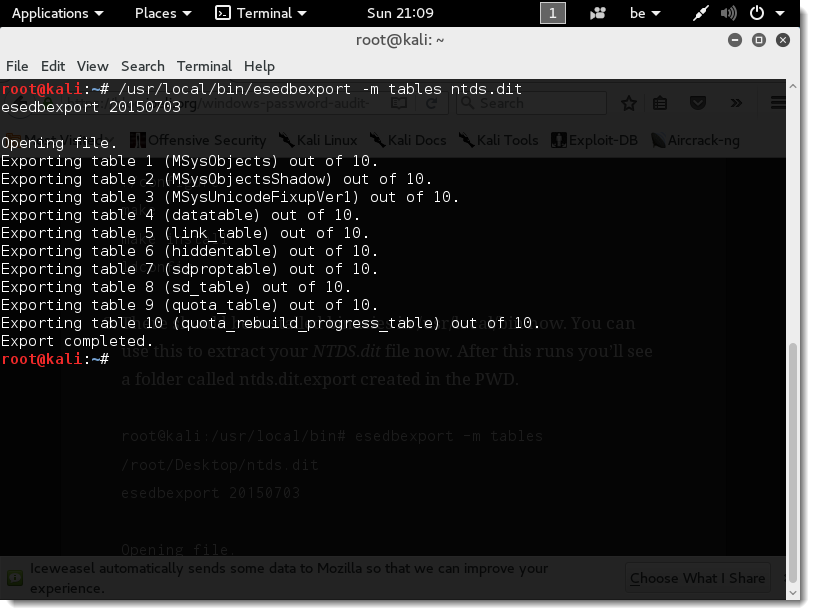
This may take some time, depending on the size of the database.

20160710-210938

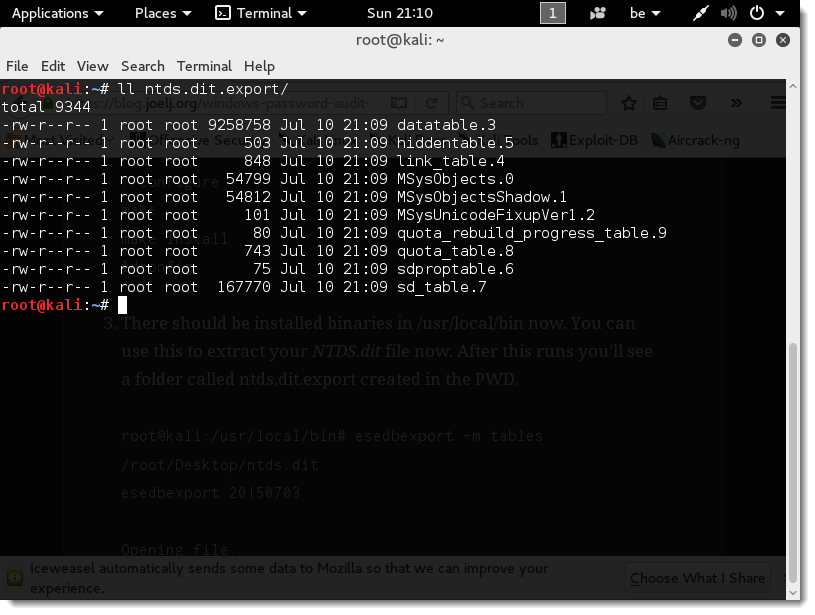
The exported tables are in folder ntds.dit.export:

20160710-211024

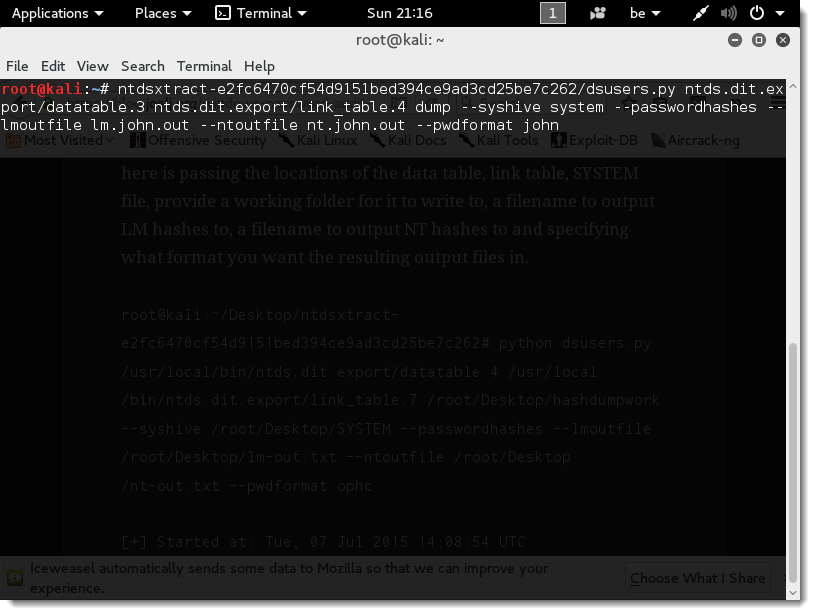
Then we use ntdsxtract (command dsusers.py) to export the hashes (LM and NTLM) from the exported tables. First we export the hashes in a format suitable for John the Ripper. We store the files in folder dump. This command also takes the SYSTEM registry hive (file system) to extract the system key to decrypt the hashes.

20160710-211607

We let the command create the folder dump:

20160710-211642

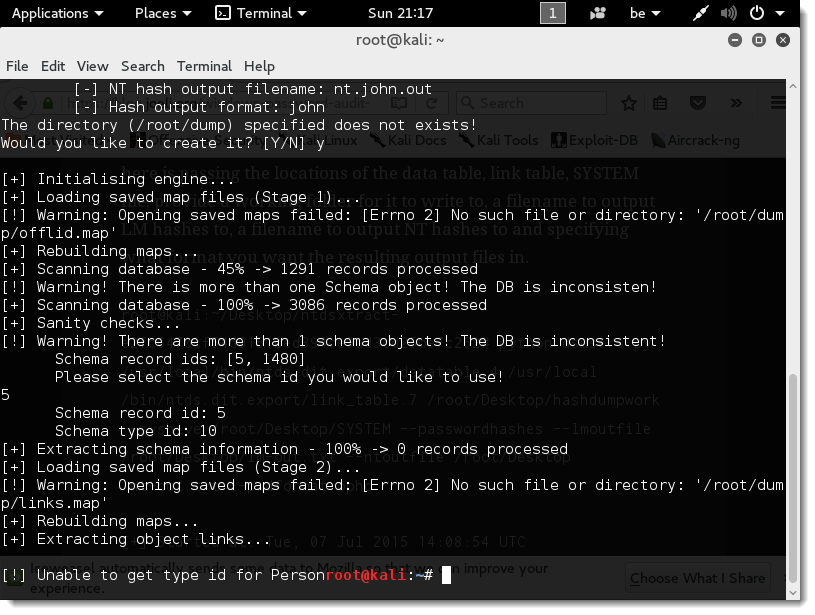
Next the tool detects 2 schemas in the exported tables (objects 5 and 1480). First we try schema object 5:

20160710-211702

This fails:

20160710-211723

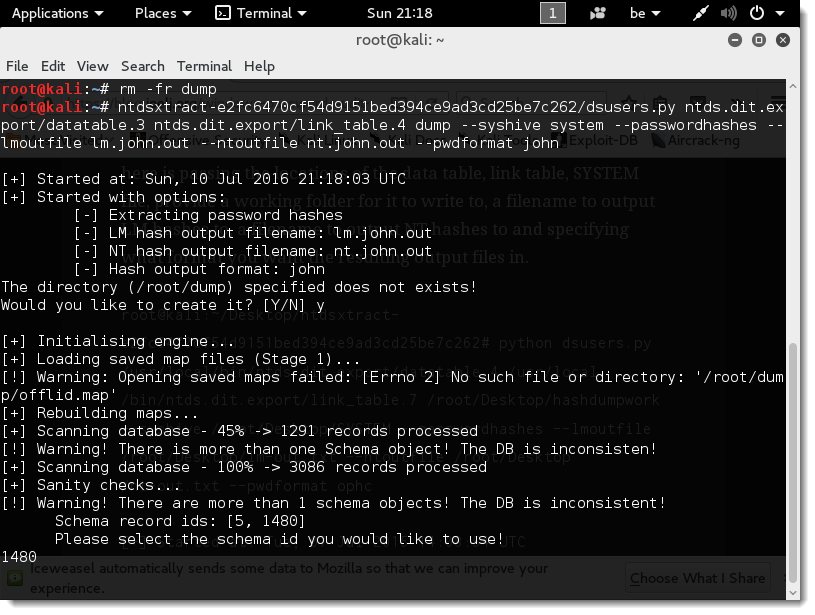
So we start again with schema object 1480, but first we need to remove the dump folder:

20160710-211757

20160710-211816

20160710-211831

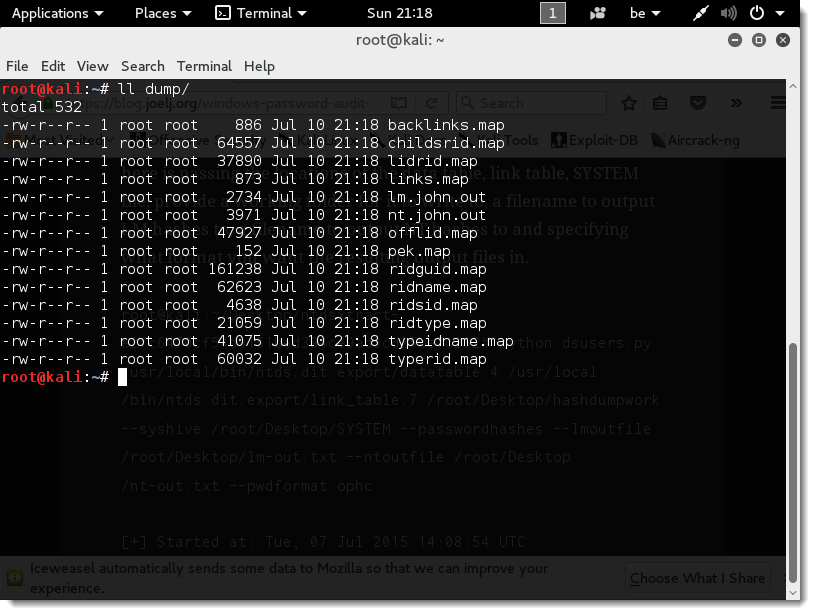
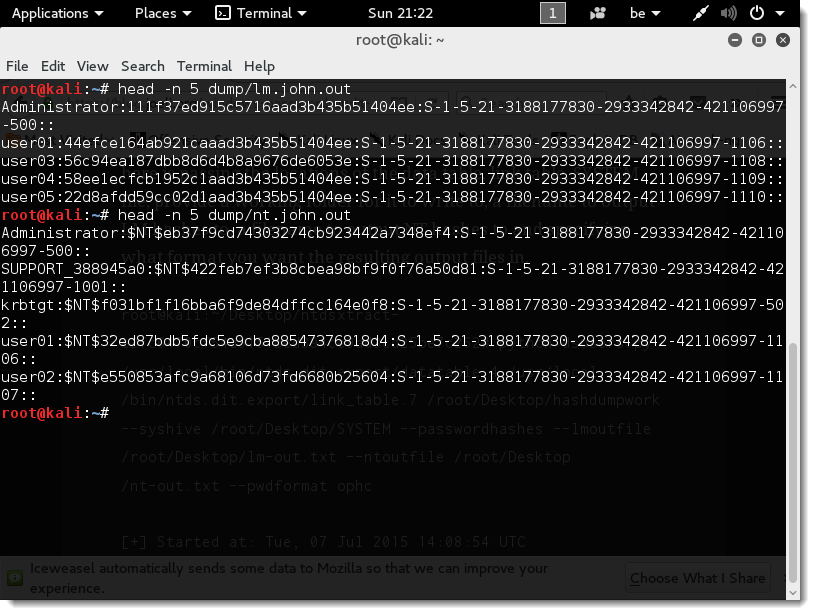
Now you can find the extracted hashes (lm.john.out and nt.john.out) in folder dump:

20160710-211852

20160710-212259

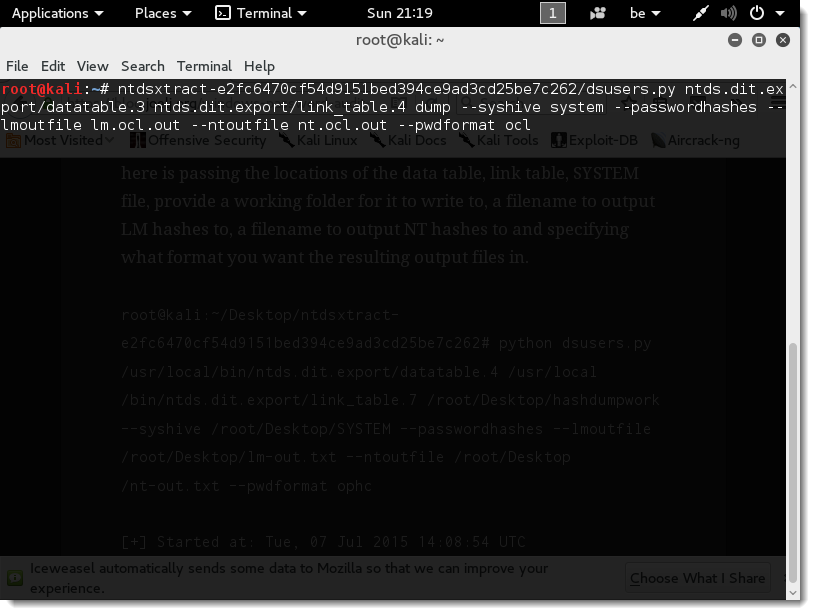
Next we repeat the same command but export hashes in a format suitable for hashcat:

20160710-211921

20160710-211932

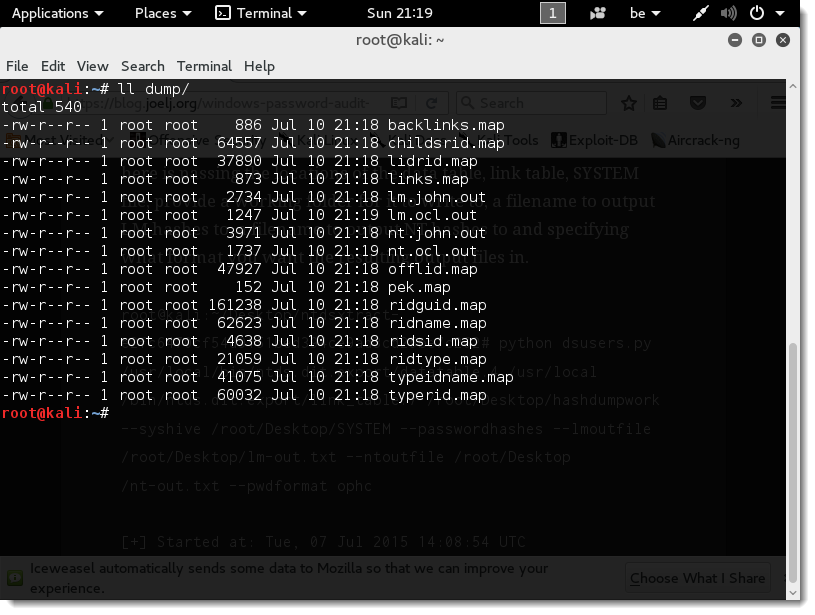
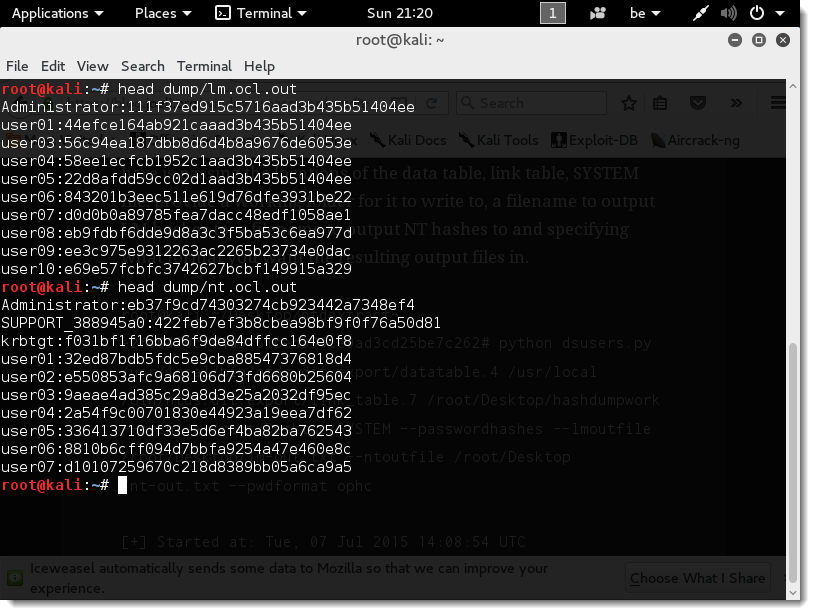
Now you can find the extracted hashes (lm.ocl.out and nt.ocl.out) in folder dump:

20160710-211954

20160710-212049

If you want these hash files to crack the passwords without having to run through this how-to, you can download them here:

ntds-hashes.zip (https)
MD5: B0A84D756C211A97087BA307F0CE5739
SHA256: 009520798DD34831C47ADAC47D6DEB3C153FC44BD9D400A0BB813EBA46728D86

Tuesday 12 July 2016

Practice ntds.dit File Part 1

Filed under: Encryption — Didier Stevens @ 0:00

I’m publishing a sample Active Directory database file (ntds.dit) together with the corresponding SYSTEM registry hive so that you can practise hash extraction and password cracking.

This ntds.dit and system file come from a virtual machine I installed just for this purpose: Windows Server 2003 Standard Edition with SP1 (English). The reason I selected an old Windows version, is that 2003 still supports LM hashes by default.

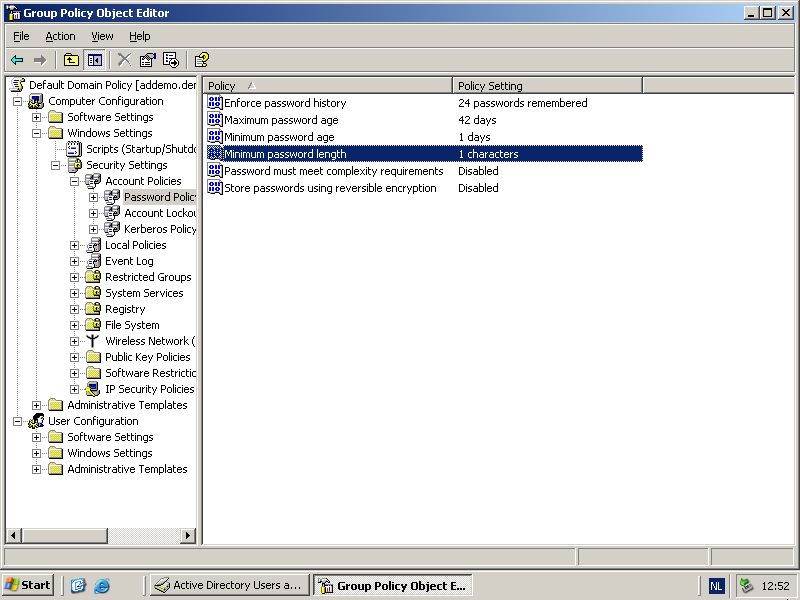
I changed the password policy to allow very weak passwords:

20160710-125218

I added 40 users: 20 users with passwords taken from the rockyou database leak and 20 users with random passwords (varying in length from 1 to 20 characters). Some of the passwords I randomly selected from rockyou are longer than 14 characters: when a password is longer than 14 characters, Windows does not store a LM hash for that password.

You can find many how-tos on the Internet showing you how to extract the LM and NTLM hashes from the Active Directory database file. I too will posts examples of hash extraction and password cracking.

Happy cracking!

ntds.zip (https)
MD5: F20E477D9784E009777F286ABF718FA3
SHA256: F5EBBF57B3C646FC339ECEEE03063BEDE9E0E7FC8254B0E57A77CC4036134B04

Monday 11 July 2016

hashcat 3.00 “fatal error: ‘inc_vendor.cl’ file not found”

Filed under: Encryption — Didier Stevens @ 0:00

When I tested hashcat 3.00 I got an error: “fatal error: ‘inc_vendor.cl’ file not found”. The fix for such errors is to update your (GPU) drivers. Unfortunately, I could not update at the moment but I still wanted to play with this new toy 🙂

Here is the output with the errors (the warnings are another indication that a driver update is necessary):

1

The error is a build error. hashcat was not able to compile the code for a brute-force LM hash attack for my GPU (m03000_a3.2ad8800f.kernel). Older versions of hashcat included compiled code for different attacks, hashes and devices. But since version 2.0 (when hashcat became open source) hashcat compiles this code when necessary: Just In Time (JIT). You can see this in the kernels folder. In older versions (< 2.0) of hashcat, this folder is populated with code. In the newer versions, it is empty.

The build log indicates why this error occurs: file inc_vendor.cl was not found (this file is present in the OpenCL folder) when compiling m03000_a3.cl.

My workaround is to temporarily make the OpenCL folder the working directory, and then run hashcat so that it can compile the kernels:

2

Now you can find the compiled kernels in the kernels folder:

4

The mask I specify with this hashcat command is also much smaller: ?1 This way, hashcat terminates quickly and I can move back to the directory I want and use the full mask ?1?1?1?1?1?1?1:

3

This time there is no build error, because the necessary kernels are already build and taken from the cache (folder kernels).

Remember, this is a workaround, not a fix. The fix is to update the drivers. I updated the drivers later (not without issues), deleted the content of the kernels folder, and started again. This time, without build errors.

FYI: I generated the LM hashes for this example with this website: https://www.tobtu.com/lmntlm.php

5

Saturday 30 January 2016

Update: xor-kpa.py Version 0.0.2

Filed under: Encryption,My Software,Update — Didier Stevens @ 8:48

I added support for ZIP files to xor-kpa.py.

If you pass a ZIP file to xor-kpa, it will analyze the contained file. The ZIP file can be password protected (password infected).

xor-kpa_V0_0_2.zip (https)
MD5: CA4DB797A7C12E3E81F55D9634EE77BF
SHA256: 76344E06A2C1F121D4CDD1B063DC109E59B9D2351BA5CFDDEE8613DCD220283B

Friday 1 January 2016

XOR Known-Plaintext Attack

Filed under: Encryption,My Software — Didier Stevens @ 16:00

To celebrate my Microsoft MVP award 2016, I’m releasing a new XOR-tool. Because you can never have enough XOR-tools in your toolbox :-).

When data is XOR-encrypted with a repeating key and you known some of the plaintext, you can perform a simple known-plaintext attack. Because when you XOR the ciphertext with the plaintext, you recover the key-stream.

With “repeating key” I mean the following: let’s assume that the encryption key is “Secret”. Then the first byte of the plaintext is XORed with “S”, the second byte with “e”, the third byte with “c”, …, the sixth byte with “t”. And for the seventh byte, we start again with “S”, then for the eighth byte again with “e”, …

When we know some of the plaintext, for example the beginning of the file, and we XOR this with the ciphertext, we obtain the key-stream: SecretSecretSecretSec It’s simple to extract the repeating key (Secret).

I’ve written a small Python program that automates this process: xor-kpa.py.

As an example, I’ve XORed the notepad.exe program with a key. We know that PE files contain the string “This program cannot be run in DOS mode”, this string is store in text file plaintext.txt. This is how you use xor-kpa:

C:\Demo>xor-kpa.py -e 3 plaintext.txt notepad-ciphertext.exe
Key:       Password
Extra:     30
Keystream: rdPasswordPasswordPasswordPasswordPass

This result shows that the recovered keystream is “rdPasswordPasswordPasswordPasswordPass”, and that the repeating key is “Password”. Extra (30) is the difference between the keystream length (38) and the key length (8). The higher the value of extra is, the higher the confidence is we recovered the correct key. When Extra is only 1, the confidence is low. To properly recover the key, the known-plaintext must be longer than the key.

With option -e you can filter for the minimum value of Extra.

Since the known-plaintext can often be a a short ASCII string, you can provide it directly as an argument in stead of writing it in a text file. To achieve this, just precede the argument with character #, like in this example (the double quotes are necessary because of the space characters):

C:\Demo>xor-kpa.py -e 3 "#This program cannot be run in DOS mode" notepad-ciphertext.exe
Key:       Password
Extra:     30
Keystream: rdPasswordPasswordPasswordPasswordPass

xor-kpa_V0_0_1.zip (https)
MD5: 4265BB1AFCD470A98070FFBDFCB1B52A
SHA256: CF41CEDE7281459FA47061B366AA9B4A5F579CC9BA46E73098B52EA8CAB6E816

Tuesday 29 December 2015

SHA256 Code Signing and Microsoft

Filed under: Encryption — Didier Stevens @ 10:28

In a couple of days Windows will no longer trust sha-1 code-signing. It happened in the past that Microsoft announced changes to AuthentiCode, and then did not follow though, but it looks like this one is going to happen.

First of all, the loss of trust will not happen for all executables with a sha-1 signature. It will only happen with executables with a “Mark of the Web” attribute and without a timestamp or a timestamp after 1/1/2016.

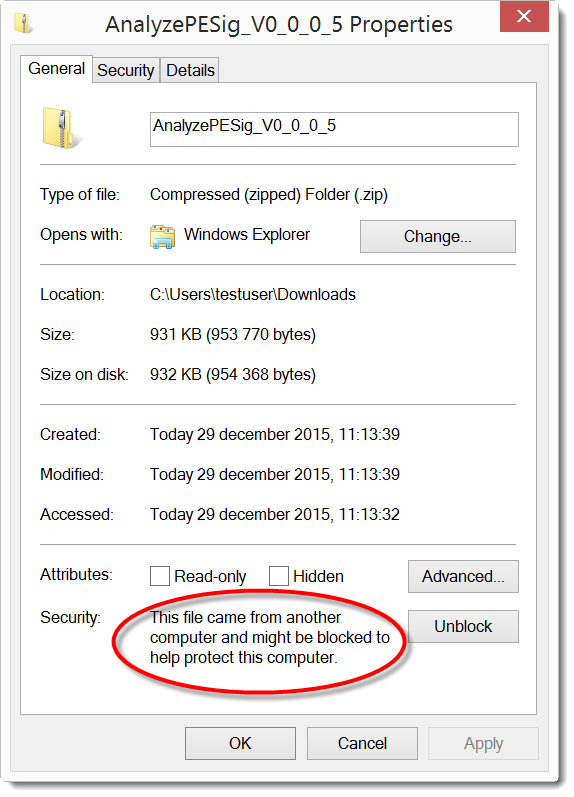
A “Mark of the Web” attribute means that the executable is flagged as downloaded from an untrusted source (the Internet), like this one:

20151229-111600

This is done with an Alternate Data Stream (ADS) named Zone.Identifier and with content like this:

[ZoneTransfer]
ZoneId=3

If you develop executables that will be downloaded and you sign with a sha-1 certificate, check that you also include a timestamp. As I explained in my blogpost, you can add a missing timestamp after signing. You don’t even need a code signing certificate to add a timestamp.

Tuesday 24 November 2015

Authenticode And Timestamping And sha256

Filed under: Encryption — Didier Stevens @ 0:00

I have a couple of how-to posts on digital signatures, like this code signing post. Let me revisit this topic now that Microsoft announced some upcoming changes to code signing.

I use signtool.exe that came with Visual Studio 2013 in my examples. Here is how to use signtool.exe from the command-line to sign an executable:

20151123-204917

FYI: in my case, I use option /a because I have more than one code signing certificate and I let signtool decide which one to use (option /a). But if you have only one code signing cert, you don’t need to use option /a.

As you can see, the version of signtool.exe I use (6.3.9600.16384) still uses sha1 by default.

20151123-204945

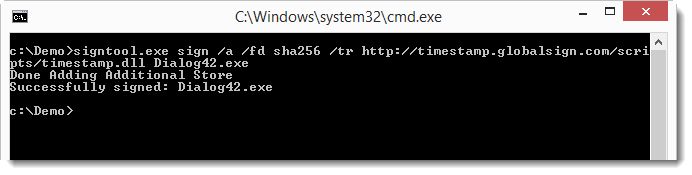
To use sha256 as digest algorithm (since Microsoft will deprecate sha1), use option /fd sha256, like this:

20151123-205150

20151123-205230

When we look at the details of the signature, we see that there is no Signing time or Countersignatures:

20151123-205310

The signature is valid, because we are still in the certificate validity period:

20151123-205524

But once we are outside the certificate validity period, the signature is no longer valid:

20151123-205921

And this is because a countersignature from a timestamping service is missing. A countersignature can be added with option /tr and the URL of a timestamping service, like this one:

20151123-210005

Correction: use this URL for sha256 timestamping: http://timestamp.globalsign.com/?signature=sha2

Option /tr URL specifies a timestamping service that supports the RFC 3161 protocol.

And now the signature remains valid, even after the code signing certificate has expired:

20151123-210052

To be sure that the timestamping service uses sha256, we can request this with option /td sha256:

20151123-210426

Conclusion: always use a timestamping service when signing code, this way your signature will not expire.

Remark: code signing and timestamping are 2 different operations. There is no requirement to execute these operation with a single command. You can also timestamp a signed executable like this:

20151123-211435

First command: sign

Second command: timestamp

And you don’t need a code signing certificate to timestamp a signed executable. You can take any executable with an embedded signature, and add a new timestamping signature with this signtool.exe timestamp command. Why do I mention this? This will become clear in a next post, where we take a closer look at Microsoft’s sha256 code signing announcement.

A last remark: as mentioned, option /a lets signtool.exe decide which certificate (from the certificate store) to use for the code signing (in case you have more than one code signing certificate). But if you want to explicitly select the code signing certificate to use, you can use option /sha1 with the sha1 fingerprint of the certificate you want to use. Important: /sha1 is a method to select a certificate, it does NOT instruct signtool to use the sha1 algorithm for the signature.

Wednesday 15 April 2015

PDF Password Cracking With John The Ripper

Filed under: Encryption,PDF — Didier Stevens @ 0:00

I have a video showing how to use oclHashcat to crack PDF passwords, but I was also asked how to do this with John The Ripper on Windows.

It’s not difficult.

Download the latest jumbo edition john-the-ripper-v1.8.0-jumbo-1-win-32.7z from the custom builds page.

Decompress this version.

Download the previous jumbo edition John the Ripper 1.7.9-jumbo-5 (Windows binaries, ZIP, 3845 KB).

Extract file cyggcc_s-1.dll from the previous jumbo edition, and copy it to folder John-the-Ripper-v1.8.0-jumbo-1-Win-32\run.

Generate the hash for the password protected PDF file (I’m using my ex020.pdf exercise file) and store it in a file (pdf2john.py is a Python program, so you need to have Python installed):

John-the-Ripper-v1.8.0-jumbo-1-Win-32\run\pdf2john.py ex020.pdf > ex020.hash

Start John The Ripper:

John-the-Ripper-v1.8.0-jumbo-1-Win-32\run\john.exe ex020.hash

Loaded 1 password hash (PDF [MD5 SHA2 RC4/AES 32/32])
Will run 8 OpenMP threads
Press 'q' or Ctrl-C to abort, almost any other key for status
secret           (ex020.pdf)
1g 0:00:00:00 DONE 2/3 (2015-03-29 22:39) 10.20g/s 125071p/s 125071c/s 125071C/s
123456..crawford
Use the "--show" option to display all of the cracked passwords reliably
Session completed

By starting John The Ripper without any options, it will first run in single crack mode and then in wordlist mode until it finds the password (secret).

But you can also provide your own wordlists (with option –wordlist) and use rules (option –rules) or work in incremental mode (–incremental).

Monday 30 March 2015

Howto: Make Your Own Cert With OpenSSL on Windows

Filed under: Encryption — Didier Stevens @ 0:00

I have an updated version of this how-to here: “How-to: Make Your Own Cert With OpenSSL on Windows (Reloaded)

Some people following my “Howto: Make Your Own Cert With OpenSSL” do this on Windows and some of them encounter problems. So this post shows the procedure on Windows.

If you don’t know how to use the command-line or you don’t want to install OpenSSL to create a simple certificate, I created a tool for Windows that doesn’t require installation: CreateCertGUI.

For your info: I also have a video showing this howto.

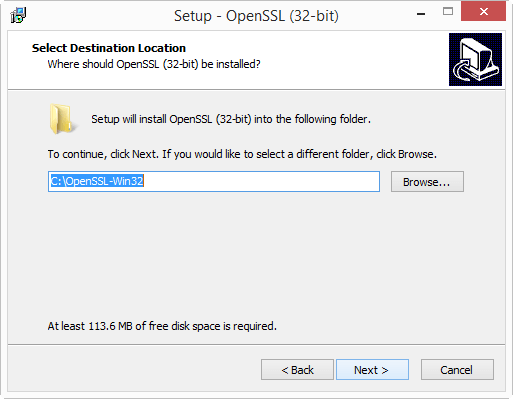
First of all, on Windows you will need to install OpenSLL from binaries. I got these binaries.

I installed the latest version (v1.0.2a) and choose the 32-bit version (Win32). I choose the 32-bit version because this will work for every Windows machine: the 32-bit version works on 32-bit and 64-bit machines.

Warning: don’t use version 1.1.0 or later, you’ll get this error: “problem creating object tsa_policy1=1.2.3.4.1”

If you start the installation and get the following message:

20150322-214636

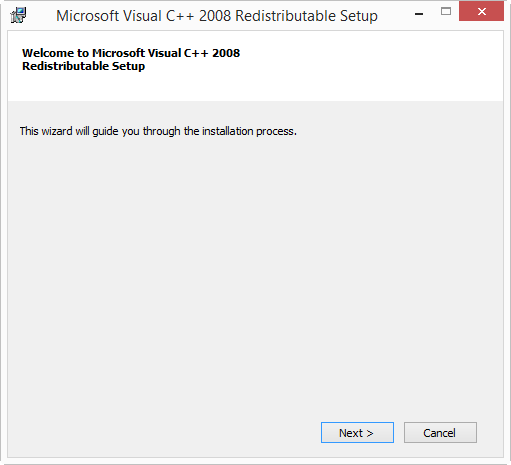
then you need to cancel the installation and install the Visual C++ 2008 Redistributables first. You can find download links on the same page. If you install Win32 OpenSSL (32-bit), install Visual C++ 2008 Redistributables, and if you install Win64 OpenSSL (64-bit), install Visual C++ 2008 Redistributables (x64).

The installation of the Redistributables is easy:
20150322-214721

20150322-214824

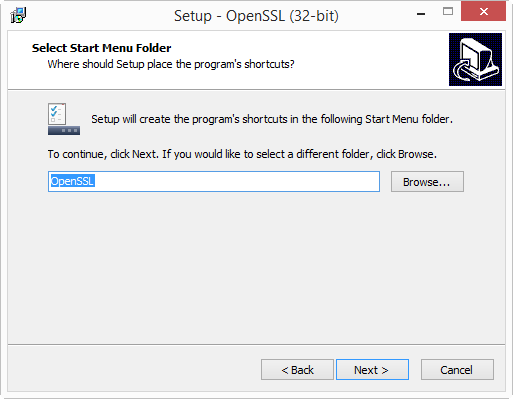
After this, you can restart the OpenSSL installation:

20150322-214846

20150322-214856

20150322-214906

20150322-214915

20150322-214936

20150322-214947

20150322-215041

20150322-215052

I will create the certificates in folder c:\demo. So go ahead and create this folder on your machine.

Then start a command-line prompt (cmd.exe), and go to the demo folder (type: cd \demo).

Before you start OpenSSL, you need to set 2 environment variables:

set RANDFILE=c:\demo\.rnd
set OPENSSL_CONF=C:\OpenSSL-Win32\bin\openssl.cfg

20150329-131855

Now you can start OpenSSL, type: c:\OpenSSL-Win32\bin\openssl.exe:

20150329-132229

And from here on, the commands are the same as for my “Howto: Make Your Own Cert With OpenSSL”.

First we generate a 4096-bit long RSA key for our root CA and store it in file ca.key:

genrsa -out ca.key 4096

20150329-133539

If you want to password-protect this key, add option -des3.

Next, we create our self-signed root CA certificate ca.crt; you’ll need to provide an identity for your root CA:

req -new -x509 -days 1826 -key ca.key -out ca.crt

20150329-134436

The -x509 option is used for a self-signed certificate. 1826 days gives us a cert valid for 5 years.

Next step: create our subordinate CA that will be used for the actual signing. First, generate the key:

genrsa -out ia.key 4096

20150329-134753

Then, request a certificate for this subordinate CA:

req -new -key ia.key -out ia.csr

20150329-135132

Make sure that the Common Name you enter here is different from the Common Name you entered previously for the root CA. If they are the same, you will get an error later on when creating the pkcs12 file.

Next step: process the request for the subordinate CA certificate and get it signed by the root CA.

x509 -req -days 730 -in ia.csr -CA ca.crt -CAkey ca.key -set_serial 01 -out ia.crt

20150329-135708

The cert will be valid for 2 years (730 days) and I decided to choose my own serial number 01 for this cert (-set_serial 01). For the root CA, I let OpenSSL generate a random serial number.

That’s all there is to it! Of course, there are many options I didn’t use. Consult the OpenSSL documentation for more info. For example, I didn’t restrict my subordinate CA key usage to digital signatures. It can be used for anything, even making another subordinate CA. When you buy a code signing certificate, the CA company will limit its use to code signing. And I did not use passwords to protect my keys. In a production environment, you want to protect your keys with passwords.

To use this subordinate CA key for Authenticode signatures with Microsoft’s signtool, you’ll have to package the keys and certs in a PKCS12 file:

pkcs12 -export -out ia.p12 -inkey ia.key -in ia.crt -chain -CAfile ca.crt
20150329-135931

If you did not provide a different Common Name for the root CA and the intermediate CA, then you’ll get this error:

Error self signed certificate getting chain.
error in pkcs12

To sign executables in Windows with the signtool: install file ia.p12 in your certificate store (e.g. double click it), and then use signtool /wizard to sign your PE file.

The certificates (.crt files) you created here can also be double-clicked in Windows to view/install them:

20150329-141511

Monday 1 September 2014

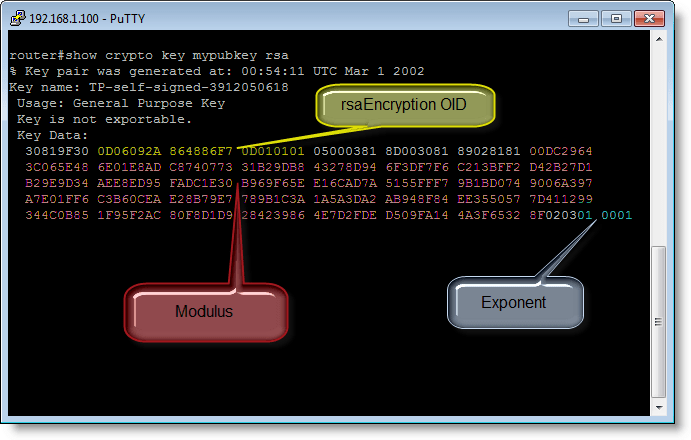
Update: Calculating a SSH Fingerprint From a (Cisco) Public Key

Filed under: Encryption,My Software,Update — Didier Stevens @ 20:17

I think there’s more interest for my program to calculate the SSH fingerprint for Cisco IOS since Snowden started with his revelations.

I fixed a bug with 2048 bit (and more) keys.

20111221-225407

cisco-calculate-ssh-fingerprint_V0_0_2.zip (https)
MD5: C304299624F12341F9935263304F725B
SHA256: 2F2BF65E6903BE3D9ED99D06F0F38B599079CCE920222D55CC5C3D7350BD20FB

« Previous PageNext Page »

Blog at WordPress.com.