Didier Stevens

Sunday 14 May 2017

Quickpost: WannaCry’s Mutex Is MsWinZonesCacheCounterMutexA0 (Digit Zero At The End)

Filed under: Malware,Quickpost — Didier Stevens @ 11:23

I’ve seen reports that WannaCry uses a mutex with name Global\MsWinZonesCacheCounterMutexA.

The samples I analyzed all use another mutex: Global\MsWinZonesCacheCounterMutexA0. That’s a digit zero at the end.

I have not found a sample that uses mutex Global\MsWinZonesCacheCounterMutexA (e.g. without digit zero at the end).

Update 1: I got confirmation from Costin Raiu from Kaspersky that the mutex is Global\MsWinZonesCacheCounterMutexA0.

Update 2: dynamic analysis with sample 84c82835a5d21bbcf75a61706d8ab549 shows that there are 2 mutexes that can prevent the ransoming of files: MsWinZonesCacheCounterMutexA and Global\MsWinZonesCacheCounterMutexA0. Remark that the Global namespace must be used with mutex MsWinZonesCacheCounterMutexA0, while it may not be used with mutex MsWinZonesCacheCounterMutexA.


Remark that the code above contains string “Global\\MsWinZonesCacheCounterMutexA”, but that is not the actual string used for OpenMutexA.

The actual string used for OpenMutexA is created by a sprintf “%s%d” call, and results in “Global\\MsWinZonesCacheCounterMutexA0“, that is “Global\\MsWinZonesCacheCounterMutexA” with a digit 0 (zero) appended.

Mutexes have long been used by malware authors to prevent more than one instance of the malware running on the same machine. An old anti-malware trick consists in the creation of a specific mutex, to prevent the execution of a specific malware.

I’ve seen tools and scripts published to create mutex Global\MsWinZonesCacheCounterMutexA to prevent WannaCry from infecting machines. This will not work for the samples I analyzed.

Samples I disassembled:

7c465ea7bcccf4f94147add808f24629644be11c0ba4823f16e8c19e0090f0ff (contained as a resource in 5ad4efd90dcde01d26cc6f32f7ce3ce0b4d4951d4b94a19aa097341aff2acaec).

86721e64ffbd69aa6944b9672bcabb6d (contained as a resource in 5bef35496fcbdbe841c82f4d1ab8b7c2).

Samples I searched for containing the mutex and sprintf code:

509c41ec97bb81b0567b059aa2f50fe8
5bef35496fcbdbe841c82f4d1ab8b7c2
638f9235d038a0a001d5ea7f5c5dc4ae
7f7ccaa16fb15eb1c7399d422f8363e8
84c82835a5d21bbcf75a61706d8ab549
86721e64ffbd69aa6944b9672bcabb6d
d6114ba5f10ad67a4131ab72531f02da
db349b97c37d22f5ea1d1841e3c89eb4
f107a717f76f4f910ae9cb4dc5290594

If you have a sample that actually uses mutex Global\\MsWinZonesCacheCounterMutexA and not mutex Global\\MsWinZonesCacheCounterMutexA0 (e.g. with digit zero appended), please post a comment with the hash of your sample.


Quickpost info


Saturday 13 May 2017

Quickpost: WannaCry Killswitch Check Is Not Proxy Aware

Filed under: Malware,Quickpost — Didier Stevens @ 11:54

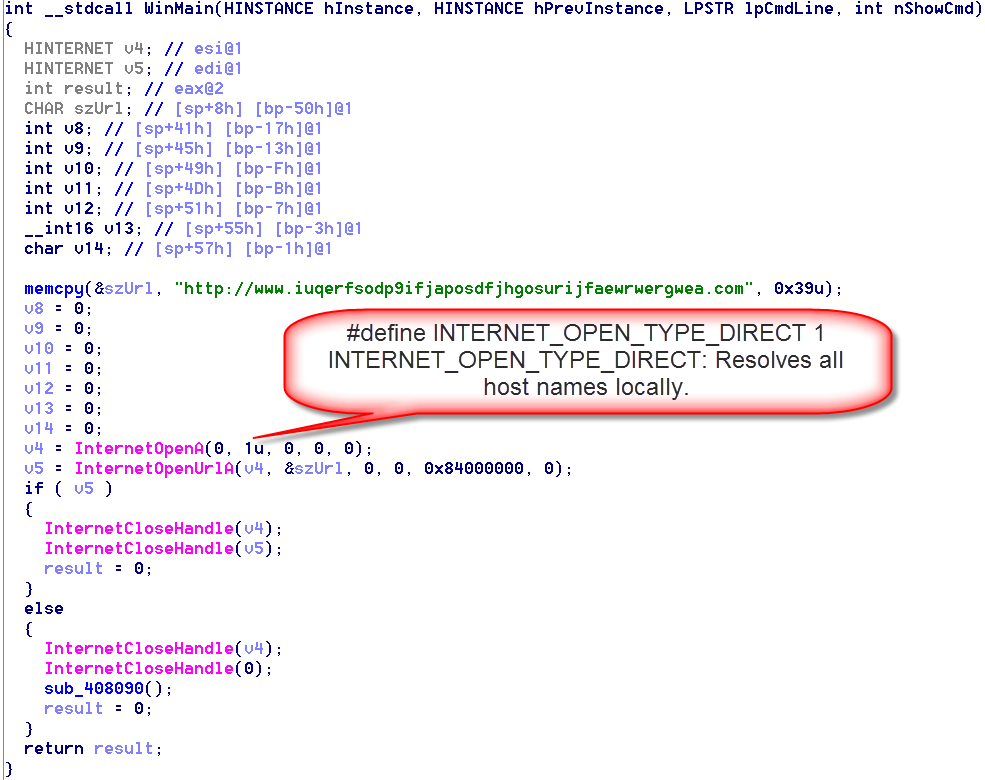
It looks like #WannaCry’s killswitch check (www[.]iuqerfsodp9ifjaposdfjhgosurijfaewrwergwea[.]com) is not proxy aware:

Organizations that use proxies will not benefit from the killswitch.

Sample: 5ad4efd90dcde01d26cc6f32f7ce3ce0b4d4951d4b94a19aa097341aff2acaec

I have not tested this in a VM. If someone has, please post a comment with your findings.

Update: I did test the sample, it is not proxy aware. In an environment with an HTTP proxy and no direct connections to the Internet, the sample can not connect to www[.]iuqerfsodp9ifjaposdfjhgosurijfaewrwergwea[.]com, and it will infect the host.

If I patch the sample to make it proxy aware, it can connect to the site through the proxy, and it does not infect the host.


Quickpost info


Update: re_search.py Version 0.0.5

Filed under: My Software,Update — Didier Stevens @ 10:41

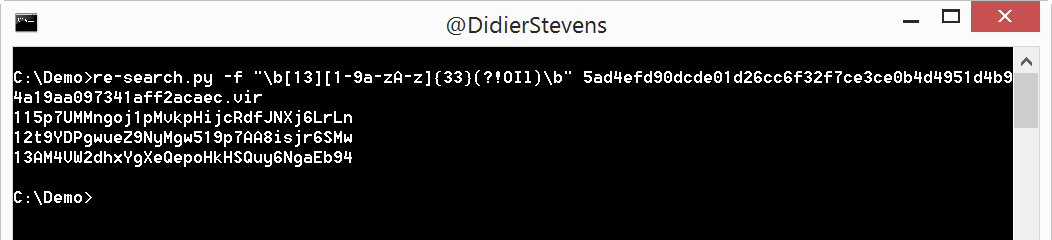
When I used my re-search.py tool to extract Bitcoin addresses from the latest WCry samples, I found a small bug. This version is a bugfix (bug introduced in version 0.0.4).

re-search_V0_0_5.zip (https)
MD5: A03CBBA9F2C5900A368BC064D3CC3D00
SHA256: 940B12CA8E3ADCC0266BC788B5A7AE2C830115BDB9FC04C3A7A178FDD7D44F02

Friday 12 May 2017

Quickpost: ZIP Password Cracking With John The Ripper

Filed under: Encryption,Quickpost — Didier Stevens @ 0:00

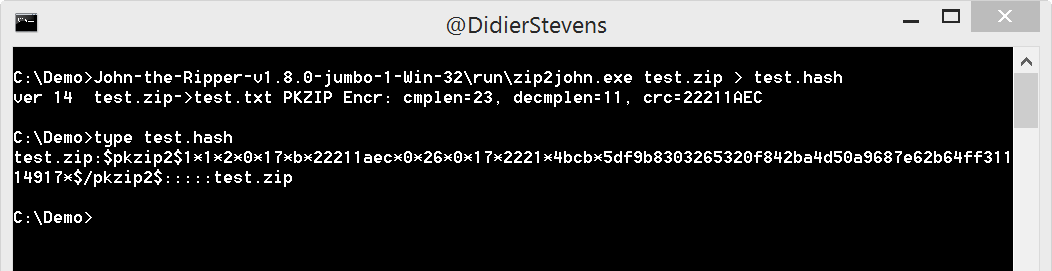
Here is how to crack a ZIP password with John the Ripper on Windows:

First you generate the hash with zip2john:

Then you run john:

In this example, I use a specific pot file (the cracked password list).


Quickpost info


Thursday 11 May 2017

Crack A ZIP Password, And Fly To Dubai …

Filed under: My Software,Update — Didier Stevens @ 0:00

We had to crack a password protected ZIP file, to discover that just few hours later, we would fly to Dubai for our NVISO team building event.

This inspired me to update my zipdump.py tool. This tool can handle password protected ZIP files. Using default password “infected”, or a password that can be provided with option -p.

In this new version, you can provide a list of password in a text file using option -P. Turns out that this simple dictionary attack just using Python is surprisingly quick (at least to me): 8000 passwords per second on an average machine.


zipdump_v0_0_6.zip (https)
MD5: B605DEABFC5458488B6487B1E9104085
SHA256: DDC2CE94D250CBDE62AD1EBE650654E4A50C51F97CADF412B16A553242819772

Tuesday 9 May 2017

Quickpost: Internet Zone IDs

Filed under: Quickpost — Didier Stevens @ 0:00

Mostly as a reminder for myself, here are the Internet Zone IDs (taken from HKEY_CURRENT_USER\Software\Microsoft\Windows\CurrentVersion\Internet Settings\Zones on a Windows 8.1 machine, there is also a HKLM entry) as used in the Zone.Identifier ADS:

Zone ID Displayname Description
0 Computer Your computer
1 Local intranet This zone contains all Web sites that are on your organization’s intranet.
2 Trusted sites This zone contains Web sites that you trust not to damage your computer or data.
3 Internet This zone contains all Web sites you haven’t placed in other zones
4 Restricted sites This zone contains Web sites that could potentially damage your computer or data.

Quickpost info


Thursday 4 May 2017

Gzip Decompression Via Pipes

Filed under: My Software — Didier Stevens @ 0:00

A good friend asked me how to decompress a gzip compressed file, stored inside a McAfee quarantine file. On Linux, it’s simple, using the punbup.py tool. Like this:

punbup.py -f quarantine.bup | gzip -d

Option -f dumps the first file in the quarantine file to the pipe of gzip, which decompresses the file and dumps it to stdout.

On Windows, where you have no gzip (unless you use Cygwin or a similar solution), you can use my translate.py tool.

translate has 2 modes of operation: translate byte per byte, or translate the complete byte sequence in one go.

By default, translate operates in byte per byte mode. To operate on the complete byte sequence, you use option -f. The translation expression (a Python expression) needs to be a lambda function when you use option -f. It receives the complete byte sequence as argument, and must return the translated byte sequence. So we need to use the gzip Python module for decompression, and the StringIO Python module to operate in memory (and not with files). This is the lambda function (argument b is the byte sequence, e.g. the quarantined file):

lambda b: gzip.GzipFile(”, ‘r’, fileobj=StringIO(b)).read()

As translate does not import the gzip Python module (it does import the StringIO Python module however), we need to import it using option -e:

-e -“import gzip”

The complete command is:

punbup.py -f quarantine.bup | translate.py -e “import gzip” -f “lambda b: gzip.GzipFile(”, ‘r’, fileobj=StringIO(b)).read()”

Wednesday 3 May 2017

Overview of Content Published In April

Filed under: Announcement — Didier Stevens @ 0:00

Here is an overview of content I published in April:

Blog posts:

YouTube videos:

Videoblog posts:

SANS ISC Diary entries:

NVISO Labs blog posts:

NVISO YouTube videos:

Monday 24 April 2017

Bash Bunny PDF Dropper

Filed under: Hardware,My Software,PDF — Didier Stevens @ 0:00

More than 5 years ago, I worked out a technique to drop any file on a machine which has removable storage disabled. The technique used a Teensy to simulate a keyboard and type out a pure ASCII PDF to notepad. The PDF, containing an embedded executable, can then be saved and opened with a PDF reader to extract the embedded file.

I recently re-visited this technique with my Bash Bunny (it can also be done with a Rubber Ducky):

First I create a pure ASCII PDF file with an embedded executable using my make-pdf-embedded.py tool:

make-pdf-embedded.py -f fi80 -t -n Dialog42.exe.txt Dialog42.exe Dialog42.pdf

Option -f select the filters to use: f to deflate (zlib compress) and i80 to use hexadecimal lines of 80 characters to encode the compressed executable file in pure ASCII.

Option -t for pure text.

Option -n to choose the name used in the PDF document for the embedded file (files with extension .exe can not be extracted with Adobe Reader).

And then I create a Ducky Script script from the PDF with my python-per-line.py tool:

python-per-line.py "Duckify({})" -o payload.duck Dialog42.pdf

The payload.duck file can then be installed on my Bash Bunny, referenced from a payload.txt bash script like this:


#!/bin/bash

ATTACKMODE HID

QUACK SET_LANGUAGE be

QUACK GUI r
QUACK DELAY 500
QUACK STRING notepad.exe
QUACK ENTER
QUACK DELAY 1000

QUACK switch1/payload.duck

Here is a video showing my Bash Bunny dropping this PDF file:

Sunday 23 April 2017

New Tool: python-per-line

Filed under: My Software — Didier Stevens @ 10:42

I often have to make changes to text files by processing each line, and prefer to do that with Python. This is why I wrote this tool about a year ago, and publish it now in preparation of a blog post on Bash Bunny.

The man page:

Usage: python-per-line.py [options] expression [[@]file ...]
Program to evaluate a Python expression for each line in the provided text file(s)

Arguments:
@file: process each file listed in the text file specified
wildcards are supported

Source code put in the public domain by Didier Stevens, no Copyright
Use at your own risk
https://DidierStevens.com

Options:
  --version             show program's version number and exit
  -h, --help            show this help message and exit
  -m, --man             Print manual
  -o OUTPUT, --output=OUTPUT
                        Output to file
  -s SCRIPT, --script=SCRIPT
                        Script with definitions to include

Manual:

This program reads lines from the given file(s) or standard input, and
then evaluates the provided Python expression on each line of text and
outputs the result of the Python expression.

The Python expression needs to use {} to represent the content of each
line. Before evaluation, {} is replaced by the content of each line
surrounded by single quotes.
The value of the evaluated expression is outputed as a single line,
except when the Pythion expression returns a list. In that case, each
element of the list is outputed on a single line.

Example:
 Content test.txt:
 Line 1
 Line 2
 Line 3

 Command:
 python-per-line.py "'copy ' + {}" test.txt

 Output:
 copy Line 1
 copy Line 2
 copy Line 3

This program contains a predefined Python function to help with the
generation of Rubber Ducky scripts: Duckify.

Example:
 Content test.txt:
 Line 1
 Line 2
 Line 3

 Command:
 python-per-line.py "Duckify({})" test.txt

 Output:
 STRING Line 1
 ENTER
 STRING Line 2
 ENTER
 STRING Line 3
 ENTER

The lines are written to standard output, except when option -o is
used. When option -o is used, the lines are written to the file
specified by option -o.

An extra Python script (for example with custom definitions) can be
loaded using option -s.


python-per-line_V0_0_1.zip (https)
MD5: B7C1146D44D6B3F8B04C571E8C205191
SHA256: 6D7931B33F8A1D81539E892897D301145A63502A181B2B89A01466D599D53787

« Previous PageNext Page »

Blog at WordPress.com.