Didier Stevens

Wednesday 10 October 2018

KEIHash: Fingerprinting SSH

Filed under: Encryption,My Software,Networking — Didier Stevens @ 0:00

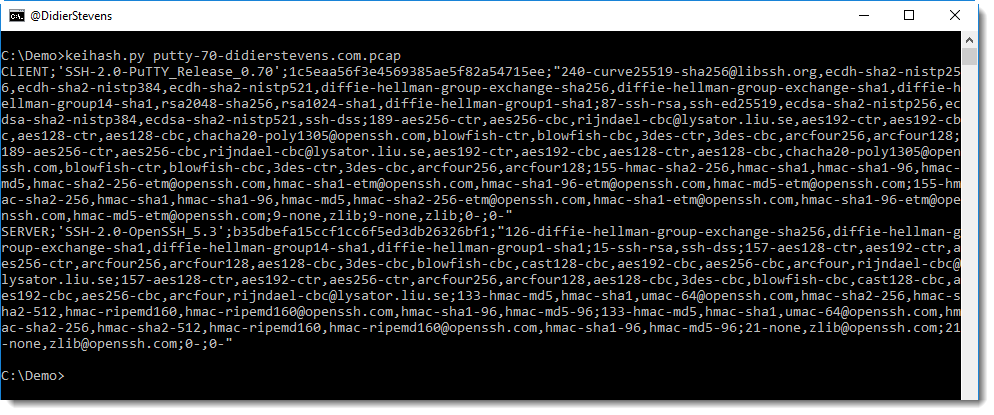
keihash.py is a program to parse pcap files and calculate the KEIHash of SSH connections.

The KEIHash is the MD5 hash of the Key Exchange Init (KEI) data (strings). For obvious reasons, I could not call this an SSH fingerprint. This is inspired by JA3 SSL fingerprinting.

It can be used to profile SSH clients and servers. For example, the hash for the latest version of PuTTY (SSH-2.0-PuTTY_Release_0.70) is 1c5eaa56f3e4569385ae5f82a54715ee.

This is the MD5 hash of:

240-curve25519-sha256@libssh.org,ecdh-sha2-nistp256,ecdh-sha2-nistp384,ecdh-sha2-nistp521,diffie-hellman-group-exchange-sha256,diffie-hellman-group-exchange-sha1,diffie-hellman-group14-sha1,rsa2048-sha256,rsa1024-sha1,diffie-hellman-group1-sha1;87-ssh-rsa,ssh-ed25519,ecdsa-sha2-nistp256,ecdsa-sha2-nistp384,ecdsa-sha2-nistp521,ssh-dss;189-aes256-ctr,aes256-cbc,rijndael-cbc@lysator.liu.se,aes192-ctr,aes192-cbc,aes128-ctr,aes128-cbc,chacha20-poly1305@openssh.com,blowfish-ctr,blowfish-cbc,3des-ctr,3des-cbc,arcfour256,arcfour128;189-aes256-ctr,aes256-cbc,rijndael-cbc@lysator.liu.se,aes192-ctr,aes192-cbc,aes128-ctr,aes128-cbc,chacha20-poly1305@openssh.com,blowfish-ctr,blowfish-cbc,3des-ctr,3des-cbc,arcfour256,arcfour128;155-hmac-sha2-256,hmac-sha1,hmac-sha1-96,hmac-md5,hmac-sha2-256-etm@openssh.com,hmac-sha1-etm@openssh.com,hmac-sha1-96-etm@openssh.com,hmac-md5-etm@openssh.com;155-hmac-sha2-256,hmac-sha1,hmac-sha1-96,hmac-md5,hmac-sha2-256-etm@openssh.com,hmac-sha1-etm@openssh.com,hmac-sha1-96-etm@openssh.com,hmac-md5-etm@openssh.com;9-none,zlib;9-none,zlib;0-;0-

These are all the strings found in the Key Exchange Init packet, prefixed by their length and concatenated with separator ;.

With this, I’ve been able to identify SSH clients with spoofed banners attempting to connect to my servers.
keihash_V0_0_1.zip (https)
MD5: 674D019A739679D9659D2D512A60BDD8
SHA256: DB7471F1253E3AEA6BFD0BA38C154AF3E1D1967F13980AC3F42BB61BBB750490
Monday 1 October 2018

Title: Overview of Content Published in September

Filed under: Announcement — Didier Stevens @ 0:00

Here is an overview of content I published in September:

Blog posts:

YouTube videos:

Videoblog posts:

SANS ISC Diary entries:

Monday 24 September 2018

Quickpost: Signing Windows Executables on Kali

Filed under: Quickpost — Didier Stevens @ 0:00

Windows executables (PE files) can be signed on Kali using osslsigncode.

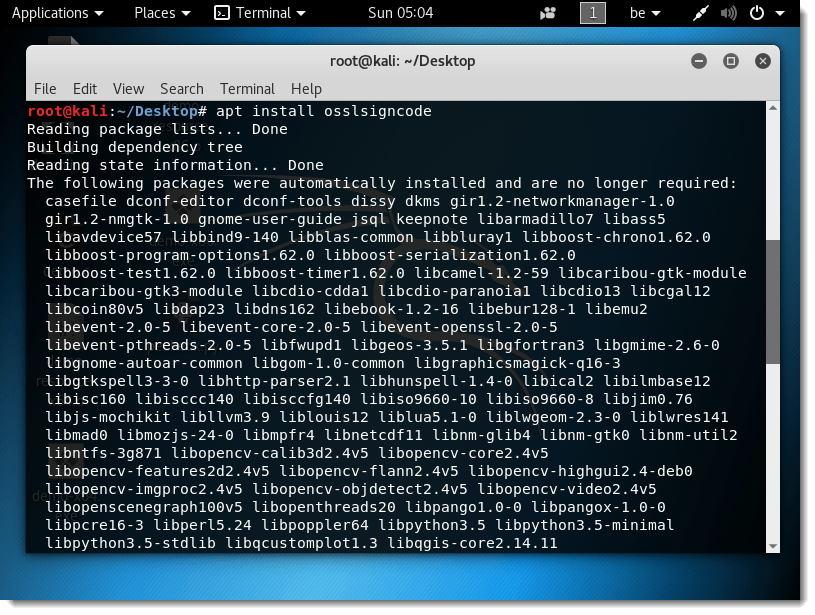
osslsigncode needs to be installed:

apt install osslsigncode

Then you need a certificate. For this demo, I’m using a self-signed cert.

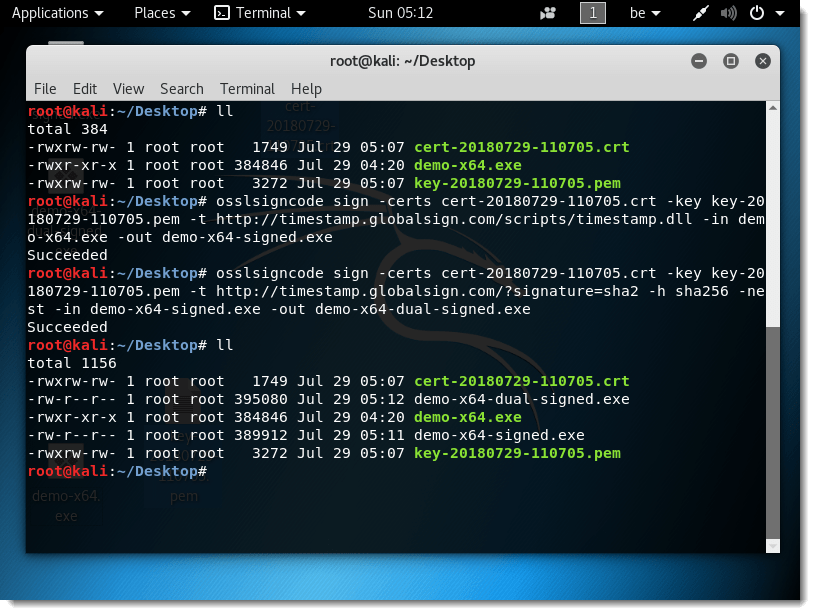
The command to sign file demo-x64.exe with the demo certificate using SHA1 and timestamping, is:

osslsigncode sign -certs cert-20180729-110705.crt -key key-20180729-110705.pem -t http://timestamp.globalsign.com/scripts/timestamp.dll -in demo-x64.exe -out demo-x64-signed.exe

The signed file is demo-x64-signed.exe

To dual sign this executable (add SHA256 signature), use this command:

osslsigncode sign -certs cert-20180729-110705.crt -key key-20180729-110705.pem -t http://timestamp.globalsign.com/?signature=sha2 -h sha256 -nest -in demo-x64-signed.exe -out demo-x64-dual-signed.exe

The signed file is demo-x64-dual-signed.exe

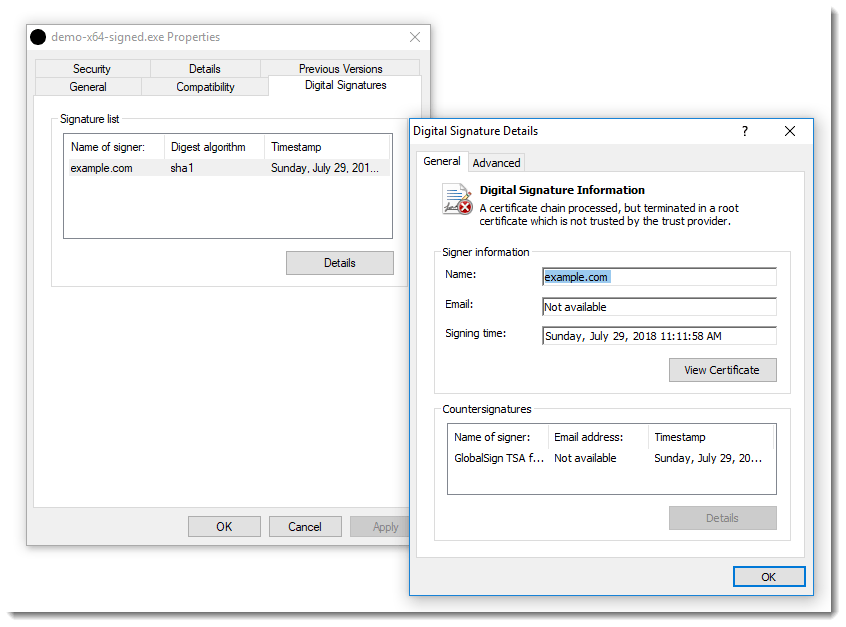
Of course, Windows reports the signatures as invalid, because we used a self-signed certificate. For a valid signature, you can add your certificate to the trusted root certificates store, buy a code-signing certificate, …

For single SHA256 signing, use the second osslsigncode command without option -nest.


Quickpost info


Sunday 23 September 2018

Update: pecheck.py Version 0.7.4

Filed under: My Software,Update — Didier Stevens @ 0:00

This update improves digital signature handling.

pecheck-v0_7_4.zip (https)
MD5: E0F90B85576F7BC42BB8601E650134FB
SHA256: E011CD82F5E3244553FBA52DDF3F0D3076E88A6F35E50AA18AC0DAAC6ED91389

Monday 17 September 2018

Quickpost: Compiling EXEs and Resources with MinGW on Kali

Filed under: Quickpost — Didier Stevens @ 0:00

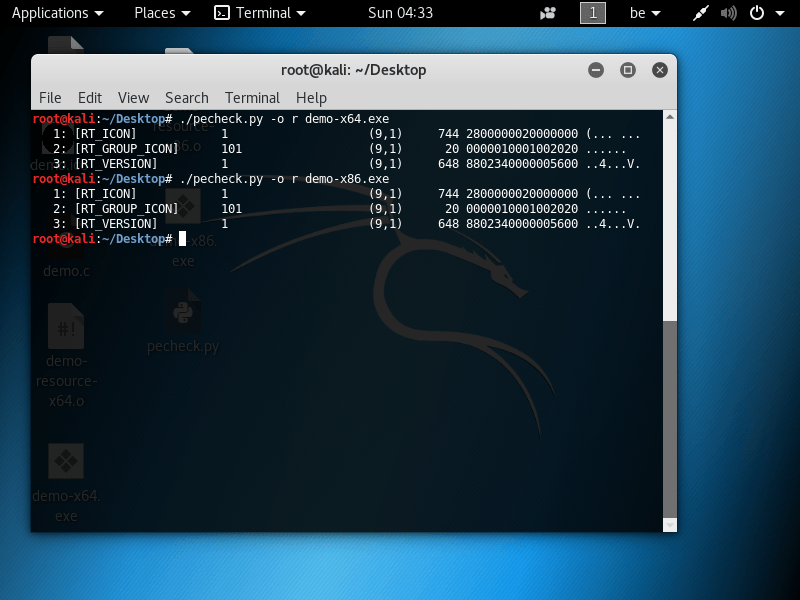
To compile a Windows executable with version information and an icon on Kali, we use MinGW again.

The version information and icon (demo.ico) we want to use are defined in a resource file (demo.rc):

#include "winver.h"


#define IDI_ICON1                       101

/////////////////////////////////////////////////////////////////////////////
//
// Version
//

#define VER_FILEVERSION             0,0,0,1
#define VER_FILEVERSION_STR         "0.0.0.1\0"

#define VER_PRODUCTVERSION          0,0,0,1
#define VER_PRODUCTVERSION_STR      "0.0.0.1\0"

#ifndef DEBUG
#define VER_DEBUG                   0
#else
#define VER_DEBUG                   VS_FF_DEBUG
#endif

VS_VERSION_INFO VERSIONINFO
FILEVERSION     VER_FILEVERSION
PRODUCTVERSION  VER_PRODUCTVERSION
FILEFLAGSMASK   VS_FFI_FILEFLAGSMASK
FILEFLAGS       VER_DEBUG
FILEOS          VOS__WINDOWS32
FILETYPE        VFT_APP
FILESUBTYPE     VFT2_UNKNOWN
BEGIN
    BLOCK "StringFileInfo"
    BEGIN
        BLOCK "040904E4"
        BEGIN
            VALUE "CompanyName", "example.com"
            VALUE "FileDescription", "demo"
            VALUE "FileVersion", VER_FILEVERSION_STR
            VALUE "InternalName", "demo.exe"
            VALUE "LegalCopyright", "Public domain"
            VALUE "OriginalFilename", "demo.exe"
            VALUE "ProductName", "demo"
            VALUE "ProductVersion", VER_PRODUCTVERSION_STR
        END
    END
    BLOCK "VarFileInfo"
    BEGIN
        VALUE "Translation", 0x409, 1252
    END
END


/////////////////////////////////////////////////////////////////////////////
//
// Icon
//

// Icon with lowest ID value placed first to ensure application icon
// remains consistent on all systems.
IDI_ICON1               ICON                    "demo.ico"
/////////////////////////////////////////////////////////////////////////////

More info on the VERSIONINFO resource can be found here.
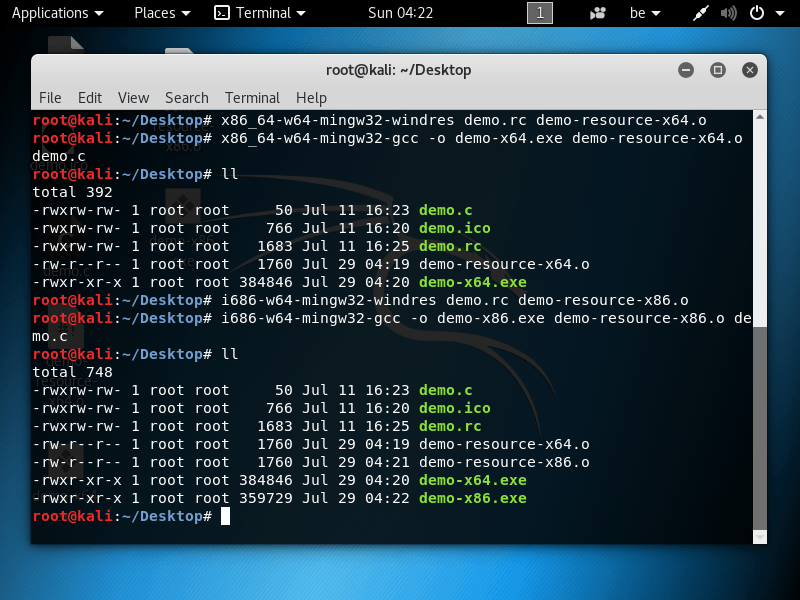
We use the resource compiler windres, and then the gcc compiler.

Compile for 64-bit:

x86_64-w64-mingw32-windres demo.rc demo-resource-x64.o
x86_64-w64-mingw32-gcc -o demo-x64.exe demo-resource-x64.o demo.c

Compile for 32-bit:

i686-w64-mingw32-windres demo.rc demo-resource-x86.o
i686-w64-mingw32-gcc -o demo-x86.exe demo-resource-x86.o demo.c


DemoResource_V_0_0_0_1.zip (https)
MD5: 9104DDC70264A9C2397258F292CC8FE4
SHA256: 722B3B52BAE6C675852A4AC728C08DBEEF4EC9C96F81229EF36E30FB54DC49DE


Quickpost info


Tuesday 11 September 2018

WiFi Pineapple NANO: Persistent Recon DB

Filed under: WiFi — Didier Stevens @ 0:00

The WiFi Pineapple’s recon DB (recon.db) is volatile, because it is stored (by default) in the /tmp folder.

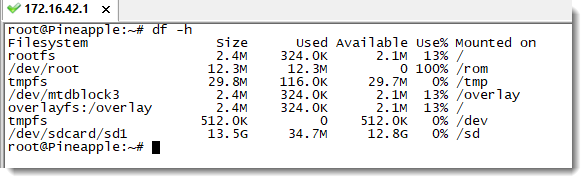
I store my recon.db on the SD card to make it persistent (survives a reboot).

First the SD card has to be formatted:

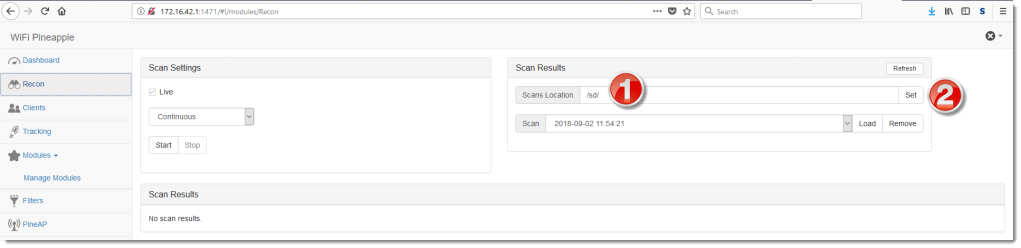
Then the “Scans Location” field can be changed from /tmp/ to /sd/:

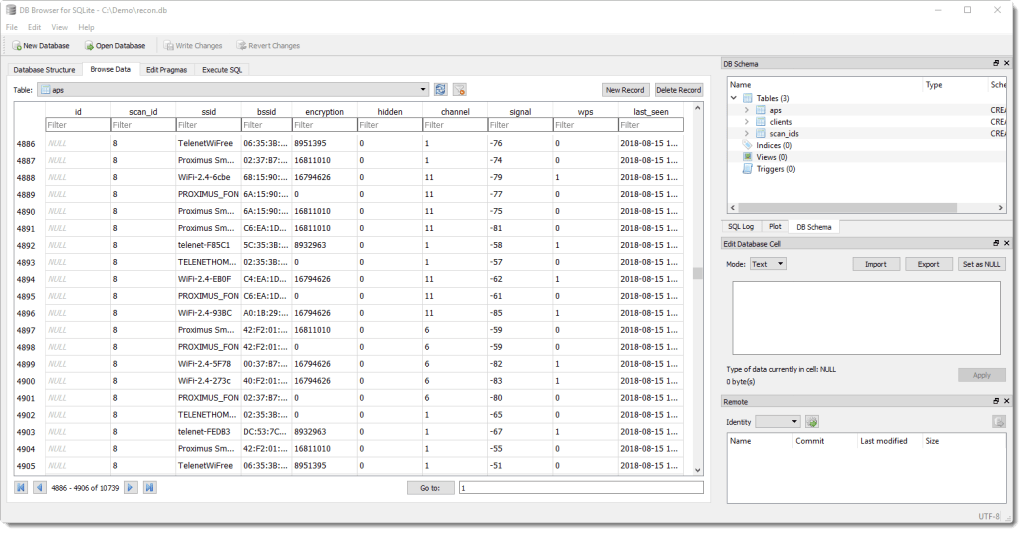
recon.db is an SQLite database, that can be browsed with tools like sqlitebrowser:

Monday 10 September 2018

Firmware Upgrade: WiFi Pineapple NANO

Filed under: WiFi — Didier Stevens @ 0:00

This is mainly a reminder for myself, as I don’t often update my WiFi Pineapple NANO.

Updating the NANO performs a reset.

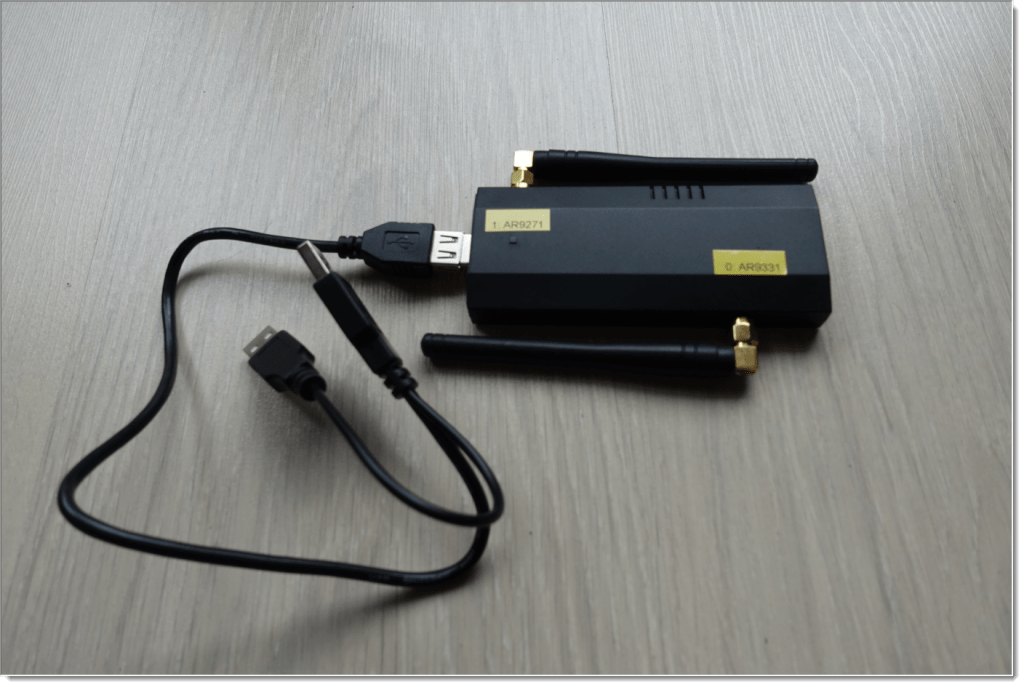
I connect my NANO via a USB cable to my laptop. The USB cable allows me to flip the NANO to access the reset button.

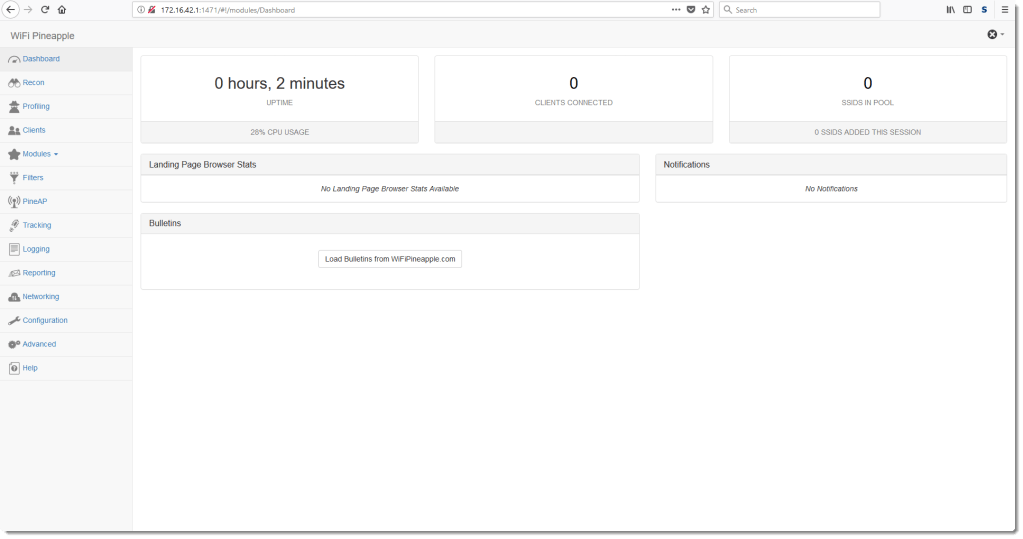
I login via HTTPS 172.16.42.1 port 1471

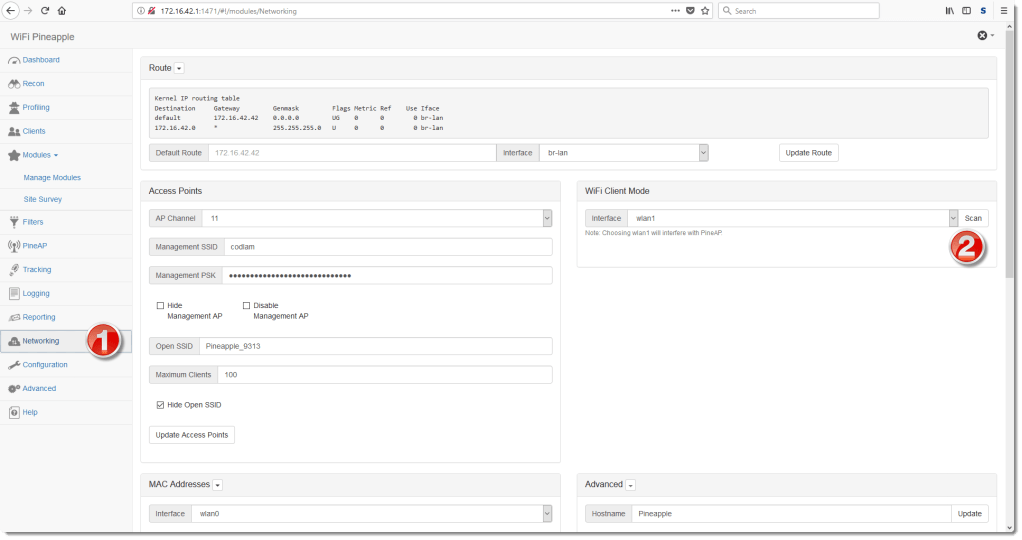
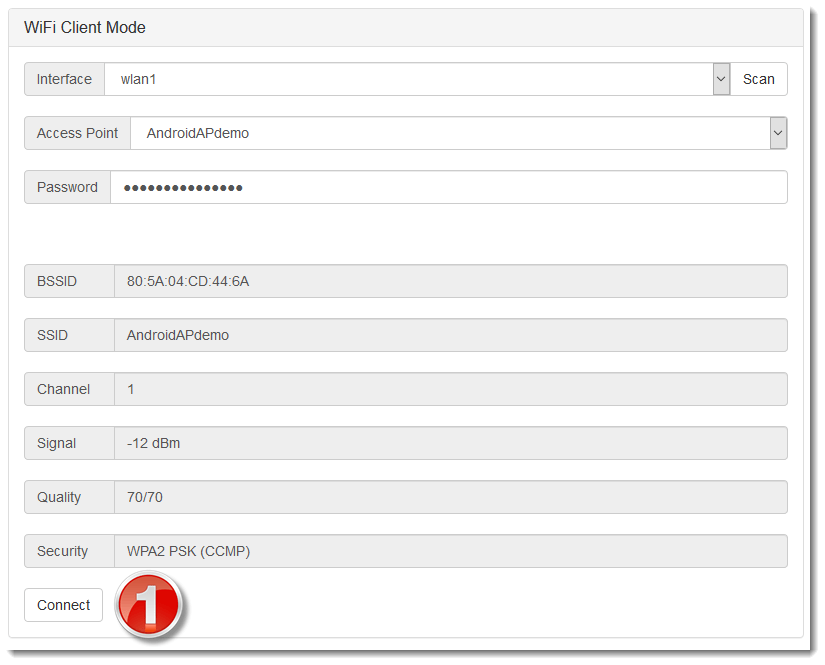
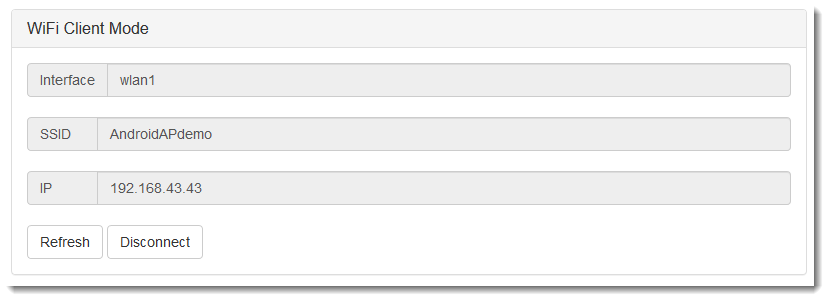
I connect the NANO to a WiFi access point:

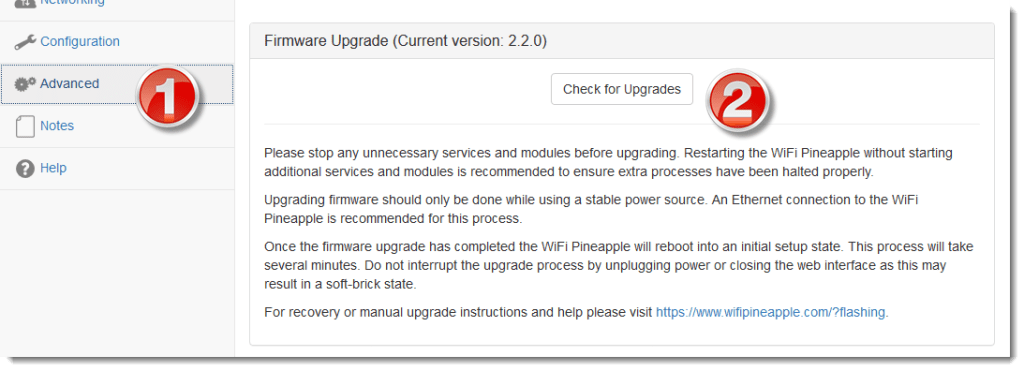
Once connected, I can check for upgrades:

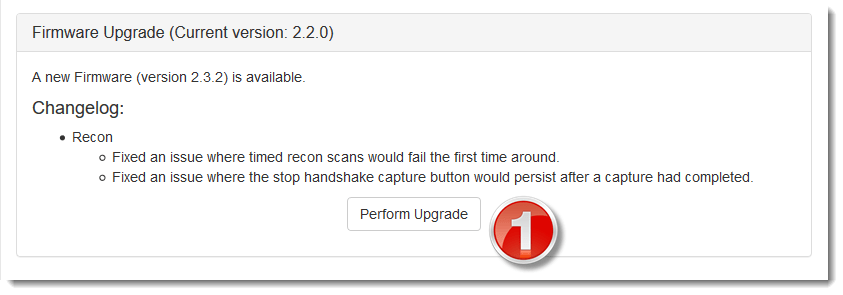
And then perform the upgrade:

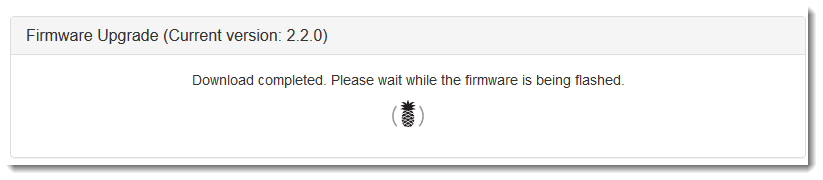
This will take several minutes, after the upgrade is performed, this dialog will appear:

From here on, the NANO has to be setup again:

I press the reset button quickly to perform a setup with WiFi disabled.

And configure the NANO, just like for first use:

I select France for Radio Country Code, because Belgium is not an option:

At this point, the setup is not yet complete for me.

I store the recon.db on an sd card, so this has to be configured:

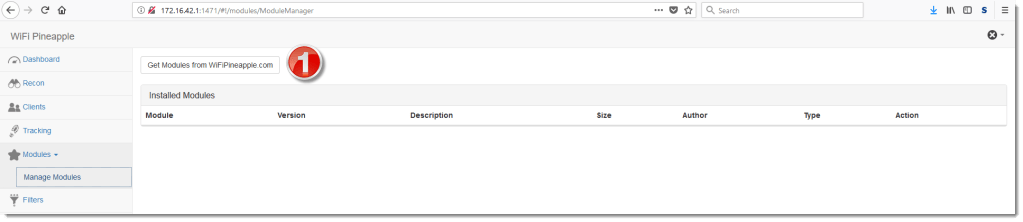
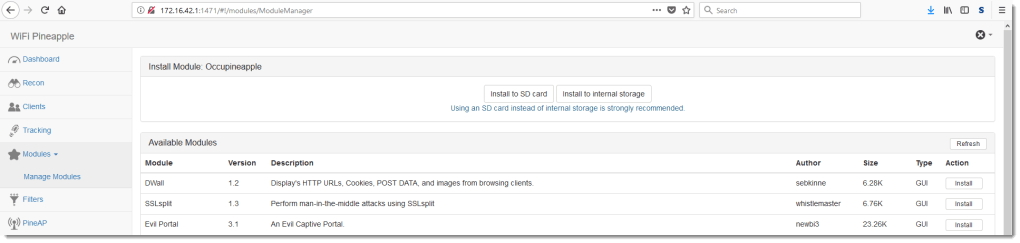
And I also install modules:

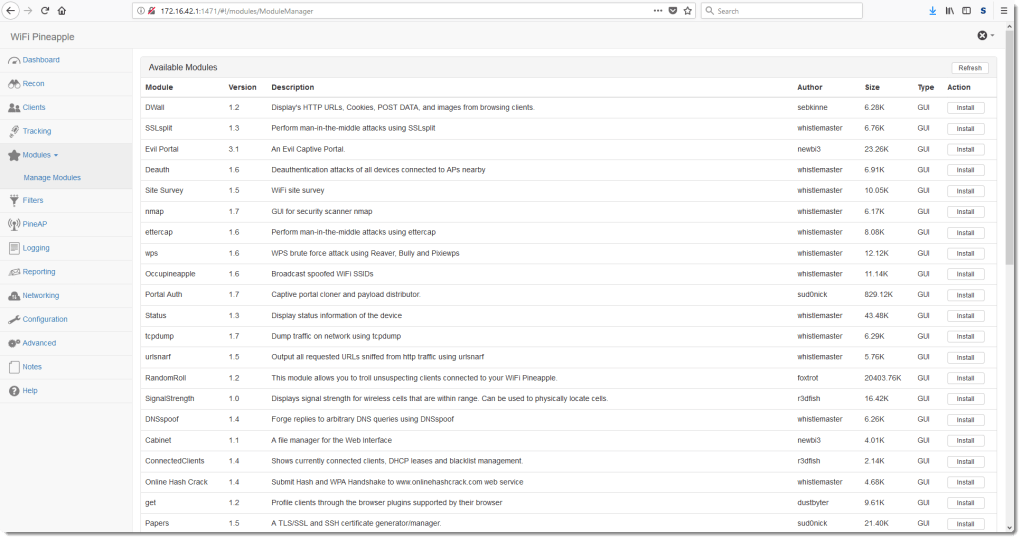
That I install on the SD card:

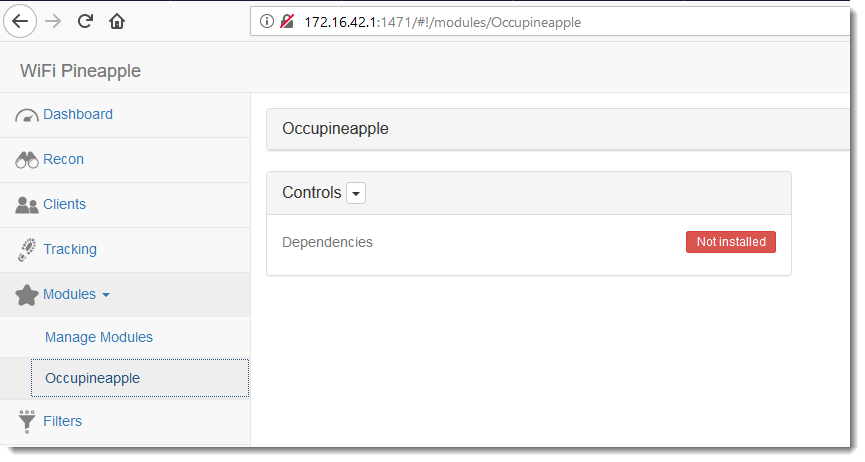
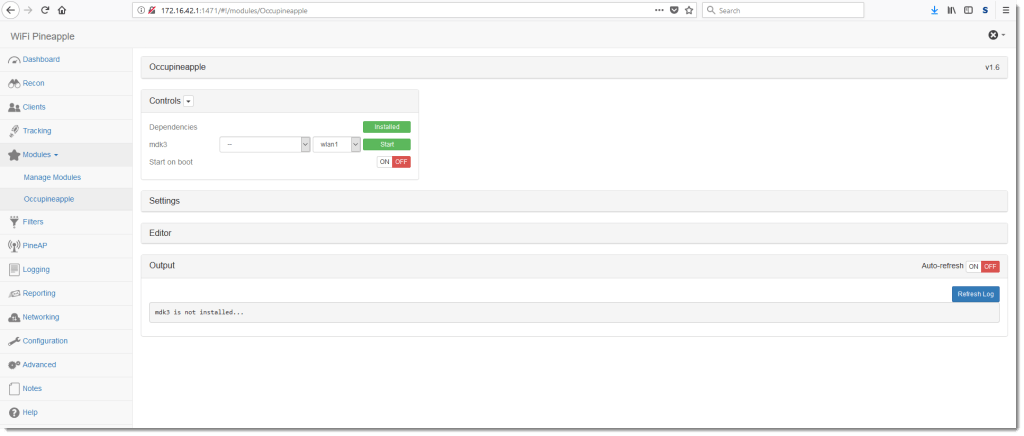
Once installed, some modules need dependencies to be installed too:


Wednesday 5 September 2018

Overview of Content Published in August

Filed under: Announcement — Didier Stevens @ 0:00

Here is an overview of content I published in August:

Blog posts:

YouTube videos:

Videoblog posts:

SANS ISC Diary entries:

NVISO blog:

Tuesday 28 August 2018

Quickpost: Compiling DLLs with MinGW on Windows

Filed under: Quickpost — Didier Stevens @ 0:00

MinGW is not only available on Kali, of course, but also on Windows. Compiling a DLL is very similar.

MinGW is installed in folder C:\msys64 on my machine.


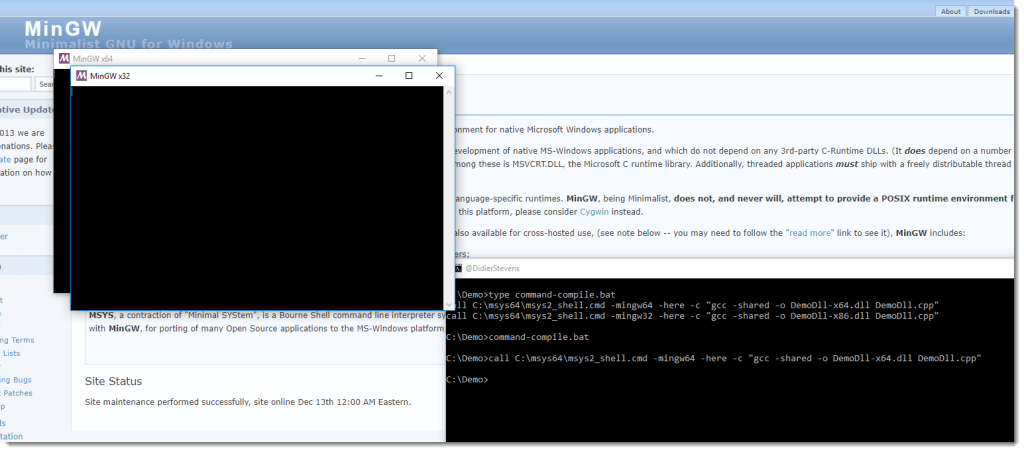
To compile 64-bit executables, you need to start the 64-bit shell first: launch C:\msys64\mingw64.exe

Then you can compile the DLL:

gcc -shared -o DemoDll-x64.dll DemoDll.cpp

For 32-bit executables, it’s the 32-bit shell: launch C:\msys64\mingw32.exe

Then you can compile the DLL:

gcc -shared -o DemoDll-x86.dll DemoDll.cpp


It’s also possible to start the shell and compile from a BAT file:

call C:\msys64\msys2_shell.cmd -mingw64 -here -c "gcc -shared -o DemoDll-x64.dll DemoDll.cpp"
call C:\msys64\msys2_shell.cmd -mingw32 -here -c "gcc -shared -o DemoDll-x86.dll DemoDll.cpp"


Quickpost info


Saturday 25 August 2018

Update: numbers-to-string.py Version 0.0.5

Filed under: My Software,Update — Didier Stevens @ 16:34

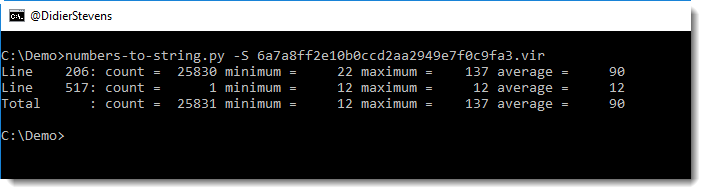
This new version of numbers-to-string.py has a new option: -S (–statistics).

Statistics can help identifying malicious scripts (text files in general)  with numbers:

numbers-to-string_v0_0_5.zip (https)
MD5: 02119AFAC1942A3C97B8E554C03B2DB6
SHA256: 36A5C346063C93B45C50ACF82C317379496A815F166E25F969168DDAB561F92D

« Previous PageNext Page »

Blog at WordPress.com.