Thursday 15 June 2023
Overview of Content Published in May
Tuesday 2 May 2023
Update: oledump.py Version 0.0.75
This update brings an new plugin: plugin_vba_dir.py (there are no changes to oledump).
This plugin parses the records found in the vba/dir stream to display project, references and modules information

MD5: FB0F82B3B29883707A399B99C894EF08
SHA256: D357E48D827822D15C9C22C0B5204924FBA9FC59104818C9824AD149FE6F6249
Monday 1 May 2023
Overview of Content Published in April
Sunday 30 April 2023
Update: zipdump.py Version 0.0.25
Some changes to the translate option: now it supports this format (like some of my other tools):
i=codec[:error],o=codec[:error]
i= is input and o= is output. If you don’t specify an error handling mode, strict will be used.
An example of the format is: i=utf16,o=latin:ignore
This will read binary data in utf16 strict mode, and convert it to binary data in ANSI (latin) and ignore all utf16 characters that can not be represented in latin.
MD5: 141BCA65BF89E0561B42901598406113
SHA256: 54E23B4E7A3EB1B31394FCCC32F6509CFB448E0D917615C4C05E431784E70978
Monday 10 April 2023
New Tool: myjson-transform.py
This tool takes JSON output from tools like oledump, zipdump, base64dump, … via stdin and transforms the data produced by these tools.
The transformation function (name Transform) has to be defined in a Python script provided via option -s.
This Transform function has 2 arguments: items and options.
items is a list of dictionaries produced by the “feeding” tool , e.g., the tool whose JSON output is piped into this tool (oledump, …).
Each dictionary has 3 keys: id, name and content.
The transformation function reads content from the items, and transforms it. The transformed data is the return value of the Transform function, and it can also be stored in the items list (modifying the values of the dictionaries, like the content value for example).
By default, this tool will output the transformed data (return value of Transform function) as binary data.
With options -a, -A, -x, -X, -b, -B this output can be presented as ASCII dump, hex dump and base64 dump. Option -d is also present to explicitly request a binary dump.
If option –jsonoutput is used, then the return value of the Transform function is ignored, and in stead, the transformed items are output as JSON data.
The –jsonouput option can not be combined with the above output format options.
Option -p (–parameter) is a string option that is passed on to the Transform function (via options argument). It is designed to be used by the developer of the Transform function as they see fit.
For example, it can be used to tell the Transform function which item to select for transformation, in case there are several items.
Take a look at my SANS ISC diary entry “Another Malicious HTA File Analysis – Part 2” for an example on how to decrypt an AES encrypted payload.
myjson-transform_V0_0_1.zip (http)MD5: 01669E77D9706317A92112E2918A73B9
SHA256: 5DD1DB80D18480196C5EEF415AA7D22C1EB54B985B4D6ACF56E739B58052D34C
Saturday 8 April 2023
Update: dnsresolver.py Version 0.0.3
I added support for label * (wildcard label).
dnsresolver_V0_0_3.zip (http)MD5: 18958CEEB8CD62B50D6533A477008649
SHA256: E8BB634C9D5562D640D23AA426948D166977193931794E67761F1BCD2436466E
Tuesday 4 April 2023
Update: 1768.py Version 0.0.18
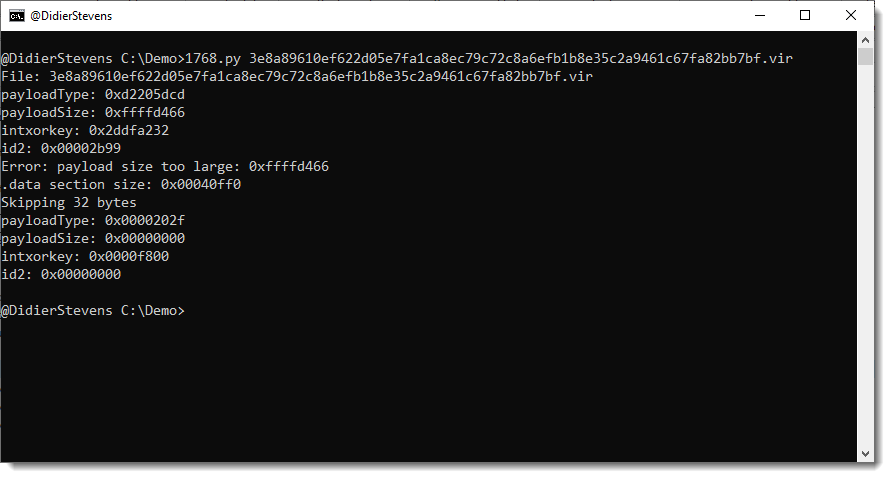
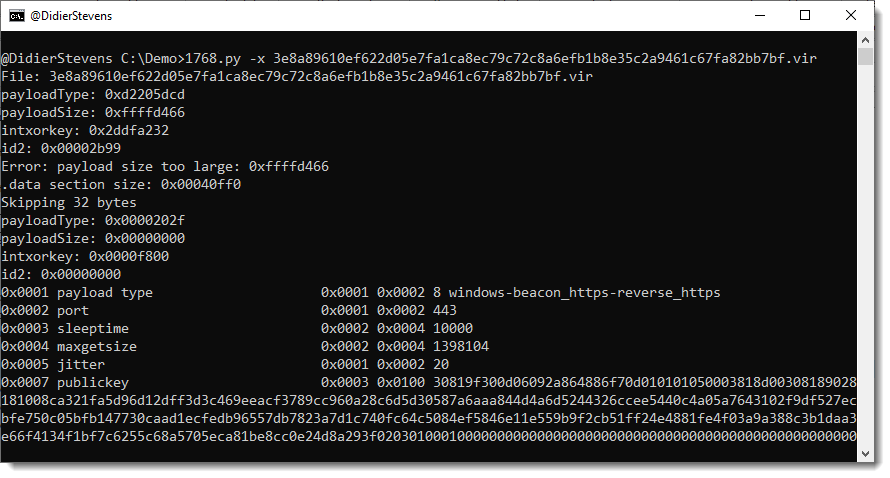
This new version of 1768.py brings an option to try out all 256 xor keys if a non-standard XOR key is used to encode the configuration.
Like this sample (key !):

MD5: 323D6D20483257D76D7F9DAD07AAF630
SHA256: 653CB75FF59C27FB9A2FD651DDE2EC81A4F577F7F9050353CB0B75DF6CA95773
Monday 3 April 2023
Update: re-search.py Version 0.0.22
This update to re-search.py, my tool to search text files with regular expressions, brings several new regular expressions.
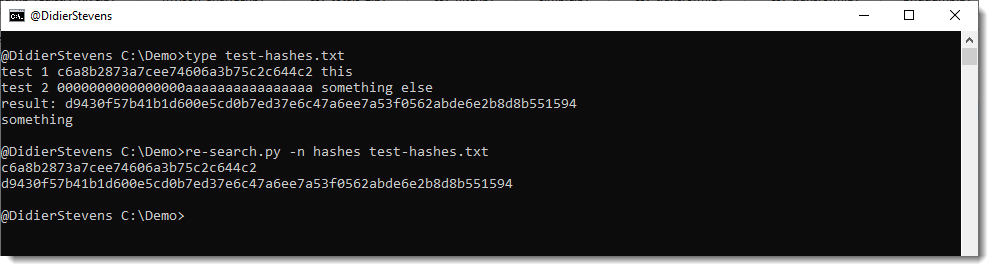
There are 4 new regular expressions for cryptographic hashes: md5, sha1, sha256, sha512. And one new name that groups these 4 regular expressions: hashes.
You can use it like this: re-search.py -n hashes sample.txt
These regular expressions not only match strings of hexadecimal characters of the appropriate length (with a boundary: \b), they also check each extracted hash with a Python function (HashValidate in re-extra.py) that is designed to eliminate strings that accidentally look like a hash (example: 32 times letter A).
HashValidate checks the following:
- that the hash is not a mix of lowercase and uppercase letters
- that there are more than 5 different hexadecimal digits
- that there are more than 10 instances of a character and the next character, that are different
These simple rules are designed to detect hexadecimal strings that are too uniform, and thus probably not a hash digest.
And I also added regular expressions for strings delimited by single quotes: str-s, str-se str-su, str-seu.
re-search_V0_0_22.zip (http)MD5: BF72647B93D30D0D9CD75EEFED85D21E
SHA256: FCF7D6EF2A5C8AEC5FC84D2CF588FCD8DAD3923E10905D3350AAD7975D926553
Sunday 2 April 2023
Update: oledump.py Version 0.0.74
A small update to plugin_msi_info to change the output format a bit. And you can select your preferred hash algorithm with environment variable DSS_DEFAULT_HASH_ALGORITHMS.
oledump_V0_0_74.zip (http)MD5: FD4D73F0C1A6BE43406381C13C128D5E
SHA256: 1683635FD3250DF43E2CA31C60C2C81B507B1E233C5D91C2671D147C7FD8BD14
Saturday 1 April 2023
Overview of Content Published in March
- Update: oledump.py Version 0.0.73
- Update: python-per-line.py version 0.0.10
- Update: myjson-filter.py Version 0.0.4
- YARA: Detect The Unexpected …
- String Obfuscation: Character Pair Reversal
- Windows 11 Snipping Tool Privacy Bug: Inspecting PNG Files
- CyberChef Version 10 Released
- Extra: “String Obfuscation: Character Pair Reversal”
- Another Malicious HTA File Analysis – Part 1
- Extracting Multiple Streams From OLE Files

 Didier Stevens