Didier Stevens

Thursday 5 June 2008

bpmtk: How About SRP Whitelists?

Filed under: Hacking,My Software — Didier Stevens @ 13:44

After having showed you how my Basic Process Manipulation Tool Kit can be used to bypass Software Restriction Policies, I wanted to follow this with a post showing how SRP whitelisting can prevent this. However, while preparing this new post, I got an idea how I could bypass SRP whitelists (under certain conditions), but I’ve no idea how to prevent this. I finally decided to post this without a solution, maybe you’ll come up with one.

With a SRP whitelist, starting a program is denied by default:

As an administrator, you’ve to explicitly specify the programs that are allowed to be executed by your users (if there are many programs, maintaining this whitelist becomes time consuming). Because of this whitelist, tools like gpdisable or bpmtk can’t be executed to disable SRP. However, if I can execute these tools without starting a new process, SRP will not block them …
Applications with embedded scripting can also be used to manipulate processes. For example, the scripting features of Microsoft Office allow you to call the system APIs I’ve been using in my bpmtk. It’s often not easy (even impossible) to convert a C program to VBscript, but I’ve a workaround.

First, we adapt our C program from an EXE to a DLL (entrypoint DllMain in stead of main), because VBscript can load a DLL.

We’ll use Excel’s scripting features. I’ve created an Excel spreadsheet that embeds a DLL that can be executed with a mouse-click:

The MyDLL dialog is displayed by the embedded DLL.

The DoIt button starts this Sub:

DoIt will create a temporary file (in the user’s temporary file folder), write the embedded DLL to it (DumpFile), and then load the DLL (LoadLibrary).

Generating the temporary filename:

Writing the embedded DLL to the temporary file:

Each DumpFileX sub writes bytes to the temporary file (the DLL is embedded in these subs by including the hex dump in strings). It’s necessary to split this over several subs, because of the sub size limitation.

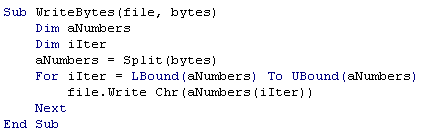
Once the DLL is stored in the temporary file, we call LoadLibrary to load our library in the Excel process. And this executes our code inside the Excel process. Because of this, SRP will not deny it, and our code can disable SRP.

Creating temporary files and loading libraries is normal behavior for programs, SRP will not block this. Even most HIPS will not block this, because loading a library is not the same as injecting a DLL (injecting a DLL is loading a library inside another process). The only thing that might be considered abnormal by the HIPS, is that a temporary file is mapped into memory, but there are also legitimate programs that do this.

SRP has an option to whitelist DLLs, but then you’re facing the huge task of identifying and specifying all DLLs your programs use!

If you implement a SRP whitelist because you absolutely want to control the programs executed by your users, take some time to reflect on your users and the scripting capabilities of your whitelisted applications. And if you really have to prevent the technique I show here, you’ll have to find another solution than SRP whitelists. Unfortunately, I’ve not found one yet… If you’ve an idea, post a comment (banning applications with embedded scripting or disabling scripting is not an option).

Wednesday 4 June 2008

Quickpost: Installing Aircrack-ng on a N800

Filed under: N800,Quickpost,WiFi — Didier Stevens @ 8:30

As some readers have informed me that the Kismet package for the N800 isn’t available anymore, I looked for an alternative and found aircrack-ng for the N800.

I followed the instructions on this page and installed the aircrack-ng and wirelesstools packages from this page. Now I’ll just have to take the time to get a copy of these packages, just in case…


Quickpost info


Tuesday 3 June 2008

Quickpost: bpmtk Config File Embedding

Filed under: Hacking,My Software,Quickpost — Didier Stevens @ 5:59

After a rather long detour in PDF file format land, let’s pick up where we left the bpmtk.

My Basic Process Manipulation Tool Kit requires a configuration file with instructions to manipulate processes, like this one to start cmd.exe in a restricted environment:

start cmd.exe
search-and-write module:. unicode:DisableCMD hex:41

Save this configuration in a text file, for example start-cmd.txt. And then start bpmtk with this file:

bpmtk start-cmd.txt

You can also embed this configuration file inside the bpmtk executable, like this:

bpmtk start-cmd.txt bpmtk-cmd.exe

This will create a copy of bpmtk.exe, called bpmtk-cmd.exe, with start-cmd.txt embedded as a resource (called BPMTK).
When you execute bpmtk-cmd.exe (without any arguments), the embedded script will be executed. Use this
trick if you often have to execute the same command, or if you have to execute bpmtk in an environment where you cannot provide an argument.


Quickpost info


Wednesday 28 May 2008

I Still Use Foxit Reader

Filed under: PDF,Vulnerabilities — Didier Stevens @ 8:38

Foxit Reader has been my default PDF reader for more than a year now, as an alternative to the Adobe Acrobat Reader that stalled too often when starting up.

While playing with the PDF file format, I created several PDF files that uncovered potential security issues with Foxit Reader.

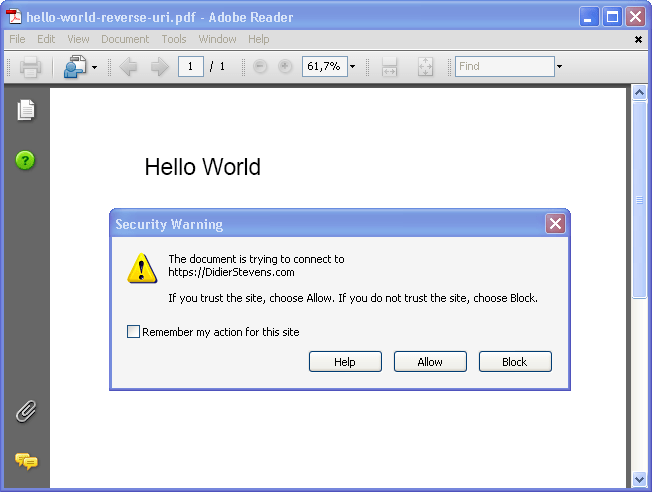
A PDF file with an OpenAction triggering an URI action causes Adobe Acrobat to prompt the user for approval, before accessing the URI:

But Foxit Reader opens Internet Explorer and visits the site without confirmation prompt. I submitted a feature request to Foxit Software for this.

Another example is a JavaScript inside a PDF file that switches the reader to full screen mode. Adobe Acrobat Reader will warn you for spoofing attacks and ask for your permission to switch to full screen, while Foxit Reader does this immediately.

Of course, these warnings will only help a user that is aware of the potential risks. But in a corporate environment, you can also set the appropriate registry keys to block all these actions by default.

It was also trivial to assemble some simple malformed PDF files that cause problems for Foxit Reader, but not for Adobe Reader. I submitted these files to Foxit Software.

Adobe Acrobat Reader allows you to disable JavaScript. Until recently, Foxit Reader required a JavaScript plugin for JavaScript support. Omitting the plugin was a simple way to disable JavaScript. But since version 2.2, JavaScript is embedded in the main executable and there is no configuration switch to disable it. Many Foxit Reader users have requested this feature.

If you absolutely want to disable JavaScript in Foxit Reader 2.3, there’s a quick and dirty trick. Search for the ASCII string JavaScript (preceded and terminated by byte 00) in the Foxit Reader executable (you should find only one occurrence), and replace it with javascript, for example. Actually, this patch will not disable the JavaScript interpreter for Foxit Reader, but it will prevent Foxit Reader from recognizing the /JavaScript name in a PDF document, effectively making it to ignore JavaScript instructions (names are case-sensitive).

You can make this patch permanently by editing the Foxit Reader executable with an hex editor, or do it temporarily by patching in memory with my bpmtk utility. The command to achieve this is:

search-and-write module:. hex:004A61766153637269707400 hex:006A

Of course, this is not a serious risk analysis of Foxit Reader. I started to use Foxit Reader as a solution to the Adobe Acrobat Reader performance problems, not for security reasons. And now that I’ve delved into the PDF file format, I did some random tests with Foxit Reader and Adobe Acrobat Reader. This gave me the impression that Adobe has more experience with security risks and vulnerabilities, than Foxit Software, and that this experience is reflected in the design of their products.

I’ll still be using Foxit Reader as my main PDF reader, and I’ll still analyze suspect PDF files in a controlled environment.

Monday 26 May 2008

Quickpost: Restricted Tokens and UAC

Filed under: Quickpost,Windows Vista — Didier Stevens @ 19:46

It seems I’m reading this question more and more: “I’m an Administrator on a Windows Vista box, but I can’t run program X with administrator rights”.

I’ll try to explain this quickly and simply, omitting a lot of details (if there is enough interest, I’ll make a follow-up post).

The cause of this program’s behavior is simple: restricted tokens. A token is a Windows kernel object that represents a user with all his privileges and group-memberships. The token is created when a user is login on, and is associated with all programs started by that user (i.e. processes). The Windows kernel uses the token to decide if the process is granted access to the securable objects it tries to access.

A restricted token is a special token: it’s a token that represents only a part of what a user is allowed to do. Some privileges and permissions have been removed or denied (restricted). Restricted tokens exists since Windows 2000, but as a user, you weren’t really confronted with them until Windows Vista. Since Windows Vista, restricted tokens are used to run most user programs, in stead of the normal (unrestricted) tokens. In Windows Vista, when an administrator is login on, 2 tokens are created: the normal token (with all administrative rights) and a restricted token. For security reasons, most programs are started with the restricted token. And that’s why some programs don’t run as you expect, because they need more privileges and permissions than the restricted token is giving them.

UAC decides if a program is started with the unrestricted token or the restricted token. There are several rules that guide UAC in its decision process between the 2 tokens, the application manifest is one source of information used by the UAC rules. The manifest is an XML file stored as a resource inside a PE file, and it can contain information about the execution level it needs to run correctly. If an application needs administrative rights, the developer should add an requireAdministrator value to the manifest file, so that the UAC uses the unrestricted token. If your application is missing this manifest, chances are that UAC will make the wrong decision and run the program with the wrong token.

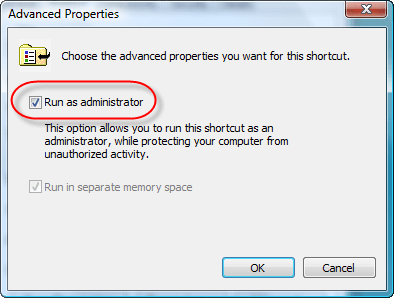
As a user, you can also instruct UAC to use the unrestricted token: right-click the program you want to start and select “Run as administrator”.

If you often need to run the same program with administrative rights and UAC systematically makes the wrong decision about the token to use, create a shortcut to the program and check the “Run as administrator” toggle in the advanced tab:

Another way to achieve this is to add (or update) a manifest to the executable file with a resource editor.


Quickpost info


Tuesday 20 May 2008

Quickpost: eicar.pdf

Filed under: PDF,Quickpost — Didier Stevens @ 8:54

I like to embed the EICAR Anti-Virus test file in usual formats and less usual formats. Today, I’m publishing a PDF document with an embedded EICAR test file (eicar.txt). This PDF document has also an annotation with a JavaScript action linked to it. Clicking the annotation will export the embedded eicar.txt file to a temporary folder and launch the default editor for .txt files. This doesn’t work with Foxit Reader, because Foxit doesn’t support the JavaScript method I’m using to export eicar.txt (exportDataObject). But you can still export the file manually if you use Foxit Reader.

eicar.pdf contains only ASCII characters, so you can use Notepad to see what I did. And I had do to something special, can you guess what? Post your comments!


Quickpost info


Monday 19 May 2008

PDF Stream Objects

Filed under: Malware,PDF — Didier Stevens @ 6:09

A PDF stream object is a sequence of bytes. There is a virtually unlimited number of ways to represent the same byte sequence. After Names and Strings obfuscation, let’s take a look at streams.

A PDF stream object is composed of a dictionary (<< >>), the keyword stream, a sequence of bytes and the keyword endstream. All streams must be indirect objects. Here is an example:

This stream is indirect object 5 version 0. The stream dictionary must have a /Length entry, to document the length of the (encoded) byte sequence. The stream and endstream keywords are terminated with the EOL character(s). In this example, the byte sequence is a set of instructions for the PDF reader to render the string Hello World with a given font at a precise position. It’s precisely 42 bytes long.

In this example, the byte sequence is represented literally, but it’s possible (and usual) to encode the byte sequence. This is done with a stream filter. A stream filter specifies how the sequence of bytes has to be decoded. Let’s take the same example, but with an ASCII85 encoding:

The /Filter entry instructs the PDF reader how to decode the byte sequence (/ASCII85Decode). Notice the change of the length value. There are many encoding schemes (ASCII filters and decompression filters), here is a list:

  • ASCIIHexDecode
  • ASCII85Decode
  • LZWDecode
  • FlateDecode
  • RunLengthDecode
  • CCITTFaxDecode
  • JBIG2Decode
  • DCTDecode
  • JPXDecode
  • Crypt

This list is not so long, so why do I claim an almost limitless number of ways to encode a stream? I have 2 reasons:

  1. Many filters, like /FlateDecode, take parameters (in this case, the compression level), which influence the encoding too
  2. Filters can be cascaded, meaning that the stream has to be decoded by more than one filter

Here is our example, where the stream is encoded twice, first with ASCII85 and then with plain HEX (I know, this is rather pointless, but it yields simple and readable examples):

Cascading filters also inspired me to create a couple of test PDF documents. For example, I’ve created a 2642 bytes small PDF document that contains a 1GB large stream (a ZIP bomb of sorts). Some PDF readers will choke on this document.

Wednesday 7 May 2008

Solving a Little PDF Puzzle

Filed under: Forensics,Malware,PDF — Didier Stevens @ 8:22

I’m quite pleased with the feedback I received for my Little PDF Puzzle, thanks all.

As promised, I’m posting the solution now, but first be sure you understand the basic structure of a PDF file.

The PDF file format supports Incremental Updates, this means that changes to an existing PDF document can be appended to the end of the file, leaving the original content intact. When the PDF file is rendered by a PDF reader, it will display the latest version, not the original content. Remember that the basic structure of a PDF file (one without incremental updates) consists of 4 parts:

  • header
  • objects
  • cross reference table
  • trailer

A PDF file with one incremental update has the following structure:

  • header
  • objects (original content)
  • cross reference table (original content)
  • trailer (original content)
  • objects (updated content)
  • cross reference table (updated content)
  • trailer (updated content)

Every object that has been modified can be found twice in the PDF file. The unmodified object is still present in the original content, and the edited version of the same object can be found in the updated content.

The cross reference table of the updated content indexes the updated objects, and the trailer of the updated content points to both cross reference tables.

When a PDF reader renders a PDF document, it starts from the end of the file. It reads the last trailer and follows the links to the root object and the cross reference tables to build the logical structure of the document it is about to render. When the reader encounters updated objects, it ignores the original versions of the same objects.

Let’s open our PDF Puzzle with a PDF reader:

And let’s also open it with Notepad:

With Notepad, it becomes clear that I’ve created a PDF document with an incremental update (original document in red, update in blue). If you delete the updated content (the blue part, or everything after the first occurrence of %%EOF), you’ve actually recovered the original version. Save it and open it with your PDF reader:

In the original PDF document, I stored the sentence “The passphrase is Incremental Updates” in indirect object 5 (to make the puzzle a bit more challenging, I used an ASCII85 encoded stream, otherwise you could just read the solution with Notepad). Next, I updated the sentence to “The passphrase is XXXXXXXXXXXXXXXXXXX” by creating a new version of object 5 and appending this at the end of the original PDF document. To finalize the updated document, I added a new cross reference table (just indexing the new version of object 5) and a new trailer (referencing the new and the old cross reference tables).

If you produce PDF documents with a PDF editor that supports incremental updates, be aware that previous versions of your document could be included in the final document, and that this could lead to information disclosure. Most office applications that support export to PDF do not use incremental updates (because they save the document in their own native format, not PDF).

If you conduct forensic investigations or do malware research, don’t limit your analysis to the final version of a PDF document. You can easily identify incrementally updated PDF documents by looking for multiple instances of cross reference tables and trailers. But don’t get confused by Linearized PDF documents, they too have more than one cross reference table and trailer (linearized PDF documents start with an indirect object sporting a /Linearized name).

You can find interesting information in the different versions included in an incremental PDF file. For example, I have a malicious PDF sample that has been created in February 2008, updated in March 2008 to add the malicious payload (it took the author about 20 minutes) and, not surprising, that this was done on a machine with the timezone set to GMT+08.

A final detail: to allow you to edit the PDF puzzle with Notepad, I produced an ASCII-only PDF file (that’s one of the reasons I used ASCII85 encoding for the stream of indirect object 5). But most PDF documents contain non-ASCII characters, so be sure to use an editor that will support this (and that won’t convert 0x0A or 0x0D to 0x0D0A).

Tuesday 6 May 2008

A Little PDF Puzzle

Filed under: Forensics,PDF — Didier Stevens @ 8:24

I have a little PDF puzzle this week. Find the passphrase in this PDF document and post a comment with your solution. There’s a very simple solution just requiring Notepad (and your favorite PDF reader).

Tuesday 29 April 2008

PDF, Let Me Count the Ways…

Filed under: Malware,PDF — Didier Stevens @ 6:21

In this post, I show how basic features of the PDF language can be used to generate polymorphic variants of (malicious) PDF documents. If you code a PDF parser, write signatures (AV, IDS, …) or analyze (malicious) PDF documents, you should to be aware of these features.

Official language specifications are interesting documents, I used to read them from front to back. I especially appreciate the inclusion of a formal language description, for example in Backus–Naur form. But nowadays, I don’t take the time to do this anymore.

While browsing through the official PDF documentation, I took particular interest in the rules to express lexemes. There are many ways to write the same token, offering opportunities to evade known-pattern recognition systems, like AV and NIDS.

Building a test file

Before I show some examples, let’s build a test PDF file that will start the default browser and navigate to a site each time the document is opened.

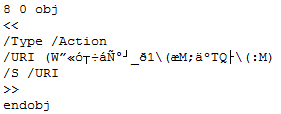
Opening a web page from a PDF file can be done with an URI action, like this:

This is the same type of object used in the malicious mailto PDF files.

An action must be triggered by an event, examples of such triggers are the association of an action to the display of a page or the opening of the PDF document. We will use the OpenAction to trigger our URI action object each time our test PDF document is opened:

I add the URI action object and the OpenAction event to the hello world PDF file I used in a previous post, to build our test PDF. You can download all examples here. Opening the test PDF document launches IE:

Now that we have our test PDF, let’s look at the ways we can change its representation without changing its rendering. This is what I’m covering (this list is not exhaustive):

  • Names
    • Hexadecimal encoding
  • Strings
    • Newline escaping
    • Octal encoding
    • Hexadecimal encoding
    • Hexadecimal whitespacing
    • Encryption

Name representation

The tokens preceded by a / (slash) in the URI action object are called Names in the official PDF description. Names are case-sensitive. The characters used in a Name are limited to a specific set, but since PDF specification version 1.2, a lexical convention has been added to represent a character with its hexadecimal ANSI-code, like this #XX.

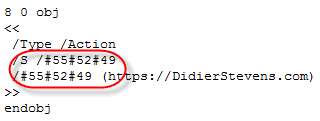
This allows use to rewrite the /URI name in several ways, for example: #55RI.

Or #55#52#49

Pattern matching algorithms must take into account these different representations to successfully match a pattern. A standard way to deal with this is canonicalization. First, the token is reduced to a canonical form (e.g. replace all #xx representations by the character they stand for), and second, pattern matching is performed on the canonical form.

String representation

Strings too can be represented in many forms. One way to represent strings, is to type the text between parentheses:

Splitting strings over several lines can be done by adding a backslash (\) at the end of each line:

Of course, we are not limited by the numbers of lines, we can add a backslash after each character:

A character in a string can be represented by its octal code, like this:

And this can be done for every character in the string:

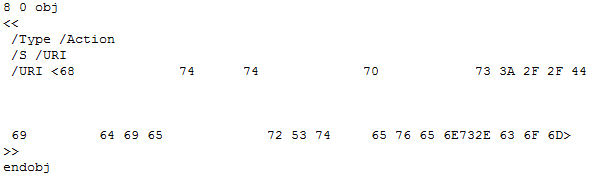
One more way to represent a string, is hexadecimal:

You’re allowed to put whitespace between the hex digits:

And you’re not limited in the amount of whitespace you use:

This whitespace usage reminds me of the IE zero-byte trick in html.

I want to finish this long list of examples with PDF encryption. One more way to change the representation of a PDF document is encryption. PDFs can be encrypted without requiring the user to provide a password to view the encrypted document, this form of encryption is used for DRM. Ever had a PDF with printing or text copy disabled? That’s an encrypted PDF.

When a PDF is encrypted, only the strings and streams are encrypted, the objects themselves are not encrypted. Encrypted strings are one more way to change the representation of a string.

Here’s an example:

I know that PDF encryption has already been used to mislead SPAM filters.

Final thoughts

These many features of the PDF language providing flexibility in representation of names and strings, can also be used to generate polymorphic forms of the same malicious PDF. If you need to scan PDF documents, you need to be aware of all these features and have tools that support them.

There are indications that most AV products don’t canonicalize PDF documents prior to signature matching. I did some tests with a malicious mailto PDF document, and changing the string representation of the mailto URI action using the hexadecimal forms allows AV detection evasion. Adding whitespace wasn’t necessary, switching to hex was enough. The ClamAV source code for PDF documents has more evidence of PDF canonicalization issues in AV software, here is a string compare for the Length name without canicalization:

This will not match if hex codes are used (#).

I tested all my examples with Adobe Acrobat Reader 8.1.2 and Foxit Reader 2.2 without problems. But Foxit Reader 2.2 gave me an unpleasant surprise, more on this in a next post.

I wonder if malicious PDF samples will be used in the Race to Zero.

« Previous PageNext Page »

Blog at WordPress.com.