Didier Stevens

Tuesday 24 June 2008

Quickpost: WiFi Probe Request Logging with an AirPcap Adapter

Filed under: My Software,Quickpost,WiFi — Didier Stevens @ 9:10

As promised in my previous post, here is another Python program for the AirPcap adapter.

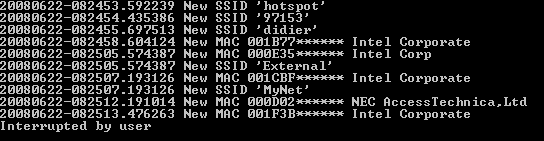
apc-pr-log parses the WiFi packets captured by the AirPcap adapter and logs all probe requests with a SSID. If you start the program without any option, it starts displaying every new MAC address (source address) and SSID captured while channel hopping:

(BTW, the MAC addresses and SSIDs in this screenshot are fake)

Every probe request is logged to file apc-pr-log.txt, except if the –nolog option is provided. A summary report is written to file apc-pr-log-report.txt for every full channel hopping cycle, and when the program is interrupted (CTRL-C). The channel hop interval is 0.5 seconds, and can be changed with the –interval option.

When the program is interrupted, the internal data is persisted to file apc-pr-log.pkl. The program can be resumed with the –resume option (this will read the previously persisted internal data from file apc-pr-log.pkl).

If you don’t want to see new MAC addresses displayed in the console, provide option –nonewclients. Likewise, use option –nonewssids to keep quiet about new SSIDs.

The last option is –exclude, this allows you to provide a list of MAC addresses and OUIs (as a text file) that should be excluded from displaying and reporting.

If you store the oui.txt file in the same directory as the apc-pr-log.py program, the program will use the OUI.txt file to display the organisations linked to the OUI.

Summary of the options:

  --version             show program's version number and exit
  -h, --help            show this help message and exit
  -e, --nonewssids      don't print new SSIDs
  -c, --nonewclients    don't print new clients
  -r, --resume          resume logging
  -l, --nolog           don't log each probe request
  -x EXCLUDE, --exclude=EXCLUDE
                        file with clients/OUIs to exclude from display and
                        report
  -i INTERVAL, --interval=INTERVAL
                        interval in seconds between channel hops

Quickpost info


Tuesday 10 June 2008

Quickpost: WiFi Channel Hopping with an AirPcap Adapter

Filed under: My Software,Quickpost,WiFi — Didier Stevens @ 9:26

Here is a Python program to do WiFi channel hopping with an AirPcap adapter.

The program (apc-channel.py) takes 3 options:

  • –interval sec to set the interval between hops (default is 0.5 sec)
  • –step increment to specify the size of the channel hop (default is 5)
  • –quit to prevent the program from displaying each channel hop

The program also serves as an example on how to use the AirPcap dll from a Python program.

I’ve a couple of other AirPcap programs written in Python (like one to monitor probe requests). If there’s enough interest, I’ll clean up the code and publish it. Be aware that you need an AirPcap adapter for all these programs.


Quickpost info


Monday 9 June 2008

Quickpost: Embedding an Executable in a VBscript

Filed under: My Software,Quickpost — Didier Stevens @ 11:53

My latest bpmtk post got some people to ask me for the VBscript. I’ll do better, I’m posting the Python program I wrote to generate the script. You can download it here.

You have to provide it 2 arguments: the name of the executable to embed and the name of the VBscript to generate, like this:

file2vbscript cmd.exe cmd.vbs

This will generate a VBscript that will write cmd.exe to the current directory and execute it (create a new process). If you want to load a DLL in stead of executing an EXE, use the -l option:

file2vbscript -l mydll.dll mydll.vbs

And to use it in an Office application (Office VBA doesn’t take long subs), use the option -o:

file2vbscript -ol mydll.dll mydll.vbs

This will split the embedded file over several subs, to accommodate for the size limitation of Office VBscripts.


Quickpost info


Thursday 5 June 2008

bpmtk: How About SRP Whitelists?

Filed under: Hacking,My Software — Didier Stevens @ 13:44

After having showed you how my Basic Process Manipulation Tool Kit can be used to bypass Software Restriction Policies, I wanted to follow this with a post showing how SRP whitelisting can prevent this. However, while preparing this new post, I got an idea how I could bypass SRP whitelists (under certain conditions), but I’ve no idea how to prevent this. I finally decided to post this without a solution, maybe you’ll come up with one.

With a SRP whitelist, starting a program is denied by default:

As an administrator, you’ve to explicitly specify the programs that are allowed to be executed by your users (if there are many programs, maintaining this whitelist becomes time consuming). Because of this whitelist, tools like gpdisable or bpmtk can’t be executed to disable SRP. However, if I can execute these tools without starting a new process, SRP will not block them …
Applications with embedded scripting can also be used to manipulate processes. For example, the scripting features of Microsoft Office allow you to call the system APIs I’ve been using in my bpmtk. It’s often not easy (even impossible) to convert a C program to VBscript, but I’ve a workaround.

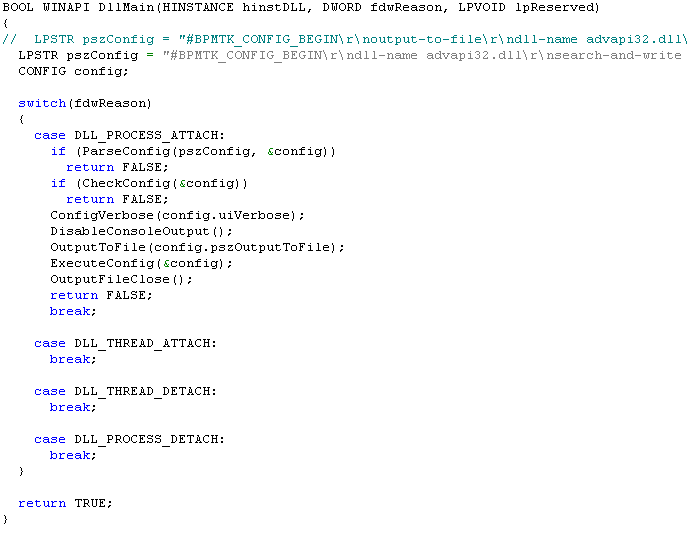
First, we adapt our C program from an EXE to a DLL (entrypoint DllMain in stead of main), because VBscript can load a DLL.

We’ll use Excel’s scripting features. I’ve created an Excel spreadsheet that embeds a DLL that can be executed with a mouse-click:

The MyDLL dialog is displayed by the embedded DLL.

The DoIt button starts this Sub:

DoIt will create a temporary file (in the user’s temporary file folder), write the embedded DLL to it (DumpFile), and then load the DLL (LoadLibrary).

Generating the temporary filename:

Writing the embedded DLL to the temporary file:

Each DumpFileX sub writes bytes to the temporary file (the DLL is embedded in these subs by including the hex dump in strings). It’s necessary to split this over several subs, because of the sub size limitation.

Once the DLL is stored in the temporary file, we call LoadLibrary to load our library in the Excel process. And this executes our code inside the Excel process. Because of this, SRP will not deny it, and our code can disable SRP.

Creating temporary files and loading libraries is normal behavior for programs, SRP will not block this. Even most HIPS will not block this, because loading a library is not the same as injecting a DLL (injecting a DLL is loading a library inside another process). The only thing that might be considered abnormal by the HIPS, is that a temporary file is mapped into memory, but there are also legitimate programs that do this.

SRP has an option to whitelist DLLs, but then you’re facing the huge task of identifying and specifying all DLLs your programs use!

If you implement a SRP whitelist because you absolutely want to control the programs executed by your users, take some time to reflect on your users and the scripting capabilities of your whitelisted applications. And if you really have to prevent the technique I show here, you’ll have to find another solution than SRP whitelists. Unfortunately, I’ve not found one yet… If you’ve an idea, post a comment (banning applications with embedded scripting or disabling scripting is not an option).

Wednesday 4 June 2008

Quickpost: Installing Aircrack-ng on a N800

Filed under: N800,Quickpost,WiFi — Didier Stevens @ 8:30

As some readers have informed me that the Kismet package for the N800 isn’t available anymore, I looked for an alternative and found aircrack-ng for the N800.

I followed the instructions on this page and installed the aircrack-ng and wirelesstools packages from this page. Now I’ll just have to take the time to get a copy of these packages, just in case…


Quickpost info


Tuesday 3 June 2008

Quickpost: bpmtk Config File Embedding

Filed under: Hacking,My Software,Quickpost — Didier Stevens @ 5:59

After a rather long detour in PDF file format land, let’s pick up where we left the bpmtk.

My Basic Process Manipulation Tool Kit requires a configuration file with instructions to manipulate processes, like this one to start cmd.exe in a restricted environment:

start cmd.exe
search-and-write module:. unicode:DisableCMD hex:41

Save this configuration in a text file, for example start-cmd.txt. And then start bpmtk with this file:

bpmtk start-cmd.txt

You can also embed this configuration file inside the bpmtk executable, like this:

bpmtk start-cmd.txt bpmtk-cmd.exe

This will create a copy of bpmtk.exe, called bpmtk-cmd.exe, with start-cmd.txt embedded as a resource (called BPMTK).
When you execute bpmtk-cmd.exe (without any arguments), the embedded script will be executed. Use this
trick if you often have to execute the same command, or if you have to execute bpmtk in an environment where you cannot provide an argument.


Quickpost info


Wednesday 28 May 2008

I Still Use Foxit Reader

Filed under: PDF,Vulnerabilities — Didier Stevens @ 8:38

Foxit Reader has been my default PDF reader for more than a year now, as an alternative to the Adobe Acrobat Reader that stalled too often when starting up.

While playing with the PDF file format, I created several PDF files that uncovered potential security issues with Foxit Reader.

A PDF file with an OpenAction triggering an URI action causes Adobe Acrobat to prompt the user for approval, before accessing the URI:

But Foxit Reader opens Internet Explorer and visits the site without confirmation prompt. I submitted a feature request to Foxit Software for this.

Another example is a JavaScript inside a PDF file that switches the reader to full screen mode. Adobe Acrobat Reader will warn you for spoofing attacks and ask for your permission to switch to full screen, while Foxit Reader does this immediately.

Of course, these warnings will only help a user that is aware of the potential risks. But in a corporate environment, you can also set the appropriate registry keys to block all these actions by default.

It was also trivial to assemble some simple malformed PDF files that cause problems for Foxit Reader, but not for Adobe Reader. I submitted these files to Foxit Software.

Adobe Acrobat Reader allows you to disable JavaScript. Until recently, Foxit Reader required a JavaScript plugin for JavaScript support. Omitting the plugin was a simple way to disable JavaScript. But since version 2.2, JavaScript is embedded in the main executable and there is no configuration switch to disable it. Many Foxit Reader users have requested this feature.

If you absolutely want to disable JavaScript in Foxit Reader 2.3, there’s a quick and dirty trick. Search for the ASCII string JavaScript (preceded and terminated by byte 00) in the Foxit Reader executable (you should find only one occurrence), and replace it with javascript, for example. Actually, this patch will not disable the JavaScript interpreter for Foxit Reader, but it will prevent Foxit Reader from recognizing the /JavaScript name in a PDF document, effectively making it to ignore JavaScript instructions (names are case-sensitive).

You can make this patch permanently by editing the Foxit Reader executable with an hex editor, or do it temporarily by patching in memory with my bpmtk utility. The command to achieve this is:

search-and-write module:. hex:004A61766153637269707400 hex:006A

Of course, this is not a serious risk analysis of Foxit Reader. I started to use Foxit Reader as a solution to the Adobe Acrobat Reader performance problems, not for security reasons. And now that I’ve delved into the PDF file format, I did some random tests with Foxit Reader and Adobe Acrobat Reader. This gave me the impression that Adobe has more experience with security risks and vulnerabilities, than Foxit Software, and that this experience is reflected in the design of their products.

I’ll still be using Foxit Reader as my main PDF reader, and I’ll still analyze suspect PDF files in a controlled environment.

Monday 26 May 2008

Quickpost: Restricted Tokens and UAC

Filed under: Quickpost,Windows Vista — Didier Stevens @ 19:46

It seems I’m reading this question more and more: “I’m an Administrator on a Windows Vista box, but I can’t run program X with administrator rights”.

I’ll try to explain this quickly and simply, omitting a lot of details (if there is enough interest, I’ll make a follow-up post).

The cause of this program’s behavior is simple: restricted tokens. A token is a Windows kernel object that represents a user with all his privileges and group-memberships. The token is created when a user is login on, and is associated with all programs started by that user (i.e. processes). The Windows kernel uses the token to decide if the process is granted access to the securable objects it tries to access.

A restricted token is a special token: it’s a token that represents only a part of what a user is allowed to do. Some privileges and permissions have been removed or denied (restricted). Restricted tokens exists since Windows 2000, but as a user, you weren’t really confronted with them until Windows Vista. Since Windows Vista, restricted tokens are used to run most user programs, in stead of the normal (unrestricted) tokens. In Windows Vista, when an administrator is login on, 2 tokens are created: the normal token (with all administrative rights) and a restricted token. For security reasons, most programs are started with the restricted token. And that’s why some programs don’t run as you expect, because they need more privileges and permissions than the restricted token is giving them.

UAC decides if a program is started with the unrestricted token or the restricted token. There are several rules that guide UAC in its decision process between the 2 tokens, the application manifest is one source of information used by the UAC rules. The manifest is an XML file stored as a resource inside a PE file, and it can contain information about the execution level it needs to run correctly. If an application needs administrative rights, the developer should add an requireAdministrator value to the manifest file, so that the UAC uses the unrestricted token. If your application is missing this manifest, chances are that UAC will make the wrong decision and run the program with the wrong token.

As a user, you can also instruct UAC to use the unrestricted token: right-click the program you want to start and select “Run as administrator”.

If you often need to run the same program with administrative rights and UAC systematically makes the wrong decision about the token to use, create a shortcut to the program and check the “Run as administrator” toggle in the advanced tab:

Another way to achieve this is to add (or update) a manifest to the executable file with a resource editor.


Quickpost info


Tuesday 20 May 2008

Quickpost: eicar.pdf

Filed under: PDF,Quickpost — Didier Stevens @ 8:54

I like to embed the EICAR Anti-Virus test file in usual formats and less usual formats. Today, I’m publishing a PDF document with an embedded EICAR test file (eicar.txt). This PDF document has also an annotation with a JavaScript action linked to it. Clicking the annotation will export the embedded eicar.txt file to a temporary folder and launch the default editor for .txt files. This doesn’t work with Foxit Reader, because Foxit doesn’t support the JavaScript method I’m using to export eicar.txt (exportDataObject). But you can still export the file manually if you use Foxit Reader.

eicar.pdf contains only ASCII characters, so you can use Notepad to see what I did. And I had do to something special, can you guess what? Post your comments!


Quickpost info


Monday 19 May 2008

PDF Stream Objects

Filed under: Malware,PDF — Didier Stevens @ 6:09

A PDF stream object is a sequence of bytes. There is a virtually unlimited number of ways to represent the same byte sequence. After Names and Strings obfuscation, let’s take a look at streams.

A PDF stream object is composed of a dictionary (<< >>), the keyword stream, a sequence of bytes and the keyword endstream. All streams must be indirect objects. Here is an example:

This stream is indirect object 5 version 0. The stream dictionary must have a /Length entry, to document the length of the (encoded) byte sequence. The stream and endstream keywords are terminated with the EOL character(s). In this example, the byte sequence is a set of instructions for the PDF reader to render the string Hello World with a given font at a precise position. It’s precisely 42 bytes long.

In this example, the byte sequence is represented literally, but it’s possible (and usual) to encode the byte sequence. This is done with a stream filter. A stream filter specifies how the sequence of bytes has to be decoded. Let’s take the same example, but with an ASCII85 encoding:

The /Filter entry instructs the PDF reader how to decode the byte sequence (/ASCII85Decode). Notice the change of the length value. There are many encoding schemes (ASCII filters and decompression filters), here is a list:

  • ASCIIHexDecode
  • ASCII85Decode
  • LZWDecode
  • FlateDecode
  • RunLengthDecode
  • CCITTFaxDecode
  • JBIG2Decode
  • DCTDecode
  • JPXDecode
  • Crypt

This list is not so long, so why do I claim an almost limitless number of ways to encode a stream? I have 2 reasons:

  1. Many filters, like /FlateDecode, take parameters (in this case, the compression level), which influence the encoding too
  2. Filters can be cascaded, meaning that the stream has to be decoded by more than one filter

Here is our example, where the stream is encoded twice, first with ASCII85 and then with plain HEX (I know, this is rather pointless, but it yields simple and readable examples):

Cascading filters also inspired me to create a couple of test PDF documents. For example, I’ve created a 2642 bytes small PDF document that contains a 1GB large stream (a ZIP bomb of sorts). Some PDF readers will choke on this document.

« Previous PageNext Page »

Blog at WordPress.com.