Didier Stevens

Sunday 17 October 2010

setdllcharacteristics

Filed under: My Software,Windows 7,Windows Vista — Didier Stevens @ 20:39

The PE-file format specifies flags to enable DEP and ASLR. You can set these flags with a hex-editor or a PE-file editor.

Because I need to set DEP and ASLR flags in a script, I wrote a C-program to read, set or clear these flags (together with another flag to check AuthentiCode signatures, more about this later).

It’s a standard C program, you can compile it under *nix too.

The option handling is simple, you can’t combine flags into one option string. For example, to set DEP and ASLR, you issue the following command:

setdllcharacteristics +n +d program.exe

This will not work:

setdllcharacteristics +nd program.exe

Don’t forget that by changing these flags on signed executables, the signature is not valid anymore. But that shouldn’t be a problem to run the program.

Later, I’ll post tools to force DEP (and maybe ASLR) without changing the PE file.

And I also updated the PE-file format template for the 010 editor to support these 3 flags.

Download:

setdllcharacteristics_v0_0_0_1.zip (https)

MD5: F96358BF90AA4D8C6B32968B2068BFCB

SHA256: 5A9D3815F317C7C0FF7737F271CE0C60BE2CB0F4168C5EA5AD8CEF84AD718577

Monday 11 October 2010

PDF, DEP, ASLR and Integrity Levels

Filed under: PDF,Vulnerabilities,Windows 7,Windows Vista — Didier Stevens @ 8:41

Frequently targeted document handling applications should be coded defensively and protect themselves with Windows security features like DEP, ASLR and Integrity Levels, just to name a few.

I tested a couple of PDF rendering applications: Adobe Reader, Foxit Reader and Sumatra PDF. If the application did not use DEP, ASLR or Integrity Levels, I changed some settings to make the application use these features. Setting DEP and ASLR is just setting a flag in the DllCharacteristics member of the Image Optional Header structure. You can do this with a hex editor, a PE-file editor, or a new tool (setdllcharacteristics) I’ll release soon. Using a Low Integrity Level is done by setting the appropriate ACE in the DACL of the application executable, see my post Integrity Levels and DLL Injection for details.

Adobe Reader 9 uses DEP and ASLR. It does not run with a Low Integrity Level by default. Configuring acrord32.exe to run with a Low Integrity Level fails, the application doesn’t run. It is said that the upcoming Adobe Reader 10 with sandboxing technology will run at a Low Integrity Level.

Sumatra PDF 1.1 uses DEP and ASLR. It does not run with a Low Integrity Level by default. Configuring SumatraPDF.exe to run with a Low Integrity Level succeeds, the application runs fine. Some preferences might get lost, but they are not important to me.

With version 4.2 of Foxit Reader released about a week ago, Foxit Software added support for DEP and ASLR. Setting Foxit Reader to use a Low Integrity Level results in a malformed opening dialog box:

Apart from this, Foxit Reader appears to work fine at Low Integrity Level, but don’t be fooled. At Low Integrity Level, Foxit Reader can’t read or set its preferences. For example, you won’t be able to disable JavaScript. Even if you disabled JavaScript with Foxit Reader running at Medium Integrity Level (the default), Foxit Reader running at Low Integrity Level will enable JavaScript. So you’re better off not using a Low Integrity Level for this version. I’ve talked to Foxit Software and they’ll fix this.

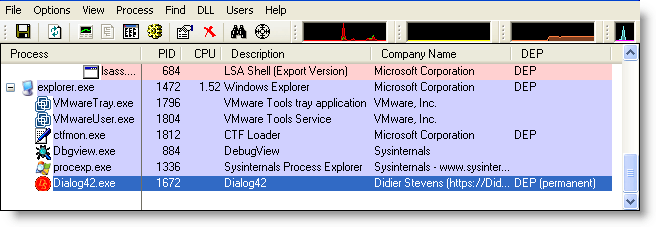
If your favorite application isn’t discussed here, you can easily check how it performs with Sysinternals’ Process Explorer. Just add columns DEP, ASLR and Integrity to Process Explorer’s main view and run your application.

Monday 4 October 2010

LowerMyRights

Filed under: Malware,My Software,Vulnerabilities — Didier Stevens @ 0:30

Last year I posted about some techniques and tools to restrict the rights of applications on Windows XP when you run with admin rights. I mentioned a new tool, LowerMyRights, which I forgot to publish. So here it is.

You would use LowerMyRights.dll only if the other tools and techniques are not appropriate for your specific case. LowerMyRights is useful when you can’t create a new process with restricted rights, but when you’ve to restrict the rights of an existing process.

When this DLL is loaded inside an existing process, it will check a whitelist and a blacklist to decide if it has to restrict the process’ rights (it also checks if it’s running on Windows XP). If the application’s name if found in the blacklist and not in the whitelist, LowerMyRights will do its job.

First, it will remove all the privileges of the primary token, except the SEChangeNotifyPrivilege.

Second, it will create a restricted token (with ACLs denying Administrator and Power Users rights) and use this token for impersonation (it uses impersonation because Windows doesn’t allow modifications to the ACLs of a primary token).

This impersonation is also a weak point of LowerMyRights compared with the other tools: exploit code can switch back to the unrestricted primary token by calling RevertToSelf.

You can load LowerMyRights inside all processes by adding it to the AppInit_DLL registry key, but be careful, this might cripple your system as it is loaded inside every process (even at boot time), so please test first.
Or else you use LoadDLLViaAppInit, or add it to the import table like explained here.

The whitelist (lowermyrights.wl.txt) is just a text file with a list of applications to whitelist (i.e. not lower the rights). You must use full pathnames in the whitelist.
The blacklist (lowermyrights.bl.txt) is just a text file with a list of applications to blacklist (i.e. to lower the rights). You must not use full pathnames in the whitelist, but just the application’s name.
The idea I had with this different operation of the whitelist and blacklist, is that you would be able to whitelist specific applications while blacklisting copies/fakes of these applications.
An example with notepad will make this clear: by adding c:\windows\system32\notepad.exe to the whitelist and notepad.exe to the blacklist, you would be able to use the original notepad.exe with full rights, while copies of notepad (located at other locations) or other programs with the name notepad.exe would be restricted. With hindsight, I don’t think this dual list feature is useful, but I left it in anyways (the program is a year old, I used it for a year and I haven’t modified it).

Download:

LowerMyRights_V0_0_0_3.zip (https)

MD5: FF937173AB1CD2C7A9DF050D7ADF0696

SHA256: 9AA83F24031029F60862CAAE477B02DF0C0887BD6E9078A1E186FEF6DF873253

Sunday 26 September 2010

Free Malicious PDF Analysis E-book

Filed under: Forensics,Malware,PDF — Didier Stevens @ 8:41

The title says it all…

This is a document I shared with my Brucon workshop attendees.

I know, this is a PDF document, you’ve to appreciate the irony 😉

Monday 13 September 2010

RunInsideLimitedJob

Filed under: My Software — Didier Stevens @ 19:21

Here’s another tool to mitigate exploitation of vulnerable (office) applications.

I discovered Job Objects in this book. Job objects allow processes to be grouped and managed together.

An interesting aspect of job objects for securing applications is the ActiveProcessLimit property. With this, you can limit the number of processes running inside the job object. Set this limit to 1 and run an office application inside the job object, and the office application will not be able to start another program. Because once a process is assigned to a job object, all its child processes are also assigned to the job object. Processes can’t change the limits of the job object they are running in, and once a process is assigned to a job object, it can’t be removed from this job object or assigned to another job object. So once a process is assigned to a job object, it is trapped inside and constrained by the limits of the job object.

To prevent a vulnerable application from launching malware, put the vulnerable application inside a job object and limit the number of processes to 1. And the good news is that job objects were introduced with Windows 2000, so this works on Windows XP too.

RunInsideLimitedJob is a program I wrote to constrain programs with a job object. There are 2 versions: an .EXE and a .DLL.

RunInsideLimitedJob.exe takes one argument: the program you want to restrict. It creates a new job object, restricts the number of processes to 1, starts the program you passed as an argument and assigns it to the new job object. If you want to allow more than 1 process, use option -n.

While RunInsideLimitedJob.exe is for new processes, RunInsideLimitedJob.dll is for existing processes. When this DLL is loaded in a running process, it will create a new job object, restrict the number of processes to 1, and assign its host process to the new job object (assuming the host process is not yet assigned to a job object).

There are several ways to automatically load RunInsideLimitedJob.dll in your favorite office application, like my tool  LoadDLLViaAppInit or by importing RunInsideLimitedJob.dll’s dummy function as explained here.

Here I started notepad inside a restricted job object, and then tried to start calc.exe from notepad.exe (via the open file dialog box):

Process Explorer supports job objects. It highlights processes assigned to job objects in brown, and it adds a Job tab to the properties of these processes.

If you try this with my tool, you won’t see the process highlighted brown or the Jobs tab in Process Explorer. Process Explorer does not display the job info when the handle to the job has been closed (the screenshots above are with a modified version of my tool that doesn’t exit and leaves the job handle open). I don’t know yet if this is a bug or a feature in Process Explorer. I need to find out.

The runas command also uses job objects, and these do appear in Process Explorer.

Download:

RunInsideLimitedJob_V0_0_0_1.zip (https)

MD5: 90055BA2928D06EC7A883DEF6E7F37C6

SHA256: EF88A2963436F5893727A90413CE624B473352190E936E35EEF85E246655486D

Tuesday 7 September 2010

Integrity Levels and DLL Injection

Filed under: bpmtk,Windows 7,Windows Vista — Didier Stevens @ 0:53

Microsoft introduced a new kernel security feature with Windows Vista: Integrity Levels. Each process has an integrity level: Low, Medium, High or System. A process with a lower integrity level can’t write to an object with a higher integrity level.

For processes, this means that a process with low integrity level can’t open a handle with full access to a process with medium integrity level. This is what I’ll show in this post: a process with low integrity level can’t inject a DLL in a process with medium (or higher) integrity level.

Normal, non-elevated processes run with medium integrity level by default. Here I inject a DLL into notepad.exe with my bpmtk utility:

The integrity level of the cmd.exe process is medium, and therefor the integrity level of bpmtk.exe (launched by cmd.exe) is also medium. Because the integrity level of the notepad.exe process is also medium, the DLL injection succeeds.

To help you identify the integrity level of processes on your machine, you can add an integrity level column to process explorer:

Now we’ll do the same DLL injection from a cmd.exe and bpmtk.exe process with low integrity level.

The icacls.exe utility can be used to view and set integrity levels. Because I don’t want to change the integrity level of the original cmd.exe, I’m making a copy of cmd.exe: cmd-low-il.exe. Cmd-low-il.exe has no explicit integrity level:

When we set an explicit integrity level (low) on cmd-low-il.exe with icacls.exe, cmd-low-il.exe will run with low integrity level in stead of medium. And every program started by this cmd-low-il.exe process will also run with low integrity level.

You need admin right to assign a low integrity level to cmd-low-il.exe:

Here you can see the low integrity level setting:

When we start cmd-il-low.exe, it will run with low integrity level. Executing bpmtk.exe from cmd-il-low.exe will force bpmtk.exe to run with low integrity level. bpmtk.exe fails to inject the DLL. When bpmtk.exe tries to open a handle with full access to notepad.exe, the call to OpenProcess fails with access denied. Notepad.exe runs with medium integrity level, and bpmtk.exe running with low integrity level has no right to open a handle to modify the notepad.exe process.

Integrity Levels look like a good security feature to sandbox vulnerable, Internet facing applications. But there are issues I’ll highlight in an upcoming post.

Friday 3 September 2010

PDFTemplate

Filed under: My Software,PDF — Didier Stevens @ 10:36

I’m starting a series of posts with new PDF tools and new versions of my PDF tools as preparation to my Brucon workshop.

Here is a PDF template for the 010 Editor. It’s particularly useful for malformed PDF files, like this example with PDFUnknown structures:

Thursday 26 August 2010

Quickpost: Ariad & DLL Preloading

Filed under: My Software,Quickpost,Vulnerabilities — Didier Stevens @ 12:11

I’m writing this quickpost just in case you hadn’t figured this out for yourself: the techniques I described to protect machines from the .LNK vulnerability also help you mitigate the DLL preloading issue.

The .LNK vulnerability mitigation examples I gave with Ariad (no file execute) and SRP prevent loading of DLLs from untrusted locations (USB sticks, network drives, …). These will also prevent DLLs from loading from untrusted sources in the case of DLL Preloading exploits.


Quickpost info


Wednesday 18 August 2010

Quickpost: .LNK Template Update

Filed under: My Software,Quickpost,Vulnerabilities — Didier Stevens @ 10:43

I updated my .LNK template with info I got from comments from WndSks and Forrest Gump. This new version identifies well-known Shell GUIDs:


Quickpost info


Sunday 8 August 2010

Quickpost: 2 .LNK Tools

Filed under: My Software,Quickpost,Vulnerabilities — Didier Stevens @ 10:52

Microsoft has issued an emergency patch (MS10-046) for the .LNK file vulnerability (CVE-2010-2568).

I’m releasing two small tools I developed to help me investigate this vulnerability.

First one is a 010 Editor template file for the .LNK binary file format.


Second one is a ClamAV signature file to find all .LNK shortcuts that load a DLL (malicious or benign).

To scan your drive C, issue command

clamscan.exe -d LNK-CPL-CVE-2010-2568.ndb -l scan.log -r c:\

Quickpost info


« Previous PageNext Page »

Blog at WordPress.com.