Didier Stevens

Monday 17 January 2011

Quickpost: “It Does No Harm…” or Does It?

Filed under: Quickpost,Vulnerabilities — Didier Stevens @ 0:00

You often read about people who use many different security applications to protect their systems. Not only anti-virus, anti-spyware, firewall, HIPS, …, but also some other tools like anti-keyloggers, … And sometimes, when they argue about the additional protection such tools bring, you can read the following: “it does no harm…”.

Well, this time, I’ve a clear example where using a supplemental security tool does harm, even when it adds real protection.

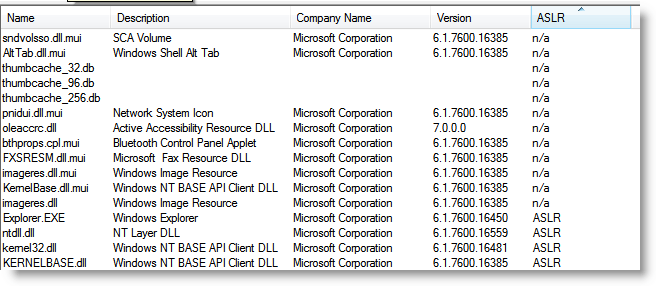
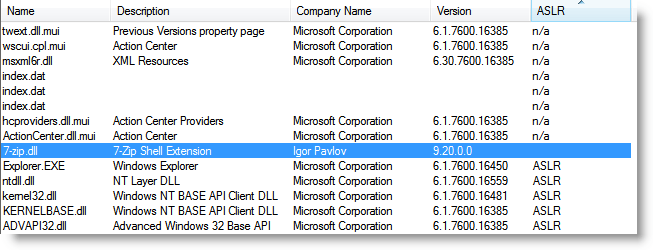
When installed, this tool (which I’m not going to name here because of SEO reasons), installs a Windows explorer shell extension (we’ve discussed the risks of these shells before). The problem with this tool’s shell extension (a DLL), is that it is compiled without the dynamic base flag set. In other words, it doesn’t support ASLR.

On a default Windows Vista or Windows 7 install, all the DLLs of explorer.exe support ASLR. Even if a vulnerability is found in explorer.exe, it won’t be possible to bypass DEP and ASLR by borrowing code from a DLL to build an exploit with ROP gadgets. Unless you’ve installed this security tool, which adds a DLL with a fixed address to explorer.exe’s code space. Then an attacker can find ROP gadgets in this shell extension’s DLL.

This security tool harms the security of your system by opening it up to ROP exploits.

And shell extensions are not only loaded into explorer.exe. They find their way into many applications. For example, when you work with the common dialog control (like using the file open dialog)  in an application, shell extensions also get loaded into these applications. So this extension can get loaded into Adobe Reader, Microsoft Office applications, …

The risk this security tool brings to your system is not theoretical. There are malicious PDFs in the wild that use ROP gadgets.


Quickpost info


Wednesday 12 January 2011

HeapLocker: NOP Sled Detection

Filed under: My Software,Vulnerabilities — Didier Stevens @ 0:00

A second protection technique I implemented in HeapLocker is NOP sled detection.

When you enable NOP sled monitoring, HeapLocker will create a new thread to periodically check (every second) newly committed virtual pages that are readable and writable. When a NOP sled is detected inside these pages with a length equal to or longer than  NOPSledLengthMin, HeapLocker will suspend all threads (except this monitoring thread used by HeapLocker) and warn the user that a NOP-sled was detected.

For HeapLocker, a NOP sled is a sequence of single-byte instructions; these may be different or the same instructions. For a list of all single-byte instructions recognized by HeapLocker, take a look array abNOPSledDetection in the source code.

With a classic heap spray, the NOP sled will be detected long before the vulnerability is exploited. But with more sophisticated techniques, it is possible that the NOP sled is detected too late, i.e. that the shellcode already executed. Or it’s also possible that HeapLocker is too early, i.e. that it scans the new page before the NOP sled was written to it. But to prevent this, I wait 1 second between the detection of a new page and the NOP sled scan of that page.

I’ve had some false positives with this detection, that’s why you can configure HeapLocker to ask the user for confirmation.

Tuesday 14 December 2010

HeapLocker: Private Memory Usage Monitoring

Filed under: My Software,Vulnerabilities — Didier Stevens @ 17:30

Explaining how Private Usage Memory Monitoring in HeapLocker works is easy, so let’s start with this technique.

When a malicious document performs a heap spray, allocation of private virtual memory will skyrocket. HeapLocker allows you to set a maximum to the amount of private virtual memory a process is using. If the maximum is exceeded, HeapLocker will suspend the process and inform the user.

To configure HeapLocker to monitor Adobe Reader’s usage of private memory and set a maximum, create these registry keys:

[HKEY_LOCAL_MACHINE\SOFTWARE\DidierStevens\HeapLocker\Applications\AcroRd32.exe]
"PrivateUsageMax"=dword:00000100

This will set the maximum to 256 MB (0x100).

When HeapLocker is loaded inside Acrobat Reader (AcroRd32.exe process), it will find the PrivateUsageMax setting and start a new thread inside the Adobe Reader process. During most of its life, this thread will do nothing (sleep). Every second, it will wake-up and check the amount of private memory allocated by the process (PrivateUsage). If this amount is equal to or larger than the maximum value specified in PrivateUsageMax, the thread will suspend all other threads in the process and display a message box to the user.

The user can decide to terminate the process, or decide to continue using the program. When the user decides to continue, HeapLocker will resume all threads and disable its monitoring of private memory usage for the life of this process.

The user is offered this choice to be able to deal with false positives. If you set your PrivateUsageMax value too low and you open many different documents in the same application, you could exceed the limit without an actual heap spray taking place. For applications that (mostly) just display data, like Adobe Reader and Internet Explorer, this is not a real issue, because no data is lost when you terminate the application. But with Microsoft Word or Excel, you will loose unsaved data when the process is terminated.

If you don’t trust your users to make the right decision when presented with this dialog, you can set registry key ForceTermination to 1. When this key is set, the user will not be offered a choice: the threads are suspended, a message box is displayed with just an OK button, and the application is terminated when the OK button is clicked.

I’ve tested this feature of HeapLocker for several months with Adobe and MS Office, limiting the private usage to 1024 MB. I don’t recommend you use the other HeapLocker techniques yet, I’m still testing these features.

This feature of HeapLocker is compatible with EMET, I’ve used both tools concurrently to protect Adobe Reader.

You can use Process Explorer to get an idea of the private memory usage of your applications.

Monday 6 December 2010

HeapLocker

Filed under: My Software,PDF,Vulnerabilities — Didier Stevens @ 0:00

HeapLocker is a new tool I’m releasing to mitigate heap spray attacks. But be patient, don’t use this version (V0.0.0.2) yet for other reasons than experimenting! I’m still testing newer versions that I’ll release soon.

HeapLocker uses 5 mitigation techniques.

1) Like EMET, HeapLocker will pre-allocate virtual memory pages to protect the addresses often used in exploits with heap sprays. HeapLocker can go one step further than EMET: it can inject its own shellcode to warn the user in case of an attack:

2) HeapLocker can also pre-allocate memory page zero, like EMET.

3) To detect heap sprays in action, HeapLocker monitors private memory usage:

4) HeapLocker can monitor the application’s memory for NOP-sleds:

5) The last technique, monitoring the application’s memory for specific strings, proved to be very successful to detect malicious PDF documents:

I will detail these techniques in upcoming posts.

Wednesday 1 December 2010

Runasil

Filed under: My Software,Windows 7,Windows Vista — Didier Stevens @ 9:56

Because I didn’t find a program to start an application with a given integrity level from “Image File Execution Options”, I wrote runasil.

The following command launches notepad.exe with a low integrity level, instructing notepad to open test.txt:

runasil.exe notepad.exe test.txt

To automatically launch notepad via runasil.exe, using “Image File Execution Options”, create this registry key HKEY_LOCAL_MACHINE\SOFTWARE\Microsoft\Windows NT\CurrentVersion\Image File Execution Options\notepad.exe and create a value debugger equal to “runasil.exe -d” (don’t forget option -d).

You can also specify the integrity level via an option:

  • -l for low
  • -m for medium
  • -h for high
  • -s for system

By default, runasil launches the application with a low integrity level.

Don’t forget you need at least Windows Vista to use integrity levels, and that a process can’t create a new process with a higher integrity level than itself.

Download:

runasil_V0_0_0_1.zip (https)

MD5: 5B8CE64715903DD7EEF4AF3B89E6E6FD

SHA256: 15841A9D9985E626C5B70B4BC3B2BF2CD68C38102B6BB1D92BA352D19F5C8A65

Friday 19 November 2010

Quickpost: Adobe Reader X

Filed under: PDF,Quickpost — Didier Stevens @ 18:03

In case you’ve not read Adobe’s announcement: Adobe Reader X is out. Use Adobe’s FTP server if you want to avoid their download manager.

Protected Mode Adobe Reader comes with a sandbox (like Internet Explorer, Microsoft Office 2010, Google Chrome) designed to prevent malware from writing to important system components.

If you’re interested in the design details of the sandbox, I recommend Kyle Randolph’s excellent series of posts.

To benefit the most of Adobe Reader’s sandbox, you need to use a Windows version that supports integrity levels (Windows Vista or later). Windows XP will not offer you this protection.

And don’t become complacent about patching your sandboxed applications. Because if there exists a vulnerability that allows one to escape from a sandboxed application, say in IE7 Adobe Reader X, then one can use this vulnerability to escape from other sandboxes, like IE7 Adobe Reader X, based on the same low integrity level design.


Quickpost info


Monday 15 November 2010

Password Auditing With a Password Filter

Filed under: My Software — Didier Stevens @ 10:47

A TechEd Europe attendee asked Marcus Murray about password auditing. He expressed his worry about the confidentiality of audited passwords. This question reminded me about an often overlooked feature of Windows: password filters.

A password filter is generally used to implement custom password policies, but can also be used for password auditing and pentesting purposes. It is a DLL loaded by the LSA (on a stand-alone machine or a domain controller) and called each time a new password is set. The DLL is designed to check the new password according to custom password policies, and reply back to the LSA if it accepts the new password or rejects it.

But you could also write a password filter that accepts all passwords, while building statistics about the new passwords or while (secretly) logging them.

I wrote a simple password filter to report on password length. By using this password filter, the passwords never leave the LSA. The main advantage of this password auditing technique is that it will not reveal actual passwords. The disadvantage is that it does not report on existing passwords, but only on new passwords (changing a password or setting an initial password). So it will take some time to report on all passwords, depending on your password expiration policy (assuming you have one).

My password filter builds a histogram of the length of all new passwords, limited to a password length of 14 characters (this is an arbitrary limit and can be changed in the code). This report is written to file C:\NewPasswordStats.txt and looks like this:

0: 1
1: 0
2: 1
3: 0
4: 0
5: 0
6: 0
7: 0
8: 4
9: 0
10: 0
11: 0
12: 0
13: 0
14: 0
>=15: 2

As you can see, my test system has one password of 0 characters long, one of 2 characters long, 4 of 8 characters long, and 2 of 15 or more characters long.

I recommend you change the ACLs of the report so that only admins can read it (or change the code to store the report in an ACLed directory). When the machine is rebooted, the statistics are reset to zero and the last report is renamed to C:\NewPasswordStats.bak. To prevent the loss of your statistics, you need to save this backup before the next reboot.

If you plan to expand my code to build more sophisticated statistics, please keep the integrity of the LSA and the confidentiality of its data in mind. If you pass the passwords around to functions in your code, be sure to erase all confidential data securely after use with SecureZeroMemory. If you plan to provide input to your password filter (for example the previous password statistics after a reboot), be sure to validate your input as to not introduce vulnerabilities in the LSA. And don’t make your statistics so specific that they can be used as a guide to quickly crack your passwords. Think about performance too: the password filters runs inside a critical process, you don’t want it to take too much time to audit/validate a password.

Here’s how to install a password filter. I tested this password filter on Windows XP SP3 and Windows 2003 (domain controller), but not on a production machine, so please use this in a test environment first should you consider using this password filter.

Download:

NewPasswordStats_V0_0_0_1.zip (https)

MD5: FAF362F49C7B3FA8CCE7AF600B6D91A8

SHA256: 3D9BBD195F55FBB8F6CE523B3E7BE95A531725570336C55911EE0F312FE95A4D

Monday 8 November 2010

EnforcePermanentDEP

Filed under: My Software,Windows 7,Windows Vista — Didier Stevens @ 0:45

Like its name reveals, EnforcePermanentDEP is a DLL to switch on permanent DEP in the loading process.

When loaded inside a process, this DLL will call SetProcessDEPPolicy with argument PROCESS_DEP_ENABLE, hereby enabling DEP permanently on the loading process. After this, DEP can’t be disabled anymore for this process.

Once DEP is set, this DLL unloads itself. There is no need for this DLL to remain loaded once it has enabled DEP. This is done via the entry point DllMain function which returns FALSE for DLL_PROCESS_ATTACH, hereby making that the DLL doesn’t remain loaded inside the process.

To load this DLL inside a process, you can add it to the import table of the target process (EnforcePermanentDEP.dll exports function Dummy), use LoadDLLViaAppInit or use your own preferred injection method.

Download:

EnforcePermanentDEP_V0_0_0_1.zip (https)

MD5: B0A89B0CE8DC5BA2472B3D744D40E4A3

SHA256: 525BA6EF82BD2B0ABD30DAD0D676CE085A9FA6E0DE3E3A8A0ADD6DF050F5A635

Sunday 31 October 2010

Quickpost: Adding Certificates to the Certificate Store

Filed under: Encryption,Quickpost — Didier Stevens @ 13:31

A couple of people asked me how to get self-signed certificates recognized by Windows.

For example, when you check the digital signature of one of my programs (like ariad.exe), you’ll see this:

The digital signature is valid, but the root certificate used in the signature is not trusted. This is because this root certificate is not installed in the repository of trusted root certificates. I’ll show you how to achieve this, but understand that by installing a new root certificate, you automatically trust all signatures and subordinate certificates issued by this root certificate authority.

The first 2 methods I’ll present add the new root certificate to your own certificate repository (i.e. the one associated with your account). This means that under other user accounts, the new root certificate will not be trusted. The third method explains how to add the new root certificate to the computer’s repository, so that it is trusted by all users.

Say you’ve a root certificate, like one created using this method. Here’s how to install it in your account’s “Trusted Root Certificate Authorities” certificate store:

And from now on, all executables signed by this root certificate authority (or it’s subordinate authorities) are trusted:

As the root certificate we used in this example is good for all purposes, and because your certificate store also integrates with Internet Explorer, SSL certificates issued by this certificate authority will also be trusted by Internet Explorer.

If you don’t have the root certificate to install, you can also get it installed from the AuthentiCode signature like this:

And from here on, you follow the same steps as in the first method;

If you want to install certificates for all users, you’ll need to follow another method. But because this other method requires a certificate file, I’ll show you how to extract a certificate file from an AuthentiCode signature:

Follow the second method to view the root certificate, but instead of installing the certificate, look at the Details tab and export the certificate:

To install a root certificate for all users, you’ll need to start the Microsoft Management Console (mmc.exe) as an administrator:

And now you can import the root certificate following the same steps as in the first method:

Tuesday 26 October 2010

Update: LoadDLLViaAppInit

Filed under: My Software,Update — Didier Stevens @ 9:04

This new version of LoadDLLViaAppInit allows you to load more than one DLL inside a process. You separate the DLL names with a semi-colon (;).

For example, to load DLLs hook-createprocess.dll and EnforcePermanentDEP.dll inside process acrord32.exe, you configure this:

acrord32.exe    hook-createprocess.dll;EnforcePermanentDEP.dll

Download:

LoadDLLViaAppInit_V0_0_0_2.zip (https)

MD5: F458DAEAB1A3E68870EE0608E2A1FFFC

SHA256: 9C8BA52A68893F33E0019CC64264C24A7EEC09C5D0DAE6F43C110ACFD45E621F

« Previous PageNext Page »

Blog at WordPress.com.