Didier Stevens

Monday 21 March 2011

Windows Security Center: Under the Hood

Filed under: Windows 7,Windows Vista — Didier Stevens @ 10:29

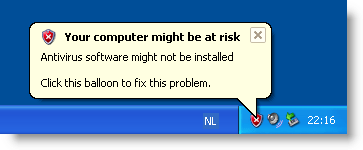
I’m sure you’ve seen the following warning before:

But have you ever wondered where the Windows Security Center gets its info? (BTW, Microsoft renamed it Windows Action Center in Windows 7).

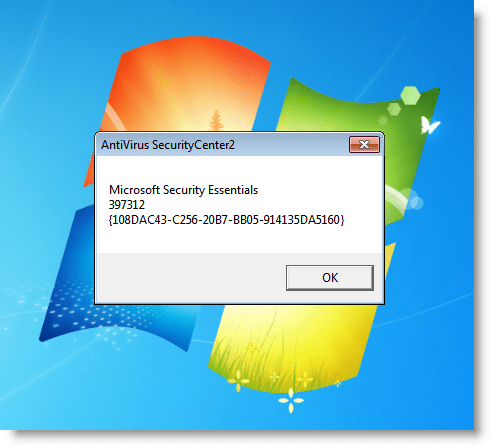
It gets the information from the Windows Management Instrumentation interface, and more precisely, the WMI name spaces \root\SecurityCenter and \root\SecurityCenter2. I wrote a small script to display this info:

You can download the script here.

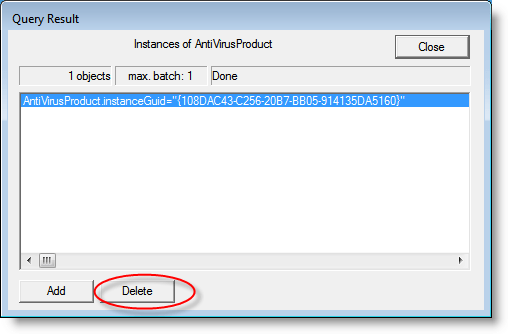
It’s also possible to modify this WMI information. Say you’ve uninstalled an antivirus program, but that it still shows up in the Windows Security Center. Then you can delete the WMI information with utility wbemtest.exe.

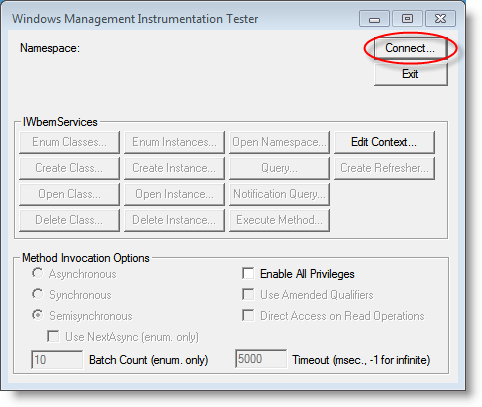
Start wbemtest (if you’re on Windows Vista or 7, you need to elevate wbemtest) and click on connect.

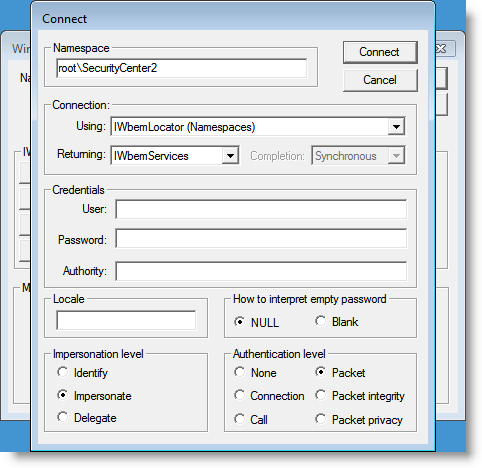
Type the name space you want to change: \root\SecurityCenter or \root\SecurityCenter2 (SecurityCenter2 is a recent addition). And then connect.

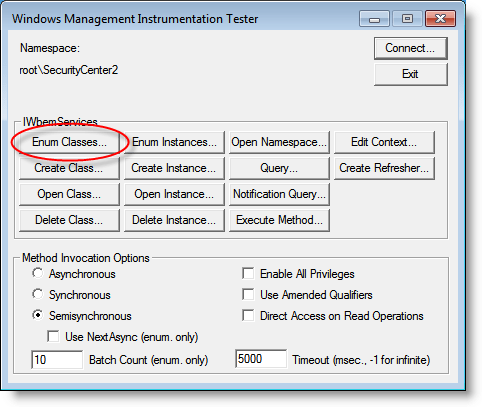
Click onEnum Classes…

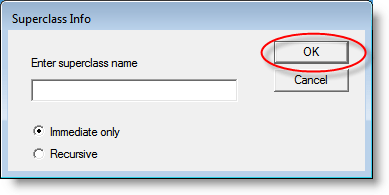
Then click OK

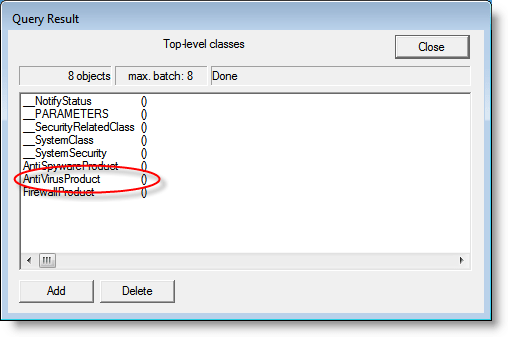
Then double-click the type of information you want to change. Here we change AntiVirusProduct:

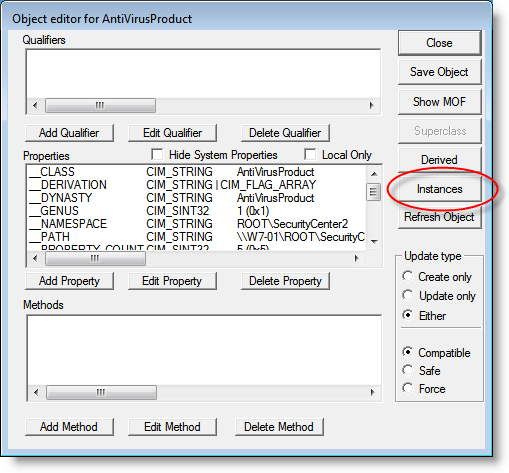
Then click Instances

And now you can change the information. Here we delete it:

Monday 14 March 2011

HeapLocker: Null Page Allocation

Filed under: My Software,Vulnerabilities — Didier Stevens @ 5:03

Just like EMET, HeapLocker can allocate a page at address 0 (null or 0x00000000) to mitigate null pointer dereferencing.

I actually implemented this code in HeapLocker because I wanted to find out how one can allocate a page at address 0. You see, when you call VirtualAlloc with address 0, VirtualAlloc will allocate a page at an address chosen by VirtualAlloc, and not at address 0. So I would think that the trick is to call VirtualAlloc with address 1, and that VirtualAlloc will allocate a page that contains address 1, and that this page must start at boundary 0.

But the problem is that you get an error when you try to allocate a page at address 1 with VirtualAlloc. Ivanlef0u explains this in his blogpost (French). VirtualAlloc rejects addresses inferior to 0x1000, one must use NtAllocateVirtualMemory to successfully allocate address 1.

Tuesday 8 March 2011

DumpStrings.1sc

Filed under: Forensics,My Software — Didier Stevens @ 0:00

I wrote another script for my 010 Editor.

Like its name implies, DumpStrings will dump all the strings (ASCII and UNICODE) found in a file, or a selection in a file, to the output tab.
Strings must be at least 5 characters long (defined with a #define statement in the script).
UNICODE support is very simple for the moment: 7-bit values in a 16-bit character (MSB or LSB).

Take into account that this is not designed for large files: it will take too long. But its easy to analyze partial files without having to save the selection for analysis with another strings tool.

Download:

DumpStrings_V0_0_1.zip (https)

MD5: 50C0C92F28020E7BCABBF46CA8775CCE

SHA256: 7EC688DBB0FD95C828067662C9ED8BBCFFEFBE5EA37B607DC8DFA1BDCB94365C

Tuesday 1 March 2011

Update: TaskManager.xls Version 0.0.3

Filed under: My Software,Update — Didier Stevens @ 11:47

My TaskManager.xls spreadsheet is very popular, so here’s a new version.

I’ve added a couple of columns with info I need (the Filename, the process Creation time and a 32/64 bit indicator).

And this new version also enables the debug privilege to display info for processes of other users. Of course, you need the debug privilege in first place for this to work. So you have to be a local admin, and if you use an OS with UAC, you have to elevate the Excel application (run as administrator).

TaskManager.xls works on 64-bit Windows, provided you use 32-bit Excel. It doesn’t work on 64-bit Excel yet, I’ll release a new version that does later.

Download:

TaskManager_V0_0_3.zip (https)

MD5: BF40B4317C7E04E1F65B8CEE55ED3A7A

SHA256: 0D48C2E6986F1DD8FA3A0671A1A53F0FC489923701963031FDC4FA516603EEC1

Friday 18 February 2011

HeapLocker: String Detection

Filed under: My Software,Vulnerabilities — Didier Stevens @ 12:43

A third protection technique I implemented in HeapLocker is string detection.

When you enable string monitoring, HeapLocker will create a new thread to periodically check (every second) newly committed virtual pages that are readable and writable. When a specific string (configured in the registry) is detected inside these pages, HeapLocker will suspend all threads (except this monitoring thread used by HeapLocker) and warn the user that the string was detected.

I’ve had very good result with this technique searching for string “unescape” in Adobe Reader (the string “unescape” must be preceded by an equal sign or followed by a left parentheses). Almost all malicious PDF documents in my collection were detected by this. But like NOP-sled detection, it’s not 100% reliable. Sometimes HeapLocker will scan a page before the string “unescape” has been written to that page.

Friday 11 February 2011

Update: WhoAmI? Version 0.1.5

Filed under: My Software,Update — Didier Stevens @ 10:05

I’ve updated my WhoAmI? Firefox add-on for Firefox version 4.

You can get it from the Mozilla site.

Thursday 3 February 2011

TaskManager.xls

Filed under: My Software — Didier Stevens @ 9:45

TaskManager.xls is a simple taskmanager implemented in Excel/VBA. It can list the running processes; and terminate, suspend or resume selected processes.

I wrote this script because I was in a restricted environment where I could not use Task Manager or Process Explorer. It will also come in handy when fixing an infected machine, where the malware prevents one from launching Task Manager or Process Explorer.

Push  button “List processes” to list all processes:

Here’s how you would use it to disable malware. List processes, identify malicious processes, type command s (suspend) in column Command for the malicious processes you want to disable. Push button “Execute commands”, this will suspend the selected processes.

Now terminate them with the t command:

Doing this in 2 steps (suspend and terminate) in stead of just terminating, is more suited for multi-process malware that monitors itself.

Download:

TaskManager_V0_0_1.zip (https)

MD5: A0A7584C83F4DD85F57F8511E332893B

SHA256: A0A128DA6297968CB2F434628AD4F045E14EBDC8AE3B05DD3D0F21CC954C13CE

Tuesday 25 January 2011

Circumventing SRP and AppLocker to Create a New Process, By Design

Filed under: Vulnerabilities — Didier Stevens @ 0:00

There’s an interesting comment on my Circumventing SRP and AppLocker, By Design post.

In my previous post, I showed a feature to circumvent SRP and AppLocker validation when a DLL is loaded.

The anonymous commenter points out a feature to create a new process, while circumventing SRP and AppLocker. Flag SANDBOX_INERT in function CreateRestrictedToken allows you to do this.

Per MSDN:

If this value is used, the system does not check AppLocker rules or apply Software Restriction Policies. For AppLocker, this flag disables checks for all four rule collections: Executable, Windows Installer, Script, and DLL.

When creating a setup program that must run extracted DLLs during installation, use the flag SAFER_TOKEN_MAKE_INERT in the SaferComputeTokenFromLevel function.

I wrote a small program to test this:

HANDLE hToken;
HANDLE hNewToken;
PROCESS_INFORMATION sPI;
STARTUPINFO sSI;

if (OpenProcessToken(GetCurrentProcess(), TOKEN_ALL_ACCESS, &hToken))
{
	if (CreateRestrictedToken(hToken, SANDBOX_INERT, 0, NULL, 0, NULL, 0, NULL, &hNewToken))
	{
		memset(&sSI, 0, sizeof(sSI));
		sSI.cb = sizeof(sSI);
		if (CreateProcessAsUser(hNewToken, L"c:\\test\\Dialog42.exe", NULL, NULL, NULL, TRUE, 0, NULL, NULL, &sSI, &sPI))
		{
			puts("process created");
		}
}

This program starts another program, Dialog42.exe. I’ve configured SRP with a whitelist, Dialog42.exe is not whitelisted:

But when I use my program with the SANDBOX_INERT flag to start Dialog42.exe, it is allowed to run:

Monday 24 January 2011

Circumventing SRP and AppLocker, By Design

Filed under: Vulnerabilities — Didier Stevens @ 0:00

We’ve seen it countless times before. A vendor designs a security product, but punches a hole in this shield to accommodate developers. Yet, I still love the irony of it.

Software Restriction Policies and AppLocker can be configured to whitelist DLLs. But LoadLibraryEx has a feature (LOAD_IGNORE_CODE_AUTHZ_LEVEL) to circumvent SRP and AppLocker. From the MSDN documentation:

If this value is used, the system does not check AppLocker rules or apply Software Restriction Policies for the DLL. This action applies only to the DLL being loaded and not to its dependents. This value is recommended for use in setup programs that must run extracted DLLs during installation.

I’ve blogged about a spreadsheet that creates a DLL in a temporary location, and loads it inside the Excel process with LoadLibrary. It’s easy to block this DLL with SRP or AppLocker. But now I found out it’s also easy to bypass this, much easier than what I’ve done before. I just have to replace a call to LoadLibrary with a call to LoadLibraryEx, and pass it argument LOAD_IGNORE_CODE_AUTHZ_LEVEL. That’s all it takes to bypass SRP and AppLocker.

Let it be clear that this only makes it possible to load arbitrary DLLs inside existing processes, it does not allow you to create a new process that SRP/AppLocker wouldn’t allow.

If you use SPR/AppLocker, should you worry? It depends against what risk you use it.

When you use SRP/AppLocker to prevent common malware or other unwanted programs from infecting your machine, there’s no problem (now). If you use it on corporate computers to prevent your users from using software you don’t support, there’s no problem.

But if you use SRP/AppLocker as a security layer against (skilled) evil haxors, then you have to be aware that there is a large hole in your security layer and that it’s easy to misuse. In that case, you should better look out for another whitelisting security layer without “designer holes”. Unless it turns out Microsoft has a (hidden) setting to disable this feature, but I’ve not found one.

If this value is used, the system does not check AppLocker rules or apply Software Restriction Policies for the DLL. This action applies only to the DLL being loaded and not to its dependents. This value is recommended for use in setup programs that must run extracted DLLs during installation.

Tuesday 18 January 2011

Quickpost: Checking ASLR

Filed under: Quickpost,Uncategorized,Vulnerabilities,Windows 7,Windows Vista — Didier Stevens @ 11:13

Some people asked me for a simple way to check shell extensions for their ASLR support. You can do this with Process Explorer.

Start Process Explorer, and set the lower pane to display DLLs. Select process explorer.exe, and add column ASLR to the lower pane view. Then sort on column ASLR.

You will see this:

Notice that on a default Windows 7 32-bits install all DLLs (with code) support ASLR. The n/a is for resource DLLs, they don’t contain code, and ASLR doesn’t apply to them.

Now open an explorer window and right-click a file, like this:

This action will load the context menu shell extensions.

Take a look at Process Explorer:

Now you see the shell extensions without ASLR support.


Quickpost info


« Previous PageNext Page »

Blog at WordPress.com.