Ever noticed a list of exotic animals (Poweroyster, Firebadger, Hypnotoad, …) in your web site visitors list (user-agent strings)?
One of your visitors certainly uses the Firesomething Firefox add-on!
Ever noticed a list of exotic animals (Poweroyster, Firebadger, Hypnotoad, …) in your web site visitors list (user-agent strings)?
One of your visitors certainly uses the Firesomething Firefox add-on!
As promised in my previous post, here is another Python program for the AirPcap adapter.
apc-pr-log parses the WiFi packets captured by the AirPcap adapter and logs all probe requests with a SSID. If you start the program without any option, it starts displaying every new MAC address (source address) and SSID captured while channel hopping:
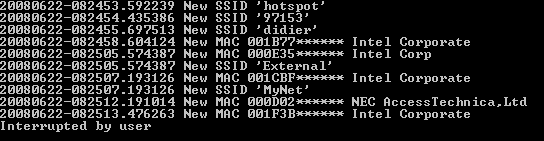
(BTW, the MAC addresses and SSIDs in this screenshot are fake)
Every probe request is logged to file apc-pr-log.txt, except if the –nolog option is provided. A summary report is written to file apc-pr-log-report.txt for every full channel hopping cycle, and when the program is interrupted (CTRL-C). The channel hop interval is 0.5 seconds, and can be changed with the –interval option.
When the program is interrupted, the internal data is persisted to file apc-pr-log.pkl. The program can be resumed with the –resume option (this will read the previously persisted internal data from file apc-pr-log.pkl).
If you don’t want to see new MAC addresses displayed in the console, provide option –nonewclients. Likewise, use option –nonewssids to keep quiet about new SSIDs.
The last option is –exclude, this allows you to provide a list of MAC addresses and OUIs (as a text file) that should be excluded from displaying and reporting.
If you store the oui.txt file in the same directory as the apc-pr-log.py program, the program will use the OUI.txt file to display the organisations linked to the OUI.
Summary of the options:
  --version             show program's version number and exit
  -h, --help            show this help message and exit
  -e, --nonewssids      don't print new SSIDs
  -c, --nonewclients    don't print new clients
  -r, --resume          resume logging
  -l, --nolog           don't log each probe request
  -x EXCLUDE, --exclude=EXCLUDE
                        file with clients/OUIs to exclude from display and
                        report
  -i INTERVAL, --interval=INTERVAL
                        interval in seconds between channel hops
Here is a Python program to do WiFi channel hopping with an AirPcap adapter.
The program (apc-channel.py) takes 3 options:
The program also serves as an example on how to use the AirPcap dll from a Python program.
I’ve a couple of other AirPcap programs written in Python (like one to monitor probe requests). If there’s enough interest, I’ll clean up the code and publish it. Be aware that you need an AirPcap adapter for all these programs.
My latest bpmtk post got some people to ask me for the VBscript. I’ll do better, I’m posting the Python program I wrote to generate the script. You can download it here.
You have to provide it 2 arguments: the name of the executable to embed and the name of the VBscript to generate, like this:
file2vbscript cmd.exe cmd.vbs
This will generate a VBscript that will write cmd.exe to the current directory and execute it (create a new process). If you want to load a DLL in stead of executing an EXE, use the -l option:
file2vbscript -l mydll.dll mydll.vbs
And to use it in an Office application (Office VBA doesn’t take long subs), use the option -o:
file2vbscript -ol mydll.dll mydll.vbs
This will split the embedded file over several subs, to accommodate for the size limitation of Office VBscripts.
As some readers have informed me that the Kismet package for the N800 isn’t available anymore, I looked for an alternative and found aircrack-ng for the N800.
I followed the instructions on this page and installed the aircrack-ng and wirelesstools packages from this page. Now I’ll just have to take the time to get a copy of these packages, just in case…
After a rather long detour in PDF file format land, let’s pick up where we left the bpmtk.
My Basic Process Manipulation Tool Kit requires a configuration file with instructions to manipulate processes, like this one to start cmd.exe in a restricted environment:
start cmd.exe
search-and-write module:. unicode:DisableCMD hex:41
Save this configuration in a text file, for example start-cmd.txt. And then start bpmtk with this file:
bpmtk start-cmd.txt
You can also embed this configuration file inside the bpmtk executable, like this:
bpmtk start-cmd.txt bpmtk-cmd.exe
This will create a copy of bpmtk.exe, called bpmtk-cmd.exe, with start-cmd.txt embedded as a resource (called BPMTK).
When you execute bpmtk-cmd.exe (without any arguments), the embedded script will be executed. Use this
trick if you often have to execute the same command, or if you have to execute bpmtk in an environment where you cannot provide an argument.
It seems I’m reading this question more and more: “I’m an Administrator on a Windows Vista box, but I can’t run program X with administrator rights”.
I’ll try to explain this quickly and simply, omitting a lot of details (if there is enough interest, I’ll make a follow-up post).
The cause of this program’s behavior is simple: restricted tokens. A token is a Windows kernel object that represents a user with all his privileges and group-memberships. The token is created when a user is login on, and is associated with all programs started by that user (i.e. processes). The Windows kernel uses the token to decide if the process is granted access to the securable objects it tries to access.
A restricted token is a special token: it’s a token that represents only a part of what a user is allowed to do. Some privileges and permissions have been removed or denied (restricted). Restricted tokens exists since Windows 2000, but as a user, you weren’t really confronted with them until Windows Vista. Since Windows Vista, restricted tokens are used to run most user programs, in stead of the normal (unrestricted) tokens. In Windows Vista, when an administrator is login on, 2 tokens are created: the normal token (with all administrative rights) and a restricted token. For security reasons, most programs are started with the restricted token. And that’s why some programs don’t run as you expect, because they need more privileges and permissions than the restricted token is giving them.
UAC decides if a program is started with the unrestricted token or the restricted token. There are several rules that guide UAC in its decision process between the 2 tokens, the application manifest is one source of information used by the UAC rules. The manifest is an XML file stored as a resource inside a PE file, and it can contain information about the execution level it needs to run correctly. If an application needs administrative rights, the developer should add an requireAdministrator value to the manifest file, so that the UAC uses the unrestricted token. If your application is missing this manifest, chances are that UAC will make the wrong decision and run the program with the wrong token.
As a user, you can also instruct UAC to use the unrestricted token: right-click the program you want to start and select “Run as administrator”.
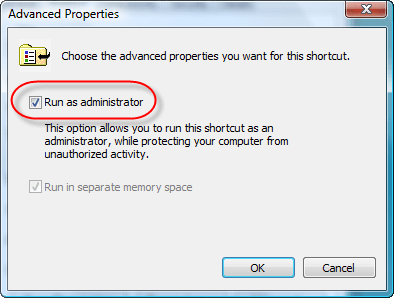
If you often need to run the same program with administrative rights and UAC systematically makes the wrong decision about the token to use, create a shortcut to the program and check the “Run as administrator” toggle in the advanced tab:

Another way to achieve this is to add (or update) a manifest to the executable file with a resource editor.
I like to embed the EICAR Anti-Virus test file in usual formats and less usual formats. Today, I’m publishing a PDF document with an embedded EICAR test file (eicar.txt). This PDF document has also an annotation with a JavaScript action linked to it. Clicking the annotation will export the embedded eicar.txt file to a temporary folder and launch the default editor for .txt files. This doesn’t work with Foxit Reader, because Foxit doesn’t support the JavaScript method I’m using to export eicar.txt (exportDataObject). But you can still export the file manually if you use Foxit Reader.
eicar.pdf contains only ASCII characters, so you can use Notepad to see what I did. And I had do to something special, can you guess what? Post your comments!
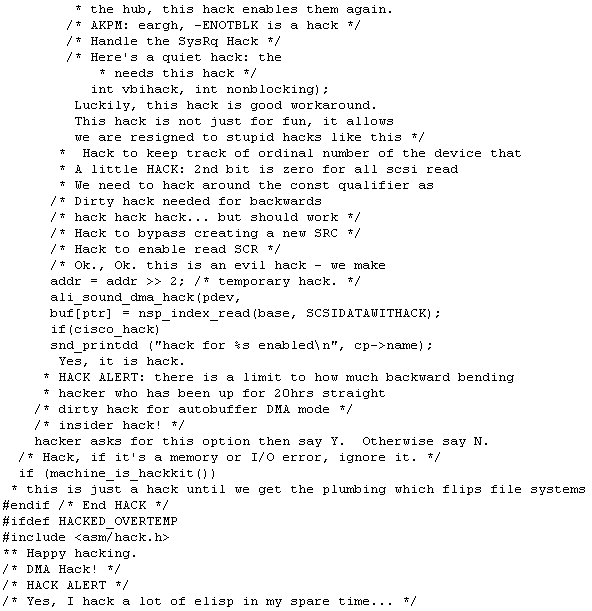
A colleague challenged me, half jokingly, to perform a code review of the Linux kernel. I took his challenge: I downloaded the latest stable kernel sources and used a state of the art static code checker (grep -hEir “hack|crack|backdoor|keygen” *).
I located a couple of backdoors:

Some cracks:

And even some keygens:

And the number of hacks was countless (1000+), here is a selection:
Here is a post to explain in detail PDF polymorphism mentioned in my BH post.
This is a simple “Hello World”-PDF viewed with a text editor:

It is composed of:
What I describe here is the physical structure of a PDF file. The header identifies that this is a PDF file (specifying the PDF file format version), the trailer points to the cross reference table (starting at byte position 642 into the file), and the cross reference table points to each object (1 to 7) in the file (byte positions 12 through 518). The objects are ordered in the file: 1, 2, 3, 4, 5, 6 and 7.
The logical structure of a PDF file is an hierarchical structure, the root object is identified in the trailer. Object 1 is the root, object 2 and 3 are children of object 1, etc…, giving this logical structure:

The physical structure of a PDF file can be transformed into another physical structure, without changing the logical structure. Here is the same file, but now the objects are ordered from 7 to 1 (I reversed the order in which the objects appear in the file):

I also had to update the cross reference table, because each object is located at a different position now. But apart from that, nothing has changed. The root is still object 1, and the tree is the same. In other words, the logical structure of the file remained unchanged, which implies that the rendering of both PDF files is identical. Objects can appear at random positions in a PDF file without impact on the logical file structure (i.e. rendering). For this simple file, with 7 objects, I have 5020 5040 (that’s 7!) possible physical structures, just by reordering the objects. And reordering objects is just one way to mutate the physical structure of a PDF file.
You can download both PDF files here.

 Didier Stevens