Didier Stevens

Monday 9 November 2009

Quickpost: “Hiding” a PDF Document

Filed under: Entertainment,My Software,PDF,Quickpost — Didier Stevens @ 15:00

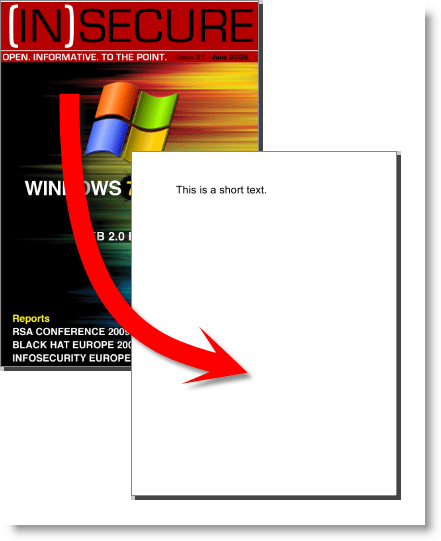
Here’s some Python code (it uses my mPDF module) to append a new PDF document to an existing PDF document to “hide” the original document. Recovering the original is trivial, you open the PDF document with a HEX-editor and delete the appended document (starting after the second %%EOF counting from the end of the file). This trick uses incremental updates.
20091107-172245

#!/usr/bin/python

__description__ = 'make-pdf-hide-original, use it to "hide" the original PDF document'
__author__ = 'Didier Stevens'
__version__ = '0.0.1'
__date__ = '2009/11/07'

"""
Source code put in public domain by Didier Stevens, no Copyright
https://DidierStevens.com
Use at your own risk

History:
 2009/11/07: start

Todo:

"""

import mPDF
import time
import zlib
import optparse

def Main():
    oParser = optparse.OptionParser(usage='usage: %prog [options] pdf-file\n' + __description__, version='%prog ' + __version__)
    oParser.add_option('-s', '--line', default='Hello World', help='The line of text to print on the screen (default Hello World')
    (options, args) = oParser.parse_args()

    if len(args) != 1:
        oParser.print_help()
        print ''
        print '  %s' % __description__
        print '  Source code put in the public domain by Didier Stevens, no Copyright'
        print '  Use at your own risk'
        print '  https://DidierStevens.com'

    else:
        pdffile = args[0]
        oPDF = mPDF.cPDF(pdffile)
        oPDF.template1()
        oPDF.stream(5, 0, 'BT /F1 24 Tf 100 700 Td (%s) Tj ET' % options.line)
        oPDF.xrefAndTrailer('1 0 R')

if __name__ == '__main__':
   Main()
Quickpost info


Monday 28 September 2009

Quickpost: SAFER and Malicious Documents

Filed under: My Software,Quickpost — Didier Stevens @ 17:50

I wasn’t going to mention SAFER to restrict the rights of an application, because Software Restriction Policies can be bypassed. But a Tweet by Edi Strosar made me review my viewpoint. In this particular case, bypassing SRP is a non-issue, because the user is already local admin!

Software Restriction Policies allow you to force specific applications to run with a restricted token. As Michael explained it with AD GPOs, I’ll show it with local policies.

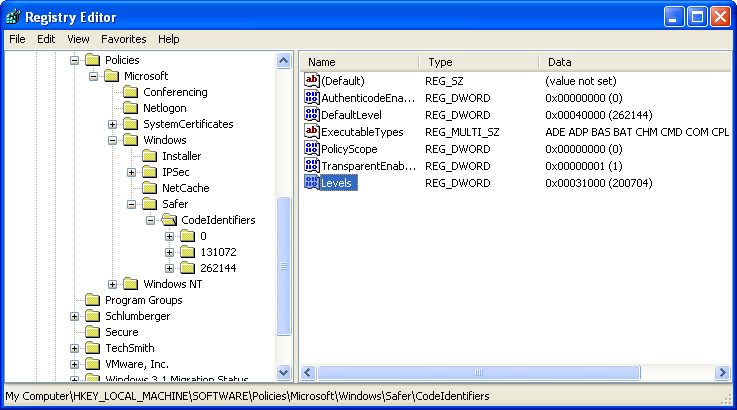
Enable SAFER policies for SRPs by adding DWORD registry key Levels (value 0x31000) to HKLM\SOFTWARE\Policies\Microsoft\Windows\Safer\CodeIdentifiers:

20090928-184852

Start the Local Security Policy administration tool and go to the Software Restriction Policies. You’ll have to create new policies if this is the first time you configure SRPs.

20090928-180154

Create a new rule in Additional Rules. We’ll identify the application to restrict by its path and name, so create a Path Rule:

20090928-185739

For the security level, select Basic User:

20090928-184938

If you have no Basic User option, you forgot to update the registry before launching the administration tool:

20090928-184657

Select the application to restrict:

20090928-185830

This rule will force Adobe Reader to run with a restricted token:

20090928-180534

Writing to SYSTEM32 is denied:

20090928-180742


Quickpost info


Wednesday 9 September 2009

QuickPost: Arduino + Alcohol Gas Sensor + WiShield + LCD

Filed under: Arduino,Hardware,Quickpost — Didier Stevens @ 20:07

This is a little project I’m working on for Brucon:

20090909-212457

This is an Arduino with a WiFi adapter (WiShield), an LCD and a gas sensor (senses gases like ethanol).

What it does: the Arduino reads the sensor (uncalibrated for the moment), displays its value on line 1 of the LCD and also servers it on a web page (with an embedded webserver connecting to the WiFi network via the WiShield).
If the sensor read-out is 900 or more, a LED is turned on.
And I can send a message via the webserver to line 2 of the LCD.

The problem I had to solve: the LCD didn’t work when the WiShield was operating.

The cause: the WiShield library and the LCD library use some common pins.

Solution: change the pin assignment in the LCD library code (LCD4Bit.cpp):

// --------- PINS -------------------------------------
//is the RW pin of the LCD under our control?  If we're only ever going to write to the LCD, we can use one less microcontroller pin, and just tie the LCD pin to the necessary signal, high or low.
//this stops us sending signals to the RW pin if it isn't being used.
int USING_RW = false;

//RS, RW and Enable can be set to whatever you like
int RS = 1;
int RW = 11;
int Enable = 0;
//DB should be an unseparated group of pins  - because of lazy coding in pushNibble()
int DB[] = {3, 4, 5, 6};  //wire these to DB4~7 on LCD.

//--------------------------------------------------------

And don’t forget to delete LCD4Bit.o before recompiling the code. The Arduino IDE doesn’t check dependencies of libraries when compiling.

And yes, once calibrated, you should be able to use this alcohol gas sensor to prevent drunk e-mailing 😉 But you’ll need to add a sensor to verify you’re actually blowing into the alcohol gas sensor. For example a gas pressure sensor.


Quickpost info


Sunday 23 August 2009

Quickpost: Ardubot Programming

Filed under: Hardware,Quickpost — Didier Stevens @ 14:15

Here’s a small post with extra details on building an Ardubot; details I didn’t find online.

The missing info is which Arduino output lines control the 2 motors. Measuring with a multimeter reveals digital outputs 3, 5, 6 and 9.

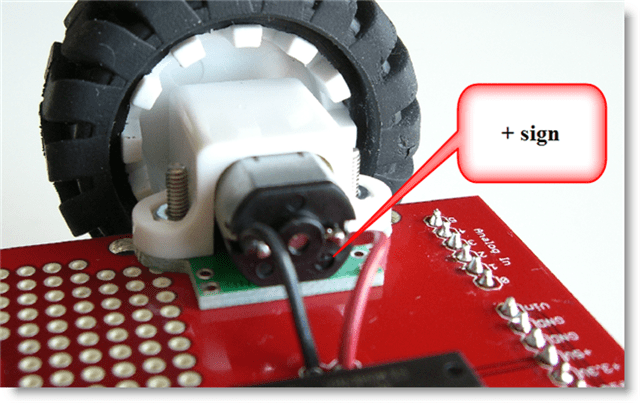
I place and solder the motors like this:

The +-sign closest to the PCB:

ardubot-motor-plus-sign

Red wire soldered to + connector, black wire soldered to – connector:

ardubot-motor-wires

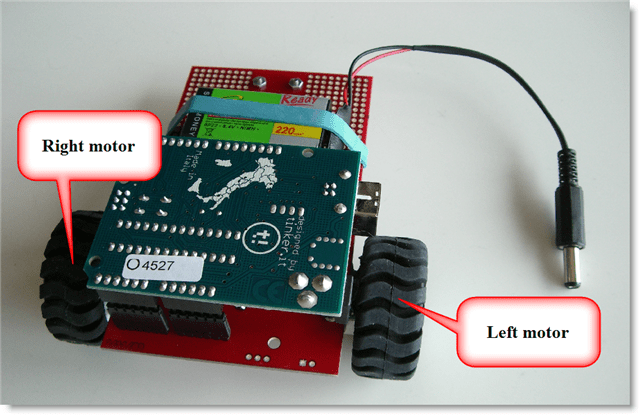
I defined left motor and right motor like this:

ardubot

And here’s the schema:

ardubot-schema

To power the left motor in a forward drive, set digital output 9 high and digital output 6 low.

To power the left motor in a reverse drive, do the oposite of a forward drive (9 low and 6 high).

To power down a motor, set both digital outputs low.

To power the right motor in a forward drive, set digital output 5 low and digital output 3 high.

To power the right motor in a reverse drive, do the oposite of a forward drive (5 high and 3 low).

Arduino code:

/*
	Ardubot motor-driving example program
	Version 0.0.1
	Source code put in public domain by Didier Stevens, no Copyright
	https://DidierStevens.com
	Use at your own risk

	History:
	2009/08/21: Start development
	2009/08/23: refactoring
*/

unsigned char PIN_HBRIDGE_1A = 9;
unsigned char PIN_HBRIDGE_2A = 6;
unsigned char PIN_HBRIDGE_3A = 5;
unsigned char PIN_HBRIDGE_4A = 3;

void MotorLeftStop()
{
  digitalWrite(PIN_HBRIDGE_1A, LOW);
  digitalWrite(PIN_HBRIDGE_2A, LOW);
}

void MotorLeftForward()
{
  digitalWrite(PIN_HBRIDGE_1A, HIGH);
  digitalWrite(PIN_HBRIDGE_2A, LOW);
}

void MotorLeftReverse()
{
  digitalWrite(PIN_HBRIDGE_1A, LOW);
  digitalWrite(PIN_HBRIDGE_2A, HIGH);
}

void MotorRightStop()
{
  digitalWrite(PIN_HBRIDGE_3A, LOW);
  digitalWrite(PIN_HBRIDGE_4A, LOW);
}

void MotorRightForward()
{
  digitalWrite(PIN_HBRIDGE_3A, LOW);
  digitalWrite(PIN_HBRIDGE_4A, HIGH);
}

void MotorRightReverse()
{
  digitalWrite(PIN_HBRIDGE_3A, HIGH);
  digitalWrite(PIN_HBRIDGE_4A, LOW);
}

void setup() {
  pinMode(PIN_HBRIDGE_1A, OUTPUT);
  pinMode(PIN_HBRIDGE_2A, OUTPUT);
  pinMode(PIN_HBRIDGE_3A, OUTPUT);
  pinMode(PIN_HBRIDGE_4A, OUTPUT);
}

void loop(){
  MotorLeftStop();
  MotorRightStop();
  delay(2000);

  MotorLeftForward();
  delay(2000);

  MotorLeftStop();
  delay(2000);

  MotorLeftReverse();
  delay(2000);

  MotorLeftStop();
  delay(2000);

  MotorRightForward();
  delay(2000);

  MotorRightStop();
  delay(2000);

  MotorRightReverse();
  delay(2000);

  MotorRightStop();
  delay(2000);

  delay(5000);
}

One tip: if you use the large wheels, get a header kit to raise the Arduino Duemilanove, otherwise the wheel will block access to the power and USB connectors:

ardubot-header-kit


Quickpost info


Tuesday 21 July 2009

Quickpost: More Picture-Taking with Python

Filed under: Hardware,My Software,Quickpost — Didier Stevens @ 9:24

Per @TimelessP’s request, here’s so more Python code that can be used for time-lapse photography.

It’s code I wrote to take surveillance pictures from IP-cameras:

20090720-171815

You have to update 2 config files with the data of your IP-cameras: vs.config and credentials.config. Fields in the config files are tab-separated.

vs.config contains the IP cameras, example:

Hall.jpg    http://192.168.1.1/IMAGE.JPG    -

First field is the prefix for the name when saving the picture (suffix is a timestamp). Second field is the URL to access the picture on the IP camera (depends on the model your using). Third field is a fixed name for the picture, use a hyphen (-) if not used.

credentials.config contains the passwords to access the IP-cameras, example:

192.168.1.1    admin    password

Download:

vs_v0_2.zip (https)

MD5: DB806B49705D544F4B928A8F76622125

SHA256: 042FA2CE1F5AEBD433D59B9D4755783E6CE58014FE59086C6A2A8E8781C63B45


Quickpost info


Monday 13 July 2009

Quickpost: TrueCrypt’s Boot Loader Screen Options

Filed under: Encryption,Entertainment,Quickpost — Didier Stevens @ 0:26

Ready for some Security Through Obscurity fun?
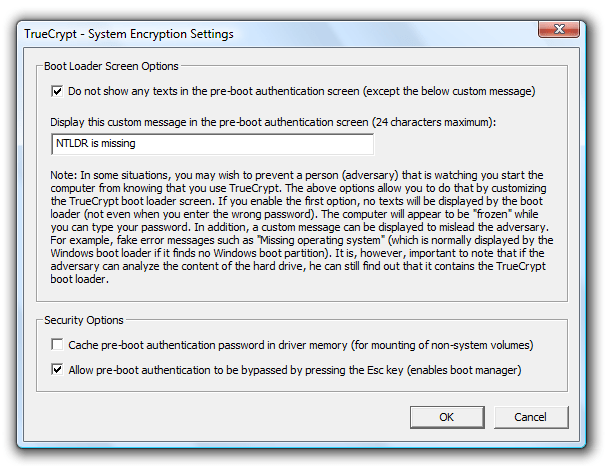
I’ve been playing with TrueCrypt‘s Boot Loader Screen Options to display a custom message when I boot my laptop with full disk encryption.

20090712-130932

It’s probably enough to be misleading during a casual inspection of your laptop:

20090712-131802

The screen doesn’t even display asterisks when you type your TrueCrypt password.
It’s just as unresponsive as the original “NTLDR is missing” screen.
The only difference with the Windows XP NT Loader missing message, is that the original is just a bit longer:

20090712-112128

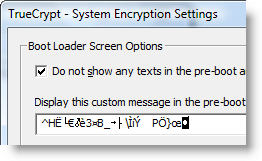
Or you can just let it display gibberish, like this:

20090712-135343

20090712-135116

And if challenged, say your laptop was infected with a virus from that damned hotel’s WiFi network.


Quickpost info


Monday 29 June 2009

Quickpost: Time Lapse Photography With a Nokia Mobile

Filed under: Hardware,My Software,Quickpost — Didier Stevens @ 2:20

Did you know Nokia mobile phones with the S60 platform can be programmed in Python? During my last holiday, I wrote a small program for time lapse photography with my mobile. Here is the result, showing tidal ebbs and flows in Saint-Vaast-la-Hogue and Cancale:

This is the Python program I wrote to take a picture every minute:

#!/usr/bin/python

__description__ = 'Tool to take pictures with a Nokia phone at regular intervals'
__author__ = 'Didier Stevens'
__version__ = '0.1.1'
__date__ = '2009/06/22'

"""

Source code put in public domain by Didier Stevens, no Copyright
https://DidierStevens.com
Use at your own risk

History:
 2009/06/17: start
 2009/06/22: refactoring

Todo:
 Get Threading to work
"""

import camera
import time
import os

timelapseFolder = 'e:\\timelapse\\'
sleepTime = 57

def TakeAndSavePicture():
    global timelapseFolder

    now = '%04d%02d%02d-%02d%02d%02d' % time.localtime()[0:6]
    pic = camera.take_photo()
    pic.save(os.path.join(timelapseFolder, now, '.jpeg'))
    print 'Picture taken: %s' % now

def Main():
    global timelapseFolder
    global sleepTime

    print 'Timelapse photography started'
    if not os.path.isdir(timelapseFolder):
        os.mkdir(timelapseFolder)
        print 'Timelapse folder created: %s' % timelapseFolder
    print 'Wait between pictures %d' % sleepTime
    while True:
        TakeAndSavePicture()
        time.sleep(sleepTime)

if __name__ == '__main__':
    Main()

And then I use Avisynth to combine the jpeg pictures in a movie like this (I join pictures 00001.jpg through 00197.jpeg, 5 per second and produce a 25 fps movie):

ImageSource("%05d.jpeg", 1, 197, 5).ChangeFPS(25)

Quickpost info


Monday 15 June 2009

Quickpost: Arduino XBee Shield Series 2 Configuration

Filed under: Hardware,Quickpost — Didier Stevens @ 8:08

I couldn’t get my 2 Arduinos with an XBee shield to talk to each other, despite the instructions on the Arduino site.

The XBee shields I obtained use a XBee series 2 module, while the instructions on the Arduino site are for the older XBee module.

20090606-111115

After configuring one of my XBee modules as coordinator, the XBee modules were able to communicate with each other.

You need the X-CTU configuration program to configure an XBee series 2 module as coordinator. To connect the XBee module to your PC, you’ve to:

1) remove the ATmega µp from the Arduino board (remember the orientation of the ATmega chip to put it back afterwards):

20090606-111211

2: set the jumpers on the XBee shield to USB:

20090606-111318

3) Connect the XBee shield to the Arduino, and then connect the Arduino via USB to your computer, run the X-CTU configuration program and read the configuration:

20090606-111328

4) Select the coordinator function set and write it to the XBee module:

20090606-111428

When the XBee module has restarted and if your other XBee module is powered on, you’ll see the LEDs of both modules starting to flash, indicating they formed a WPAN network.

After configuring the XBee module, revert to the original hardware configuration: disconnect the Arduino board from your PC, set the jumpers on the XBee shield back to XBee and reinsert your ATmega µp in the Arduino board (watch out for the polarity of the chip).

Now I’m able to run the simple example successfully.


Quickpost info


Tuesday 9 June 2009

Quickpost: Make Your Own Corrupted PDFs For Free

Filed under: Entertainment,Nonsense,PDF,Quickpost — Didier Stevens @ 14:37

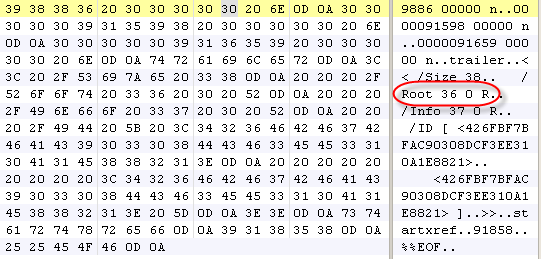
In response to Bruce Schneier’s latest post, let me explain how you can corrupt your own PDF documents for free. Open your PDF document with a binary editor, search for references to the root object (/Root), and overwrite the reference (36 in my example) with a non-existing reference, like 00.

20090609-181712

Of course, be careful and make backups first.

Tested on several PDF readers:

20090609-181538

20090609-181556

20090609-181919

Monday 1 June 2009

Quickpost: Sending WiFi Beacon Frames with an AirPcap Adapter

Filed under: My Software,Quickpost,WiFi — Didier Stevens @ 10:29

While preparing for my OSWP exam, I came across an unpublished Python program for the AirPcap adapter. I cleaned-it up a bit and here it is: apc-b

This program allows you to send out beacon frames, a very simple way to spoof WiFi access points.

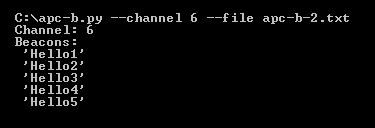
This is the command to generate beacon frames on channel 6 for a couple of ESSIDs listed in file apc-b-2.txt:

20090601-120518

And here is Kismet on my N800 capturing these beacon frames:

kismet-n800


Quickpost info


« Previous PageNext Page »

Blog at WordPress.com.