Didier Stevens

Saturday 13 May 2017

Update: re_search.py Version 0.0.5

Filed under: My Software,Update — Didier Stevens @ 10:41

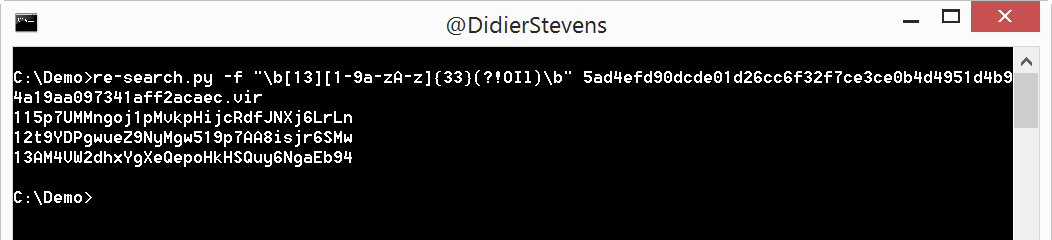
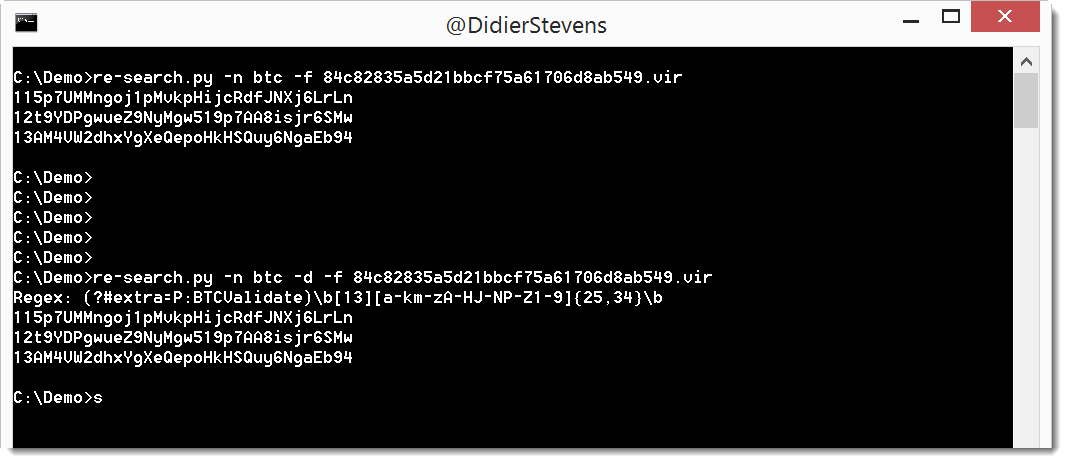
When I used my re-search.py tool to extract Bitcoin addresses from the latest WCry samples, I found a small bug. This version is a bugfix (bug introduced in version 0.0.4).

re-search_V0_0_5.zip (https)
MD5: A03CBBA9F2C5900A368BC064D3CC3D00
SHA256: 940B12CA8E3ADCC0266BC788B5A7AE2C830115BDB9FC04C3A7A178FDD7D44F02

Thursday 11 May 2017

Crack A ZIP Password, And Fly To Dubai …

Filed under: My Software,Update — Didier Stevens @ 0:00

We had to crack a password protected ZIP file, to discover that just few hours later, we would fly to Dubai for our NVISO team building event.

This inspired me to update my zipdump.py tool. This tool can handle password protected ZIP files. Using default password “infected”, or a password that can be provided with option -p.

In this new version, you can provide a list of password in a text file using option -P. Turns out that this simple dictionary attack just using Python is surprisingly quick (at least to me): 8000 passwords per second on an average machine.


zipdump_v0_0_6.zip (https)
MD5: B605DEABFC5458488B6487B1E9104085
SHA256: DDC2CE94D250CBDE62AD1EBE650654E4A50C51F97CADF412B16A553242819772

Thursday 4 May 2017

Gzip Decompression Via Pipes

Filed under: My Software — Didier Stevens @ 0:00

A good friend asked me how to decompress a gzip compressed file, stored inside a McAfee quarantine file. On Linux, it’s simple, using the punbup.py tool. Like this:

punbup.py -f quarantine.bup | gzip -d

Option -f dumps the first file in the quarantine file to the pipe of gzip, which decompresses the file and dumps it to stdout.

On Windows, where you have no gzip (unless you use Cygwin or a similar solution), you can use my translate.py tool.

translate has 2 modes of operation: translate byte per byte, or translate the complete byte sequence in one go.

By default, translate operates in byte per byte mode. To operate on the complete byte sequence, you use option -f. The translation expression (a Python expression) needs to be a lambda function when you use option -f. It receives the complete byte sequence as argument, and must return the translated byte sequence. So we need to use the gzip Python module for decompression, and the StringIO Python module to operate in memory (and not with files). This is the lambda function (argument b is the byte sequence, e.g. the quarantined file):

lambda b: gzip.GzipFile(”, ‘r’, fileobj=StringIO(b)).read()

As translate does not import the gzip Python module (it does import the StringIO Python module however), we need to import it using option -e:

-e -“import gzip”

The complete command is:

punbup.py -f quarantine.bup | translate.py -e “import gzip” -f “lambda b: gzip.GzipFile(”, ‘r’, fileobj=StringIO(b)).read()”

Monday 24 April 2017

Bash Bunny PDF Dropper

Filed under: Hardware,My Software,PDF — Didier Stevens @ 0:00

More than 5 years ago, I worked out a technique to drop any file on a machine which has removable storage disabled. The technique used a Teensy to simulate a keyboard and type out a pure ASCII PDF to notepad. The PDF, containing an embedded executable, can then be saved and opened with a PDF reader to extract the embedded file.

I recently re-visited this technique with my Bash Bunny (it can also be done with a Rubber Ducky):

First I create a pure ASCII PDF file with an embedded executable using my make-pdf-embedded.py tool:

make-pdf-embedded.py -f fi80 -t -n Dialog42.exe.txt Dialog42.exe Dialog42.pdf

Option -f select the filters to use: f to deflate (zlib compress) and i80 to use hexadecimal lines of 80 characters to encode the compressed executable file in pure ASCII.

Option -t for pure text.

Option -n to choose the name used in the PDF document for the embedded file (files with extension .exe can not be extracted with Adobe Reader).

And then I create a Ducky Script script from the PDF with my python-per-line.py tool:

python-per-line.py "Duckify({})" -o payload.duck Dialog42.pdf

The payload.duck file can then be installed on my Bash Bunny, referenced from a payload.txt bash script like this:


#!/bin/bash

ATTACKMODE HID

QUACK SET_LANGUAGE be

QUACK GUI r
QUACK DELAY 500
QUACK STRING notepad.exe
QUACK ENTER
QUACK DELAY 1000

QUACK switch1/payload.duck

Here is a video showing my Bash Bunny dropping this PDF file:

Sunday 23 April 2017

New Tool: python-per-line

Filed under: My Software — Didier Stevens @ 10:42

I often have to make changes to text files by processing each line, and prefer to do that with Python. This is why I wrote this tool about a year ago, and publish it now in preparation of a blog post on Bash Bunny.

The man page:

Usage: python-per-line.py [options] expression [[@]file ...]
Program to evaluate a Python expression for each line in the provided text file(s)

Arguments:
@file: process each file listed in the text file specified
wildcards are supported

Source code put in the public domain by Didier Stevens, no Copyright
Use at your own risk
https://DidierStevens.com

Options:
  --version             show program's version number and exit
  -h, --help            show this help message and exit
  -m, --man             Print manual
  -o OUTPUT, --output=OUTPUT
                        Output to file
  -s SCRIPT, --script=SCRIPT
                        Script with definitions to include

Manual:

This program reads lines from the given file(s) or standard input, and
then evaluates the provided Python expression on each line of text and
outputs the result of the Python expression.

The Python expression needs to use {} to represent the content of each
line. Before evaluation, {} is replaced by the content of each line
surrounded by single quotes.
The value of the evaluated expression is outputed as a single line,
except when the Pythion expression returns a list. In that case, each
element of the list is outputed on a single line.

Example:
 Content test.txt:
 Line 1
 Line 2
 Line 3

 Command:
 python-per-line.py "'copy ' + {}" test.txt

 Output:
 copy Line 1
 copy Line 2
 copy Line 3

This program contains a predefined Python function to help with the
generation of Rubber Ducky scripts: Duckify.

Example:
 Content test.txt:
 Line 1
 Line 2
 Line 3

 Command:
 python-per-line.py "Duckify({})" test.txt

 Output:
 STRING Line 1
 ENTER
 STRING Line 2
 ENTER
 STRING Line 3
 ENTER

The lines are written to standard output, except when option -o is
used. When option -o is used, the lines are written to the file
specified by option -o.

An extra Python script (for example with custom definitions) can be
loaded using option -s.


python-per-line_V0_0_1.zip (https)
MD5: B7C1146D44D6B3F8B04C571E8C205191
SHA256: 6D7931B33F8A1D81539E892897D301145A63502A181B2B89A01466D599D53787

Monday 10 April 2017

Update: re-search.py Version 0.0.4

Filed under: My Software,Update — Didier Stevens @ 0:00

This version has one new option: -G or –grepall.

re-search_V0_0_4.zip (https)
MD5: 965C484CC5BF447B390BA4E176698972
SHA256: D2F3A52F7590CD38E796B6F6209FC87A1BD6451F1787010557FA39E25AFDBC2F

Saturday 8 April 2017

Quickpost: Infinite Control For Bash Bunny

Filed under: Bash Bunny,Hardware,My Software,Quickpost — Didier Stevens @ 11:25

I already used a Teensy to send a CONTROL keypress every 10 seconds. This came in handy to keep machines from going to sleep or auto-locking.

Today I wrote a script for my Bash Bunny to do the same.

Warning: if you use this, make sure you unplug the Bash Bunny before you start typing on the computer. Otherwise the CONTROL keypresses will interfere with your typing, potentially ending up in unwanted commands like CTRL-Q: Quit


#!/bin/bash
# Title:         Infinite Control
# Author:        Didier Stevens (https://DidierStevens.com)
# Version:       0.0.1 2017/04/08
#
# Hit the CONTROL key every 10 seconds in an infinite loop,
# while blinking the red LED with every keypress.
#
# Can be used to prevent a machine from sleeping or auto-locking.
#
# WARNING: Do not type on the machine's keyboard while this script
#          is running, or your keystrokes might become commands,
#          for example CTRL-Q: Quit
#
# Red ...............Hitting CONTROL key
# Red Blinking.......Wow! We broke out of the infinite while loop!

ATTACKMODE HID

# infinite while loop
while true
do
  LED R
  QUACK CTRL
  LED
  sleep 10
done

# this code will never be reached
LED R 100

Quickpost info


Tuesday 7 March 2017

Update: oledump.py Version 0.0.27

Filed under: My Software,Update — Didier Stevens @ 0:00

This new version of oledump.py adds some extra features for YARA rule scanning.

oledump.py declares 2 external variables that can be used in your YARA rules.

External variable streamname is a string with the stream name, as printed in oledump’s report.

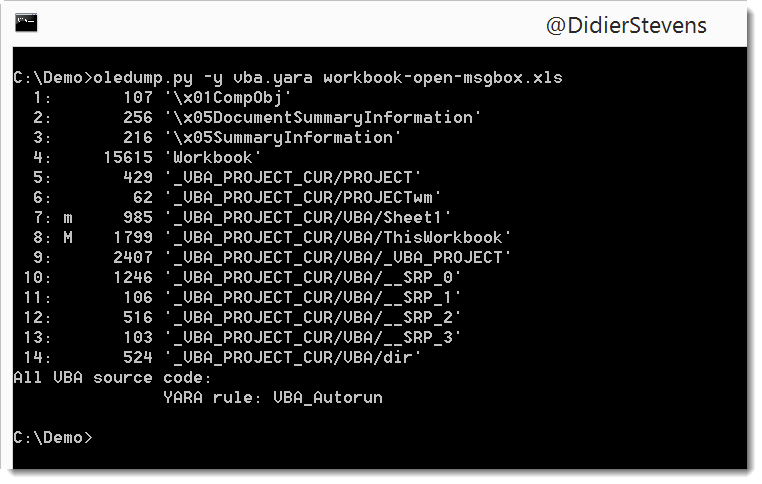
External variable VBA is a boolean that is set to true when the data to scan is VBA source code. Previous versions of oledump would scan the raw stream content with YARA, but this new version also decompresses all streams with VBA macros, and concatenates them together to scan them after all streams have been scanned.

Example of a rule using external variable VBA:

rule VBA_Autorun
{
    strings:
        $a = "AutoExec" nocase fullword
        $b = "AutoOpen" nocase fullword
        $c = "DocumentOpen" nocase fullword
        $d = "AutoExit" nocase fullword
        $e = "AutoClose" nocase fullword
        $f = "Document_Close" nocase fullword
        $g = "DocumentBeforeClose" nocase fullword
        $h = "Document_Open" nocase fullword
        $i = "Document_BeforeClose" nocase fullword
        $j = "Auto_Open" nocase fullword
        $k = "Workbook_Open" nocase fullword
        $l = "Workbook_Activate" nocase fullword
        $m = "Auto_Close" nocase fullword
        $n = "Workbook_Close" nocase fullword
    condition:
        VBA and any of ($*)
}

The condition of this rule is true when external variable VBA is true and when at least one of the strings are found:

20170306-184258

This rule is included in a new set of YARA rules I included with oledump.py: vba.yara.

I made a video to illustrate this:

And there is also a new plugin: plugin_str_sub. It tries to de-obfuscate strings with padded characters:

oledump_V0_0_27.zip (https)
MD5: A6C6728E20AE46A4FECC5F3976AF33BF
SHA256: 54FE550D5102A0E9428F6BD9B5170B50797EDA2076601634519CDBB574004A3C

Monday 6 March 2017

Update: cut-bytes.py Version 0.0.5

Filed under: My Software,Update — Didier Stevens @ 0:00

I just updated the manual of this version, to explain here documents.

cut-bytes_V0_0_5.zip (https)
MD5: B20B9758D50C846CD0E0AEB9E0B15101
SHA256: B12D1E1C510ED4CC820C5D2F62897DF71E567B0D3B23AC36653236D30104157F

Sunday 5 March 2017

New Tool: sets.py

Filed under: My Software — Didier Stevens @ 0:00

It’s a tool I started years ago, and I’m releasing it now.

sets.py allows you to perform operations on sets: union, intersection, subtraction and exclusive or. A set is a list of lines in a file, or a stream of bytes in a file.

I demo the tool in this video:

sets_V0_0_1.zip (https)
MD5: DF0AE1EF67B4BA04750A39EF7FAEE09C
SHA256: A5FF61610AD67CA0638E53A10DD083612C2F5BF42218DD2393AFD20035E89B9F

« Previous PageNext Page »

Blog at WordPress.com.