A new option in this version: -x (–hex) to produce hexadecimal output.
re-search_V0_0_9.zip (https)
MD5: E9BC3AFF3FA3D6ED0F14EC4941955C2D
SHA256: 4AA92E513A478D02DD12110D3759FFCB2996A3E8A5D2D812124922C5023C3B50
A new option in this version: -x (–hex) to produce hexadecimal output.
re-search_V0_0_9.zip (https)
MD5: E9BC3AFF3FA3D6ED0F14EC4941955C2D
SHA256: 4AA92E513A478D02DD12110D3759FFCB2996A3E8A5D2D812124922C5023C3B50
This new version of byte-stats.py adds option -r (–ranges). This option will print out extra information on the range of byte values (contiguous byte value sequences) found in the analyzed files.
Example for BASE64 data:
Number of ranges: 5
Fir. Last Len. Range
0x2b        1: +
0x2f 0x39  11: /0123456789
0x3d        1: =
0x41 0x5a  26: ABCDEFGHIJKLMNOPQRSTUVWXYZ
0x61 0x7a  26: abcdefghijklmnopqrstuvwxyz
In this example, 5 ranges are reported: they can be thought of as a kind of fingerprint for BASE64 data.
Each range is characterized by 4 properties:
Fir. (First) is the first byte value in the range.
Last is the last byte value in the range (this value is not displayed for ranges of a single byte).
Len. (length) is the number of unique byte values in the range.
Range is the printout of the byte values in the range (. is printed if the byte value is not printable).
byte-stats_V0_0_6.zip (https)
MD5: CA729FF05E314A9CF5C348CB4A720F13
SHA256: 11E41F51EC9911741D71C8BC3278FA22AADBD865F2BF7BE4E73E82A7736A8FA8
I analyzed a malicious document send by a reader of the Internet Storm Center, and to decode the payload I wanted to use my tool translate.py.
But an option was lacking: I had to combine 2 byte streams to result in the decoded payload, while translate will only accept one byte stream (file, stdout, …).
I solved my problem with a small custom Python script, but then I updated translate.py to accept a second file/byte stream (option -2).
This is how I use it to decode the payload:

translate_v2_5_0.zip (https)
MD5: 768F895537F977EF858B4D82E0E4387C
SHA256: 5451BF8A58A04547BF1D328FC09EE8B5595C1247518115F439FC720A3436519F
I’ve been tweaking some of my tools to help me analyze large password dumps, like exploit.in. And I also have done such analyses with build-in Unix tools (I refer to Unix tools because I started to use Unix in the eighties, before Windows and Linux existed), but I also must be able to do this on Windows machines, where I don’t always have the option to install “Unix-for-Windows” tools like cygwin.
When I started to process the exploit.in files with my CSV tools, I ran into some problems. The data is not very clean, for example, there are lines in the dump that are so long that Python’s csv module will error on it. Normally the format of a line is “email-address:password”, where a colon (:) is a separator between the email address and the password. But sometimes there is no separator in the line, and sometimes there is more than 1 separator. This happens when a password contains a colon (:), but the problem is that the colon (:) is not properly escaped for a CSV parser.
That’s why I made some updates to my python-per-line.py tool.
With python-per-line’s SBC function (Separator Based Cut), I can extract passwords even if the line is too long for other parsers, if there is no separator (:) or more than one separator. This is the expression I use:
SBC(line,’:’,2,1,[])
line is a Python variable, ‘:’ is the separator, 2 is the number of fields, 1 is the field that needs to be selected (index starts from 0, so 1 is the second field, i.e. the password), and [] is the value to return if there is no field with index 1. [] makes that python-per-line will not output a line (e.g. no empty line). SBC will split the line per the : separator, without taking any possible escape characters into account. It will also separate the line into maximum 2 fields, even if there is more than one : character. This is done from left to right, remaining : characters are part of the second field.
The other problem I encountered on Windows is that when I piped the output of python-per-line into count (to count passwords), the process would stop before all files were processed. It turns out that some passwords contain the CTRL-Z character (0x1A), which is the end-of-file marker, so that’s why processing stopped. I solved this problem by escaping the CTRL-Z character with a function I added to python-per-line: RIN (Repr If Needed). This is the expression I use:
RIN(SBC(line,’:’,2,1,[]),’\x1a’)
In this case, RIN will escaped its input (the first argument) with Python’s repr function if the input contains character CTRL-Z (\x1A).
python-per-line can also handle gzip compressed text files, so I was able to free up a couple of gigabytes by compressing the exploit.in text files. My count program version 0.1.0 was able to count the passwords, but it required Python 64 bit and took a long time. That’s why I added sqlite3 support to count.py as a counting method.
Here is the command I used to count the passwords and create a database:

Option -c exploit-in-passwords.db instructs count.py to use a sqlite3 database on disk with name exploit-in-passwords.db as a counting method in stead of a Python dictionary (the default counting method).
Option –ranktop 100 makes count.py output the top 100 most frequent passwords, along with their frequency. -H prints out a header, and -t prints totals.
Option -o passwords-top-100.csv makes count.py write its output to file passwords-top-100.csv, and finally, option -b makes that his output also goes to stdout.
Afterwards, I can use the database to print out other lists, like a top 20:

Option -z makes that count.py does not requires input files, it will just print out data from the database. Option -d sorts the output in descending order (sorted by default per count in ascending order).
From this output, I can see that 123456 is the password with the highest frequency (a bit more than 5 million times), that there are almost 800 million passwords in total and a bit more than 200 million unique passwords.
count is a simple program: it takes text files as input and counts how many times each lines appears.
A couple of years ago, I made a video:
count.py uses a Python dictionary to count items, but that requires a lot of memory to process gigabytes of data.
This new version helps with this problem by providing a count method using a database (sqlite3). By default, a dictionary is still used. But counting with a database can be selected with option -c. With option -c you can provide the name of the database to use: if the name is :memory:, the database will be created in memory. Counting with a sqlite3 database in memory requires less memory than counting with a Python dictionary, but is slower. If the name is a filename, the database will be created on disk. This is of course way slower than in memory, but can process even larger files.
count_v0_2_0.zip (https)
MD5: ACF1982045ABEF86FCDBA87A84F5F588
SHA256: 373DDA0B2C176624998B5907261477943F677855CCECCDD42D6BEB758F8E7B79
Clip is a useful command. Paste would be a useful command, unfortunately Windows has no paste command: paste would do the opposite of clip, read the clipboard and write it to stdout.
So I made my own command a couple of years ago, and yesterday I made it ready for publication.

I don’t use paste as often as clip, but sometimes I copy malware related data from my hex editor and then pipe it into my tools with paste.
Paste_V1_0_0_1.zip (https)
MD5: 2107C78DEA38EA98825BB686DB2291AD
SHA256: 329A0AA96E855219ACB99D7BC35F78CE552645F7829D1B475924F895BA614637
Someone asked me what this headtail command was that I’ve used a couple of times in my blog posts, like in this screenshot:

It’s a tool that I wrote (what else ;-)) to help me create screenshots of command-line output. It’s the combination of the well-known head and tail Unix command: headtail takes a text file as input (it accepts stdin too) and outputs the first 10 lines (head) and the last 10 (tail) of its input, with a … line in between. Like with head and tail, option -n can be used to choose the number of lines.
headtail_V0_0_1.zip (https)
MD5: F5FD067F94411D22B939D753B803ACFE
SHA256: CBB66EA335299801A4D3D80A6A9BD686C56058B203ABB1BC6144B3A2E2370979
python-per-line is a tool to apply a Python expression on each line of input.
I updated it because I had to process large credential dumps (I’ll blog about this later).
This new version can process .gz files too, and includes three new predefined Python functions: IFF, RIN and SBC.
From the man page:
IFF is a predefined Python function that implements the if Function
(IFF = IF Function). It takes three arguments: expression, valueTrue,
valueFalse. If expression is true, then valueTrue is returned,
otherwise valueFalse is returned.

RIN is a predefined Python function that uses the repr function if
needed (RIN = Repr If Needed). When a string contains characters that
need to be escaped to be used in Python source code, repr(string) is
returned, otherwise the string itself is returned.

SBC is a predefined Python function that helps with selecting a value
from lines with values and separators (Separator Based Cut = SBC). SBC
takes five arguments: data, separator, columns, column, failvalue.
data is the data we want to parse (usually line), separator is the
separator character, columns is the number of columns per line, column
is the value we want to select (cut) starting from 0, and failvalue is
the value that SBC needs to return if the function fails (for example
because there are less columns in the line than specified by the
columns value).
Here is an example. We use this file with credentials (creds.txt):
username1:password
username2
username3:pass:word
username4:

And this is the command to extract the passwords:
python-per-line.py "SBC(line, ':', 2, 1, [])" creds.txt

The result:
password
pass:word

If a line contains more separators than specified by the columns
argument, then everything past the last expected separator is
considered the last value (this includes the extra separator(s)). We
can see this with line "username3:pass:word". The password is
pass:word (not pass). SBC returns pass:word.
If a line contains less separators than specified by the columns
argument, then the failvalue is returned. [] makes python-per-line
skip an output line, that is why no output is produced for user2.
python-per-line_V0_0_2.zip (https)
MD5: AB2377D366AB33992A535AF1EE489CBD
SHA256: 045F398FBCF6DDFF4A25B38007ADDF89B3256C21C8808B58FBC96855D55E6171
I was asked if oledump.py can “scan” multiple files: it can not, it can only analyze a single file at a time.
However, you can use it in a loop (bash, cmd, …) and call it each time with a different file. oledump.py will return 0 if there were no errors, 1 if there were, and 2 if the analyzed file contains VBA code.
My process-command.py tool can also be used to run a tool on many files. Here is an example with oledump:
process-command.py -r “oledump.py %f%” *.vir
While doing the analysis on all *.vir files in the current directory, 2 log files will be created in the current directory, one being a CSV file with the return value of the command (e.g. oledump):
0;sample1.vir
0;sample2.vir
2;sample3.vir
2;sample4.vir
0;sample5.vir
2;sample6.vir
2;sample7.vir
2;sample8.vir
0;sample9.vir
0;sample10.vir
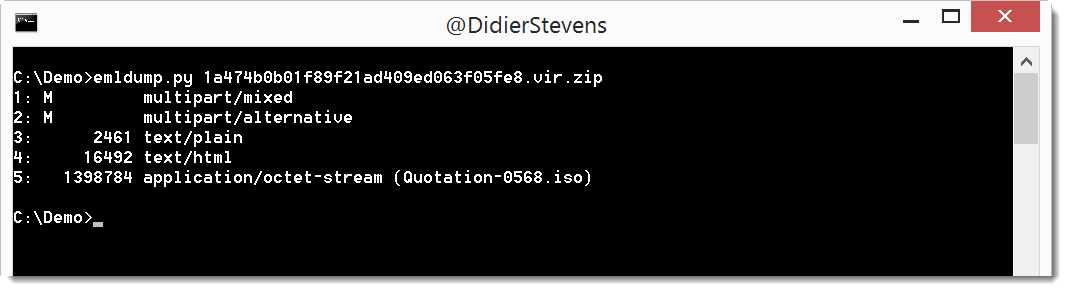
This new version outputs the filename for attachments:
emldump_V0_0_10.zip (https)
MD5: 34DBB3BCB1A2B04C45286C0583F11C07
SHA256: C5877E252DDB61B40BFFCC5403DB500E672DACFE96FAA7D1E0668246C5202DE5


