VBA projects can be protected with a password. The password is not used to encrypt the content of the VBA project, it is just used as protection by the VBA IDE: when the password is set, you will be prompted for the password.
Tools like oledump.py are not hindered by a VBA password, they can extract VBA code without problem, as it is not encrypted.
The VBA password is stored as the DPB value of the PROJECT stream:
You can remove password protection by replacing the values of ID, CMG, DPB and GC with the values of an unprotected VBA Project.
Thus a VBA password is no hindrance for staticanalysis.
However, we might still want to recover the password, just for the fun of it. How do we proceed?
The password itself is not stored inside the PROJECT stream. In stead, a hash is stored: the SHA1 hash of the password (MBCS representation) + 4 byte salt.
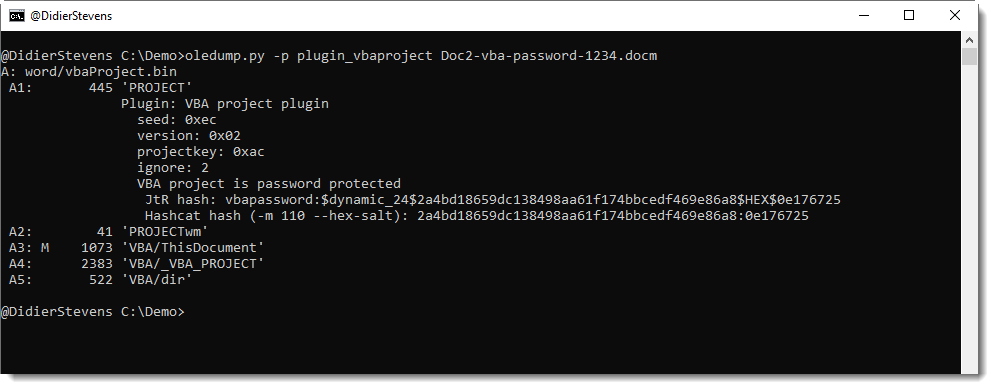
This data encryption is done according to an algorithm that does not use a secret key. I wrote an oledump.py plugin (plugin_vbaproject.py) to decrypt the hash and display it in a format suitable for John the Ripper and Hashcat:
The SHA1 of a password + salt is a dynamic format in John the Ripper: dynamic_24.
For Hashcat, it is mode 110 and you also need to use option –hex-salt.
Remark that the password passed as argument to the SHA1 function is represented in Multi Byte Character Set format. This means that ASCII characters are represented as bytes, but that non-ASCII characters might be represented with more than one byte, depending on the VBA project’s code page.
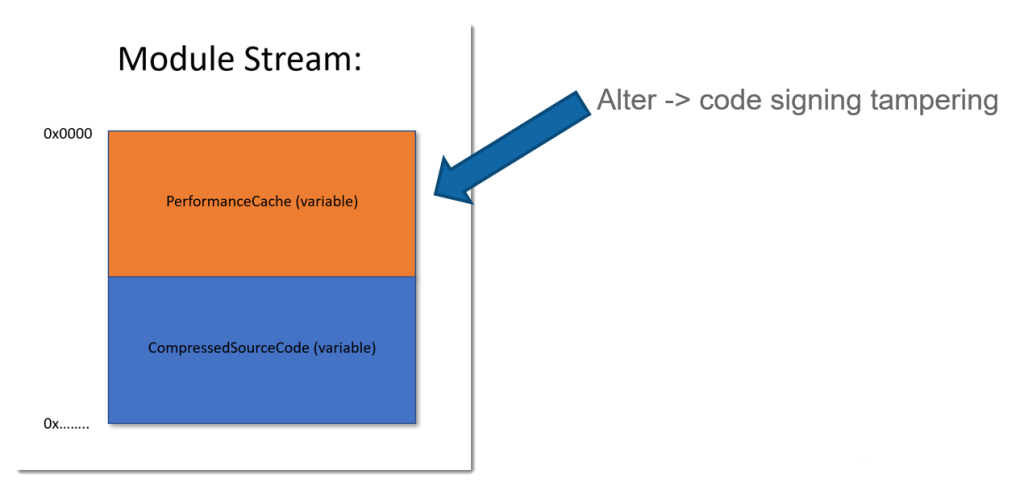
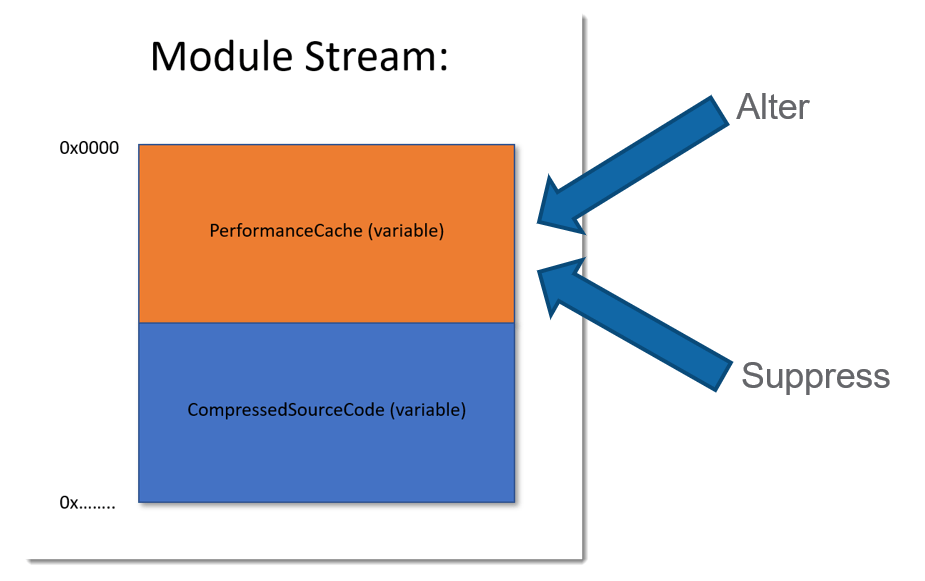
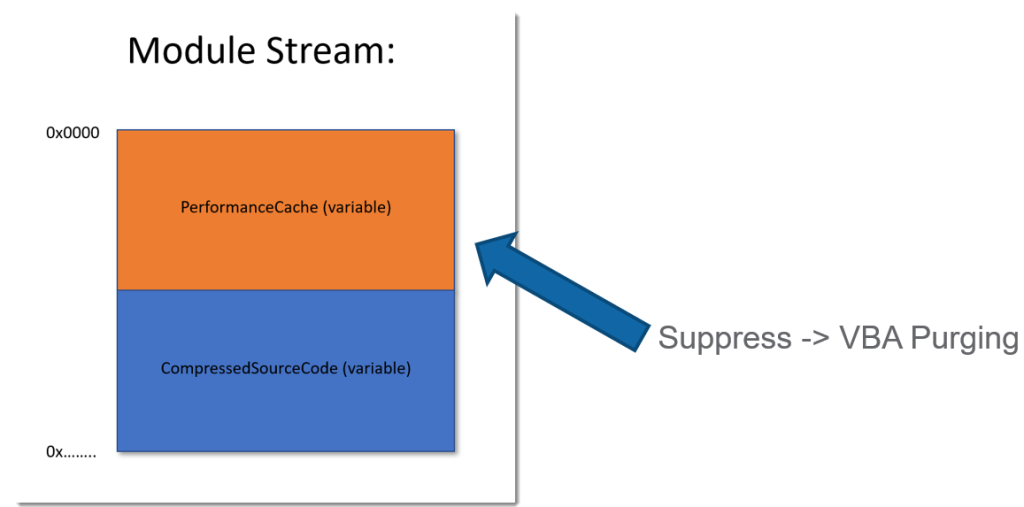
As I explained in blog post VBA Purging, VBA code contained in Module Streams is made up of compiled code (PerformanceCache) and source code (CompressedSourceCode).
If you alter the compiled code (PerformanceCache) properly and leave the source code (CompressedSourceCode) of a signed VBA project untouched, you can change the behavior of a signed document without invalidating the signature. That’s because the code signing algorithm for VBA projects does not take the PerformanceCache into account.
With version 0.0.16 (we are now at version 0.0.18), I updated my zipdump.py tool to handle (deliberately) malformed ZIP files. My zipdump tool uses Python’s ZIP module to analyze ZIP files.
Now, zipdump has a an option (-f) to scan arbitrary binary files for ZIP records.
I will show here how this feature can be used, by analyzing a sample Xavier Mertens wrote a diary entry about. This sample is a Word document with macros, an OOXML (Office Open XML format) file (.docm). It is malformed, because 1) there’s an extra byte at the beginning and 2) there’s a byte missing at the end.
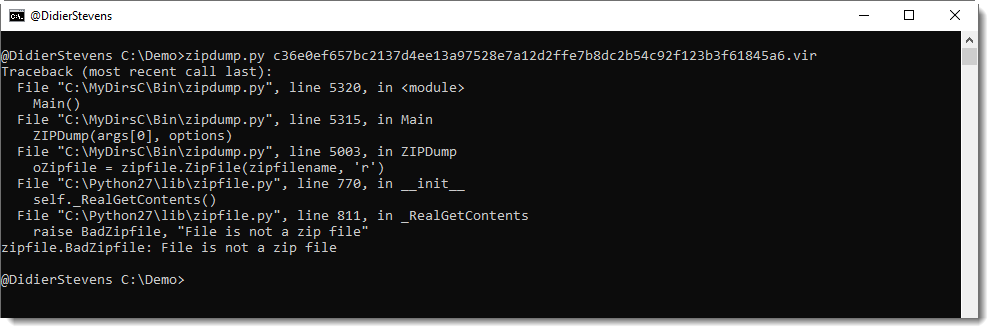
When you use my zipdump tool to look at the file, you get an error:
Using option -f l (list), we can find all PKZIP records inside arbitrary, binary files:
When using option -f with value l, a listing will be created of all PKZIP records found in the file, plus extra data. Some of these entries in this report will have an index, that can be used to select the entry.
In this example, 2 entries can be selected:
p: extra bytes at the beginning of the file (prefix)
1: an end-of-central-directory record (PK0506 end)
Using option -f p, we can select the prefix (extra data at the beginning of the file) for further analysis:
And from this hex/ascii dump, we learn that there is one extra byte at the beginning of the ZIP file, and that it is a newline characters (0x0A).
Using option -f 1, we can select the EOCD record to analyze the ZIP file:
As this generates an error, we need to take a closer look at the EOCD record by adding option -i (info):
With this info, we understand that the missing byte makes that the comment length field is one byte short, and this causes the error seen in previous image.
ZIP files can contain comments (for the ZIP container, and also for individual files): these are stored at the end of the PKZIP records, preceded by a 2-byte long, little-endian integer. This integer is the length of the comment. If there is no comment, this integer is zero (0x00).
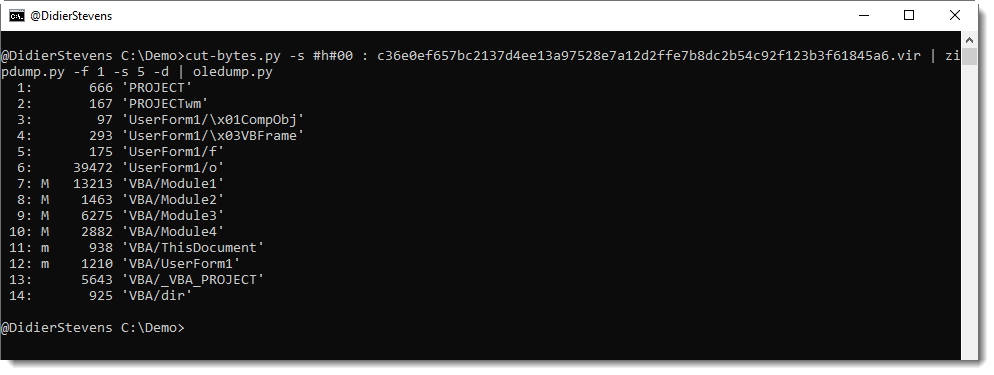
Hence, the byte we are missing here is a NULL (0x00) byte. We can append a NULL byte to the sample, and then we should be able to analyze the ZIP file. In stead of modifying the sample, I use my tool cut-bytes.py to add a single NULL byte to the file (suffix option: -s #h#00) and then pipe this into zipdump:
File 5 (vbaProject.bin) contains the VBA macros, and can be piped into oledump.py:
Directory entries in “OLE” files (Compound File Binary Format) have a GUID field. Like this “Root Entry” inside a binary Word document file (Doc1.doc):
The GUID value found in this directory entry is: 00020906-0000-0000-C000-000000000046 (the endianness of GUIDs is mixed-endian: it’s a mix of little-endian and big-endian).
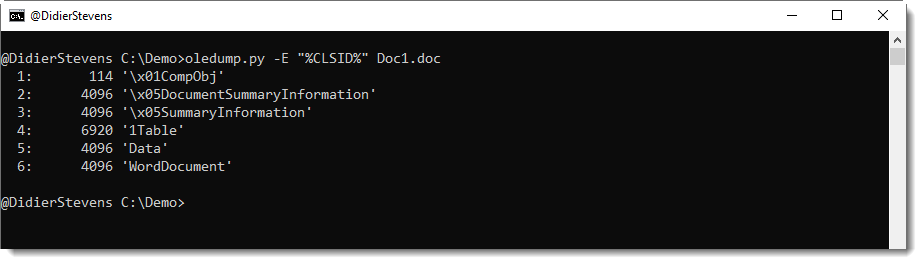
You can display the CLSID with oledump.py using option -E to display extra information. Use parameter %CLSID% to display the CLSID, like this:
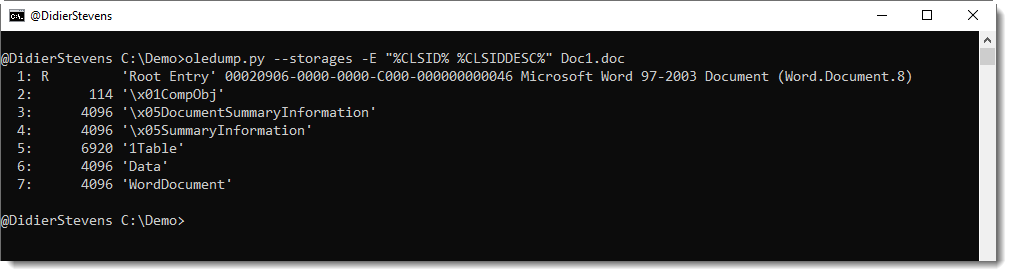
No class IDs were displayed in this output, and that’s because all the CLSID fields in the directory entries of these streams are zero (16 0x00 bytes). Most of the time, streams in Office documents have no CLSID. You’re more likely to find CLSIDs inside the directory entries of storages. To include storages in oledump’s output, use option –storages like this:
Starting with version 0.0.46, oledump.py will also display the Root Entry. And as can be seen in the above output, the Root Entry of this .doc file has a CLSID.
When oletools is installed, oledump.py looks up CLSIDs in this list when you use parameter %CLSIDDESC% (CLSID description). Here is the same command as before, but with parameter %CLSIDDESC%:
This result shows that 00020906-0000-0000-C000-000000000046 is COM Object “Microsoft Word 97-2003 Document (Word.Document.8)”.
Class IDs can also be found inside some streams, and that’s why I developed a new oledump.py plugin: plugin_clsid.py.
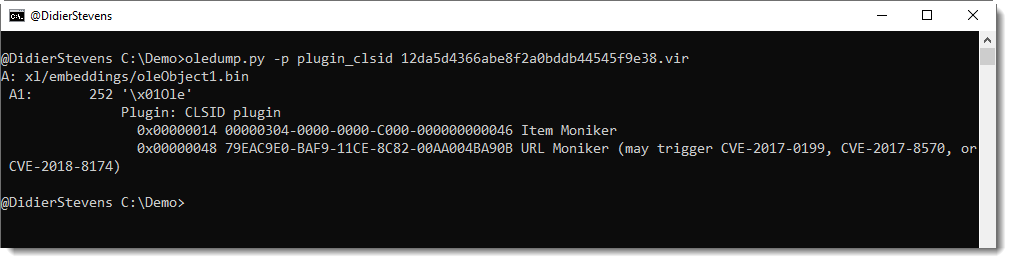
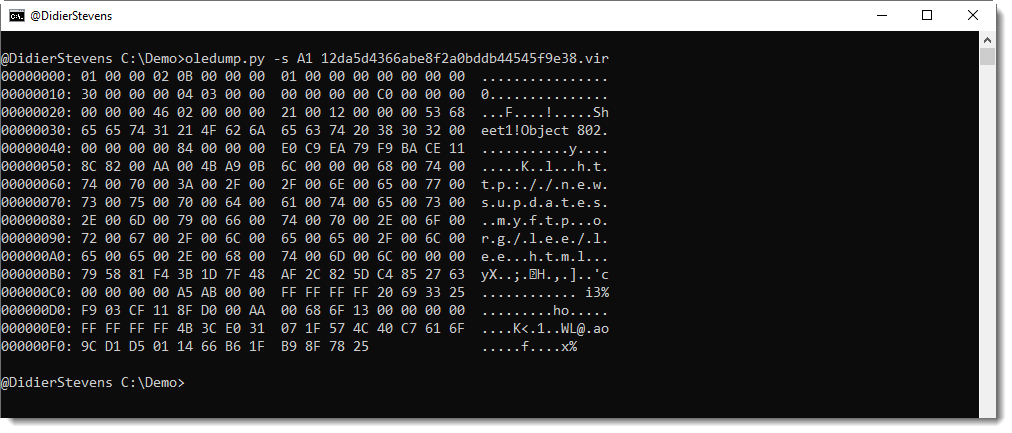
This plugin searches for CLSIDs (defined in oletools) inside streams. Like in this malicious document:
With the class IDs found in this stream, one can quickly conclude that this must be an exploit for the URL moniker.
And here is the Root Entry CLSID for this document:
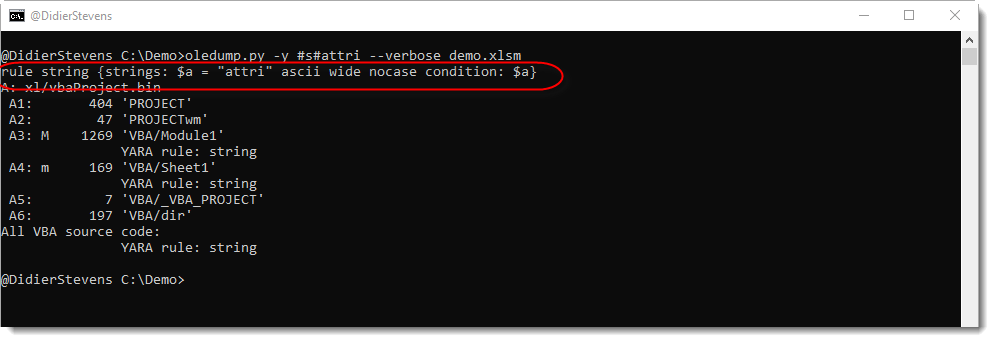
In this example, I show a string Ad Hoc YARA rule to search for string attri (-y #s#attri). By including option –verbose, the YARA rule generated by oledump for string attri is displayed first:
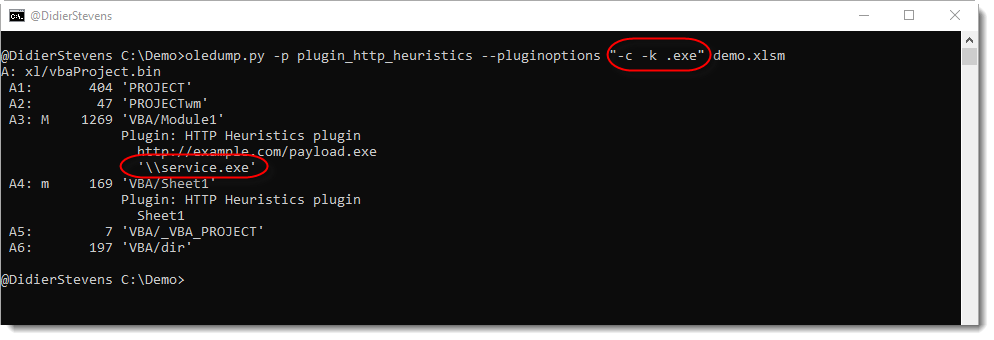
Plugin plugin_http_heuristics has a new option: -c –contains.
By default, plugin_http_heuristics looks for (obfuscated) strings that start with keywords (http:// and https:// by default). Option -c changes this behavior: when this option is used, the keywords are searched in the entire string, and not just at the start.
In this example, I use this feature to search for the filename of the dropped executable (strings containing “.exe”):
And I also include plugin_vba: this is an old plugin that I failed to release. It searches for string concatenation in VBA code.
This new version of oledump adds option -f to find embedded ole files, making the analysis of .DWG files with embedded VBA macros (for example) easier.
And there is a new plugin: plugin_version_vba.py. This helps with determining the VBA version.
Here is a video showing the analysis of .DWG files with option -f:
AutoCAD’s drawing files (.dwg) can contain VBA macros. The .dwg format is a proprietary file format. There is some documentation, for example here.
When VBA macros are stored inside a .dwg file, an OLE file is embedded inside the .dwg file. There’s a quick-and-dirty way to find this embedded file inside the .dwg file: search for magic sequence D0CF11E0.
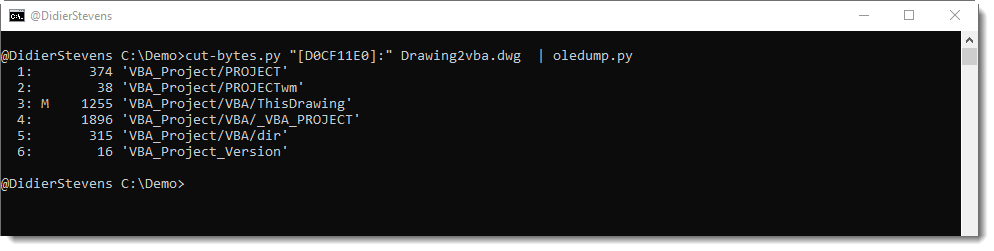
My tool cut-bytes.py can be used to search for the first occurrence of byte sequence D0CF11E0 and extract all bytes starting from this sequence until the end of the .dwg file. This can be done with cut-expression [D0CF11E0]: and pipe the result into oledump.py, like this:
Next, oledump can be used to conduct the analysis as usual, for example by extracting the VBA macro source code:
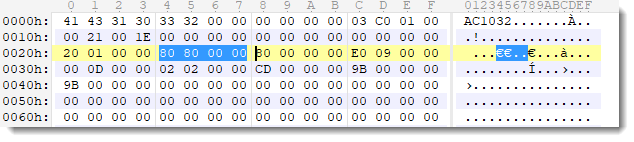
There is also a more structured approach to locate the embedded OLE file inside a .dwg file. When one looks at a .dwg file with a hexadecimal editor, the following can be seen:
First there is a magic sequence identifying this as a .dwg file: AC1032. This sequence varies with the file format version, but since many, many years, it starts with AC10. You can find more details regarding this magic sequence here and here.
At position 0x24 (36 decimal), there is a 32-bit little-endian integer. This is a pointer to the embedded OLE file (this pointer is NULL when no OLE file with VBA macros is embedded).
In our example, this pointer value is 0x00008080. And here is what can be found at this position inside the .dwg file:
First there is a 16-byte long header. At position 8 inside this header, there is a 32-bit little-endian integer that represents the length of the embedded file. 0x00001C00 in our example. And after the header one can find the embedded OLE file (notice magic sequence D0CF11E0).
This information can then be used to extract the OLE file from the .dwg like, like this:
Achieving exactly he same result as the quick-and-dirty method. The reason we don’t have to figure out the length of embedded OLE the file using the quick-and-dirty method, is that oledump ignores all bytes appended to an OLE file.
I will adapt my oledump.py tool to extract macros directly from .dwg files, without the need of a tool like cut-bytes.py, but I will probably implement something like the quick-and-dirty method, as this method would potentially work for other file formats with embedded OLE files, not only .dwg files.





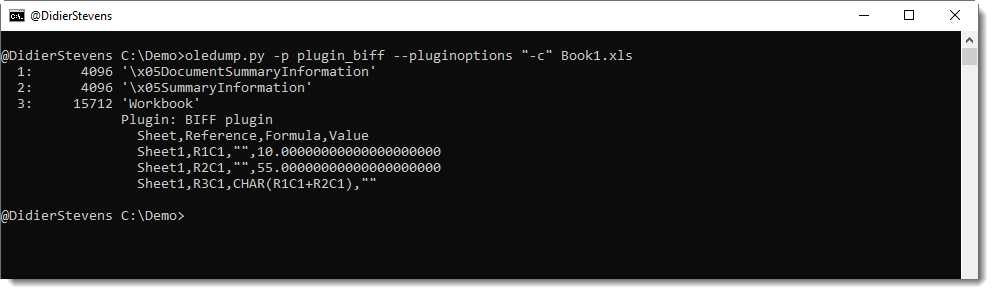
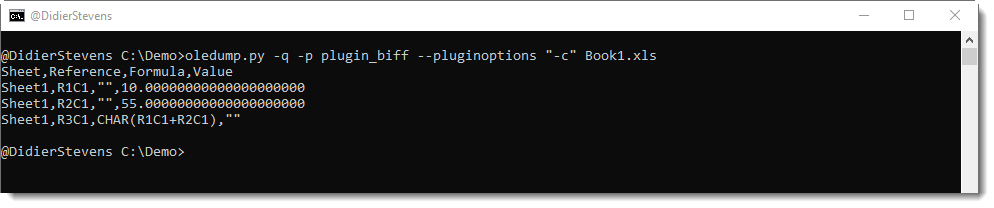
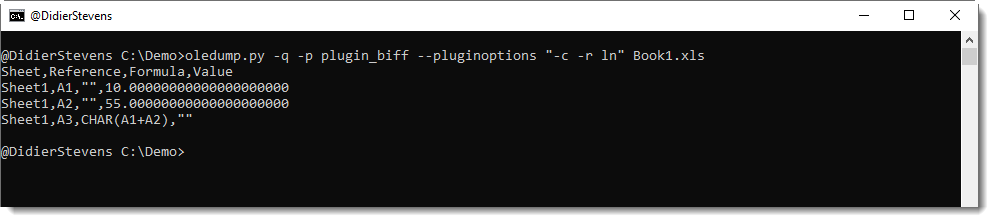











 Didier Stevens