Didier Stevens

Monday 1 October 2018

Title: Overview of Content Published in September

Filed under: Announcement — Didier Stevens @ 0:00

Here is an overview of content I published in September:

Blog posts:

YouTube videos:

Videoblog posts:

SANS ISC Diary entries:

Monday 24 September 2018

Quickpost: Signing Windows Executables on Kali

Filed under: Quickpost — Didier Stevens @ 0:00

Windows executables (PE files) can be signed on Kali using osslsigncode.

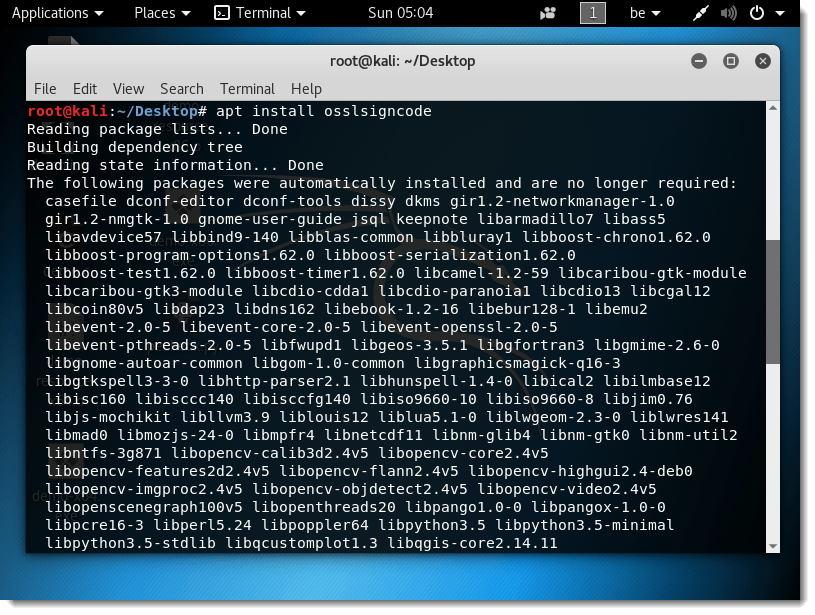
osslsigncode needs to be installed:

apt install osslsigncode

Then you need a certificate. For this demo, I’m using a self-signed cert.

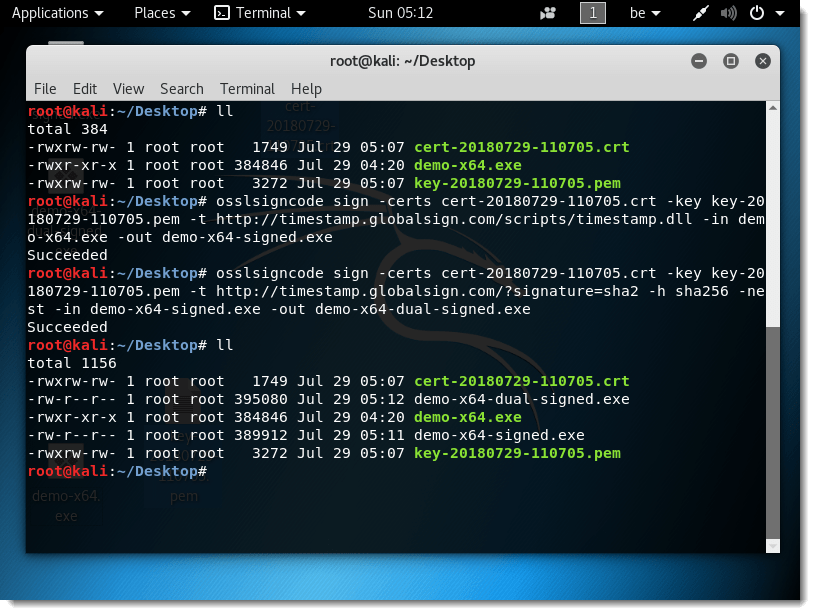
The command to sign file demo-x64.exe with the demo certificate using SHA1 and timestamping, is:

osslsigncode sign -certs cert-20180729-110705.crt -key key-20180729-110705.pem -t http://timestamp.globalsign.com/scripts/timestamp.dll -in demo-x64.exe -out demo-x64-signed.exe

The signed file is demo-x64-signed.exe

To dual sign this executable (add SHA256 signature), use this command:

osslsigncode sign -certs cert-20180729-110705.crt -key key-20180729-110705.pem -t http://timestamp.globalsign.com/?signature=sha2 -h sha256 -nest -in demo-x64-signed.exe -out demo-x64-dual-signed.exe

The signed file is demo-x64-dual-signed.exe

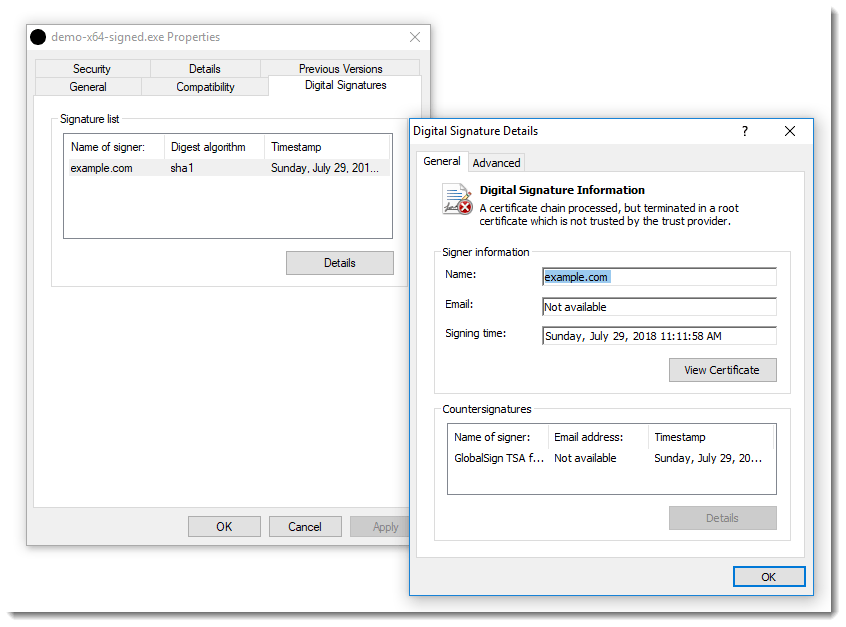
Of course, Windows reports the signatures as invalid, because we used a self-signed certificate. For a valid signature, you can add your certificate to the trusted root certificates store, buy a code-signing certificate, …

For single SHA256 signing, use the second osslsigncode command without option -nest.


Quickpost info


Sunday 23 September 2018

Update: pecheck.py Version 0.7.4

Filed under: My Software,Update — Didier Stevens @ 0:00

This update improves digital signature handling.

pecheck-v0_7_4.zip (https)
MD5: E0F90B85576F7BC42BB8601E650134FB
SHA256: E011CD82F5E3244553FBA52DDF3F0D3076E88A6F35E50AA18AC0DAAC6ED91389

Monday 17 September 2018

Quickpost: Compiling EXEs and Resources with MinGW on Kali

Filed under: Quickpost — Didier Stevens @ 0:00

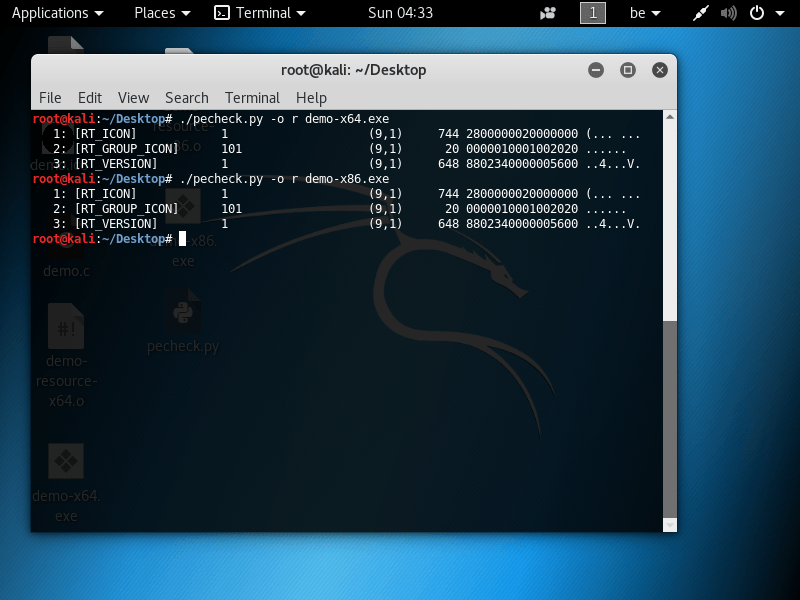
To compile a Windows executable with version information and an icon on Kali, we use MinGW again.

The version information and icon (demo.ico) we want to use are defined in a resource file (demo.rc):

#include "winver.h"


#define IDI_ICON1                       101

/////////////////////////////////////////////////////////////////////////////
//
// Version
//

#define VER_FILEVERSION             0,0,0,1
#define VER_FILEVERSION_STR         "0.0.0.1\0"

#define VER_PRODUCTVERSION          0,0,0,1
#define VER_PRODUCTVERSION_STR      "0.0.0.1\0"

#ifndef DEBUG
#define VER_DEBUG                   0
#else
#define VER_DEBUG                   VS_FF_DEBUG
#endif

VS_VERSION_INFO VERSIONINFO
FILEVERSION     VER_FILEVERSION
PRODUCTVERSION  VER_PRODUCTVERSION
FILEFLAGSMASK   VS_FFI_FILEFLAGSMASK
FILEFLAGS       VER_DEBUG
FILEOS          VOS__WINDOWS32
FILETYPE        VFT_APP
FILESUBTYPE     VFT2_UNKNOWN
BEGIN
    BLOCK "StringFileInfo"
    BEGIN
        BLOCK "040904E4"
        BEGIN
            VALUE "CompanyName", "example.com"
            VALUE "FileDescription", "demo"
            VALUE "FileVersion", VER_FILEVERSION_STR
            VALUE "InternalName", "demo.exe"
            VALUE "LegalCopyright", "Public domain"
            VALUE "OriginalFilename", "demo.exe"
            VALUE "ProductName", "demo"
            VALUE "ProductVersion", VER_PRODUCTVERSION_STR
        END
    END
    BLOCK "VarFileInfo"
    BEGIN
        VALUE "Translation", 0x409, 1252
    END
END


/////////////////////////////////////////////////////////////////////////////
//
// Icon
//

// Icon with lowest ID value placed first to ensure application icon
// remains consistent on all systems.
IDI_ICON1               ICON                    "demo.ico"
/////////////////////////////////////////////////////////////////////////////

More info on the VERSIONINFO resource can be found here.
We use the resource compiler windres, and then the gcc compiler.

Compile for 64-bit:

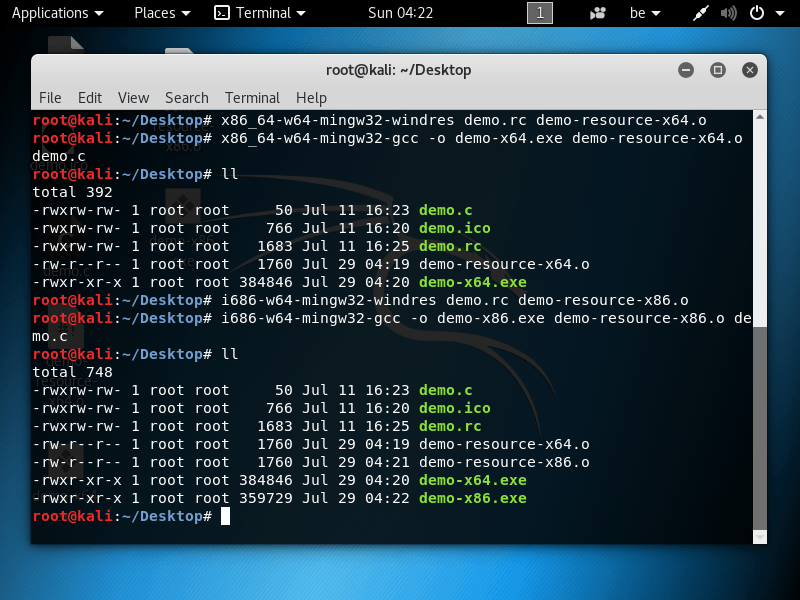
x86_64-w64-mingw32-windres demo.rc demo-resource-x64.o
x86_64-w64-mingw32-gcc -o demo-x64.exe demo-resource-x64.o demo.c

Compile for 32-bit:

i686-w64-mingw32-windres demo.rc demo-resource-x86.o
i686-w64-mingw32-gcc -o demo-x86.exe demo-resource-x86.o demo.c


DemoResource_V_0_0_0_1.zip (https)
MD5: 9104DDC70264A9C2397258F292CC8FE4
SHA256: 722B3B52BAE6C675852A4AC728C08DBEEF4EC9C96F81229EF36E30FB54DC49DE


Quickpost info


Tuesday 11 September 2018

WiFi Pineapple NANO: Persistent Recon DB

Filed under: WiFi — Didier Stevens @ 0:00

The WiFi Pineapple’s recon DB (recon.db) is volatile, because it is stored (by default) in the /tmp folder.

I store my recon.db on the SD card to make it persistent (survives a reboot).

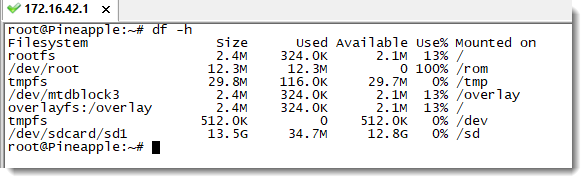
First the SD card has to be formatted:

Then the “Scans Location” field can be changed from /tmp/ to /sd/:

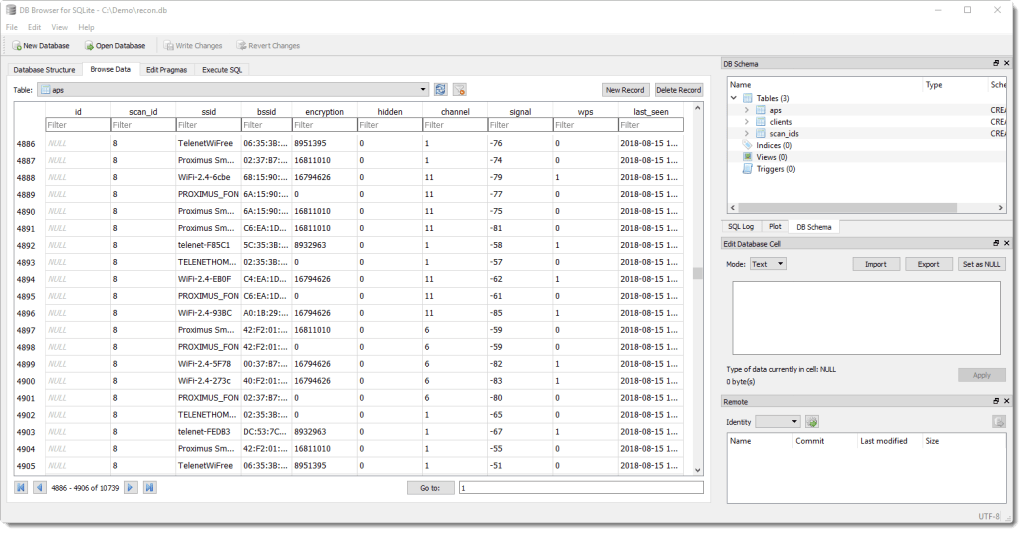
recon.db is an SQLite database, that can be browsed with tools like sqlitebrowser:

Monday 10 September 2018

Firmware Upgrade: WiFi Pineapple NANO

Filed under: WiFi — Didier Stevens @ 0:00

This is mainly a reminder for myself, as I don’t often update my WiFi Pineapple NANO.

Updating the NANO performs a reset.

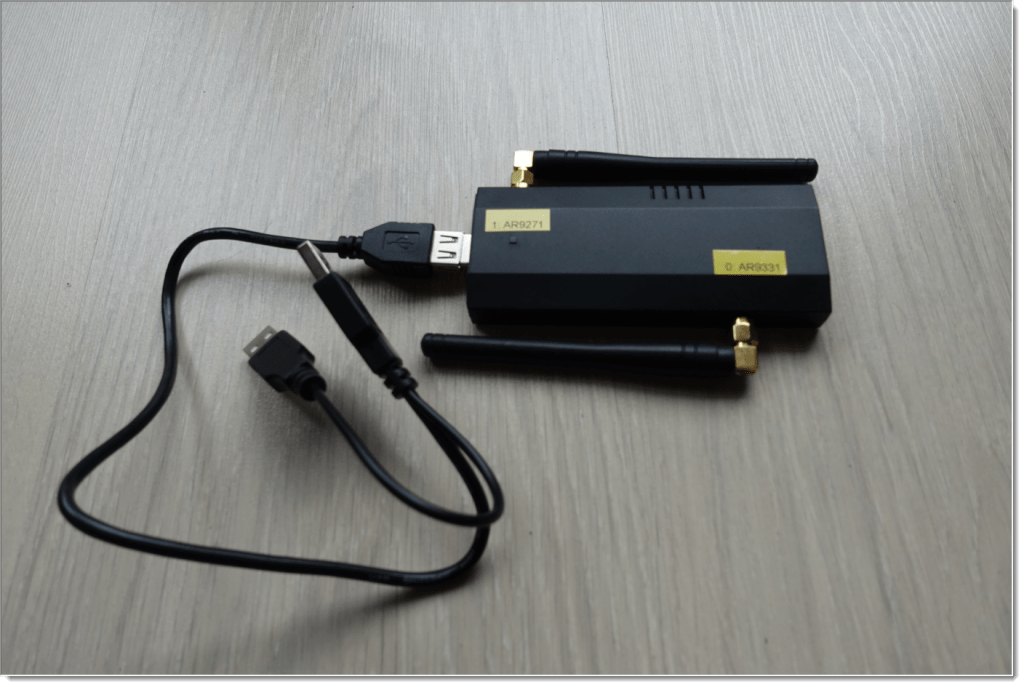
I connect my NANO via a USB cable to my laptop. The USB cable allows me to flip the NANO to access the reset button.
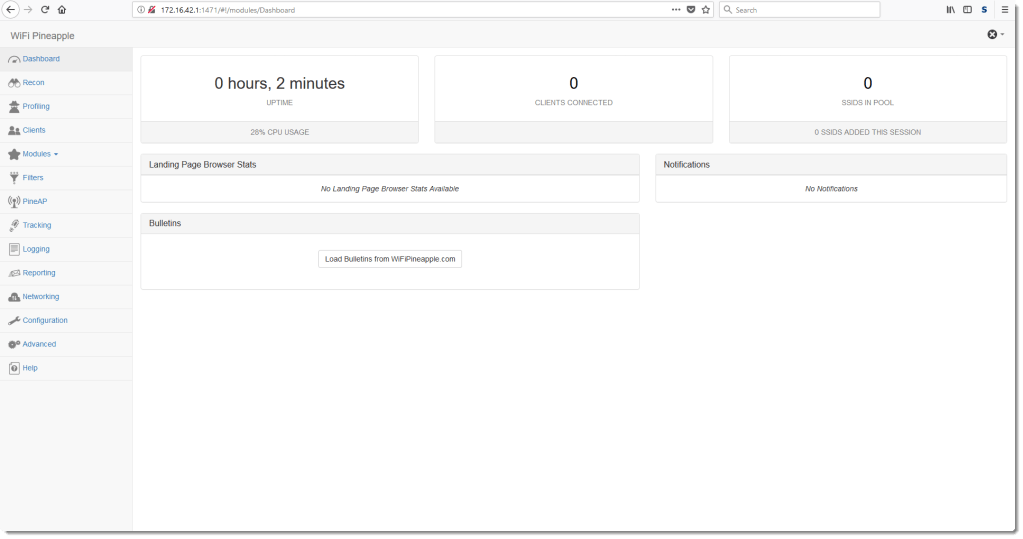
I login via HTTPS 172.16.42.1 port 1471
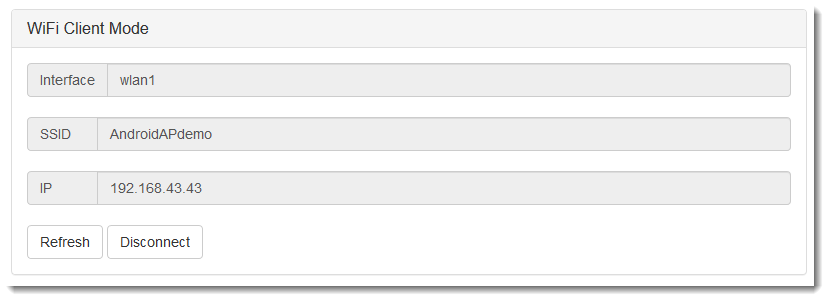
I connect the NANO to a WiFi access point:
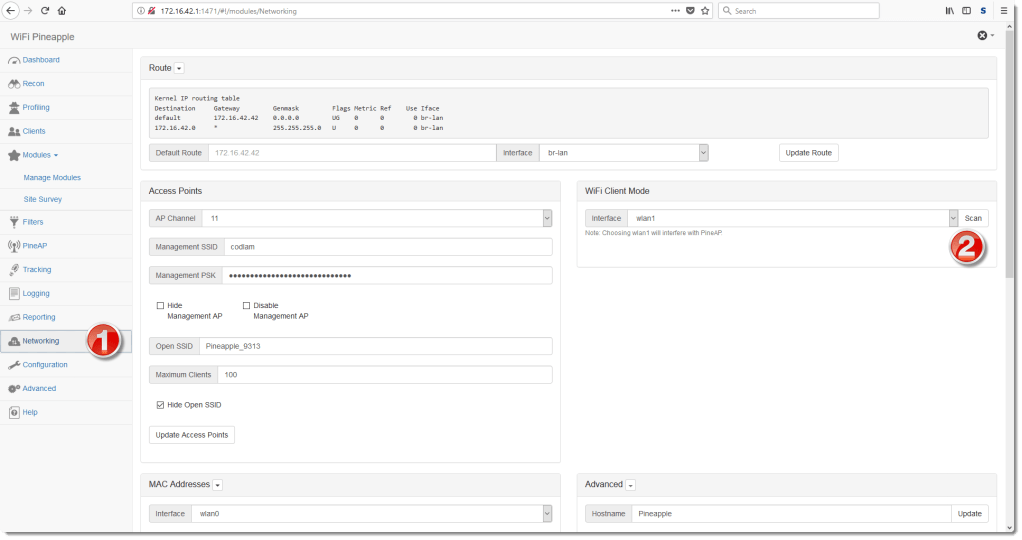
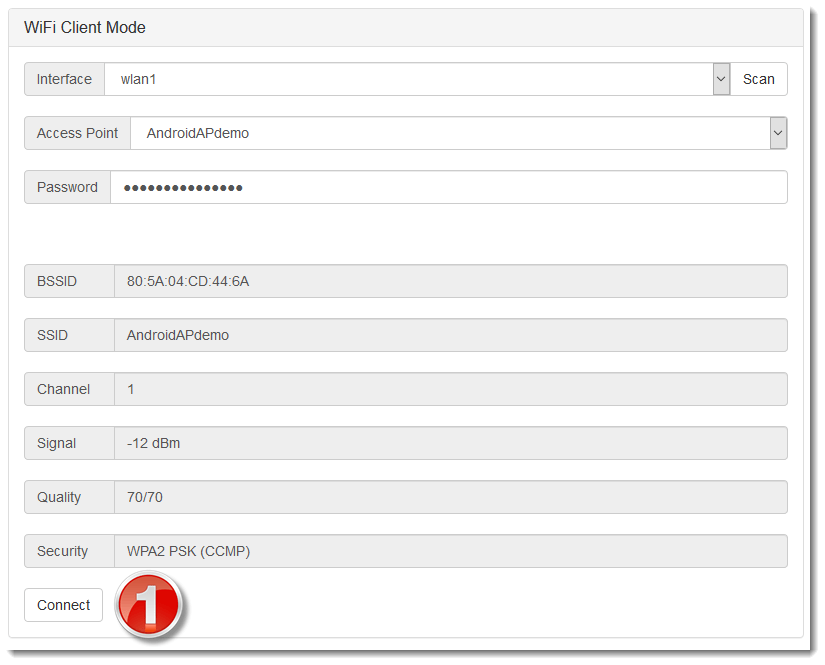
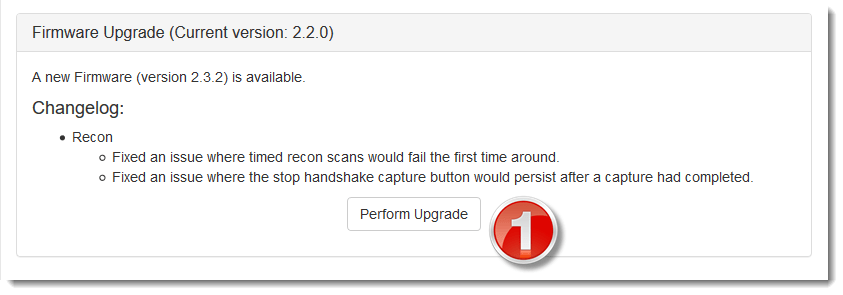
Once connected, I can check for upgrades:
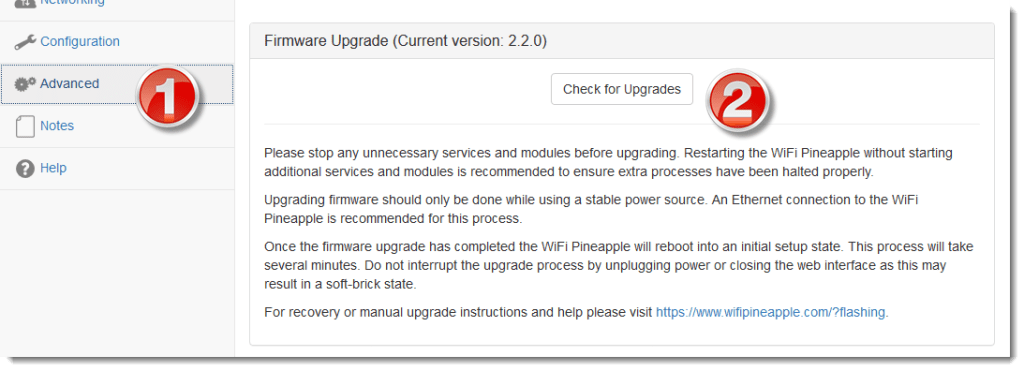
And then perform the upgrade:

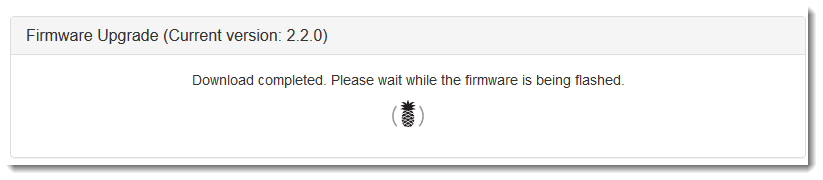
This will take several minutes, after the upgrade is performed, this dialog will appear:

From here on, the NANO has to be setup again:

I press the reset button quickly to perform a setup with WiFi disabled.

And configure the NANO, just like for first use:

I select France for Radio Country Code, because Belgium is not an option:

At this point, the setup is not yet complete for me.

I store the recon.db on an sd card, so this has to be configured:
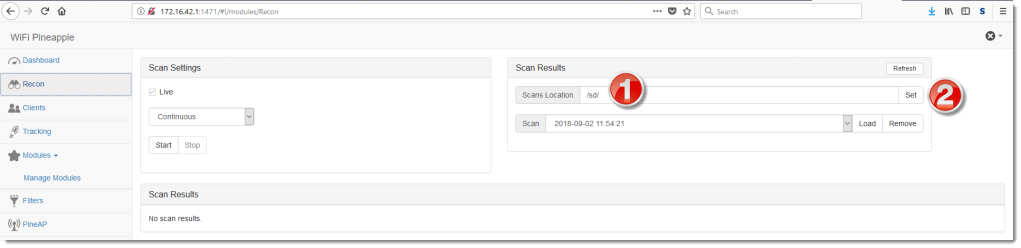
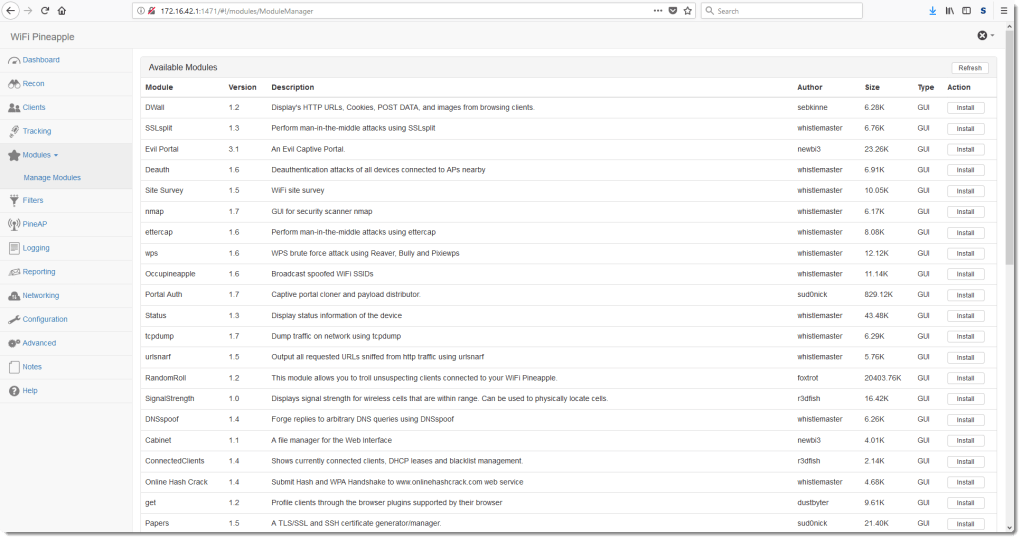
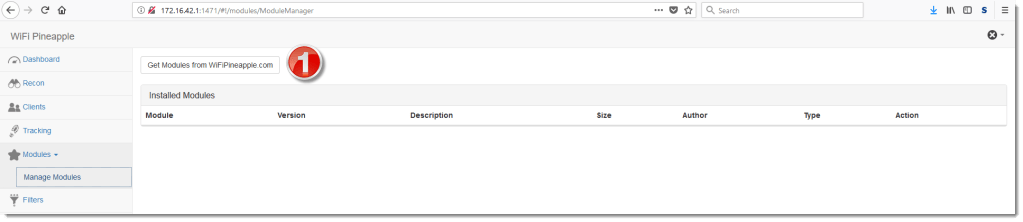
And I also install modules:
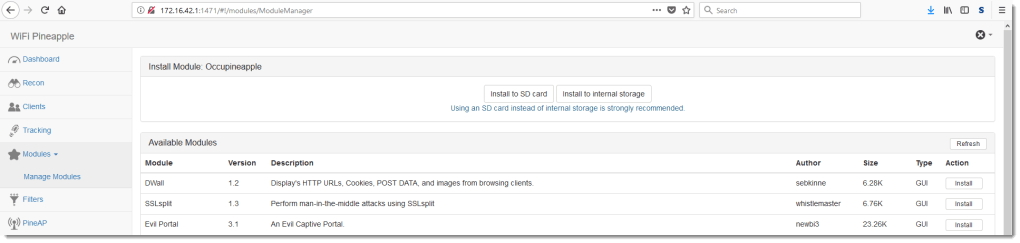
That I install on the SD card:
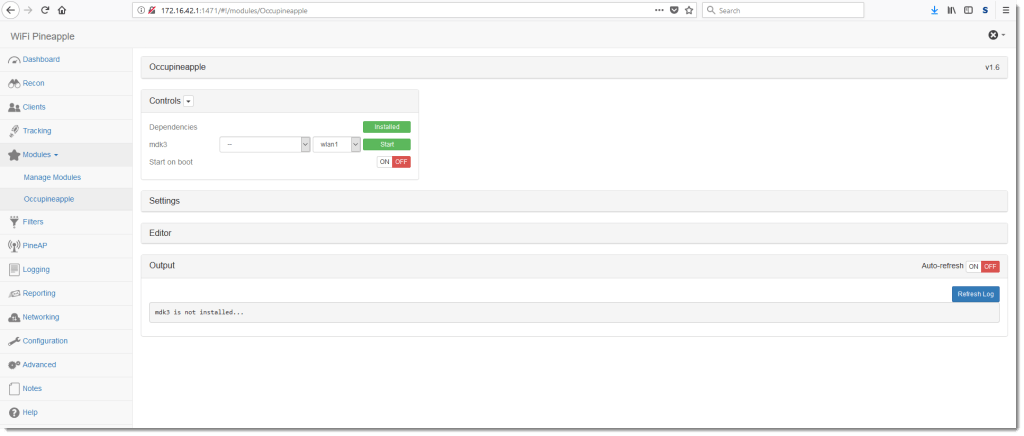
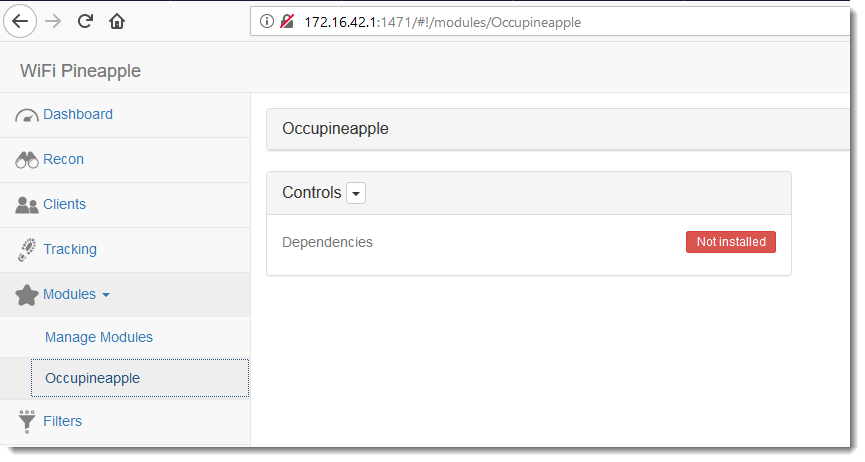
Once installed, some modules need dependencies to be installed too:

 

Wednesday 5 September 2018

Overview of Content Published in August

Filed under: Announcement — Didier Stevens @ 0:00

Here is an overview of content I published in August:

Blog posts:

YouTube videos:

Videoblog posts:

SANS ISC Diary entries:

NVISO blog:

Tuesday 28 August 2018

Quickpost: Compiling DLLs with MinGW on Windows

Filed under: Quickpost — Didier Stevens @ 0:00

MinGW is not only available on Kali, of course, but also on Windows. Compiling a DLL is very similar.

MinGW is installed in folder C:\msys64 on my machine.


To compile 64-bit executables, you need to start the 64-bit shell first: launch C:\msys64\mingw64.exe

Then you can compile the DLL:

gcc -shared -o DemoDll-x64.dll DemoDll.cpp

For 32-bit executables, it’s the 32-bit shell: launch C:\msys64\mingw32.exe

Then you can compile the DLL:

gcc -shared -o DemoDll-x86.dll DemoDll.cpp


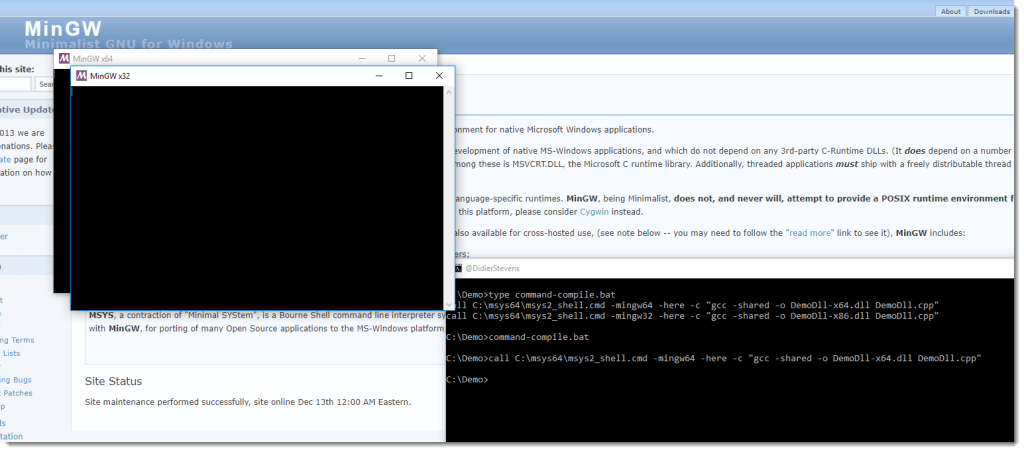
It’s also possible to start the shell and compile from a BAT file:

call C:\msys64\msys2_shell.cmd -mingw64 -here -c "gcc -shared -o DemoDll-x64.dll DemoDll.cpp"
call C:\msys64\msys2_shell.cmd -mingw32 -here -c "gcc -shared -o DemoDll-x86.dll DemoDll.cpp"


Quickpost info


Saturday 25 August 2018

Update: numbers-to-string.py Version 0.0.5

Filed under: My Software,Update — Didier Stevens @ 16:34

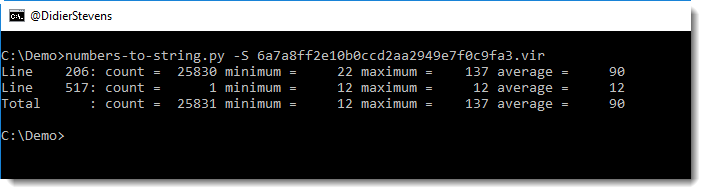
This new version of numbers-to-string.py has a new option: -S (–statistics).

Statistics can help identifying malicious scripts (text files in general)  with numbers:

numbers-to-string_v0_0_5.zip (https)
MD5: 02119AFAC1942A3C97B8E554C03B2DB6
SHA256: 36A5C346063C93B45C50ACF82C317379496A815F166E25F969168DDAB561F92D

Monday 20 August 2018

Obtaining Malware Samples for Analysis

Filed under: Announcement,Malware — Didier Stevens @ 0:00

In my malware analysis blog posts and videos, I always try to include the hash or VirusTotal link of the sample(s) I analyze. If I don’t, it means I’m not at liberty to share the hash.

For every video that I post on YouTube, I create a corresponding video blog post (https://videos.DidierStevens.com) with more info like the sample’s hash and a link to VirusTotal.

In the description of the YouTube video, you will find a link to the video blog post.

Example:

I will often use the MD5 hash, but since I include a link to VirusTotal, you can consult the report and find other hashes like sha256 in that report.

Regarding MD5: I don’t worry about hash collisions for malware samples. Actually, if there is an MD5 hash collision, VirusTotal will inform me, and that would make my day 🙂 .

Don’t ask me for the malware samples I analyze, I don’t host or send these malware samples. If you or your organization have a VirusTotal Intelligence subscription, you can download the sample from VirusTotal.

If you don’t, there are several free repositories online (sometimes they require free registration). Lenny Zeltser has a list of repositories.


« Previous PageNext Page »

Blog at WordPress.com.