cs-decrypt-metadata.py is a new tool, developed to decrypt the metadata of a Cobalt Strike beacon.
An active beacon regularly checks in with its team server, transmitting medata (like the AES key, the username & machine name, …) that is encrypted with the team server’s private key.
This tool can decrypt this data, provided:
you give it the file containing the private (and public) key, .cobaltstrike.beacon_keys (option -f)
you give it the private key in hexadecimal format (option -p)
the private key is one of the 6 keys in its repository (default behavior)
I will publish blog posts explaining how to use this tool.
I found 6 private keys used by malicious Cobalt Strike servers. There’s a significant number of malicious CS servers on the Internet that reuse these keys, thus allowing us to decrypt their C2 traffic. For the details, I recommend reading the following blog post I wrote “Cobalt Strike: Using Known Private Keys To Decrypt Traffic – Part 1“.
I integrated these keys in the database (1768.json) of my tool 1768.py (starting version 0.0.8).
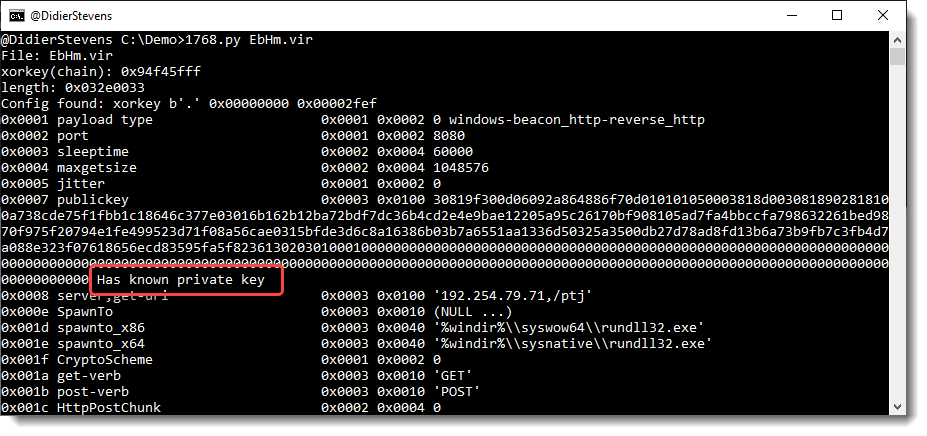
Whenever you analyze a beacon with 1768.py that uses a public key with a known private key, the report will point this out:
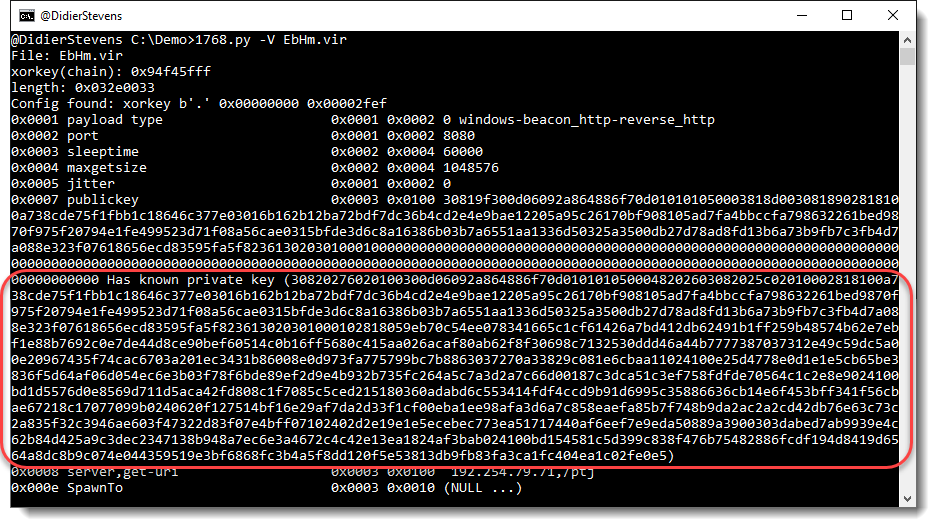
And when you use option verbose, the private key will be included:
If you want to integrated these 6 keys in your own tools: be my guest. You can find these key pairs in 1768.json.
To better understand how nmap does service detection, I implemented a tool in Python that tries to do (more or less) the same. nmap detects what service is listening on a port, by sending it probes (particular byte sequences) and matching it with expected replies. These probes and replies can be found in file nmap-service-probes.
It allows me to experiment with service detection.
By default onion-connect-service-detection.py connects to service ports over the Tor network.
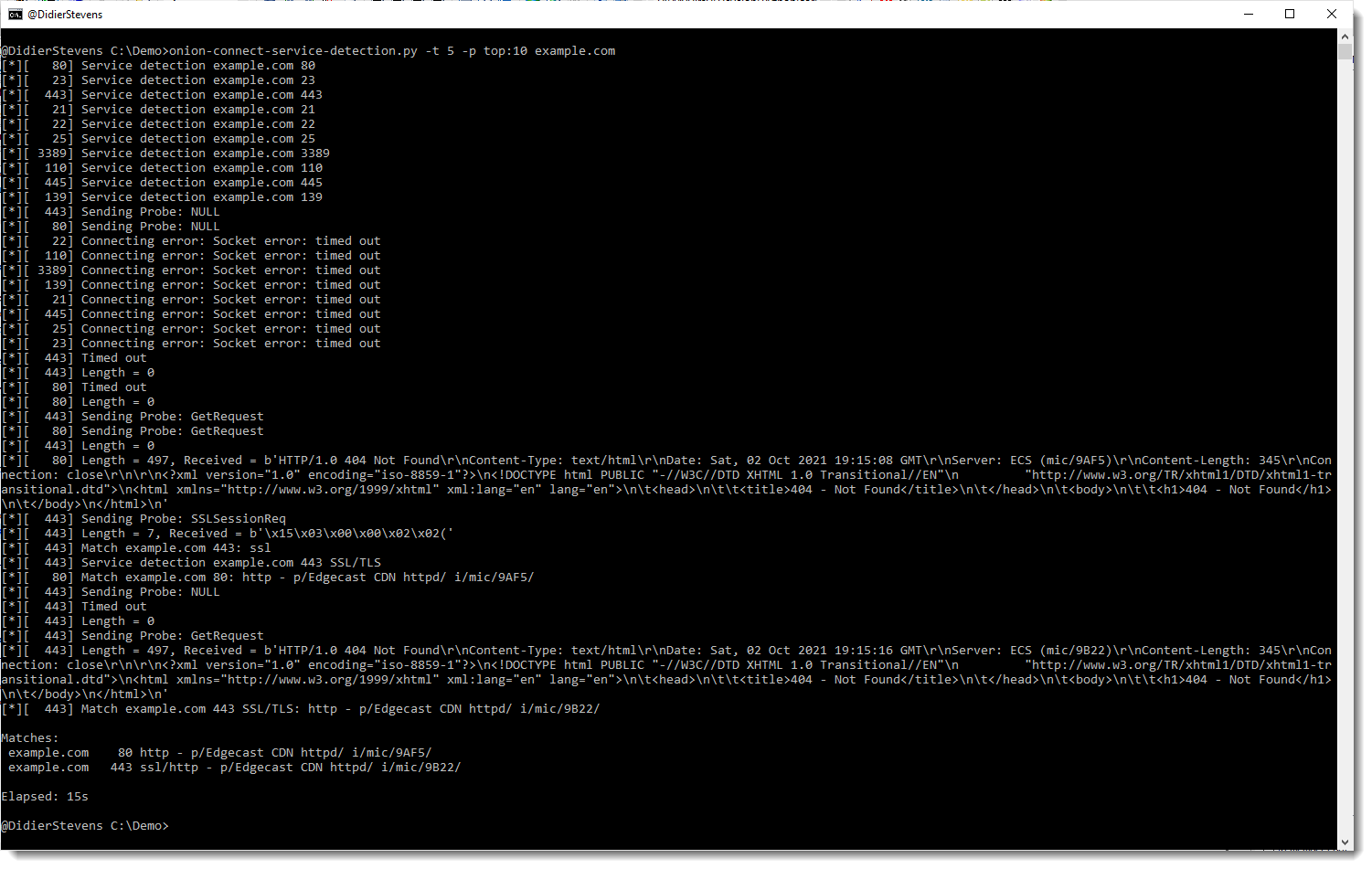
Here is an example where I use the tool to detect services on the 10 most popular ports (top:10) of example.com. With a time-out of 5 seconds.
010 Editor is one of few commercial applications that I use daily. It’s a powerful binary editor with scripting and templates.
I recently had to patch a Java .class file: extend a string inside that class. Before going the route of decompiling / editing / recompiling, I tried with 010 Editor.
Here is the file opened inside the editor:
When opening the file, 010 Editor recognized the .class extension and installed and ran the template for .class files. That’s what I wanted to know: is there a template for .class files? Yes, there is!
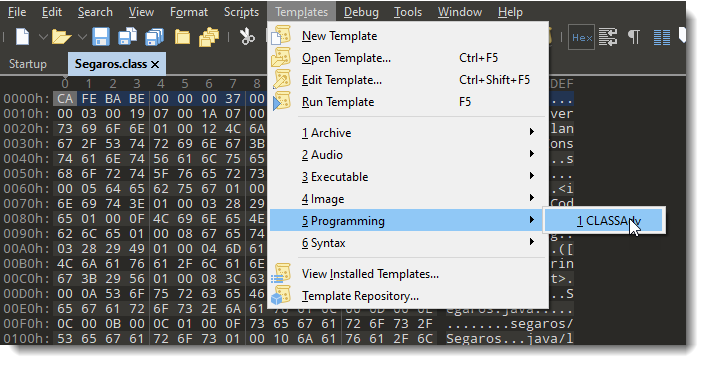
Here is how you can apply a template manually, in case the file extension is not the original extension:
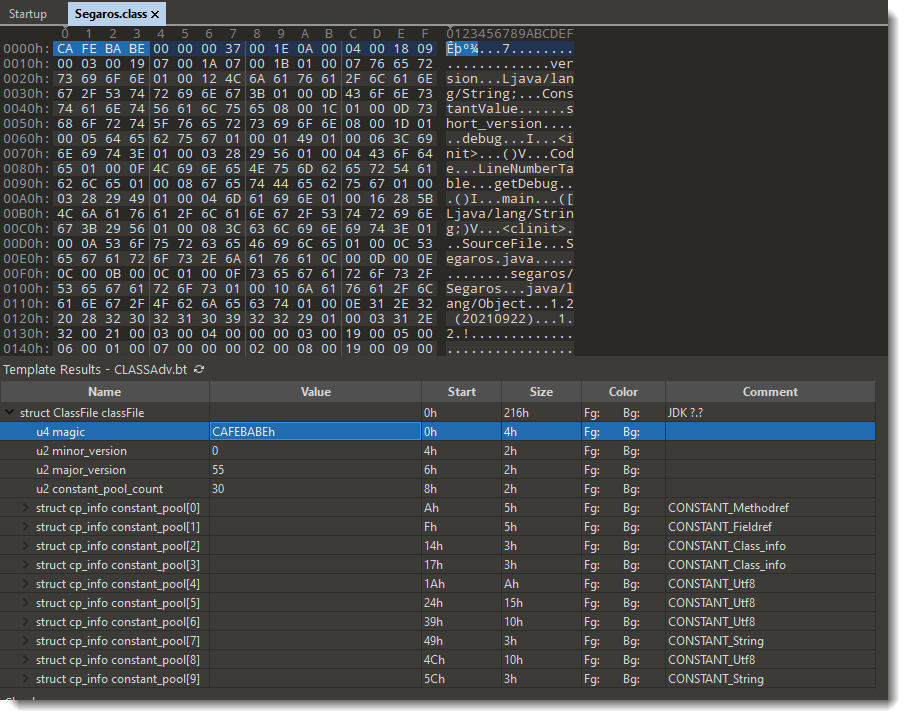
And this is how the template results look like:
Under the hex/ascii dump, the template results are displayed: a set of nested fields that match the internal structure of .class file. For example, the first field I selected here, u4 magic, is the magic header of a .class file: CAFEBABE.
The string I want to extend is this one:
I need to extend string “1.2 (20210922)”. Into something like “1.2 (20210922a)”.
Doing so will make the string longer, thus I need to add a byte to the file (trivial), but I also need to make sure that the binary structure of .java files remain valid: for example, if there is something in that structure like a field length, I need to change the field length too.
I’m not familiar with the internal structure of .class files, that why I’m using 010 Editor’s .class template, hoping that the template will make it clear to me what needs to be changed.
To find the template result field I need to modify, I position my cursor on the string I want to modify inside the ASCII dump, I right-click and select “Jump To Template Variable”:
Which selects the corresponding template variable:
So my cursor was on the 10th byte (bytes[9]) of the string, which is part of template variable cp_info constant_pool[27]. From that I gather that the string I want to modify is inside a pool of constants.
I can select that template variable:
And here I can see which bytes inside the .class file were selected. It’s not only the string, but also bytes that represent the tag and length. The length is 14, that’s indeed the length of the string I want to extend. Since I want to add 1 character, I change the length from 14 to 15: I can do that inside the template results by double-clicking the value 14, I don’t need to make that change inside the hexdump:
Next I need to add a character to the string. I can do that in the ASCII dump:
I have to make sure that the editor is in insert mode (INS), so that when I type characters, they are inserted at the cursor, in stead of overwriting existing bytes:
And then I can type my extra character:
So I have changed the constant string I wanted to change. Maybe there are more changes to make to the internal structure of this .class file, like other length fields … I don’t know. But what I do as an extra check is: save the modified file and run the template again. It runs without errors, and the result looks good.
So I guess there are no more changes to make, and I decide to tryout my modified .class file and see what happens: it works, so there are no other changes to make.





 Didier Stevens