Update: if you don’t have access to a machine with OpenSSL, I created a website to generate certs using the procedure described here. Read through the procedure, and then use the website listed at the end. And if you don’t want your private key generated on a server you don’t own, download my tool I created for Windows that doesn’t require installation: CreateCertGUI.
I also made a video showing the full procedure.
Ever wanted to make your own public key certificate for digital signatures? There are many recipes and tools on the net, like this one. My howto uses OpenSSL, and gives you a cert with a nice chain to your root CA.
First we generate a 4096-bit long RSA key for our root CA and store it in file ca.key:
openssl genrsa -out ca.key 4096
Generating RSA private key, 4096 bit long modulus
...................................................................................++
........................................................................++
e is 65537 (0x10001)
If you want to password-protect this key, add option -des3.
Next, we create our self-signed root CA certificate ca.crt; you’ll need to provide an identity for your root CA:
openssl req -new -x509 -days 1826 -key ca.key -out ca.crt
You are about to be asked to enter information that will be incorporated
into your certificate request.
What you are about to enter is what is called a Distinguished Name or a DN.
There are quite a few fields but you can leave some blank
For some fields there will be a default value,
If you enter '.', the field will be left blank.
-----
Country Name (2 letter code) [GB]:BE
State or Province Name (full name) [Berkshire]:Brussels
Locality Name (eg, city) [Newbury]:Brussels
Organization Name (eg, company) [My Company Ltd]:https://DidierStevens.com
Organizational Unit Name (eg, section) []:
Common Name (eg, your name or your server's hostname) []:Didier Stevens (https://DidierStevens.com)
Email Address []:didier stevens Google mail
The -x509 option is used for a self-signed certificate. 1826 days gives us a cert valid for 5 years.

Next step: create our subordinate CA that will be used for the actual signing. First, generate the key:
openssl genrsa -out ia.key 4096
Generating RSA private key, 4096 bit long modulus
.....++
.............................................................................++
e is 65537 (0x10001)
Then, request a certificate for this subordinate CA:
openssl req -new -key ia.key -out ia.csr
You are about to be asked to enter information that will be incorporated
into your certificate request.
What you are about to enter is what is called a Distinguished Name or a DN.
There are quite a few fields but you can leave some blank
For some fields there will be a default value,
If you enter '.', the field will be left blank.
-----
Country Name (2 letter code) [GB]:BE
State or Province Name (full name) [Berkshire]:Brussels
Locality Name (eg, city) [Newbury]:Brussels
Organization Name (eg, company) [My Company Ltd]:https://DidierStevens.com
Organizational Unit Name (eg, section) []:Didier Stevens Code Signing (https://DidierStevens.com)
Common Name (eg, your name or your server's hostname) []:
Email Address []:didier stevens Google mail

Please enter the following 'extra' attributes
to be sent with your certificate request
A challenge password []:
An optional company name []:
Next step: process the request for the subordinate CA certificate and get it signed by the root CA.
openssl x509 -req -days 730 -in ia.csr -CA ca.crt -CAkey ca.key -set_serial 01 -out ia.crt
Signature ok
subject=/C=BE/ST=Brussels/L=Brussels/O=https://DidierStevens.com/OU=Didier Stevens Code Signing (https://DidierStevens.com)/emailAddress=didier stevens Google mail
Getting CA Private Key
The cert will be valid for 2 years (730 days) and I decided to choose my own serial number 01 for this cert (-set_serial 01). For the root CA, I let OpenSSL generate a random serial number.
That’s all there is to it! Of course, there are many options I didn’t use. Consult the OpenSSL documentation for more info. For example, I didn’t restrict my subordinate CA key usage to digital signatures. It can be used for anything, even making another subordinate CA. When you buy a code signing certificate, the CA company will limit its use to code signing.
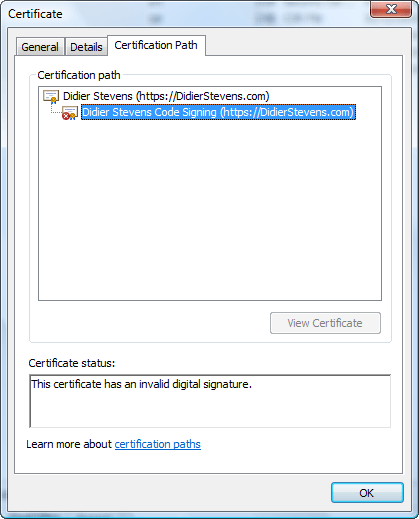
To use this subordinate CA key for Authenticode signatures with Microsoft’s signtool, you’ll have to package the keys and certs in a PKCS12 file:
openssl pkcs12 -export -out ia.p12 -inkey ia.key -in ia.crt -chain -CAfile ca.crt
Enter Export Password:
Verifying - Enter Export Password:
To sign executables in Windows with the signtool: install file ia.p12 in your certificate store (e.g. double click it), and then use signtool /wizard to sign your PE file.
I’ve used this process to generate certs for my own code signing, and for my Authenticode Challenge.
Update: don’t have OpenSSL? Use my website https://toolbokz.com/gencert.psp


[…] to Windows executables (PE files). This howto shows you how to use signtool. You’ll need to create your own certificate and key (or buy one) to sign […]
Pingback by Howto: Add a Digital Signature to Executables « Didier Stevens — Wednesday 31 December 2008 @ 10:57
[…] now I sign good.exe with my own cert. But there’s a little change in the code signing procedure I explained in this other […]
Pingback by Playing With Authenticode and MD5 Collisions « Didier Stevens — Saturday 17 January 2009 @ 15:13
Hallo Didier,
Merci voor de nuttige info. Ik kan het goed gebruiken 🙂 Waarvoor ex-collega’s al niet goed zijn hé.
Groeten,
Geert
Comment by Geert Bex — Tuesday 10 March 2009 @ 19:06
Inderdaad, België is klein hé!
Comment by Didier Stevens — Tuesday 10 March 2009 @ 19:31
Thanks for this post. It came in very handy for testing SSL support in hMailServer on Windows.
Comment by Kevin miller — Wednesday 11 March 2009 @ 19:49
Hi,
I followed the steps exactly and I got this error:
Error self signed certificate getting chain.
Any idea?
Comment by M — Wednesday 29 April 2009 @ 9:46
Forgot to mention, I get the error after running this command:
openssl pkcs12 -export -out ia.p12 -inkey ia.key -in ia.crt -chain -CAfile ca.crt
The other commands work fine
Comment by M — Wednesday 29 April 2009 @ 9:50
The error is:
Error self signed certificate getting chain.
Comment by M — Wednesday 29 April 2009 @ 10:02
What version of OpenSSL are you using, and on which OS?
Comment by Didier Stevens — Wednesday 29 April 2009 @ 11:29
OpenSSL 0.9.8b 04 May 2006
running on x86_64 GNU/Linux
Comment by M — Wednesday 29 April 2009 @ 11:32
I’ve also done the procedure on an older version of OpenSSL than yours (0.9.7a), so it’s probably not version dependent. If you can share your keysfiles and cert files, I’m willing to try on my machine. I have a gmail account, details on my About page.
Comment by Didier Stevens — Wednesday 29 April 2009 @ 11:47
Update: the reason of “Error self signed certificate getting chain.” is that you use identical data for your CA and IA certificate.
Comment by Didier Stevens — Monday 4 May 2009 @ 20:07
Thank you so much for sharing this!
In your instructions, I don’t know how you got around the requirement of designating an openssl.cnf configuration file. Maybe the version of OpenSSL you were using was compiled to look for it in the right place. Mine was compiled to look for it in /usr/local/ssl/openssl.cnf, which doesn’t exist on a Windows machine.
The next problem is, that on Windows XP at least, .cnf files are designated a NetMeeting “SpeedDial” files. But you can edit the file extension to break this link, or better yet have the extension open in Notepad. This isn’t absolutely necessary though.
I found the default openssl.cnf file installed in my OpenSSL/share directory, so I moved it to the bin directory, so when I ran openssl from there, I could just add -config openssl.cnf to my openssl commands when it complained about not finding it.
Finally, thank you again for your comment about the “Error self signed certificate getting chain” error. I went back and changed some of my answers to the cert issuing questions, and the error disappeared when I tried again.
My next task is to install a certificate (which one?) on my intranet Active Directory domain server, so all the computers in my domain will trust code that I sign with my digital signature.
Comment by jeng1111 — Friday 5 March 2010 @ 21:17
@jeng1111 It’s the root CA you need to distribute (the self-signed one).
Comment by Didier Stevens — Friday 5 March 2010 @ 22:49
Thanks for your help! I installed my root cert on the other machines in the office by going to Start > Run… > mmc > File > Add/Remove snap-in > Add… and choosing Certificates. Then I right-clicked somewhere to import the root cert file I had made.
After I had installed the root CA, when I opened a file in Microsoft Office that I had signed (with a certificate that had been issued using that same root cert), I was presented with the option of always trusting files signed liked that.
Next I would like to experiment with creating a certificate just for code signing. I believe the information is here: http://www.openssl.org/docs/apps/x509v3_config.html under “Extended Key Usage.”
Comment by jeng1111 — Friday 16 April 2010 @ 19:54
[…] you’ve a root certificate, like one created using this method. Here’s how to install it in your account’s “Trusted Root Certificate […]
Pingback by Quickpost: Adding Certificates to the Certificate Store « Didier Stevens — Sunday 31 October 2010 @ 13:31
I created 1 cert wrong, so I deleted files but I cant create new cert.
OpenSSL> pkcs12 -export -out ia.p12 -inkey ia.key -in ia.crt -chain -CAfile ca.c
rt
Loading ‘screen’ into random state – done
Error self signed certificate getting chain.
error in pkcs12
OpenSSL>
Comment by rain — Friday 22 April 2011 @ 21:30
Got this problem fixed but still got problem
It shows that new cert with old’s name and issuer. Any fix?
Comment by rain — Friday 22 April 2011 @ 21:49
[…] would be to sign the driver yourself… http://technet.microsoft.com/en-us/l…52(WS.10).aspx https://blog.didierstevens.com/2008/1…-with-openssl/ Reply With Quote […]
Pingback by MDT 2010 / Windows 7, driver ranking problem for Realtek HD Audio — Wednesday 18 May 2011 @ 7:10
[…] https://blog.didierstevens.com/2008/12/30/howto-make-your-own-cert-with-openssl/ This entry was posted on marți, august 16th, 2011 at 14:57 and is filed under Linux. You can […]
Pingback by Howto: Make Your Own Cert With OpenSSL | Laurentiu Blog — Tuesday 16 August 2011 @ 10:05
[…] the pieces to test this flag. A normal authenticode signature is not enough. And you can not use a selfsigned certificate. You need to buy a certificate (aka Software Publisher Certificate, SPC) from a commercial CA for […]
Pingback by Using DLLCHARACTERISTICS’ FORCE_INTEGRITY Flag « Didier Stevens — Thursday 27 October 2011 @ 17:46
Hi,
I followed the steps exactly and I got this error:
Error self signed certificate getting chain.
Any idea?
Comment by Prashanth — Wednesday 15 February 2012 @ 7:17
@Prashant Take a look at the first comments, your problem was addressed there.
Comment by Didier Stevens — Wednesday 15 February 2012 @ 11:45
Hello Didier,
I copy-paste exactly your commands and got stuck on p12 generation:
Loading ‘screen’ into random state –
and then …. nothing, never exits. Then, unfortunately it is not done for some reason.
The ca private is not protected by a password like in your initial command then no need to give a password. Could I use an openssl with restricted features for some limited exportation reason? I have OpenSSL 1.0.1c 10 May 2012 installed.
The irony is that I’ve been using your commands because I had the same issue with my own script!
Is it a matter of format? My understanding is that we have PEM here. Any idea would be great, thks
–Jerome
Comment by Jerome — Wednesday 21 November 2012 @ 10:33
Answer to myself (comment 24): because as explained here (http://stackoverflow.com/questions/94445/using-openssl-what-does-unable-to-write-random-state-mean) the environment is not properly set: I was working on windows with unset variables. I guess here openssl cannot find (RANDFILE). Tried on Unbuntu and works fine.
Anyway Stevens, thanks for sharing these commands with the community
–Jerome
Comment by Jerome — Wednesday 21 November 2012 @ 14:38
This is quite a good tutorial. The problem that I see (or maybe the solution that I am missing) is that there is always a trust failure when signing documents for distribution. It does not matter if a chain of essentially self-signed certificates is made if there is no recognized CA in the chain.
I tried the method in this post to sign a PDF. The signature had problems with validation.
A well-known CA issues certificates that are usually used for email, but there is no problem signing other document formats with these, and they validate perfectly. I know it will not validate a website. It probably cannot sign code, but I have not tried this.
I wonder if it would be possible to generate a certificate using the CA to sign it, then generate a personal certificate from the certificate generated.
Has anyone figured out a way to make the address bar turn green with self-generated chains?
Comment by Ringo — Thursday 6 December 2012 @ 4:01
@Ringo A green address bar indicates an Extended Validation Certificate. Each CA has its own OID(s) to identify such a certificate. See here:
https://en.wikipedia.org/wiki/Extended_Validation_Certificate#Extended_Validation_certificate_identification
Comment by Didier Stevens — Thursday 6 December 2012 @ 10:09
@Didier – True, and each CA has its own identifiers which are known and incorporated into certificates and instruct the browser to display the green address bar. Please see here:
http://en.wikipedia.org/wiki/Extended_Validation_Certificate#Extended_Validation_certificate_identification.
The green bar comment was actually meant to be taken as a joke. I found your much earlier post on setdllcharacteristics and forcing the BIOS to report DEP interesting and wondered if you had come any further.
I am trying to install W8 on an old computer. Since it is impossible to force the motherboard to do something it cannot do, it seemed reasonable to lie about DEP and NX to get W8 installed. Oddly, it installs from within 7 but hangs from DVD. I do not know how vigorously the W8 installer checks for NX, nor where the check occurs. The previous method of modifying a dll file seems not to work as it did in the past.
Thanks,
R.
Comment by Ringo — Thursday 6 December 2012 @ 16:05
My last comment got zapped. Anyone know why?
R.
Comment by Ringo — Thursday 6 December 2012 @ 16:58
Bizarre. It just reappeared after I posted again….
Comment by Ringo — Thursday 6 December 2012 @ 17:00
@Ringo Comments are moderated, I’ve to approve them.
I get way to much comment SPAM.
Comment by Didier Stevens — Thursday 6 December 2012 @ 17:30
Re: Comment 13.
———————-
Under Windows, just create (mkdir) the directory \usr\local\ssl\ minding the direction of the slashes. Then make a shortcut back to openssl.cnf. Really, it’s also just as easy to copy the openssl.cnf file to the right place once you’ve made the directory.
Ringo
Comment by Ringo — Thursday 6 December 2012 @ 18:24
[…] we use our certificate which we install (open the .p12 file). Install the free JSignPdf […]
Pingback by Howto: Add a Digital Signature to a PDF File – Free Software | Didier Stevens — Friday 26 April 2013 @ 12:58
[…] is a variant to my “Howto: Make Your Own Cert With OpenSSL” method. This time, I needed a signing cert with a Certificate Revocation List (CRL) extension and […]
Pingback by Howto: Make Your Own Cert And Revocation List With OpenSSL | Didier Stevens — Wednesday 8 May 2013 @ 10:34
[…] I followed instructions at https://blog.didierstevens.com/2008/12/30/howto-make-your-own-cert-with-openssl/ to make a self signed root certificate for signing the server and client […]
Pingback by Postgresql SSL certificates | Pontifier's thoughts — Friday 19 July 2013 @ 19:02
HI Didier,
I was trying to set up a Mikrotik router to accept ssl login via a web browser. It requires an ssl certificate. I found your website and followed the instructions. I was able to create an ssl certificate on my Linux computer. I then transferred the ca.key and ca.crt files to the Mikrotik router and was able to set up the router to receive www-ssl.
Thank you very much for your instructions.
Sincerely,
Don James
donaldbjames@suddenlinkmail.com
http://donaldbjames.com
Henderson, Texas USA
Comment by Don James — Tuesday 10 December 2013 @ 3:18
[…] https://blog.didierstevens.com/2008/12/30/howto-make-your-own-cert-with-openssl/ […]
Pingback by IIS HTTPS configuration for Team development | Software Engineering — Wednesday 16 April 2014 @ 20:03
[…] resources :https://blog.didierstevens.com/2008/12/30/howto-make-your-own-cert-with-openssl/http://stackoverflow.com/questions/11966123/howto-create-a-certificate-using-openssl-including-a-crl-distribution-point/12023746#12023746 […]
Pingback by Create self signed SSL certificates with crl/ocsp X509 Extensions using openssl | problem solved — Wednesday 30 July 2014 @ 15:12
[…] : https://blog.didierstevens.com/2008/12/30/howto-make-your-own-cert-with-openssl/ […]
Pingback by Create self signed SSL certificates with crl/ocsp X509 Extensions using openssl | problem solved — Friday 1 August 2014 @ 14:23
[…] set up my root certificate, I followed this great tutorial by Didier Stevens. First, I created a new root CA certificate. Then, I created an intermediate […]
Pingback by Setting up a PKI | The blog of Nathan Hunstad — Sunday 31 August 2014 @ 0:42
Is there an html or php script to generate or access the certificate etc.. ?
Comment by Anonymous — Monday 13 October 2014 @ 17:29
@Anonymous Are you looking for a program that will run the commands for you?
Comment by Didier Stevens — Wednesday 15 October 2014 @ 21:52
I created a Makefile to generate all of these (except the last one):
SUBJ := /C=My2LetterCountry/ST=MyState/L=MyCity/O=MyCompany/OU=MyOrg/CN=mydomain.com
ca.key:
openssl genrsa -out ca.key 4096
ca.crt: ca.key
openssl req -new -x509 -days 1826 -key ca.key -out ca.crt -subj $(SUBJ)
mydomain.key:
openssl genrsa -out mydomain.key 4096
mydomain.csr: mydomain.key
openssl req -new -key mydomain.key -out mydomain.csr -subj $(REG_SUBJ)
mydomain.crt: ca.crt mydomain.csr
openssl x509 -req -days 730 \
-in mydomain.csr \
-CA ca.crt -CAkey ca.key \
-set_serial 02 \
-out mydomain.crt
clean:
rm mydomain.*
With this, you can just do “make mydomain.crt” and it should do all of the
right key and cert generation for you. Obviously, you’ll want to modify SUBJ to
include the correct information. If you want to regenerate the subordinate keys
and certs, do “make clean mydomain.crt”
Comment by Josh — Saturday 8 November 2014 @ 19:27
Thank you.
Comment by pushkalmaheshwari — Monday 16 February 2015 @ 18:16
Hi, thanks for sharing the above info. Was able to get a lot further using your instructions. However, the last command didn’t work for me. This is what I got:
C:\OpenSSL-Win64>openssl pkcs12 -export -out ia.p12 -inkey ia.key -in ia.crt -chain -CAfile ca.crt
Loading ‘screen’ into random state – done
Error unable to get issuer certificate getting chain.
I’m on Win 7 64-bit, using openssl-0.9.8k_X64.zip. I added the root CA created using your steps to the Trust Root container using Windows CERTMGR.MSC, and I wasn’t sure where the Subordinate cert goes, so it seemed logical to put it into the Intermediate container. Re-ran the command and got the same error. What did I not do and/or do wrong?
Comment by Joseph K. Perez, Sr. — Sunday 15 March 2015 @ 18:04
I ran each OpenSSL command in a command box in Windows 8.1and all of them executed successfully until I got to the last one:
openssl pkcs12 -export -out ia.p12 -inkey ia.key -in ia.crt -chain -CAfile ca.crt
When I executed it I got these returns:
Loading ‘screen’ into random state – done.
Password:_
When I tried to enter a password, the cursor wouldn’t even move. So what’s wrong? And what would the password be?
Comment by Bob Gatto — Monday 16 March 2015 @ 19:41
@Bob It’s the export password. You have to choose one. And then type it again. It’s to protect your private key in the PKCS12 file.
Comment by Didier Stevens — Monday 16 March 2015 @ 19:46
@Joseph Read comment 12.
Comment by Didier Stevens — Monday 16 March 2015 @ 19:57
Didier. I read all the comments looking for clues before posting. And, I was sure that for the CA and Subordinate, I modeled my entries the same as yours (using my information). I even screen cap each one so that I can compare and I still got the error which isn’t exactly the same as comment 12.
Comment by Joseph K. Perez, Sr. — Monday 16 March 2015 @ 23:16
Thank you. That explains what the password is, but why isn’t the cursor moving?
Comment by Bob Gatto — Tuesday 17 March 2015 @ 3:17
@Joseph What happens when you type exactly the same info as I do?
Comment by Didier Stevens — Tuesday 17 March 2015 @ 7:41
D, I got the same error, “Error unable to get issuer certificate getting chain” at the very last command for making a PKCS12 file. Here’s a screen cap of everything I typed (same info as in your tutorial)…..
Country Name (2 letter code) [US]:BE
State or Province Name (full name) []:Brussels
Locality Name (eg, city) []:Brussels
Organization Name (eg, company) []:https://DidierStevens.com
Organizational Unit Name (eg, section) []:
Common Name (eg, YOUR name or servers hostname) []:Didier Stevens (https://DidierStevens.com
Email Address []:didier stevens Google mail
C:\OpenSSL-Win64>openssl genrsa -out ia.key 4096
Loading ‘screen’ into random state – done
Generating RSA private key, 4096 bit long modulus
………….++
……………………++
e is 65537 (0x10001)
C:\OpenSSL-Win64>openssl req -new -key ia.key -out ia.csr
Loading ‘screen’ into random state – done
You are about to be asked to enter information that will be incorporated
into your certificate request.
What you are about to enter is what is called a Distinguished Name or a DN.
There are quite a few fields but you can leave some blank
For some fields there will be a default value,
If you enter ‘.’, the field will be left blank.
—–
Country Name (2 letter code) [US]:BE
State or Province Name (full name) []:Brussels
Locality Name (eg, city) []:Brussels
Organization Name (eg, company) []:https://DidierStevens.com
Organizational Unit Name (eg, section) []:Didier Stevens Code Signing (https://DidierStevens.com
Common Name (eg, YOUR name or servers hostname) []:
Email Address []:didier stevens Google mail
Please enter the following ‘extra’ attributes
to be sent with your certificate request
A challenge password []:
C:\OpenSSL-Win64>openssl x509 -req -days 730 -in ia.csr -CA ca.crt -CAkey ca.key -set_serial 01 -out ia.crt
Loading ‘screen’ into random state – done
Signature ok
subject=/C=BE/ST=Brussels/L=Brussels/O=https://DidierStevens.com/OU=Didier Stevens Code Signing (https://DidierStevens.com/emailAddress=didier steve
Google mail
Getting CA Private Key
C:\OpenSSL-Win64>openssl pkcs12 -export -out ia.p12 -inkey ia.key -in ia.crt -chain -CAfile ca.crt
Loading ‘screen’ into random state – done
Error unable to get issuer certificate getting chain.
Comment by joep702 — Wednesday 18 March 2015 @ 7:34
@joep702 I just tried this on Windows, but I can’t reproduce your error. Where did you get your OpenSSL version for Windows?
Comment by Didier Stevens — Wednesday 18 March 2015 @ 12:47
D, I got it from this site, http://slproweb.com/products/Win32OpenSSL.html. It was linked on this page, https://www.openssl.org/related/binaries.html.
Comment by joep702 — Thursday 19 March 2015 @ 4:04
What version did you download?
Comment by Didier Stevens — Thursday 19 March 2015 @ 8:29
From the top of the list, the 7th one down, Win64 OpenSSL v1.0.2, direct link http://slproweb.com/download/Win64OpenSSL-1_0_2.exe
Comment by joep702 — Thursday 19 March 2015 @ 16:29
@joep702 I tried with that version and I can not reproduce your error. Did you set the OPENSSL_CONF and RANDFILE environment variables?
Comment by Didier Stevens — Sunday 22 March 2015 @ 17:00
Hey D, I just want to say thank you for putting in the effort to troubleshoot this. Yes, I came across this post about a bug where the RANDFILE in the OpenSSL configuration file was being ignored on the Windows platform. So, I actually put this in my config file,
RANDFILE = C:\\OpenSSL-Win64\\.rnd
and I also put this in my SetEnv.bat file to be extra sure
set RANDFILE=C:\OpenSSL-Win64\.rnd
Doesn’t make an impact when running this command
openssl pkcs12 -export -out ia.p12 -inkey ia.key -in ia.crt -chain -CAfile ca.crt
I’m wondering if the best thing to do is compare our config files? Btw, on windows, using this version of OpenSSL, my configuration file has be named openssl.cfg. It’s what the guy from the site where I downloaded OpenSSL said he had to do also.
Comment by joep702 — Sunday 22 March 2015 @ 18:52
Solved my problem after looking at another of your articles, one on creating CRLs. I began seeing where my issues stemmed from. First, was with my conf file. I had a trailing backslash in my path for dir =, which looked like this: C:\\OpenSSL-Win64\\testCA\\, causing a trickle down effect for other paths that looked like this, $dir\\testCA\\certs. See the duplication? Then, I also discovered that on my system, if I run the commands in this tutorial as is, files created weren’t being created in the sub-folders I expected/defined in the conf file.
Finally, after reading another tutorial on PKI, that’s when it all connected in my head. I was going about it all wrong. I had only one conf file when I should have had several for various reasons. One for the root ca, another for the subordinate (or Intermediate), another for {insert server and/or client auth, secure email}, and so on and so forth. In addition, it’s been awhile since I’ve hand cranked any commands on any *IX platform, so with the problem I was experiencing earlier, I just had to slap myself a couple of times and force myself to slow down and think things through.
All in all, Didier your stuff is by far the most comprehensible that I’ve seen, and I highly recommend it to anyone wanting to learn OpenSSL. Thanks again for taking the time to try and re-create my issue. You da man!
Cheers!
Comment by joep702 — Monday 23 March 2015 @ 6:20
[…] More info: https://blog.didierstevens.com/2008/12/30/howto-make-your-own-cert-with-openssl/ […]
Pingback by Howto: Make Your Own Cert With OpenSSL | Didier Stevens Videos — Friday 27 March 2015 @ 14:03
[…] people following my “Howto: Make Your Own Cert With OpenSSL” do this on Windows and some of them encounter problems. So this post shows the procedure on […]
Pingback by Howto: Make Your Own Cert With OpenSSL on Windows | Didier Stevens — Monday 30 March 2015 @ 0:00
I had the same problem as Bob Gatto (Comment #’s 47 & 50). Can someone please explain why the comment “pkcs12 -export -out ia.p12 -inkey ia.key -in ia.crt -chain -CAfile ca.crt” comes up with a enter export password prompt but then doesn’t allow you to type anything? I thought it might be masking the password but it doesn’t seem to be, nor does it accept nulls (i.e. skipping it). Please help
Comment by TSN — Thursday 2 April 2015 @ 12:36
that was meant to read “command” not “comment”. Thanks in advance for your help.
Comment by TSN — Thursday 2 April 2015 @ 12:39
@TSN What version of OpenSSL and OS do you use?
Comment by Didier Stevens — Thursday 2 April 2015 @ 16:47
Thanks Didier I used the “Win32 OpenSSL v1.0.2a Light” from http://slproweb.com/products/Win32OpenSSL.html and am using a SurfacePro3 with Windows 8.1 Pro. Strangely, although I never got the export password to work properly as per your tutorial, I did somehow manage to produce a password-protected signed certificate (although don’t really understand how it finally managed to work). Thanks for your help!
Comment by TSN — Friday 3 April 2015 @ 9:17
[…] Can I create my own S/MIME certificate for email encryption? Email Certificates Issue Your Own Self-Signed S/MIME Certs with OpenSSL How do I create a valid email certificate for Outlook S/MIME with openssl? How To Encrypt Mails With SSL Certificates (S/MIME) Howto: Make Your Own Cert With OpenSSL […]
Pingback by SSL Certification Authority on Linux - fereis on-line — Friday 15 May 2015 @ 13:07
I used your website to generate a certificate automatically, which I just downloaded. I am trying to import it into my certificate store but it says I need a password–what is it?
Comment by Stan — Saturday 5 September 2015 @ 13:02
@STan I have no password. The certs and keys generated via my website are not protected with a password. You might try with a blank password.
Comment by Didier Stevens — Saturday 5 September 2015 @ 17:09
>”Update: if you don’t have access to a machine with OpenSSL, I created a website to generate certs using the procedure described here.”
Oh no… please, don’t do this. This is a wrong way to do it. Generating a private key / certificate online on a system which doesn’t belong you but someone you don’t know and don’t trust, is not very secure…
Comment by John — Friday 27 November 2015 @ 13:22
@John I agree, that’s why I have a warning.
Comment by Didier Stevens — Friday 27 November 2015 @ 18:39
[…] As we have discussed above it is required to configure TLS, for this we need a certificate. If you don’t already have a certificate you can generate one with OpenSSL. […]
Pingback by Configure Tomcat 9 for HTTP/2 | alex.theedom — Tuesday 5 April 2016 @ 21:20
Thank you! This article saved me a lot of time!
Comment by Herbert Schulz — Monday 6 June 2016 @ 9:00
I have obtained an SSL end-user certificate from a CA for a domain I own. How do I use that certificate as an intermediate to create certificates for other domains that I own. Essentially, I want my site intermediate.com which now has a valid end-user certificate that is chained to a root to become an intermediate for my other domains end1.com, end2.com, etc. How do I do this using openssl?
Comment by David E — Wednesday 14 September 2016 @ 0:19
You can’t do that. Certificates from commercial CAs for SSL have restrictions (key usage) that prevent this.
Comment by Didier Stevens — Wednesday 14 September 2016 @ 12:21
Hi Didier, when do you use “Enhance Key Usage” and how to you add it when creating self-signed certificate? Also, after following your instructions and successfully made my certificate, I have seen that version is V1 or 1. How can I make it to version 3 in case. Can you kindly guide me on this please?
Comment by Norman — Tuesday 4 October 2016 @ 11:24
To make the second cert V3 you create an empty file (ext.cfg) and add option -extfile ext.cfg, like this
x509 -req -days 730 -in ia.csr -CA ca.crt -CAkey ca.key -set_serial 01 -out ia.crt -extfile ext.cfg
To add Enhanced Key Usage, you add this to file ext.cfg:
extendedKeyUsage=codeSigning
Comment by Didier Stevens — Tuesday 4 October 2016 @ 21:26
Thank you.
However, on the blank ext.cfg file, just make a file as ease ext.cfg? then, I will put it in the demo folder, is that correct? finally, once above command is triggered, the certificate becomes V3, it this correct?
Once .cfg file is created, I will then add the “extendedKeyUsage=codeSigning” inside that file. Is there anything to add in the command for this to take into effect in the certificate or that should do it? Because I’ve seen random numbers from extendedKeyUsage in some certificates like, Server Authentication (1,3,6,1,5,5,7,3,1) Client Authentication (1,3,6,1,5,5,7,3,2) so I really do not have idea if the same will be the result.
Very sorry and hoping that you can get back.
Thanks
Comment by Norman — Wednesday 5 October 2016 @ 10:36
Yes, you just create the text file with content extendedKeyUsage=codeSigning, and then the command becomes: x509 -req -days 730 -in ia.csr -CA ca.crt -CAkey ca.key -set_serial 01 -out ia.crt -extfile ext.cfg
Those numbers are not random. They are the OIDs, they will appear when you try this out.
Comment by Didier Stevens — Wednesday 5 October 2016 @ 10:58
Thank you very much. I will try this out and will update.
Lastly, do you have any sample on how a self-signed certificate can be revoked? Since I was able to create a certificate, now I am wondering how can I revoke it.
Thanks
Comment by Norman — Wednesday 5 October 2016 @ 11:23
I have a blogpost on revocation lists.
Comment by Didier Stevens — Wednesday 5 October 2016 @ 13:36
Hi Didier,
When you use the above concept and created like 10 certificates, are these certificates unique from each other? Meaning, if I created one for me with certificate A and assigned to my email address me@gmail.com and create another certificate B for my wife assigned to her email account her@gmail.com and so on? If not, how can I make it unique to make it work with a specific email address. Or whilst generating, it is creating a unique identifier in the certificate and by default?
Sincerely looking forward.
Thanks
Comment by Norman — Wednesday 5 October 2016 @ 13:42
If you generated new private keys, then yes.
Comment by Didier Stevens — Wednesday 5 October 2016 @ 21:46
I following your steps and everything seemed to work out properly; however, how do I actually save the “private key (pem)” and “certificate (cer)” files? I tried looking under my /etc/pki/tls directory but I don’t see any new certificates showing there.
Comment by Bernie — Thursday 26 January 2017 @ 5:45
In the current directory.
Comment by Didier Stevens — Saturday 28 January 2017 @ 8:34
Hello, before following these instructions, I’d like to know if you’re sure they hold true on a virtual server running Ubuntu 16.04 and with no separate IP address, which is impossible on my particular setup. Also, would it be possible to let me and others know precisely which lines should be modified in the default-ssl.conf file. I have spent quite a lot of time on this issue and would like to get it right this time after following your instructions. But only if what I’m trying to do is possible. I have seen various posts stating quite clearly that one needs a separate dedicated IP for SSL security. Thanks in advance for your help with this. Great video for Windows platform by the way. Very clear.
Comment by Gary Lebowitz — Monday 6 February 2017 @ 16:00
What is a separate IP address?
Comment by Didier Stevens — Monday 6 February 2017 @ 20:32
Hi first of all i want to specify that i am a radio network engineer. i want to use this certification for my own application and install it in mtoken.
my question is : if i want to use digital signature RSA 1024/2048. may i use 2048-bit RSA key in the ca.key and ia.key both or what ihave to exactly.
i apreciate your help
thanks
Comment by Has_SGH — Tuesday 21 February 2017 @ 11:10
Use 2048 for both.
Comment by Didier Stevens — Tuesday 21 February 2017 @ 18:32
Dear Didier,
Hello once again and it’s been a while.
I just want to verify something if you have encountered the same when creating a certificate. Last year when I imported the certificate to an iPhone and use it to one of my email accounts the certificate works flawlessly. Now, when I am adding the certificate I’ve created on the S/MIME option and under certificate, it is saying that “No valid certificate found”.
However, if you you go to profiles, both CA and P12 certs exist and verified.
Can you advice on this
Thanks,
Norman
Comment by Norman — Wednesday 17 January 2018 @ 23:10
No, not familiar with this problem Norman.
Comment by Didier Stevens — Thursday 18 January 2018 @ 7:26
Dear Steven,
Can you evaluate the below openssl code, please: (It does not have the chain and I am unsure what the complications maybe. However, this works.)
genrsa -des3 -out ca.key 4096
req -new -x509 -days 3650 -key ca.key -out ca.crt
genrsa -des3 -out st.key 4096
req -new -key st.key -out st.csr
x509 -req -days 3650 -in st.csr -CA ca.crt -CAkey ca.key -set_serial 1 -out st.crt -addtrust emailProtection -addreject clientAuth -addreject serverAuth -trustout -extfile smime.cnf -extensions smime
pkcs12 -export -in st.crt -inkey st.key -out st.p12
Comment by Norman — Sunday 18 February 2018 @ 9:00
What do you want to achieve with these commands?
Comment by Didier Stevens — Monday 19 February 2018 @ 23:22
Hi Stevens,
Thanks for the code, but when I use the Intermediate CA to sign this server certificate but windows gives me this error
This certification entity is not authorized to issue certificates or can not be used as a final entity certificate
Comment by roux56art — Monday 16 July 2018 @ 17:26
Please provide exact details of the commands you try to execute and the errors you get.
Comment by Didier Stevens — Tuesday 17 July 2018 @ 22:52
[…] my previous blog posts on OpenSSL, the created root certificates (ca.crt) are X.509 Version 3 certificates, and the […]
Pingback by How-to: Make Your Own Cert With OpenSSL on Windows (Reloaded) | Didier Stevens — Monday 7 June 2021 @ 13:35