A small update to my nsrl.py program: the CSV output now includes the ApplicationType.
nsrl_V0_0_2.zip (https)
MD5: 816DD5BEF94D289F489399A95824083D
SHA256: 65C4AF8F139651942062EB78D820AD3BE5DBEE2C4331B3105BAE62B220CD4F44
A small update to my nsrl.py program: the CSV output now includes the ApplicationType.
nsrl_V0_0_2.zip (https)
MD5: 816DD5BEF94D289F489399A95824083D
SHA256: 65C4AF8F139651942062EB78D820AD3BE5DBEE2C4331B3105BAE62B220CD4F44
Xavier has an interesting SANS ISC Diary entry on a malicious Word document we analyzed. The VBA macro code contains a function (func_FormatDocument) for which Xavier has no clear explanation. This function pulls of a social engineering trick. It “decodes” the document by giving the text with a white font color (thus invisible) a black font color, and by removing the headers.
I created my own document to reproduce this trick in this video:
A very small change to find-file-in-file:
find-file-in-file.py contained containing
0x00000000 0x00000014 (50%) (End of containing file)
Remaining 20 (50%)
When the tool reaches the end of the containing file, a message is printed to signal this: (End of containing file)
And I also added option -r (regular): to handle a ZIP file as a regular file.
find-file-in-file_v0_0_5.zip (https)
MD5: 1463DBAB808BBE40AC7919BC9A77303D
SHA256: C269B1995B61F0EDE24E4E9C64D5DD64E79B5ED6DD2126E94AF52E15D90C427F
A small change in this new version: the second term of the cut-expression can also be a negative number now. A negative number allows you to cut bytes from the end of the file. Example: cut-expression :-5 select the whole file except the last 5 bytes.
cut-bytes_V0_0_2.zip (https)
MD5: B70F851CE74859B38AC3ABA9688593EB
SHA256: 1A0BD64334DA90B21888020B383004A18C3BAEE211D24AA91FF12719F8581AE9
I’m adding the new -E option to my dump tools, this time it’s emldump’s turn. As announced with version 0.0.20 of oledump, option -E (extra) allows the user to specify which extra info needs to be displayed.
I’ve also made a video for oledump (the -E option is the same across my dump tools):
emldump_V0_0_4.zip (https)
MD5: 79DF66048849439E6034F082606A37A1
SHA256: B4AFDE89B6F3B025595A6FD1ACC5F60498BF900D18E624F134F618115DAC0E08
Option -c calculates extra data per stream. This data is displayed per stream. Only the MD5 hash of the content of the stream is calculated.
Example:
C:\Demo>oledump.py -c Book1.xls
1: 4096 ‘\x05DocumentSummaryInformation’ ff1773dce227027d410b09f8f3224a56
2: 4096 ‘\x05SummaryInformation’ b46068f38a3294ca9163442cb8271028
3: 4096 ‘Workbook’ d6a5bebba74fb1adf84c4ee66b2bf8dd
In stead of adding more calculations to option -c, I added option -E (extra) which allows the user to specify which extra info needs to be displayed. From the man page:
If you need more data than the MD5 of each stream, use option -E
(extra). This option takes a parameter describing the extra data that
needs to be calculated and displayed for each stream. The following
variables are defined:
  %INDEX%: the index of the stream
  %INDICATOR%: macro indicator
  %LENGTH%': the length of the stream
  %NAME%: the printable name of the stream
  %MD5%: calculates MD5 hash
  %SHA1%: calculates SHA1 hash
  %SHA256%: calculates SHA256 hash
  %ENTROPY%: calculates entropy
  %HEADHEX%: display first 20 bytes of the stream as hexadecimal
  %HEADASCII%: display first 20 bytes of the stream as ASCII
  %TAILHEX%: display last 20 bytes of the stream as hexadecimal
  %TAILASCII%: display last 20 bytes of the stream as ASCII
  %HISTOGRAM%: calculates a histogram
                 this is the prevalence of each byte value (0x00 through 0xFF)
                 at least 3 numbers are displayed separated by a comma:
                 number of values with a prevalence > 0
                 minimum values with a prevalence > 0
                 maximum values with a prevalence > 0
                 each value with a prevalence > 0
  %BYTESTATS%: calculates byte statistics
                 byte statistics are 5 numbers separated by a comma:
                 number of NULL bytes
                 number of control bytes
                 number of whitespace bytes
                 number of printable bytes
                 number of high bytes

The parameter for -E may contain other text than the variables, which
will be printed. Escape characters \n and \t are supported.
Example displaying the MD5 and SHA256 hash per stream, separated by a
space character:
C:\Demo>oledump.py -E "%MD5% %SHA256%" Book1.xls
  1:      4096 '\x05DocumentSummaryInformation' ff1773dce227027d410b09f8f3224a56 2817c0fbe2931a562be17ed163775ea5e0b12aac203a095f51ffdbd5b27e7737
  2:      4096 '\x05SummaryInformation' b46068f38a3294ca9163442cb8271028 2c3009a215346ae5163d5776ead3102e49f6b5c4d29bd1201e9a32d3bfe52723
  3:      4096 'Workbook' d6a5bebba74fb1adf84c4ee66b2bf8dd 82157e87a4e70920bf8975625f636d84101bbe8f07a998bc571eb8fa32d3a498

If the extra parameter starts with !, then it replaces the complete
output line (in stead of being appended to the output line).
Example:
C:\Demo>oledump.py -E "!%INDEX% %MD5%" Book1.xls
1 ff1773dce227027d410b09f8f3224a56
2 b46068f38a3294ca9163442cb8271028
3 d6a5bebba74fb1adf84c4ee66b2bf8dd

To include extra data with each use of oledump, define environment
variable OLEDUMP_EXTRA with the parameter that should be passed to -E.
When environment variable OLEDUMP_EXTRA is defined, option -E can be
ommited. When option -E is used together with environment variable
OLEDUMP_EXTRA, the parameter of option -E is used and the environment
variable is ignored.
oledump_V0_0_20.zip (https)
MD5: 715B33E8E090F2A061DB2EA5A913055F
SHA256: 056CC911AEDFFB48B756F1B941E14660EBA8B613C65B1026F5DA77FB3047DAE3
I have a new tool that calculates byte statistics for files, like entropy. I used it recently to help me recover images from a ransomware infection, as described in these SANS ISC Diary entries:
Usage: byte-stats.py [options] [files ...]
Calculate byte statistics

files:
wildcards are supported
@file: run command on each file listed in the text file specified

Source code put in the public domain by Didier Stevens, no Copyright
Use at your own risk
https://DidierStevens.com

Options:
  --version             show program's version number and exit
  -h, --help            show this help message and exit
  -m, --man             Print manual
  -d, --descending      Sort descending
  -k, --keys            Sort on keys in stead of counts
  -b BUCKET, --bucket=BUCKET
                        Size of bucket (default is 10240 bytes)
  -l, --list            Print list of bucket property
  -p PROPERTY, --property=PROPERTY
                        Property to list: encwph
  -a, --all             Print all byte stats
  -s, --sequence        Detect simple sequences
  -f FILTER, --filter=FILTER
                        Minimum length of sequence for displaying (default 0)

Manual:

byte-stats is a tool to calculate byte statistics of the content of files. It
helps to determine the type or content of a file.

Let's start with some examples.
all.bin is a 256-byte large file, containing all possible byte values. The
bytes are ordered: the first byte is 0x00, the second one is 0x01, the third
one is 0x02, ... and the last one is 0xFF.

$byte-stats.py all.bin

Byte ASCII Count     Pct
0x00           1   0.39%
0x01           1   0.39%
0x02           1   0.39%
0x03           1   0.39%
0x04           1   0.39%
...
0xfb           1   0.39%
0xfc           1   0.39%
0xfd           1   0.39%
0xfe           1   0.39%
0xff           1   0.39%

Size: 256

                   File(s)
Entropy:           8.000000
NULL bytes:               1   0.39%
Control bytes:           27  10.55%
Whitespace bytes:         6   2.34%
Printable bytes:         94  36.72%
High bytes:             128  50.00%

First byte-stats.py will display a histogram of byte values found in the
file(s). The first column is the byte value in hex (Byte), the second column is
its ASCII value, third column tells us how many times the byte value appears
(Count) and the last column is the percentage (Pct).
This histogram is sorted by Count (ascending). To change the order use option
-d (descending), to sort by byte value use option -k (key).
By default, the first 5 and last 5 entries of the histogram are displayed. To
display all values, use option -a (all).

After the histogram, the size of the file(s) is displayed.

Finally, the following statistics for the files(s) are displayed:
* Entropy (between 0.0 and 8.0).
* Number and percentage of NULL bytes (0x00).
* Number and percentage of Control bytes (0x01 through 0x1F, excluding
whitespace bytes and including 0x7F).
* Number and percentage of Whitespace bytes (0x09 through 0x0D and 0x20).
* Number and percentage of Printable bytes (0x21 through 0x7E).
* Number and percentage of High bytes (0x80 through 0xFF).

byte-stats.py will also split the file in equally sized parts (called buckets)
and perform the same calculations for these buckets. The default size of a
bucket is 10KB (10240 bytes), but can be chosen with option -b (bucket). If the
file is smaller than the bucket size, no bucket calculations are performed. If
the file size is not an exact multiple of the bucket size, then no calculations
are done for the last bucket (because it is incomplete).

Here is an example with buckets (file random.bin just contains random bytes):

$byte-stats.py random.bin

Byte ASCII Count     Pct
0xce         242   0.32%
0x14         248   0.33%
0x52 R       251   0.34%
0xba         251   0.34%
0x3e >       256   0.34%
...
0x2e .       332   0.44%
0x45 E       336   0.45%
0xc9         336   0.45%
0x1b         338   0.45%
0x75 u       344   0.46%

Size: 74752  Bucket size: 10240  Bucket count: 7

                   File(s)           Minimum buckets   Maximum buckets
Entropy:           7.997180          7.981543          7.984125
                   Position:         0x0000f000        0x00005000
NULL bytes:             303   0.41%        34   0.33%        44   0.43%
Control bytes:         7888  10.55%      1046  10.21%      1117  10.91%
Whitespace bytes:      1726   2.31%       220   2.15%       254   2.48%
Printable bytes:      27278  36.49%      3680  35.94%      3812  37.23%
High bytes:           37557  50.24%      5096  49.77%      5211  50.89%

Besides the file size (74752), the size of the bucket (10240) and the number of
buckets (7) is displayed.
And next to the entropy and byte counters for the complete file, the entropy
and byte counters are calculated for each bucket. The minimum values for the
bucket entropy and byte counters are displayed (Minimum buckets), and also the
maximum values (Maximum buckets).
Position gives the start of the bucket with minimum entropy and maximum entropy
in hexadecimal.
A significant difference between the overal statistics and bucket statistics
can indicate a file that is not uniform in its content.
Like in this picture "encrypted" by ransomware:

$byte-stats.py picture.jpg.ransom

Byte ASCII Count     Pct
0x44 D      1172   0.13%
0x16        1310   0.15%
0x22 "      1371   0.16%
0xc2        1421   0.16%
0x17        1437   0.16%
...
0x7a z      7958   0.91%
0x82        8006   0.91%
0x7e ~      8571   0.98%
0x80       22232   2.53%
0x00       23873   2.72%

Size: 877456  Bucket size: 10240  Bucket count: 85

                   File(s)           Minimum buckets   Maximum buckets
Entropy:           7.815519          5.156678          7.981628
                   Position:         0x00019000        0x00005000
NULL bytes:           23873   2.72%         8   0.08%      1643  16.04%
Control bytes:        92243  10.51%        98   0.96%      1275  12.45%
Whitespace bytes:     16241   1.85%         1   0.01%       263   2.57%
Printable bytes:     303975  34.64%      2476  24.18%      5219  50.97%
High bytes:          441124  50.27%      3728  36.41%      6772  66.13%

The entropy for the file is 7.815519 (encrypted or compressed), but there is
one part of the file (bucket) with an entropy of (5.156678). This part is not
encrypted or compressed.
To locate this part, option -l (list) can be used to list the entropy values
for each bucket:

$byte-stats.py -l picture.jpg.ransom

0x00000000 7.978380
0x00002800 7.979475
0x00005000 7.981628
0x00007800 7.267890
0x0000a000 6.579047
0x0000c800 6.798210
0x0000f000 6.733402
0x00011800 6.496882
0x00014000 5.743983
0x00016800 5.488550
0x00019000 5.156678
0x0001b800 5.330629
0x0001e000 6.057448
0x00020800 6.425884
0x00023000 6.880007
0x00025800 6.856647
...

The bucket starting at position 0x00019000 has the lowest entropy.

A list for the other properties (NULL bytes, ...) can be produced by using
option -l together with option -p (property). For example options "-l -p n"
will produce a list of the number of NULL bytes for each bucket.

Option -s (sequence) instructs byte-stats to search for simple byte sequences.
A simple byte sequence is a sequence of bytes where the difference (unsigned)
between 2 consecutive bytes is a constant.
Example:

$byte-stats.py -s picture.jpg.ransom

Byte ASCII Count     Pct
0x44 D      1172   0.13%
0x16        1310   0.15%
0x22 "      1371   0.16%
0xc2        1421   0.16%
0x17        1437   0.16%
...
0x7a z      7958   0.91%
0x82        8006   0.91%
0x7e ~      8571   0.98%
0x80       22232   2.53%
0x00       23873   2.72%

Size: 877456  Bucket size: 10240  Bucket count: 85

                   File(s)           Minimum buckets   Maximum buckets
Entropy:           7.815519          5.156678          7.981628
                   Position:         0x00019000        0x00005000
NULL bytes:           23873   2.72%         8   0.08%      1643  16.04%
Control bytes:        92243  10.51%        98   0.96%      1275  12.45%
Whitespace bytes:     16241   1.85%         1   0.01%       263   2.57%
Printable bytes:     303975  34.64%      2476  24.18%      5219  50.97%
High bytes:          441124  50.27%      3728  36.41%      6772  66.13%

Position    Length Diff Bytes
0x00013984:    246  128 0x8000800080008000800080008000800080008000...
0x00013c01:    206  128 0x0080008000800080008000800080008000800080...
0x0001b186:    205  128 0x8000800080008000800080008000800080008000...
0x0001b406:    205  128 0x8000800080008000800080008000800080008000...
0x0001b906:    204  128 0x8000800080008000800080008000800080008000...
0x0001bb86:    204  128 0x8000800080008000800080008000800080008000...
0x0001be06:    200  128 0x8000800080008000800080008000800080008000...
0x0001c086:    200  128 0x8000800080008000800080008000800080008000...
0x0001c306:    200  128 0x8000800080008000800080008000800080008000...
0x0001c586:    196  128 0x8000800080008000800080008000800080008000...

Position is the start of the detected sequence, Length is the number of bytes
in the sequence, Diff is the difference (unsigned) between 2 consecutive bytes
and Bytes displays the hex values of the start of the sequence.
By default, the 10 longest sequences are displayed. All sequences (minimum 3
bytes long) can be displayed with option -a. To sort the sequences by position
use option -k (key). To filter the sequences by length, use option -f.

Sequence detection is useful as an extra check when the entropy and byte
counters indicate the file is random:

$byte-stats.py -s not-random.bin

Byte ASCII Count     Pct
0x00          16   0.39%
0x01          16   0.39%
0x02          16   0.39%
0x03          16   0.39%
0x04          16   0.39%
...
0xfb          16   0.39%
0xfc          16   0.39%
0xfd          16   0.39%
0xfe          16   0.39%
0xff          16   0.39%

Size: 4096

                   File(s)
Entropy:           8.000000
NULL bytes:              16   0.39%
Control bytes:          432  10.55%
Whitespace bytes:        96   2.34%
Printable bytes:       1504  36.72%
High bytes:            2048  50.00%

Position    Length Diff Bytes
0x00000000:   4096    1 0x000102030405060708090a0b0c0d0e0f10111213...
byte-stats_V0_0_3.zip (https)
MD5: 4287A94EC56E0BF5A936C2A16DA7F2B4
SHA256: 310B15865B332FF62F2C70CE441D322491DB79BC5D1C8D8BBC9A7245005491B5
Translate is a Python tool to translate files; you give it a Python expression that converts the input file byte per byte to the output file.
In this update, I added option -f (fullread) to process files in one go, and not byte per byte.
It works just like the byte per byte process, but in stead of a Python expression that transform a byte, you provide a Python function that transforms a string. This Python function must take a string as argument (the content of the file) and return a string as argument (the converted file).
I used this in my “Analysis Of An Office Maldoc With Encrypted Payload (Slow And Clean)” post.
translate_v2_1_0.zip (https)
MD5: AF8B1FB7A48AFC519F7656763A95980C
SHA256: 6C65ABE811263E1F687DEDB0A1064C141FFEEA5105BE3C925972BC0B9CE73FC0
After a quick and dirty analysis and a “slow and clean” analysis of a malicious document, we can integrate the Python decoder function into a plugin: the plugin_dridex.py
First we add function IpkfHKQ2Sd to the plugin. The function uses the array module, so we need to import it (line 30):

Then we can add the IpkfHKQ2Sd function (line 152):

And then we can add function IpkfHKQ2Sd to the list in line 217:

This is the code that tries different decoding functions that take 2 arguments: a secret and a key.
I also added code (from plugin_http_heuristics) to support Chr concatenations:

The result is that the plugin can now extract the URLs from this sample:

Download:
oledump_V0_0_19.zip (https)
MD5: DBE32C21C564DB8467D0064A7D4D92BC
SHA256: 7F8DCAA2DE9BB525FB967B7AEB2F9B06AEB5F9D60357D7B3D14DEFCB12FD3F94
In my previous post we used VBA and Excel to decode the URL and the PE file.
In this post we will use Python. I translated the VBA decoding function IpkfHKQ2Sd to Python:
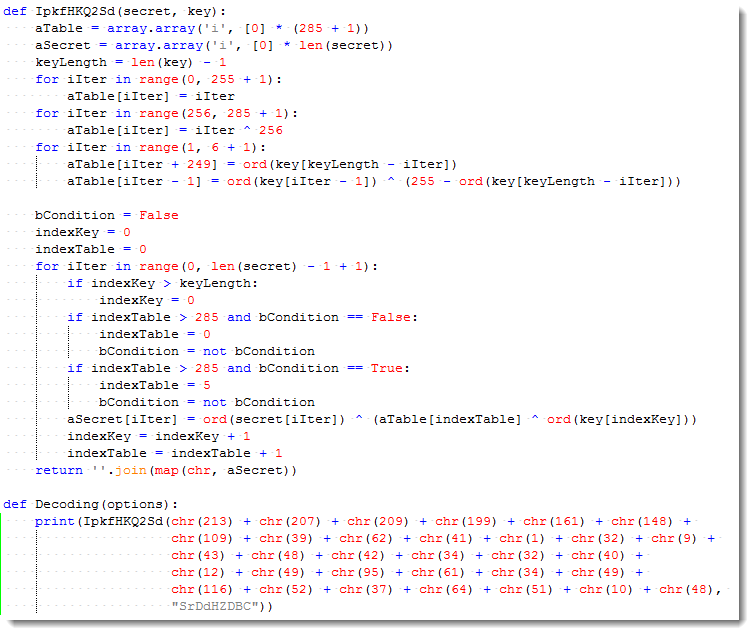
Now we can decode the URL using Python:

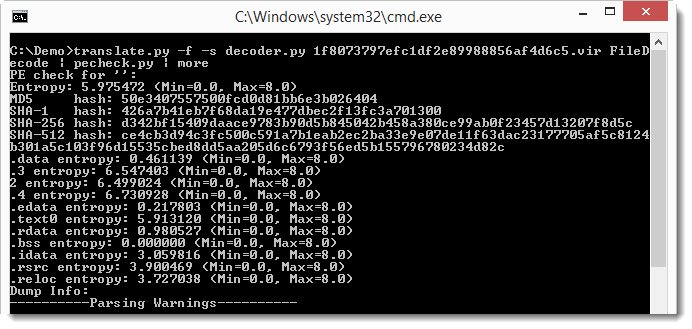
And also decode the downloaded file with my translate program and the IpkfHKQ2Sd function:


 Didier Stevens