Didier Stevens

Thursday 14 June 2018

“Here Files” and my Tools

Filed under: My Software,Update — Didier Stevens @ 0:00

Several of my tools, that accept more than one filename as arguments, also accept a “here file” (cfr. here documents). A here file is a text file with a list of filenames, one per line. My tools recognize a here file by prefixing the filename of the here file with character @.

Let’s take for example a text file with filename list.txt and following content:

sample-1.bin
sample-5.bin
sample-7.bin

When using this file (list.txt) in the following command:

hash.py @list.txt

hash.py will calculate the hashes of the following files: sample-1.bin, sample-5.bin and sample-7.bin.

A here file can also be provided via stdin. Just type character @ (without filename) as argument to hash.py and provide a list of files via stdin, like in this example:

I will explain this any many more features of my tools in a workshop at BruCON. During this workshop, I will provide the templates I use to create my tools.
This is BruCON’s 10th edition, and I’m happy I’ll do my 10th workshop for this anniversary edition.

hash_V0_0_4.zip (https)
MD5: 6DAC25432338BEA40B9141A791B8A958
SHA256: D66BF64B91B1BCBA5EA99EA03439A12835C5427BB1C447E6B515F94D9F468137
Tuesday 12 June 2018

Update: pecheck.py Version 0.7.3

Filed under: My Software,Update — Didier Stevens @ 0:00

This new version handles errors in PEiD’s userdb files better.

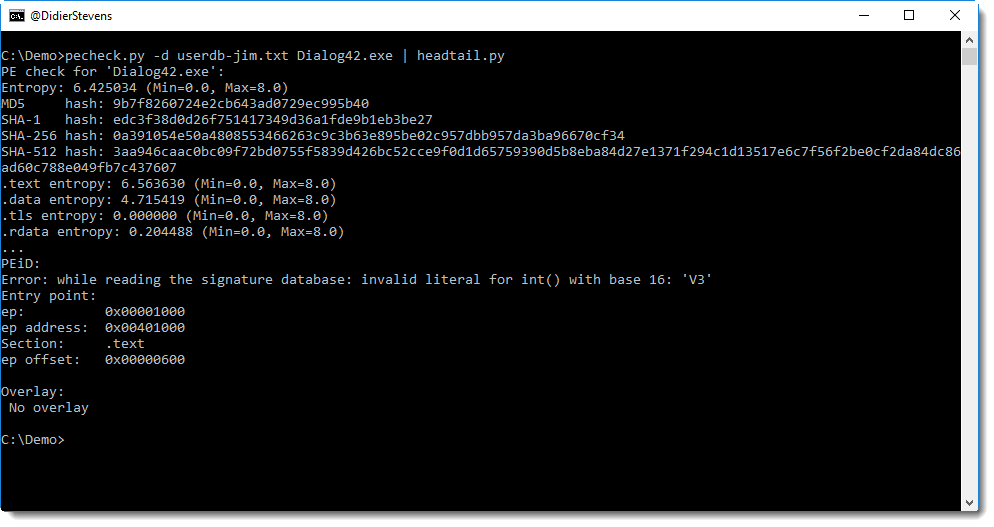
pefile does not support the full syntax used by PEiD, hence errors might occur, like this:

pecheck-v0_7_3.zip (https)
MD5: 480C9AC4BEE09CAAFB1593E214A39832
SHA256: 359A44751BAA34450B2DA92539AB425507EBB90F8F57CF50E561CCE111809637

Thursday 7 June 2018

Encrypted OOXML Documents

Filed under: Encryption,maldoc — Didier Stevens @ 0:00

The Office Open XML format introduced with MS Office 2007, is essentially composed of XML files stored inside a ZIP container.

When an OOXML file (like a .docx file) is protected with a password for reading, it is encrypted. The encrypted OOXML file is stored inside a Compound File Binary Format file, or what I like to call an OLE file. This is the “old” MS Office file format (like .doc), the default file format used before MS Office 2007.

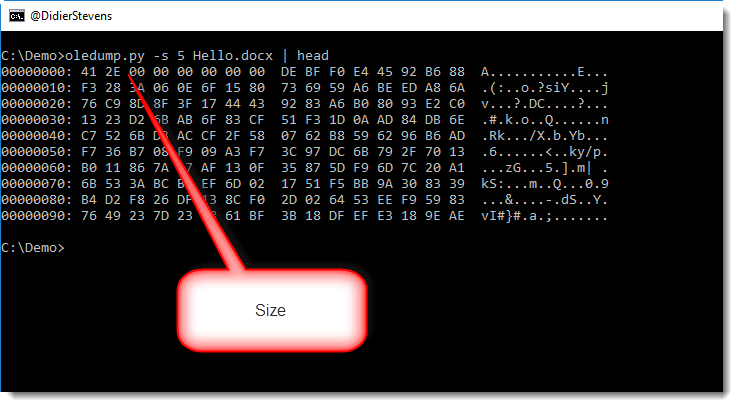
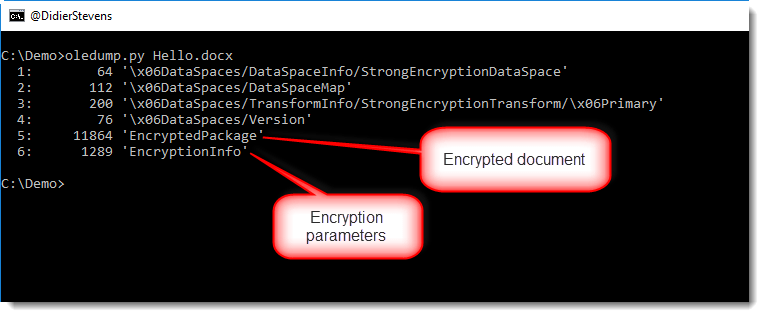
This is how an encrypted .docx file looks like, when analyzed with oledump:

Stream EncryptedPackage contains the encrypted document, and stream EncryptionInfo contains information necessary to help with the decryption of stream EncryptedPackage.

The structure of stream EncryptedPackage is simple:

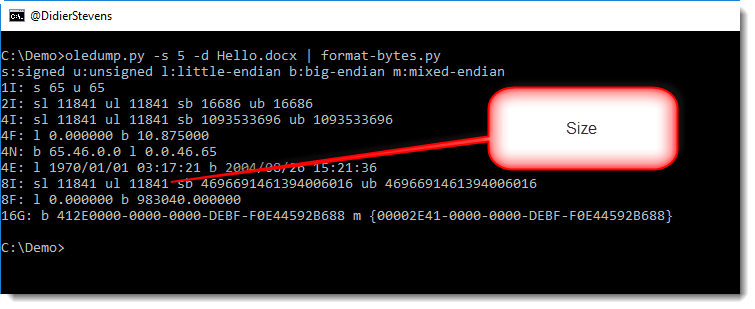
First there’s an integer with the size of the encrypted document, followed by the encrypted document. If we decode the binary data for the integer with format-bytes.py, we get the size 11841:

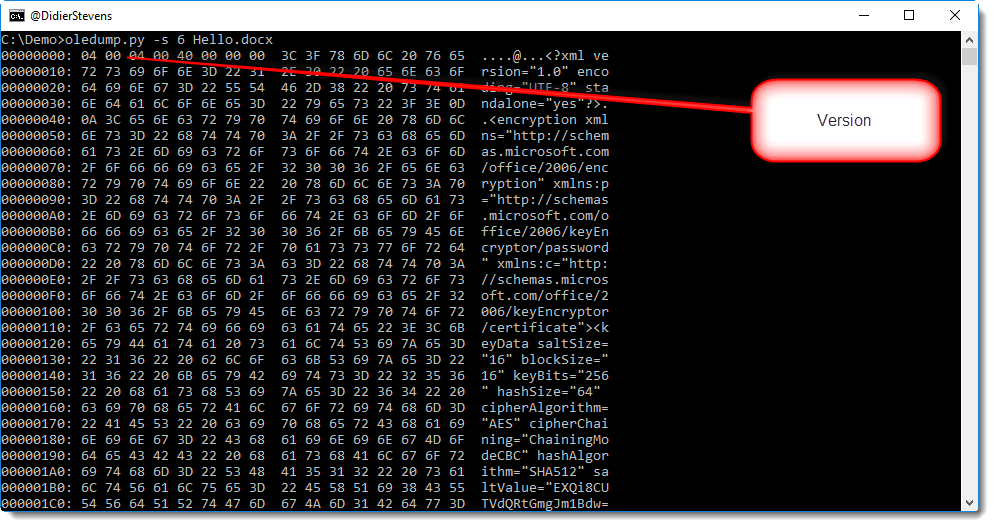
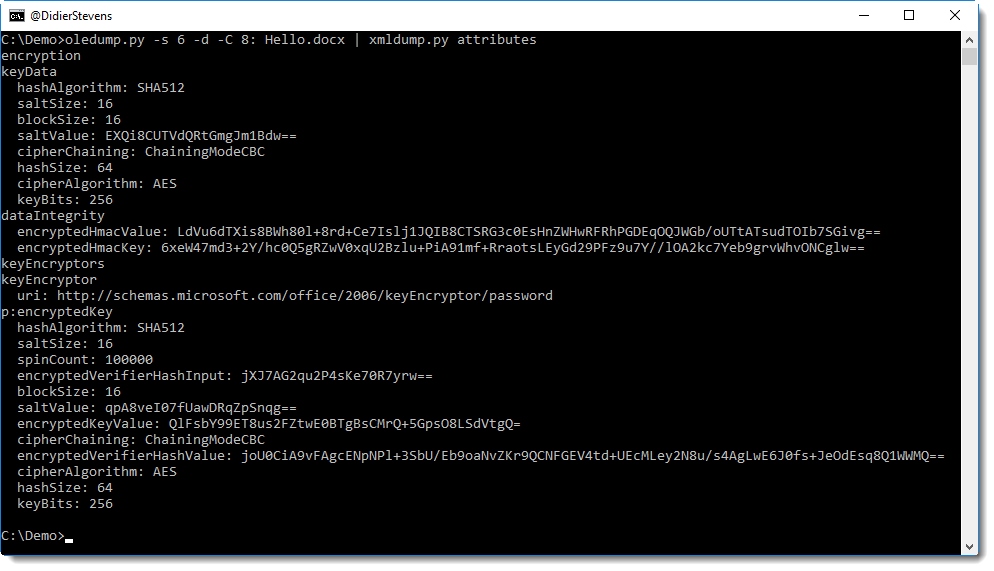
The EncryptionInfo stream starts with binary data, the version format, and is then followed by more binary data, or XML data, depending on the version:

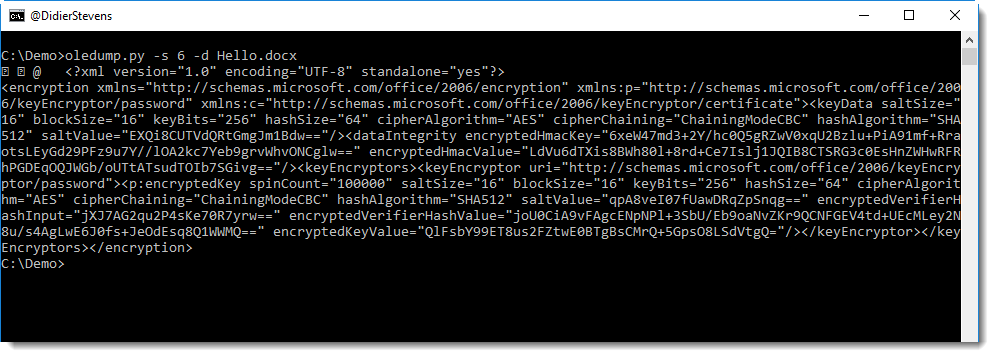
The first bytes specify the major and minor version used for the EncryptionInfo stream. This example is mostly XML:

Which can be further parsed with xmldump.py:

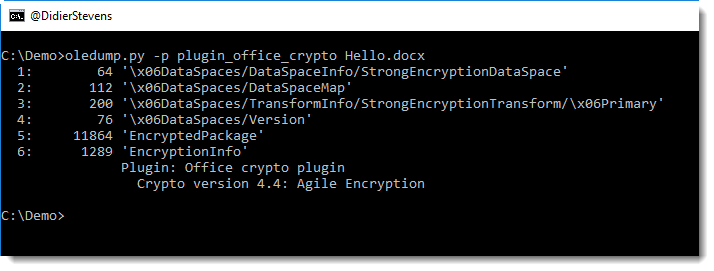
To help identifying what version is used, I developed an oledump plugin named plugin_office_crypto:

Depending on the version, different tools can be used to decrypt office documents.

Python program msoffcrypto-tool can only decrypt agile encryption (for the moment, it’s a work in progress).

C program msoffice-crypt can decrypt standard, extended and agile encryption.


Sometimes, malicious documents will be encrypted to try to avoid detection. The victim will have to enter the password to open the document. There is one exception though: Excel documents encrypted with password VelvetSweatshop.


Wednesday 6 June 2018

Quickpost: John & Dummy Hashes

Filed under: Quickpost — Didier Stevens @ 0:00

I knew you could use dummy hashes with John the Ripper (to test rules, for example), I’ve seen it mentioned in the help. It took me some time however to figure out the exact format of a dummy hash.

It’s like this:

$dummy$48336c6c30

48336c6c30 is the hexadecimal representation of string H3ll0.

The hexadecimal string following $dummy$ has to use lowercase letters. If you use uppercase letters, you’ll get the dreaded “No password hashes loaded (see FAQ)”.

Here is an example using l33t rules:


Quickpost info


Tuesday 5 June 2018

Overview of Content Published In May

Filed under: Announcement — Didier Stevens @ 0:00

Here is an overview of content I published in May:

Blog posts:

YouTube videos:

SANS ISC Diary entries:

Thursday 31 May 2018

PDFiD: GoToE and GoToR Detection (“NTLM Credential Theft”)

Filed under: My Software,PDF — Didier Stevens @ 0:00

The article “NTLM Credentials Theft via PDF Files” explains how PDF documents can refer to a resource via UNC paths. This is done using  PDF names /GoToE or /GoToR.

My tool pdfid.py can now be extended to report /GoToE and /GoToR usage in a PDF file, without having to change the source code. You just have to edit the pdfid.ini file (or create it) to include these names, like this:

[keywords]
/URI
/GoToE
/GoToR

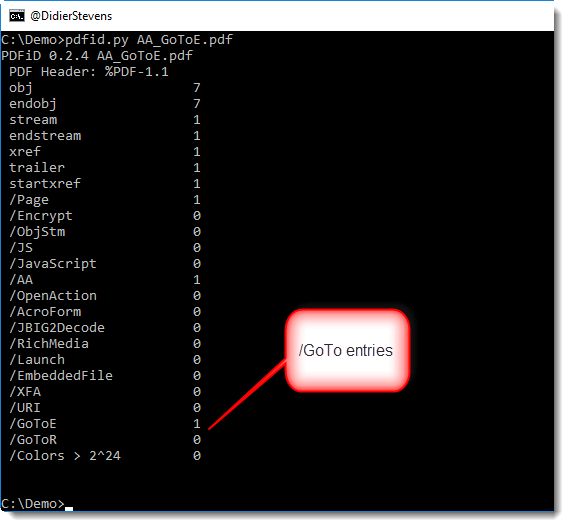
Using pdfid configured like this on a “credential stealing PDF” gives the following result:

pdfid.ini has to be located in the same directory as pdfid.py. And remember that names in the PDF language are case-sensitive.


Monday 28 May 2018

Quickpost: Windows Debugger as Post Mortem Debugger – 32-bit & 64-bit

Filed under: Quickpost,Reverse Engineering — Didier Stevens @ 0:00

I was following Microsoft’s advice to install WinDbg as a post mortem debugger, but didn’t get the expected results.

It turns out that WinDbg x64 version will register itself as the post mortem debugger for 64-bit and 32-bit processes, and not just for 64-bit processes:

Of course, WinDbg x86 version will register itself only for 32-bit processes:

So to make sure that WinDbg x64 version will debug only 64-bit processes and WinDbg x86 version will debug 32-bit processes, run the post mortem registration commands in this order:

"c:\Program Files (x86)\Windows Kits\10\Debuggers\x64\windbg.exe" -I
"c:\Program Files (x86)\Windows Kits\10\Debuggers\x86\windbg.exe" -I

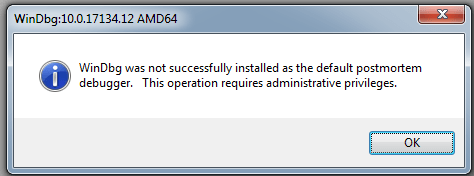
And of course, run the commands from an elevated command prompt, as you’ll need to write to the HKLM hive. Otherwise you’ll get a reminder:


Quickpost info


Friday 25 May 2018

Update: base64dump.py Version 0.0.10

Filed under: My Software,Update — Didier Stevens @ 0:00

And even more encodings added to this version of base64dump.py: 0x…. little-endian (zxle) and 0x…. big endian (zxbe).

base64dump_V0_0_10.zip (https)
MD5: 6670ACD88FD384BA9172F2B98E72D0D4
SHA256: C080F2A5F60A8E9593AE789A69D233EFC86AEF9BD319C409229B3E518E15C725

Monday 21 May 2018

Video: SpiderMonkey Output Options

Filed under: My Software — Didier Stevens @ 10:43

I created a video to illustrate the new features of my modified SpiderMonkey version:

Tuesday 8 May 2018

Update: base64dump.py Version 0.0.9

Filed under: My Software,Update — Didier Stevens @ 0:00

During last week’s private maldoc training, I got the idea to update base64dump with 2 extra encodings, and add YARA support.

The new encodings are “bx = backslash hexadecimal” like \x90\x90… and “ah = ampersand hexadecimal” like &H90&H90…

Support for YARA rules is identical to my other tools, like oledump.

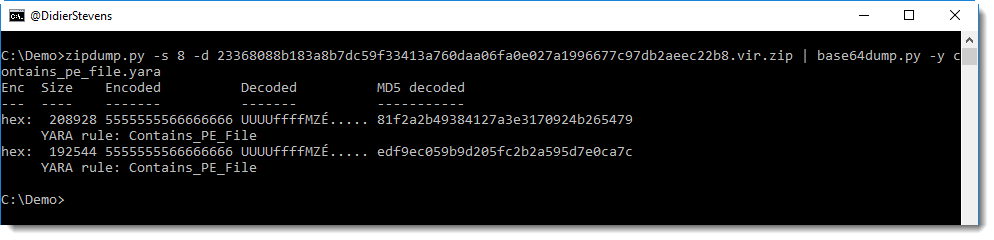
In this example, I use a YARA rule to detect hex-encoded PE files:


base64dump_V0_0_9.zip (https)
MD5: 4CF9F57AD34CC728B05F1307219864BB
SHA256: 01264F82CEFB7B1D2DF51A8DB190840FE6C368C9C3D63566CF14CE4983F73D5A

« Previous PageNext Page »

Blog at WordPress.com.