Didier Stevens

Sunday 8 December 2019

Update: numbers-to-string.py Version 0.0.9

Filed under: My Software,Update — Didier Stevens @ 19:34

This is just a bugfix version (Python 3).

numbers-to-string_v0_0_9.zip (https)
MD5: C5629F102FCF58E5CFF24472D35AFF22
SHA256: 5B1CA43EDFD7BA66CF44FB552BD7882AEB13A8765017F9F865071E187410EE63

Overview of Content Published in November

Filed under: Announcement — Didier Stevens @ 9:36

Here is an overview of content I published in November:

Blog posts:

SANS ISC Diary entries:

Monday 18 November 2019

Update: tcp-honeypot.py Version 0.0.7

Filed under: My Software,Networking,Update — Didier Stevens @ 0:00

This new version of tcp-honeypot.py, a simple TCP honeypot and listener, brings TCP_ECHO and option -f as new features.

TCP_ECHO can be used to send back any incoming data (echo). Like this:

dListeners = {4444: {THP_LOOP: 10,THP_ECHO: None,},}

TCP_ECHO also takes a function, which’s goal is to transform the incoming data and return it. Here is an example with a lambda function that converts all lowercase letters to uppercase:

dListeners = {4444: {THP_LOOP: 10,THP_ECHO: lambda x: x.upper(),},}

If persistence is required across function calls, a custom class can also be provide. This class has to implement a method with name Process (input: incoming data, output: transformed data). Consult the man page (option -m) for more details.

And option -f (format) can be used to change the output format of data.
Possible values are: repr, x, X, a, A, b, B
The default value (repr) output’s data on a single line using Python’s repr function.
a is an ASCII/HEX dump over several lines, A is an ASCII/HEX dump too, but with duplicate lines removed.
x is an HEX dump over several lines, X is an HEX dump without whitespace.
b is a BASE64 dump over several lines, B is a BASE64 without whitespace.


Tuesday 12 November 2019

Steganography and Malware

Filed under: Malware,My Software — Didier Stevens @ 0:00

I was reading about malware using WAV files and steganography to download payloads without triggering detection systems.

For example, here is a WAV file with a hidden, embedded PE file. The PE file is encoded in the least significant bit of 16-bit integers that encode PCM sound.

I was wondering how I could extract this embedded file with my tools. There was no easy solution, because many of my tools operate on byte streams, but here I have to operate on a bit stream. So I made an update to my format-bytes.py tool.

Using my tool file-magic.py, I get confirmation that this is a sound file (.WAV) with 16-bit PCM data.

And here is an ASCII/HEX dump of the beginning of the file made with cut-bytes.py:

The data chunk starts with magic sequence ‘data’ (in yellow), followed by the size of the data chunk (in green), and then the data itself: 16-bit, little-endian signed integers (in red).

To extract the least significant bit of each 16-bit, little-endian signed integer and assemble them into bytes, I use the latest version of format-bytes.py.

This is the command that I use:

format-bytes.py -a -f “bitstream=f:<H,b:0,j:<” #c#[‘data’]+8: DB043392816146BBE6E9F3FE669459FEA52A82A77A033C86FD5BC2F4569839C9.wav.vir

With option -f, I specify a bitstream format.

f:<H means that the format of the data is little-endian (<), unsigned 16-bit integers (H). I could also specify a signed 16-bit integer (h), but this doesn’t matter here, as I’m not going to use the sign of the integers.

b:0 means that I extract the least-significant bit (position 0) of each 16-bit integer.

j:< means that I assemble (join) these bits into bytes from least significant to most significant (<).

The data starts 8 bytes into the data chunk, e.g. 8 bytes after magic sequence ‘data’. I define this with cut-expression #c#[‘data’]+8:.

When I run this command, and perform an ASCII dump, I get this output for the beginning of the stream:

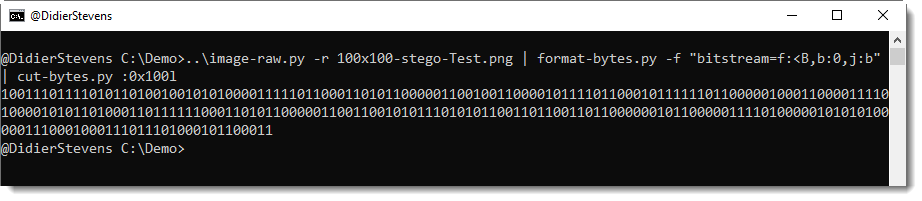
I can indeed see an executable (MZ), but it is preceded by 4 bytes. These 4 bytes are the length of the embedded file. As described in the article, the length is big-endian encoded. Hence I use a similar command to extract the length, but with j:>, as can be seen here:

The length is 733696 bytes, and this matches the IOCs from the article.

Then I use my tool pecheck.py to search for PE files inside the byte stream (-l P), like this:

MD5 7cb0e1e2cf4a9bf450a350a759490057 is indeed the hash of the malicious DLL encoded in this WAV file.


Saturday 9 November 2019

Update: format-bytes.py Version 0.0.10

Filed under: My Software,Update — Didier Stevens @ 0:00

This new version of format-bytes.py, a tool to parse binary data, comes with support for bit streams.

This can help, for example, with decoding steganographic data, like a PE file hidden in a .WAV file.

More about this in an upcoming blog post.


format-bytes_V0_0_10.zip (https)
MD5: 3349E2F8C84AE644C0AEFDA4410297C5
SHA256: F75C3A353E42D847264702B1F316A65657E6375EF979B8EF21B282D4676BE4C3

Sunday 3 November 2019

Update: numbers-to-string.py Version 0.0.10

Filed under: My Software,Update — Didier Stevens @ 0:00

numbers-to-string.py is a tool to help with deobfuscation: it transforms numbers found in its input into strings.

This new version adds option -b to produce binary output.

numbers-to-string_v0_0_8.zip (https)
MD5: 69179F5EE01F8E0102F40B768E80A82E
SHA256: 535518780E9F4102320C81EF799CF1AD483C51450690A2E1FA9F2CA61B7A8A88

Saturday 2 November 2019

Update: cut-bytes.py Version 0.0.10

Filed under: My Software,Update — Didier Stevens @ 0:00

This new version of cut-bytes.py, a tool to select a byte sequence from its input, has bug fixes (including Python 3 fixes) and 2 new options: -p –prefix and -s –suffix.

With these options, arbitrary data can be prefixed or appended to the input.

cut-bytes_V0_0_10.zip (https)
MD5: C14F60F9843F4C2A40A05A52CBE16AB8
SHA256: AD3ADBF30B09DB77B17FEF62C40CDC138516FD24B077201D126D259D1953792B

Friday 1 November 2019

Overview of Content Published in October

Filed under: Announcement — Didier Stevens @ 0:00

Here is an overview of content I published in October:

Blog posts:

SANS ISC Diary entries:

NVISO blog posts:

Tuesday 29 October 2019

Quickpost: Running a Service DLL

Filed under: Quickpost — Didier Stevens @ 0:00

To install and run a service DLL compiled with MinGW on Kali, I execute following commands from a BAT file with an elevated command prompt:

copy SvcHostDemo.dll %SystemRoot%\System32\SvcHostDemo.dll
sc create SvcHostDemo binPath= ^%%SystemRoot^%%"\system32\svchost.exe -k mygroup" type= share start= demand
reg add HKLM\SYSTEM\CurrentControlSet\services\SvcHostDemo\Parameters /v ServiceDll /t REG_EXPAND_SZ /d ^%%SystemRoot^%%\System32\SvcHostDemo.dll /f
reg add "HKLM\SOFTWARE\Microsoft\Windows NT\CurrentVersion\Svchost" /v mygroup /t REG_MULTI_SZ /d SvcHostDemo /f

Line 1 copies the DLL to system32.

Line 2 creates a service with name SvcHostDemo, that will start svchost.exe with service host group “mygroup”. The service can run in a shared svchost process, and it needs to be started manually.

Line 3 creates the registry entry ServiceDll referring to SvcHostDemo.dll.

Line 4 creates the service host group “mygroup” under the key for svchost. This service host group contains the service SvcHostDemo.

These commands create the following registry entries:

On a 64-bit Windows system, system32\svchost.exe is a 64-bit application and thus the service DLL needs to be a 64-bit DLL.

On a 32-bit Windows system, system32\svchost.exe is a 32-bit application and thus the service DLL needs to be a 32-bit DLL.


To start the service from the command line, the following command can be issued from an elevated command prompt: sc start SvcHostDemo.

Since service SvcHostDemo is the only service of service host group mygroup, starting the service causes a svchost.exe process to be created and the DLL is loaded inside this new process.

To pause the service: sc pause SvcHostDemo.

To resume the service: sc continue SvcHostDemo.

To stop the service: sc stop SvcHostDemo.

And since service SvcHostDemo is the only service of service host group mygroup, stopping the service causes the svchost.exe process to be terminated.


The many debug messages generated by this demo service can be viewed with DebugView. Run dbgview.exe elevated and enable “Capture Global Win32”, otherwise debug messages from a service (running under the local system account) will no be captured and displayed.

This service can also run inside an existing service host group, like netsvcs. To achieve this, line 2 of the commands above needs to use service host group netsvcs in stead of mygroup. And line 4 is not needed, but the existing multistring netsvcs under key Svchost needs to be updated to include SvcHostDemo. This change requires a reboot of the Windows machine to become effective.

With these changes, starting the service results in loading of the DLL in the existing svchost.exe process for the netsvcs service host group.

Stopping the service does not result in termination of the svchost.exe process, as it is hosting many other Microsoft Windows services.

To unload the DLL from the svchost.exe process when the service is stopped, set registry value ServiceDllUnloadOnStop under Parameters to 1.

reg add HKLM\SYSTEM\CurrentControlSet\services\SvcHostDemo\Parameters /v ServiceDllUnloadOnStop /t REG_DWORD /d 1 /f


If the name of the service function is not ServiceMain, but another name like RunThisService for example, then registry value ServiceMain under Parameters can be set to RunThisService.

reg add HKLM\SYSTEM\CurrentControlSet\services\SvcHostDemo\Parameters /v ServiceMain /t REG_SZ /d RunThisService /f


I used Windows 7 to demo this, as shared services on Windows 10 behave differently. Starting with Windows 10 version 1703, a service host refactoring took place and on machines with more than 3.5 GB of RAM each service DLL has its own svchost process, regardless of service host groups. This resulted in a change in the ImagePath registry entries. On Windows 10 machines version 1703 and later, almost all ImagePath entries for “svchost.exe -k servicegroup” have an extra option “-p”, like this: “svchost.exe -k servicegroup -p”. One of the very few svchost services not having this -p option, is the BTAGService service.

I still need to figure out what this option -p means exactly.


Quickpost info


Monday 28 October 2019

Quickpost: Compiling Service DLLs with MinGW on Kali

Filed under: Quickpost — Didier Stevens @ 7:36

Compiling a service DLL (a Windows DLL implementing a service to be executed inside a shared svchost.exe process) with MinGW on Kali, is almost the same as compiling a DLL.

A service DLL implements a service and must export a ServiceMain function. To prevent name mangling of the exported function, the ServiceMain definition needs to be ‘extern “C”‘:

extern “C” VOID WINAPI ServiceMain(DWORD dwArgc, LPCWSTR* lpszArgv)

And we need a DEF file:

LIBRARY SvcHostDemo
EXPORTS
	ServiceMain

This DEF file can be passed as argument to the MinGW compiler.

To create a 32-bit DLL:

i686-w64-mingw32-gcc -shared -municode -o SvcHostDemo.dll SvcHostDemo.def SvcHostDemo.cpp

To create a 64-bit DLL:

x86_64-w64-mingw32-gcc -shared -municode -o SvcHostDemo.dll SvcHostDemo.def SvcHostDemo.cpp

Option -municode is needed because I use TCHARs and want to compile a UNICODE executable.

Here is the code of my service template:


#define _UNICODE

#include <windows.h>
#include <stdio.h>
#include <tchar.h>
#include <strsafe.h>

SERVICE_STATUS_HANDLE g_serviceStatusHandle = nullptr;
HANDLE g_hSvcStopEvent = NULL;

SERVICE_STATUS g_serviceStatus = {SERVICE_WIN32_SHARE_PROCESS, SERVICE_START_PENDING, SERVICE_ACCEPT_STOP | SERVICE_ACCEPT_SHUTDOWN | SERVICE_ACCEPT_PAUSE_CONTINUE};

BOOL WINAPI DllMain(HMODULE hModule, DWORD dwReason, LPVOID lpReserved)
{
	OutputDebugString(L"DllMain");
	switch (dwReason)
    {
	    case DLL_PROCESS_ATTACH:
					OutputDebugString(L"DLL_PROCESS_ATTACH");
	        break;
	    case DLL_THREAD_ATTACH:
					OutputDebugString(L"DLL_THREAD_ATTACH");
	        break;
	    case DLL_THREAD_DETACH:
					OutputDebugString(L"DLL_THREAD_DETACH");
	        break;
	    case DLL_PROCESS_DETACH:
					OutputDebugString(L"DLL_PROCESS_DETACH");
	        break;
    }
    return TRUE;
}

DWORD WINAPI HandlerEx(DWORD dwControl, DWORD dwEventType, LPVOID lpEventData, LPVOID lpContext)
{
	switch (dwControl)
	{
		case SERVICE_CONTROL_STOP:
			OutputDebugString(L"HandlerEx SERVICE_CONTROL_STOP");
			g_serviceStatus.dwCurrentState = SERVICE_STOPPED;
			SetEvent(g_hSvcStopEvent);
			break;
		case SERVICE_CONTROL_SHUTDOWN:
			OutputDebugString(L"HandlerEx SERVICE_CONTROL_SHUTDOWN");
			g_serviceStatus.dwCurrentState = SERVICE_STOPPED;
			SetEvent(g_hSvcStopEvent);
			break;
		case SERVICE_CONTROL_PAUSE:
			OutputDebugString(L"HandlerEx SERVICE_CONTROL_PAUSE");
			g_serviceStatus.dwCurrentState = SERVICE_PAUSED;
			break;
		case SERVICE_CONTROL_CONTINUE:
			OutputDebugString(L"HandlerEx SERVICE_CONTROL_CONTINUE");
			g_serviceStatus.dwCurrentState = SERVICE_RUNNING;
			break;
		case SERVICE_CONTROL_INTERROGATE:
			OutputDebugString(L"HandlerEx SERVICE_CONTROL_INTERROGATE");
			break;
		default:
			OutputDebugString(L"HandlerEx default");
			break;
	}

	SetServiceStatus(g_serviceStatusHandle, &g_serviceStatus);

	return NO_ERROR;
}

DWORD WINAPI Worker(LPVOID lpParam)
{
	while (TRUE)
	{
		if (g_serviceStatus.dwCurrentState == SERVICE_RUNNING)
			OutputDebugString(L"Working ...");
		Sleep(1000);
	}
}

extern "C" VOID WINAPI ServiceMain(DWORD dwArgc, LPCWSTR* lpszArgv)
{
	TCHAR szOutput[256];
	DWORD dwIter;

	OutputDebugString(L"Begin ServiceMain");
	StringCchPrintf(szOutput, 256, L"dwArgc = %d", dwArgc);
	OutputDebugString(szOutput);
	for (dwIter=0; dwIter<dwArgc; dwIter++)
		OutputDebugString(lpszArgv[dwIter]);

	if (dwArgc > 0)
		g_serviceStatusHandle = RegisterServiceCtrlHandlerExW(lpszArgv[0], HandlerEx, nullptr);
	else
		g_serviceStatusHandle = RegisterServiceCtrlHandlerExW(L"SvcHostDemo", HandlerEx, nullptr);
	if (!g_serviceStatusHandle)
	{
		OutputDebugString(L"Error 1 ServiceMain");
		return;
	}

	g_hSvcStopEvent = CreateEvent(NULL, TRUE, FALSE, NULL);

	if (g_hSvcStopEvent == NULL)
	{
		OutputDebugString(L"Error 2 ServiceMain");
		return;
	}

	g_serviceStatus.dwCurrentState = SERVICE_RUNNING;

	SetServiceStatus(g_serviceStatusHandle, &g_serviceStatus);

	OutputDebugString(L"Starting Worker ServiceMain");

	if (NULL == CreateThread(NULL, 0, Worker, NULL, 0, NULL))
	{
		OutputDebugString(L"Error 3 ServiceMain");
		return;
	}

	OutputDebugString(L"Waiting ServiceMain");

	WaitForSingleObject(g_hSvcStopEvent, INFINITE);

	OutputDebugString(L"End ServiceMain");
}

Quickpost info


« Previous PageNext Page »

Blog at WordPress.com.