Didier Stevens

Sunday 4 January 2009

Howto: Add a Digital Signature to a PDF File

Filed under: Encryption,PDF — Didier Stevens @ 21:47

After signing an executable and a Mozilla add-on, let’s sign a PDF document with our certificate.

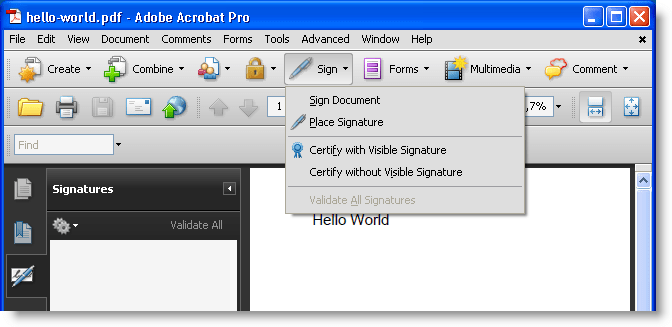
I didn’t manage to use a free tool to sign a PDF document with a certificate, so we’ll use a trial version of Adobe Acrobat Professional.

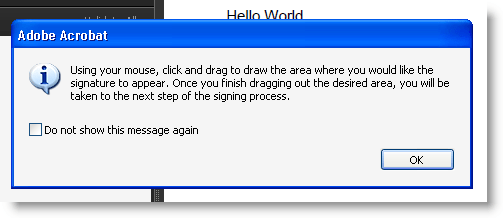
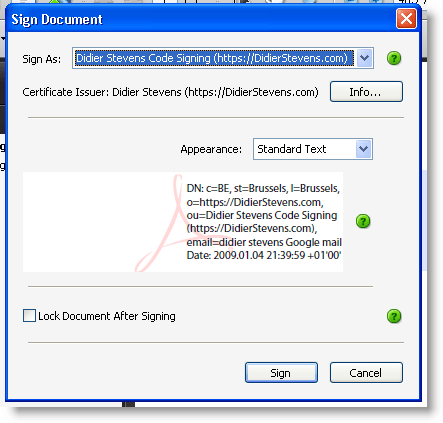
Our PKCS12 file (with keys and signatures) is imported in our certificate store, so let’s open a PDF document and sign it:
20090104-214956

20090104-215128

20090104-215340

After signing, we notice there’s one issue, our identity is not yet trusted:

20090104-215702

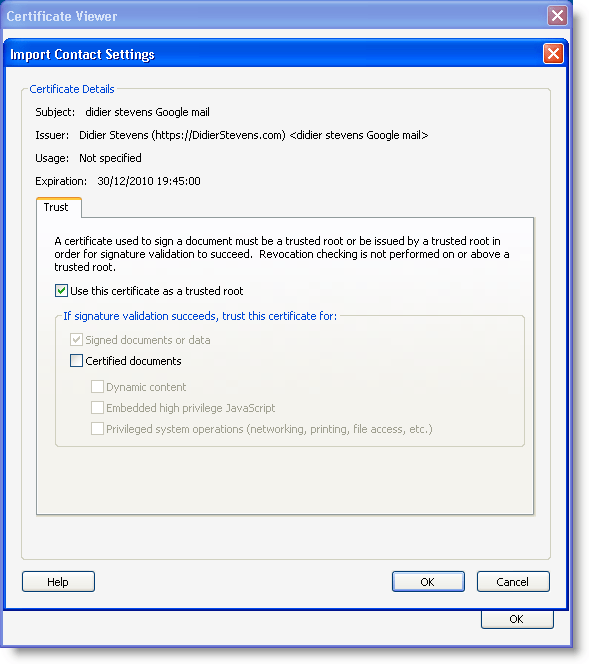
Let’s trust ourself:

20090104-215955

20090104-220023

20090104-220103

20090104-220243

After validation, Adobe Acrobat tells us our signature is valid:

20090104-220644

Thursday 1 January 2009

Howto: Add a Digital Signature to a Firefox Add-on

Filed under: Encryption — Didier Stevens @ 22:02

After signing a Windows executable with our own certificate, let’s sign an XPI file.

There is a nice Firefox add-on we’ll use to achieve this: Key Manager. But the subordinate CA certificate we create is not suited to sign XPI files, because it doesn’t state explicitly that it can be used for code signing. We have to create another one with an extendedKeyUsage property for code signing.

First we need to create a config file with the extended key usage, eku.cnf:

[eku_codesigning]
extendedKeyUsage=codeSigning

Then we issue the next OpenSSL commands to create a new certificate and PKCS12 file:

openssl x509 -req -days 730 -in ia.csr -CA ca.crt -CAkey ca.key -set_serial 02 -out ia2.crt -extfile eku.cnf -extensions eku_codesigning

openssl pkcs12 -export -out ia2.p12 -inkey ia.key -in ia2.crt -chain -CAfile ca.crt

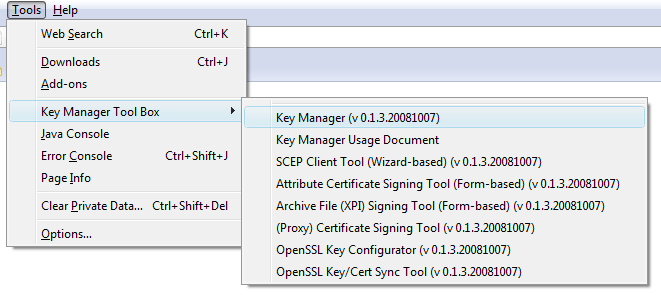
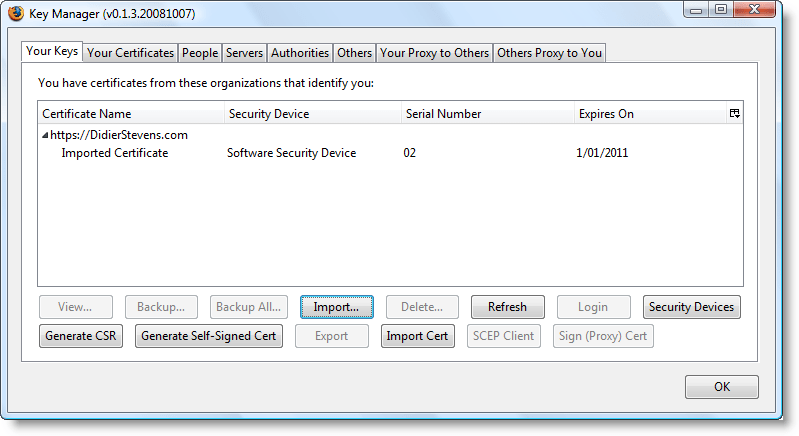
Now we use the Key Manager add-on to import the PKCS12 file (this can also be done with the Firefox options manager):

20090101-220132

20090101-220237

20090101-220326

20090101-2203431

20090101-2203561

20090101-2204091

After importing the certificates and keys, we need to enable the root CA certificate for code signing:

20090101-220428

20090101-220454

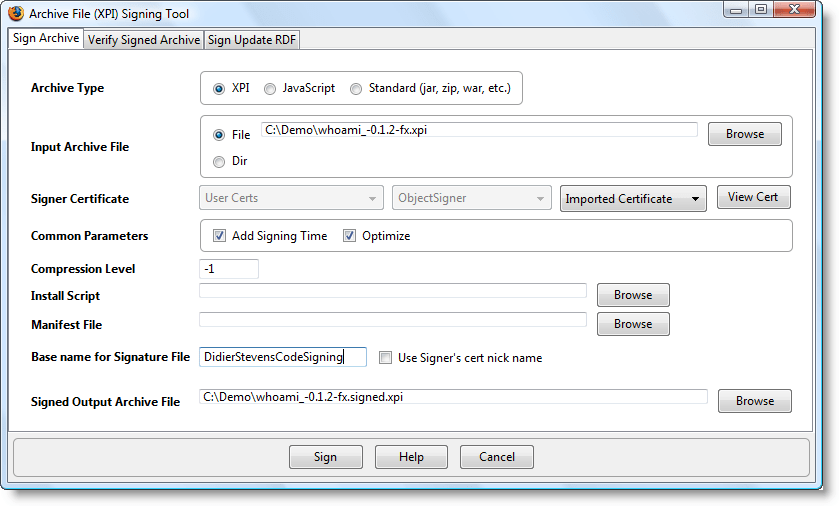
Now this is done, we’re ready to sign an XPI file. As an example, I’m taking my WhoAmI Firefox add-on:

20090101-220543

20090101-220724

20090101-220735

When installing this signed Firefox add-on, we get to see the identity of the signer:

20090101-220802

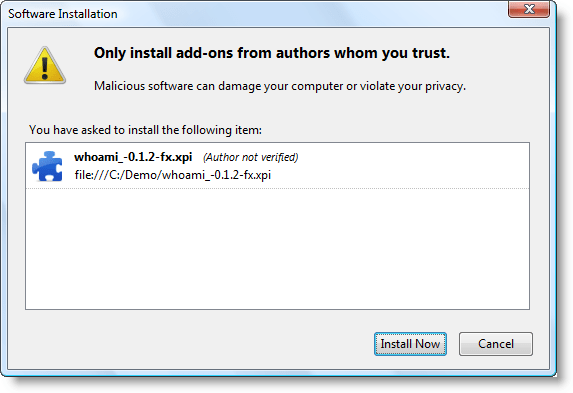
For an unsigned add-on, it says “Author not verified”:

20090101-220010

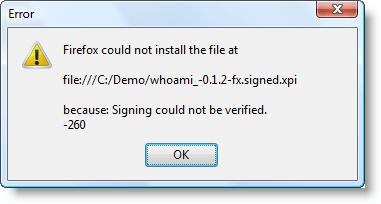
If we don’t trust the root CA for code signing (or the root CA certificate is missing), we can’t install the add-on!

20090101-221028

So it doesn’t make sense to sign a Firefox add-on with your own self-signed certificate if you plan to make it public (e.g. publish it on the Mozilla add-on site). Users will not be able to install your add-on if they don’t have imported and approved your root CA certificate.

Wednesday 31 December 2008

Howto: Add a Digital Signature to Executables

Filed under: Encryption — Didier Stevens @ 10:56

Signtool.exe is the default Windows development tool to add a digital signature (Authenticode) to Windows executables (PE files). This howto shows you how to use signtool. You’ll need to create your own certificate and key (or buy one) to sign code.

To obtain signtool, download the platform SDK or the .NET SDK.

I use signtool in my makefile with command line options to automatically sign compiled code, but in this howto, I’ll show the interactive use.

First we will install the certificate with key we’ll use to sign code. Double-click the file and let the wizard do its work with the default option:

20081231-094329

20081231-094445

Because the wizard will also install the root CA certificate found in the PKCS12 file, it will ask you if you trust it.

20081231-094615

It is not necessary to install this root CA certificate for code signing purposes, but if you don’t, signtool will not include the root CA certificate in the certificate chain. And you also need to install this root CA certificate if you want to automatically trust all certificates issued by this root CA (or its subordinate CAs).

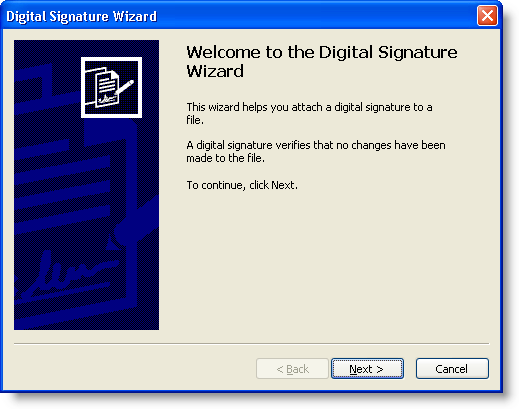
Now start signtool from a command-line like this: signtool signwizard.

20081231-094839

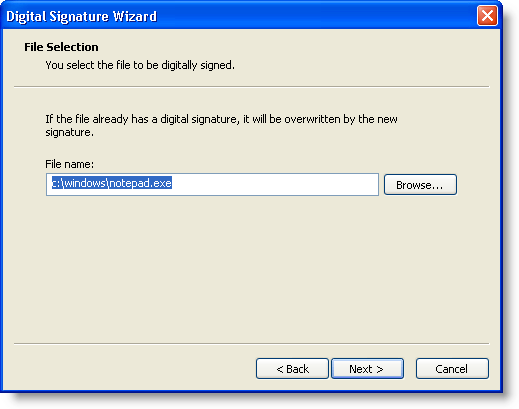
For the purposes of this howto, we’ll sign notepad.exe. When you sign an executable that is already signed, the existing signature is overwritten. Actually, notepad is not signed by Microsoft with an embedded signature, but using a security catalog.

20081231-095047

We’ll use the default options presented by the wizard (except for the timestamp):

20081231-095559

20081231-095812

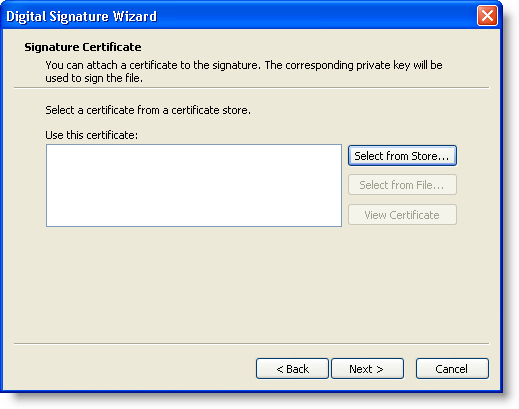
Select the certificate with key we installed: use Select from Store…

20081231-095856

20081231-095950

20081231-100027

By default, the signature doesn’t include a timestamp signed by an external authority (a counter-signature). It’s easy to add one, for example using Verisign’s timestamp service: http://timestamp.verisign.com/scripts/timstamp.dll (of course, using this option requires Internet access).

20081231-100318

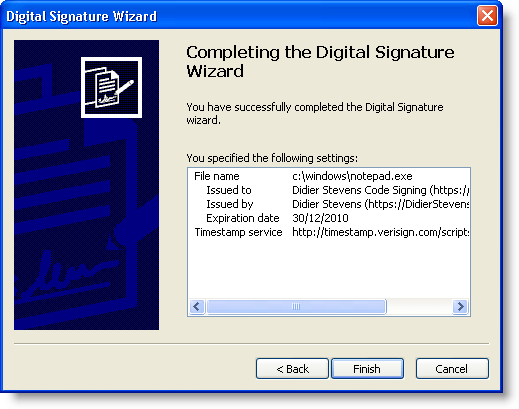
Finally, click finish for the wizard to do its work:

20081231-100432

20081231-100504

From now on, notepad.exe’s properties displays a Digital Signatures tab:

20081231-100619

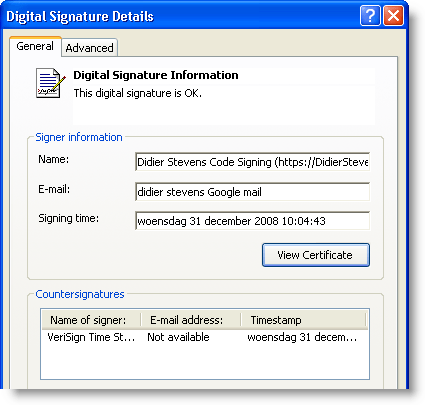
20081231-100920

20081231-101005

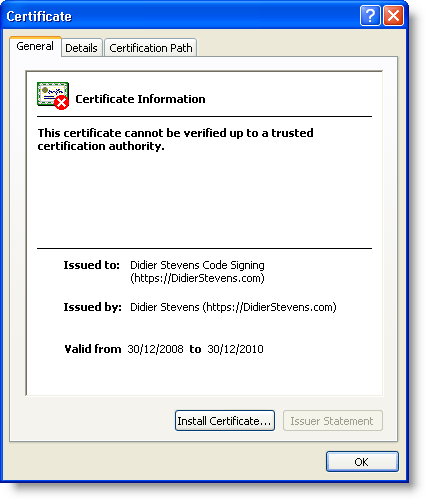
This certificate is OK because we installed the root CA certificate in our certificate store. But if you check this signature on another machine or with another account (which doesn’t trust our root CA), we’ll get a warning that although the signature is valid, we don’t trust the root CA:

20081231-101604

20081231-102020

If you didn’t make a backup of notepad.exe and want to remove the signature, use my digital signature tool disitool.

Tuesday 30 December 2008

Howto: Make Your Own Cert With OpenSSL

Filed under: Encryption — Didier Stevens @ 21:18

Update: if you don’t have access to a machine with OpenSSL, I created a website to generate certs using the procedure described here. Read through the procedure, and then use the website listed at the end. And if you don’t want your private key generated on a server you don’t own, download my tool I created for Windows that doesn’t require installation: CreateCertGUI.

I also made a video showing the full procedure.

Ever wanted to make your own public key certificate for digital signatures? There are many recipes and tools on the net, like this one. My howto uses OpenSSL, and gives you a cert with a nice chain to your root CA.

First we generate a 4096-bit long RSA key for our root CA and store it in file ca.key:

openssl genrsa -out ca.key 4096

Generating RSA private key, 4096 bit long modulus
...................................................................................++
........................................................................++
e is 65537 (0x10001)

If you want to password-protect this key, add option -des3.

Next, we create our self-signed root CA certificate ca.crt; you’ll need to provide an identity for your root CA:

openssl req -new -x509 -days 1826 -key ca.key -out ca.crt

You are about to be asked to enter information that will be incorporated
into your certificate request.
What you are about to enter is what is called a Distinguished Name or a DN.
There are quite a few fields but you can leave some blank
For some fields there will be a default value,
If you enter '.', the field will be left blank.
-----
Country Name (2 letter code) [GB]:BE
State or Province Name (full name) [Berkshire]:Brussels
Locality Name (eg, city) [Newbury]:Brussels
Organization Name (eg, company) [My Company Ltd]:https://DidierStevens.com
Organizational Unit Name (eg, section) []:
Common Name (eg, your name or your server's hostname) []:Didier Stevens (https://DidierStevens.com)
Email Address []:didier stevens Google mail

The -x509 option is used for a self-signed certificate. 1826 days gives us a cert valid for 5 years.

20081230-220030

Next step: create our subordinate CA that will be used for the actual signing. First, generate the key:

openssl genrsa -out ia.key 4096

Generating RSA private key, 4096 bit long modulus
.....++
.............................................................................++
e is 65537 (0x10001)

Then, request a certificate for this subordinate CA:

openssl req -new -key ia.key -out ia.csr

You are about to be asked to enter information that will be incorporated
into your certificate request.
What you are about to enter is what is called a Distinguished Name or a DN.
There are quite a few fields but you can leave some blank
For some fields there will be a default value,
If you enter '.', the field will be left blank.
-----
Country Name (2 letter code) [GB]:BE
State or Province Name (full name) [Berkshire]:Brussels
Locality Name (eg, city) [Newbury]:Brussels
Organization Name (eg, company) [My Company Ltd]:https://DidierStevens.com
Organizational Unit Name (eg, section) []:Didier Stevens Code Signing (https://DidierStevens.com)
Common Name (eg, your name or your server's hostname) []:
Email Address []:didier stevens Google mail

Please enter the following 'extra' attributes
to be sent with your certificate request
A challenge password []:
An optional company name []:

Next step: process the request for the subordinate CA certificate and get it signed by the root CA.

openssl x509 -req -days 730 -in ia.csr -CA ca.crt -CAkey ca.key -set_serial 01 -out ia.crt

Signature ok
subject=/C=BE/ST=Brussels/L=Brussels/O=https://DidierStevens.com/OU=Didier Stevens Code Signing (https://DidierStevens.com)/emailAddress=didier stevens Google mail
Getting CA Private Key

The cert will be valid for 2 years (730 days) and I decided to choose my own serial number 01 for this cert (-set_serial 01). For the root CA, I let OpenSSL generate a random serial number.

That’s all there is to it! Of course, there are many options I didn’t use. Consult the OpenSSL documentation for more info. For example, I didn’t restrict my subordinate CA key usage to digital signatures. It can be used for anything, even making another subordinate CA. When you buy a code signing certificate, the CA company will limit its use to code signing.
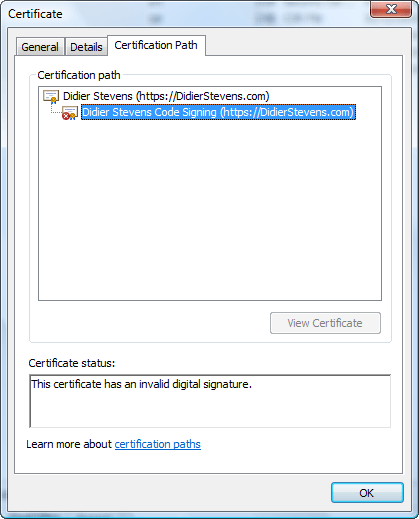
20081230-220418

To use this subordinate CA key for Authenticode signatures with Microsoft’s signtool, you’ll have to package the keys and certs in a PKCS12 file:

openssl pkcs12 -export -out ia.p12 -inkey ia.key -in ia.crt -chain -CAfile ca.crt

Enter Export Password:
Verifying - Enter Export Password:

To sign executables in Windows with the signtool: install file ia.p12 in your certificate store (e.g. double click it), and then use signtool /wizard to sign your PE file.

I’ve used this process to generate certs for my own code signing, and for my Authenticode Challenge.

Update: don’t have OpenSSL? Use my website https://toolbokz.com/gencert.psp
Saturday 13 December 2008

Identifying Garbage Men

Filed under: Entertainment — Didier Stevens @ 15:23

My guest post over at Pauldotcom:

“Tis the season for tipping garbage men. Here in Brussels, at the end of the year, garbage men would ring your doorbell during their round, presenting you their best wishes for the new year.

This tradition came to an end several years ago. Nowadays, they present you their best wishes when they’re off-duty. And in came a new ID problem…

Tuesday 9 December 2008

Updates: bpmtk and Hakin9; PDF and Metasploit

Filed under: Announcement,Hacking,Malware,My Software,PDF,Update — Didier Stevens @ 21:23

Hakin9 has published my bpmtk article. The article mentions bpmtk version 0.1.4.0; however, this new version has no new features. But it comes with extra PoC code, like a LUA-mode keylogger and “rootkit”. New blogposts will explain this new PoC code.

bpmtk12

And upcoming bpmtk version 0.1.5.0 contains a new feature to inject shellcode. Just have to update the documentation.

On the PDF front: I’ve produced my first Ruby code ;-). I worked together with MC from Metasploit to optimize the PDF generation code in this util.printf exploit module. It uses some obfuscation techniques I described 8 months ago.

Monday 8 December 2008

@TweetXmasTree

Filed under: Announcement,Entertainment,Hardware — Didier Stevens @ 20:07

I won’t produce an anti-virus related Season’s Greetings movie, like I did in 2006 and 2007.

But this time, I’ve made you an Xmas Tree you can control via Twitter. However, you’ll have to find out yourself how to control it. 😉

Happy New Year!

20081208-204318

Sunday 30 November 2008

Quickpost: Citibank Phishing E-mails

Filed under: Quickpost,Spam — Didier Stevens @ 11:28

On November 23th 2008, the US Government rescued Citigroup by investing an additional $25 billion.

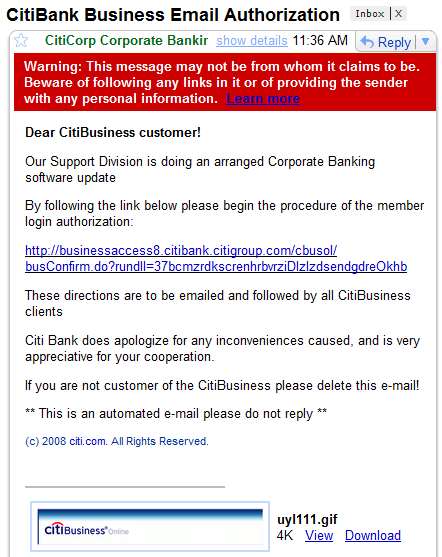
On November 25th 2008, I started to receive Citibank phishing e-mails in my “SPAM-trap”. At the time of writing, the spam campaign is still active and I’ve received 300+ e-mails, like this one:

20081130-105959

This can’t be a coincidence. Although the phishing e-mails don’t mention the financial problems of Citigroup, I’m sure the scammers started this phishing campaign to benefit from the uncertainty surrounding the future of Citigroup.

I want to be sure that I can get my money out if things start to go really wrong” will be the reaction of many people falling for this scam. The timing and design of this campaign reveals an understanding of the psychology of fear by these scammers. The fear of losing their money due to a Citibank bankruptcy, will blind some people for the signs of a scam. People who would be more suspicious under normal circumstances.

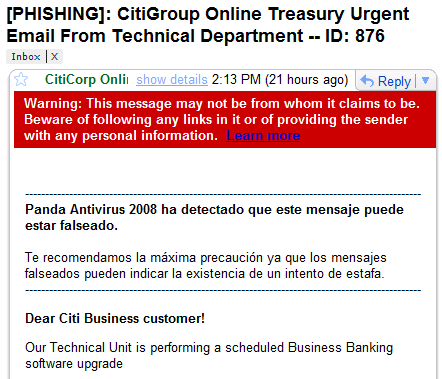
BTW, one particular Citibank phishing e-mail caught my eye. Its subject starts with [PHISHING] and the body starts with a Panda Antivirus warning:

20081130-113325

Pedro Bustamante from Panda security told me that this default message is added by Panda Antivirus 2008 to incoming and outgoing phishing e-mails.

This e-mail was probably send from a botnet member with an installion of Panda Antivirus 2008. As I have only the e-mail and no other info on the botnet member, I can’t analyze why the botnet software isn’t being neutralized by the AV. There can be many reasons.

Many malware uses a brute-force approach to attack AV software. One simple trick I’ve seen many times in malware assembler listings, is enumerating all services and disable those who match an “AV blacklist”. Recent AV products contains many components. It’s likely that in this case, the botnet malware neutralized the AV engine but missed the spam engine.

Anyways, this particular e-mail provided me some WTF entertainment 😉 .


Quickpost info


Wednesday 26 November 2008

Update: Restoring Safe Mode with a .REG file, and a Live CD

Filed under: Malware,Update — Didier Stevens @ 19:39

As more malware seems to delete the SafeBoot keys nowadays, and even prevents you from restoring these keys, I’m posting this “Enhanced Fix Safe Mode” procedure. In essence, it’s the same as my first procedure, but to avoid interference by the malware, we will boot from a Live CD and then fix the registry. Booting from a Live CD means that we boot a clean OS from the CD, and thus prevent the malware from running and interfering with our rescue operation. In a nutshell: boot from a Live CD, load the HKLM registry hive and merge the missing SafeBoot keys.

Notice that the configuration of the machine you’re fixing might be different from the one I’m describing. The system directory could be on another drive than C, you could need to fix ControlSet002 in stead of ControlSet001, …
So watch out, and update this procedure according to the configuration of the crippled machine.

And since you’re going to modify a critical system file, make a backup first (at least of the CONFIG directory).

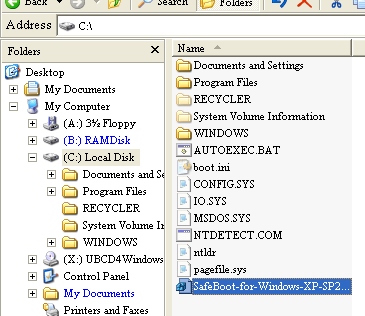
Copy the respective reg file to your C:\ drive (for example SafeBoot-for-Windows-XP-SP2.reg for XP SP2).
Shutdown the PC and start from a Windows Live CD, like the Ultimate Boot CD For Windows.

Start RegEdit:

safeboot-0000

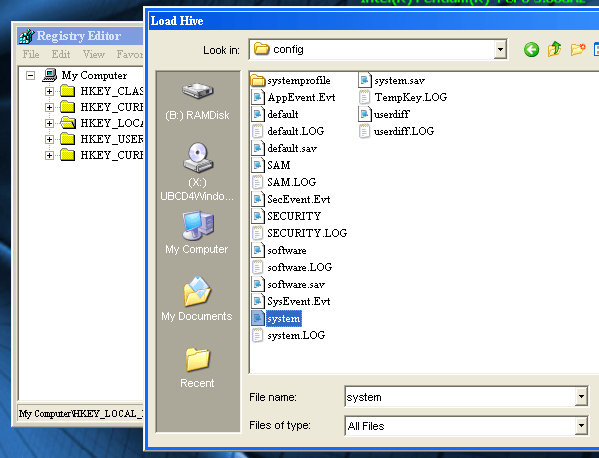
Select HKEY_LOCAL_MACHINE, and load the hive file C:\WINDOWS\system32\config\system (File / Load Hive…):

safeboot-0003

Name the loaded hive FixSafeboot:

safeboot-0004

Open the key HKLM\FixSafeboot\ControlSet### which is lacking the Safeboot key (there could be more than one ControlSet key you want to fix):

safeboot-0005

safeboot-0006

If the SafeBoot key is not missing (or the keys beneath it), you’re either looking in the wrong place or you’re not dealing with a corrupted SafeBoot key (in which case applying this procedure is useless).

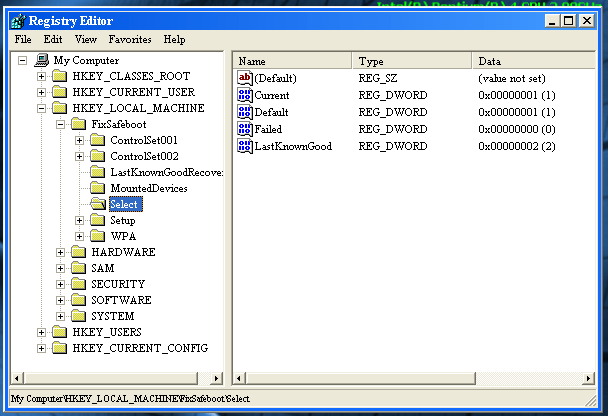
If you’re not sure which ControlSet### to fix, take a peek at the value of Current in the Select key:

safeboot-0016

Here the value for Current is 1, so it’s ControlSet001 which will be used when the system boots, and that’s the one we want to fix.

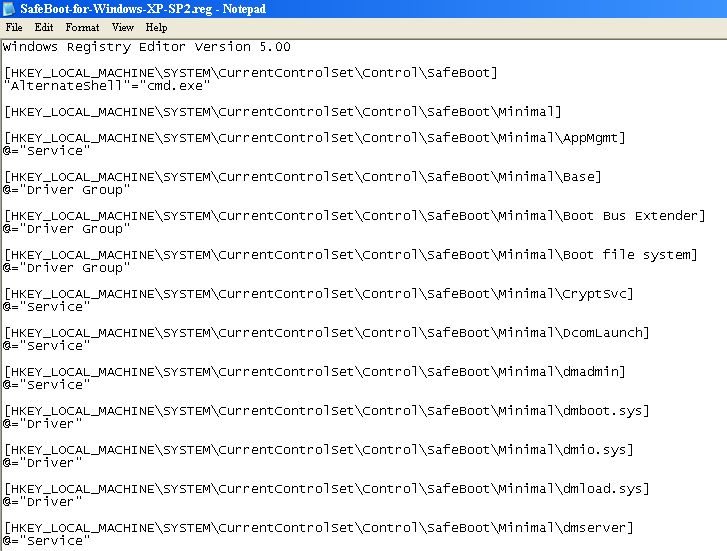
Open C:\SafeBoot-for-Windows-XP-SP2.reg (the one you copied on the C:\ drive) with notepad:

safeboot-0007

safeboot-0008

Perform a search and replace: replace SYSTEM\CurrentControlSet with FixSafeboot\ControlSet### (### being the number of the ControlSet you want to fix, like 001). Save the modified reg file:

safeboot-0009

safeboot-0010

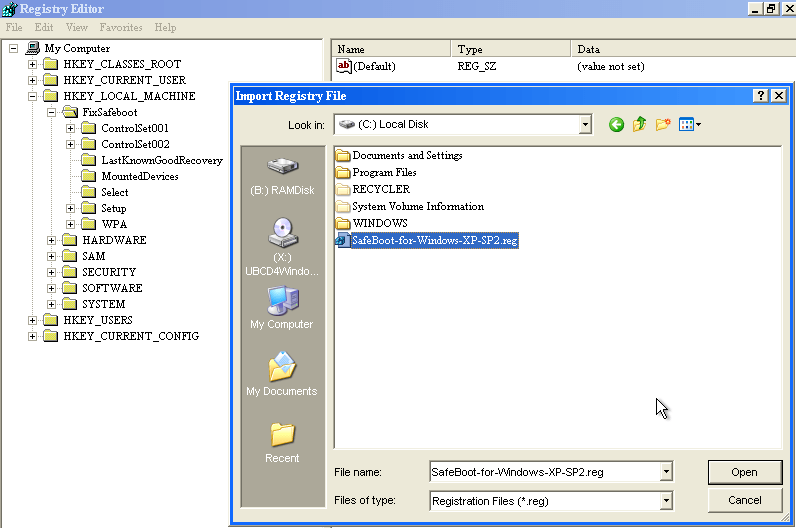
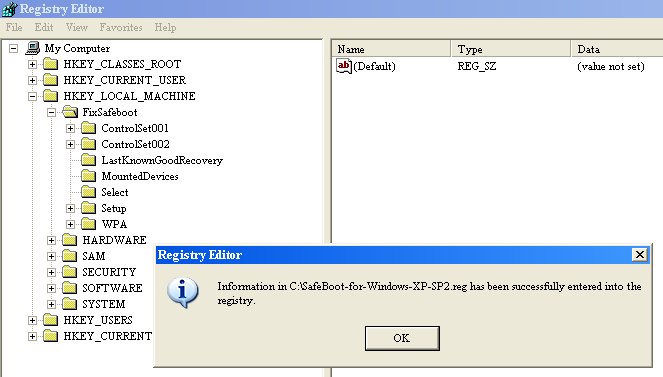
Import the reg file C:\SafeBoot-for-Windows-XP-SP2.reg with regedit (File / Import…):

safeboot-0011

safeboot-0012

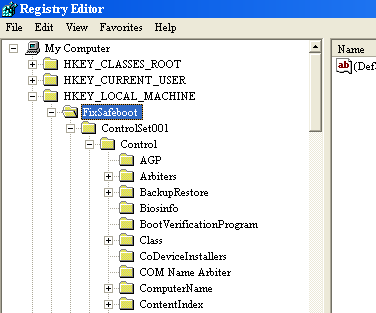
Check that the SafeBoot key has been added:

safeboot-0013

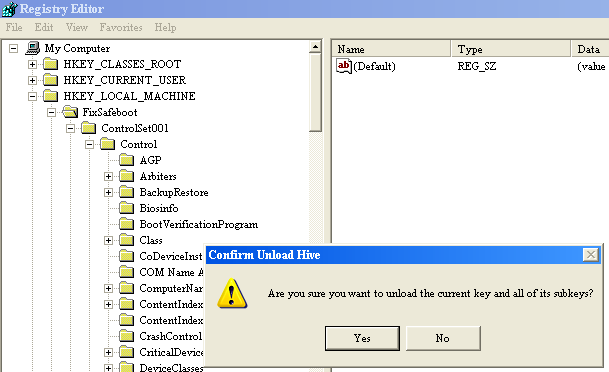
Select the FixSafeboot key and unload it (File / Unload Hive…):

safeboot-0014

safeboot-0015

Shutdown the PC and start in Safe Mode (F8).

If you still can’t boot into Safe Mode, you’re either facing another problem than a Safe Mode disabling malware, or the malware operates early in the boot process and interferes with Safe Mode booting. If you suspect malware, try scanning with a Live CD with an anti-virus scanner, like the F-Secure Rescue CD.

Sunday 23 November 2008

Quickpost: WiFi Availability

Filed under: Quickpost,WiFi — Didier Stevens @ 11:01

This new video shows how a WiFi camera can be jammed by another wireless device. I produced it for my last talk at the office, illustrating the concept of availability in secure systems.

A WiFi camera, operating on channel 1, is streaming video. When I switch on an analogue, wireless babycam, you see a strong signal appearing near channel 9 (watch the SPECTRAL VIEW of the Wi-Spy spectrum analyzer, e.g. the window in the upper-left corner). After some time, I switch the babycam to a channel near channel 1 of the WiFi camera. Now the transmission of the babycam jams the transmission of the WiFi camera, and we lose connectivity.

Powering off the babycam restores the WiFi connection.

YouTube, Vimeo and XviD hires.


Quickpost info


« Previous PageNext Page »

Blog at WordPress.com.