I’m attending OHM2013. To mark the occasion of this outdoor hacker conference taking place every 2 years, I’m doing a 20% promo on my workshop videos.
In case you missed it, I posted this during the weekend: MSI: The Case Of The Invalid Signature.
I’m attending OHM2013. To mark the occasion of this outdoor hacker conference taking place every 2 years, I’m doing a 20% promo on my workshop videos.
In case you missed it, I posted this during the weekend: MSI: The Case Of The Invalid Signature.
I found a suspicious file on a Windows XP machine. I was able to trace its origin back to a Windows Installer package (.msi). This package in c:\windows\installer had an invalid digital signature. Like this:
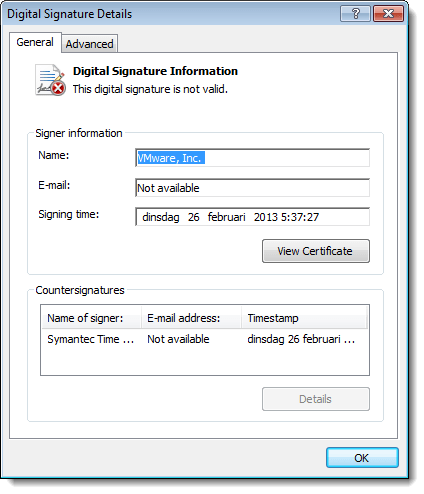
Very suspicious.
A bit later I found another msi package containing the same suspicious file. But this time, the package had a valid digital signature. What’s going on?
After a deep dive into the internals of msi packages, I found the answer.
When an msi package is installed, it is cached inside the Windows Installer directory (%windir%\Installer). Prior to Windows Installer 5.0 (released with Windows 7), cached packages were stripped of their embedded cab files. But with digitally signed msi files, the signature remained inside the file: the digitally signed file was modified, hence the signature was invalidated. This behavior changed with Windows Installer 5.0: cached packages are no longer stripped, hence the signature remains valid.
This blogpost by Heath Stewart explains this change in more detail. Unfortunately, my Google-skills were not good enough to find this blogpost prior to my deep dive into msi files. Hindsight Googling FTW! 😉
It looks like I didn’t release this update to my lookup tools.
lookup-hosts.py has a new argument: -R. This does a reverse lookup of the IP addresses (thus after it resolved the hostname).

And now you can also use letters as a counter: test-[a-z].com
lookup-tools_V0_0_2.zip (https)
MD5: 310904722F900FA34C567FC38634124E
SHA256: 85626574A99BF4D2AB786D8C2FF5B8F6649F1FC7410F1786A24EF0201AAF64AA
Because I had to use a workaround in my js-unicode-unescape.1sc script to copy an array of bytes to the clipboard, I asked the 010 Editor developers if they could add a function that does exactly this.
They included this new function, CopyBytesToClipboard, in their new version 5.0.
Here is a new version that uses this function:
js-unicode-unescape_v0_0_2.zip (https)
MD5: 6200C4F235CA527E8C0DCD5076CB1C09
SHA256: 2CACC9EE1BB1D1BC4C9FABC6EC3B3440CFF304AA560966B0B531279C369549BB
I had something of a puzzle to solve. A friend asked me to look at a set of files, all of the same size, but with some differences.
After some analysis, it dawned on me that these files were the result of a simple fuzzer applied to a single file. So I quickly wrote a program that took these files as input and reconstituted the original file. Later I wrote a more generic defuzzer. Here is an example:
defuzzer.py result.png a*.png

Number of defuzzed bytes: 171
Number of defuzzed sequences: 33
Length of shortest defuzzed sequence: 1
Length of longest defuzzed sequence: 10
Fuzz bytes:
'A': 171
From the result you can see that the program was able to reconstitute the original file, and that the fuzzer that was used to produce the different a*.png files, overwrote 33 byte-sequences with the character A. The longest sequence was 10 bytes long, the shortest only 1 byte. In total, 171 bytes were overwritten.
defuzzer_v0_0_2.zip (https)
MD5: 75188EF950625B78937C3473D825C582
SHA256: 056AB8BA7F3B2B52F8C7BFC2959D7F1AE3FEAC4BE90C675B2DFF6B521225D93E
Mark Woan reported an issue with virustotal-search.py: sometimes VirusTotal returns a JSON object that the json parser can’t parse.
That’s something I didn’t expect. I’ve added error handling for this case.
virustotal-search_V0_0_9.zip (https)
MD5: FECD02796889CDFE9FA67287F2DE567C
SHA256: 0CE06CBAFC6341835EB8A62377F5C4EB067747EE28E7ED8BB25FD69A4B99FA97
This update adds x64 shellcode support to my shellcode2vbs.py script.
shellcode2vba_v0_3.zip (https)
MD5: 44AF2685975346F9DE09E48E7FB855CE
SHA256: 04C42FA26717CCC7BC17A7BEDA02C746CA1A8BC8C6CE184670CD686796B5FF10
I’m giving a 2-day training on PDF at Brucon 2013. Early-bird price applies til June 15th.
Sometimes PDFiD will give you false positives for /JS and /AA. This happens with files of a couple of MBs or bigger, because it’s statistically very likely that /AA or /JS (only three bytes long) appear inside a stream. And since PDFiD, contrary to pdf-parser, has no notion of pdf objects and streams, it can produce false positives, like this:
PDFiD 0.1.2 CCNPSecurityFIREWALL642617OfficialCertGuide.pdf
 PDF Header: %PDF-1.6
 obj                 6018
 endobj              6017
 stream              1897
 endstream           1897
 xref                   1
 trailer                1
 startxref              1
 /Page                773
 /Encrypt               1
 /ObjStm                0
 /JS                    3
 /JavaScript            0
 /AA                    1
 /OpenAction            0
 /AcroForm              0
 /JBIG2Decode           0
 /RichMedia             0
 /Launch                0
 /EmbeddedFile          0
 /XFA                   0
 /Colors > 2^24         0
And when you search for /AA or /JS with pdf-parser, you will not find objects that have /AA or /JS in their dictionary:
pdf-parser.py -s /AA CCNPSecurityFIREWALL642617OfficialCertGuide.pdf
Up til now, I advised users suspecting false positives, to search the PDF document with a hex editor and see if they found /AA or /JS inside a stream. But now, with the latest version of pdf-parser supporting searching inside a stream, you can do it like this:
pdf-parser.py --searchstream /AA --unfiltered CCNPSecurityFIREWALL642617OfficialCertGuide.pdf
obj 1848 0
 Type: /XObject
 Referencing: 38 0 R
 Contains stream

  <<
     /Length 121194
     /Filter /DCTDecode
     /Width 800
     /Height 600
     /BitsPerComponent 8
     /ColorSpace 38 0 R
     /Intent /RelativeColorimetric
     /Type /XObject
     /Subtype /Image
  >>
I’m giving a 2-day training on PDF at Brucon 2013. Early-bird price applies til June 15th.
This new version of pdf-parser comes with options to search inside streams. For example, you can select all objects with the word Linux inside a stream with this command:
pdf-parser.py --searchstream Linux manual.pdf
The search is not case sensitive. To make it case sensitive, use option –casesensitive. Filters are applied to streams (e.g. decompressed) before the search is performed. To search in the raw stream data, use option –unfiltered.
Regular expression searching is done with option –regex. This allows you, for example, to select objects with embedded Flash files. Flash files begin with FWS, CWS or ZWS:
pdf-parser.py --searchstream "^[FCZ]WS" --regex sample.pdf
Regular expression searching has another advantage. You can search for bytes: \xCA\xFE.
pdf-parser_V0_4_2.zip (https)
MD5: B0C8F02358B386E7924DACB3059F8161
SHA256: E90620320AF6ED8E474B42BF6850E246446391878F87AE34DCDBD1D9945A6671
A signed PDF file is just like all signed files with embedded signatures: the signature itself is excluded from the hash calculation.
Open a signed PDF document in a hex editor and search for string /ByteRange. You’ll find something like this:
36 0 obj
<</ByteRange[0 227012 248956 23362 ]            /Contents<308226e106092a864886f7
This indicates which byte sequences are used for the hash calculation (position and length of each sequence). So in this example, byte sequence 227013-248955 is excluded, because it contains the signature in hex format padded with 0x00 bytes. This padding is not part of the DER signature, you can change it without changing or invalidating the signature.

 Didier Stevens