Didier Stevens

Monday 14 March 2011

HeapLocker: Null Page Allocation

Filed under: My Software,Vulnerabilities — Didier Stevens @ 5:03

Just like EMET, HeapLocker can allocate a page at address 0 (null or 0x00000000) to mitigate null pointer dereferencing.

I actually implemented this code in HeapLocker because I wanted to find out how one can allocate a page at address 0. You see, when you call VirtualAlloc with address 0, VirtualAlloc will allocate a page at an address chosen by VirtualAlloc, and not at address 0. So I would think that the trick is to call VirtualAlloc with address 1, and that VirtualAlloc will allocate a page that contains address 1, and that this page must start at boundary 0.

But the problem is that you get an error when you try to allocate a page at address 1 with VirtualAlloc. Ivanlef0u explains this in his blogpost (French). VirtualAlloc rejects addresses inferior to 0x1000, one must use NtAllocateVirtualMemory to successfully allocate address 1.

Friday 18 February 2011

HeapLocker: String Detection

Filed under: My Software,Vulnerabilities — Didier Stevens @ 12:43

A third protection technique I implemented in HeapLocker is string detection.

When you enable string monitoring, HeapLocker will create a new thread to periodically check (every second) newly committed virtual pages that are readable and writable. When a specific string (configured in the registry) is detected inside these pages, HeapLocker will suspend all threads (except this monitoring thread used by HeapLocker) and warn the user that the string was detected.

I’ve had very good result with this technique searching for string “unescape” in Adobe Reader (the string “unescape” must be preceded by an equal sign or followed by a left parentheses). Almost all malicious PDF documents in my collection were detected by this. But like NOP-sled detection, it’s not 100% reliable. Sometimes HeapLocker will scan a page before the string “unescape” has been written to that page.

Tuesday 25 January 2011

Circumventing SRP and AppLocker to Create a New Process, By Design

Filed under: Vulnerabilities — Didier Stevens @ 0:00

There’s an interesting comment on my Circumventing SRP and AppLocker, By Design post.

In my previous post, I showed a feature to circumvent SRP and AppLocker validation when a DLL is loaded.

The anonymous commenter points out a feature to create a new process, while circumventing SRP and AppLocker. Flag SANDBOX_INERT in function CreateRestrictedToken allows you to do this.

Per MSDN:

If this value is used, the system does not check AppLocker rules or apply Software Restriction Policies. For AppLocker, this flag disables checks for all four rule collections: Executable, Windows Installer, Script, and DLL.

When creating a setup program that must run extracted DLLs during installation, use the flag SAFER_TOKEN_MAKE_INERT in the SaferComputeTokenFromLevel function.

I wrote a small program to test this:

HANDLE hToken;
HANDLE hNewToken;
PROCESS_INFORMATION sPI;
STARTUPINFO sSI;

if (OpenProcessToken(GetCurrentProcess(), TOKEN_ALL_ACCESS, &hToken))
{
	if (CreateRestrictedToken(hToken, SANDBOX_INERT, 0, NULL, 0, NULL, 0, NULL, &hNewToken))
	{
		memset(&sSI, 0, sizeof(sSI));
		sSI.cb = sizeof(sSI);
		if (CreateProcessAsUser(hNewToken, L"c:\\test\\Dialog42.exe", NULL, NULL, NULL, TRUE, 0, NULL, NULL, &sSI, &sPI))
		{
			puts("process created");
		}
}

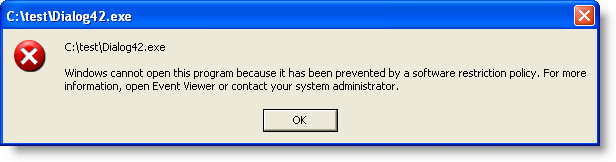
This program starts another program, Dialog42.exe. I’ve configured SRP with a whitelist, Dialog42.exe is not whitelisted:

But when I use my program with the SANDBOX_INERT flag to start Dialog42.exe, it is allowed to run:

Monday 24 January 2011

Circumventing SRP and AppLocker, By Design

Filed under: Vulnerabilities — Didier Stevens @ 0:00

We’ve seen it countless times before. A vendor designs a security product, but punches a hole in this shield to accommodate developers. Yet, I still love the irony of it.

Software Restriction Policies and AppLocker can be configured to whitelist DLLs. But LoadLibraryEx has a feature (LOAD_IGNORE_CODE_AUTHZ_LEVEL) to circumvent SRP and AppLocker. From the MSDN documentation:

If this value is used, the system does not check AppLocker rules or apply Software Restriction Policies for the DLL. This action applies only to the DLL being loaded and not to its dependents. This value is recommended for use in setup programs that must run extracted DLLs during installation.

I’ve blogged about a spreadsheet that creates a DLL in a temporary location, and loads it inside the Excel process with LoadLibrary. It’s easy to block this DLL with SRP or AppLocker. But now I found out it’s also easy to bypass this, much easier than what I’ve done before. I just have to replace a call to LoadLibrary with a call to LoadLibraryEx, and pass it argument LOAD_IGNORE_CODE_AUTHZ_LEVEL. That’s all it takes to bypass SRP and AppLocker.

Let it be clear that this only makes it possible to load arbitrary DLLs inside existing processes, it does not allow you to create a new process that SRP/AppLocker wouldn’t allow.

If you use SPR/AppLocker, should you worry? It depends against what risk you use it.

When you use SRP/AppLocker to prevent common malware or other unwanted programs from infecting your machine, there’s no problem (now). If you use it on corporate computers to prevent your users from using software you don’t support, there’s no problem.

But if you use SRP/AppLocker as a security layer against (skilled) evil haxors, then you have to be aware that there is a large hole in your security layer and that it’s easy to misuse. In that case, you should better look out for another whitelisting security layer without “designer holes”. Unless it turns out Microsoft has a (hidden) setting to disable this feature, but I’ve not found one.

If this value is used, the system does not check AppLocker rules or apply Software Restriction Policies for the DLL. This action applies only to the DLL being loaded and not to its dependents. This value is recommended for use in setup programs that must run extracted DLLs during installation.

Tuesday 18 January 2011

Quickpost: Checking ASLR

Filed under: Quickpost,Uncategorized,Vulnerabilities,Windows 7,Windows Vista — Didier Stevens @ 11:13

Some people asked me for a simple way to check shell extensions for their ASLR support. You can do this with Process Explorer.

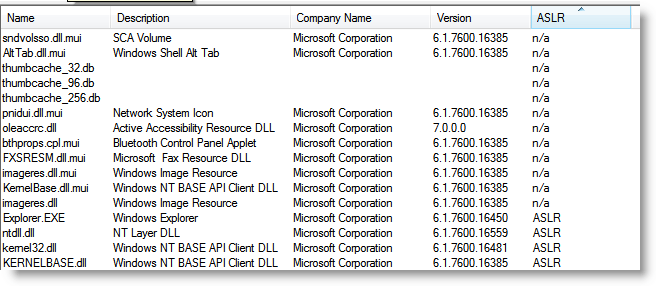
Start Process Explorer, and set the lower pane to display DLLs. Select process explorer.exe, and add column ASLR to the lower pane view. Then sort on column ASLR.

You will see this:

Notice that on a default Windows 7 32-bits install all DLLs (with code) support ASLR. The n/a is for resource DLLs, they don’t contain code, and ASLR doesn’t apply to them.

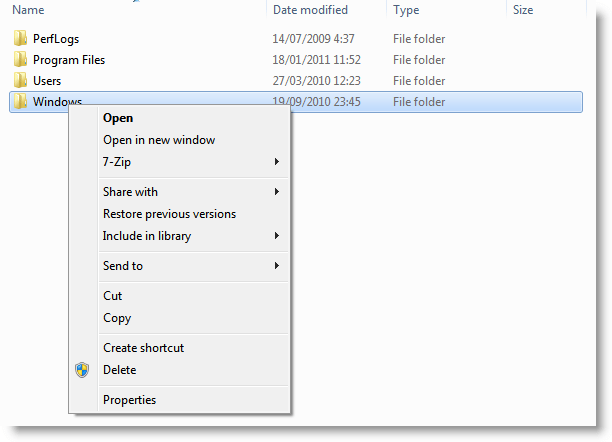
Now open an explorer window and right-click a file, like this:

This action will load the context menu shell extensions.

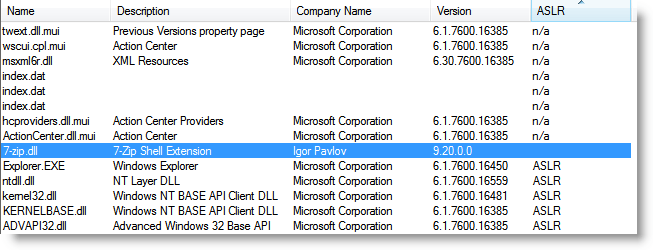
Take a look at Process Explorer:

Now you see the shell extensions without ASLR support.


Quickpost info


Monday 17 January 2011

Quickpost: “It Does No Harm…” or Does It?

Filed under: Quickpost,Vulnerabilities — Didier Stevens @ 0:00

You often read about people who use many different security applications to protect their systems. Not only anti-virus, anti-spyware, firewall, HIPS, …, but also some other tools like anti-keyloggers, … And sometimes, when they argue about the additional protection such tools bring, you can read the following: “it does no harm…”.

Well, this time, I’ve a clear example where using a supplemental security tool does harm, even when it adds real protection.

When installed, this tool (which I’m not going to name here because of SEO reasons), installs a Windows explorer shell extension (we’ve discussed the risks of these shells before). The problem with this tool’s shell extension (a DLL), is that it is compiled without the dynamic base flag set. In other words, it doesn’t support ASLR.

On a default Windows Vista or Windows 7 install, all the DLLs of explorer.exe support ASLR. Even if a vulnerability is found in explorer.exe, it won’t be possible to bypass DEP and ASLR by borrowing code from a DLL to build an exploit with ROP gadgets. Unless you’ve installed this security tool, which adds a DLL with a fixed address to explorer.exe’s code space. Then an attacker can find ROP gadgets in this shell extension’s DLL.

This security tool harms the security of your system by opening it up to ROP exploits.

And shell extensions are not only loaded into explorer.exe. They find their way into many applications. For example, when you work with the common dialog control (like using the file open dialog)  in an application, shell extensions also get loaded into these applications. So this extension can get loaded into Adobe Reader, Microsoft Office applications, …

The risk this security tool brings to your system is not theoretical. There are malicious PDFs in the wild that use ROP gadgets.


Quickpost info


Wednesday 12 January 2011

HeapLocker: NOP Sled Detection

Filed under: My Software,Vulnerabilities — Didier Stevens @ 0:00

A second protection technique I implemented in HeapLocker is NOP sled detection.

When you enable NOP sled monitoring, HeapLocker will create a new thread to periodically check (every second) newly committed virtual pages that are readable and writable. When a NOP sled is detected inside these pages with a length equal to or longer than  NOPSledLengthMin, HeapLocker will suspend all threads (except this monitoring thread used by HeapLocker) and warn the user that a NOP-sled was detected.

For HeapLocker, a NOP sled is a sequence of single-byte instructions; these may be different or the same instructions. For a list of all single-byte instructions recognized by HeapLocker, take a look array abNOPSledDetection in the source code.

With a classic heap spray, the NOP sled will be detected long before the vulnerability is exploited. But with more sophisticated techniques, it is possible that the NOP sled is detected too late, i.e. that the shellcode already executed. Or it’s also possible that HeapLocker is too early, i.e. that it scans the new page before the NOP sled was written to it. But to prevent this, I wait 1 second between the detection of a new page and the NOP sled scan of that page.

I’ve had some false positives with this detection, that’s why you can configure HeapLocker to ask the user for confirmation.

Tuesday 14 December 2010

HeapLocker: Private Memory Usage Monitoring

Filed under: My Software,Vulnerabilities — Didier Stevens @ 17:30

Explaining how Private Usage Memory Monitoring in HeapLocker works is easy, so let’s start with this technique.

When a malicious document performs a heap spray, allocation of private virtual memory will skyrocket. HeapLocker allows you to set a maximum to the amount of private virtual memory a process is using. If the maximum is exceeded, HeapLocker will suspend the process and inform the user.

To configure HeapLocker to monitor Adobe Reader’s usage of private memory and set a maximum, create these registry keys:

[HKEY_LOCAL_MACHINE\SOFTWARE\DidierStevens\HeapLocker\Applications\AcroRd32.exe]
"PrivateUsageMax"=dword:00000100

This will set the maximum to 256 MB (0x100).
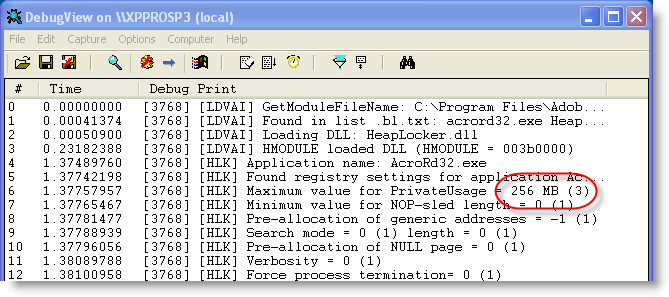
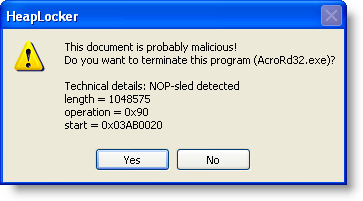
When HeapLocker is loaded inside Acrobat Reader (AcroRd32.exe process), it will find the PrivateUsageMax setting and start a new thread inside the Adobe Reader process. During most of its life, this thread will do nothing (sleep). Every second, it will wake-up and check the amount of private memory allocated by the process (PrivateUsage). If this amount is equal to or larger than the maximum value specified in PrivateUsageMax, the thread will suspend all other threads in the process and display a message box to the user.
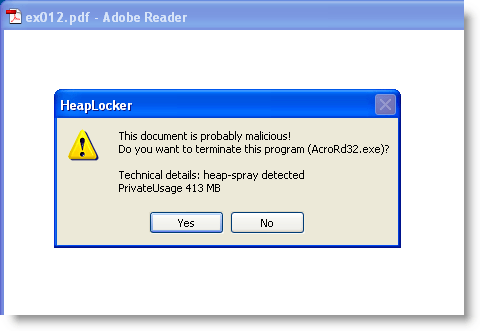
The user can decide to terminate the process, or decide to continue using the program. When the user decides to continue, HeapLocker will resume all threads and disable its monitoring of private memory usage for the life of this process.

The user is offered this choice to be able to deal with false positives. If you set your PrivateUsageMax value too low and you open many different documents in the same application, you could exceed the limit without an actual heap spray taking place. For applications that (mostly) just display data, like Adobe Reader and Internet Explorer, this is not a real issue, because no data is lost when you terminate the application. But with Microsoft Word or Excel, you will loose unsaved data when the process is terminated.

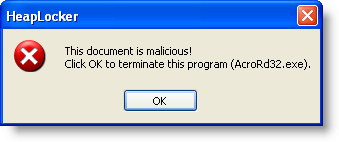
If you don’t trust your users to make the right decision when presented with this dialog, you can set registry key ForceTermination to 1. When this key is set, the user will not be offered a choice: the threads are suspended, a message box is displayed with just an OK button, and the application is terminated when the OK button is clicked.

I’ve tested this feature of HeapLocker for several months with Adobe and MS Office, limiting the private usage to 1024 MB. I don’t recommend you use the other HeapLocker techniques yet, I’m still testing these features.

This feature of HeapLocker is compatible with EMET, I’ve used both tools concurrently to protect Adobe Reader.

You can use Process Explorer to get an idea of the private memory usage of your applications.

Monday 6 December 2010

HeapLocker

Filed under: My Software,PDF,Vulnerabilities — Didier Stevens @ 0:00

HeapLocker is a new tool I’m releasing to mitigate heap spray attacks. But be patient, don’t use this version (V0.0.0.2) yet for other reasons than experimenting! I’m still testing newer versions that I’ll release soon.

HeapLocker uses 5 mitigation techniques.

1) Like EMET, HeapLocker will pre-allocate virtual memory pages to protect the addresses often used in exploits with heap sprays. HeapLocker can go one step further than EMET: it can inject its own shellcode to warn the user in case of an attack:

2) HeapLocker can also pre-allocate memory page zero, like EMET.

3) To detect heap sprays in action, HeapLocker monitors private memory usage:

4) HeapLocker can monitor the application’s memory for NOP-sleds:

5) The last technique, monitoring the application’s memory for specific strings, proved to be very successful to detect malicious PDF documents:

I will detail these techniques in upcoming posts.

Monday 11 October 2010

PDF, DEP, ASLR and Integrity Levels

Filed under: PDF,Vulnerabilities,Windows 7,Windows Vista — Didier Stevens @ 8:41

Frequently targeted document handling applications should be coded defensively and protect themselves with Windows security features like DEP, ASLR and Integrity Levels, just to name a few.

I tested a couple of PDF rendering applications: Adobe Reader, Foxit Reader and Sumatra PDF. If the application did not use DEP, ASLR or Integrity Levels, I changed some settings to make the application use these features. Setting DEP and ASLR is just setting a flag in the DllCharacteristics member of the Image Optional Header structure. You can do this with a hex editor, a PE-file editor, or a new tool (setdllcharacteristics) I’ll release soon. Using a Low Integrity Level is done by setting the appropriate ACE in the DACL of the application executable, see my post Integrity Levels and DLL Injection for details.

Adobe Reader 9 uses DEP and ASLR. It does not run with a Low Integrity Level by default. Configuring acrord32.exe to run with a Low Integrity Level fails, the application doesn’t run. It is said that the upcoming Adobe Reader 10 with sandboxing technology will run at a Low Integrity Level.

Sumatra PDF 1.1 uses DEP and ASLR. It does not run with a Low Integrity Level by default. Configuring SumatraPDF.exe to run with a Low Integrity Level succeeds, the application runs fine. Some preferences might get lost, but they are not important to me.

With version 4.2 of Foxit Reader released about a week ago, Foxit Software added support for DEP and ASLR. Setting Foxit Reader to use a Low Integrity Level results in a malformed opening dialog box:

Apart from this, Foxit Reader appears to work fine at Low Integrity Level, but don’t be fooled. At Low Integrity Level, Foxit Reader can’t read or set its preferences. For example, you won’t be able to disable JavaScript. Even if you disabled JavaScript with Foxit Reader running at Medium Integrity Level (the default), Foxit Reader running at Low Integrity Level will enable JavaScript. So you’re better off not using a Low Integrity Level for this version. I’ve talked to Foxit Software and they’ll fix this.

If your favorite application isn’t discussed here, you can easily check how it performs with Sysinternals’ Process Explorer. Just add columns DEP, ASLR and Integrity to Process Explorer’s main view and run your application.

« Previous PageNext Page »

Blog at WordPress.com.