Didier Stevens

Saturday 25 May 2024

Reversing A Network Protocol

Filed under: My Software,Networking,Reverse Engineering — Didier Stevens @ 11:31

I also recorded a video for this blog post.

I recently helped a colleague and friend with the reversing of a network protocol to update an IOT device. As I can’t be more specific for the moment, I created a capture file similar to this network protocol to explain how one can reverse engineer a protocol like this with Wireshark and the Lua dissector I developed.

This is how the traffic looks like (the pcapng file can be found inside the ZIP file with the dissector.).
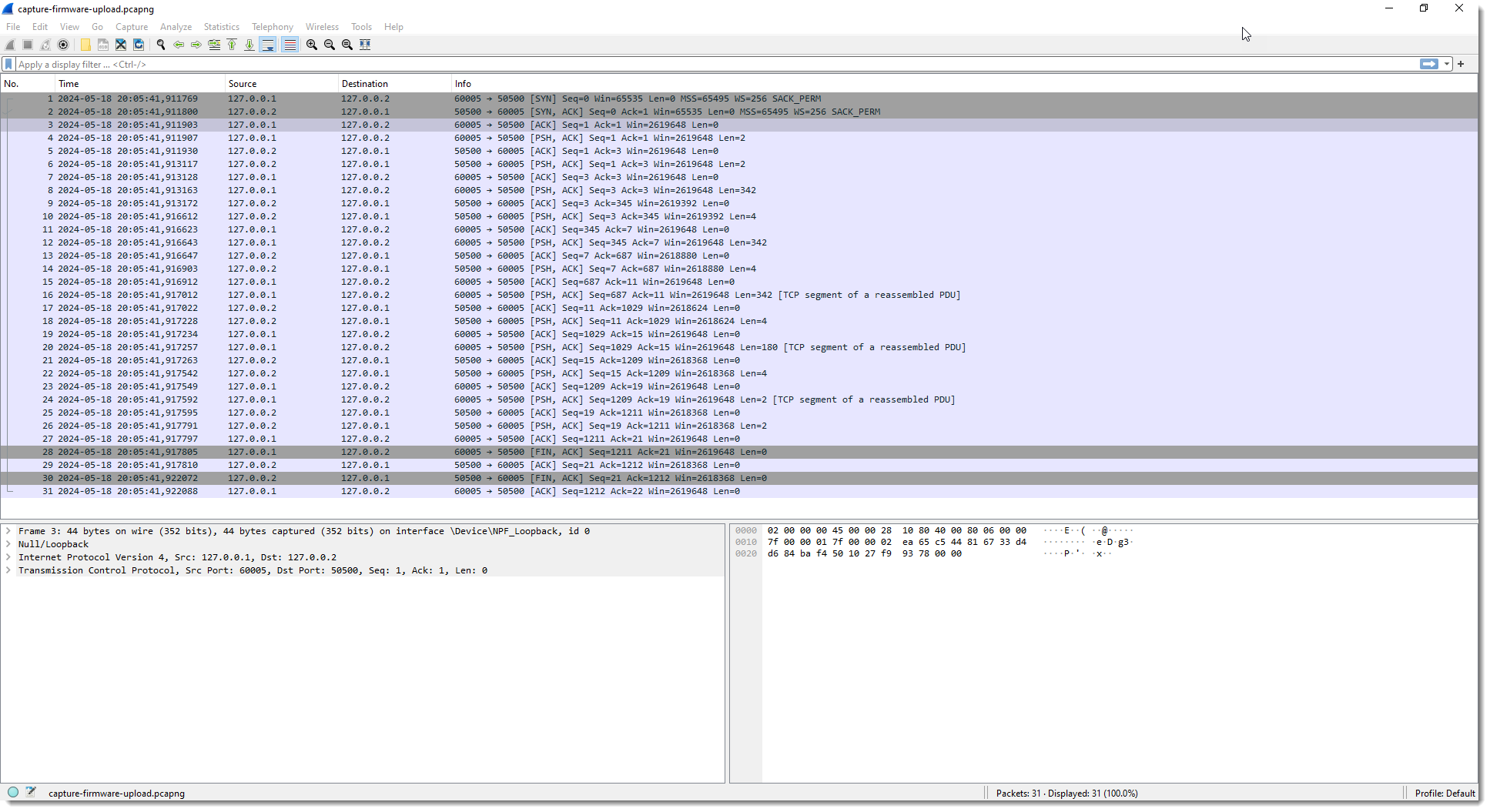
The capture file I created contains TCP traffic to port 50500. The device has IPv4 address 127.0.0.2 and my machine 127.0.0.1.

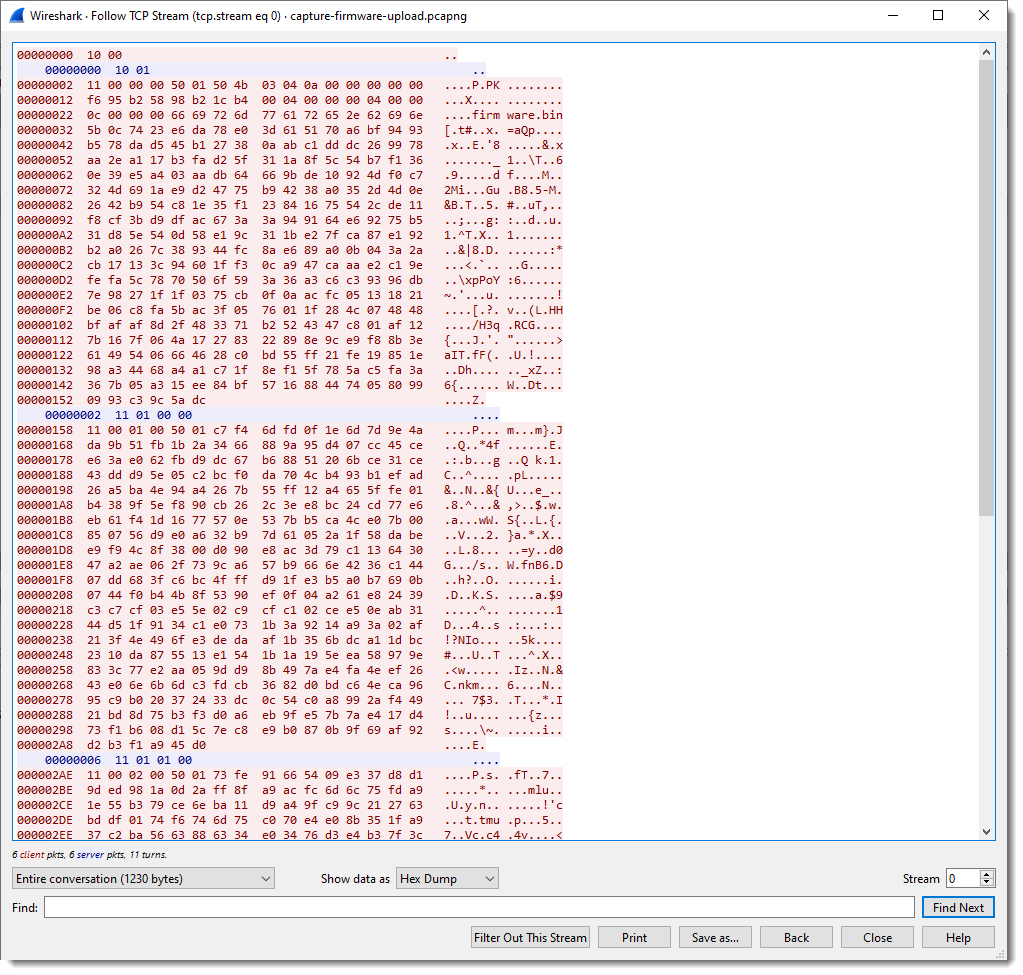
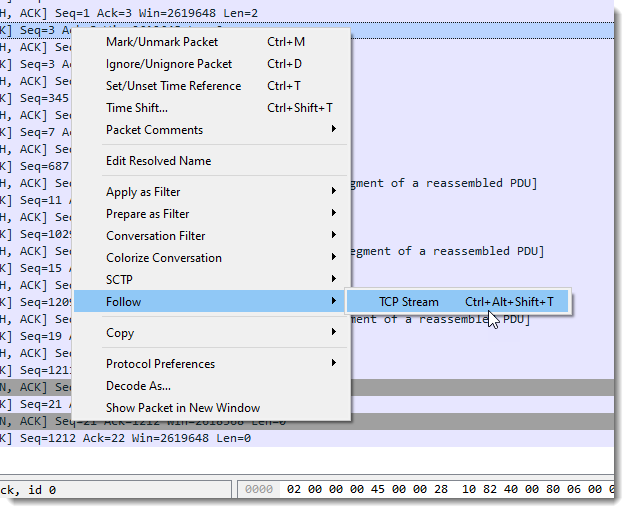
First I perform a TCP follow:
In pink you have the packets sent by the client; the server packets are blue.

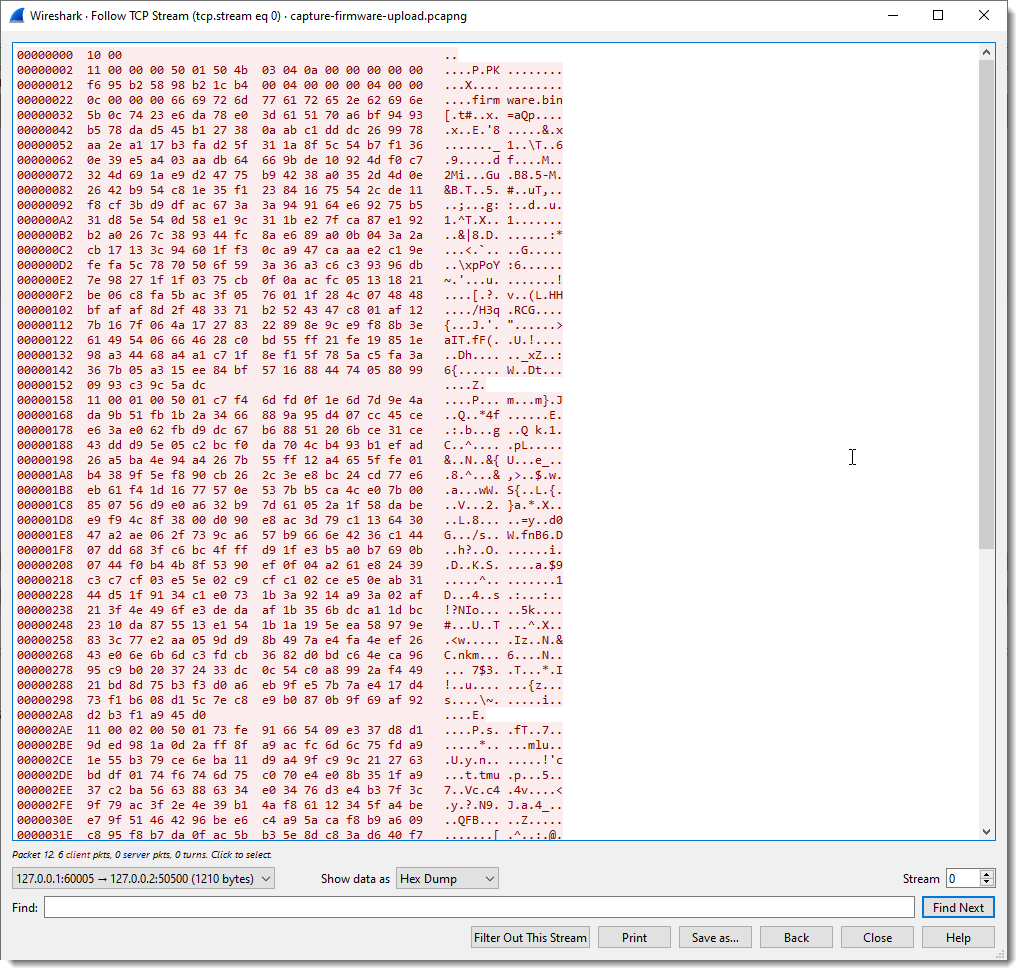
We can apply a filter to see these packets separately:
And here is the raw view:
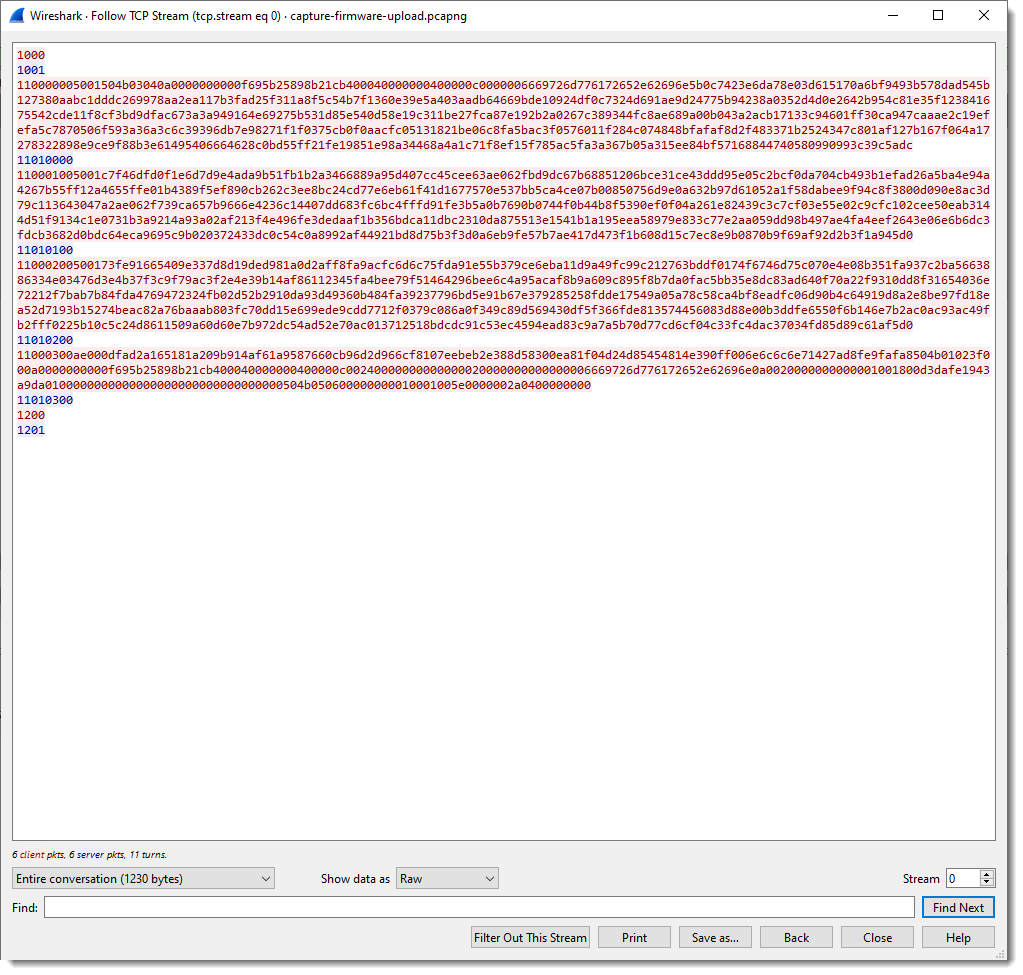
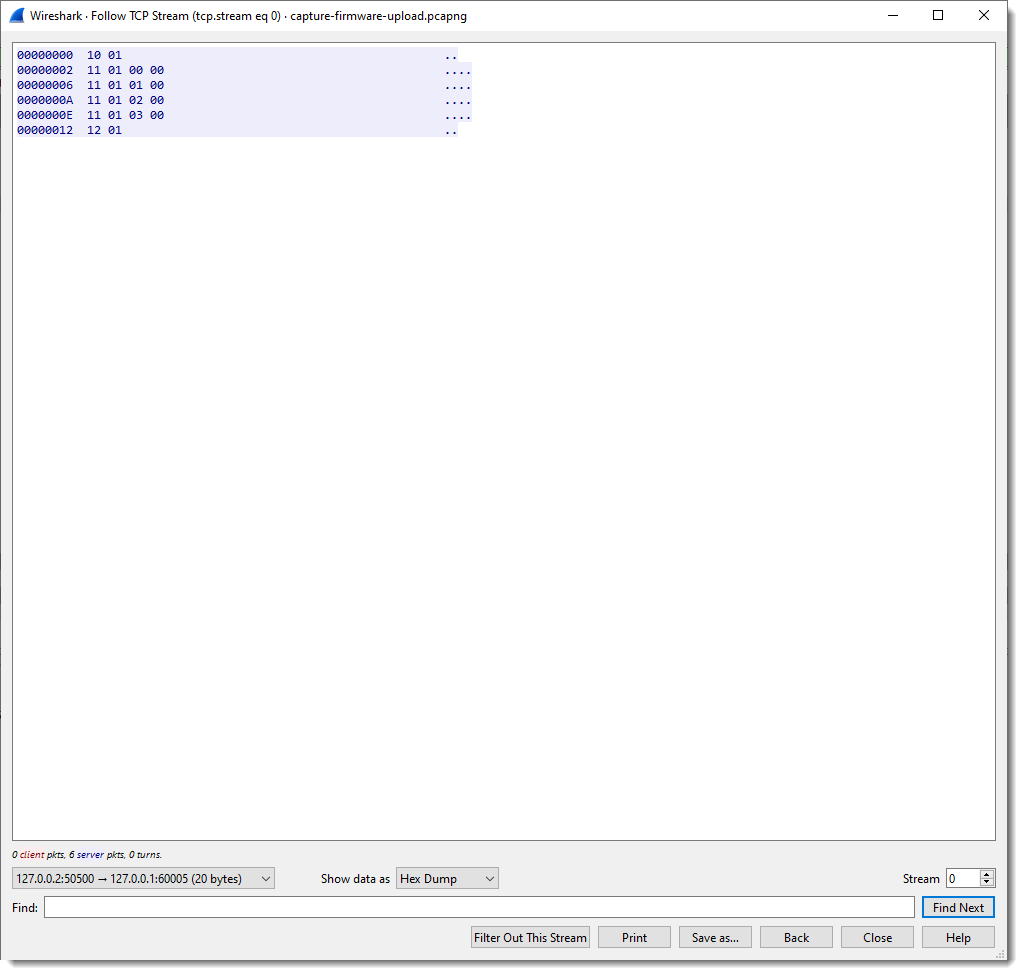
We can see that the client (Windows machine) is sending a lot of data, and that the server (IOT device) sends back packets up to 4 bytes in size.

To facilitate the analysis, it would be useful to have a dissector that splits up the TCP traffic into fields. It’s not necessary to write a custom Wireshark dissector for this, I can use my fixed field length Lua dissector.

One way to load the dissector in Wireshark, is to start Wireshark from the command-line with options to load the dissector:

"c:\Program Files\Wireshark\Wireshark.exe" -X lua_script:fl-dissector.lua -X lua_script1:port:50500 capture-firmware-upload.pcapng

-X lua_script:fl-dissector.lua loads the dissector when Wireshark starts. The file fl-dissector.lua has to be in the current folder.

I also have to specify the port (50500) for this dissector:

lua_script1:port:50500

Wireshark will only invoke the dissector for TCP traffic coming from or going to the given port. If I don’t provide a port, the hard-coded port number (1234) will be used.

And finally, I provide the name of the capture file: capture-firmware-upload.pcapng

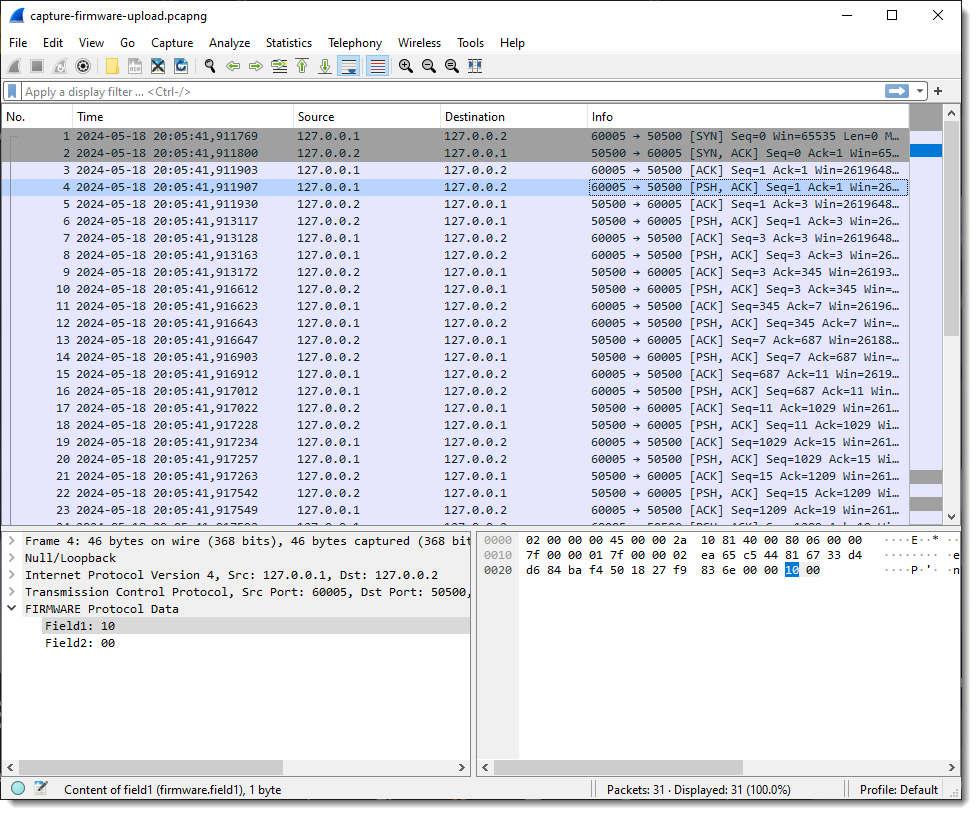
This starts Wireshark and loads the dissector:
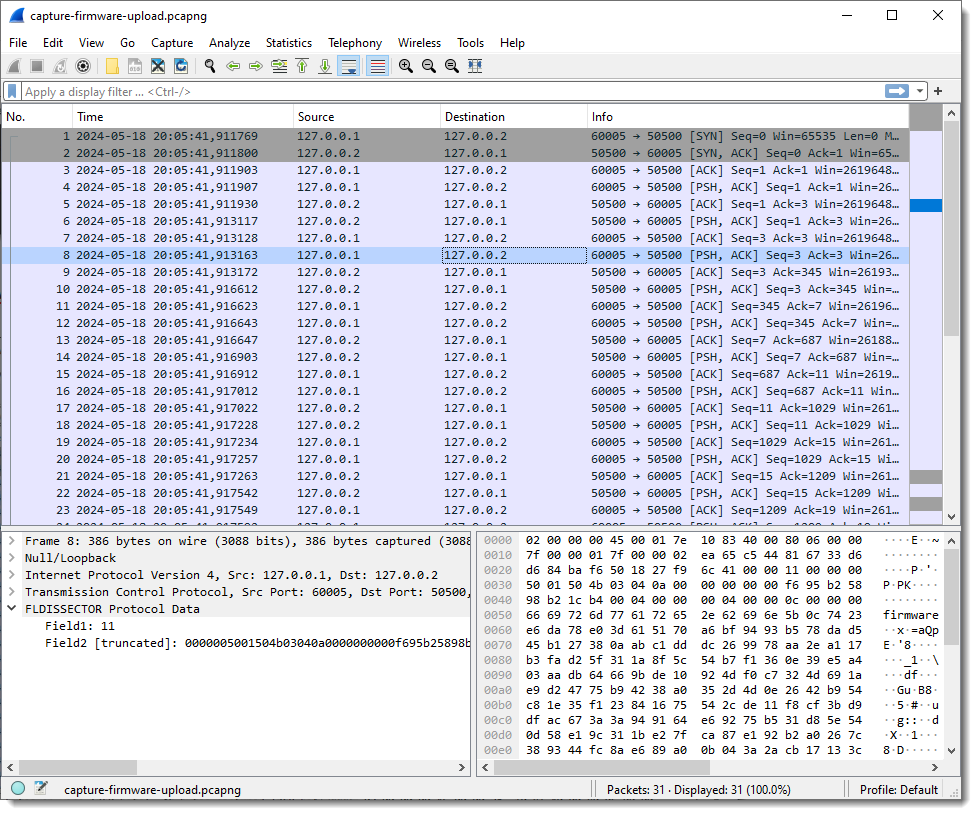
When I select a packet with some traffic of interest, the result of the dissector appears in the Packet Details pane at the bottom of the protocols. Protocol dissector FLDISSECTOR shows two fields: Field1 and Field2. That’s the default field length definition: one field (Field1) of length 1 (1 byte long) and a second field (Field2) with the remaining TCP payload data.

Since I want a more descriptive protocol name, I’m stopping Wireshark and loading it again with an extra argument:

-X lua_script1:protocolname:firmware

Argument protocolname allows me to specify the name of the dissector/protocol:

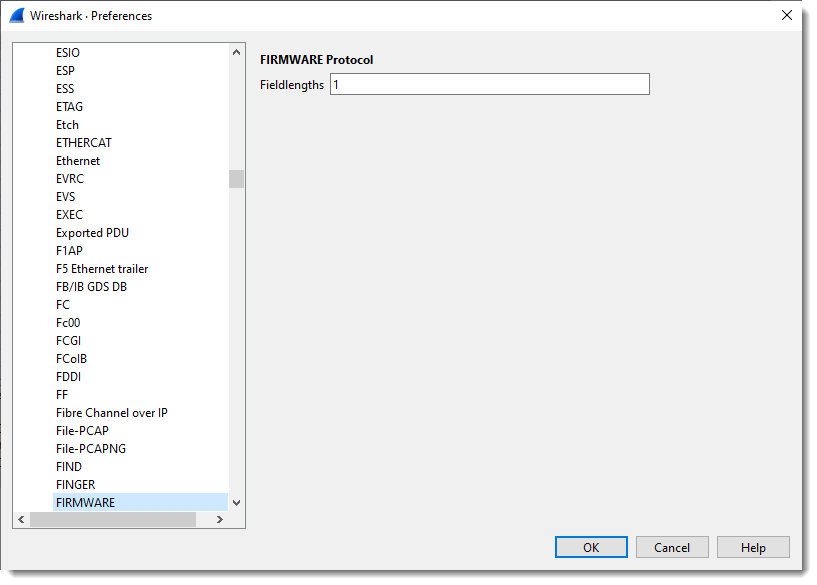
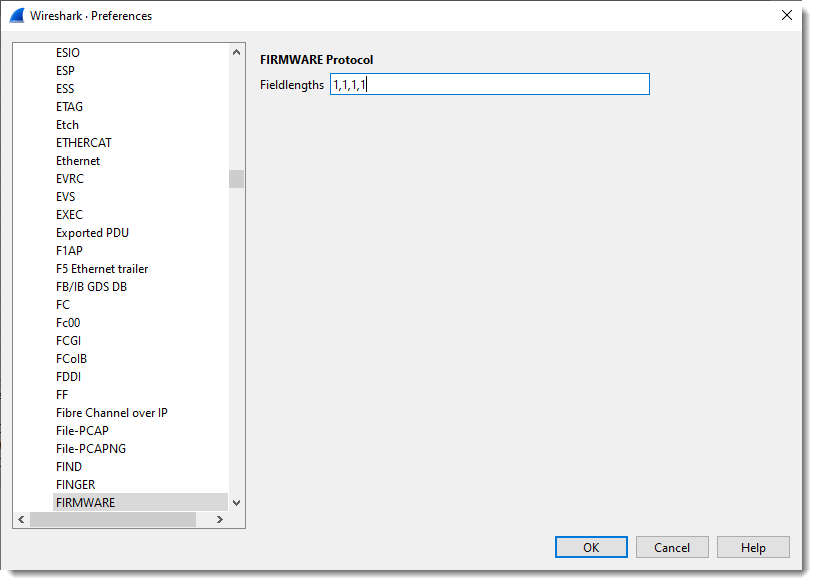
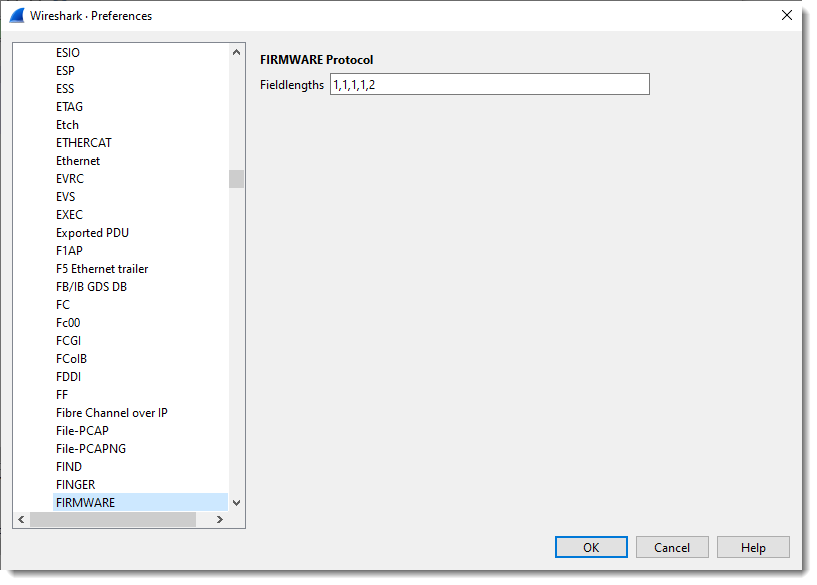
Next, I define the length of the fields with the protocol preferences dialog:
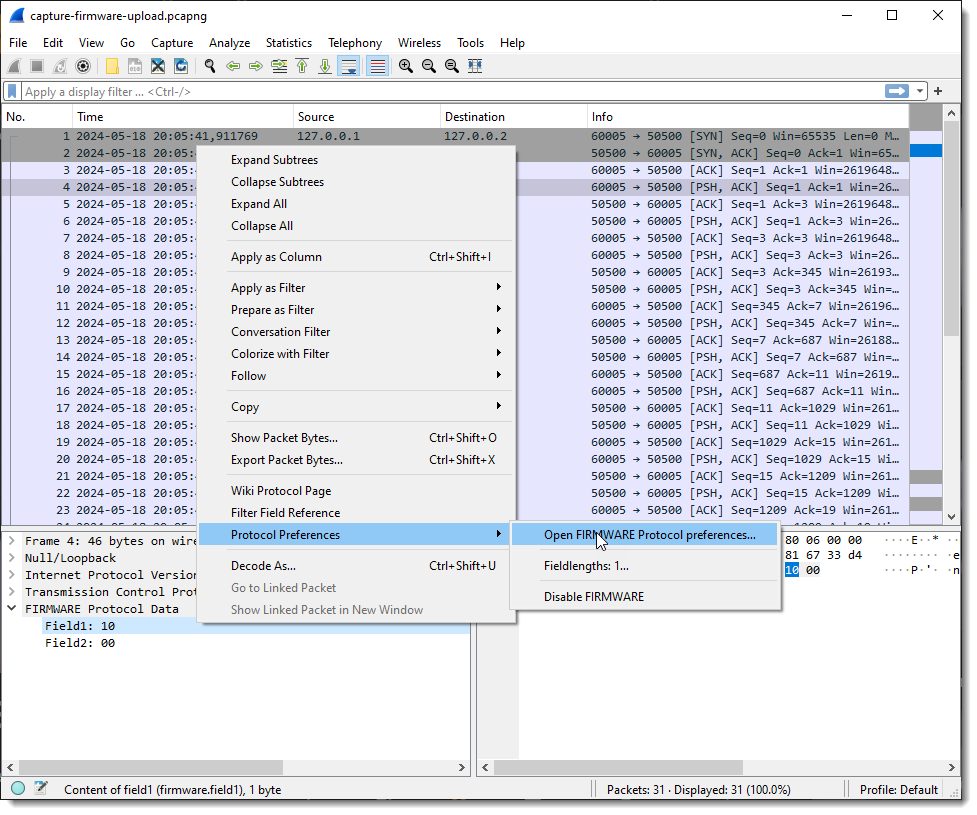
What you see here is “1”: one field with size 1 (1 byte long).

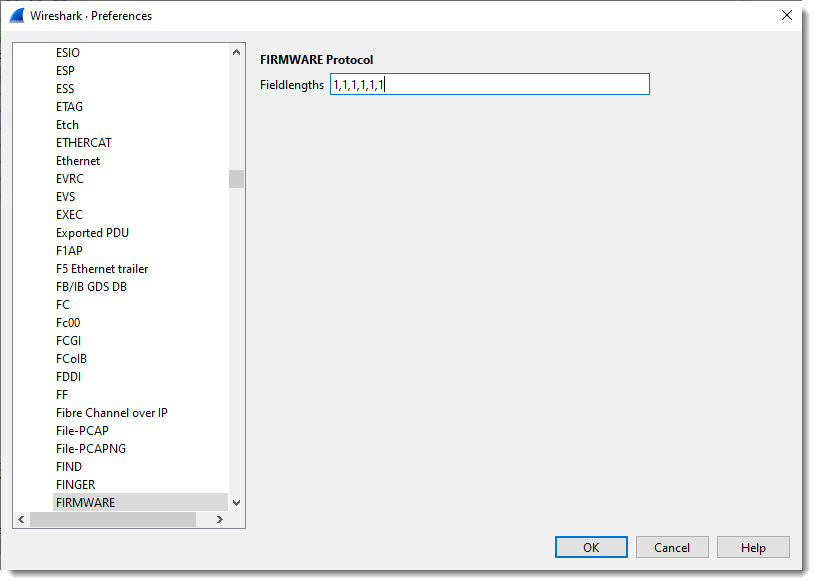
I define 4 fields, each on byte in size:
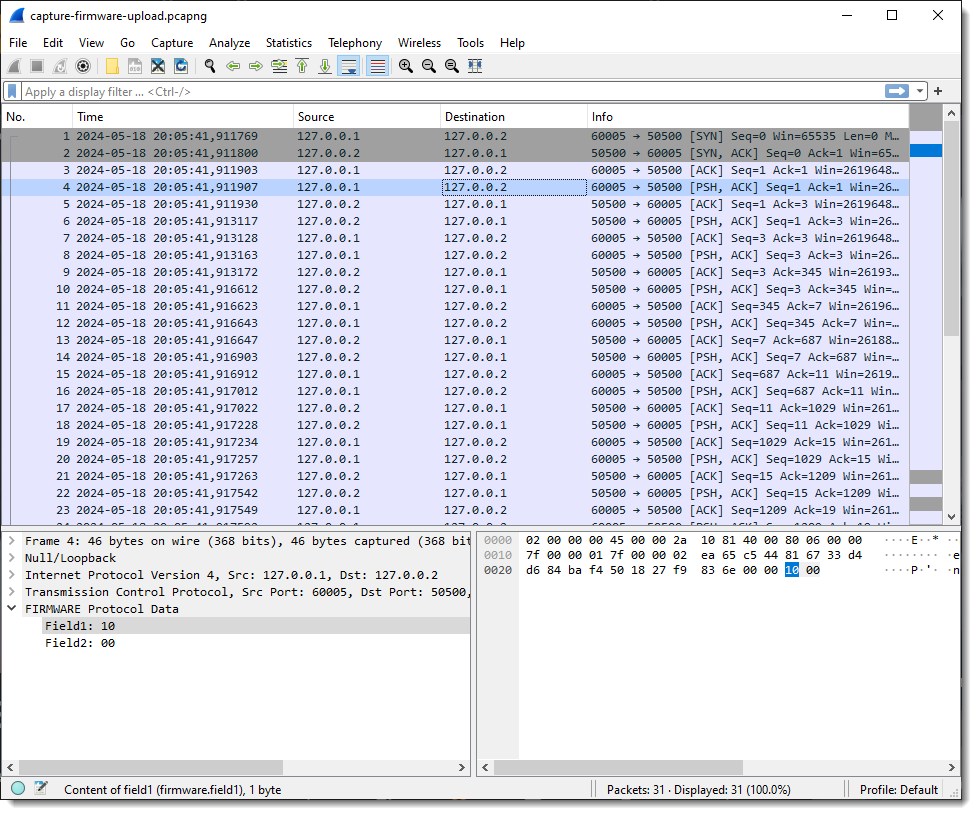
If I select a packet with just 2 bytes of TCP payload, I get 2 fields:
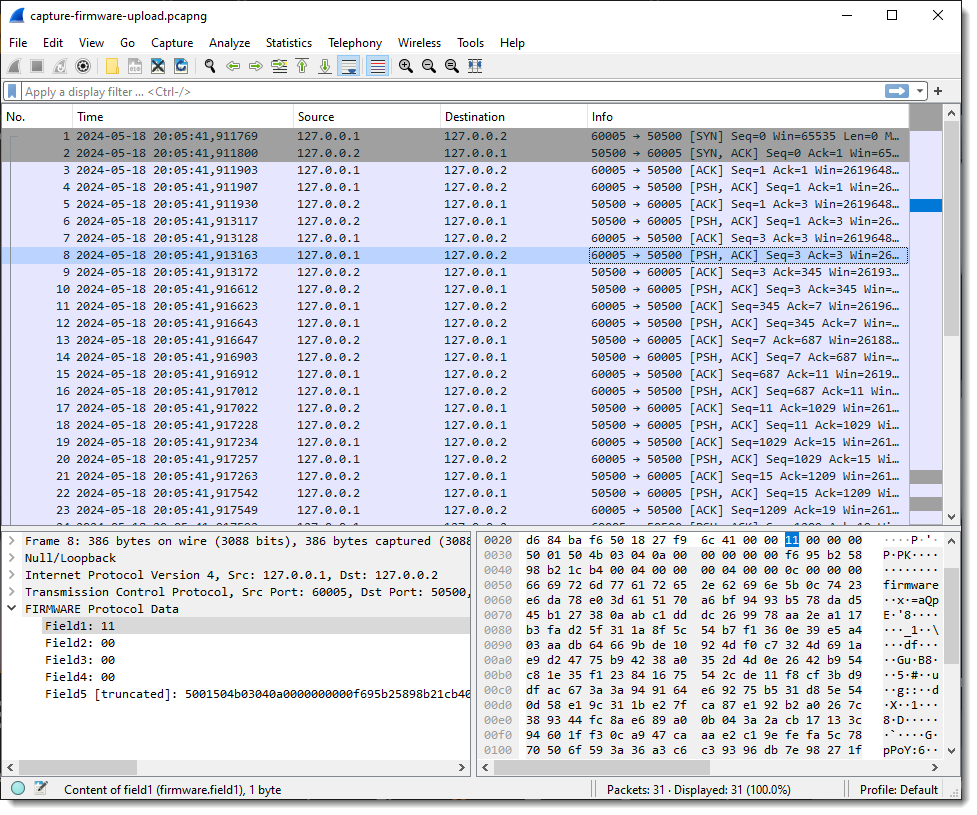
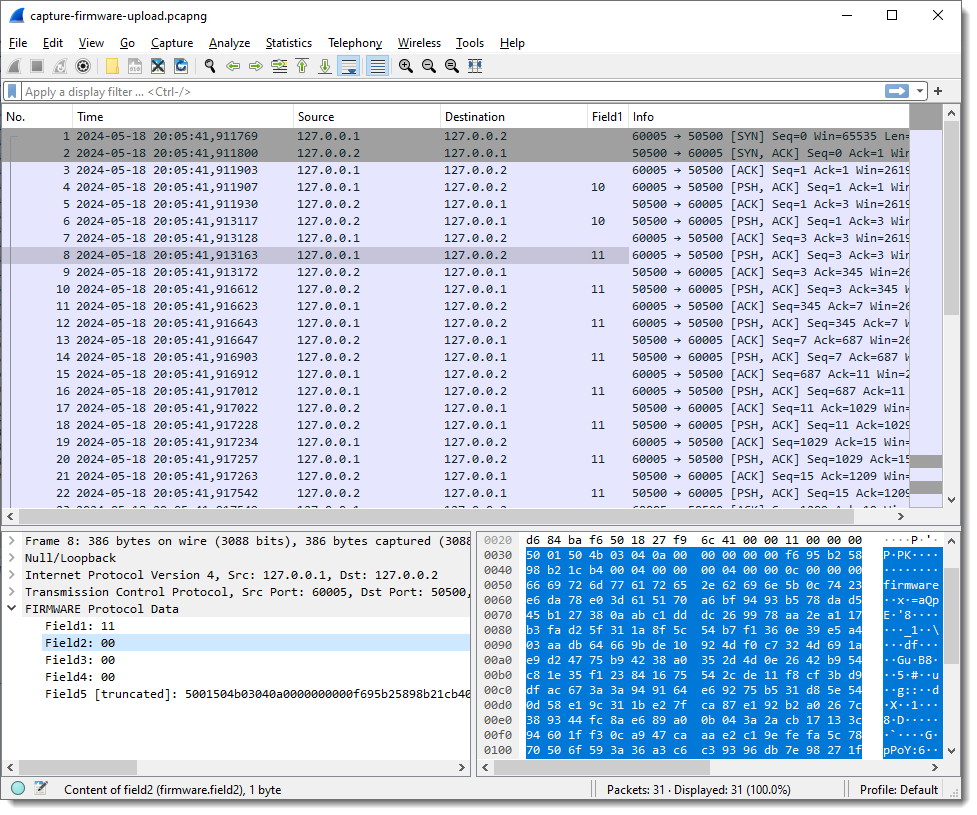
But when I select a packet with more than 4 bytes of TCP payload, I get 5 fields: 4 fields of 1 byte in size, and the last field with the remaining bytes of the TCP payload:
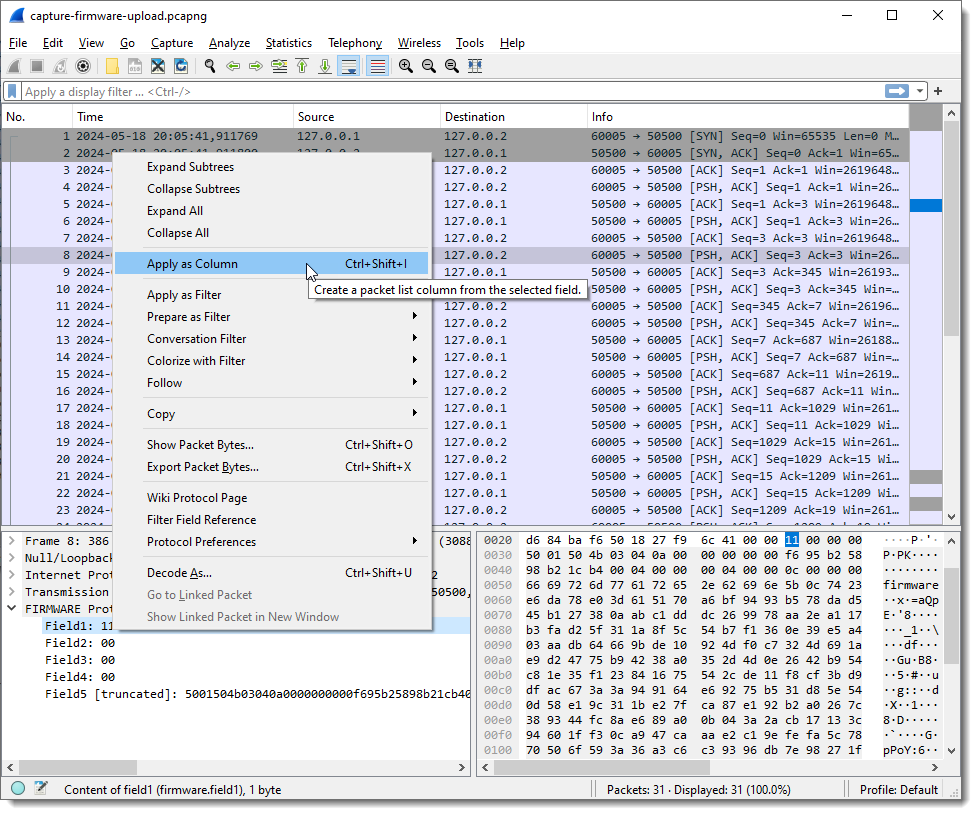
Next, I add each field as a column in the Packet List pane:
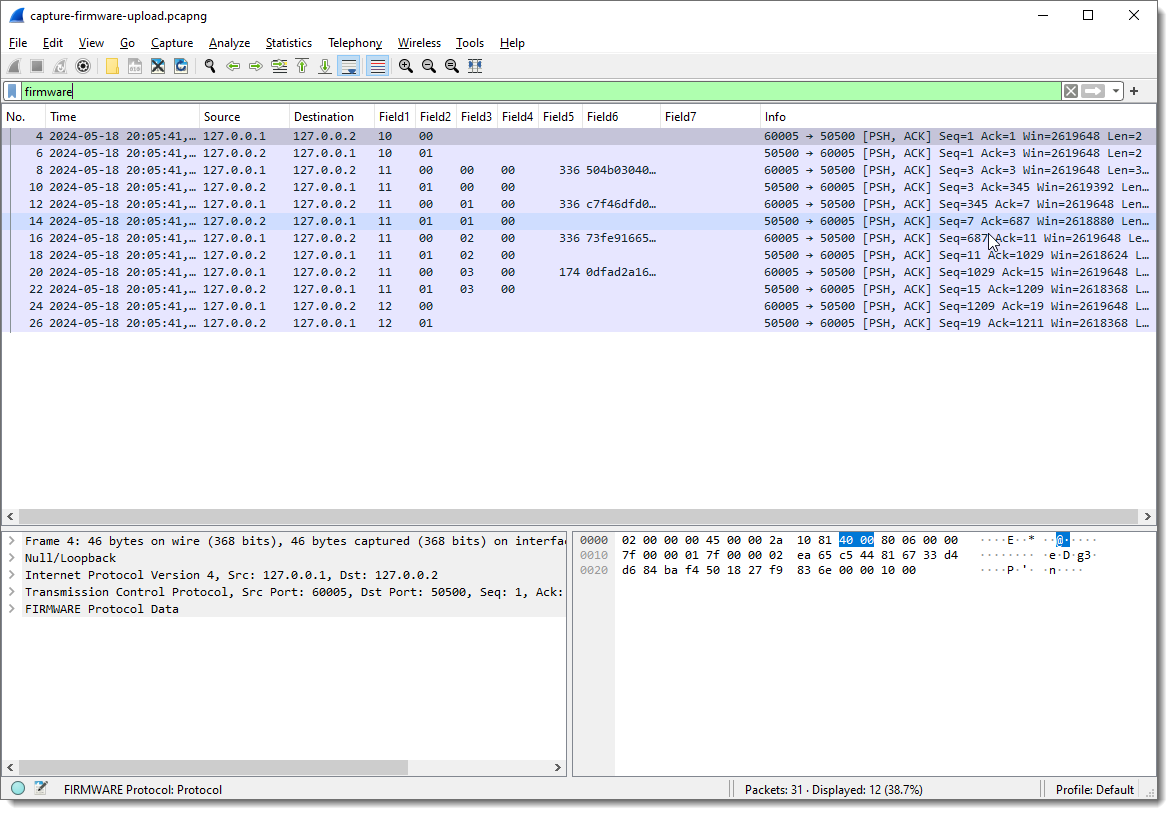
And I apply display filter “firmware” (the name I gave to the protocol I’m reversing) to see only packets with protocol data:
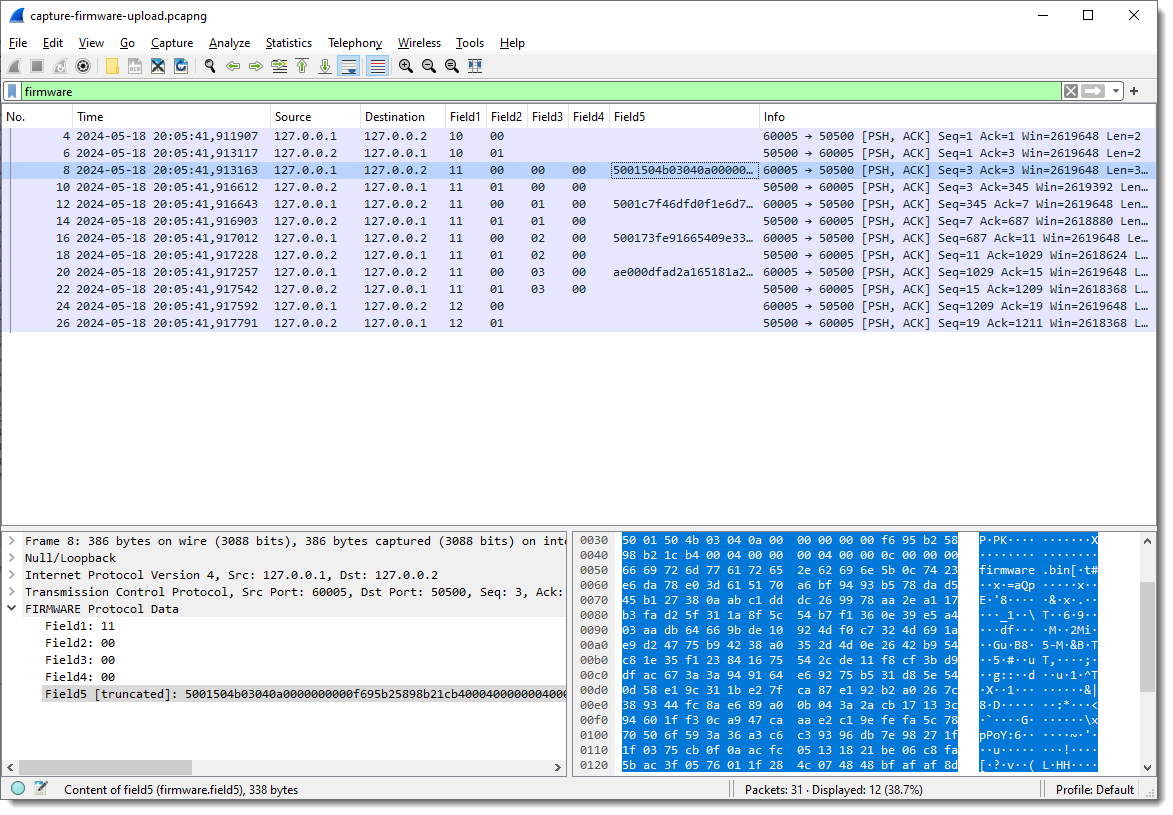
Now I can start to see some patterns.

Field1 has values 10, 11 and 12. Remark that each field’s type is “bytes”, so this is hexadecimal. These are not numbers/integers, but bytes (I can change that later).

Field2 is equal to 00 when the destination is 127.0.0.2 (the “server”), and equal to 01 when the destination is 127.0.0.1.

This can be verified with display filters (useful when there is a lot of data that doesn’t fit the screen like here).

If my assumption is correct, there shouldn’t be any packets with Field1 equal to 00 and destination 127.0.0.1. I confirm this with display filter “firmware.field2 == 00: and ip.dst == 127.0.0.1”:

And there shouldn’t be any packets with Field2 equal to 01 and destination 127.0.0.2. I confirm this with display filter “firmware.field2 == 01: and ip.dst == 127.0.0.2”:

And when Field1 is 10 or 12, no data follows Field2 (Field3 and following are empty). Fields Field3 and following are only populated when Field1 is 11.

This too can be checked with display filters, should there be a lot of data that doesn’t fit on a single screen.

This is one advantage of a prototyping dissector like this one: it allows me to check my assumptions directly in Wireshark with display filters.

If there is any remaining data after all defined fields have been populated, this dissector will populate the next field with the remaining data. As I defined the length for 4 fields, Field5 contains that remaining data.

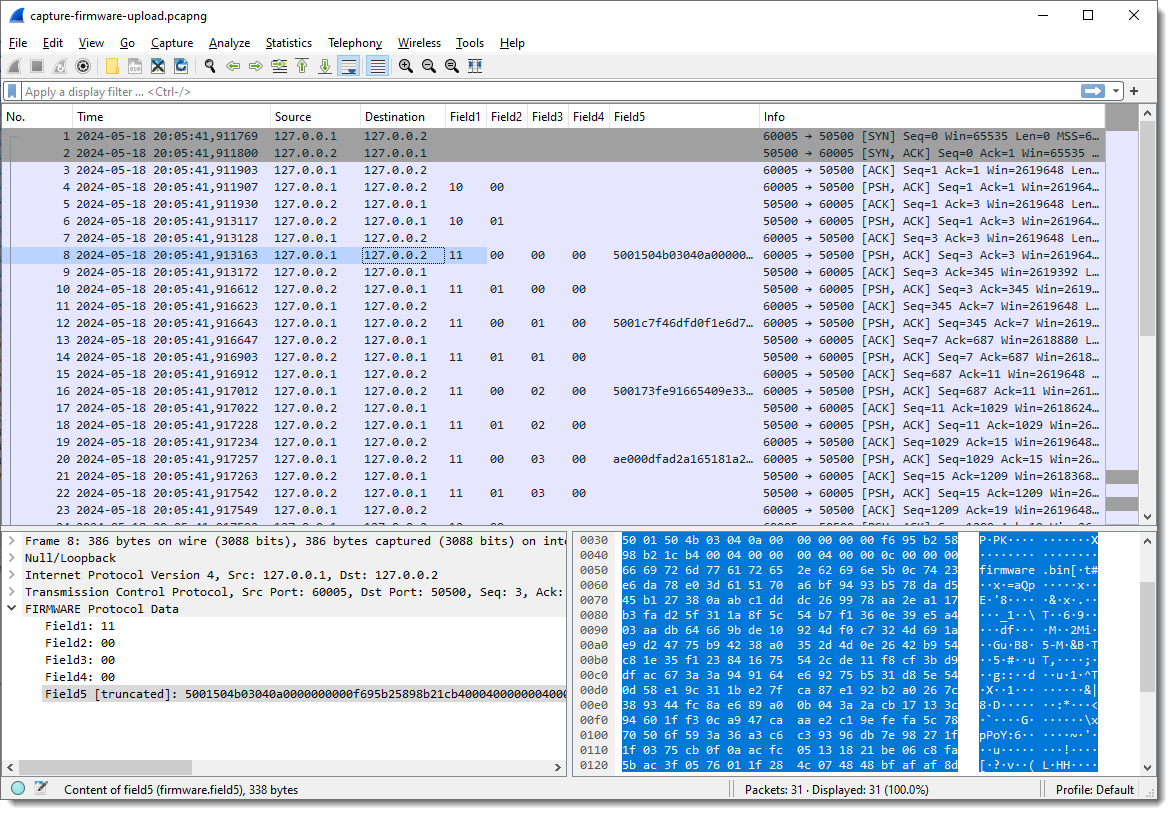
Taking a closer look at the data in field 5, I spot string PK: PK are the initials of Phil Katz, who invented the ZIP file format, and all ZIP records start with bytes 0x50 and 0x4B, e.g., PK:
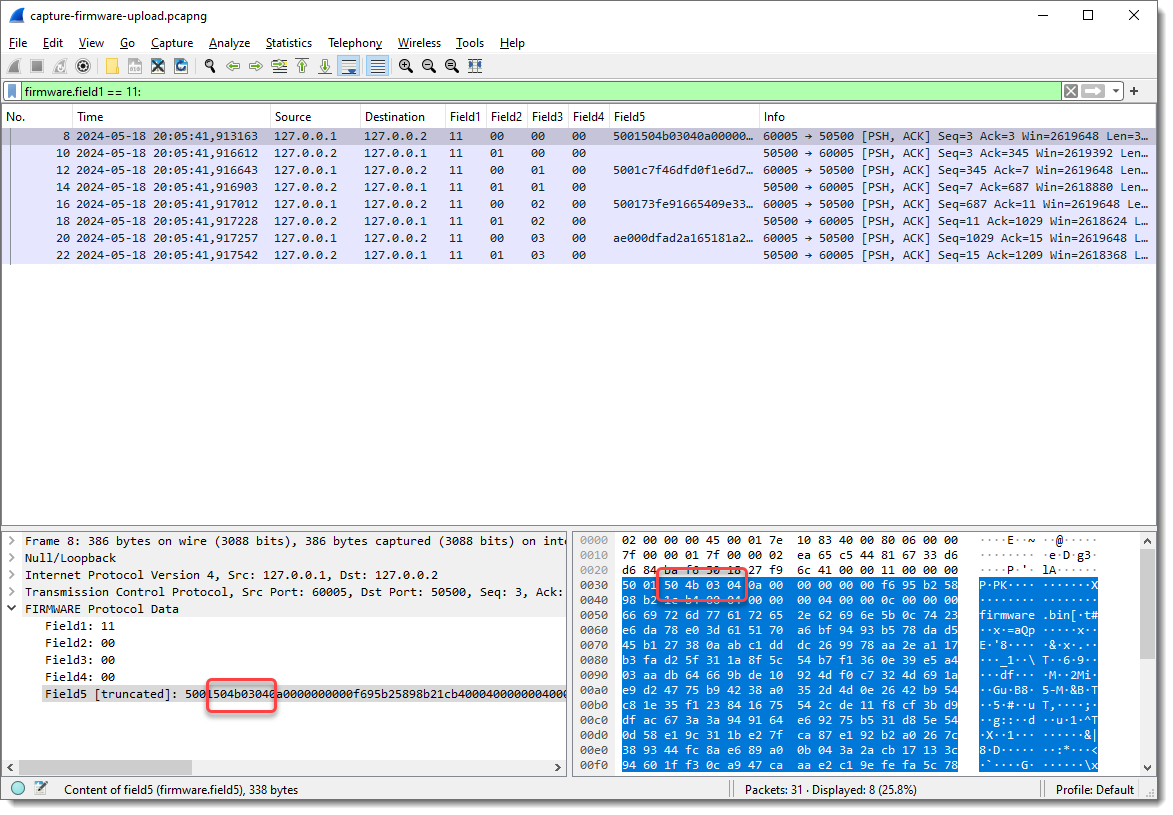
Byte sequence 50 4b 03 04 is the header of a ZIP File entry record. And if I look at the ASCII dump, I see “firmware.bin” about 30 bytes after PK. So this is very likely a ZIP file, and it is possible that the update protocol uses the ZIP file format. As there are 2 bytes preceding this PK header, I’m going to add 2 extra fields to capture these bytes, to check if that reveals another pattern.
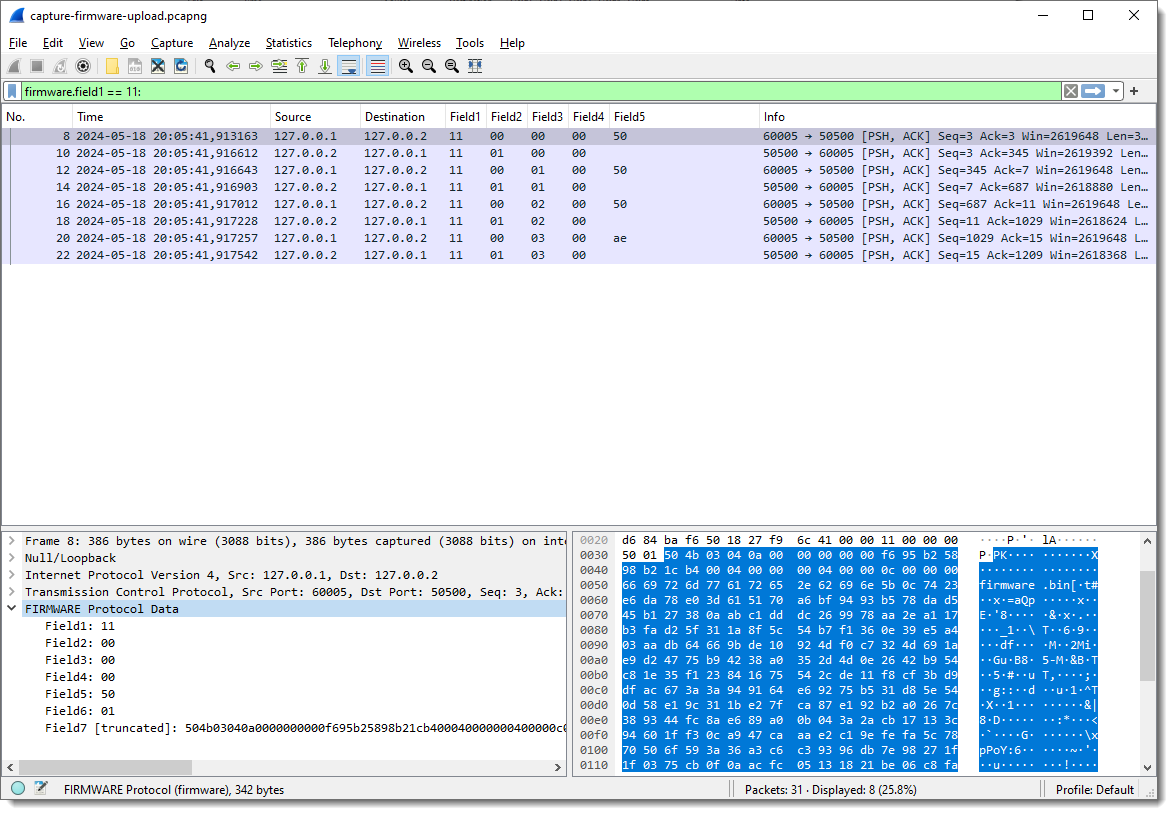
And now I need to add fields 6 and 7 as columns:
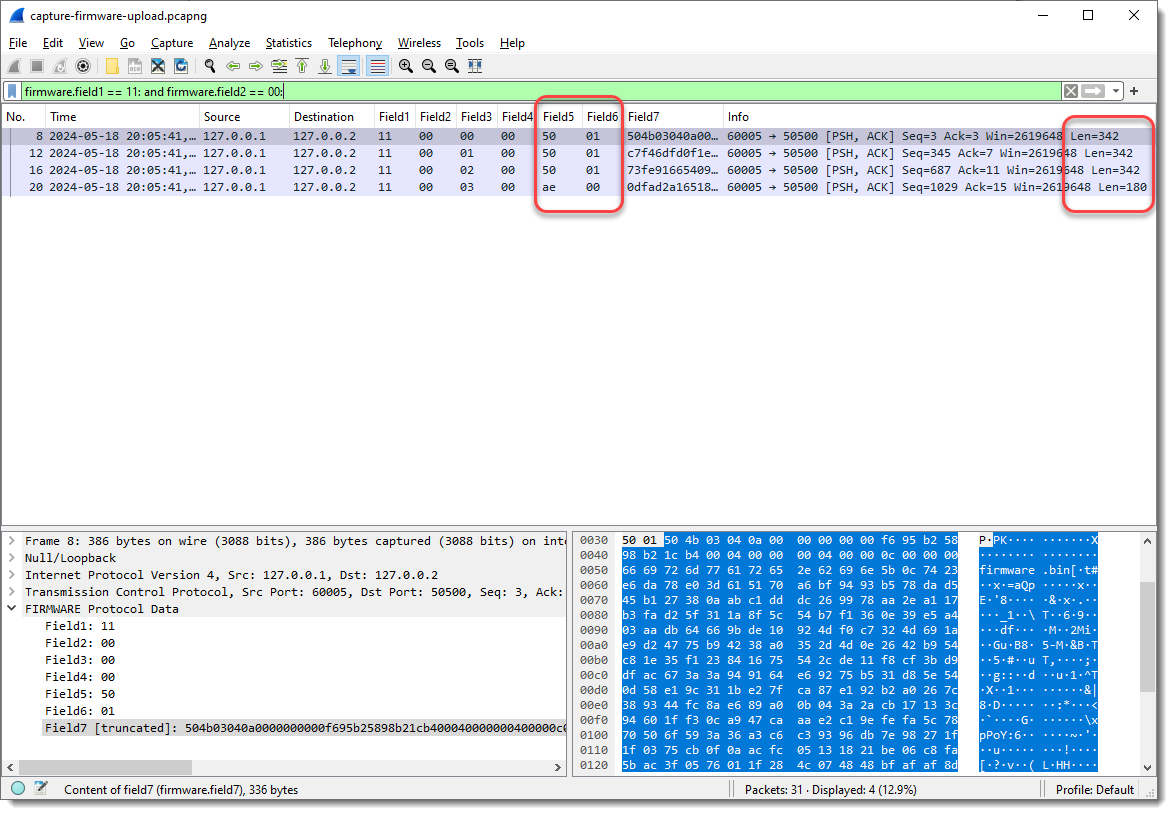
The first 3 combined values of Field5 and Field6 are the same (50 01), and the last is different (ae 00). When I take a look at the Len= value in the Info field, I see that it’s also the same for the first 3 packets, and different for the last. So Field5 and Field6 could represent the length of the data that follows. This is not uncommon in network protocols.

What I also notice, is that Field3 increases with 1 for each packet where Field1 is 11 and Field2 00:
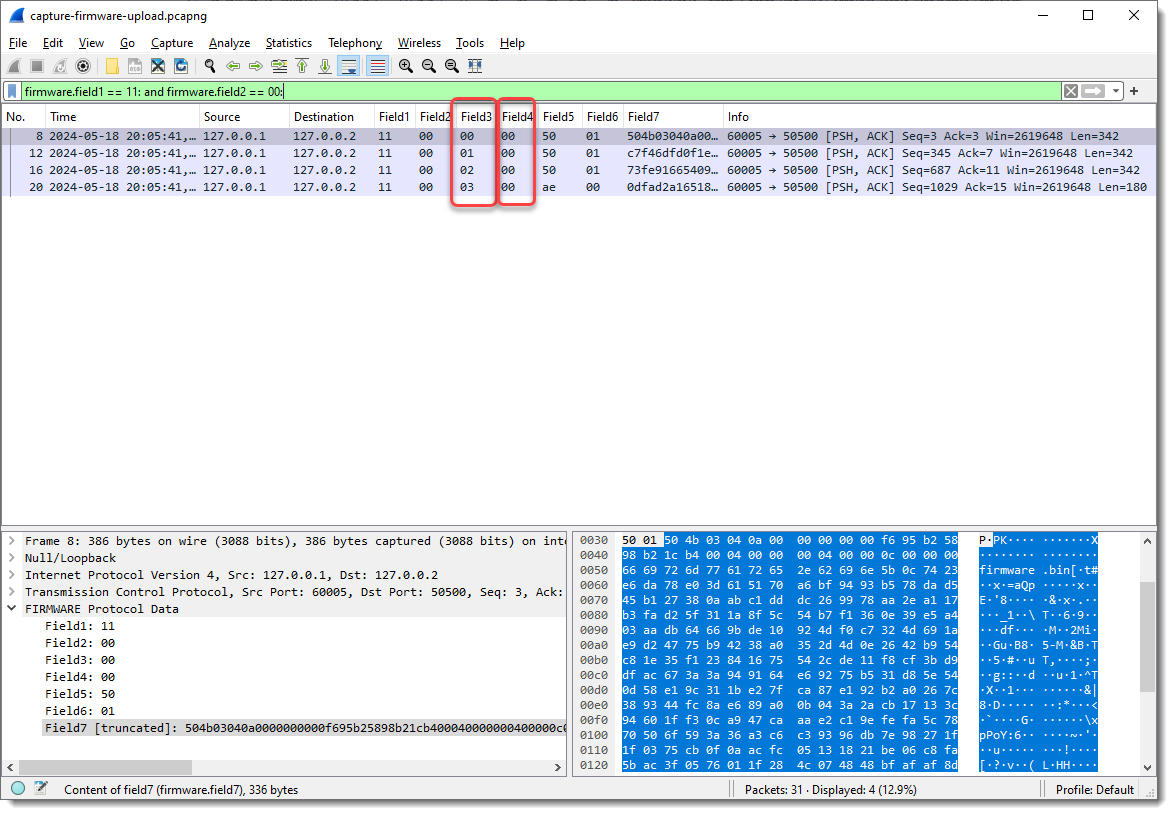
So Field3 could be a packet index, or counter, …

Let’s make some changes. I’m going to define Field5 as 2 bytes long, as it requires 2 bytes to encode lengths greater than 255 (like Len=342):
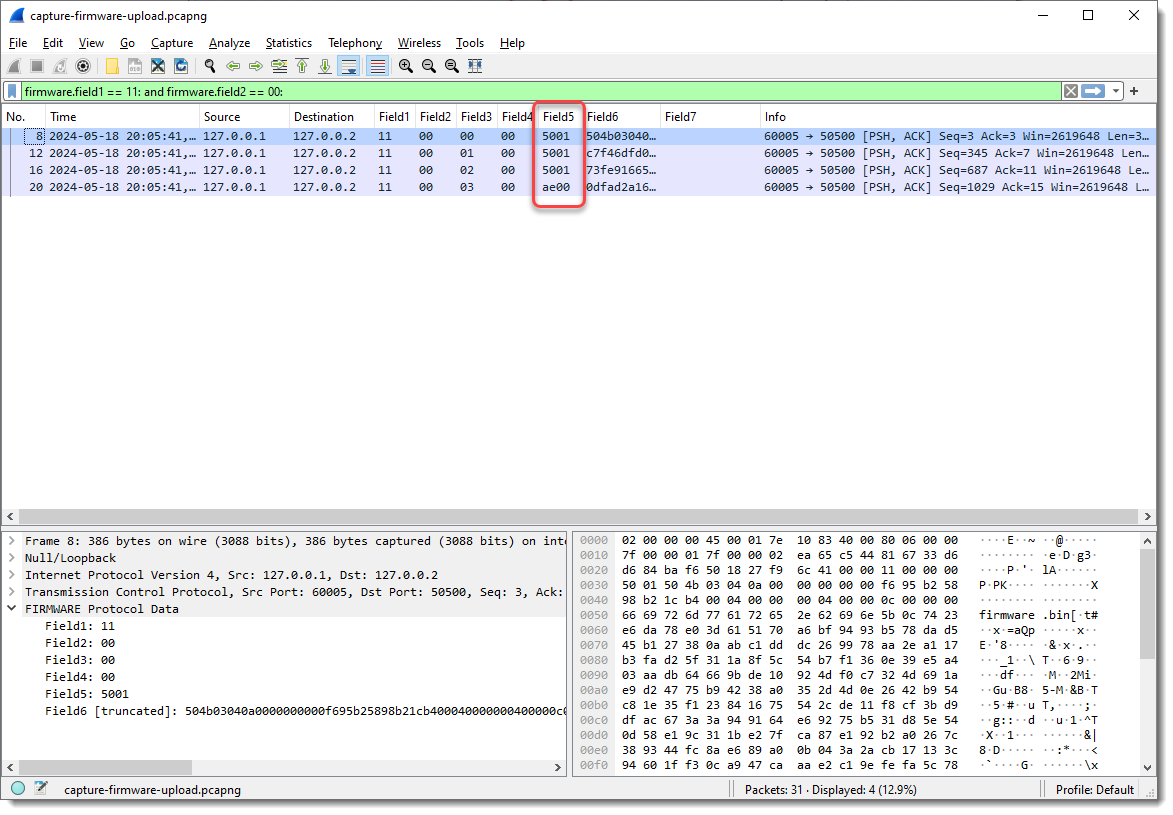
A length of 0x5001, that’s too large to be 342 in decimal. So this could be a little-endian integer: where the least significant bytes appear first. In my experience, network protocols often use big-endian integers, but there are many exceptions.

I can define Field5 to be interpreted as a little-endian integer (now it is just defined as a 2-byte sequence), by specifying the field size as follows: 2:L. (L stands for little-endian, and you can also use lowercase l). Unfortunately, specifying this via protocol preferences will have no effect, as field types have to be defined before the dissector is registered. So we need to specify this as a command-line argument, and once we specify the field lengths via the command-line, the field lengths defined via the protocol preferences are ignored.

I can do this with argument fieldlengths: -X lua_script1:fieldlengths:1,1,1,1,2:L

I remove Field7, as it is no longer populated (Field6 now contains the remainder of the data):
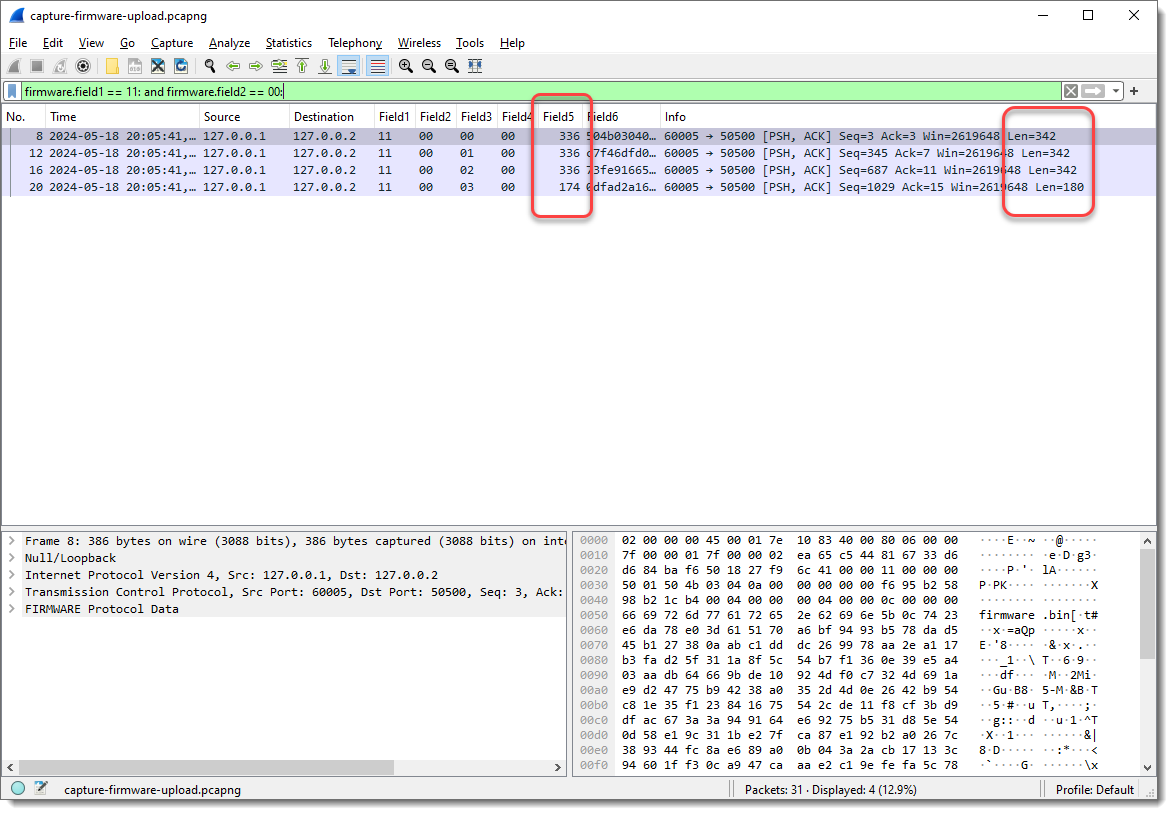
Field5 now has values 336 and 174. Compare this with the Len= info: 342 – 336 = 6 and 180 – 174 = 6. So Field5 is indeed a length field (little-endian 16-bit integer, probably unsigned), because 6 is the number of bytes that come before Field6: 1 + 1 + 1 + 1 + 2 = 6.

To summarize my assumptions:

  • Field1 indicates the type of data/command. 10 indicates the start of the upload, and 12 indicates the end of the upload, as these packets have no data (fields 3, 4, 5 and 6 are not populated)
  • Field2 indicates the direction, or is a request/response field
  • Field3 is a counter, specific for the upload packets, as it is only present with Field1 equal to 11 (upload command)
  • Field4 is always zero. It could have an unknown purpose, or it could be that the counter field is actually 2 bytes long, and also little-endian
  • Field5 is the length of the data for upload packets

I will now combine Field3 and Field4 into a little-endian integer, and remove Field5 as column (as the upload data will now become Field4), assuming the Field3 and Field4 are a counter (I would need more data, more than 256 upload packets, to be able to test this conclusively):

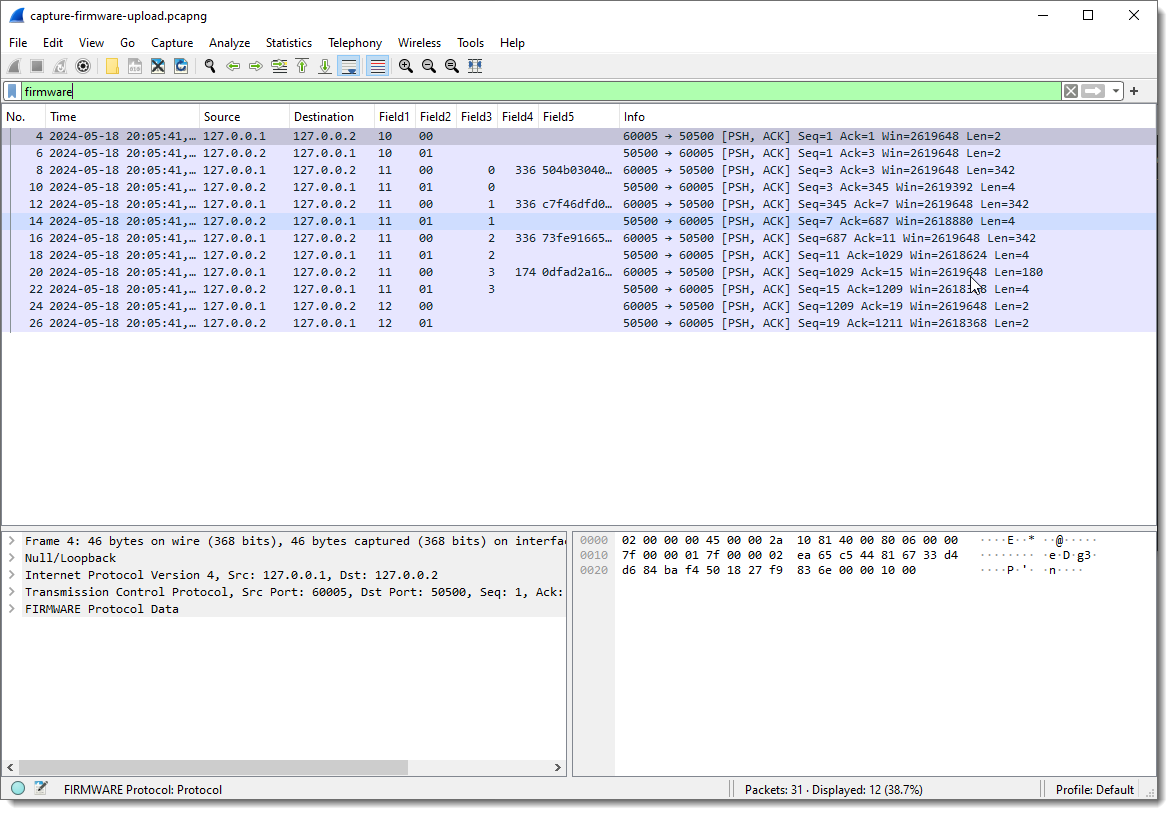
Talking about Field1, Field2, … is not descriptive, especially when we change sizes of fields and that the meaning of Field? changes. That’s one of the reason that I provide the ability to name Fields, but it also has to be done via a command-line argument: -X lua_script1:fieldnames:Function,Direction,Counter,DataLength,Data

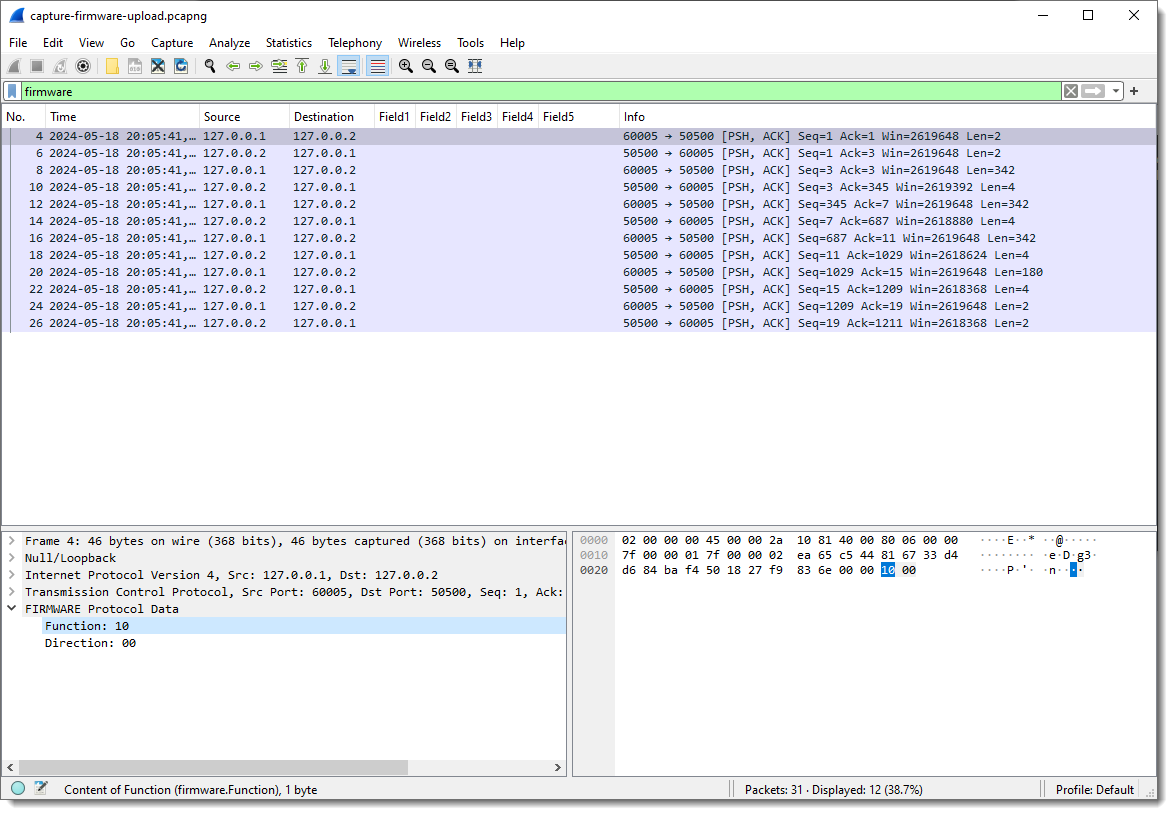
In the Packet List view, you see that Field1, Field2, … are no longer populated, and in the Packet Details view, you see fields Function and Direction.

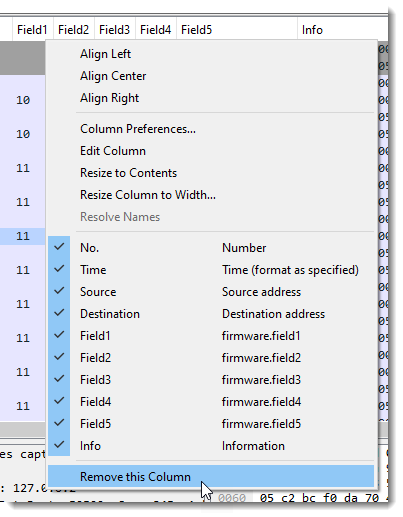
Since the field names have changed, I need to remove the columns of the old field names and add the new field names as columns:
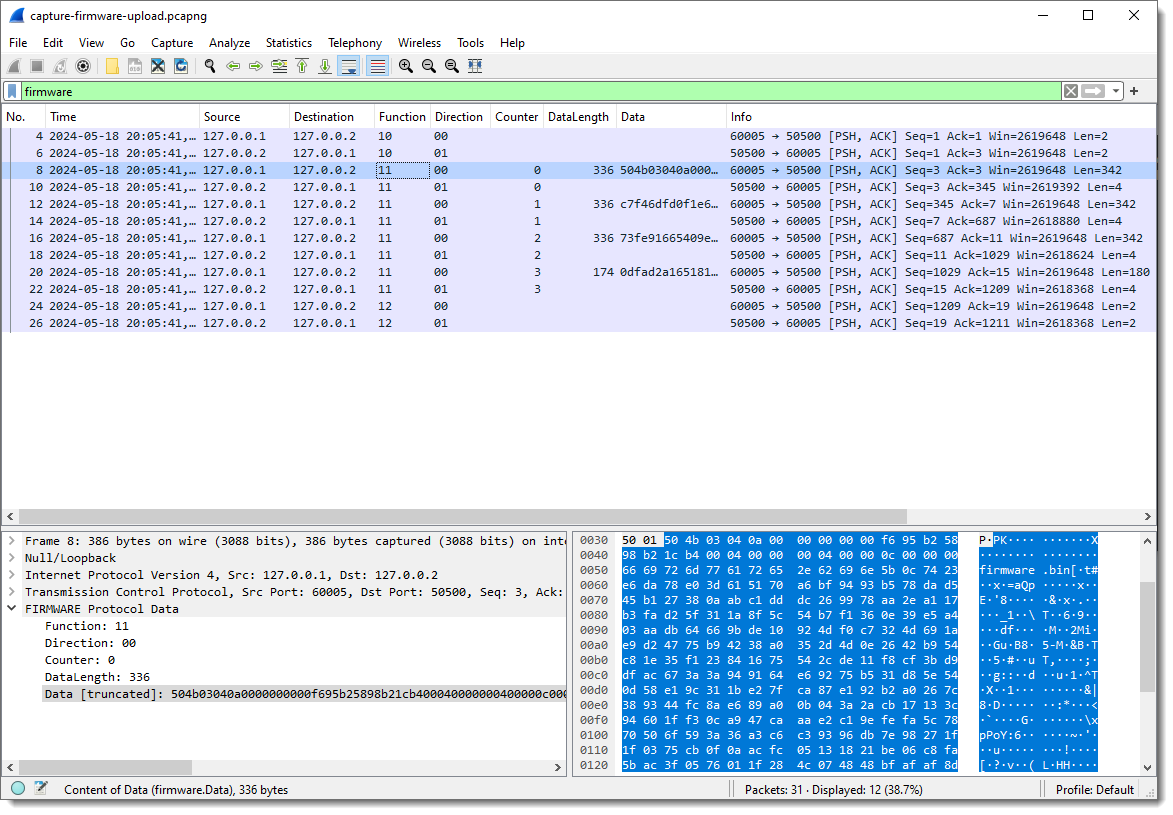
Finally, fields Function and Direction are byte field, but I can also make them integer fields by specifying that they are little-endian or big-endian: for single byte fields, endianness makes no sense at the byte level. If there is only one byte, there is no byte order. So it doesn’t make a difference if I specify 1:L or 1:B, in both case, the field will be interpreted as an integer.

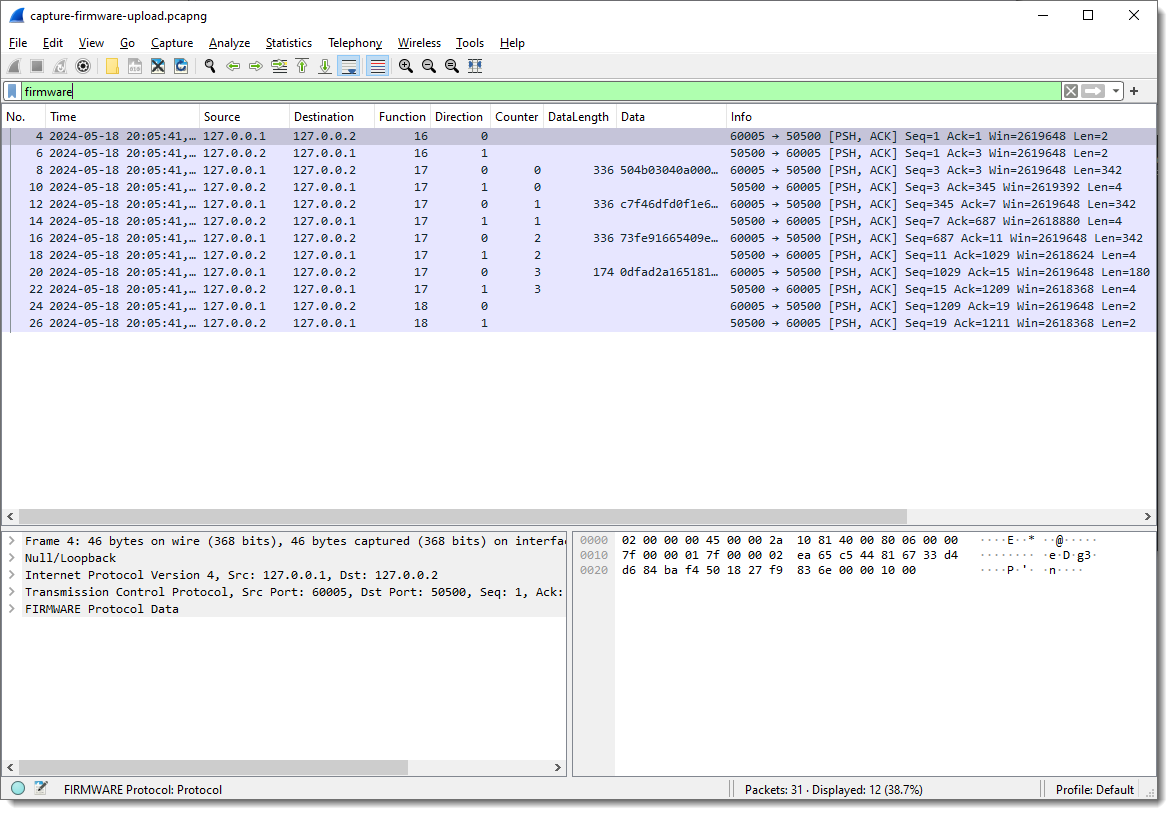
Notice that the values for Function and Direction are now displayed as decimal integers. It’s decimal because I hardcoded that in the dissector code. In later versions, I might also make this configurable.

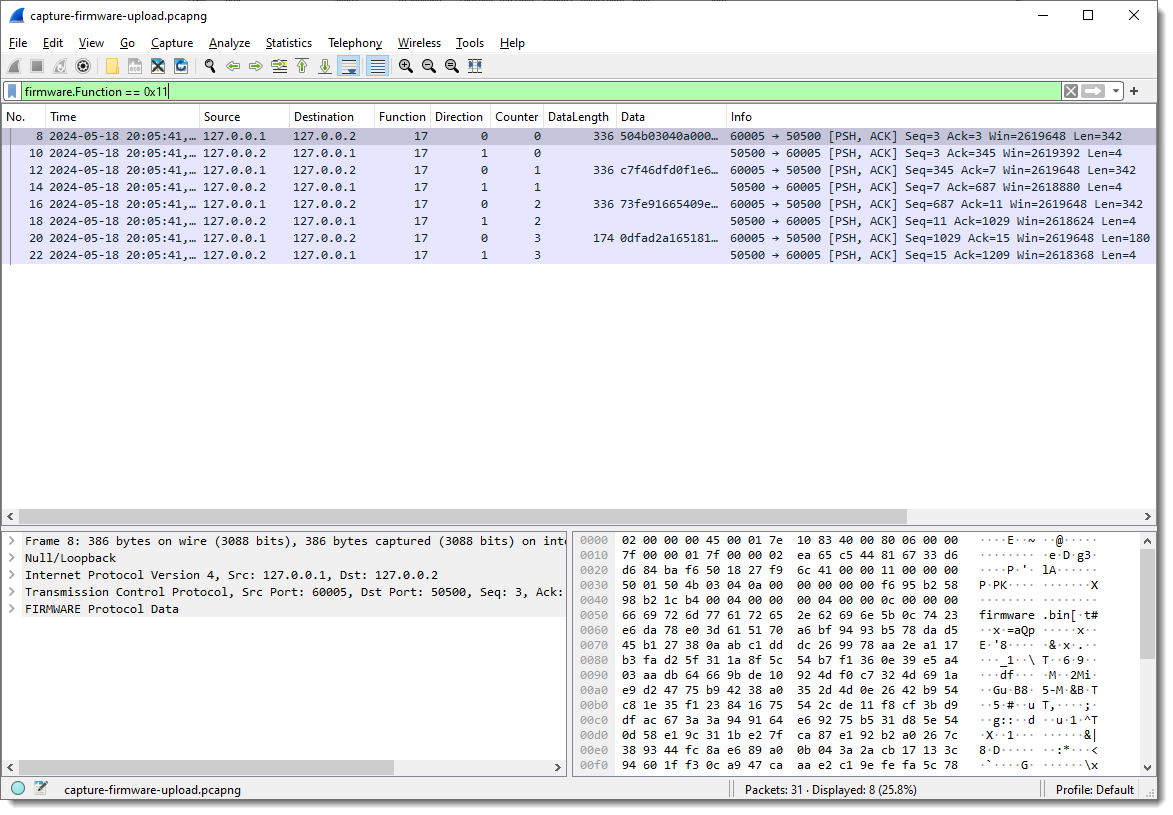
But you can still use hexadecimal values for display filters: firmware.Function == 0x11
How about extracting the data:
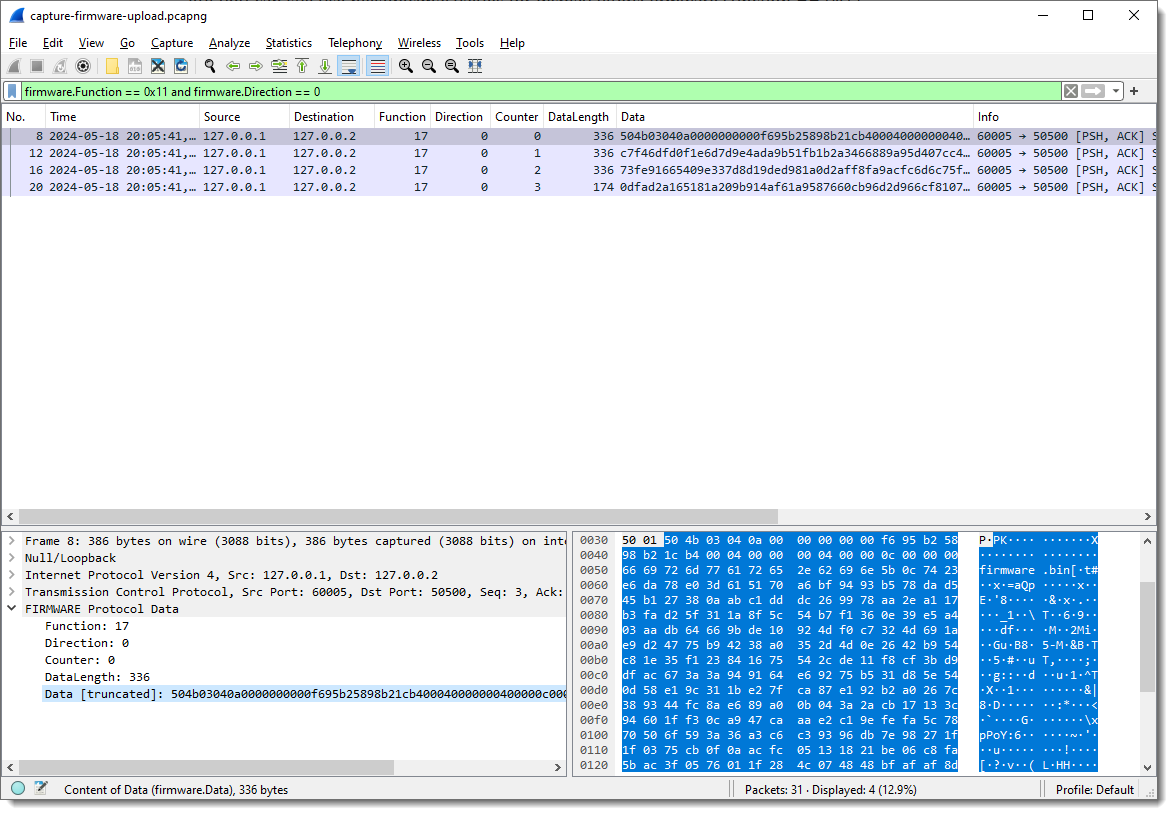
We just need to grab the Data fields. This is something I prefer to do from the command-line. Tshark is the command-line version of Wireshark. On Windows, it gets installed when you install Wireshark, while on Linux/Mac, it is a separate install.

It takes the same options as Wireshark, but the pcap file has to be provided as an option (-r) in stead of an argument:
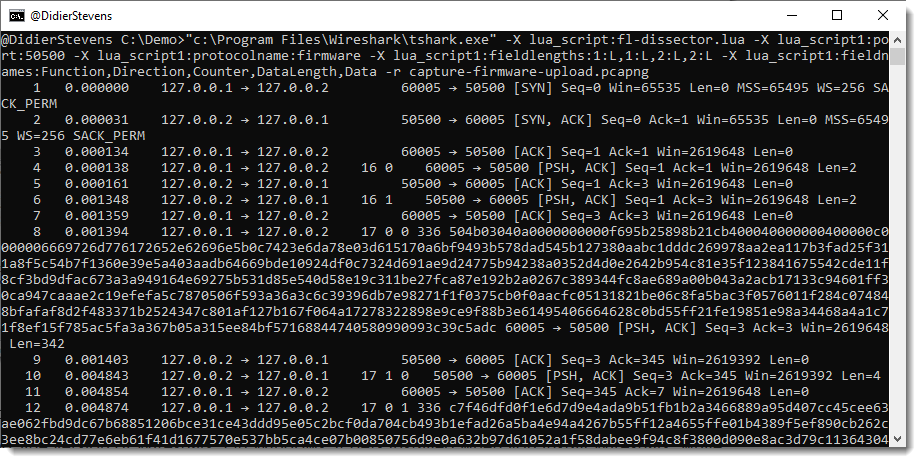
A display filter for tshark is provide via option -Y: -Y firmware.Function == 0x11 and firmware.Direction == 0
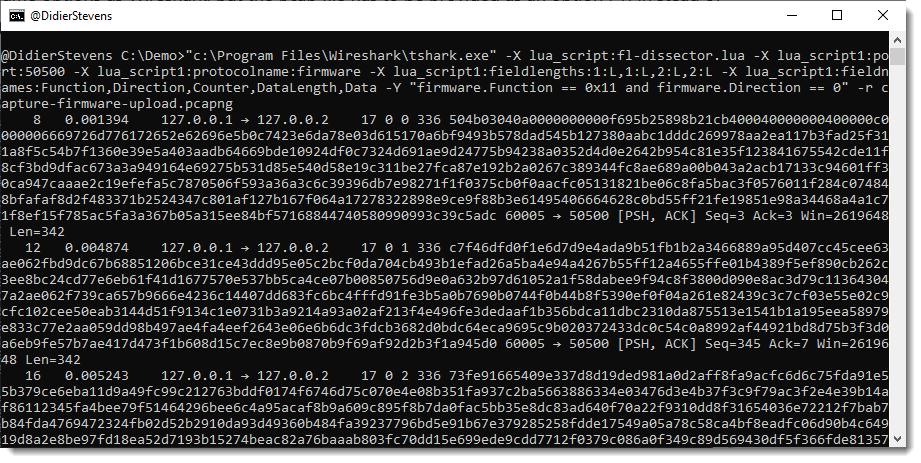
I just want the content of field firmware.Data as output, thus I use options -e and -F to select this field as output:
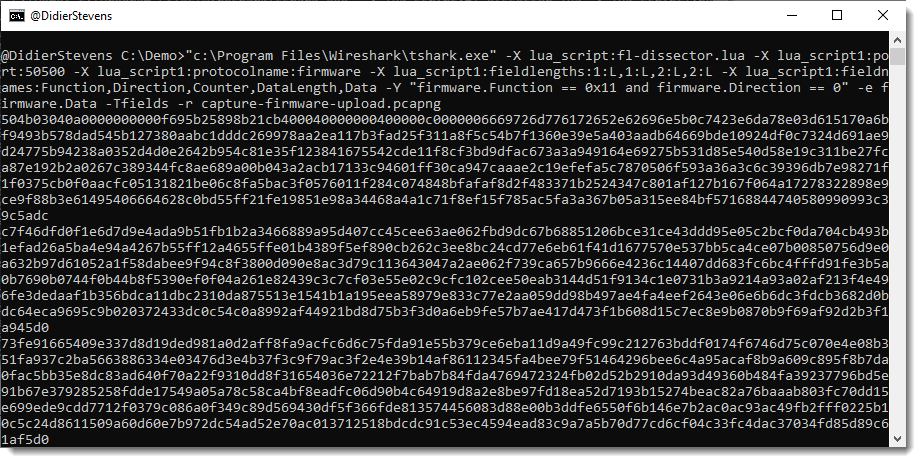
Now I can convert this hexadecimal data to binary with my tool hex-to-bin.py, and pipe that output into zipdump.py to check that it is indeed a ZIP file:
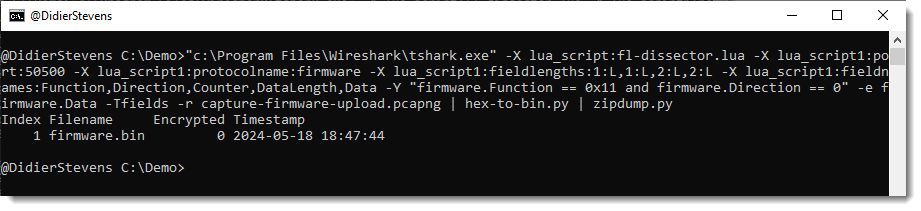
As there are no errors and zipdump.py displays a contained file, I can be quite sure that I managed to extract a valid ZIP file from this firmware upload.

A last check uses the find (-f) option to find and parse PK ZIP records, this would show if there is any extra data (there isn’t):
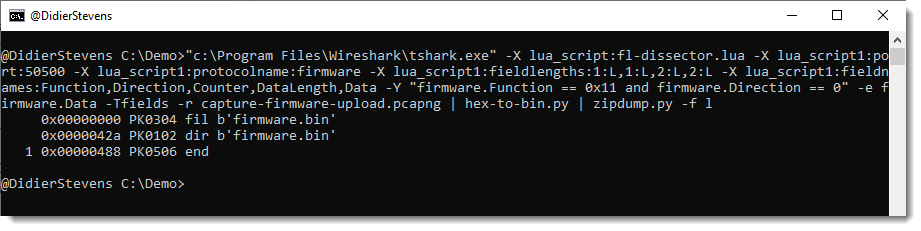
Monday 20 May 2024

Wireshark Lua Fixed Field Length Dissector: fl-dissector

Filed under: My Software,Networking,Reverse Engineering,Wireshark — Didier Stevens @ 11:58

I developed a Wireshark dissector (fl-dissector) in Lua to dissect TCP protocols with fixed field lengths. The dissector is controlled through protocol preferences and Lua script arguments.

The port number is an essential argument, if you don’t provide it, default port number 1234 will be used.

Example for TCP port 50500: -X lua_script1:port:50500.

The protocol name (default fldissector) can be changed with argument protocolname: -X lua_script1:protocolname:firmware.

The length of the fields can be changed via the protocol preferences dialog:

Field lengths are separated by a comma.

Field lengths can also be defined by Lua script argument fieldlengths, like this: -X lua_script1:fieldlengths:1,1,2:L,2:L.

When field lengths are defined via a Lua script argument, this argument takes precedence over the settings in the protocol preferences dialog. fieldlengths can also specify the field type, but only via Lua script argument, not via protocol preferences (this is due to a Lua script dissector design limitation: protocol preferences can only be read after dissector initialization, and fields have to be defined before dissector initialization). Field types are defined like this: length:type. Type can be L (or l) and defines a little-endian integer, or B (or b) and defines a big-endian integer. The length of the integer (8, 16, 24 or 32 its) is inferred from the fieldlength. Fields without a defined type ate byte fields.

The length of the last field is not specified, it contains all the remaining bytes (if any).

Field names are specified with Lua script argument fieldnames: -X lua_script1:fieldnames:Function,Direction,Counter,DataLength,Data.

fl_dissector_V0_0_1.zip (http)
MD5: F3DDC28F8D470DC4F9037644D3AF919A
SHA256: BF7406BCD36334E326BF4A6650DECD1D955EB4BD9D9563332AA4AE38507B29D4

Wednesday 22 June 2022

Examples Of Encoding Reversing

Filed under: Forensics,Malware,Reverse Engineering — Didier Stevens @ 15:08

I recently created 2 blog posts with corresponding videos for the reversing of encodings.

The first one is on the ISC diary: “Decoding Obfuscated BASE64 Statistically“. The payload is encoded with a variation of BASE64, and I show how to analyze the encoded payload to figure out how to decode it.

And this is the video for this diary entry:

And on this blog, I have another example, more complex, where the encoding is a variation of hexadecimal encoding, with some obfuscation: “Another Exercise In Encoding Reversing“.

And here is the video:

Monday 20 June 2022

Another Exercise In Encoding Reversing

Filed under: Forensics,Malware,Reverse Engineering — Didier Stevens @ 23:50

I also recorded a video for this blog post.

In this blog post, I will show how to decode a payload encoded in a variation of hexadecimal encoding, by performing statistical analysis and guessing some of the “plaintext”.

I do have the decoder too now (a .NET assembly), but here I’m going to show how you can try to decode a payload like this without having the decoder.

The payload looks like this:

Seeing all these letters, I thought: this is lowercase Netbios Name encoding. That is an encoding where each byte is represented by 2 hexadecimal characters, but the characters are all letters, in stead of digits and letters. Since my tool base64dump.py can handle netbios name encoding, I let it try all encodings:

That failed: no netbios encoding was found. Only base64 and 2 variants of base85, but that doesn’t decode to anything I recognize. Plus, for the last 2 decodings, only 17 unique characters were found. That makes it very unlikely that it is indeed base64 or base85.

Next I use my tools byte-stats.py to produce statistics for the bytes found inside the payload:

There are 17 unique bytes used to encode this payload. The ranges are:

  • abcdef
  • i
  • opqrstuvw
  • y

This is likely some form of variant of hexadecimal encoding (16 characters) with an extra character (17 in total).

To analyze and try to decode this, I’m making a custom Python program based on my Python template for processing binary files.

You will find this default processing code in the template:

I am replacing this default code with the following code (I will post a link to the complete program at the end of this blog post):

The content of the file is in variable data. These are bytes.

Since I’m actually dealing with letters only, I’m converting these bytes to characters and store this into variable encodedpayload.

The next piece of code, starting with “data = []” and ending with “data = bytes(data)”, will read two characters from the encodedpayload, and try to convert them from an hexadecimal byte to a byte. If that fails (ValueError), that pair of characters is just ignored.

And then, the last statement, I do an hexadecimal/ascii dump of the data that I was able to convert. This gives me the following:

That doesn’t actually make me any wiser.

Looking at the statistics produced by byte-stats.py, I see that there are 2 letters that appear most frequently, around 9% of the time: d and q.

I do know that the payload is a Windows executable (PE file). PE files that are not packed, contain a lot of NULL bytes. Character 0 is by far the most frequent when we do a frequency analysis of the hexadecimal representation of a “classic” PE file. It often has a frequency of 20% or higher.

That is not the case here for letters d and q. So I don’t know which letter represents digit 0.

Let’s make a small modification to the program, and represent each pair of characters that couldn’t be decoded as hexadecimal, by a NULL byte (data.append(0):

This code produces the following output:

And that is still not helpful.

Since I know this is a PE file, I know the file has to start with the letters MZ. That’s 4D5A in hexadecimal.

The encoded payload starts with ydua. So let’s assume that this represents MZ (4D5A in hexadecimal), thus y is 4, d is d, u is 5 and a is a.

I will now add a small dictionary (dSubstitute) with this translation, and add code to do a search and replace for each of these letters (that’s the for loop):

This code produces the following output:

Notice that apart from MZ, letters DO also appear. DO is 444F in hexadecimal, and is part of the well-known string found at the beginning of (most) PE files: !This program cannot be run in DOS mode

I will know use this string to try to match more letters with hexadecimal digits (I’m assuming the PE file contains this string).

I add the following lines to print out string “!This program cannot be run in DOS mode” in hexadecimal:

This results in the following output:

Notice that the letter T is represented as 54 in hexadecimal. Hexadecimal digits 5 and 4 are part of the digits we already decoded. 5 is u and and 4 is y.

I add code to find the position of the first occurrence of string uy inside the encoded payload:

And this is the output:

Position 86. That’s at the beginning of the payload, so it’s possible that I have found the location of the encoded string “!This program cannot be run in DOS mode”.

I will now add code that does the following: for each letter of the encoded string, I will lookup the corresponding hexadecimal digit in the hexadecimal representation of the unencoded string, and add this decoding pair to the dictionary. If the letter that I add to the dictionary is already present in the dictionary, I compare the stored hexadecimal digit for that letter with the one I looked up, and if they are different, I generate an exception. Because if that happens, I don’t have a one-to-one relationship, and my hypothesis that this is a variant of hexadecimal, is wrong. This is the extra code:

After completing the dictionary, I do a return. I don’t want to do the decoding yet, I just want to make sure that no exception is generated by finding 2 different hexadecimal digits. This is the output:

No exception was thrown: we have a one-to-one relationship.

Next I add 2 lines to see how many and what letters I have inside the dictionary:

This is the output:

That is 14 letters (we have 17 in total). That’s a great result.

I remove the return statement now, to let the decoding take place:

Giving this result:

That is a great result. Not only do I see strings MZ and “!This program cannot be run in DOS mode”, but also PE, .text, .data, .rdata, …

I am now adding code to see which letters I’m still missing:

Giving me this output:

The letters I still need to match to hexadecimal digits are: b, c and q.

I want to know where these letters are found inside the partially decoded payload, and for that I add the following code:

Giving me this result:

The letter q appears very soon: as the 6th character.

Let’s compare this with the start of another, well-known PE file: notepad.exe:

So notepad.exe starts with 4d5a90000300000004

And the partially decoded payload starts with: 4d5a9q03qq04

Let’s put that right under each other:

4d5a90000300000004

4d5a9q03qq04

If I replace q with 000, I match the beginning of notepad.exe.

4d5a90000300000004

4d5a90000300000004

I add this to the dictionary:

And run the program:

That starts to look like a completely decoded PE file.

But I still have letters b and c.

I’m adding some code to see which hexadecimal characters are left unpaired with a letter:

Output:

Hexadecimal digits b and c have not been paired with a letter.

Now, since a translates to a, d to d, e to e and f to f, I’m going to guess that b translates to b and c to c.

I’m adding code to write the decoded payload to disk:

And after running one more time my script, I’m using my tool pe-check.py to validate that I have indeed a properly decoded PE file:

This looks good.

From the process memory dump I have for this malware, I know that I’m dealing with a Cobalt Strike beacon. Let’s check with my 1768.py tool:

This is indeed a Cobalt Strike beacon.

The encoding that I reversed here, is used by GootLoader to encode beacons. It’s an hexadecimal representation, where the decimal digits have been replaced by letters other that abcdef. With an extra twist: while letter v represents digit 0, letter q represent digits 000.

The complete analysis & decoding script can be found here.

Saturday 30 April 2022

Quickpost: Machine Code Infinite Loop

Filed under: Reverse Engineering — Didier Stevens @ 8:04

Someone asked me what the byte sequence is for an infinite loop in x86 machine code (it’s something you could use while debugging, for example).

That byte sequence is just 2 bytes long: EB FE.

It’s something you can check with nasm, for example.

File jump-infinite-loop.asm:

BITS 32

loop1:
    jmp loop1
loop2:
    jmp short loop2
    jmp $
    jmp short $
    jmp short -2

nasm jump-infinite-loop.asm -l jump-infinite-loop.lst

File jump-infinite-loop.lst:

     1                                  BITS 32
     2                                  
     3                                  loop1:
     4 00000000 EBFE                        jmp loop1
     5                                  loop2:
     6 00000002 EBFE                        jmp short loop2
     7 00000004 EBFE                        jmp $
     8 00000006 EBFE                        jmp short $
     9 00000008 EB(FE)                      jmp short -2

Quickpost info

Friday 22 October 2021

New Tool: cs-decrypt-metadata.py

Filed under: Announcement,Encryption,My Software,Reverse Engineering — Didier Stevens @ 0:00

cs-decrypt-metadata.py is a new tool, developed to decrypt the metadata of a Cobalt Strike beacon.

An active beacon regularly checks in with its team server, transmitting medata (like the AES key, the username & machine name, …) that is encrypted with the team server’s private key.

This tool can decrypt this data, provided:

  1. you give it the file containing the private (and public) key, .cobaltstrike.beacon_keys (option -f)
  2. you give it the private key in hexadecimal format (option -p)
  3. the private key is one of the 6 keys in its repository (default behavior)

I will publish blog posts explaining how to use this tool.

Here is a quick example:

cs-decrypt-metadata_V0_0_1.zip (https)
MD5: 31F94659163A6E044A011B0D82623413
SHA256: 50ED1820DC63009B579D7D894D4DD3C5F181CFC000CA83B2134100EE92EEDD9F

Saturday 7 November 2020

1768 K

Filed under: My Software,Reverse Engineering — Didier Stevens @ 0:00

According to Wikipedia, 1768 Kelvin is the melting point of the metal cobalt.

This tool decodes and dumps the configuration of Cobalt Strike beacons.

You can find a sample beacon here.

1768_v0_0_3.zip (https)
MD5: 73DB2E96EE5B6427AF6CCE2672F91CB2
SHA256: C06850A132B89F5E8C127E43FD5CC42051706CDF058EB2D688BC8BD3043E6E02

Saturday 10 October 2020

Quickpost: 4 Bytes To Crash Excel

Filed under: Hacking,Quickpost,Reverse Engineering — Didier Stevens @ 0:00

A couple of years ago, while experimenting with SYLK files, I created a .slk file that caused Excel to crash.

When you create a text file with content “ID;;”, save it with extension .slk, then open it with Excel, Excel will crash.

Microsoft Security Response Center looked at my DoS PoC last year: the issue will not be fixed. It is a “Safe Crash”, Excel detects the invalid input and calls MsoForceAppExitIf to terminate the Excel process.

If you have Excel crashing with .slk files, then look at the first line. If you see something like “ID;;…”, know that the absence of characters between the semi-colons causes the crash. Add a letter, or remove a semi-colon, and that should fix the issue.


Quickpost info


Saturday 27 April 2019

Update: format-bytes.py Version 0.0.8

Filed under: My Software,Reverse Engineering,Update — Didier Stevens @ 9:42

This new version of format-bytes.py (a tool to decompose structured binary data with format strings) brings a couple of new features.

Format strings can now be stored in libraries: you can store often used format strings (option -f) in text files and refer to them for using with format-bytes.py. A library file has the name of the program (format-bytes) and extension .library. Library files can be placed in the same directory as the program, and/or the current directory.
A library file is a text file. Each format string has a name and takes one line: name=formatstring.

Example:
eqn=<HIHIIIIIBBBBBBBBBB40sIIBB*:XXXXXXXXXXXXXXXXXXsXXXX

This defines format string eqn. It can be retrieved with option -f name=eqn.
This format string can be followed by annotations (use a space character to separate the format string and the annotations):

Example:
eqn=<HIHIIIIIBBBBBBBBBB40sIIBB*:XXXXXXXXXXXXXXXXXXsXXXX 1: size of EQNOLEFILEHDR 9: Start MTEF header 14: Full size record 15: Line record 16: Font record 19: Shellcode (fontname)

A line in a library file that starts with # is a comment and is ignored.

Format strings inside a library can be used with option -f. For example, to use format string eqn1, you use option -f name=eqn1. You prefix the format string name with “name=”, like in this example:

Option -s can also take value r now, to select the remainder: -s r. Like this:

The FILETIME format has been added. To use it explicitly, use representation format T.

And finally, with option -F (Find), you can search for values inside a binary file. For the moment, only integers can be searched. Start the option value with #i# followed by the decimal number to search for.

Example:

format-bytes_V0_0_8.zip (https)
MD5: 22F216C2304434A302B0904A9D4AF1FE
SHA256: A38D9B57DDB23543E2D462CD0AF51A4DCEDA1814CF9EAD315716D471EAACEF19

Saturday 20 April 2019

Extracting “Stack Strings” from Shellcode

Filed under: Malware,My Software,Reverse Engineering — Didier Stevens @ 0:00

A couple of years ago, I wrote a Python script to enhance Radare2 listings: the script extract strings from stack frame instructions.

Recently, I combined my tools to achieve the same without a 32-bit disassembler: I extract the strings directly from the binary shellcode.

What I’m looking for is sequences of instructions like this: mov dword [ebp – 0x10], 0x61626364. In 32-bit code, that’s C7 45 followed by one byte (offset operand) and 4 bytes (value operand).

Or: C7 45 10 64 63 62 61. I can write a regular expression for this instruction, and use my tool re-search.py to extract it from the binary shellcode. I want at least 2 consecutive mov … instructions: {2,}.

I’m using option -f because I want to process a binary file (re-search.py expects text files by default).

And I’m using option -x to produce hexadecimal output (to simplify further processing).

I want to get rid of the bytes for the instruction and the offset operand. I do this with sed:

I could convert this back to text with my tool hex-to-bin.py:

But that’s not ideal, because now all characters are merged into a single line.

My tool python-per-line.py gives a better result by processing this hexadecimal input line per line:

Remark that I also use function repr to escape unprintable characters like 00.

This output provides a good overview of all API functions called by this shellcode.

If you take a close look, you’ll notice that the last strings are incomplete: that’s because they are missing one or two characters, and these are put on the stack with another mov instruction for single or double bytes. I can accommodate my regular expression to take these instructions into account:

This is the complete command:

re-search.py -x -f "(?:\xC7\x45.....){2,}(?:(?:\xC6\x45..)|(?:\x66\xC7\x45...))?" shellcode.bin.vir | sed "s/66c745..//g" | sed "s/c[67]45..//g" | python-per-line.py -e "import binascii" "repr(binascii.a2b_hex(line))"
Next Page »

Blog at WordPress.com.