Ryan Goodings suggested I modify the header (starting_frequency and readings_per_sweep) of a band-pass filtered wsr file, to have Chanalyzer scale the filtered section. Here is the new version (use option –reduce), and this is the result:

Ryan Goodings suggested I modify the header (starting_frequency and readings_per_sweep) of a band-pass filtered wsr file, to have Chanalyzer scale the filtered section. Here is the new version (use option –reduce), and this is the result:

Another WiFi program: wsrtool.py This Python program allows you to process wsr files (capture files of the ISM spectrum, created by Chanalyzer with a Wi-Spy adapter).
The tool filters out selected frequencies or amplitudes (band-pass and band-stop filter).
You need to install the Python module Construct.
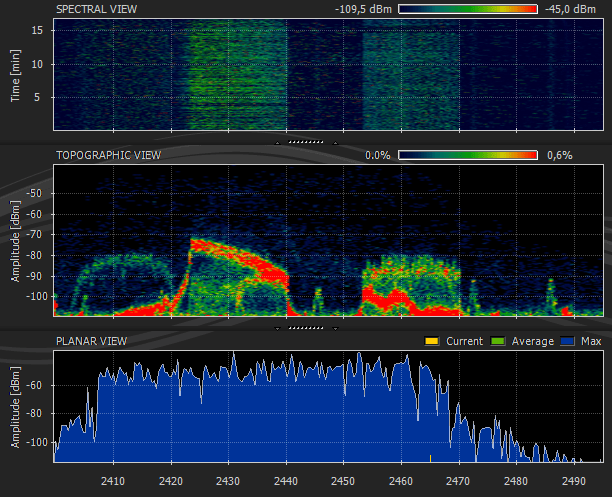
Here’s an unfiltered capture:

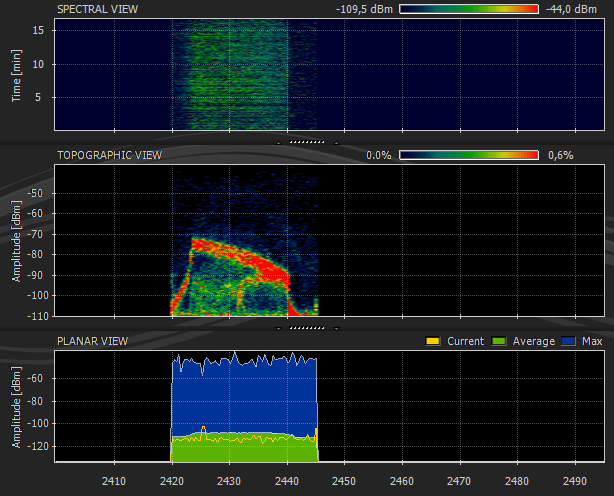
And here I used a band-pass filter with cutoff frequencies 2420 MHz and 2445 MHz:

I’ve updated my WhoAmI? Firefox add-on for version 3.
You can download it here or get it from the Mozilla site. It has remained in the Sandbox since my first post, but now I’ve nominated to leave the Sandbox. If you use it, please post a review on the Mozilla page to help it on its way out of the the Sandbox (or keep it there if it’s too buggy).
And now for the little puzzle: what is special about this other version of my WhoAmI? add-on?
So don’t get confused by these 2 versions:
Here is a new version of the Basic Process Manipulation Tool Kit (bpmtk).
Some noteworthy changes:
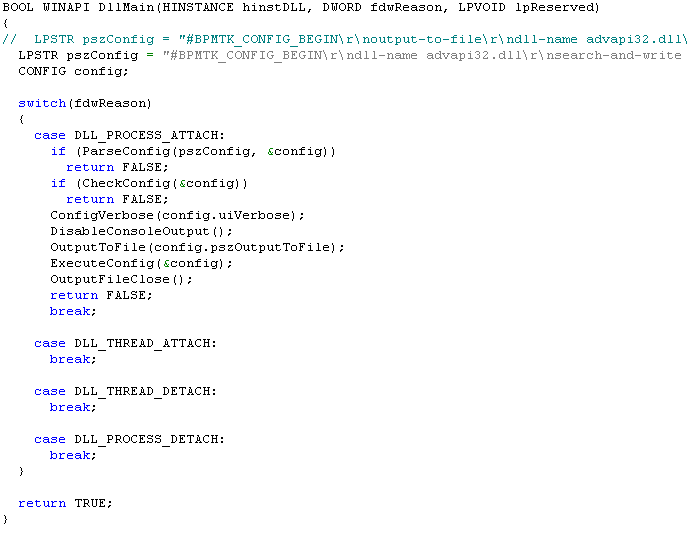
So now you can also load the bpmtk as a DLL in a process and it will execute its configuration. The configuration is embedded in the DLL as an ASCII string. To change the configuration, you’ve 2 options:

In my last bpmtk post, I argued that although whitelisting DLLs (supplementary to whitelisting EXEs) prevents my Excel macro from loading the embedded DLL, it would be far too difficult to build and maintain such a whitelist of DLLs. However, Cd-MaN commented with a technique to add DLL restrictions to the Software Restriction Policies without building an exhaustive DLL whitelist, the details are in his excellent blogpost (step 3).
In a nutshell, Cd-MaN configures SRP to restrict allowed DLLs to those found in the Windows and Programs Files directories (a restricted user is not allowed to write to these directories).
To bypass this SRP configuration with my Excel macro, I had to update it so that it would perform the process manipulation directly, in stead of doing this manipulation from within the embedded DLL. And here his how I did it:

The trick is to call WriteProcessMemory directly from within the script to disable SRP. Because I didn’t want to recode my search-and-write function from C to VBscript, I hardcoded the addresses to write to (this will only work for the specified version of advapi32.dll). The effect of these 2 WriteProcessMemory calls is to patch advapi32.dll inside the Excel process, thereby disabling SRP so that the embedded DLL is allowed to load (of course, now that SRP is disabled for Excel, I can also just start another program).
A new version of my bpmtk utility (with the DLL version of bpmtk.exe) will be posted soon.
As promised in my previous post, here is another Python program for the AirPcap adapter.
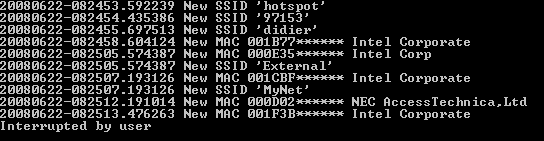
apc-pr-log parses the WiFi packets captured by the AirPcap adapter and logs all probe requests with a SSID. If you start the program without any option, it starts displaying every new MAC address (source address) and SSID captured while channel hopping:

(BTW, the MAC addresses and SSIDs in this screenshot are fake)
Every probe request is logged to file apc-pr-log.txt, except if the –nolog option is provided. A summary report is written to file apc-pr-log-report.txt for every full channel hopping cycle, and when the program is interrupted (CTRL-C). The channel hop interval is 0.5 seconds, and can be changed with the –interval option.
When the program is interrupted, the internal data is persisted to file apc-pr-log.pkl. The program can be resumed with the –resume option (this will read the previously persisted internal data from file apc-pr-log.pkl).
If you don’t want to see new MAC addresses displayed in the console, provide option –nonewclients. Likewise, use option –nonewssids to keep quiet about new SSIDs.
The last option is –exclude, this allows you to provide a list of MAC addresses and OUIs (as a text file) that should be excluded from displaying and reporting.
If you store the oui.txt file in the same directory as the apc-pr-log.py program, the program will use the OUI.txt file to display the organisations linked to the OUI.
Summary of the options:
--version show program's version number and exit
-h, --help show this help message and exit
-e, --nonewssids don't print new SSIDs
-c, --nonewclients don't print new clients
-r, --resume resume logging
-l, --nolog don't log each probe request
-x EXCLUDE, --exclude=EXCLUDE
file with clients/OUIs to exclude from display and
report
-i INTERVAL, --interval=INTERVAL
interval in seconds between channel hops
Here is a Python program to do WiFi channel hopping with an AirPcap adapter.
The program (apc-channel.py) takes 3 options:
The program also serves as an example on how to use the AirPcap dll from a Python program.
I’ve a couple of other AirPcap programs written in Python (like one to monitor probe requests). If there’s enough interest, I’ll clean up the code and publish it. Be aware that you need an AirPcap adapter for all these programs.
My latest bpmtk post got some people to ask me for the VBscript. I’ll do better, I’m posting the Python program I wrote to generate the script. You can download it here.
You have to provide it 2 arguments: the name of the executable to embed and the name of the VBscript to generate, like this:
file2vbscript cmd.exe cmd.vbs
This will generate a VBscript that will write cmd.exe to the current directory and execute it (create a new process). If you want to load a DLL in stead of executing an EXE, use the -l option:
file2vbscript -l mydll.dll mydll.vbs
And to use it in an Office application (Office VBA doesn’t take long subs), use the option -o:
file2vbscript -ol mydll.dll mydll.vbs
This will split the embedded file over several subs, to accommodate for the size limitation of Office VBscripts.
After having showed you how my Basic Process Manipulation Tool Kit can be used to bypass Software Restriction Policies, I wanted to follow this with a post showing how SRP whitelisting can prevent this. However, while preparing this new post, I got an idea how I could bypass SRP whitelists (under certain conditions), but I’ve no idea how to prevent this. I finally decided to post this without a solution, maybe you’ll come up with one.
With a SRP whitelist, starting a program is denied by default:

As an administrator, you’ve to explicitly specify the programs that are allowed to be executed by your users (if there are many programs, maintaining this whitelist becomes time consuming). Because of this whitelist, tools like gpdisable or bpmtk can’t be executed to disable SRP. However, if I can execute these tools without starting a new process, SRP will not block them …
Applications with embedded scripting can also be used to manipulate processes. For example, the scripting features of Microsoft Office allow you to call the system APIs I’ve been using in my bpmtk. It’s often not easy (even impossible) to convert a C program to VBscript, but I’ve a workaround.
First, we adapt our C program from an EXE to a DLL (entrypoint DllMain in stead of main), because VBscript can load a DLL.
We’ll use Excel’s scripting features. I’ve created an Excel spreadsheet that embeds a DLL that can be executed with a mouse-click:

The MyDLL dialog is displayed by the embedded DLL.
The DoIt button starts this Sub:

DoIt will create a temporary file (in the user’s temporary file folder), write the embedded DLL to it (DumpFile), and then load the DLL (LoadLibrary).
Generating the temporary filename:

Writing the embedded DLL to the temporary file:

Each DumpFileX sub writes bytes to the temporary file (the DLL is embedded in these subs by including the hex dump in strings). It’s necessary to split this over several subs, because of the sub size limitation.


Once the DLL is stored in the temporary file, we call LoadLibrary to load our library in the Excel process. And this executes our code inside the Excel process. Because of this, SRP will not deny it, and our code can disable SRP.

Creating temporary files and loading libraries is normal behavior for programs, SRP will not block this. Even most HIPS will not block this, because loading a library is not the same as injecting a DLL (injecting a DLL is loading a library inside another process). The only thing that might be considered abnormal by the HIPS, is that a temporary file is mapped into memory, but there are also legitimate programs that do this.
SRP has an option to whitelist DLLs, but then you’re facing the huge task of identifying and specifying all DLLs your programs use!
If you implement a SRP whitelist because you absolutely want to control the programs executed by your users, take some time to reflect on your users and the scripting capabilities of your whitelisted applications. And if you really have to prevent the technique I show here, you’ll have to find another solution than SRP whitelists. Unfortunately, I’ve not found one yet… If you’ve an idea, post a comment (banning applications with embedded scripting or disabling scripting is not an option).
After a rather long detour in PDF file format land, let’s pick up where we left the bpmtk.
My Basic Process Manipulation Tool Kit requires a configuration file with instructions to manipulate processes, like this one to start cmd.exe in a restricted environment:
start cmd.exe search-and-write module:. unicode:DisableCMD hex:41
Save this configuration in a text file, for example start-cmd.txt. And then start bpmtk with this file:
bpmtk start-cmd.txt
You can also embed this configuration file inside the bpmtk executable, like this:
bpmtk start-cmd.txt bpmtk-cmd.exe
This will create a copy of bpmtk.exe, called bpmtk-cmd.exe, with start-cmd.txt embedded as a resource (called BPMTK).
When you execute bpmtk-cmd.exe (without any arguments), the embedded script will be executed. Use this
trick if you often have to execute the same command, or if you have to execute bpmtk in an environment where you cannot provide an argument.