This new version of base64dump comes with the new –cut option.
base64dump_V0_0_3.zip (https)
MD5: CF214FDFE9B83E39DC8484C137050569
SHA256: 4F1B2764CCD40E0276FFC3F81E3C0B55E4C844D469C4E313A99FB13F0B5621C0
This new version of base64dump comes with the new –cut option.
base64dump_V0_0_3.zip (https)
MD5: CF214FDFE9B83E39DC8484C137050569
SHA256: 4F1B2764CCD40E0276FFC3F81E3C0B55E4C844D469C4E313A99FB13F0B5621C0
I added a new option to my different dump tools (oledump, emldump, base64dump, zipdump and the new rtfdump): the cut option. And I will also release a standalone cut tool.
This option allows you to cut out a part of a data stream. For example to extract a PE file hidden in a byte stream.
The first updated tool to get published is oledump:
oledump_V0_0_18.zip (https)
MD5: 88C9999726C0157267E2FF31E137D66C
SHA256: 1FC9EE7A0BB5A016339C73CBE5DE2F2C0A9C006BC924A5F9346F9F4EDE060939
Here I demo the –cut option in a new video:
When I scan executables on a Windows machine looking for malware or suspicious files, I often use the Reference Data Set of the National Software Reference Library to filter out known benign files.
nsrl.py is the program I wrote to do this. nsrl.py can read the Reference Data Set directly from the ZIP file provided by the NSRL, no need to unzip it.

Usage: nsrl.py [options] filemd5 [NSRL-file]
NSRL tool
Options:
–version show program’s version number and exit
-h, –help show this help message and exit
-s SEPARATOR, –separator=SEPARATOR
separator to use (default is ; )
-H HASH, –hash=HASH NSRL hash to use, options: SHA-1, MD5, CRC32 (default
MD5)
-f, –foundonly only report found hashes
-n, –notfoundonly only report missing hashes
-a, –allfinds report all matching hashes, not just first one
-q, –quiet do not produce console output
-o OUTPUT, –output=OUTPUT
output to file
-m, –man Print manual
Manual:
nsrl.py looks up a list of hashes in the NSRL database and reports the
results as a CSV file.
The program takes as input a list of hashes (a text file). By default,
the hash used for lookup in the NSRL database is MD5. You can use
option -H to select hash algorithm sha-1 or crc32. The list of hashes
is read into memory, and then the NSRL database is read and compared
with the list of hashes. If there is a match, a line is added to the
CSV report for this hash. The list of hashes is deduplicated before
matching occurs. So if a hash appears more than once in the list of
hashes, it is only matched once. If a hash has more than one entry in
the NSRL database, then only the first occurrence will be reported.
Unless option -a is used to report all matching entries of the same
hash. The first part of the CSV report contains all matching hashes,
and the second part all non-matching hashes (hashes that were not
found in the NSRL database). Use option -f to report only matching
hashes, and option -n to report only non-matching hashes.
The CSV file is outputted to console and written to a CSV file with
the same name has the list of hashes, but with a timestamp appended.
To prevent output to the console, use option -q. T choose the output
filename, use option -o. The separator used in the CSV file is ;. This
can be changed with option -s.
The second argument given to nsrl.py is the NSRL database. This can be
the NSRL database text file (NSRLFile.txt), the gzip compressed NSRL
database text file or the ZIP file containing the NSRL database text
file. I use the “reduced set” or minimal hashset (each hash appears
only once) found on http://www.nsrl.nist.gov/Downloads.htm. The second
argument can be omitted if a gzip compressed NSRL database text file
NSRLFile.txt.gz is stored in the same directory as nsrl.py.
nsrl_V0_0_1.zip (https)
MD5: 5063EEEF7345C65D012F65463754A97C
SHA256: ADD3E82EDABA7F956CDEBE93135096963B0B11BB48473EEC2C45FC21CFB32BAA
A small update to my base64dump.py program: with option -n, you can specify the minimum length of the decoded base64 stream.
I use this when I have too many short strings detected as base64.
base64dump_V0_0_2.zip (https)
MD5: EE032FAB256D44B2907EAA716AD812C5
SHA256: 1E5801DD71C0FFA9CA90D2803B46275662E222D874E409FF31F83B21E6DEC080
In this new version of pdf-parser, option -H will now also calculate the MD5 hashes of the unfiltered and filtered stream of selected objects, and also dump the first 16 bytes. I needed this to analyze a malicious PDF that embeds a .docm file.

As you can see in this screenshot, the embedded file is a ZIP file (PK). .docm files are actually ZIP files.
pdf-parser_V0_6_4.zip (https)
MD5: 47A4C70AA281E1E80A816371249DCBD6
SHA256: EC8E64E3A74FCCDB7828B8ECC07A2C33B701052D52C43C549115DDCD6F0F02FE
Jump List files are actually OLE files. These files (introduced with Windows 7) give access to recently accessed applications and files. They have forensic value. You can find them in C:\Users\%USERNAME%\AppData\Roaming\Microsoft\Windows\Recent\AutomaticDestinations and C:\Users\%USERNAME%\AppData\Roaming\Microsoft\Windows\Recent\CustomDestinations.
The AutomaticDestinations files are the OLE files, so you can analyze them with oledump. There are a couple of tools that can extract information from these files.
Here you can see oledump analyzing an automatic Jump List file:

The stream DestList contains the Jump List data:

There are several sites on the Internet explaining the format of this data, like this one. I used this information to code a plugin for Jump List files:

The plugin takes an option (-f) to condense the information to just filenames:

If you get an error running one of my tools, first make sure you have the latest version. Many tools have a dedicated page, but even more tools have no dedicated page but a few blogposts. Check “My Software” list for the latest versions.
Most of my tools are written in Python or C.
Almost all of my Python tools are written for Python 2 and not Python 3. My PDF tools pdfid and pdf-parser are an exception: they are designed to run with Python 2 and Python 3.
If you get a syntax error running one of my Python tools, then it’s most likely that you are using Python 3 with a tool written for Python 2. Remove Python 3 and install Python 2.
Most of my tools use only build-in Python modules, you don’t need to install extra modules. Some tools that require extra modules will print a warning when you run them without the extra module installed. My tools that support Yara rules require the Yara module, but you will only get a warning for a missing Yara module if you use Yara rules. You can use the tool without the Yara module as long as you don’t use Yara rules.
I develop my tools on Python 2. My few Python tools written for Python 2 and Python 3 are also developed on Python 2, but only tested on Python 3.
My tools written in C are developed with Borland C++ or Visual Studio 2013.
The tools compiled with Borland C++ don’t require a C runtime to be installed.
The tools compiled with Visual Studio 2013 come in several versions:
There are a couple of scripts and programs available on the Internet to extract the configuration of the Dyre banking malware from a memory dump. What I’m showing here is a method using a generic regular expression tool I developed (re-search).
Here is the Dyre configuration extracted from the strings found inside the memory dump:

I want to produce a list of the domains found as first item in an <litem> element. re-search is a bit like grep -o, it doesn’t select lines but it selects matches of the provided regular expression. Here I’m looking for tag <litem>:

By default, re-search will process text files line-by-line, like grep. But since the process memory dump is not a text file but a binary file, it’s best not to try to process it line-by-line, but process it in one go. This is done with option -f (fullread).
Next I’m extending my regular expression to include the newline characters following <litem>:

And now I extend it with the domain (remark that the Dyre configuration supports asterisks (*) in the domain names):

If you include a group () in your regular expression, re-search will only output the matched group, and not the complete regex match. So by surrounding the regex for the domain with parentheses, I extract the domains:

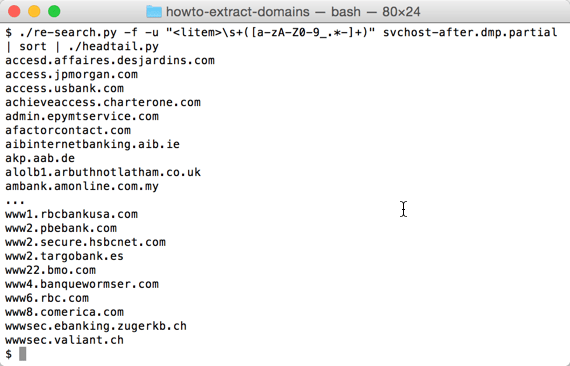
This gives me 1632 domains, but many domains appear more than once in the list. I use option -u (unique) to produce a list of unique domain names (683 domains):

Producing a sorted list of domain names is not simple when they have subdomains:
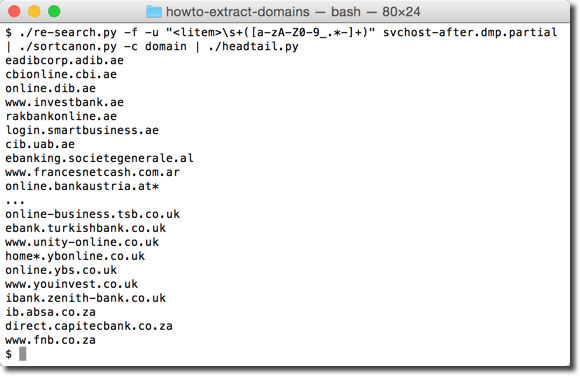
That’s why I have a tool to sort domains by tld first, then domain, then subdomain, …
re-search_V0_0_1.zip (https)
MD5: 5700D814CE5DD5B47F9C09CD819256BD
SHA256: 8CCF0117444A2F28BAEA6281200805A07445E9A061D301CC385965F3D0E8B1AF
A new tool, a new video:
base64dump_V0_0_1.zip (https)
MD5: 350C12F677E08030E0DD95339AC3604D
SHA256: 1F8156B43C8B52B7E5620B7A8CD19CFB48F42972E8625994603DDA47E07C9B35


