Didier Stevens

Monday 21 April 2008

“Only X Out of 32 Antivirus Products Detect This!”

Filed under: Malware — Didier Stevens @ 6:47

Ever seen a title like this before? Do you know what it means? It usually means that the author didn’t actually test the malware sample on 32 Windows machines, each protected by a different AV product, but that he uploaded the sample to the free VirusTotal service and received a report.

Testing the detection of a malware with 32 AV products and submitting the malware to the VirusTotal services are two different things. Assuming that these tests are equivalent, and implicitly supposing that the results are the same, is plain wrong.

I read enough presentations and articles talking about “tested with 32 AV products” without even mentioning VirusTotal. And that is at least misleading, if not more. To me, “32 AV products” strongly suggests “tested with VirusTotal”, and not “we really tested 32 AV products”.

Julio Canto from VirusTotal was kind enough to answer a couple of questions I had about the free service they are providing.

First of all, VirusTotal uses command-line AV scanners that require no installation, this way they can run 32 different AV products on the same Windows box. These AV scanners run in sequential order when a file is submitted. An active AV product and a command-line AV product are 2 different things, with different goals, fulfilling different needs. Take McAfee for example. McAfee VirusScan Enterprise has a feature called ScriptScan that will intercept and scan each VBScript and JavaScript before it is execute by the Microsoft script engine. The command-line version of McAfee doesn’t have this feature. So if you let VirusTotal scan an heavily obfuscated script, it’s likely that the McAfee command-line scanner used by VirusTotal will not detect it. But it’s likely that McAfee VirusScan will detect it with ScriptScan, before it gets executed.

It’s the AV vendor that decides which version of his product will be used by VirusTotal and how it has to be configured. Some vendors will even provide beta versions of their product for the VirusTotal team to use. VirusTotal has a NDA with most vendors, that’s why they don’t provide the configuration details for each AV engine. Some vendors are conservative in their settings, while others will use all options (like heuristics).

VirusTotal does not executed submitted files in a sandbox, they are just scanned by the AV engines.

If you don’t get 32 results in your report, but less, it means that an AV engine timed-out (didn’t respond in the allotted time, and the process was killed) and didn’t provide a detection report. The VirusTotal service uses a cluster of 16 machines.

Although the VirusTotal service generates a lot of data that contains a wealth of statistics, they don’t usually look for trends. The company behind VirusTotal (Hispasec), is not involved in the AV world at all, but can use some of the statistics for consulting services.

VirusTotal implemented an anti-abuse system: if one source is submitting too much samples in a too short time period, subsequent request will be refused. This is done to provide all users an equal access to the service.

To finish, Julio gave me some links to similar services:

And remember, when you’re using the VirusTotal service, you’re testing your submitted sample, you’re not testing the AV products. At most, you could say you’re testing bare AV engines with a configuration that is unknown to you.

Tuesday 18 December 2007

Pocket EICAR Test File Server

Filed under: Entertainment,Hardware,Malware — Didier Stevens @ 7:36

Like last year, I produced an anti-virus related Season’s Greetings movie.

The movie is hosted here on YouTube, and you can find a hires version (XviD) here.

Next week, you’ll get the technical details of this pocked web server.

Happy New Year!

Monday 19 November 2007

The Sony Rootkit V2.0

Filed under: Malware — Didier Stevens @ 10:14

Rest assured, this is not another Sony rootkit rant…

Back in August, F-Secure blogged about another Sony Rootkit. And McAfee was quick with posting additional info on their blog (they produced a screencast of the rootkit in action, saving me some analysis time).

I downloaded the software when F-Secure blogged about it, and since then I’ve been scanning the rootkit regularly with VirusTotal, to see how the detection rate evolved in time.

At first, as was to be expected, not a lot of AV products detected this rootkit:virustotal-fsm-20070830.png

I take this opportunity to illustrate once more that you have to pay attention when analysing VirusTotal’s results. Did you notice that F-Secure doesn’t detect the rootkit? How come, they announce this new Sony Rootkit but they don’t detect it? If you read their blogpost carefully, you’ll see that they detected this with their HIPS and anti-rootkit technology. But there are no specific signatures to detect this, hence the F-Secure AV on VirusTotal doesn’t detect it.

The detection rate is higher at the time of writing: 13 out of 32.

Some of the names given to this rootkit might surprise you:

  • Potentially harmful program HackTool.CIB
  • potentially unwanted program HideVault
  • Filesystem Monitor

You’ve to understand that a program exhibiting rootkit-like behavior and published by a company, is more likely to be handled differently by AV companies than a program from a criminal.

There is a higher probability that customers object to the fact that their AV product removes these company-issued programs. Removal could hamper the correct operation of the system (or device in this case). Some AV companies will label this kind of program (e.g. the nice euphemism potentially unwanted program) and even provide an option to exclude them from removal.

There is also a higher probability that companies developing these unwanted fight the detection by AV software, and even go as far as taking legal action against the AV companies.

All this is reflected in the rather low detection rate of this rootkit by the AV products on the VirusTotal site. After all, it’s almost 3 months since F-Secure broke this.

Tuesday 23 October 2007

A000n0000 0000O000l00d00 0I000E000 00T0r0000i0000c000k

Filed under: Malware — Didier Stevens @ 7:06

When I found a malicious script riddled with 0x00 bytes, SANS handler Bojan Zdrnja explained to me that this was an old trick. When rendering an HTML page, Internet Explorer will ignore all zero-bytes (bytes with value zero, 0x00). Malware authors use this to obscure their scripts. But this old trick still packs a punch.

This is how the script looks in vi:

html-zeroes-01.png

Maybe this hex dump makes it more clear to you:

html-zeroes-02.png

Recognize <html> <script…?

Well, a lot of AV programs are still fooled by this trick, VirusTotal reports that only 15 out of 32 AV products detect this malicious script.

html-zeroes-04.png

When I remove all obscuring zero-bytes from this script, things get better: 25 out of 32 AV products detect it.

But what happens when I add more zero-bytes to the script?

Even more AV are fooled! Gradually adding more zero-bytes makes the detection ratio go down.

And at 254 zero-bytes between the individual characters of the script, McAfee VirusScan is the only AV to still detect this obscured script. One byte more (255 zero-bytes), and VirusScan doesn’t detect the script anymore. No AV on VirusTotal detects this malware obscured with 255 zero-bytes (or more). But for IE, this obscured HTML poses no problem, it still renders the page and executes the script.

But you cannot rely on VirusTotal results alone. Modern AV products do not solely rely on file scanning to identify malware, they come with many techniques. For example, VirusScan has a feature called ScriptScan, a utility that intercepts all script execution requests to the MS scripting engines (VBS & JS). Since IE sends the malicious script stripped of its zero-bytes to the VBS scripting engine, ScriptScan has no problem detecting the malware and prevents its execution.

As it is the first time I get such a clear example of ScriptScan in action, I’ve made a screencast (YouTube) of it, XviD hires here.

Tuesday 2 October 2007

AutoIt Malware Revisited

Filed under: Malware,Reverse Engineering — Didier Stevens @ 10:17

Since I’ve blogged about malware written with the AutoIt scripting language, I got a couple of mails asking for assistance or advice on how to detect and decompile AutoIt malware compiled to executables. In this post, I’m describing a method to identify and reverse AutoIt malware, and I show that old malware packed inside a compiled AutoIt script will elude most AV products.

When you compile an AutoIt script with the Aut2Exe tool, by default, an UPX packed executable is produced. Identifying such a compiled script is easy, the version strings tell you exactly what it is:

autoit_properties.PNG

And the (default) file icon in the Windows Explorer view is also a giveaway:

autoit_msgbox.PNG

Of course, it’s easy for a malware author to change these telltale signs. But you can also identify AutoIt malware with a magic number (see further).

Decompiling is easy, just start the decompiler (Exe2Aut, it’s in the extras folder of the AutoIt ZIP installation package) and point it to the executable.

But what if it was compiled with a passphrase, and you don’t know the passphrase? Well, as I pointed out in my previous post, you can still execute the script without providing the passphrase. And I found out some other interesting things.

Add extra whitespace to a script, or change the indentation, compile & decompile it, and the whitespace is preserved. When compilers compile source-code into machine language or intermediate language (like Java bytecode and .NET MSIL), they ignore whitespace. But because we still see the whitespace as we typed it in the decompiled program, it’s very likely that we’re not dealing with a real compiler. I believe that the source-code is stored inside the “compiled” AutoIt script.
Another test supports this hypothesis: write an AutoIt script with a syntax error and compile it. You won’t get an error! It’s only when you execute the compiled script that you’ll get an error. Decompile it, and you’ll get the script with your syntax error!

Like most seasoned computer users, I don’t RTFM before I start using software. But I skimmed the AutoScript help file for my research, and here is what I found:

Technical Details
The compiled script and additional files added with FileInstall are compressed with my own (Jon) compression scheme.
Because a compiled script must “run” itself without a password it needs to be able to decrypt itself – i.e., the encryption is two-way. For this reason you should regard the compiled exe as being encoded rather than completely safe. For example, if I wrote a script that contained a username and password (say, for a desktop rollout) then I would be happy using something like a workstation-level user/password but I would not consider it safe for a domain/entire network password unless I was sure that the end-user would not have easy access to the .exe file.

The AutoIt author (Jonathan Bennett) is aware of the limitations of his protection scheme and discloses them. That’s very professional of him.

FileInstall is also an interesting feature for malware authors: it allows you to include (binary) files in the compiled script. The script itself is also stored as a file. And it’s not only the file content that is stored, but also file properties like the original filename and timestamps. When a malware is included in a compiled AutoIt script with FileInstall, most AV products will not detect it. Here’s a little test:

I took an old Warezov / Stration e-mail worm that all AV products on VirusTotal detect. Then I included this worm in a compiled AutoIt script with FileInstall, and let VirusTotal do its work. Only 4 AV products detected it, and only 2 of these (F-Secure & Kaspersky) detected it as a Warezov / Stration e-mail worm! I cannot trust the results of the other 2 AV products that detected it, because they will also identify an empty AutoIt script as malware. The 2 reliable AV products even detected the virus inside the AutoIt script when it was compiled with a passphrase and with the new fileformat (see further).

So how about decompiling passphrase protected AutoIt malware? Well, it’s easy. A compiled script contains the MD5 hash of the passphrase, and the obfuscation routine is based on the MD5 hash, not on the passphrase itself (this will work with version 3.2.5.1 and earlier compiled scripts).

Here’s my howto (there are other methods to do this):

  1. Unpack the executable (UPX –d malware.exe)
  2. Open the unpacked executable with a binary editor, and search for the magic number A3484BBE986C4AA9994C530A86D6487D
  3. This magic number will be followed by string AU3!EA05 (if you find AU3!EA06, you’re dealing with the new version that can’t be decompiled with the Exe2Aut decompiler). The MD5 hash of the passphrase is stored in the 16 bytes following this AU3!EA05 string (in fact, an AutoIt script compiled to an executable is just the AutoIt interpreter PE file with the compiled script appended at the end)
  4. Once you’ve recovered the MD5 hash, you have 2 options
  5. Try to reverse the MD5 hashing (brute-force, dictionary, rainbow tables, …) to obtain the original passphrase and use this with the decompiler
  6. If this fails, or you don’t like this option, try the following trick
  7. Start the Exe2Aut decompiler (I’m using version 3.2.4.9 on Windows XP SP2) with a debugger like OllyDbg
  8. Set a breakpoint at 0x00402064
  9. Start debugging, and decompile your file. After clicking the Convert button, the debugger will pause at the breakpoint
  10. At the address pointed to by EBX+ESI (0x0012F520 in my test), you’ll find the 16 bytes of the MD5 hash of the passphrase you entered (it will be equal to the well-known MD5 hash d41d8cd98f00b204e9800998ecf8427e if you’ve left the passphrase empty)
  11. Replace this hash with the MD5 hash you recovered from the malware
  12. Continue debugging
  13. Voilà, the Aut2Exe decompiler produced the source code of the malware

This debugger method also works if the checkbox “Allow decompilation” was unchecked when the AutoIt script was compiled. The reason is that when this flag is unchecked, the compiler will generate a long random passphrase and use this to compile the script.

Since I’ve worked out this method, a new AutoIt version was released with a new fileformat (AU3!EA06). This new obfuscation scheme doesn’t use passphrases (and hence no MD5 hash) and Jonathan Bennett doesn’t release a decompiler for this format. Of course, someday, someone will spend the time needed to reverse this scheme. And Jonathan is aware of this, he warns developers for this on the AutoIt forums.

Browsing these forums, I learned that AutoIt is also used heavily for gamebot development and that developers are urged to move to the new version to avoid decompilation. There is an interesting ecology of reversing and anti-reversing tricks, like this one. When malware developers start picking up these tricks, we will have a harder time reversing AutoIt malware.

Sunday 16 September 2007

Reversing ROL-1 Malware

Filed under: Malware,Reverse Engineering — Didier Stevens @ 7:15

Today I want to explain how I deal with a piece of malware that obfuscates its strings.

After dealing with the packing, we end up with an unpacked PE file. BinText reveals some strings, but not URLs. Searching for HTTP with XORSearch (version 1.1) doesn’t reveal any XOR encoding.

So let’s take a look with IDA Pro:

rol1-01a.png

This is interesting! The strings are somehow obfuscated. Let’s go to this .data segment:

rol1-04a.png

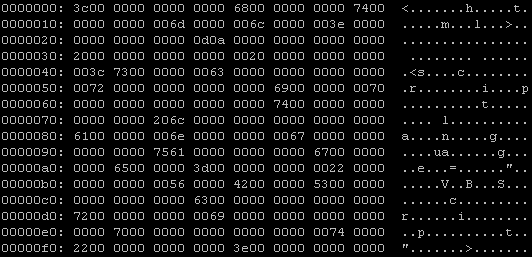
OK, so in this segment, all strings are obfuscated. This malware must have a routine to deobfuscate these strings before they get passed to functions like RegOpenKey…

Now let’s take a look at the code that references the start of this .data segment.

rol1-02a.png

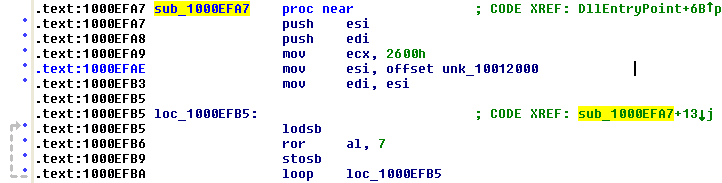
See the LOOP and the ROR instructions? They form a very good candidate for our deobfuscation routine. The loop goes through each byte of the .data segment (0x2600 is the size of the .data segment), and performs a ROR 7 on it.

We want to decode the strings, but unfortunately, the free XVI32 binary editor doesn’t support rotate operations, only shift operations. So we will use the 010 Editor, another binary editor (not free). This editor also supports binary templates. Let’s take a look at our malware file with the PE2 binary template. We select the .data segment like this:

rol1-12a.png

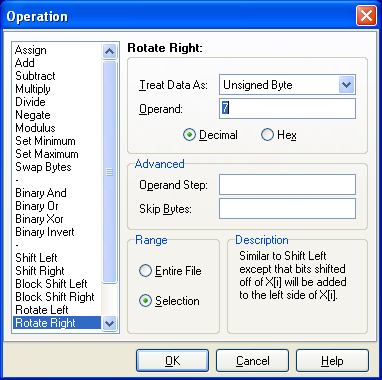
And then we rotate all bytes in this segment 7 bits to the right:

rol1-08.png

Bingo:

rol1-14a.png

Let’s save this deobfuscated piece of malware and analyze it with IDA Pro:

rol1-10a.png

Now the reversing becomes more easy, because we can read the strings.

This obfuscated malware prompted me to update my XORSearch tool and to write a Python script to manipulate bits.

Tuesday 28 August 2007

Analyzing a Suspect WMF File

Filed under: Malware,Reverse Engineering — Didier Stevens @ 6:48

Randy Armknecht detected a malformed WMF file and put a post up over at the Security Catalyst Community (I’m a member).

My analysis will show that this WMF file doesn’t contain shellcode. I use a tool I discovered recently, the 010 Editor, a professional hex editor with binary templates. Binary templates allow you to define the structure of a binary file with a C-like scripting language. A binary file parsed with a template is much easier to understand, as you will see. Unfortunately, I found no free alternative for this tool.

There are binary templates available for many file formats on the 010 Editor site, but none for the WMF file format. So we’ll just have to make our own.

Back from the hectic days of the WMF exploit (December 2005), I remember that the WMF file is composed of a header followed by records. There are several sources of information for the WMF file format, like this one and this one.

We copy the C struct definition of the header and put it in our template. Then we tell the 010 editor that our file is in LittleEndian format (this is the case for Intel processors) and we declare that our file starts with the WMF header.

wmz-001.png

We run our template against our file:

wmz-002a.png

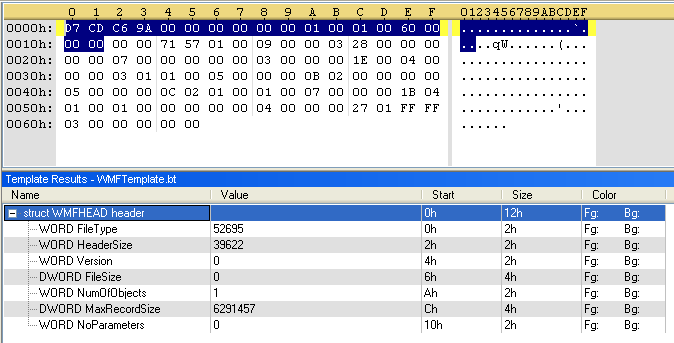
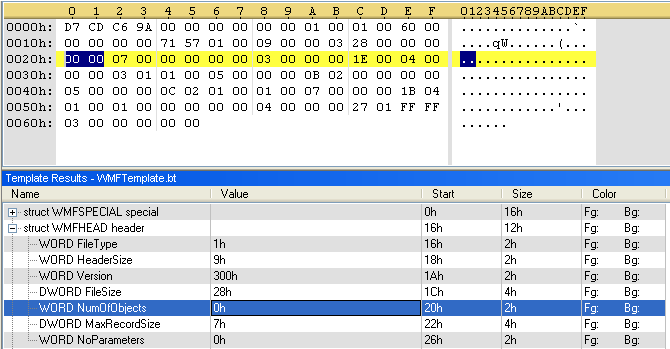
Now it’s easy to see that the values for FileType, HeaderSize and Version are not correct. Looking a bit further (22 bytes to be exact), we see the correct values for these parameters.

wmz-003a.png

So let’s just assume that this WMF file has something else before the standard header, and declare that the file format is an array of 22 bytes (the unknown part), followed by the WMF header.

wmz-004a.png

Let’s switch the template display to hex:

wmz-005a.png

And now we see the correct values:

wmz-006a.png

This is a good example of the power of binary templates: you can make them on the fly, while you are trying to understand the file format.

Now let’s add the WMF records. We define the structure (copied from the fileformat document), and declare the size of the Parameters array to be the Size of the record minus 3 (remember, this is not real C, but a scripting language, and thus it is very flexible, allowing dynamic array definitions).

Now we don’t need just one record, but many records, up till the end of our file. So we instruct the editor to declare records as long as it doesn’t reach the end of the file:

wmz-007a.png

Here we can see the individual records, showing us that the file looks normal in this respect.

wmz-008a.png

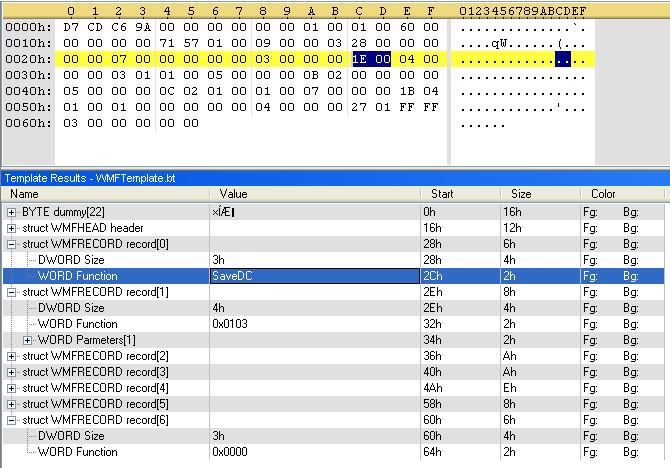
Each record has a Function. To better understand our file, we will instruct the editor to display the name of the Function instead of its number. We do this by defining a function (ReadFunction) that will lookup the meaning of the Function numbers and translate them to something meaningful. This ReadFunction is linked to the Function value with the <read=> construct.

wmz-010a.png

So now we have the name of our first record:

wmz-011a.png

And we add the other functions to our template:

wmz-012a.png

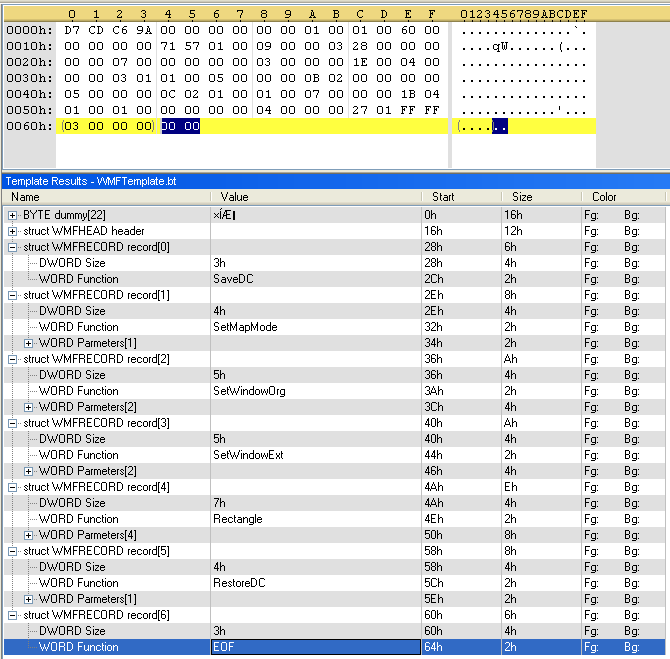
Again, the file looks normal (no infamous SetAbortProc function), and it is closed with the correct record (EOF).

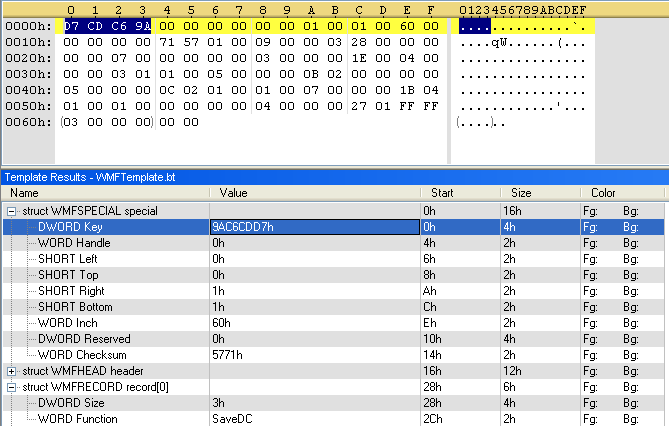
Let’s go back to our first 22 bytes. Further reading in the file format documents reveals that some special WMF files (called placeable WMF files) have a special header. We include this header in our template:

wmz-013a.png

wmz-014a.png

This looks much better, this is indeed a special WMF file.

wmz-015a.png

Of course, not all WMF files start with this special header. The presence of such a header is detectable by its magic byte sequence, 0x9AC6CDD7. We will make our template flexible and only declare the special header when we detect the magic byte sequence:

wmz-016a.png

The checksum field in the special header is an XOR operation performed on the 10 preceding words (20 bytes). That’s also something we can script, again by defining a <read=> function:

wmz-017a.png

wmz-018a.png

And we can confirm that the checksum is correct:

wmz-019a.png

This is how it looks when we tamper with the header (setting Reserved to 1):

wmz-020a.png

The checksum is incorrect.

By building this template as we analyze the file, we are able to ascertain that the file format is normal and that the values are normal (except NumOfObjects, which should be 7 instead of 0).

wmz-021a.png

So there is no place where shellcode can be hidden in this file.

BTW, we can add a function to check the NumOfObjects like this:

wmz-022a.png

wmz-023a.png

My template for WMF files can be downloaded here.

Now, who can tell me what is drawn by this WMF file?

Tuesday 7 August 2007

A Second SpiderMonkey Trick

Filed under: Malware,Reverse Engineering — Didier Stevens @ 8:13

My first SpiderMonkey trick is more than 6 months old, and I still haven’t released the source code. Let’s do it now, but let’s also talk about a new trick.

Obfuscated JavaScrip has become a trademark of cybercriminals, and they are ever perfecting their tools, read what Bojan and Ismael have uncovered. This reminds me of another trick I’ve been learning my SpiderMonkey: whenever the eval function is called, it will write its argument to a file, giving you the possibility to analyze the code. Eval is used in some obfuscation schemes.

When eval is called the first time, for example eval(“a=10;”), my SpiderMonkey will create a file eval.001.log containing the argument, a=10; For each new eval call in the current JavaScript session, a new eval file will be created: eval.002.log, eval.003.log, … (if you’re wondering, after eval.999.log, we just move to eval.1000.log). Unlike the document.write trick, I will not append to the existing file, but create a new file for each call.

Internally, SpiderMonkey works with Unicode strings. Hence, I programmed SpiderMonkey to create 2 files for each call, one ASCII file and one Unicode file, like this: eval.001.log and eval.001.uc.log. eval.001.log is the ASCII file (actually, it’s just the first byte of each Unicode character) and eval.001.uc.log is the Unicode file. When analyzing obfuscated JavaScript, you’ll mostly see ASCII.

spidermonkey1.png

BTW, can you guess why I added ; echo to the cat command of this demo?

Adding this king of logging feature is not difficult: just find the source code of the JavaScript function that needs logging, locate the arguments and write them to a file.

spidermonkey2.png

Download the source code here.

Tuesday 24 July 2007

RSR

Filed under: Malware,Reverse Engineering — Didier Stevens @ 6:53

This is an example of Really Simple Reversing of a piece of malware. It’s written in the AutoIt scripting language and compiled to an EXE.

It’s not intentional, I’m sure about this, but this AutoIt tool offers some interesting features for (inexperienced) malware authors. You can compile your script to a stand-alone executable that is automatically packed with UPX. And even after unpacking it, the strings are still obfuscated.

Decompiling the script is really easy, because the AutoIt authors include a decompilation utility with the AutoIt installation package (Exe2Aut). You can find a video of the decompilation here hosted on YouTube, and you can find a hires version (XviD) here. The icon of the bin.exe file you see in the video is the default AutoIt icon.

autoit.png

See how easy it becomes understanding what this malware does once you have the source code:

  • the URLs are defined in variables at the beginning
  • you can see from where the malware downloads updates and where they get installed
  • how it disables tools that can help you clean the infected machine, like Task Manager
  • that it tries to spread via IM applications

And did you notice the folder under F:\Documents and Settings at the beginning of the script? Oops!

When I submitted this malware to VirusTotal, only 4 AV engines detected it (July 18th 2007).

I played with the AutoIt compiler and decompiler and found some interesting things, I’ll probably blog about this later. Here is a hint: when you password-protect a compiled AutoIt script, you have to provide the password to decompile it, but not to execute it. Can you guess what this means? 😉 Post your answer in the comment section!

Wednesday 11 July 2007

ExtractScripts Update

Filed under: Malware,My Software,Update — Didier Stevens @ 0:06

I’ve updated ExtractScripts to handle comments inside <script> tags.

« Previous PageNext Page »

Blog at WordPress.com.