Didier Stevens

Tuesday 29 August 2023

Quickpost: PDF/ActiveMime Maldocs YARA Rule

Filed under: maldoc,Malware,Quickpost — Didier Stevens @ 18:07

Here is a YARA rule I developed to detect PDF/ActiveMime maldocs I wrote about in “Quickpost: Analysis of PDF/ActiveMime Polyglot Maldocs“.

It looks for files that start with %PDF- (this header can be obfuscated) and contain string QWN0aXZlTWlt (string ActiveMim in BASE64), possibly obfuscated with whitespace characters.

rule rule_pdf_activemime {
    meta:
        author = "Didier Stevens"
        date = "2023/08/29"
        version = "0.0.1"
        samples = "5b677d297fb862c2d223973697479ee53a91d03073b14556f421b3d74f136b9d,098796e1b82c199ad226bff056b6310262b132f6d06930d3c254c57bdf548187,ef59d7038cfd565fd65bae12588810d5361df938244ebad33b71882dcf683058"
        description = "look for files that start with %PDF- and contain BASE64 encoded string ActiveMim (QWN0aXZlTWlt), possibly obfuscated with extra whitespace characters"
        usage = "if you don't have to care about YARA performance warnings, you can uncomment string $base64_ActiveMim0 and remove all other $base64_ActiveMim## strings"
    strings:
        $pdf = "%PDF-"
//        $base64_ActiveMim0 = /[ \t\r\n]*Q[ \t\r\n]*W[ \t\r\n]*N[ \t\r\n]*0[ \t\r\n]*a[ \t\r\n]*X[ \t\r\n]*Z[ \t\r\n]*l[ \t\r\n]*T[ \t\r\n]*W[ \t\r\n]*l[ \t\r\n]*t/
        $base64_ActiveMim1 = /Q  [ \t\r\n]*W[ \t\r\n]*N[ \t\r\n]*0[ \t\r\n]*a[ \t\r\n]*X[ \t\r\n]*Z[ \t\r\n]*l[ \t\r\n]*T[ \t\r\n]*W[ \t\r\n]*l[ \t\r\n]*t/
        $base64_ActiveMim2 = /Q \t[ \t\r\n]*W[ \t\r\n]*N[ \t\r\n]*0[ \t\r\n]*a[ \t\r\n]*X[ \t\r\n]*Z[ \t\r\n]*l[ \t\r\n]*T[ \t\r\n]*W[ \t\r\n]*l[ \t\r\n]*t/
        $base64_ActiveMim3 = /Q \r[ \t\r\n]*W[ \t\r\n]*N[ \t\r\n]*0[ \t\r\n]*a[ \t\r\n]*X[ \t\r\n]*Z[ \t\r\n]*l[ \t\r\n]*T[ \t\r\n]*W[ \t\r\n]*l[ \t\r\n]*t/
        $base64_ActiveMim4 = /Q \n[ \t\r\n]*W[ \t\r\n]*N[ \t\r\n]*0[ \t\r\n]*a[ \t\r\n]*X[ \t\r\n]*Z[ \t\r\n]*l[ \t\r\n]*T[ \t\r\n]*W[ \t\r\n]*l[ \t\r\n]*t/
        $base64_ActiveMim5 = /Q\t [ \t\r\n]*W[ \t\r\n]*N[ \t\r\n]*0[ \t\r\n]*a[ \t\r\n]*X[ \t\r\n]*Z[ \t\r\n]*l[ \t\r\n]*T[ \t\r\n]*W[ \t\r\n]*l[ \t\r\n]*t/
        $base64_ActiveMim6 = /Q\t\t[ \t\r\n]*W[ \t\r\n]*N[ \t\r\n]*0[ \t\r\n]*a[ \t\r\n]*X[ \t\r\n]*Z[ \t\r\n]*l[ \t\r\n]*T[ \t\r\n]*W[ \t\r\n]*l[ \t\r\n]*t/
        $base64_ActiveMim7 = /Q\t\r[ \t\r\n]*W[ \t\r\n]*N[ \t\r\n]*0[ \t\r\n]*a[ \t\r\n]*X[ \t\r\n]*Z[ \t\r\n]*l[ \t\r\n]*T[ \t\r\n]*W[ \t\r\n]*l[ \t\r\n]*t/
        $base64_ActiveMim8 = /Q\t\n[ \t\r\n]*W[ \t\r\n]*N[ \t\r\n]*0[ \t\r\n]*a[ \t\r\n]*X[ \t\r\n]*Z[ \t\r\n]*l[ \t\r\n]*T[ \t\r\n]*W[ \t\r\n]*l[ \t\r\n]*t/
        $base64_ActiveMim9 = /Q\r [ \t\r\n]*W[ \t\r\n]*N[ \t\r\n]*0[ \t\r\n]*a[ \t\r\n]*X[ \t\r\n]*Z[ \t\r\n]*l[ \t\r\n]*T[ \t\r\n]*W[ \t\r\n]*l[ \t\r\n]*t/
        $base64_ActiveMim10 = /Q\r\t[ \t\r\n]*W[ \t\r\n]*N[ \t\r\n]*0[ \t\r\n]*a[ \t\r\n]*X[ \t\r\n]*Z[ \t\r\n]*l[ \t\r\n]*T[ \t\r\n]*W[ \t\r\n]*l[ \t\r\n]*t/
        $base64_ActiveMim11 = /Q\r\r[ \t\r\n]*W[ \t\r\n]*N[ \t\r\n]*0[ \t\r\n]*a[ \t\r\n]*X[ \t\r\n]*Z[ \t\r\n]*l[ \t\r\n]*T[ \t\r\n]*W[ \t\r\n]*l[ \t\r\n]*t/
        $base64_ActiveMim12 = /Q\r\n[ \t\r\n]*W[ \t\r\n]*N[ \t\r\n]*0[ \t\r\n]*a[ \t\r\n]*X[ \t\r\n]*Z[ \t\r\n]*l[ \t\r\n]*T[ \t\r\n]*W[ \t\r\n]*l[ \t\r\n]*t/
        $base64_ActiveMim13 = /Q\n [ \t\r\n]*W[ \t\r\n]*N[ \t\r\n]*0[ \t\r\n]*a[ \t\r\n]*X[ \t\r\n]*Z[ \t\r\n]*l[ \t\r\n]*T[ \t\r\n]*W[ \t\r\n]*l[ \t\r\n]*t/
        $base64_ActiveMim14 = /Q\n\t[ \t\r\n]*W[ \t\r\n]*N[ \t\r\n]*0[ \t\r\n]*a[ \t\r\n]*X[ \t\r\n]*Z[ \t\r\n]*l[ \t\r\n]*T[ \t\r\n]*W[ \t\r\n]*l[ \t\r\n]*t/
        $base64_ActiveMim15 = /Q\n\r[ \t\r\n]*W[ \t\r\n]*N[ \t\r\n]*0[ \t\r\n]*a[ \t\r\n]*X[ \t\r\n]*Z[ \t\r\n]*l[ \t\r\n]*T[ \t\r\n]*W[ \t\r\n]*l[ \t\r\n]*t/
        $base64_ActiveMim16 = /Q\n\n[ \t\r\n]*W[ \t\r\n]*N[ \t\r\n]*0[ \t\r\n]*a[ \t\r\n]*X[ \t\r\n]*Z[ \t\r\n]*l[ \t\r\n]*T[ \t\r\n]*W[ \t\r\n]*l[ \t\r\n]*t/
        $base64_ActiveMim17 = /QW [ \t\r\n]*N[ \t\r\n]*0[ \t\r\n]*a[ \t\r\n]*X[ \t\r\n]*Z[ \t\r\n]*l[ \t\r\n]*T[ \t\r\n]*W[ \t\r\n]*l[ \t\r\n]*t/
        $base64_ActiveMim18 = /QW\t[ \t\r\n]*N[ \t\r\n]*0[ \t\r\n]*a[ \t\r\n]*X[ \t\r\n]*Z[ \t\r\n]*l[ \t\r\n]*T[ \t\r\n]*W[ \t\r\n]*l[ \t\r\n]*t/
        $base64_ActiveMim19 = /QW\r[ \t\r\n]*N[ \t\r\n]*0[ \t\r\n]*a[ \t\r\n]*X[ \t\r\n]*Z[ \t\r\n]*l[ \t\r\n]*T[ \t\r\n]*W[ \t\r\n]*l[ \t\r\n]*t/
        $base64_ActiveMim20 = /QW\n[ \t\r\n]*N[ \t\r\n]*0[ \t\r\n]*a[ \t\r\n]*X[ \t\r\n]*Z[ \t\r\n]*l[ \t\r\n]*T[ \t\r\n]*W[ \t\r\n]*l[ \t\r\n]*t/
        $base64_ActiveMim21 = /QWN[ \t\r\n]*0[ \t\r\n]*a[ \t\r\n]*X[ \t\r\n]*Z[ \t\r\n]*l[ \t\r\n]*T[ \t\r\n]*W[ \t\r\n]*l[ \t\r\n]*t/
    condition:
        $pdf at 0 and any of ($base64_ActiveMim*)
}

The regex used to detect characters QWN0aXZlTWlt interspersed with whitespace characters (YARA string $base64_ActiveMim0) has no atoms (for YARA’s Aho-Corasic algorithm) larger than 1 byte, and thus generates a warning, that prohibits its use for hunting with VirusTotal.

That is why I replaced that regex with 21 regexes that all start with 3 fixed bytes and thus allow YARA to select atoms that are large enough.


Quickpost info

Quickpost: Analysis of PDF/ActiveMime Polyglot Maldocs

Filed under: maldoc,Malware,My Software,Quickpost — Didier Stevens @ 10:50

jpcert reported a new type of maldoc: “MalDoc in PDF – Detection bypass by embedding a malicious Word file into a PDF file –“.

These maldocs are PDF files that embed a Word document (ActiveMime) in MIME format.

ActiveMime documents can be analyzed by combining my emldump.py tool and oledump.py.

ActiveMime documents were heavily obfuscated in the past, and this is also the case here. As emldump.py version 0.0.11 was only able to handle the obfuscation of 2 of the 3 samples mentioned by jpcert, I released a new version to handle more obfuscation.

Here is an analysis example for sample 5b677d297fb862c2d223973697479ee53a91d03073b14556f421b3d74f136b9d.

Run emldump (version 0.0.12 or later) with option -F to fix the obfuscation of the mime-version header:

To find the part where the ActiveMime file was hidden, use option -E %HEADASCII% to view the first 20 characters of each part:

Here we can see that part 14 is not a JPEG file, but an ActiveMime file.

We extract it and pipe it into oledump.py:

That ActiveMime file contains VBA code:

These maldocs (at least the 3 samples shared by jpcert) can be detected by pdfid with option -e to display extra information:

There are a lot of bytes outside streams (usually for PDFs, there shouldn’t be) and the count of stream and endstream documents is different.

But like I said, these are detections for these 3 samples, it’s possible to modify those samples to remove the anomalies.


Quickpost info

Sunday 22 January 2023

New Tool: onedump.py

Filed under: maldoc,Malware,My Software — Didier Stevens @ 9:24

This is a new tool (based on my Python template for binary files) to analyze OneNote files.

This version is limited to handling embedded files (for the moment).

As I might still make significant changes to the user interface, I’ve put this tool in my GitHub beta repository.

Saturday 31 December 2022

Combining zipdump, file-magic And myjson-filter

Filed under: maldoc,Malware — Didier Stevens @ 9:38

In this blog post, I show how you can combine my tools zipdump.py, file-magic.py and myjson-filter.py to select and analyze files of a particular type.

I start with a daily batch of malware files published by Malware Bazaar.

I let it produce JSON output using option –jsonoutput, that can be consumed by some of my tools, like file-magic.py, my tool to identify files based on the content using the libmagic library.

In the output above, we can see that most files are PE files (Windows executables).

For this example, I’m interested in Office files (ole files). I can filter the output of file-magic.py for that with option -r. Libmagic identifies this type of file as “Composite Document File …”, thus I filter for Composite:

This gives me a list of malicious Office documents. I want to extract URLs from them, but I don’t want to extract all of these files from the ZIP container to disk, and do the URL extraction file per file.

I want to do this with a one-liner. 🙂

What I’m going to do, is use file-magic’s option –jsonoutput, so that it augments the json output of zipdump with the file type, and then I use my tool myjson-filter.py to filter that json output for files that are only of a type that contains the word Composite. With this command:

This produces JSON output that contains the content of each file of type Composite, found inside the ZIP container.

This output can be consumed by my tool strings.py, to extract all the strings.

Side note: if you want to know first which files were selected for processing, use option -l:

Let’s pipe the filtered JSON output into strings.py, with options to produce a list of unique strings (-u) that contain the word http (-s http), like this:

I use my tool re-search.py to extract a list of unique URLs:

I filter out common URLs found in Office documents:

And finally, I sort the URLs by domain name using my tool sortcanon.py:

The adobe URLs are not malicious, but the other ones could be.

This one-liner allows me to quickly process daily malware batches, looking for easy IOCs (cleartext URLs in Office documents) without writing any malicious file to disk.

zipdump.py --jsonoutput 2020-10-24.zip | file-magic.py --jsoninput --jsonoutput | myjson-filter.py -t Composite | strings.py --jsoninput -u -s http | re-search.py -u -n url -F officeurls | sortcanon.py -c domain

Remark that by using an option to search for strings with the word http (-s http), I reduce the output of strings to be processed by re-search.py, so that the search is faster. But that limits you (mostly) to URLs with protocol http or https.

Leave out this option if you want to search for all possible protocols, or try -s “://”.

Tuesday 27 December 2022

Combining dns-pydivert And dnsresolver

Filed under: Malware,My Software,Networking — Didier Stevens @ 0:00

I use my tools dns-pydivert and dnsresolver.py for dynamic analysis of software (malware and benign software).

On the virtual machine where I’m doing dynamic analysis, I disable IPv6 support.

I install dnslib and run dnsresolver.py with a command like this, for example:

dnsresolver.py "type=resolve,label=example.com,answer=. 1 IN A 127.0.0.1" "type=forwarder,server=8.8.8.8"

The first command is a resolve command: DNS A queries for example.com will be resolved to IPv4 address 127.0.0.1 with TTL 1 minute.

The second command is a forwarder command: all DNS requests not handled by other commands, are forwarded to 8.8.8.8. Make sure that the IPv4 address of the DNS server you forward requests to, is different from the VM’s default DNS server, otherwise this forwarding will be redirected by dns-pydivert too.

I don’t use this second resolver command if the VM is isolated from the Internet, I only use it when I want to allow some interaction with the Internet.

Then I install pydivert and run dns-pydivert.py as administrator.

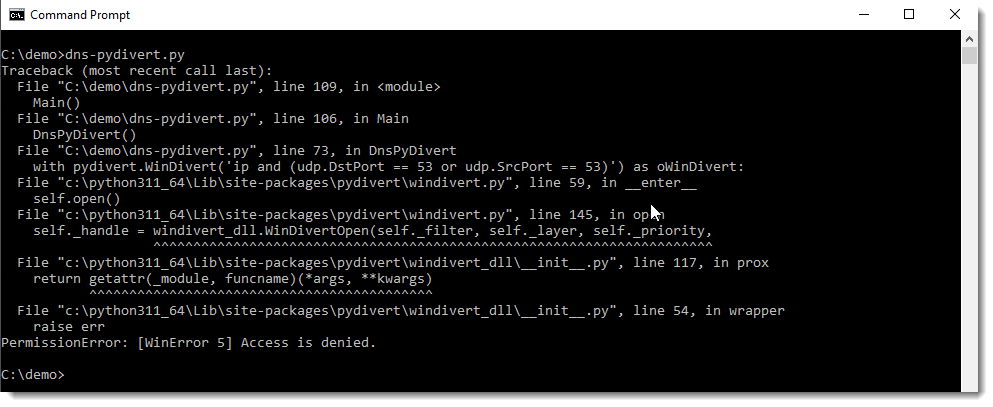
You can’t run dns-pydivert.py properly without administrative permissions:

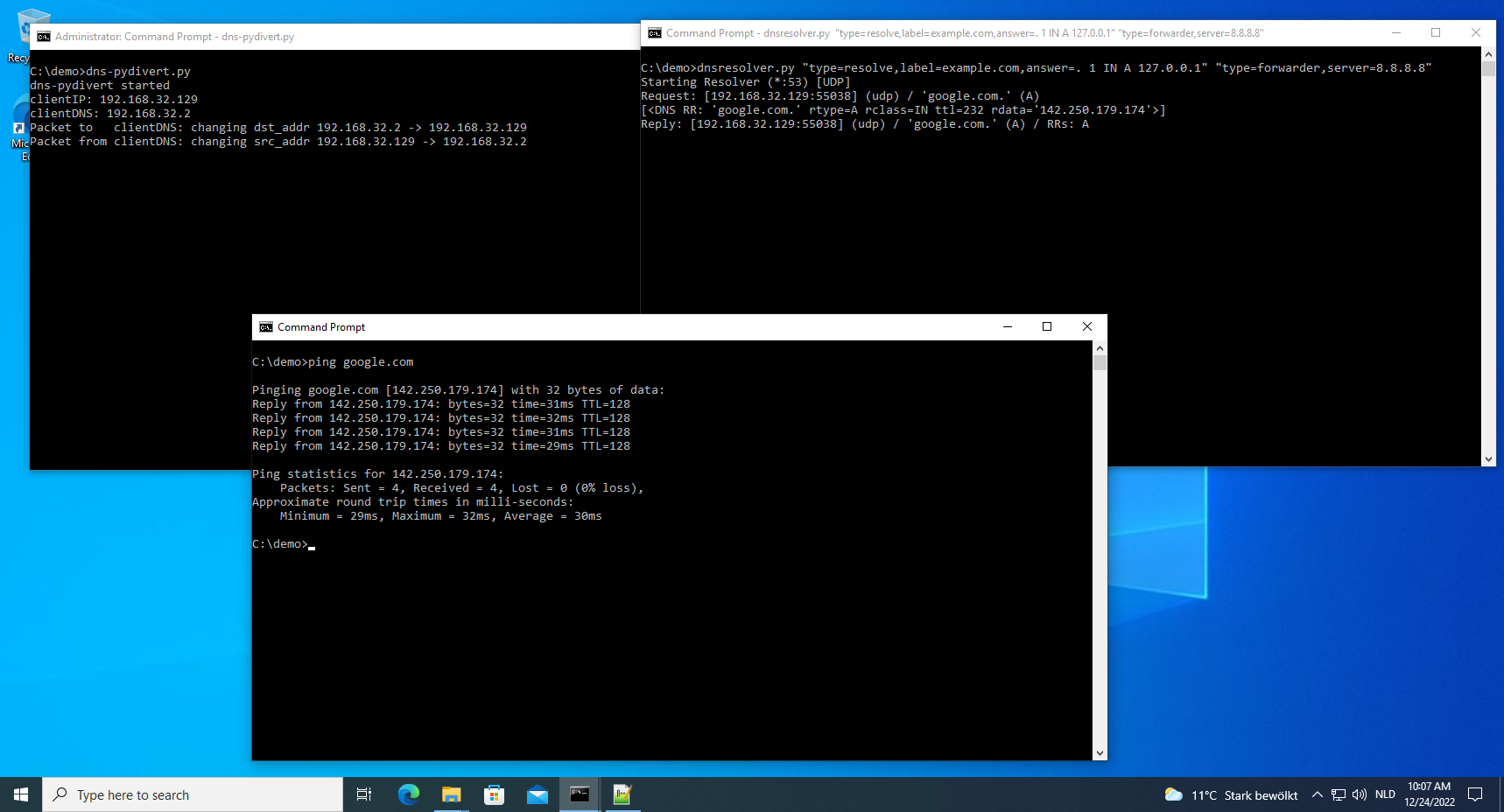
When dns-pydivert.py and dnsresolver.py are running, DNS traffic is altered according to our settings.

For example (picture above), when I issue a “ping google.com” command inside the VM, dns-pydivert sees this first DNS packet and configures itself with the addresses in this packet: 192.168.32.129 is the IPv4 address of the Windows VM and 192.168.32.2 is the IPv4 address of this Windows VM’s DNS server.

It alters this first request to be redirected to the VM itself (192.168.32.2 -> 192.168.32.129).

Then dnsresolver receives this packet, and forwards it to DNS server 8.8.8.8. It receives a reply from DNS server 8.8.8.8, and forwards it to the Windows VM (192.168.32.129).

Then dns-pydivert sees this reply, and changes its source from 192.168.32.129 to 192.168.32.2, so that it appears to come from the Windows VM’s default DNS server.

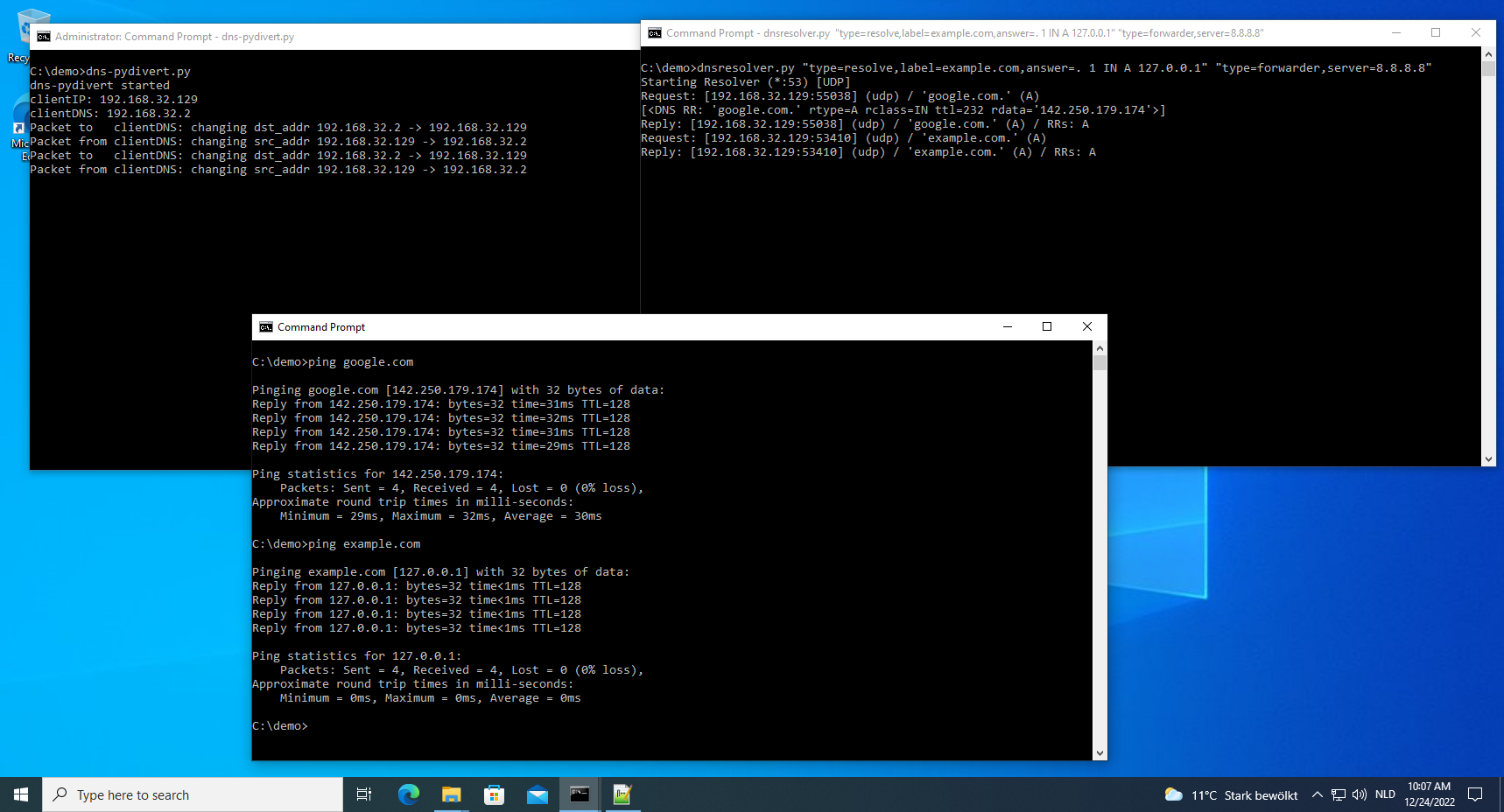
When I do the same (picture above) for example.com (ping example.com), the query is redirected to dnsresolver, which resolves this to 127.0.0.1 with a TTL of 1 minute (per resolve commands configuration).

Thus the ping command pings the localhost, instead of example.com’s web server.

And when I kill dns-pydivert (picture above) and issue a “ping example.com” again after waiting for 1 minute, the query is no longer redirected and example.com’s web server is pinged this time.

I used ping here to illustrate the process, but often it’s HTTP(S) traffic that I want to redirect, and then I also use my simple-listener.py tool to emulate simple web servers.

Remark that this will only redirect DNS traffic (per the configuration). This does not redirect traffic “directed” at IPv4 addresses (as opposed to hostnames).

This can be done too with pydivert, and I will probably release a tool for that too.

Monday 5 December 2022

Extracting Certificates For Defender

Filed under: Malware — Didier Stevens @ 0:00

A colleague asked me for help with extracting code signing certificates from malicious files, to add them to Defender’s block list.

The procedure involves right-clicking the EXE in Windows Explorer, selecting properties to view the digital signature, and so on …

But I don’t like procedures where one has to click on malware.

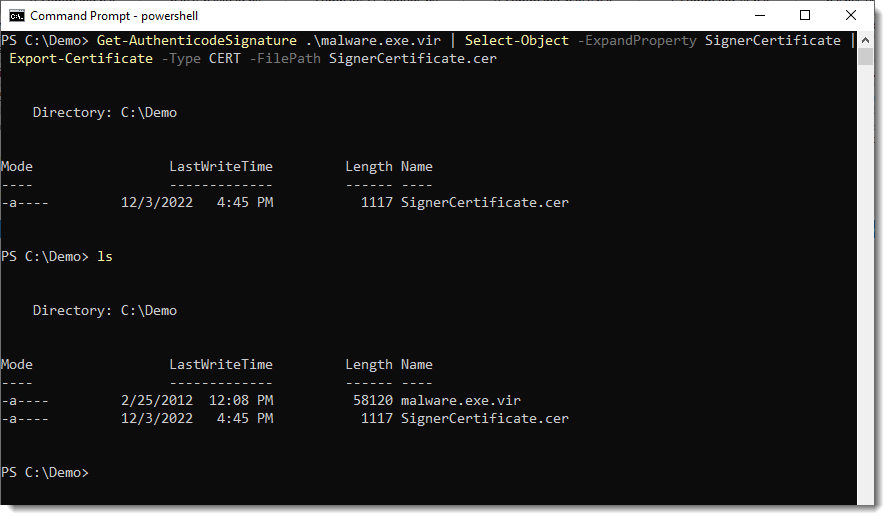
So I looked for a PowerShell command, and found this.

Get-AuthenticodeSignature .\malware.exe.vir | Select-Object -ExpandProperty SignerCertificate | Export-Certificate -Type CERT -FilePath SignerCertificate.cer

Saturday 10 September 2022

Maldoc Analysis Video – Rehearsed & Unrehearsed

Filed under: maldoc,Malware,My Software,video — Didier Stevens @ 21:41

When I record maldoc analysis videos, I have already analyzed the maldoc prior to recording, and I rehearse the recording.

This time, I also recorded the unrehearsed analysis: when I take the first look at a maldoc I’ve not seen before.

All in this video:

Wednesday 22 June 2022

Examples Of Encoding Reversing

Filed under: Forensics,Malware,Reverse Engineering — Didier Stevens @ 15:08

I recently created 2 blog posts with corresponding videos for the reversing of encodings.

The first one is on the ISC diary: “Decoding Obfuscated BASE64 Statistically“. The payload is encoded with a variation of BASE64, and I show how to analyze the encoded payload to figure out how to decode it.

And this is the video for this diary entry:

And on this blog, I have another example, more complex, where the encoding is a variation of hexadecimal encoding, with some obfuscation: “Another Exercise In Encoding Reversing“.

And here is the video:

Monday 20 June 2022

Another Exercise In Encoding Reversing

Filed under: Forensics,Malware,Reverse Engineering — Didier Stevens @ 23:50

I also recorded a video for this blog post.

In this blog post, I will show how to decode a payload encoded in a variation of hexadecimal encoding, by performing statistical analysis and guessing some of the “plaintext”.

I do have the decoder too now (a .NET assembly), but here I’m going to show how you can try to decode a payload like this without having the decoder.

The payload looks like this:

Seeing all these letters, I thought: this is lowercase Netbios Name encoding. That is an encoding where each byte is represented by 2 hexadecimal characters, but the characters are all letters, in stead of digits and letters. Since my tool base64dump.py can handle netbios name encoding, I let it try all encodings:

That failed: no netbios encoding was found. Only base64 and 2 variants of base85, but that doesn’t decode to anything I recognize. Plus, for the last 2 decodings, only 17 unique characters were found. That makes it very unlikely that it is indeed base64 or base85.

Next I use my tools byte-stats.py to produce statistics for the bytes found inside the payload:

There are 17 unique bytes used to encode this payload. The ranges are:

  • abcdef
  • i
  • opqrstuvw
  • y

This is likely some form of variant of hexadecimal encoding (16 characters) with an extra character (17 in total).

To analyze and try to decode this, I’m making a custom Python program based on my Python template for processing binary files.

You will find this default processing code in the template:

I am replacing this default code with the following code (I will post a link to the complete program at the end of this blog post):

The content of the file is in variable data. These are bytes.

Since I’m actually dealing with letters only, I’m converting these bytes to characters and store this into variable encodedpayload.

The next piece of code, starting with “data = []” and ending with “data = bytes(data)”, will read two characters from the encodedpayload, and try to convert them from an hexadecimal byte to a byte. If that fails (ValueError), that pair of characters is just ignored.

And then, the last statement, I do an hexadecimal/ascii dump of the data that I was able to convert. This gives me the following:

That doesn’t actually make me any wiser.

Looking at the statistics produced by byte-stats.py, I see that there are 2 letters that appear most frequently, around 9% of the time: d and q.

I do know that the payload is a Windows executable (PE file). PE files that are not packed, contain a lot of NULL bytes. Character 0 is by far the most frequent when we do a frequency analysis of the hexadecimal representation of a “classic” PE file. It often has a frequency of 20% or higher.

That is not the case here for letters d and q. So I don’t know which letter represents digit 0.

Let’s make a small modification to the program, and represent each pair of characters that couldn’t be decoded as hexadecimal, by a NULL byte (data.append(0):

This code produces the following output:

And that is still not helpful.

Since I know this is a PE file, I know the file has to start with the letters MZ. That’s 4D5A in hexadecimal.

The encoded payload starts with ydua. So let’s assume that this represents MZ (4D5A in hexadecimal), thus y is 4, d is d, u is 5 and a is a.

I will now add a small dictionary (dSubstitute) with this translation, and add code to do a search and replace for each of these letters (that’s the for loop):

This code produces the following output:

Notice that apart from MZ, letters DO also appear. DO is 444F in hexadecimal, and is part of the well-known string found at the beginning of (most) PE files: !This program cannot be run in DOS mode

I will know use this string to try to match more letters with hexadecimal digits (I’m assuming the PE file contains this string).

I add the following lines to print out string “!This program cannot be run in DOS mode” in hexadecimal:

This results in the following output:

Notice that the letter T is represented as 54 in hexadecimal. Hexadecimal digits 5 and 4 are part of the digits we already decoded. 5 is u and and 4 is y.

I add code to find the position of the first occurrence of string uy inside the encoded payload:

And this is the output:

Position 86. That’s at the beginning of the payload, so it’s possible that I have found the location of the encoded string “!This program cannot be run in DOS mode”.

I will now add code that does the following: for each letter of the encoded string, I will lookup the corresponding hexadecimal digit in the hexadecimal representation of the unencoded string, and add this decoding pair to the dictionary. If the letter that I add to the dictionary is already present in the dictionary, I compare the stored hexadecimal digit for that letter with the one I looked up, and if they are different, I generate an exception. Because if that happens, I don’t have a one-to-one relationship, and my hypothesis that this is a variant of hexadecimal, is wrong. This is the extra code:

After completing the dictionary, I do a return. I don’t want to do the decoding yet, I just want to make sure that no exception is generated by finding 2 different hexadecimal digits. This is the output:

No exception was thrown: we have a one-to-one relationship.

Next I add 2 lines to see how many and what letters I have inside the dictionary:

This is the output:

That is 14 letters (we have 17 in total). That’s a great result.

I remove the return statement now, to let the decoding take place:

Giving this result:

That is a great result. Not only do I see strings MZ and “!This program cannot be run in DOS mode”, but also PE, .text, .data, .rdata, …

I am now adding code to see which letters I’m still missing:

Giving me this output:

The letters I still need to match to hexadecimal digits are: b, c and q.

I want to know where these letters are found inside the partially decoded payload, and for that I add the following code:

Giving me this result:

The letter q appears very soon: as the 6th character.

Let’s compare this with the start of another, well-known PE file: notepad.exe:

So notepad.exe starts with 4d5a90000300000004

And the partially decoded payload starts with: 4d5a9q03qq04

Let’s put that right under each other:

4d5a90000300000004

4d5a9q03qq04

If I replace q with 000, I match the beginning of notepad.exe.

4d5a90000300000004

4d5a90000300000004

I add this to the dictionary:

And run the program:

That starts to look like a completely decoded PE file.

But I still have letters b and c.

I’m adding some code to see which hexadecimal characters are left unpaired with a letter:

Output:

Hexadecimal digits b and c have not been paired with a letter.

Now, since a translates to a, d to d, e to e and f to f, I’m going to guess that b translates to b and c to c.

I’m adding code to write the decoded payload to disk:

And after running one more time my script, I’m using my tool pe-check.py to validate that I have indeed a properly decoded PE file:

This looks good.

From the process memory dump I have for this malware, I know that I’m dealing with a Cobalt Strike beacon. Let’s check with my 1768.py tool:

This is indeed a Cobalt Strike beacon.

The encoding that I reversed here, is used by GootLoader to encode beacons. It’s an hexadecimal representation, where the decimal digits have been replaced by letters other that abcdef. With an extra twist: while letter v represents digit 0, letter q represent digits 000.

The complete analysis & decoding script can be found here.

Friday 27 May 2022

PoC: Cobalt Strike mitm Attack

Filed under: Encryption,Hacking,Malware — Didier Stevens @ 0:00

I did this about 6 months ago, but this blog post didn’t get posted back then. I’m posting it now.

I made a small Proof-of-Concept: cs-mitm.py is a mitmproxy script that intercepts Cobalt Strike traffic, decrypts it and injects its own commands.

In this video, a malicious beacon is terminated by sending it a sleep command followed by an exit command. I just included the sleep command to show that it’s possible to do this for more than one command.

I selected this malicious beacon for this PoC because it uses one of the leaked private keys, enabling the script to decrypt the metadata and obtain the necessary AES and HMAC keys.

The PoC does not support malleable C2 data transforms, but the code to do this can be taken from my other cs-* tools.

Next Page »

Blog at WordPress.com.