Didier Stevens

Monday 14 December 2020

Decrypting TLS Streams With Wireshark: Part 1

Filed under: Encryption,Networking — Didier Stevens @ 0:00

In this first example, I show how to decrypt a TLS stream with Wireshark.

I made my example as such, that the encryption in this example is done with keys derived from a master secret. This master secret is derived from a pre-master secret, which is securely exchanged between the client and server using RSA crypto.

Remark that this method will not work with modern browsers and web servers, as they use perfect forward secrecy. This will be explained in part 2.

I use my TCP honeypot to set up a web server, and curl to request a page over TLS. I use curl for Windows build with OpenSSL, and not the curl version distributed with Windows 10, that relies on schannel.

I use the following curl command with options to force a TLS encryption method that is based on a pre-master secret that is encrypted with the public RSA key of the server:

curl.exe –verbose –insecure –tls-max 1.2 –ciphers AES256-SHA –dump-header 01.headers –output 01.data –trace 01.trace –trace-time https://192.168.190.130

To force a cipher suite that is based on RSA for the exchange of the pre-master secret, I use options –tls-max 1.2 and –ciphers AES256-SHA.

Option –insecure is necessary because I’m using a self-signed certificate.

I choose the other options to produce as much information as possible: downloaded content (01.data), headers (01.headers) and a trace file (01.trace).

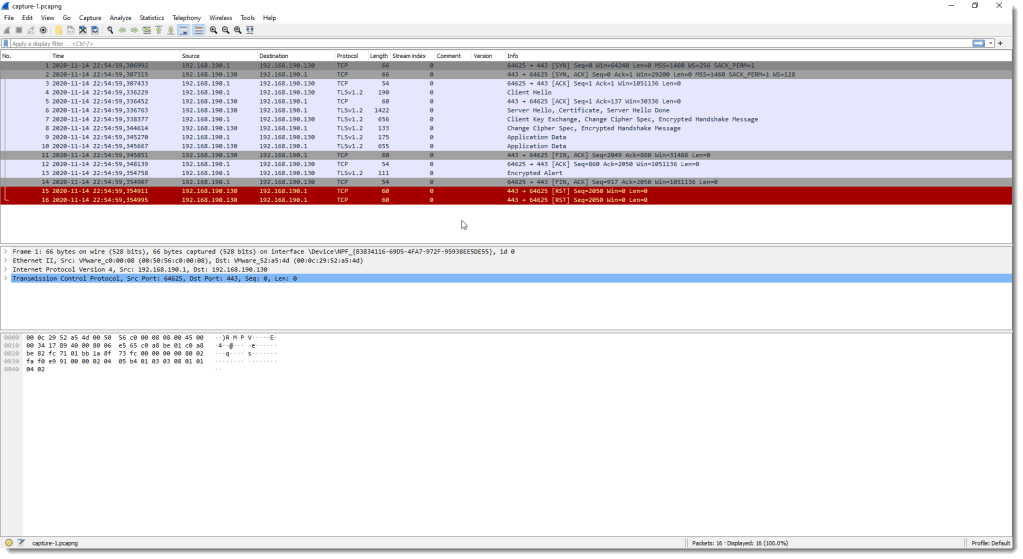
Here is a screenshot of the packet capture for this HTTPS traffic:
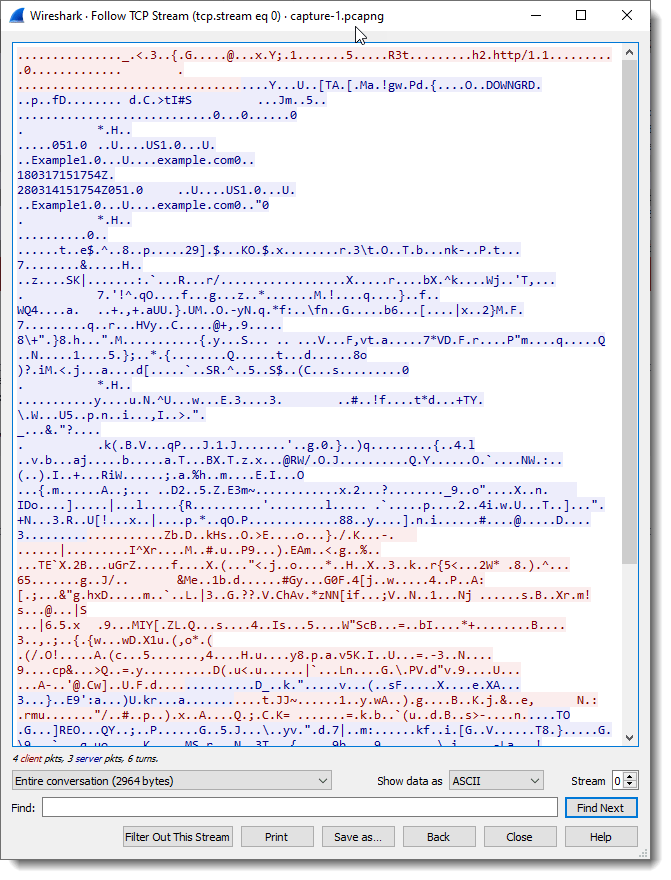
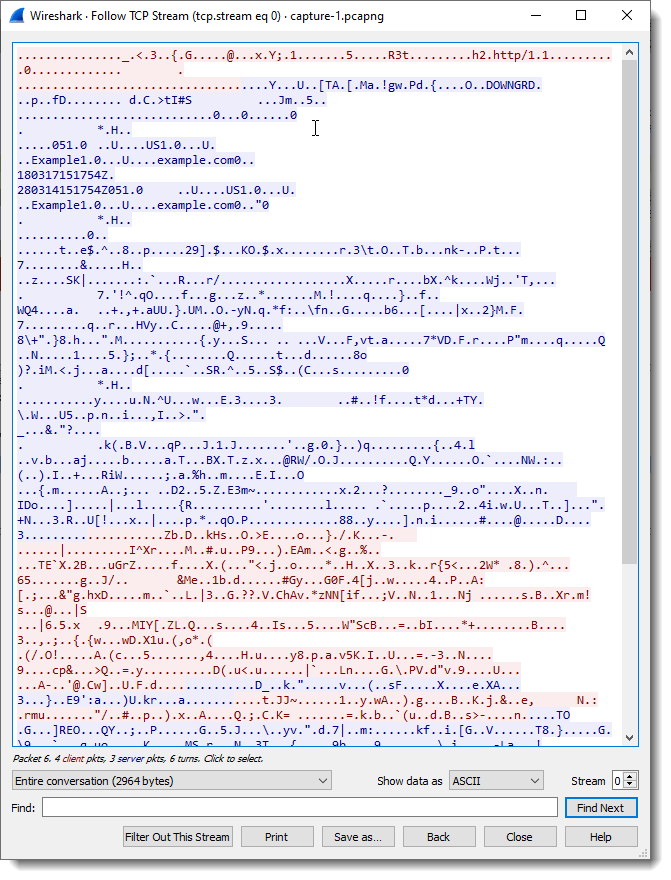
Following the TCP stream shows that the data is encrypted (except for some parts during the handshake, like the certificate):
If we inspect that handshake, more precisely, looking at the Server Hello packet, we see that a cipher suite was selected that relies on RSA and AES:
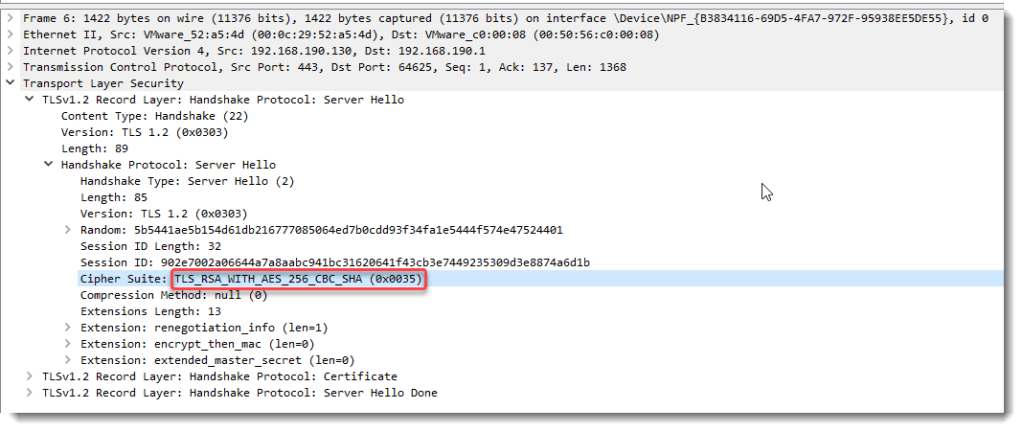
Data encrypted with this cipher suite can be decrypted by Wireshark when we provide the private RSA key of the server. That’s because in this example, Wireshark needs to decrypt the pre-master secret sent by the client to the server. This pre-master secret is encrypted with the public RSA key of the server.

These are the steps to follow:

Go to preferences:
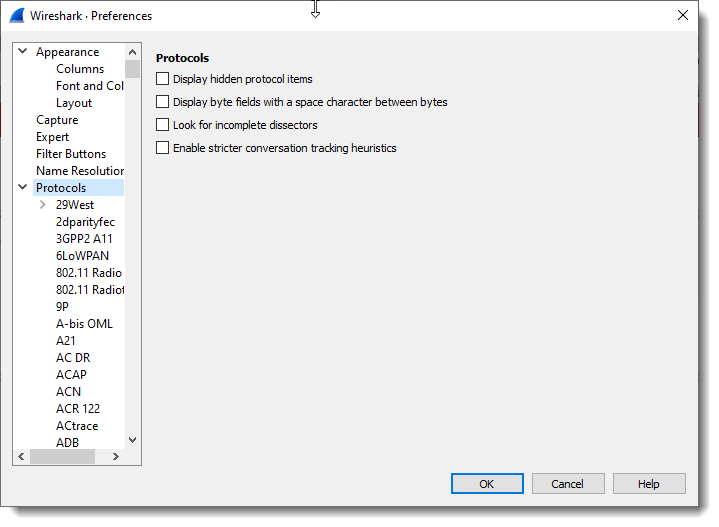
Search for the TLS protocol, and edit the RSA Keys list.
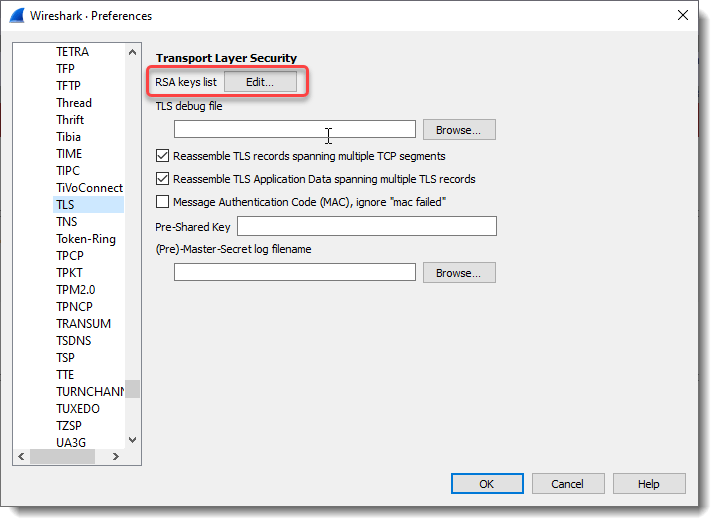
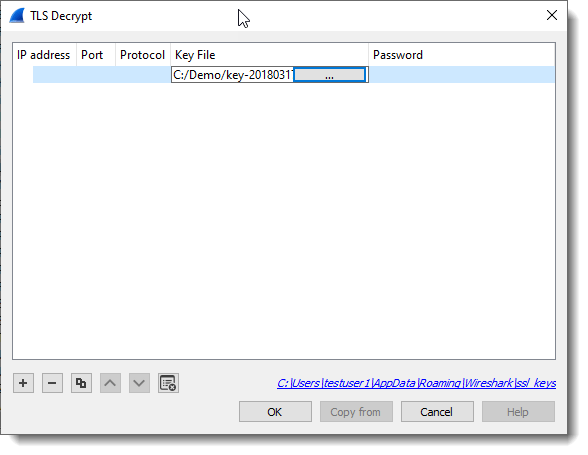
Click the + button to add a key:
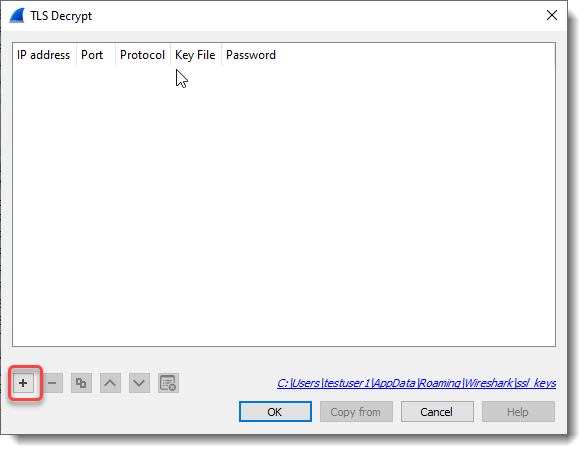
Then add the RSA private key key-20180317-161753.pem.
When you then close the dialogs, and the main screen regains focus, the TLS data will be decrypted:
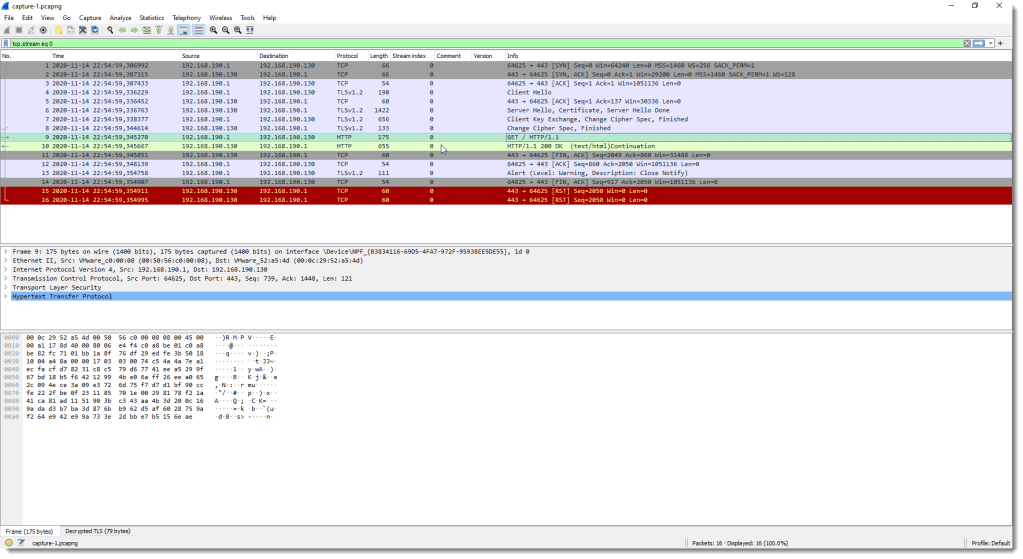
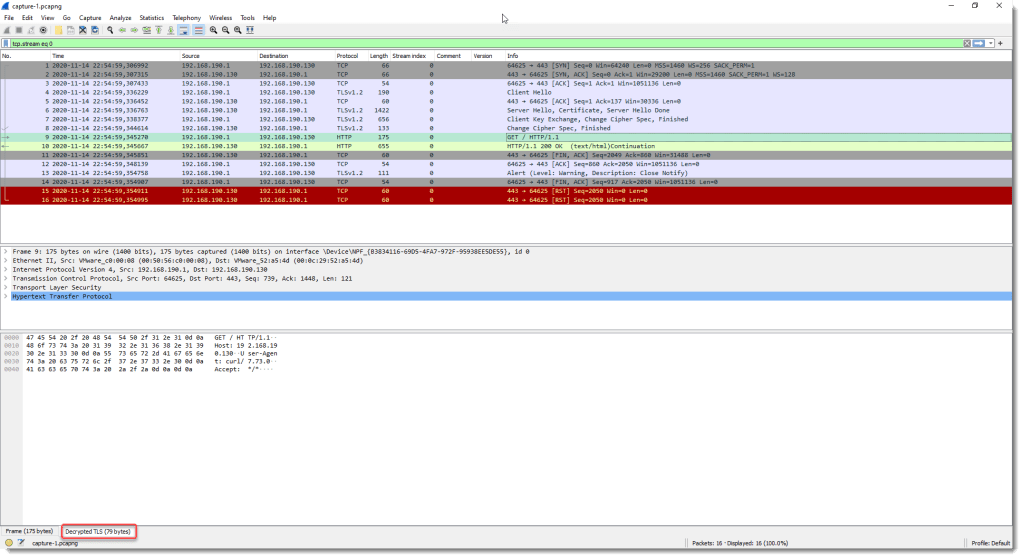
Remark that for packets 9 and 10, the Protocol column value changed from TLSv1.2 to HTTP, and the Info column from Application Data to HTTP methods and replies.

And in the bottom view (hexadecimal & ASCII dump), a “Decrypted TLS” tab was added:
We will now try the 3 available Follow Streams commands:
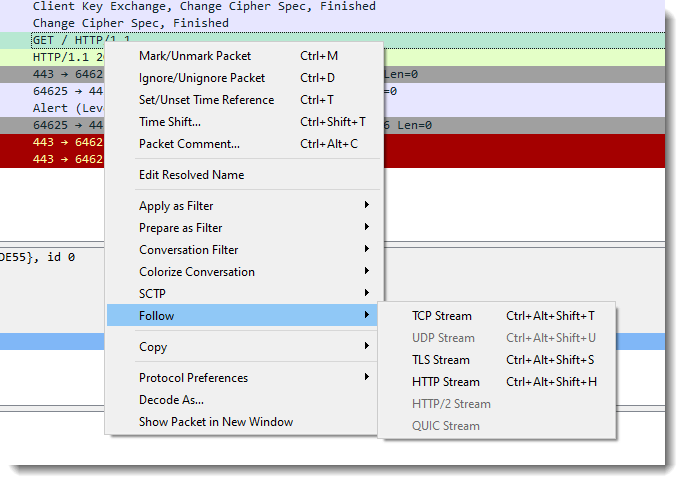
When we select TCP, we still have encrypted data:
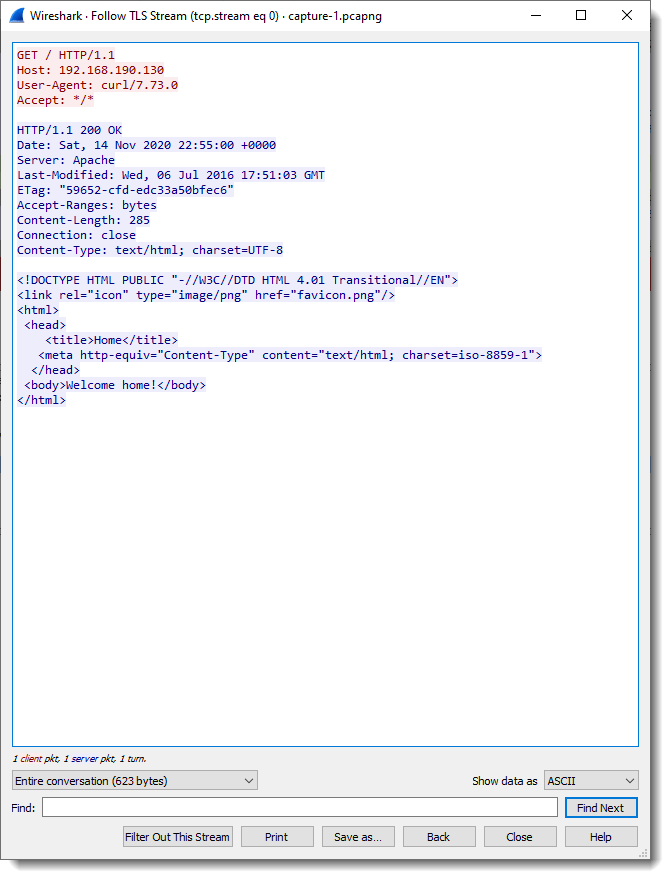
But when we select Follow TLS stream, we can now see the decrypted data:
And with Follow HTTP, we also have decrypted data:
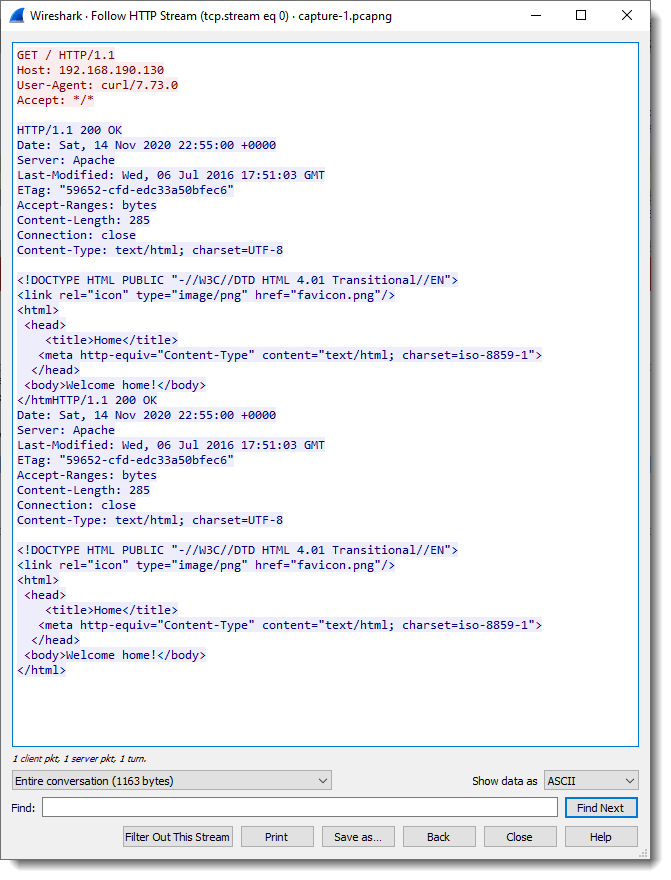
But remark that there is some data duplication, this is possibly a bug in Wireshark. To be investigated.

In part 2, we will look at the same request, but without using the server’s RSA private key, and also at an example with perfect forward secrecy.

Next blog posts:

Decrypting TLS Streams With Wireshark: Part 2
Decrypting TLS Streams With Wireshark: Part 3

The capture file, private key, and other data used in this blog post can be downloaded here:

tls-decryption-part-1.zip (https)
MD5: 905A5D3F2D0AEAA98BD3751AD5CAD9E2
SHA256: 03175A0C6EC5B451769AA7627BFA0487FFFB2485D455D467CCCA9CCD1075ACA9
Saturday 12 December 2020

Update: numbers-to-string.py Version 0.0.11

Filed under: My Software,Update — Didier Stevens @ 16:50

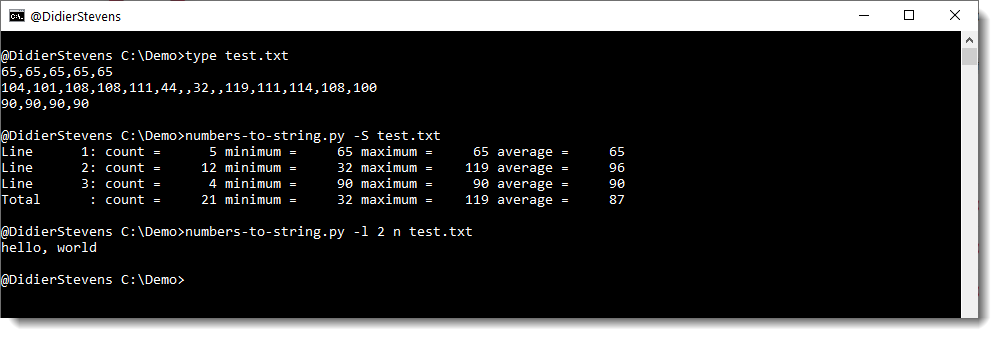
This new version of numbers-to-string.py, my tool to convert decimal numbers to strings, has a new option: -l (–line).

This option is used to select a particular input line (using its line number) for processing.

numbers-to-string_v0_0_11.zip (https)
MD5: 6824639FFEE290B83DBA328021355476
SHA256: 0E748886E97E351B64BD288D3EC6F322FFB7B1AA89410897E6B2BA03701EA852

Update: oledump.py version 0.0.57

Filed under: My Software,Update — Didier Stevens @ 13:30

This new version of oledump brings an update to plugin_stream_o, to handle /o form streams with multiple entries.

If more than one entry is found in a /o form stream, a counter will precede the output, like in this example with 2 entries:

oledump_V0_0_57.zip (https)
MD5: E0C9C8706EFC3AB86EEBED03A4CCF555
SHA256: 1C4588B48A494D0C7BD6AD9600EA9F46AD472DC62BF8D58D6EA635AE7CB02502

Monday 7 December 2020

Quickpost: finger.exe

Filed under: Hacking,Networking,Quickpost — Didier Stevens @ 0:00

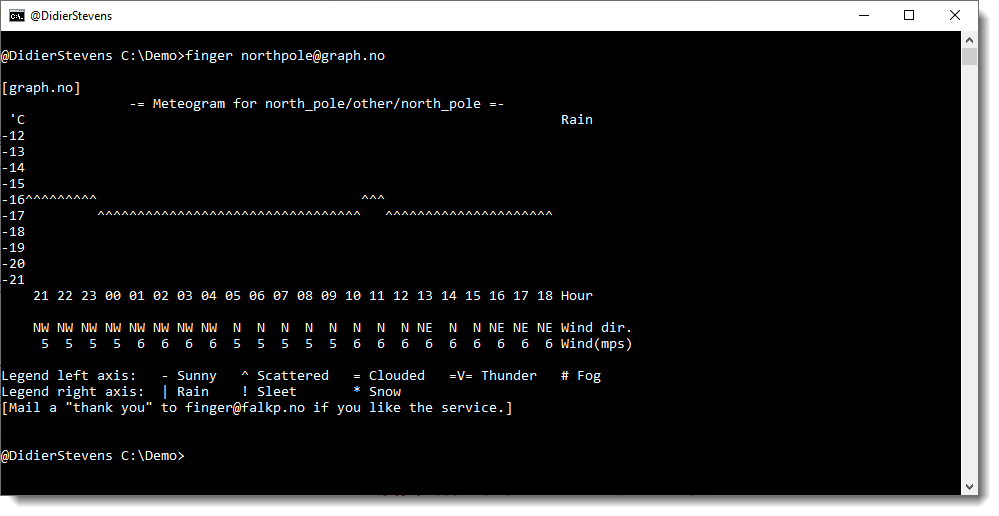
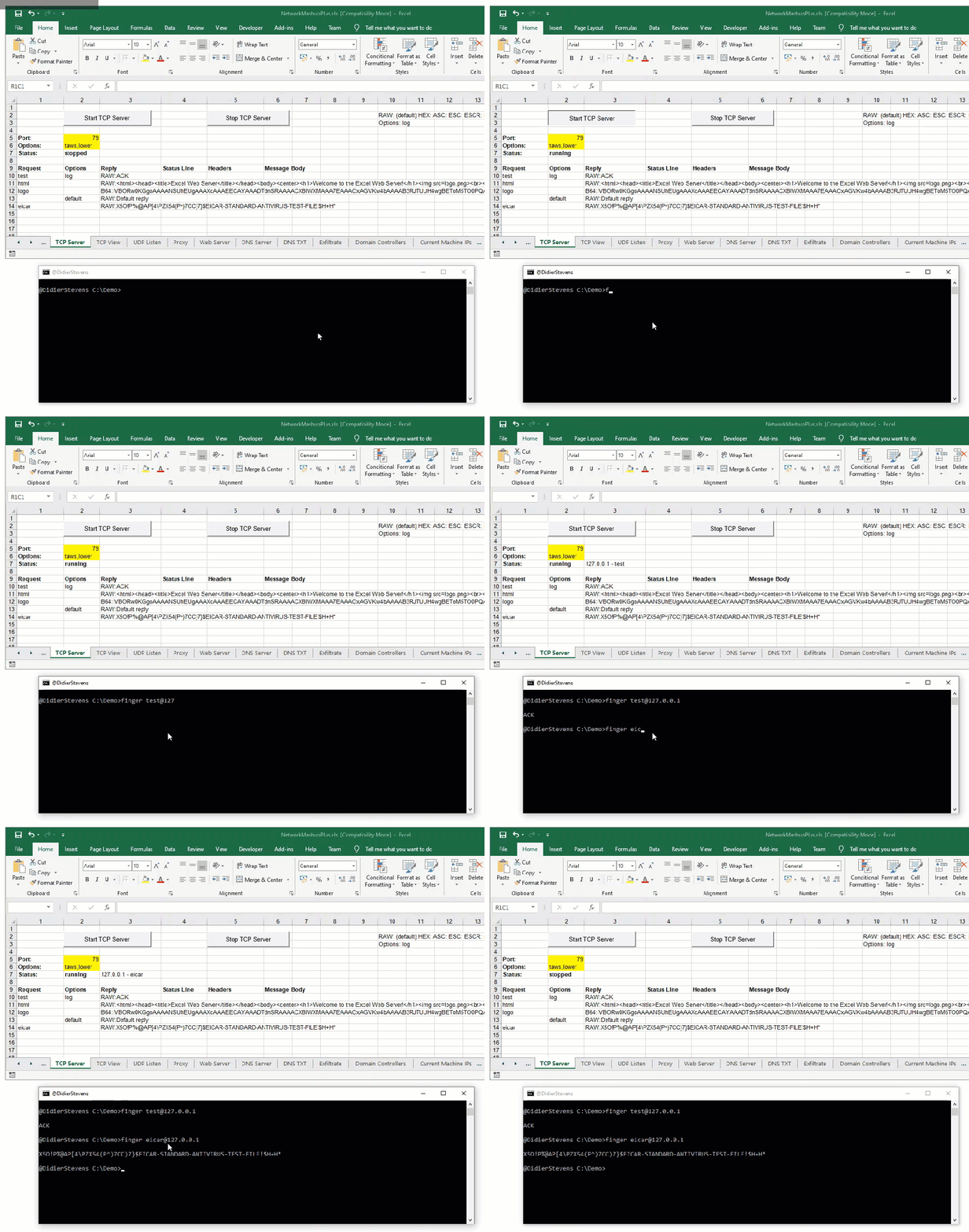
Windows 10 comes with the finger command, an ancient computer network tool.

You can still use it to lookup weather information, for example 🙂

It establishes a TCP connection to the hostname/IP address after the @ character, using destination port 79. And then it sends the text before the @ characters in ASCII, terminated with carriage return & line feed.

After that, it reads the reply, displays it, and closes the TCP connection.

finger.exe is not proxy-aware.

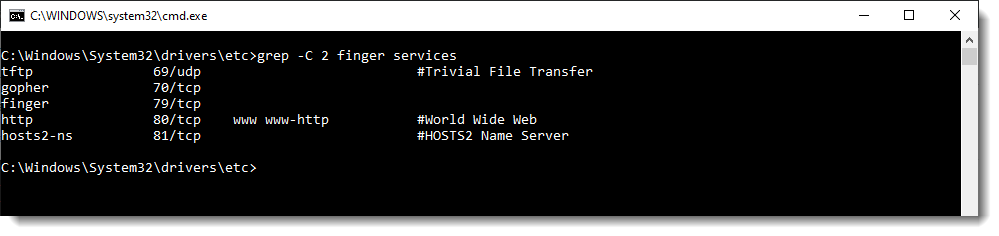
Port 79 is not hardcoded as an integer in finger.exe: the port is identified by service name “finger” (UNICODE), which is defined in the services list (%SystemRoot%\system32\drivers\etc\services). GetAddrInfo uses this list.

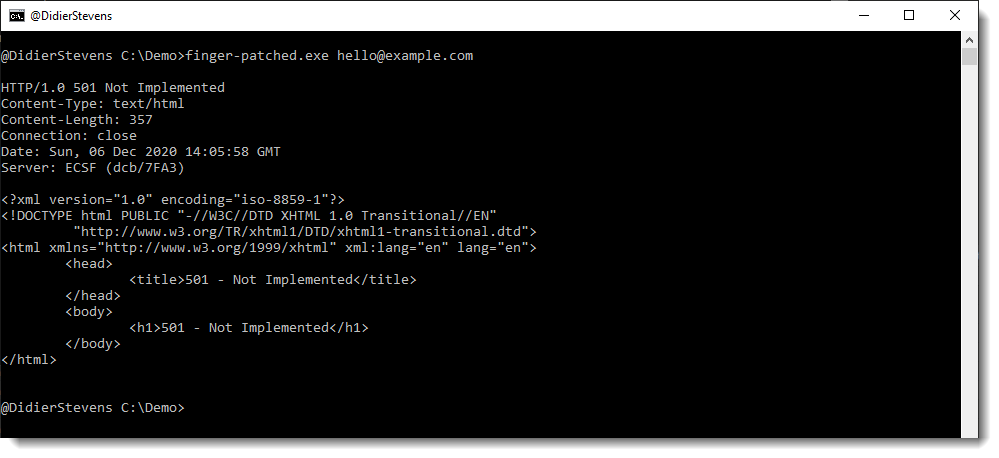
If you replace “finger” with “http\x00\x00” (UNICODE) in finger.exe (via binary patching, a shim, …), the finger command will connect to port 80:

As noted by many, finger.exe can be (ab)used to exchange information and files. Here I had my own go at it with finger.exe & Excel:


Quickpost info


Sunday 6 December 2020

Update: pecheck.py Version 0.7.12

Filed under: My Software,Update — Didier Stevens @ 13:28

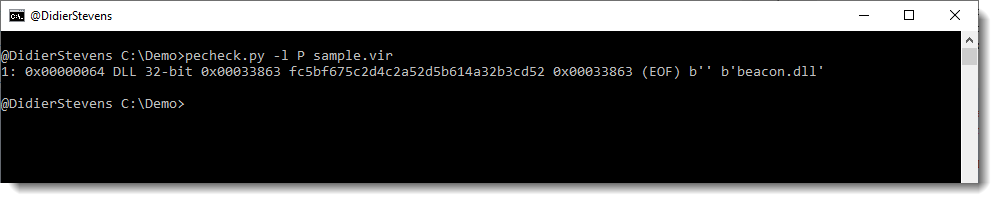
This new version of my PE file analysis tool pecheck.py brings more info when locating PE files inside arbitrary files (option -l P).

2 columns are added to the list of located PE files: original filename (version information) and DLL name (export section).

This can be used, for example, to detect Cobalt Strike beacons inside process dumps. Like in the following example, where the DLL name is beacon.dll:


pecheck-v0_7_12.zip (https)
MD5: 0AF2A99DD5AF742C9B688466EE3087C5
SHA256: 10B3B6903AB52381F7C8687F8284270CE060983CA001B4FC5DD88174744B705F

Saturday 5 December 2020

Update: oledump.py Version 0.0.56

Filed under: My Software,Update — Didier Stevens @ 0:00

This new version of oledump includes a few Python 3 fixes, and an update version of plugin_biff.py

plugin_biff now detects BIFF5/BIFF7 format and reports the file encryption mode (FILEPASS record).

oledump_V0_0_56.zip (https)
MD5: B26A75D36F3D47611F1D98200739EBB8
SHA256: C6C691E021273E75741EB1163F7FB70743EF2EC07C710EE7F15DFF513E38DAD4

Friday 4 December 2020

Overview of Content Published in November

Filed under: Announcement — Didier Stevens @ 11:04

Here is an overview of content I published in November:

Blog posts:

YouTube videos:

Videoblog posts:

SANS ISC Diary entries:

Sunday 29 November 2020

Update: emldump.py Version 0.0.11

Filed under: My Software,Update — Didier Stevens @ 21:50

This is the Python 3 version of my email file analysis tool (eml).

emldump_V0_0_11.zip (https)
MD5: 09408ED0C2183178BEA71459CE001995
SHA256: 01B3543CCBAE806E1536BF55E62DF7D30885737909DB4322348AC521138660CC

Saturday 28 November 2020

Update: disitool.py Version 0.4

Filed under: My Software,Update — Didier Stevens @ 11:08

This is a Python 3 update for my disitool.

disitool_v0_4.zip (https)
MD5: 3A41D8805340716913FAECE7C79B10A7
SHA256: 51EBFB0759FEEA69FFFB643659FD74DC5043338719A91CE36E427D175196661A

Wednesday 18 November 2020

Decrypting With translate.py

Filed under: Encryption,My Software — Didier Stevens @ 0:00

You’ve probably encountered malicious PowerShell scripts with an encrypted payload (shellcode, PowerShellScript, …).

Here is an example that I created:

Update: this example is on pastebin: https://pastebin.com/QUGiWTHj

There are 2 BASE64 strings in this script. The first one (cfr. variable $cfii) is the encryption key. The second one (cfr. variable $hctqdvb) is the payload.

The script uses AES encryption, with a 256-bit key, CBC mode, PKCS7 padding and an initialization vector (IV) that is stored in the first 16 bytes of the payload (0..15).

And after the payload is decrypted, it has to be decompressed with the Gzip algorithm.

With base64dump.py, I can find the 2 BASE64 strings in the PowerShell script:

I select the second BASE64 string (payload) to pipe into translate.py, using the following small Python script (decrypt.py) to do the decryption:

from Crypto.Cipher import AES
from Crypto.Util import Padding

def Decrypt(data):
    iv = data[0:16]
    ciphertext = data[16:]
    key = binascii.a2b_base64(keybase64)
    oAES = AES.new(key, AES.MODE_CBC, iv)

return Padding.unpad(oAES.decrypt(ciphertext), 16)

This small script uses crypto functions from pycryptodome.

I use translate.py in fullread mode (-f –fullread, to “translate” the file in a single step, in stead of byte per byte) and use function Decrypt to decrypt the block of data, like this:

I load the script decrypt.py with option -s, and I pass the key as a BASE64 string via option -e.

The output is non-printable bytes, because the decrypted payload is Gzip compressed. I use translate.py again to do the decompression:

And now the “payload” I used is decrypted and decompressed: “This is a test!”


« Previous PageNext Page »

Blog at WordPress.com.