This is a Python 3 bug fix version of my tool to analyze ZIP files.
zipdump_v0_0_21.zip (https)
MD5: 9B2839C1028FA5D07F2E07FDB56306D9
SHA256: 48653BB2B3009241C4C536BF64D16A6DFDA4B66D6658EC6BCFA79647AE4D5FA8
This is a Python 3 bug fix version of my tool to analyze ZIP files.
zipdump_v0_0_21.zip (https)
MD5: 9B2839C1028FA5D07F2E07FDB56306D9
SHA256: 48653BB2B3009241C4C536BF64D16A6DFDA4B66D6658EC6BCFA79647AE4D5FA8
I created a video where I use my updated numbers-to-string.py tool to analyze a maldoc created with FireEye’s red team tool.
This is a Python 3 version of my byte-stats.py tool to produce statistics for arbitrary binary input.
byte-stats_V0_0_8.zip (https)
MD5: 2F6E672D821356EDBDA51A83662075E8
SHA256: 23A108A849FEB84002505463101D7DC47C52D12C80F812465B25996DBB34775C
This is a bug fix version for cut-bytes.py, my tool to select (cut) bytes from binary input.
cut-bytes_V0_0_13.zip (https)
MD5: E16C2B6358A2AA642BCC9CC9B033FAEC
SHA256: 2276257173FD1DF65338CFA53DDE5522ED8A7D7E94BCC302117F535F584F14CF
This version adds bit shift functions shl and shr. There’s also a bug fix.
translate_v2_5_11.zip (https)
MD5: CB3B7F284B2F5C73FC583BB8E91B33AA
SHA256: 99717783D1225E1B95EE721AA2C7F3A09AE02647E28E7C6337776363B9BFFC33
This new update to strings.py, my tool to extract strings, brings statistics with a new option: -a.
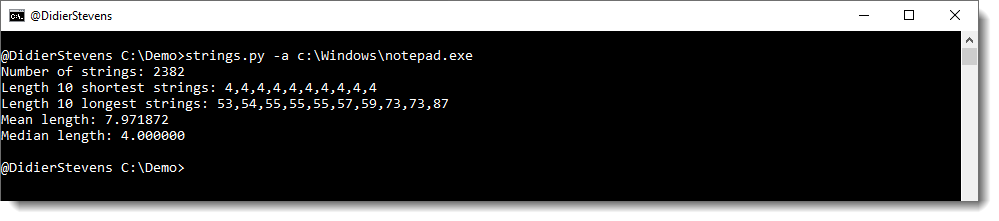
This option can be used together with other filtering options:

strings_V0_0_6.zip (https)
MD5: C4633CDAF3AEADE23738AA9356F50298
SHA256: 93A87F515103A0C9DA01D6DA034CE7FB5CC7E562B095EFF614EF09C8DD92D455
In this first example, I show how to decrypt a TLS stream with Wireshark.
I made my example as such, that the encryption in this example is done with keys derived from a master secret. This master secret is derived from a pre-master secret, which is securely exchanged between the client and server using RSA crypto.
Remark that this method will not work with modern browsers and web servers, as they use perfect forward secrecy. This will be explained in part 2.
I use my TCP honeypot to set up a web server, and curl to request a page over TLS. I use curl for Windows build with OpenSSL, and not the curl version distributed with Windows 10, that relies on schannel.
I use the following curl command with options to force a TLS encryption method that is based on a pre-master secret that is encrypted with the public RSA key of the server:
curl.exe –verbose –insecure –tls-max 1.2 –ciphers AES256-SHA –dump-header 01.headers –output 01.data –trace 01.trace –trace-time https://192.168.190.130
To force a cipher suite that is based on RSA for the exchange of the pre-master secret, I use options –tls-max 1.2 and –ciphers AES256-SHA.
Option –insecure is necessary because I’m using a self-signed certificate.
I choose the other options to produce as much information as possible: downloaded content (01.data), headers (01.headers) and a trace file (01.trace).
Here is a screenshot of the packet capture for this HTTPS traffic:
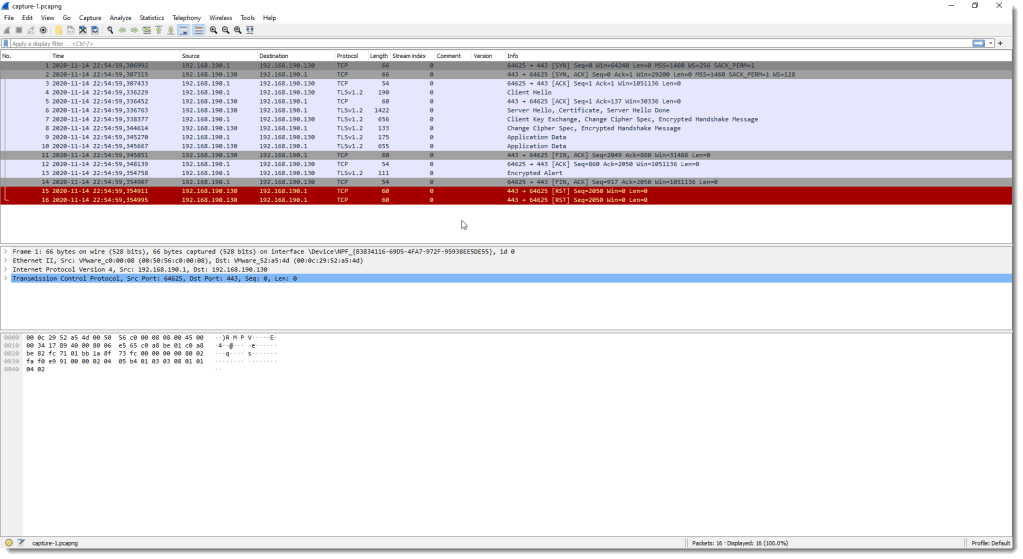
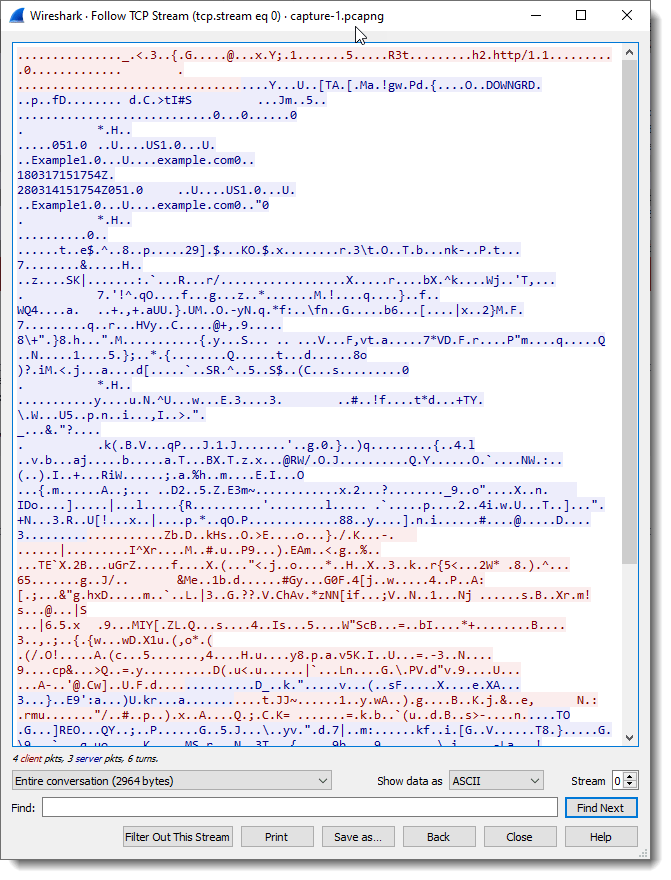
Following the TCP stream shows that the data is encrypted (except for some parts during the handshake, like the certificate):
If we inspect that handshake, more precisely, looking at the Server Hello packet, we see that a cipher suite was selected that relies on RSA and AES:
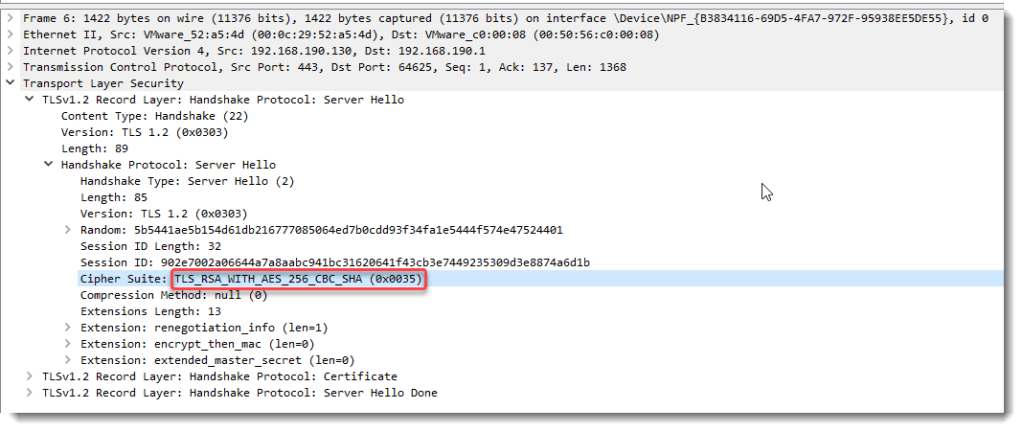
Data encrypted with this cipher suite can be decrypted by Wireshark when we provide the private RSA key of the server. That’s because in this example, Wireshark needs to decrypt the pre-master secret sent by the client to the server. This pre-master secret is encrypted with the public RSA key of the server.

These are the steps to follow:
Go to preferences:
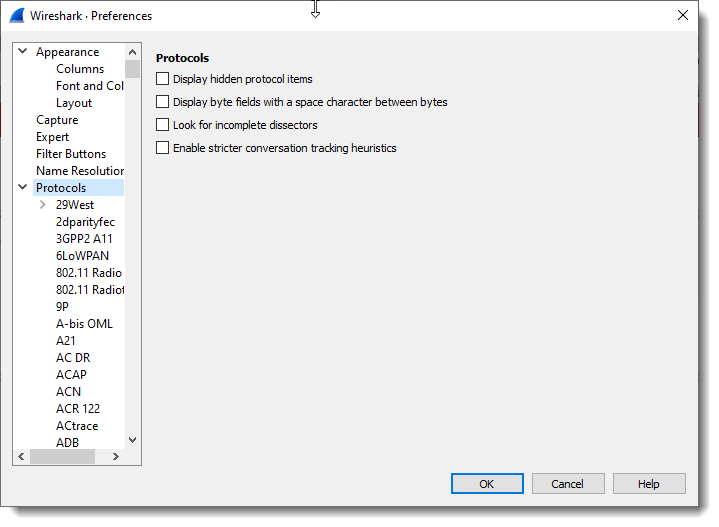
Search for the TLS protocol, and edit the RSA Keys list.
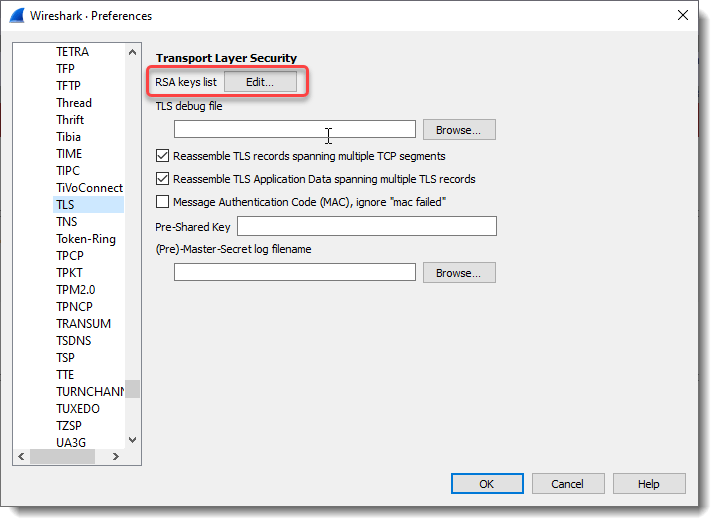
Click the + button to add a key:
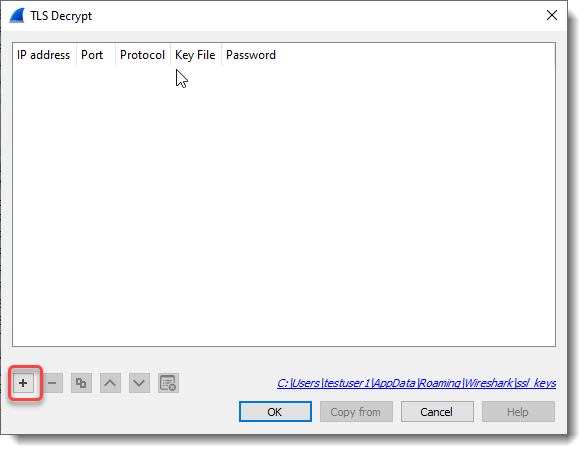
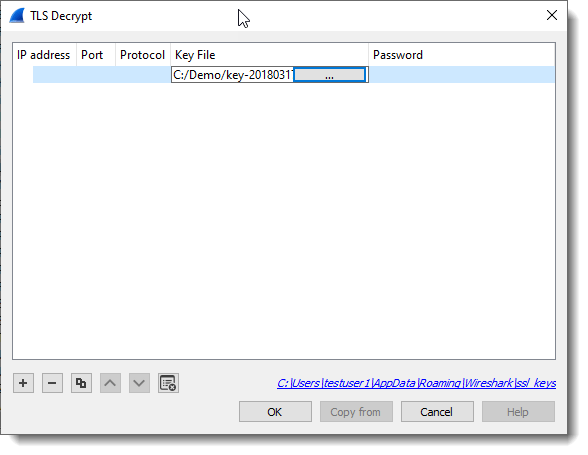
Then add the RSA private key key-20180317-161753.pem.
When you then close the dialogs, and the main screen regains focus, the TLS data will be decrypted:
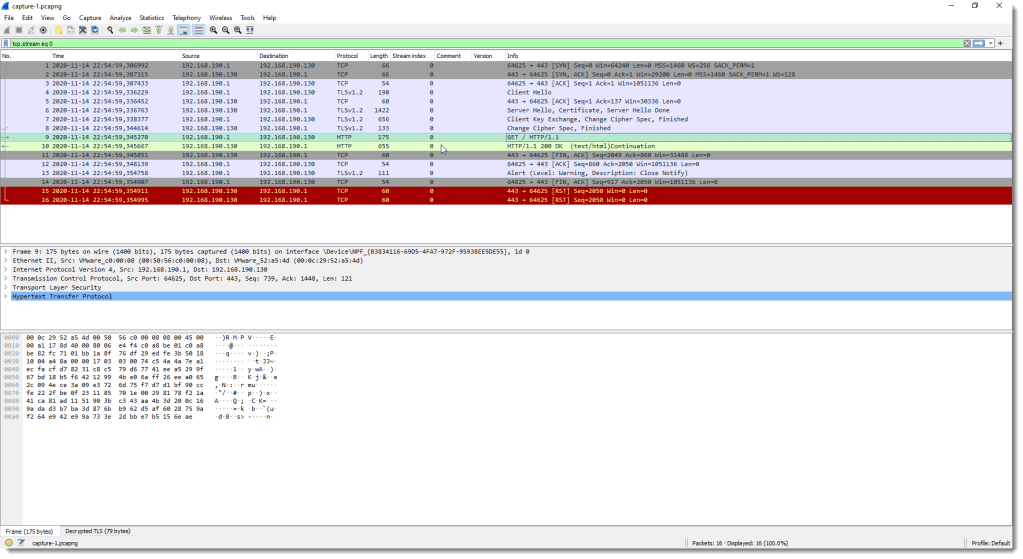
Remark that for packets 9 and 10, the Protocol column value changed from TLSv1.2 to HTTP, and the Info column from Application Data to HTTP methods and replies.
And in the bottom view (hexadecimal & ASCII dump), a “Decrypted TLS” tab was added:
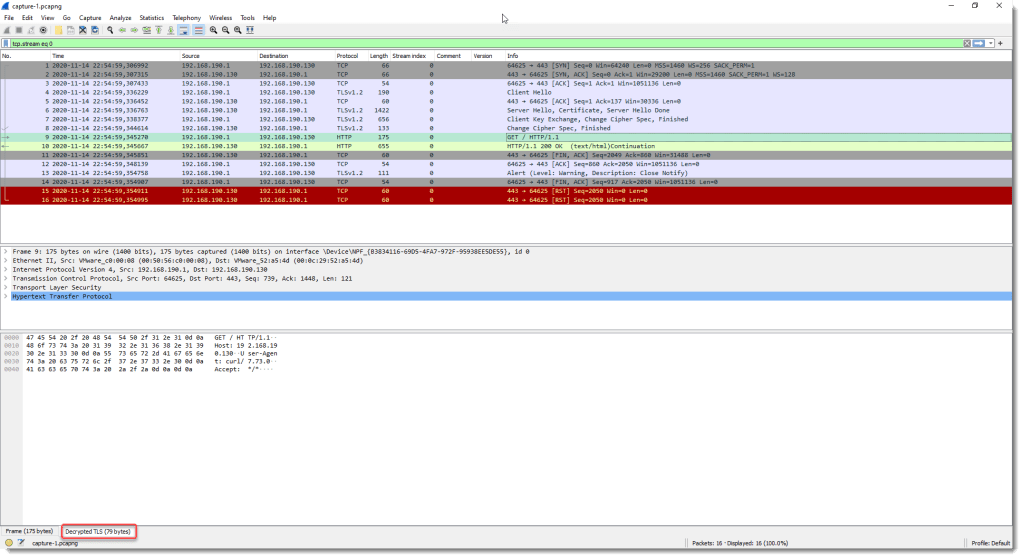
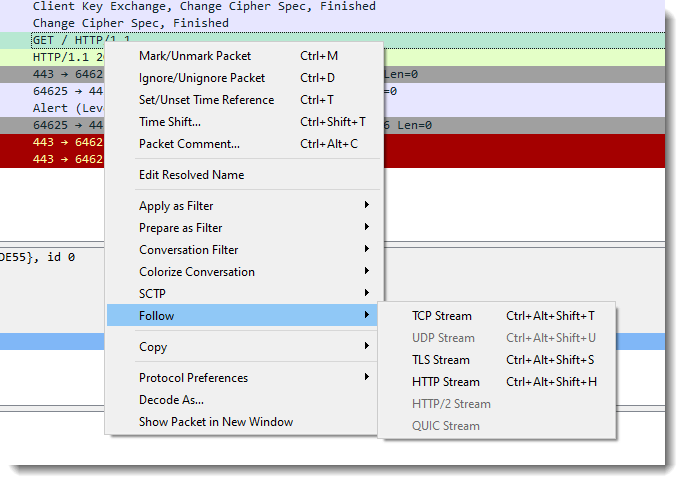
We will now try the 3 available Follow Streams commands:
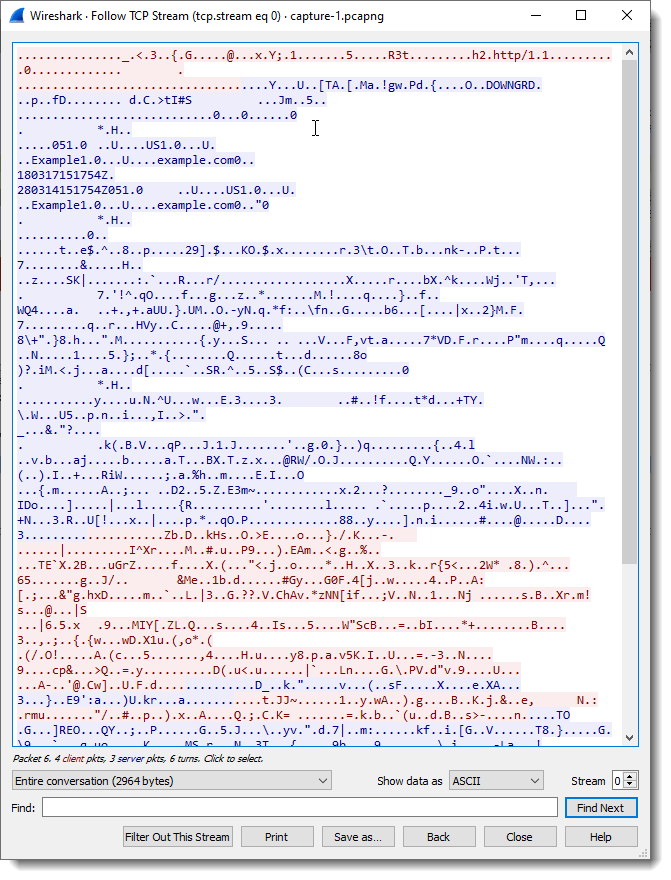
When we select TCP, we still have encrypted data:
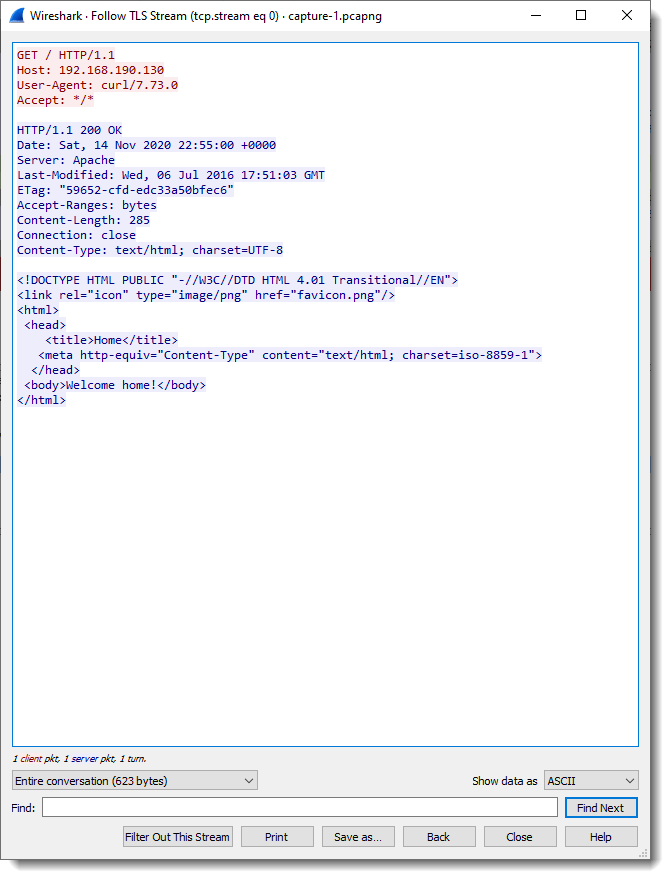
But when we select Follow TLS stream, we can now see the decrypted data:
And with Follow HTTP, we also have decrypted data:
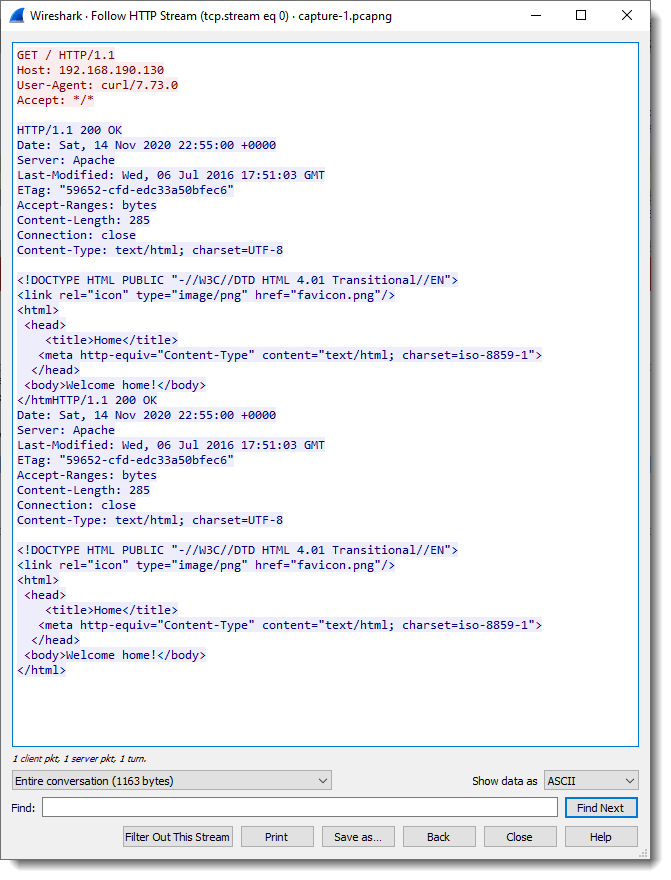
But remark that there is some data duplication, this is possibly a bug in Wireshark. To be investigated.
In part 2, we will look at the same request, but without using the server’s RSA private key, and also at an example with perfect forward secrecy.
Next blog posts:
Decrypting TLS Streams With Wireshark: Part 2
Decrypting TLS Streams With Wireshark: Part 3
The capture file, private key, and other data used in this blog post can be downloaded here:
tls-decryption-part-1.zip (https)
MD5: 905A5D3F2D0AEAA98BD3751AD5CAD9E2
SHA256: 03175A0C6EC5B451769AA7627BFA0487FFFB2485D455D467CCCA9CCD1075ACA9
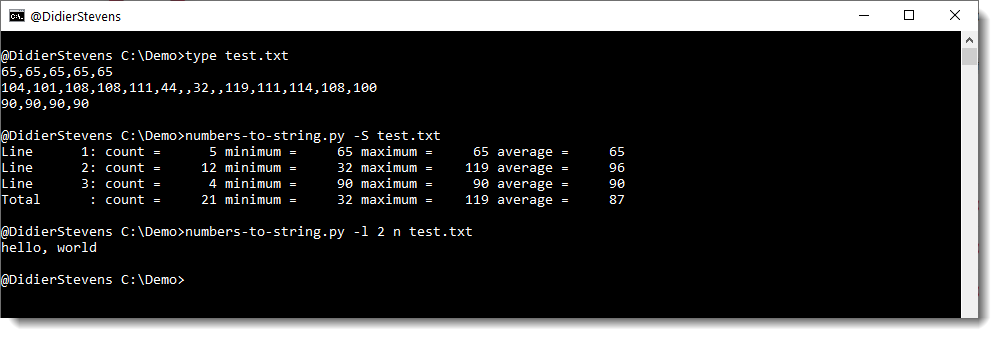
This new version of numbers-to-string.py, my tool to convert decimal numbers to strings, has a new option: -l (–line).
This option is used to select a particular input line (using its line number) for processing.
numbers-to-string_v0_0_11.zip (https)
MD5: 6824639FFEE290B83DBA328021355476
SHA256: 0E748886E97E351B64BD288D3EC6F322FFB7B1AA89410897E6B2BA03701EA852
This new version of oledump brings an update to plugin_stream_o, to handle /o form streams with multiple entries.
If more than one entry is found in a /o form stream, a counter will precede the output, like in this example with 2 entries:

oledump_V0_0_57.zip (https)
MD5: E0C9C8706EFC3AB86EEBED03A4CCF555
SHA256: 1C4588B48A494D0C7BD6AD9600EA9F46AD472DC62BF8D58D6EA635AE7CB02502
Windows 10 comes with the finger command, an ancient computer network tool.
You can still use it to lookup weather information, for example 🙂
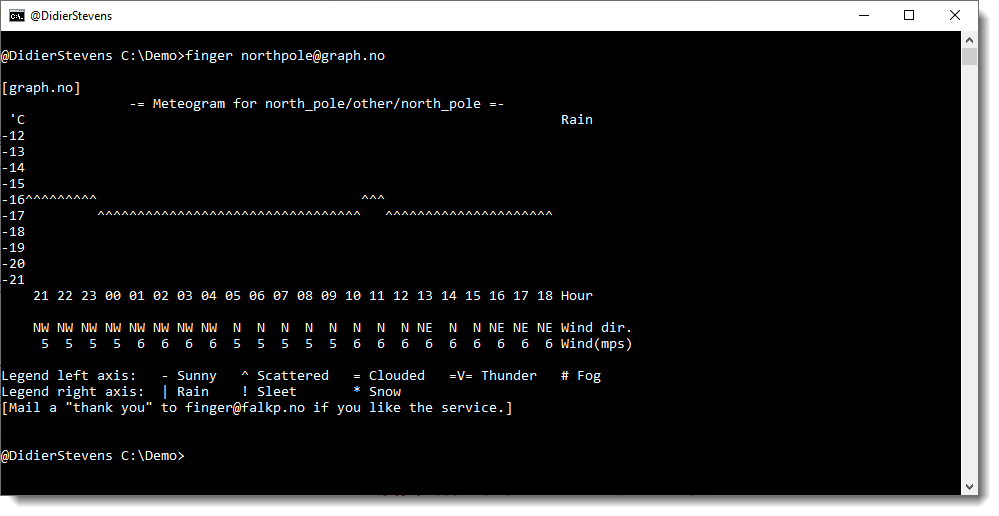
It establishes a TCP connection to the hostname/IP address after the @ character, using destination port 79. And then it sends the text before the @ characters in ASCII, terminated with carriage return & line feed.
After that, it reads the reply, displays it, and closes the TCP connection.
finger.exe is not proxy-aware.
Port 79 is not hardcoded as an integer in finger.exe: the port is identified by service name “finger” (UNICODE), which is defined in the services list (%SystemRoot%\system32\drivers\etc\services). GetAddrInfo uses this list.

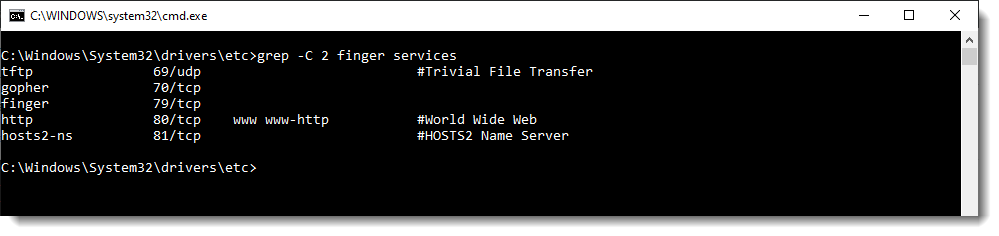
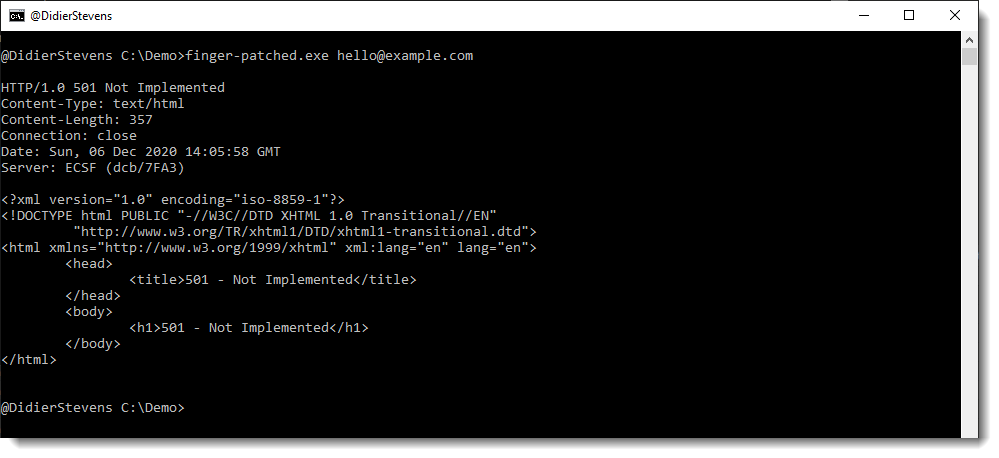
If you replace “finger” with “http\x00\x00” (UNICODE) in finger.exe (via binary patching, a shim, …), the finger command will connect to port 80:
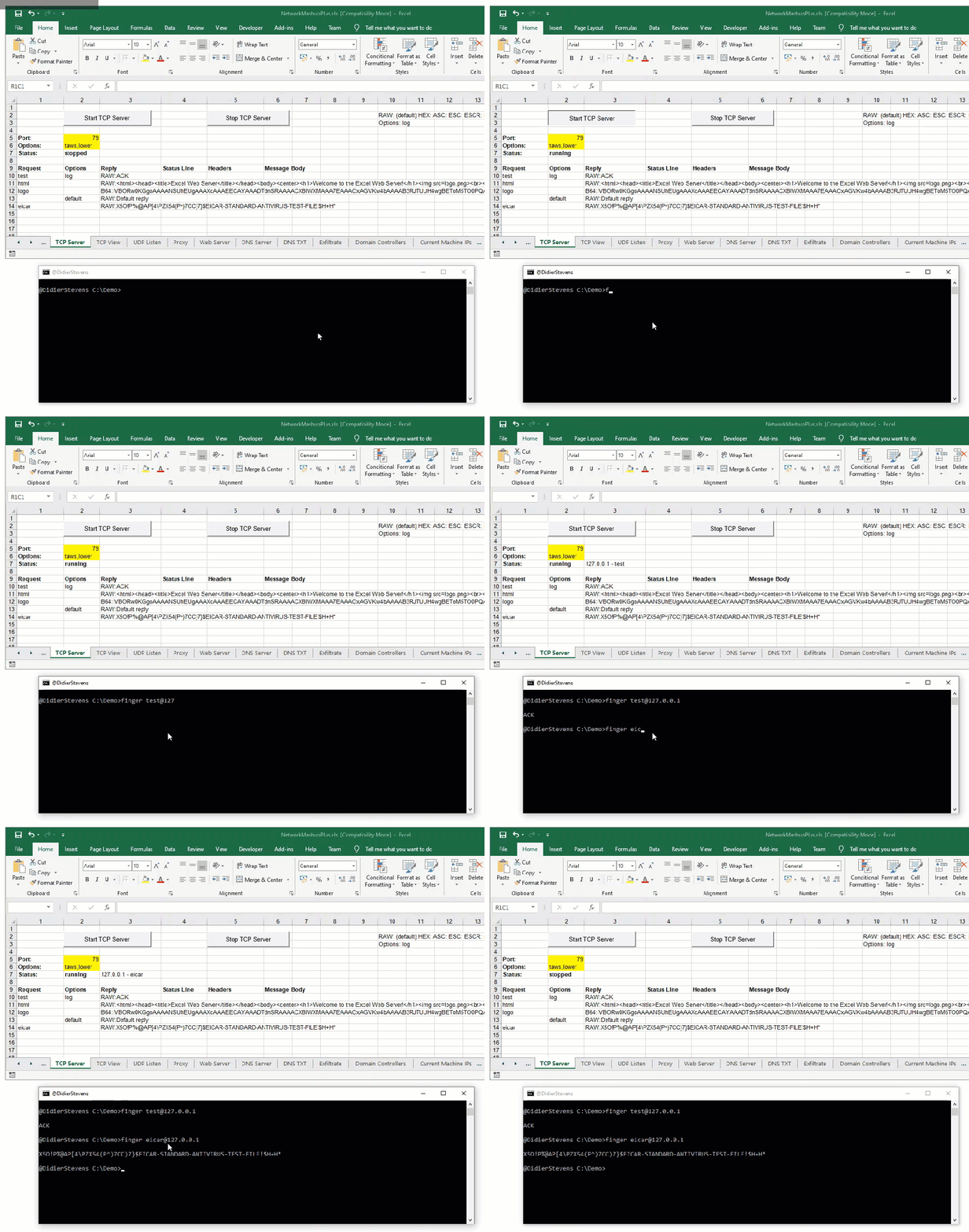
As noted by many, finger.exe can be (ab)used to exchange information and files. Here I had my own go at it with finger.exe & Excel:

 Didier Stevens