I have 2 Bosch 18V “power for all” chargers. A normal charger (AL 1830 CV) and a fast charger (AL 1880 CV).
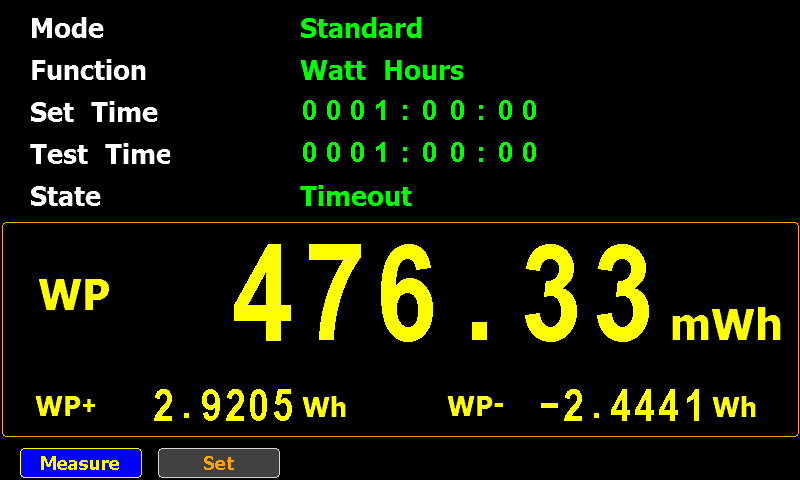
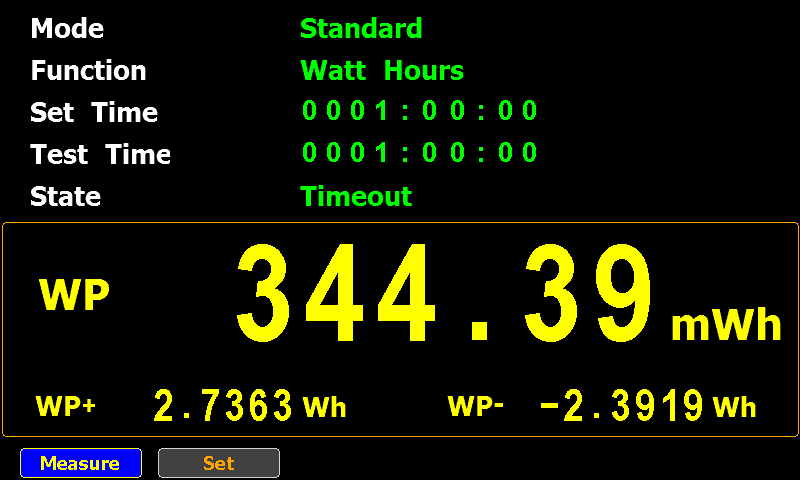
Measuring the power consumption of these 2 chargers in standby mode (plugged into a 230V outlet, but no battery connected) with a GPM-8310 powermeter, I obtained the following results:
Some new features that help with analyzing memory dumps.
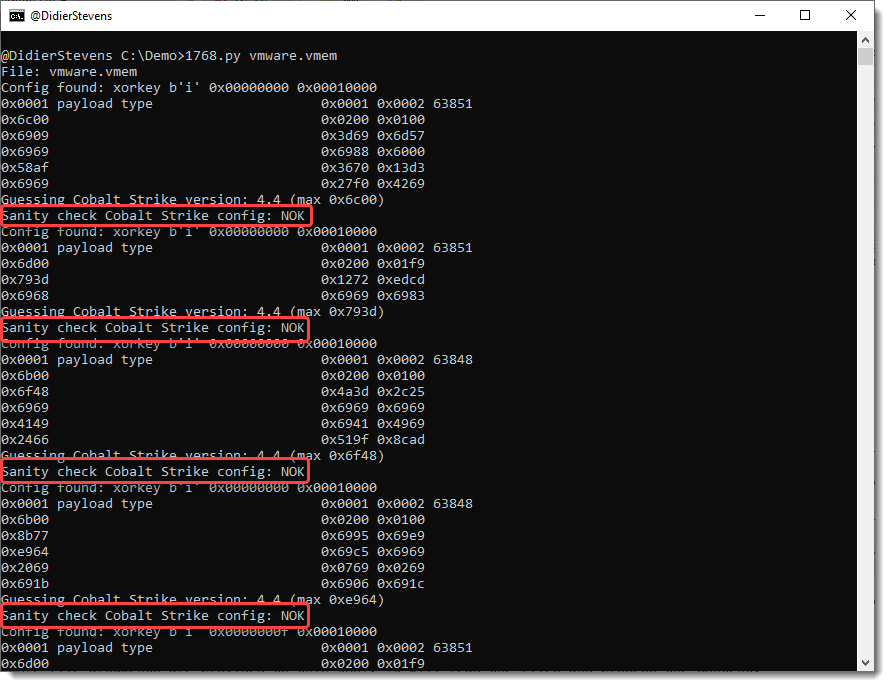
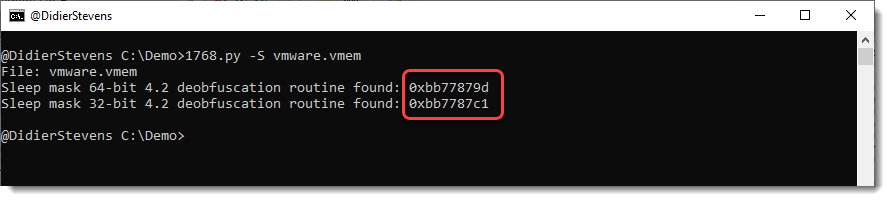
Here is the analysis of a VMware vmem file:
There’s a new sanity check, determining if an extracted configuration is OK or not OK (NOK).
A config passes the sanity check if it contains a valid payload type and a valid public key.
Configurations that don’t pass the sanity check, are most likely false positives: they have a valid header, but no valid fields. They can show up in memory dumps of Windows machines.
Option -S can be used to hide configurations that don’t pass the sanity check:
Now we are just left with detections of the sleep mask routine. What’s new in this version, is that the position where the signature was found is listed.
Finding both 32-bit and 64-bit routines is unusual.
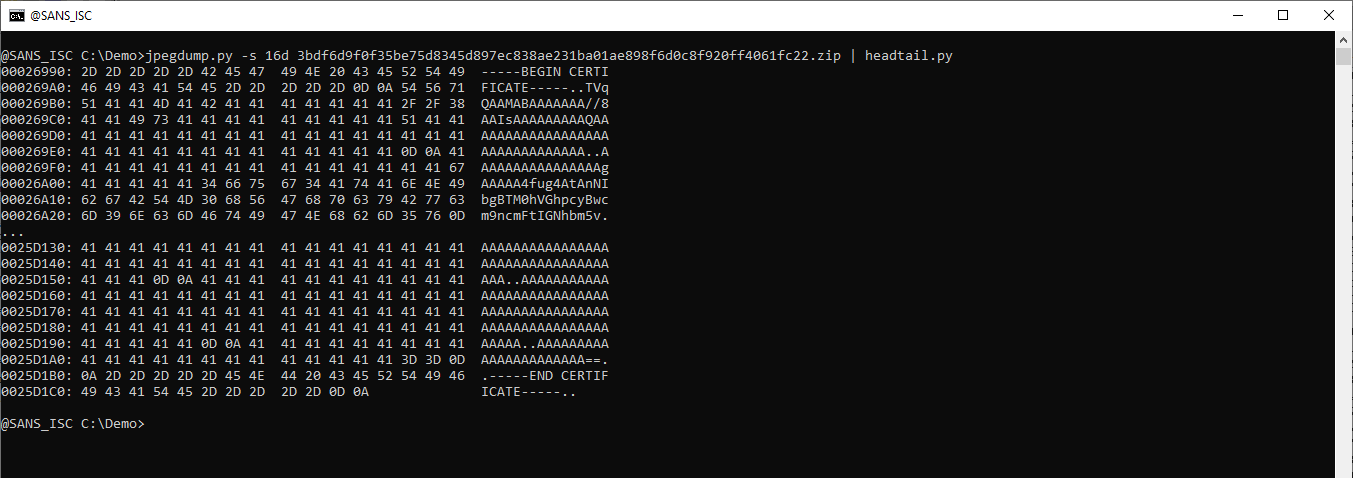
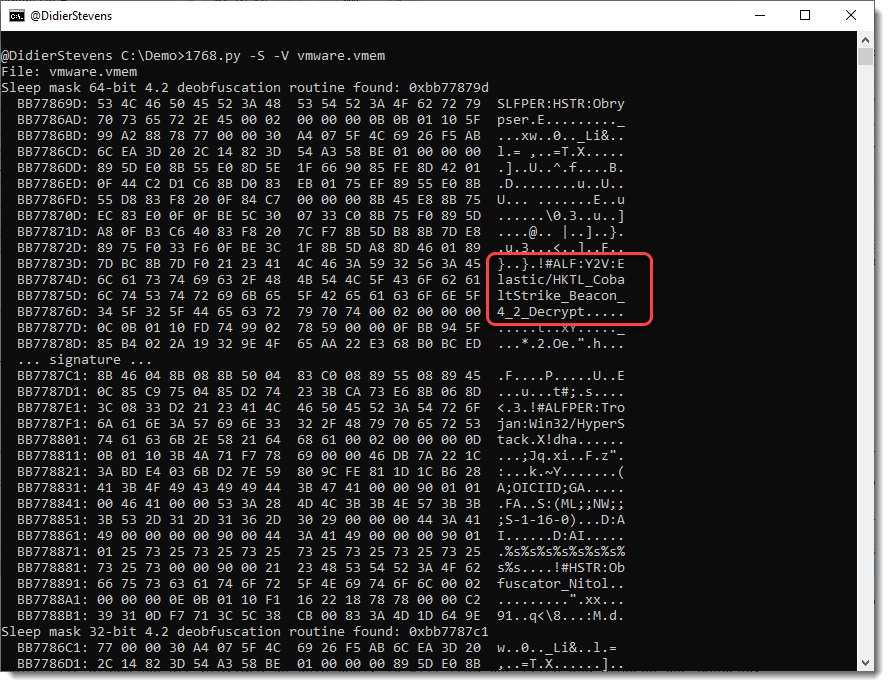
Option -V can be used to dump 256 bytes before and after the signature, to help us get an idea what we are dealing with.
And what we actually found here, is the memory of the anti-virus program containing signatures, like signatures for Cobalt Strike sleep mask deobfuscation routines.
I charged an iPad Pro (12.9 Inch) and measured the power consumption (at 120V and 230V). According to the specs, this iPad has a battery with a capacity of 40.88 Wh.
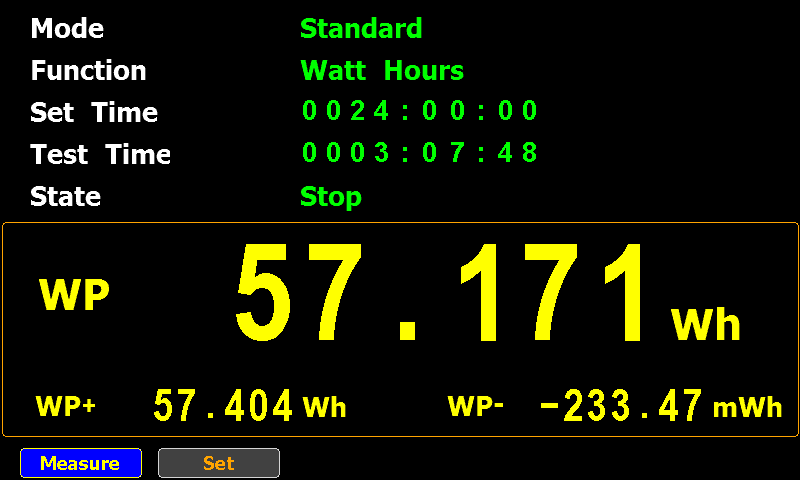
Procedure: when the iPad Pro turns itself of because of a low battery, I started to charge the iPad with an Apple A2347 USB C charger and measured the AC power consumption of this charger. It consumes around 21 Watt, this value starts to diminish when the battery approaches full charge. When at 100%, the charger will still deliver power, slowly decreasing to 3 Watts, and then it stops delivering power for charging. At that point, I stop the power consumption measurement.
I did not use the iPad while charging.
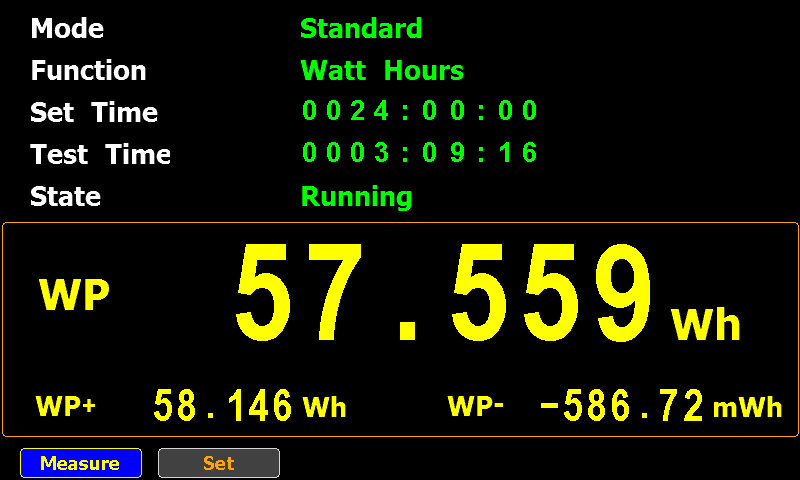
This measurement was done twice: at 120V 60Hz and 230V 50Hz (using an AC power supply).
AC
Wh
Duration
120V 60Hz
57.171
03:07:48
230V 50Hz
57.559
03:09:16
There’s not much difference between the two measurements, but what I’ll certainly take away from this test, is that it takes around 57 Wh of AC power to charge a 40.88 Wh battery!
Update: when I did these tests, my iPad Pro had around 84 charging cycles.
I wondered what the results would be in other parts of the world, like the USA. To answer this question, I redid my tests with the USB chargers powered by an AC power supply that delivers electricity at 120V and 60Hz.
The devices I tested are:
Apple A1357
Apple A2347
Anker A2053
The no-brand USB charger was not tested, as the input specs specify 220V – 240V.
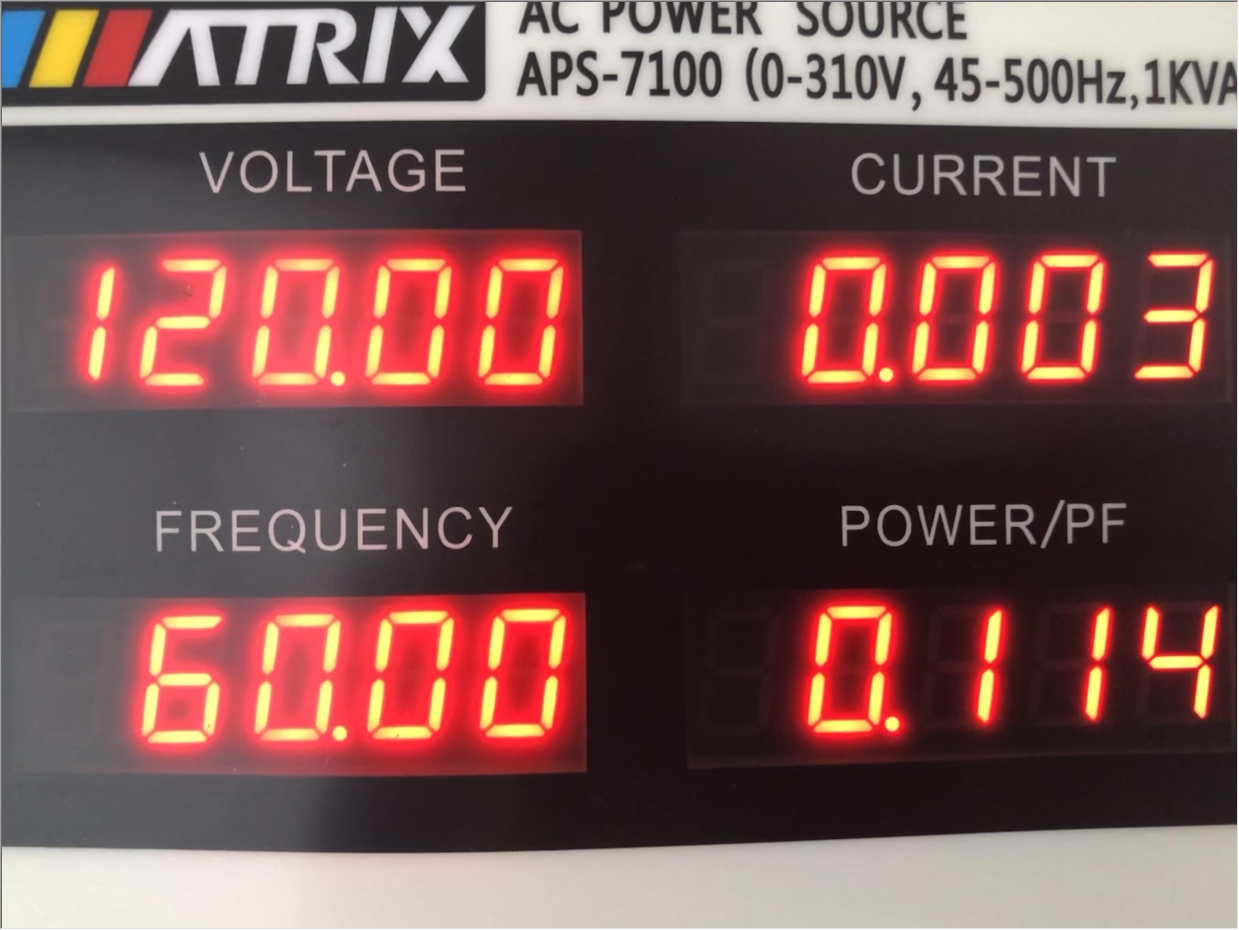
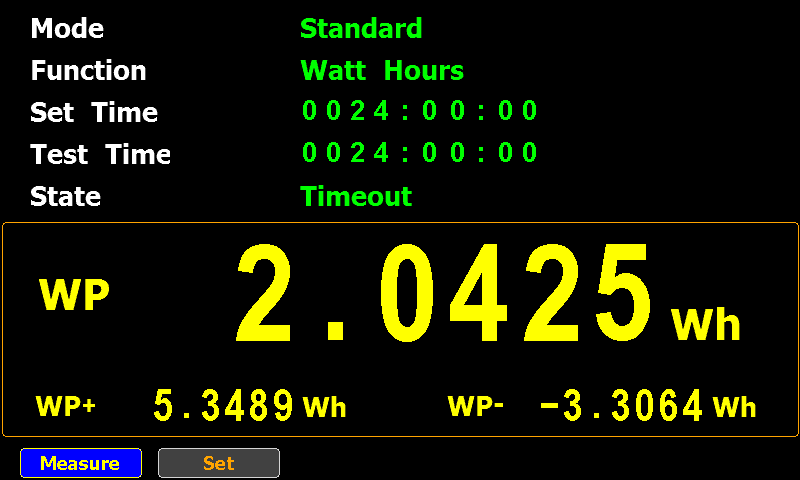
I connected each one to the AC power supply (120V 60Hz) and used a powermeter (GPM 8310, resolution 0,1 µW) to measure the standby power consumption over 24 hours.
This is the result:
Model
24 hours (Wh)
1 hour (Wh)
1 year (Wh)
Apple A1357
2,0425
0,0851
745,5125
Apple A2347
0,5473
0,0228
199,7718
Anker A2053
3,7527
0,1564
1369,7360
24 hours is the measured data, the “1 hour” and “1 year” columns are calculated based on the 24 hours data.
And here is the summary for 120V and 230V:
Model
1 hour (Wh, 120V 60Hz)
1 hour (Wh, 230V 50Hz)
Apple A1357
0,0851
0,1202
Apple A2347
0,0228
0,0530
Anker A2053
0,1564
0,2114
It’s clear that my USB chargers consume less standby power at 120V 60Hz than at 230V 50Hz.
This update brings an update to plugin plugin_vba_dco.py.
This is a plugin that scans VBA source code for keywords (Declare, CreateObject, GetObject, CallByName and Shell), extracts all lines with these keywords, followed by all lines with identifiers associated with these keywords.
For example, if the result of a CreateObject call is stored in variable oXML, then all lines with this oXML identifier are selected.
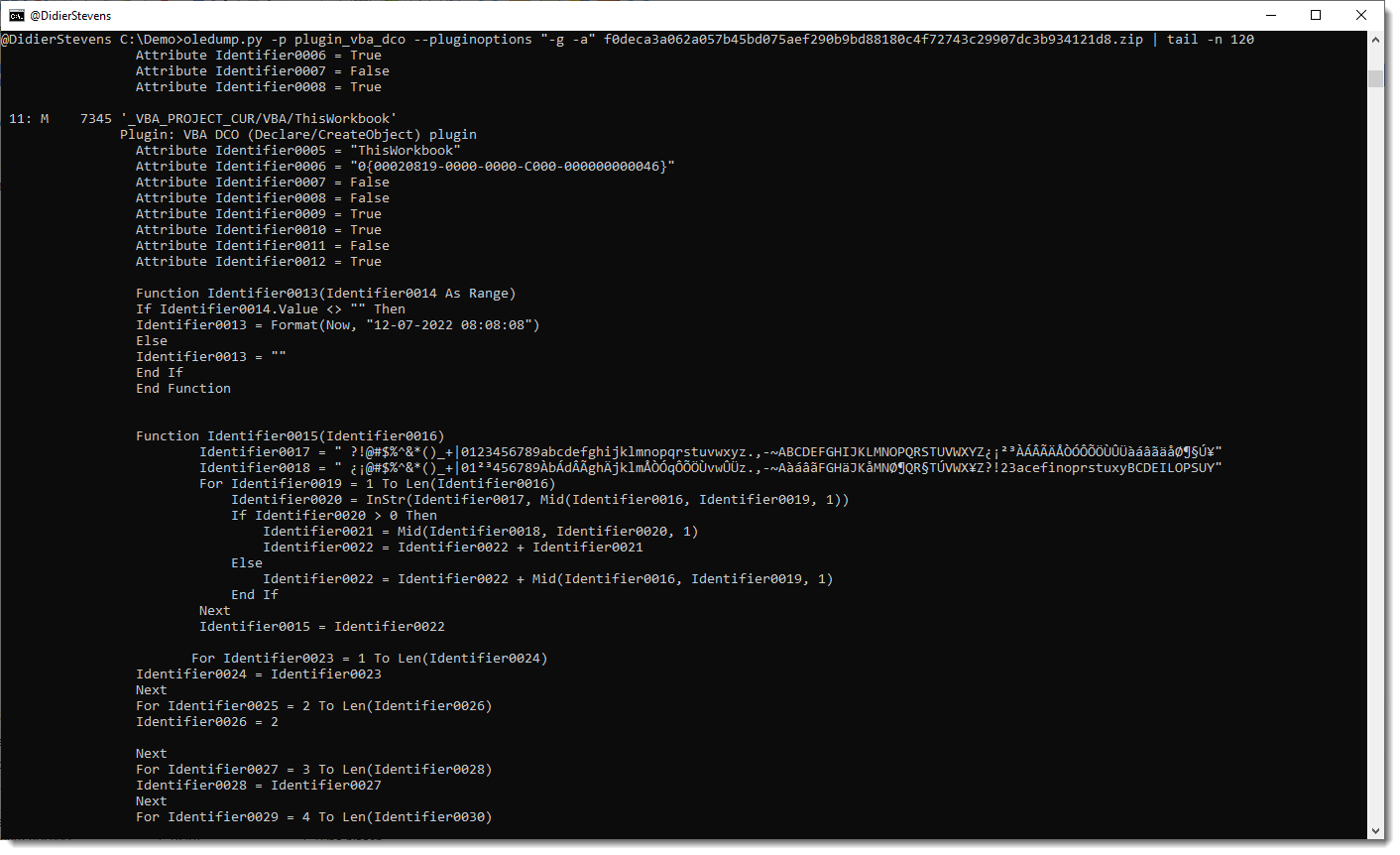
I updated this plugin with two options -g (–generalize) and -a (–all).
Option -g generalize will replace all identifiers (like variable & functions names) with a general name: Identifier#### where #### is a numeric counter.
I added this option to analyze a sample where almost all identifiers where completely unreadable, as they consisted solely out of characters that are between byte values 128 and 255 (e.g., non-ASCII).
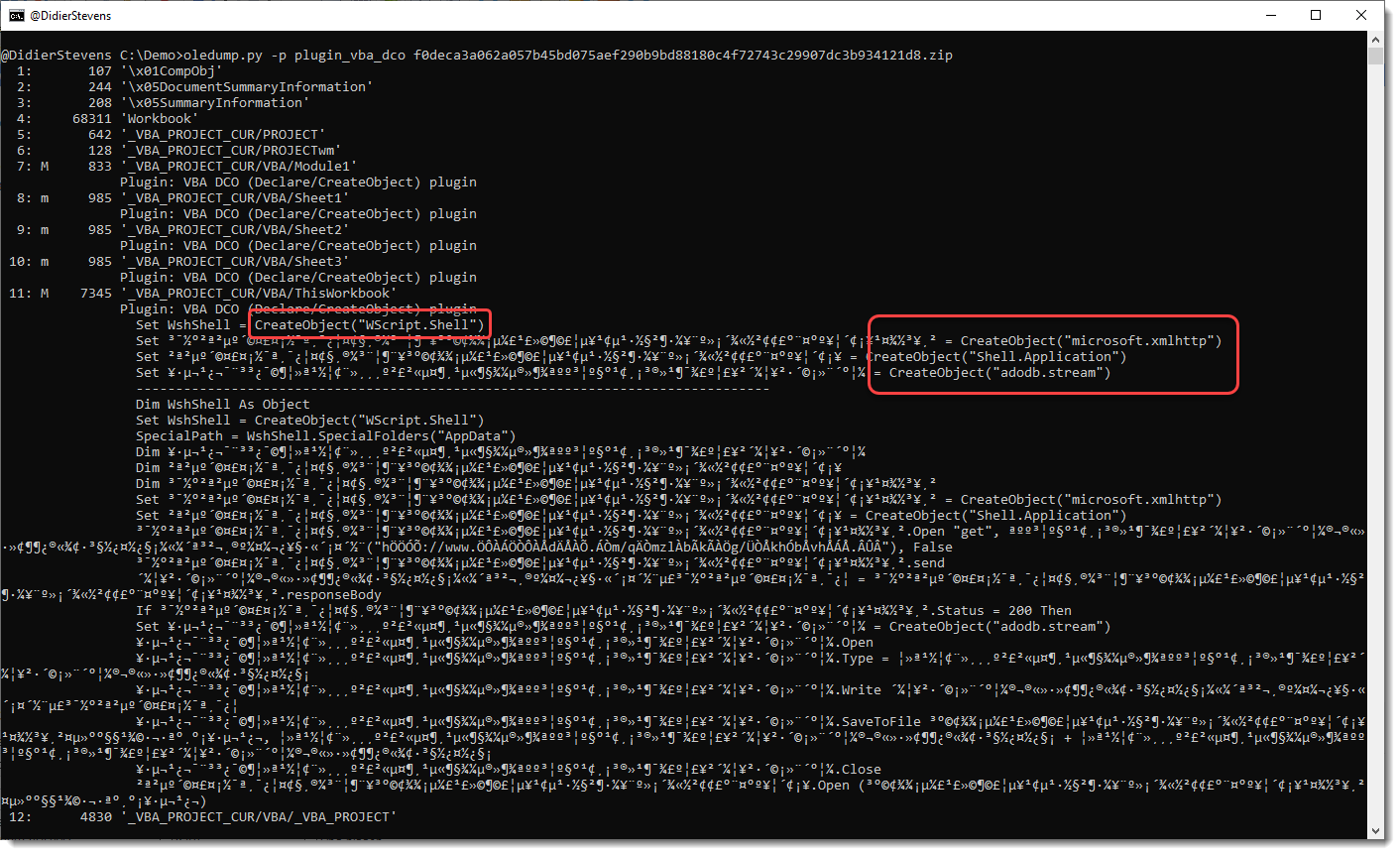
Here is the output for that sample, without using any plugin option:
You can see the CreateObject functions, but appart from the WshShell identifier, the other identifiers don’t have letters and are hard to trace in the code.
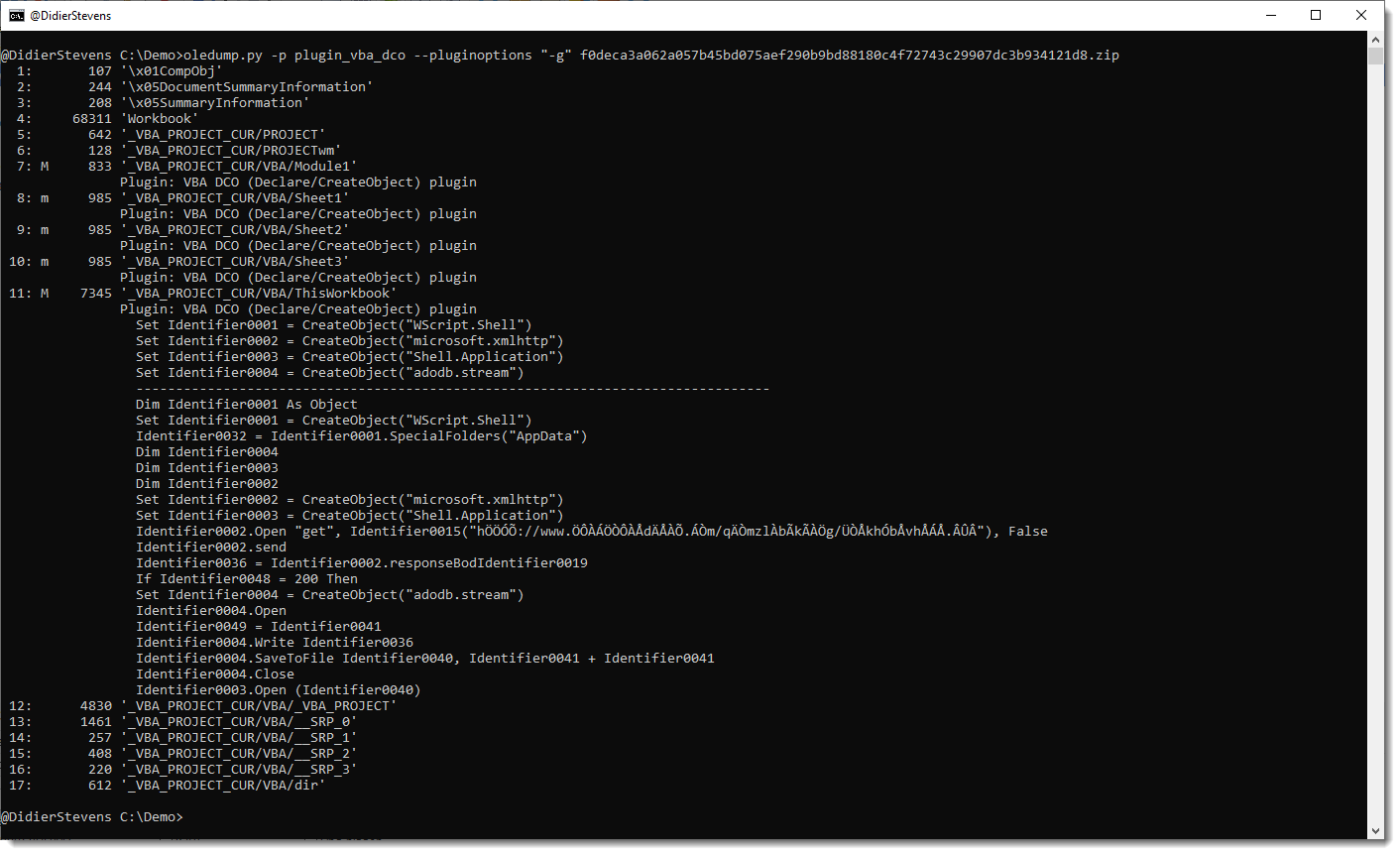
This changes when you use option -g:
All identifiers have been generalized to names like Identifier0001, Identifier0002, …
To view all generalized code (and not only the lines with keywords), use option -a:
Remark that this plugin is not a VBA parser: it uses some simple scans and regexes to find identifiers. For example, it handles line comments like any other lines.





 Didier Stevens