Didier Stevens

Monday 3 April 2023

Update: re-search.py Version 0.0.22

Filed under: My Software,Update — Didier Stevens @ 0:00

This update to re-search.py, my tool to search text files with regular expressions, brings several new regular expressions.

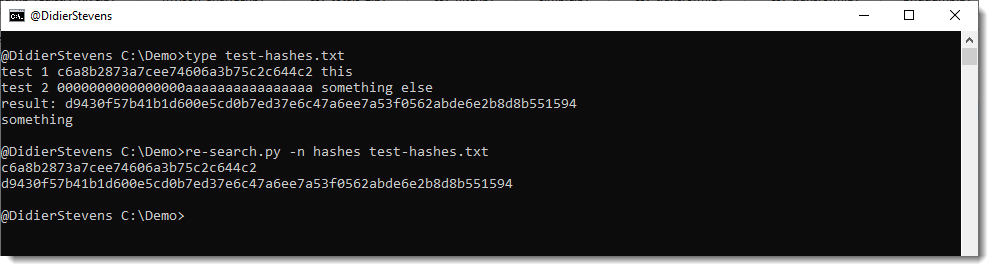
There are 4 new regular expressions for cryptographic hashes: md5, sha1, sha256, sha512. And one new name that groups these 4 regular expressions: hashes.

You can use it like this: re-search.py -n hashes sample.txt

These regular expressions not only match strings of hexadecimal characters of the appropriate length (with a boundary: \b), they also check each extracted hash with a Python function (HashValidate in re-extra.py) that is designed to eliminate strings that accidentally look like a hash (example: 32 times letter A).

HashValidate checks the following:

  • that the hash is not a mix of lowercase and uppercase letters
  • that there are more than 5 different hexadecimal digits
  • that there are more than 10 instances of a character and the next character, that are different

These simple rules are designed to detect hexadecimal strings that are too uniform, and thus probably not a hash digest.
And I also added regular expressions for strings delimited by single quotes: str-s, str-se str-su, str-seu.

re-search_V0_0_22.zip (http)
MD5: BF72647B93D30D0D9CD75EEFED85D21E
SHA256: FCF7D6EF2A5C8AEC5FC84D2CF588FCD8DAD3923E10905D3350AAD7975D926553

Sunday 2 April 2023

Update: oledump.py Version 0.0.74

Filed under: My Software,Update — Didier Stevens @ 0:00

A small update to plugin_msi_info to change the output format a bit. And you can select your preferred hash algorithm with environment variable DSS_DEFAULT_HASH_ALGORITHMS.

oledump_V0_0_74.zip (http)
MD5: FD4D73F0C1A6BE43406381C13C128D5E
SHA256: 1683635FD3250DF43E2CA31C60C2C81B507B1E233C5D91C2671D147C7FD8BD14

Saturday 1 April 2023

Overview of Content Published in March

Filed under: Announcement — Didier Stevens @ 7:25
Here is an overview of content I published in March:

Blog posts: SANS ISC Diary entries:

Wednesday 29 March 2023

Update: myjson-filter.py Version 0.0.4

Filed under: My Software,Update — Didier Stevens @ 19:48

In this update, I add option -W to write items to disk.

Option -W takes a value. Possible values are: vir, hash, hashvir and idvir.

This value determines the filename for each item written to disk.

vir: filename is item name + extension vir
hash: filename is sha256 hash
hashvir: filename is sha256 hash + extension vir
idvir: filename is item id + extension vir

For an example, take a look at my SANS ISC diary entry “Extracting Multiple Streams From OLE Files“.

myjson-filter_V0_0_4.zip (http)
MD5: 7CFB64BDE6A60DB44EBEA18DD4B966D3
SHA256: B8128DC14DC7235710AB4DF9B0B2A55C43FA2035140D5CBCDC09D9079AB6D6DA

Sunday 26 March 2023

Update: python-per-line.py version 0.0.10

Filed under: My Software,Update — Didier Stevens @ 9:16

This is an update to python-per-line.py, my tool to execute a Python expression one each line of a text file.

New options are –regex –join –split. And there are new string reversal functions: Reverse and ReverseFind.

More details in the man page.

python-per-line_V0_0_10.zip (http)
MD5: 54BFA2E593A024E3FBAA76757D63847E
SHA256: D12E5FE10F71011C480EA332E0E183AE904024CEBC22128775197481152B9C1E

Friday 24 March 2023

Update: oledump.py Version 0.0.73

Filed under: My Software,Update — Didier Stevens @ 0:00

A small update to plugin_msi_info to provide extra info on streams.

Indicator ! marks PE and CAB files.

Indicator ? marks files that are not images (and are not marked with !).

The idea is to first inspect streams marked with ! and ?.

The plugin also provides an overview of the files contained inside the CAB file.

oledump_V0_0_73.zip (http)
MD5: 0CAFC87E62E5BC069568B78C1CEE720D
SHA256: CA67FCFA1F4C79668C9ED0C791AFA9D5EEF370AD58DDC542E2204A080A58F9A5

Thursday 23 March 2023

Overview of Content Published in February

Filed under: Announcement — Didier Stevens @ 19:19
Content: Here is an overview of content I published in February:

Blog posts: SANS ISC Diary entries:

Sunday 26 February 2023

Update: oledump.py Version 0.0.72

Filed under: My Software,Update — Didier Stevens @ 17:49

This update brings a new plugin to analyze MSI files: plugin_msi_info

oledump_V0_0_72.zip (http)
MD5: 27CBB0D67EA90DD02875081785B50CB4
SHA256: 3E20C06B40222DAB69951D13159E063E9AF8766291D15362C0E39026B3923DC2

Saturday 18 February 2023

Quickpost: Fixing A Duplicate Key

Filed under: Uncategorized — Didier Stevens @ 0:00

I had a locksmith make a duplicate key of my mailbox lock, and it didn’t work (didn’t open the lock).

The cutting looked good, I saw no difference with the original key.

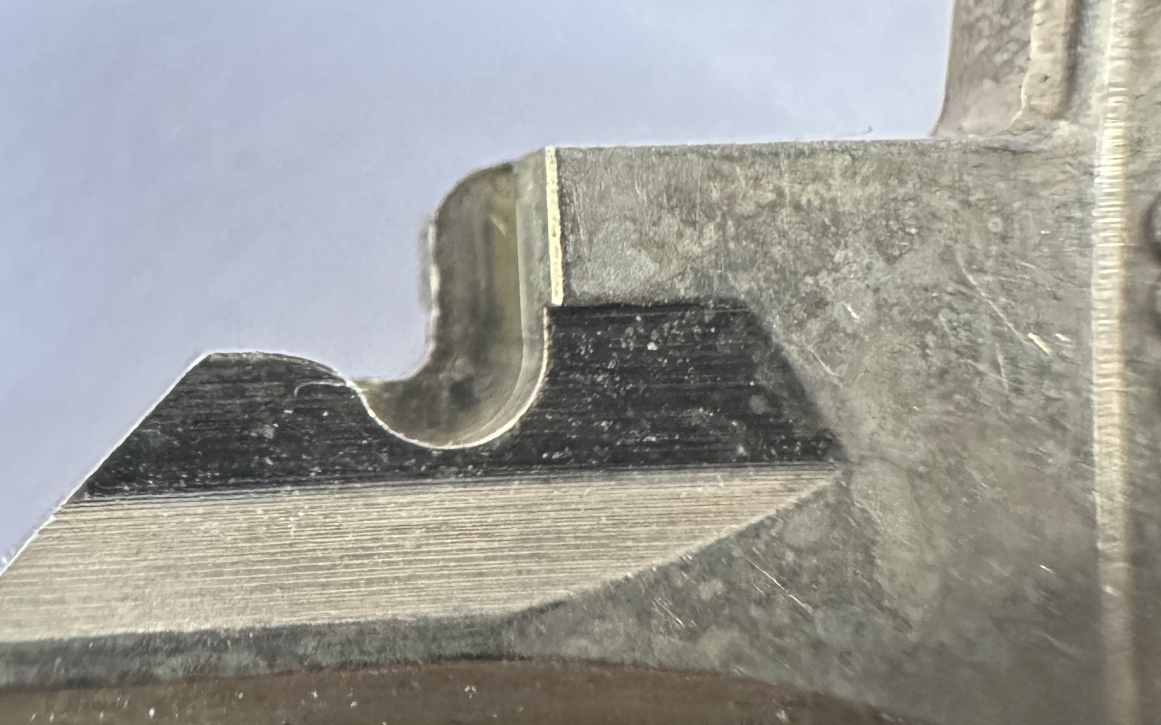
Until I noticed this notch:

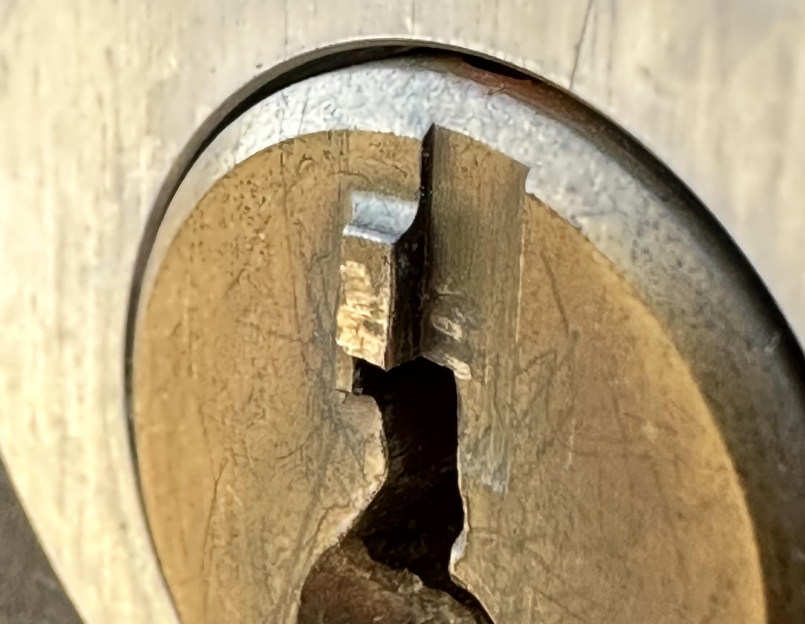
Turns out this notch accepts this tiny “bump” on the cylinder:

This notch was missing on the duplicate. I milled a notch and now the duplicate key opens the lock:


Quickpost info

Friday 17 February 2023

How-to: Make Your Own Cert With Web OpenSSL

Filed under: Encryption — Didier Stevens @ 0:00

I explain how to create certificates with OpenSSL on your Windows computer in my blog post “How-to: Make Your Own Cert With OpenSSL on Windows (Reloaded)“.

If you can’t or don’t want to install OpenSSL, there is a solution now with Web OpenSSL.

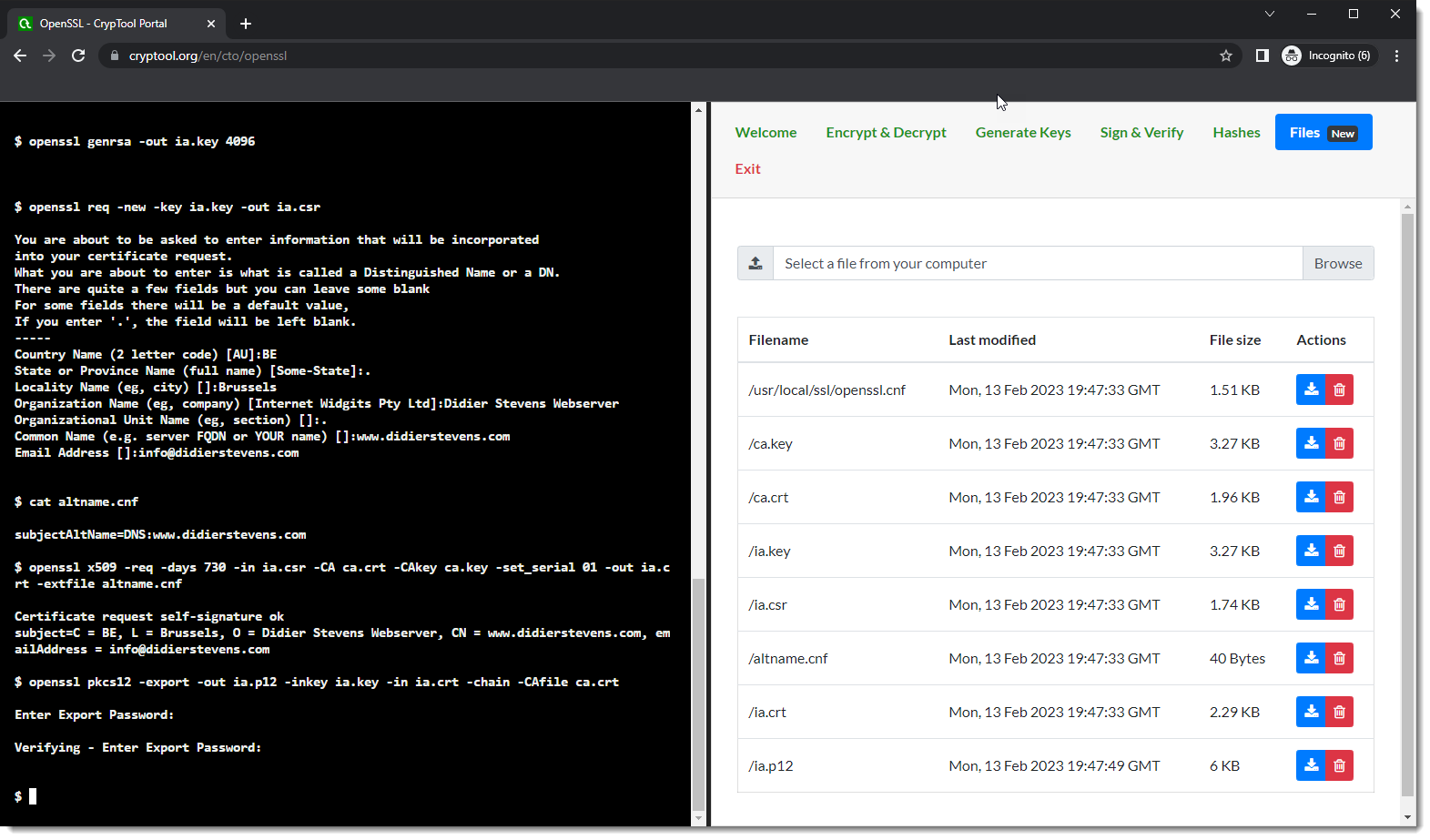
With Web OpenSSL, you can just run OpenSSL and the commands in your browser, like this (for more info on these commands , read my blog post).

Go to Web OpenSSL:

Scroll down a bit:

Click “Enter split screen”. You will now have a command-line interface to the left and the folder with files to the right:

Enter this command:

openssl genrsa -out ca.key 4096

Notice that 2 files have been created. You can take a look at them, for example ca.key:

Enter this command and answer the questions:

openssl req -new -x509 -days 1826 -key ca.key -out ca.crt

Enter this command:

openssl genrsa -out ia.key 4096

Enter this command and answer the questions:

openssl req -new -key ia.key -out ia.csr

Create a text file named altname.cnf and enter your domain name, this is the content for my domain name: subjectAltName=DNS:www.didierstevens.com

Upload this file (button Browse in Files) and check it was properly uploaded:

Enter this command:

openssl x509 -req -days 730 -in ia.csr -CA ca.crt -CAkey ca.key -set_serial 01 -out ia.crt -extfile altname.cnf

Enter this command:

openssl pkcs12 -export -out ia.p12 -inkey ia.key -in ia.crt -chain -CAfile ca.crt

You can then download all your files:

Verify and start using them:

If you want to understand what these commands exactly do, read my blog post “How-to: Make Your Own Cert With OpenSSL on Windows (Reloaded)“.

« Previous PageNext Page »

Blog at WordPress.com.