This is a small bug fix release for Python 3.
translate_v2_5_9.zip (https)
MD5: 8EC7A9F0738C86CCF2F0B44D3994E798
SHA256: 3C469996F7014CC1BD5D4F02157B7D5803698D93018360904B79EA2A1601BD10
This is a small bug fix release for Python 3.
translate_v2_5_9.zip (https)
MD5: 8EC7A9F0738C86CCF2F0B44D3994E798
SHA256: 3C469996F7014CC1BD5D4F02157B7D5803698D93018360904B79EA2A1601BD10
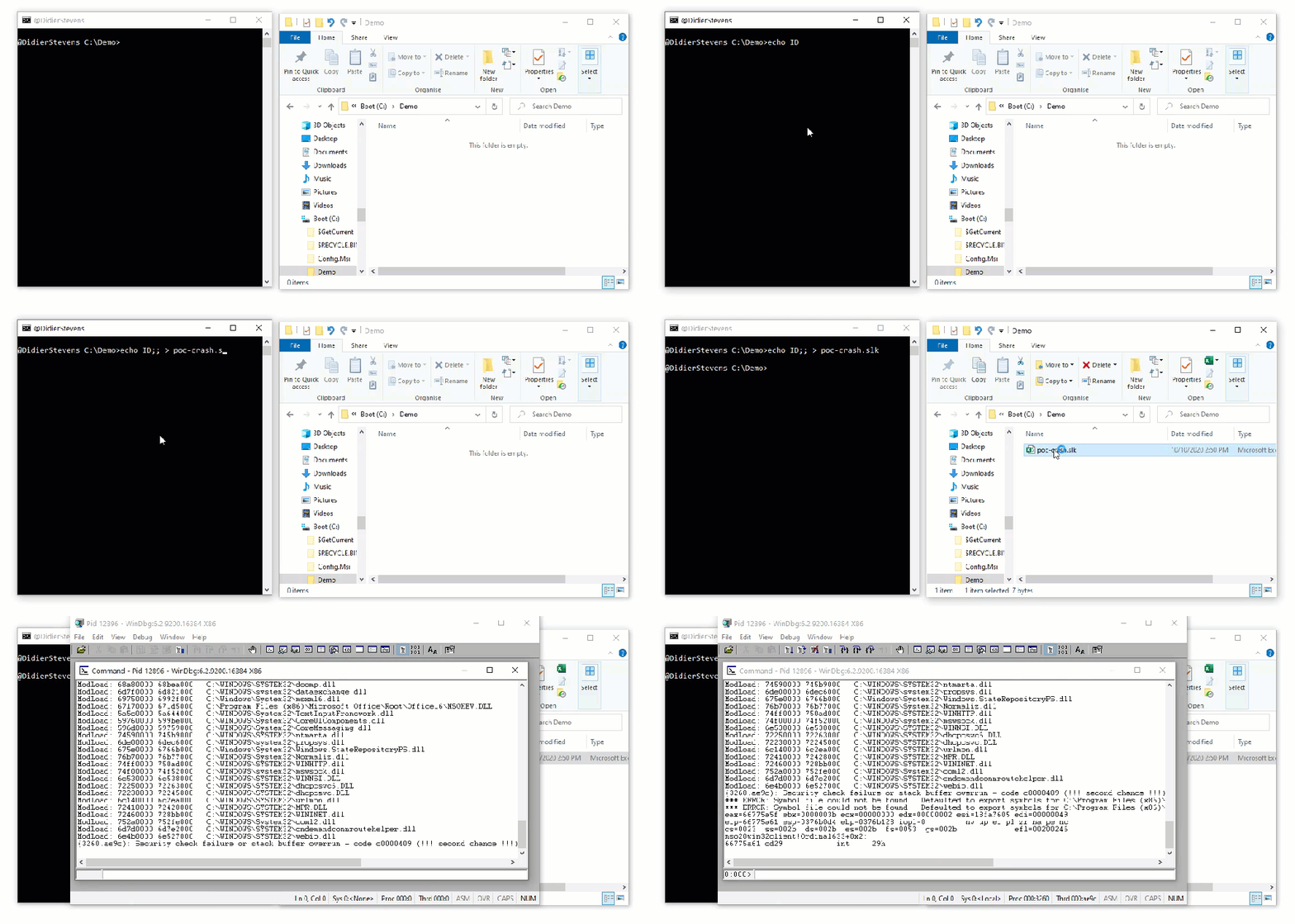
A couple of years ago, while experimenting with SYLK files, I created a .slk file that caused Excel to crash.
When you create a text file with content “ID;;”, save it with extension .slk, then open it with Excel, Excel will crash.
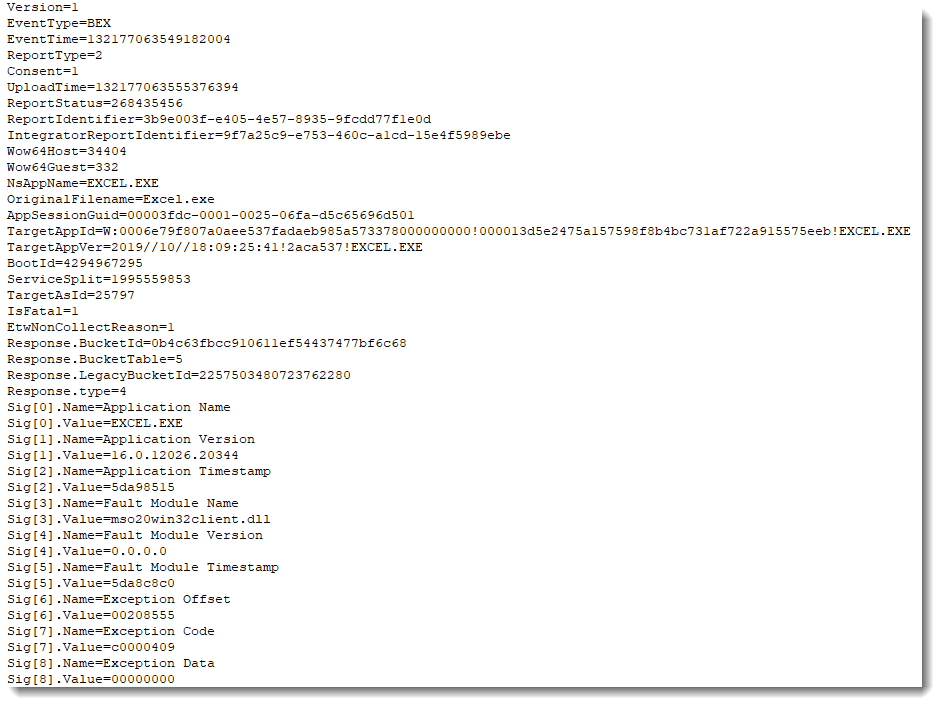
Microsoft Security Response Center looked at my DoS PoC last year: the issue will not be fixed. It is a “Safe Crash”, Excel detects the invalid input and calls MsoForceAppExitIf to terminate the Excel process.
If you have Excel crashing with .slk files, then look at the first line. If you see something like “ID;;…”, know that the absence of characters between the semi-colons causes the crash. Add a letter, or remove a semi-colon, and that should fix the issue.


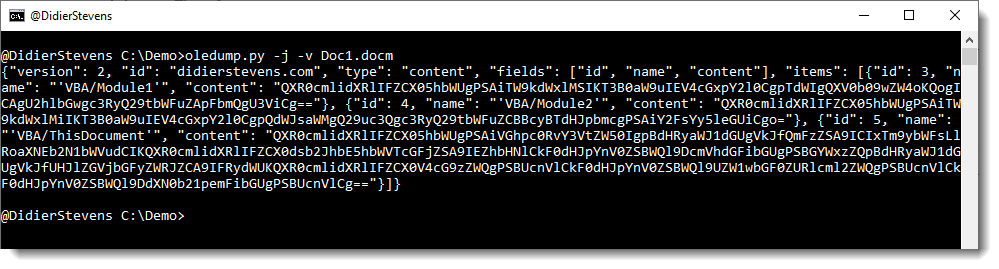
This new version of oledump.py adds a new variable for option -E: %MOFULEINFO%
This variable need to be used together with option -i: it contains the size of the compiled VBA code and the compressed VBA code. For example: 123+65.
There’s a new option (-s) for plugin plugin_http_heuristics: with this option, the plugin ignores space characters (useful for hexadecimal bytes separated by a space character, for example).
And there is a new plugin: plugin_msg_summary. This is a new type of plugin, a plugin that operates on the complete document. Before, plugins could only operate on individual streams, and were instantiated for each stream.
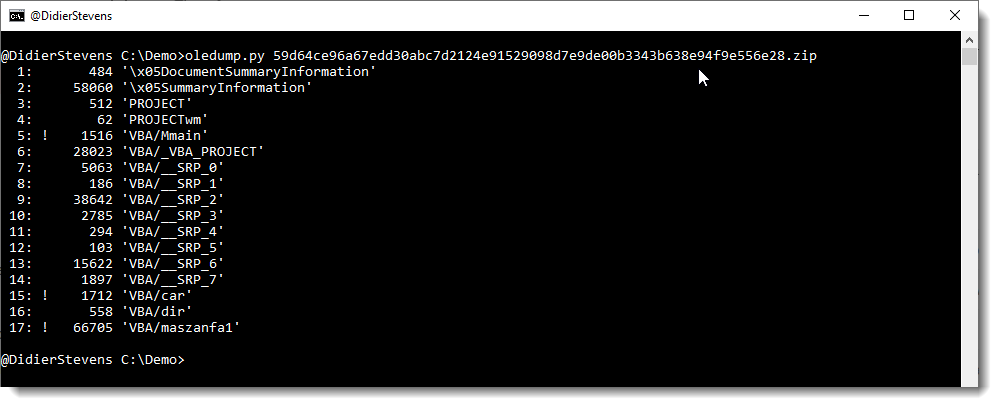
This plugin produces a summary of a .msg file (something we needed for our “Epic Manchego” research).
Here is an example:

This plugin has a couple of options, for example to produce JSON output or to add header or body information:


Here is an overview of content I published in September:
Blog posts:
SANS ISC Diary entries:
NVISO blog posts:
Over the last months, I’ve been quite busy working with my colleagues on report “Epic Manchego – atypical maldoc delivery brings flurry of infostealers“: we’ve tracked an actor creating a new type of malicious Office document.
To help with the automatic analysis of all the maldocs produced by this actor (several per day), I added new features to existing tools and created new tools.
I’m releasing this work in the coming months (some has already been published: oledump.py and zipdump.py).

I just received a USB passive load. It’s basically 2 resistors connected to the USB power wires in parallel, each with a switch in series:

It can draw approximately 1, 2 or 3 amps (depending on switch positions) from a 5 volt USB source.
The resistors can dissipate 10 Watts, and will become very hot.

The resistor for 1 amp (4,7 ohms, tolerance 5%) maxed-out my FLIR One thermal camera (> 150 °C), but I could measure around 220°C (that’s close to 451°F) with another thermal imaging camera.
The second resistor (2 amps: 2,2 ohms, tolerance 5%) maxed-out that other thermal camera too: this one got hotter than 280°C.
I’m referring to 451°F, because presumably, that’s the temperature to ignite paper. Something I’ll have to test out in safe conditions.
I also measured the resistors, and they are well within tolerance:

Here is a short thermal imaging video of the first resistor heating up:

I was looking for a solution to read my Wifi Pineapple’s recon.db file from the SD card (ext2 formatted) on my Windows 10 machine.
The solution I went with is Ext2explore, a tool that can access ext2 volumes.
You have to run it as administrator, otherwise the tool will not be able to get raw access to the ext2 volume:


When you run the tool as administrator, you see your volumes. Mine is an SD card:

I can then explore the content and save file recon.db to a folder on my Windows 10 machine:


I found out there’s a dig command for Windows.
I group small tools like this inside a bin folder. But dig relies on a set of DLLs, that should also be in the PATH, so I put them in the same bin folder.
These are the DLLs dig.exe needs:
I used procmon on my Win10 machine to figure out which DLLs are needed, as you get no error message (there’s probably a registry setting for that).
I do have a Windows 7 VM, that I can also use to figure out which DLLs are missing because it displays an error message:

And you might also need to install the Visual C redistribuable that is included with the downloaded ZIP:

And now I can run dig from my bin folder:

@mohammadaskar2 found out you can use Windows Defender to download arbitrary files. Like this:
"c:\ProgramData\Microsoft\Windows Defender\Platform\4.18.2008.9-0\mpcmdrun.exe" -DownloadFile -url http://didierstevens.com/index.html -path test.html
This command uses MpCommunication as User Agent String:

Update: this download feature has been disabled.
Here is an overview of content I published in August:
Blog posts:
SANS ISC Diary entries: