It’s silly to post this now, but I forgot to mention in my YAISC post that I wouldn’t post my cartoons in this feed.
Friday 12 September 2008
Monday 8 September 2008
YAISC
Today I’m starting a new experiment. I wonder if I’ll be funny enough to entertain you.
Sunday 7 September 2008
Mister P and Q’s Excellent Solution
Mr. P and Q has solved my Authenticode Challenge. You can download his solution here, I copied his howto here below. I’ll add my own details in an upcoming post, but in the meantime, be sure to do a web search for the modulus.
What you need:
An internet connection
A windows system
A CPP compiler
OpenSSL installed

Step 1:
Export the certificate used by Didier from ac.exe to didier.cer
Select AC.EXE, Right click properties, Digital Signatures tab, "Details button", "View Certificate" button,Details tab, "Copy to File" button, select
the "DER encoded binary X.509(.CER)" option and export to didier.exe

Step 2:
Use OpenSSL to extract the modulus of the certificate used
OpenSSL>x509 -modulus -inform DER -in didier.cer

Step 3:
Use OpenSSL to convert didier's certificate in PEM format (for later use)
OpenSSL>x509 -inform DER -in didier.cer -outform PEM -out didier.pem

Step 4:
Copy the modulus extracted in step2 into FindPQ.cpp, build the application, execute and (wait ... wait ... wait ...) ^1000
or download http://www.boo.net/~jasonp/msieve.exe.
Start msieve
msieve -v -n 0xD0EA1ABA978DF0065B2009F75C846F28B04ED5143B237B3FC24272245ADE837EFE0271E1A2854E0C81BA9F70A83AD86D47B0EACD062BC15BC61A99DC83124EC9
and (wait ... wait ... wait ...)^100 until it finally displays:
prp78 factor: 102639592829741105772054196573991675900716567808038066803341933521790711307779
prp78 factor: 106603488380168454820927220360012878679207958575989291522270608237193062808643

Step 5:
Create a 'real' RSA key so we can re-sign the modified ac.exe (remember the first part of this challenge)
Copy the two factors found(step 4) into CreatePEM.cpp, build the application and excute.
The application will produce newkey.pem

Step 6:
Use OpenSSL to combine newkey.pem and didier.pem (step3) into a PKCS12 keyfile (you will need to provide a password of your choice)
OpenSSL>pkcs12 -export -in didier.pem -inkey newkey.pem -out magic.p12

Step 7:
Import magic.p12 into your Windows system
Simply double click magic.p12 select all the default options specify the password you defined in Step 6 when asked.

Step 8:
Download signcode
https://www.thawte.com/dynamic/en/images/support/inetSDk5.zip
unzip

Step 9
Start signcode, select the modified ac.exe, select the "Didier" key and you're done ...

Good luck
Mister P and Q.
Thursday 4 September 2008
Pocket Virus Lab
Slugs are versatile little machines. I installed Slugos on my NSLU2, followed by the tools I used in my sampling video.
Unfortunately, it’s too small for my sticker 😉
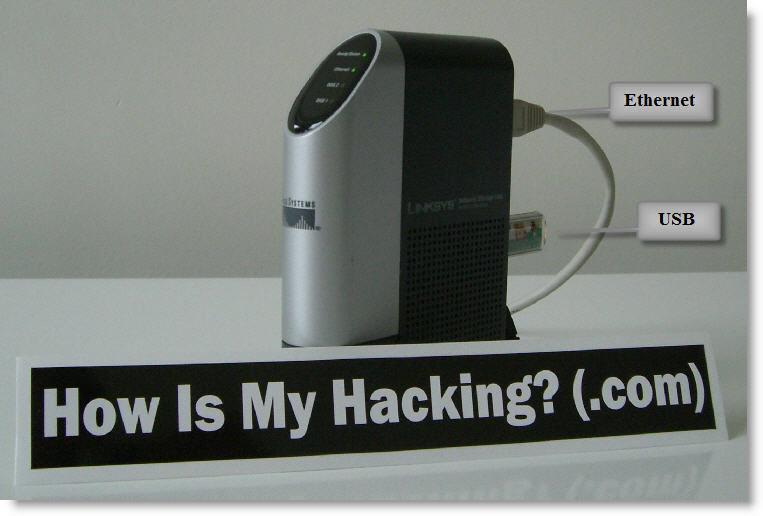
When I access it with SSH, I see no difference with a shell account on a regular machine.
My Python programs work unmodified, and I can compile my C programs like SpiderMonkey.
As a virus lab, it has a couple of advantages:
- no malware is targeting this platform (yet), so you can use it to sample and analyze malware without risking infecting the lab
- the OS is stored on a USB storage device, providing easy swap and imaging (e.g. rollback) capabilities
- you can connect infected harddisks to it (via a USB adapter) and inspect them without risk
- it’s a full Linux distro (no GUI, of course): you can find many pre-build (security) tools or compile your own
For an Howto:
Installing Slugos as per these instructions.
Installing a C compiler (not essential for a virus lab):
- echo ‘src/gz optwarenslu2 http://ipkg.nslu2-linux.org/feeds/optware/nslu2/cross/stable’ > /etc/ipkg/optwarenslu2.conf
- ipkg update
- ipkg install crosstool-native
Installing the Optware feed as per these instructions.
Installing the Optware toolchain:
- /opt/bin/ipkg-opt install optware-devel
Linking /usr/bin/python to the python2.5 executable
Now if I could just get my hands on a small biohazard sticker…

Wednesday 3 September 2008
Quickpost: PyroMenagerie
Ever noticed a list of exotic animals (Poweroyster, Firebadger, Hypnotoad, …) in your web site visitors list (user-agent strings)?
One of your visitors certainly uses the Firesomething Firefox add-on!
Tuesday 26 August 2008
wsrradial
My search for a radial WiFi plotting tool was unsuccessful, so a coded my own: wsrradial.py.
It’s easy to record activity in the 2.400–2.500 GHz ISM spectrum with a Wi-Spy adapter and a directional antenna. Here’s my 9 dBi Yagi antenna:

One low-tech way to quantify the electromagnetic radiation around you goes like this: point the Yagi antenna in one direction for 1 minute, then turn it 45° and repeat the procedure, until you’ve completed a full circle. Use wsrradial to generate radial plots of the recording made with Chanalyzer. It’s configured by default for 8 measurements (360° divided by 45°) of 1 minute each, but command-line options allow you to choose your own parameters.
The following radial plot shows the average amplitude for each sampled frequency. The frequency is set out on the radial axis (the lowest frequency is closest to the center, the highest is the most distant), the angular coordinate is just the orientation of the directional antenna. Amplitude is hue color-coded.
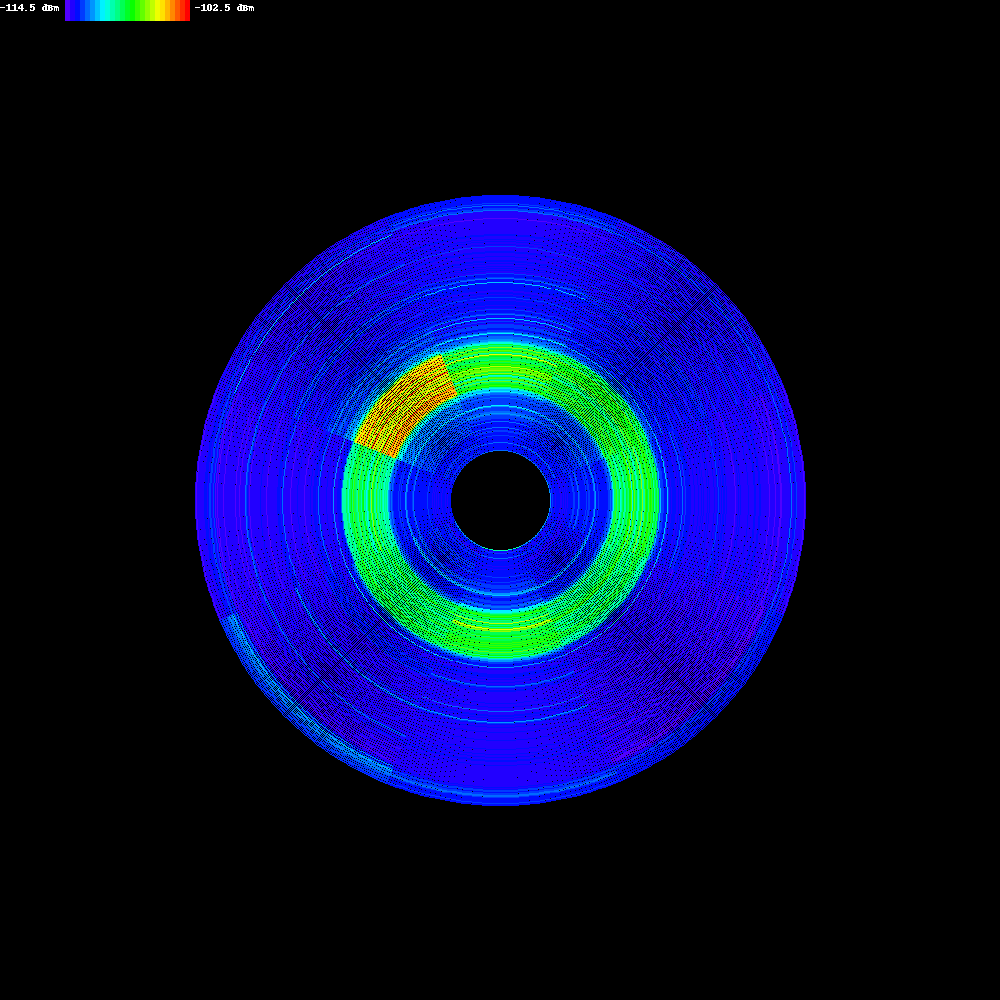
This was recorded a couple of meters away from an active access point operating at 2.432 GHz. You can clearly see that the access point is situated in the upper-left corner.
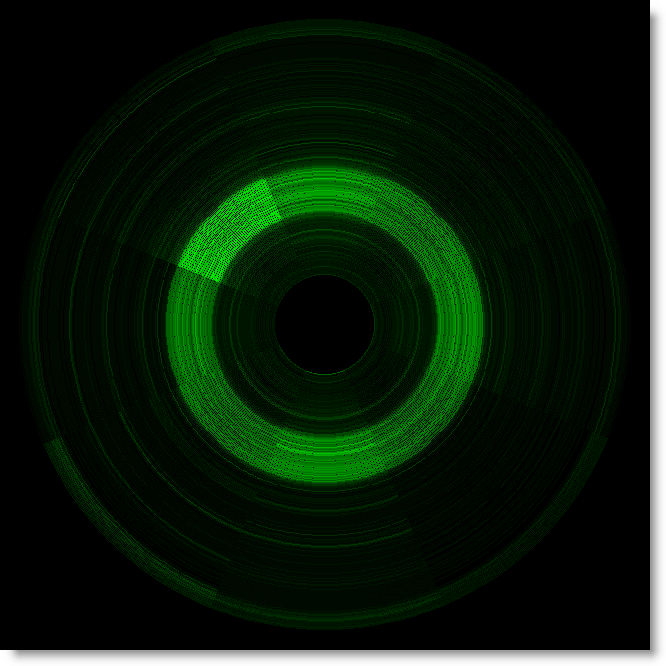
The second plot generated by wsrradial shows the maximum amplitude instead of the average amplitude. I believe this plot gives a better picture of nearby transmitters.

I tried to use matplotlib to generate the charts, but was only able to generate the same charts Chanalyzer produces. So I coded my own chart plotting routines with the Python Image Library. If you know how to use matplotlib to make radial spectrum plots, let me know.
FYI: my latest little puzzle showed an average amplitude plot of the same recording, but with an older version of my program featuring an easier to code color map.
Sunday 24 August 2008
Thursday 21 August 2008
Removing Malware With a Live CD
Since a month, I’ve been advising the use of the F-Secure Rescue CD to readers and friends. That makes it time for a little video, showing you how to use it.
YouTube, Vimeo (better quality) and XviD hires (even better quality).
Tuesday 19 August 2008
A Third SpiderMonkey Trick
This escaped my attention, but SpiderMonkey 1.7 has been released for some time now.
I patched this new version (download on my SpiderMonkey page), and decided to add another small trick: implement the window object with the navigate method:

Wednesday 13 August 2008
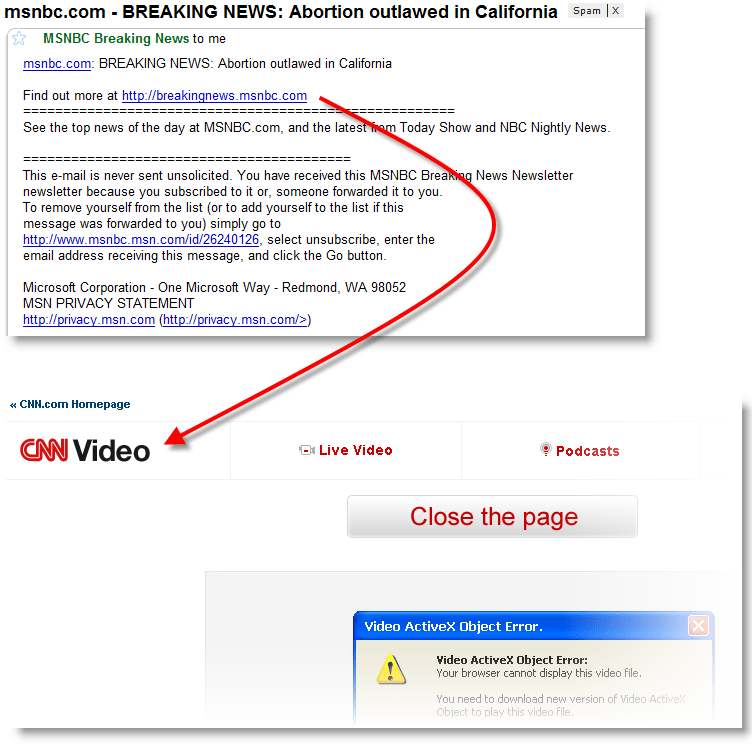
Fake MSNBC Breaking News or Fake CNN Custom Alert? Make Up Your Mind!
I appreciate a good joke:

 Didier Stevens