Didier Stevens

Wednesday 22 July 2009

The Ultimate Disaster Recovery Plan

Filed under: Encryption,My Software — Didier Stevens @ 20:34

The ultimate disaster recovery plan is not a corporate plan.

This plan is for your family, to help them take over from you, when you’re not able to take up your role in the family. Hopefully, this will only be a temporary situation, but you have to plan for the worse too: your demise.

List all critical tasks you perform for your family. Think about the information a family member needs to take over your tasks. Document this. Communicate this to your family members.

Most of this documentation is private but not confidential. You don’t want an outsider to read it, but it contains no real secrets. You’ll only want to use encryption for the real secrets, and communicate the key and decryption procedure to your family members and/or lawyer (or another trustworthy outsider). You don’t have to trust a single person with your key if you don’t want to, you can split it over several persons, like Cory Doctorow did.

2 years ago, a very good friend of mine died suddenly. That’s what motivated me to develop a html/javascript page with AES encryption to record and encrypt my will. The advantage of html/javascript is that it’s standalone and very portable.

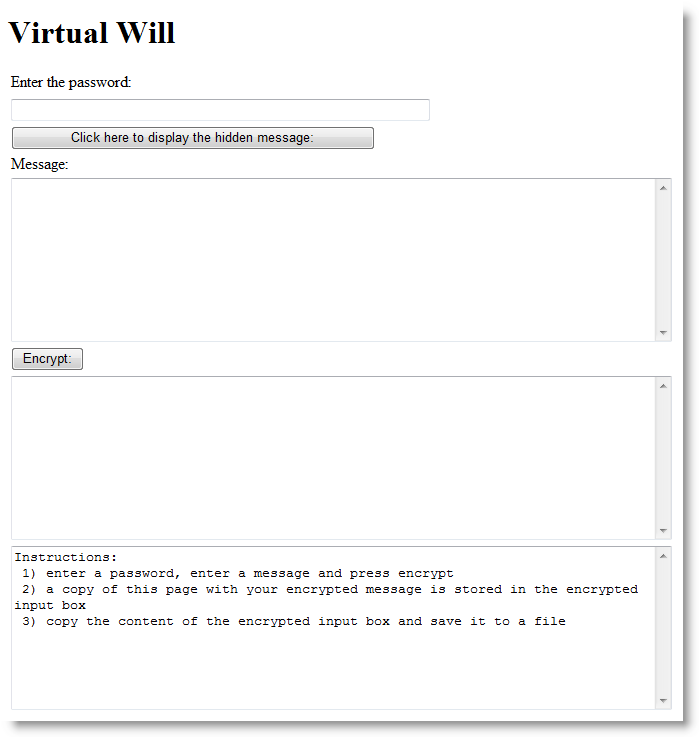
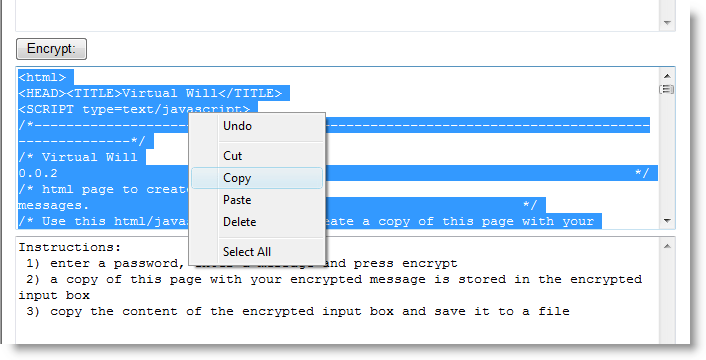
When you open my Virtual Will page, it will detect that it contains no encrypted content, and display the following dialog:
20090722-214245

Use this dialog to create and encrypt your message.

20090722-214421

Copy all html code from the encrypt textbox, and save it as an html file. This html file is identical to the original, but it also contains your message encrypted with AES.
20090722-214458

Provide this document to your family members, together with the (partial) key. For example, you could burn it to a CD-ROM and use autorun to open the page automatically.

To decrypt it, open the html file:

20090722-214601

and enter the password:

20090722-214630

You can also use a Virtual Will page with ciphertext to create a new page or update your will: type encrypt in the password field, and you’ll see the encryption fields appear.

I obtained the JavaScript AES code from Chris Veness.

Some limitations:

  • Chris’ implementation doesn’t use a standard key derivation algorithm (and is limited to first 32 characters of the password)
  • the ciphertext is not compatible with the openssl format
  • it works with many browsers on different operating systems, but not on my S60 Nokia
  • get the enter key to work correctly

I’ll improve these limitations if my software proves to be useful.

Of course, you can use this html page to encrypt anything and then pass it along, it doesn’t have to be a disaster recovery plan.

Download: virtualwill.html

Tuesday 21 July 2009

Quickpost: More Picture-Taking with Python

Filed under: Hardware,My Software,Quickpost — Didier Stevens @ 9:24

Per @TimelessP’s request, here’s so more Python code that can be used for time-lapse photography.

It’s code I wrote to take surveillance pictures from IP-cameras:

20090720-171815

You have to update 2 config files with the data of your IP-cameras: vs.config and credentials.config. Fields in the config files are tab-separated.

vs.config contains the IP cameras, example:

Hall.jpg    http://192.168.1.1/IMAGE.JPG    -

First field is the prefix for the name when saving the picture (suffix is a timestamp). Second field is the URL to access the picture on the IP camera (depends on the model your using). Third field is a fixed name for the picture, use a hyphen (-) if not used.

credentials.config contains the passwords to access the IP-cameras, example:

192.168.1.1    admin    password

Download:

vs_v0_2.zip (https)

MD5: DB806B49705D544F4B928A8F76622125

SHA256: 042FA2CE1F5AEBD433D59B9D4755783E6CE58014FE59086C6A2A8E8781C63B45


Quickpost info


Monday 13 July 2009

Quickpost: TrueCrypt’s Boot Loader Screen Options

Filed under: Encryption,Entertainment,Quickpost — Didier Stevens @ 0:26

Ready for some Security Through Obscurity fun?
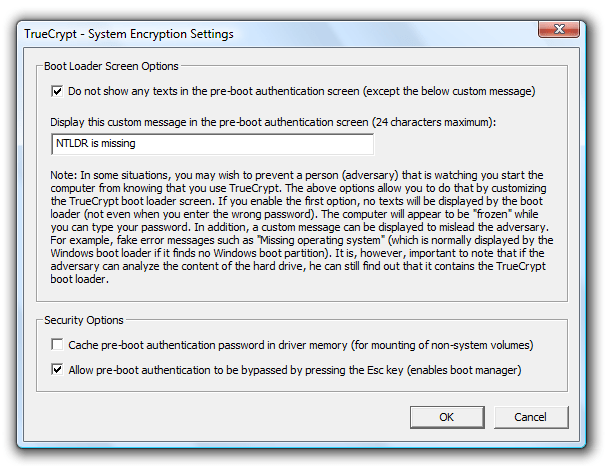
I’ve been playing with TrueCrypt‘s Boot Loader Screen Options to display a custom message when I boot my laptop with full disk encryption.

20090712-130932

It’s probably enough to be misleading during a casual inspection of your laptop:

20090712-131802

The screen doesn’t even display asterisks when you type your TrueCrypt password.
It’s just as unresponsive as the original “NTLDR is missing” screen.
The only difference with the Windows XP NT Loader missing message, is that the original is just a bit longer:

20090712-112128

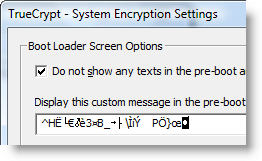
Or you can just let it display gibberish, like this:

20090712-135343

20090712-135116

And if challenged, say your laptop was infected with a virus from that damned hotel’s WiFi network.


Quickpost info


Monday 6 July 2009

Patching PDF Readers to Support Hidden Embedded Files

Filed under: Hacking,PDF — Didier Stevens @ 20:27

Today, I’m showing you how you can patch your PDF reader (Foxit or Adobe) to handle PDF documents with hidden embedded files. And for Foxit, there’s a bonus: Foxit Reader can also embed files into existing PDF documents.

In my stego PDF trick, I just replace the name /EmbeddedFiles with /Embeddedfiles in the PDF document. As the PDF language is case-sensitive, your PDF reader doesn’t recognize /Embeddedfiles, and hence doesn’t handle the embedded file. PDF readers are designed to skip features of the PDF language they don’t understand (i.e. new features of the PDF language), so that’s why you don’t get an error message from your PDF reader for /Embeddedfiles.

If you search for the string EmbeddedFiles in the binaries of your PDF reader and replace it with Embeddedfiles, it will handle PDF documents with hidden embedded files (but it will stop supporting PDF documents with visible embedded files).

Doing this for Foxit is easy, as there’s only one binary, Foxit Reader.exe. Open it with a hex editor and search for EmbeddedFiles:

20090705-121651

Replace it with Embeddedfiles and save it:

20090705-121837

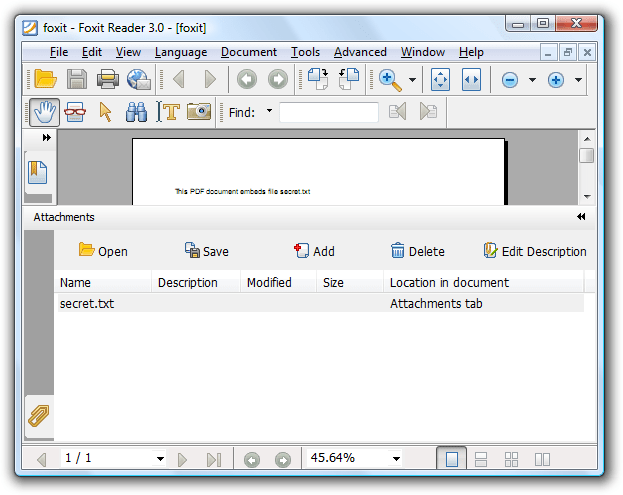
That’s it, now you use your patched Foxit Reader to reveal hidden embedded files:

20090705-122339

And have you noticed the Add button? Foxit Reader also provides support to add embedded files to existing PDF documents! So you’re not limited to using my Python program to create your own PDF documents.

For Adobe Reader, the trick is the same. Open AcroRd32.dll in a hex editor and do a search and replace (I had to patch 2 instances of of EmbeddedFiles).

Wednesday 1 July 2009

Embedding and Hiding Files in PDF Documents

Filed under: My Software,PDF — Didier Stevens @ 6:28

My corrupted PDF quip inspired me to program another steganography trick: embed a file in a PDF document and corrupt the reference, thereby effectively making the embedded file invisible to the PDF reader.

The PDF specification provides ways to embed files in PDF documents. I’m releasing my Python program to create a PDF file with embedded file (I used make-pdf-embedded.py to create my EICAR.pdf).

Here’s how a PDF document with an embedded file looks like:

20090630-220314

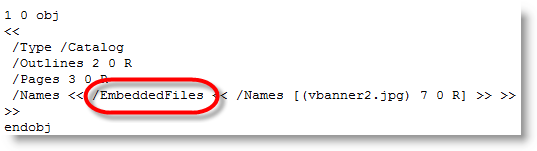
/EmbeddedFiles points to the dictionary with the embedded files:

20090630-220228

As names defined in the PDF specification are case sensitive, changing the case changes the semantics: /Embeddedfiles has no meaning, and thus the PDF reader ignores it and doesn’t find the embedded file.

20090630-220137

20090630-215901

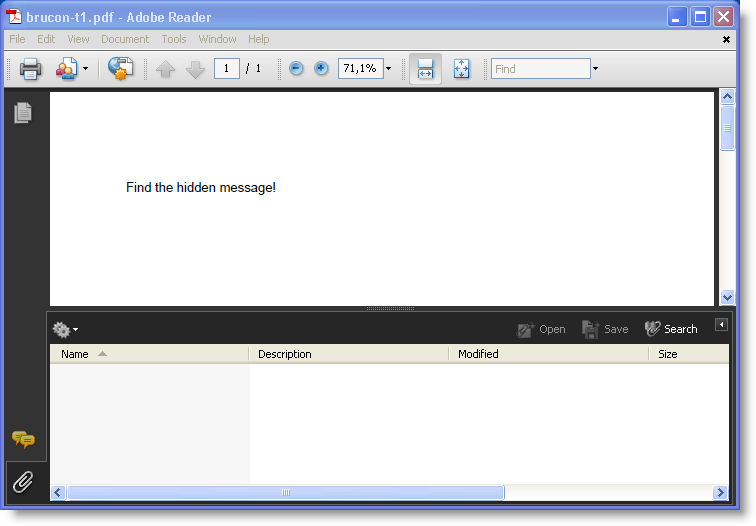
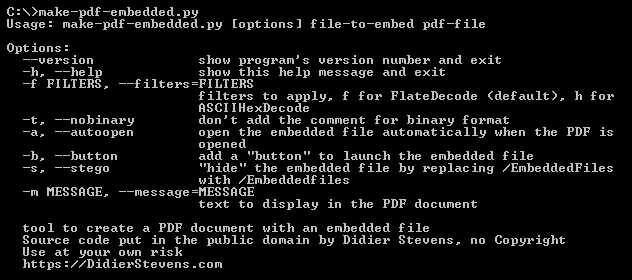
Actually, I used this trick in my Brucon puzzle. I used the –stego option of make-pdf-embedded.py:

20090630-222453

Of course, once you know the stego trick, it’s easy to recover the embedded file: edit the PDF document with an hex editor and change the case back to /EmbeddedFiles.

But if you want to make it harder to detect, use PDF obfuscation techniques. Or embed the file twice with incremental updates. First version is the file you want to hide, second version is a decoy…

The PDF language offers so many features to hide and obfuscate data!

Download:

make-pdf_V0_1_2.zip (https)

MD5: 305D57692C27DD3CD91D8C85A3932948

SHA256: A030BBCB8B54137D8047A4CB5C350725599383A4B113CABBA8871AC221378C5B

Tuesday 30 June 2009

MessageBox Shellcode

Filed under: My Software — Didier Stevens @ 5:40

Per request, I release my assembly code I’ve used in my previous blogposts to display a message box when the injected shellcode gets executed. It’s nothing special, but it will save you some time when you need a similar program.

Assemble the code with nasm like this:

nasm -o sc-mba-hello.bin sc-mba-hello.asm

I use the DLL locating code published in The Shellcoder’s Handbook, you can find it in the include file sc-api-functions.asm. MessageBoxA is located in user32.dll, this dll has to be loaded in the process you’re injecting with sc-mba-hello.

sc-ods.asm is a similar program, calling OutputDebugStringA in stead of MessageBoxA.

Download:

my-shellcode_v0_0_1.zip (https)

MD5: F215B29BA3C8F24CFBA5C24BED65B68A

SHA256: EA1DB8028954CEB18B8AD2EB37CA6BA0CD7CDC6B9A64F10561382152701C013F

The shellcode:

sc-mba-hello

Monday 29 June 2009

Quickpost: Time Lapse Photography With a Nokia Mobile

Filed under: Hardware,My Software,Quickpost — Didier Stevens @ 2:20

Did you know Nokia mobile phones with the S60 platform can be programmed in Python? During my last holiday, I wrote a small program for time lapse photography with my mobile. Here is the result, showing tidal ebbs and flows in Saint-Vaast-la-Hogue and Cancale:

This is the Python program I wrote to take a picture every minute:

#!/usr/bin/python

__description__ = 'Tool to take pictures with a Nokia phone at regular intervals'
__author__ = 'Didier Stevens'
__version__ = '0.1.1'
__date__ = '2009/06/22'

"""

Source code put in public domain by Didier Stevens, no Copyright
https://DidierStevens.com
Use at your own risk

History:
 2009/06/17: start
 2009/06/22: refactoring

Todo:
 Get Threading to work
"""

import camera
import time
import os

timelapseFolder = 'e:\\timelapse\\'
sleepTime = 57

def TakeAndSavePicture():
    global timelapseFolder

    now = '%04d%02d%02d-%02d%02d%02d' % time.localtime()[0:6]
    pic = camera.take_photo()
    pic.save(os.path.join(timelapseFolder, now, '.jpeg'))
    print 'Picture taken: %s' % now

def Main():
    global timelapseFolder
    global sleepTime

    print 'Timelapse photography started'
    if not os.path.isdir(timelapseFolder):
        os.mkdir(timelapseFolder)
        print 'Timelapse folder created: %s' % timelapseFolder
    print 'Wait between pictures %d' % sleepTime
    while True:
        TakeAndSavePicture()
        time.sleep(sleepTime)

if __name__ == '__main__':
    Main()

And then I use Avisynth to combine the jpeg pictures in a movie like this (I join pictures 00001.jpg through 00197.jpeg, 5 per second and produce a 25 fps movie):

ImageSource("%05d.jpeg", 1, 197, 5).ChangeFPS(25)

Quickpost info


Thursday 25 June 2009

bpmtk: Injecting VBScript

Filed under: bpmtk,Hacking,My Software — Didier Stevens @ 7:03

Here’s a new trick: injecting VBScript in a process. I’ve developed a DLL that will create a COM instance of the VBScripting engine and let it execute a VBScript. Injecting this DLL in a running program results in execution of the VBScript in the context of the running program. Here’s an example where I wrote a VBScript to search and replace a string in the memory of the notepad process:

Here is part of the VBScript I developed to search and replace inside the memory of a process. It uses custom methods like Peek, Poke and Output that I’ve added to the scripting engine:

20090609-205420

I’ll provide more details in an upcoming blogpost on bpmtk version 0.1.5.0, but you can already download it here.

YouTube, Vimeo and hires Xvid.

Monday 15 June 2009

Quickpost: Arduino XBee Shield Series 2 Configuration

Filed under: Hardware,Quickpost — Didier Stevens @ 8:08

I couldn’t get my 2 Arduinos with an XBee shield to talk to each other, despite the instructions on the Arduino site.

The XBee shields I obtained use a XBee series 2 module, while the instructions on the Arduino site are for the older XBee module.

20090606-111115

After configuring one of my XBee modules as coordinator, the XBee modules were able to communicate with each other.

You need the X-CTU configuration program to configure an XBee series 2 module as coordinator. To connect the XBee module to your PC, you’ve to:

1) remove the ATmega µp from the Arduino board (remember the orientation of the ATmega chip to put it back afterwards):

20090606-111211

2: set the jumpers on the XBee shield to USB:

20090606-111318

3) Connect the XBee shield to the Arduino, and then connect the Arduino via USB to your computer, run the X-CTU configuration program and read the configuration:

20090606-111328

4) Select the coordinator function set and write it to the XBee module:

20090606-111428

When the XBee module has restarted and if your other XBee module is powered on, you’ll see the LEDs of both modules starting to flash, indicating they formed a WPAN network.

After configuring the XBee module, revert to the original hardware configuration: disconnect the Arduino board from your PC, set the jumpers on the XBee shield back to XBee and reinsert your ATmega µp in the Arduino board (watch out for the polarity of the chip).

Now I’m able to run the simple example successfully.


Quickpost info


Tuesday 9 June 2009

Quickpost: Make Your Own Corrupted PDFs For Free

Filed under: Entertainment,Nonsense,PDF,Quickpost — Didier Stevens @ 14:37

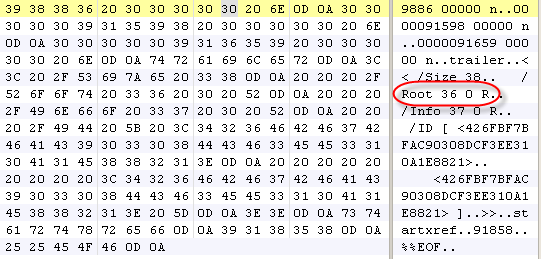
In response to Bruce Schneier’s latest post, let me explain how you can corrupt your own PDF documents for free. Open your PDF document with a binary editor, search for references to the root object (/Root), and overwrite the reference (36 in my example) with a non-existing reference, like 00.

20090609-181712

Of course, be careful and make backups first.

Tested on several PDF readers:

20090609-181538

20090609-181556

20090609-181919

« Previous PageNext Page »

Blog at WordPress.com.