The title says it all…
This is a document I shared with my Brucon workshop attendees.
I know, this is a PDF document, you’ve to appreciate the irony 😉
The title says it all…
This is a document I shared with my Brucon workshop attendees.
I know, this is a PDF document, you’ve to appreciate the irony 😉
Here’s another tool to mitigate exploitation of vulnerable (office) applications.
I discovered Job Objects in this book. Job objects allow processes to be grouped and managed together.
An interesting aspect of job objects for securing applications is the ActiveProcessLimit property. With this, you can limit the number of processes running inside the job object. Set this limit to 1 and run an office application inside the job object, and the office application will not be able to start another program. Because once a process is assigned to a job object, all its child processes are also assigned to the job object. Processes can’t change the limits of the job object they are running in, and once a process is assigned to a job object, it can’t be removed from this job object or assigned to another job object. So once a process is assigned to a job object, it is trapped inside and constrained by the limits of the job object.
To prevent a vulnerable application from launching malware, put the vulnerable application inside a job object and limit the number of processes to 1. And the good news is that job objects were introduced with Windows 2000, so this works on Windows XP too.
RunInsideLimitedJob is a program I wrote to constrain programs with a job object. There are 2 versions: an .EXE and a .DLL.
RunInsideLimitedJob.exe takes one argument: the program you want to restrict. It creates a new job object, restricts the number of processes to 1, starts the program you passed as an argument and assigns it to the new job object. If you want to allow more than 1 process, use option -n.

While RunInsideLimitedJob.exe is for new processes, RunInsideLimitedJob.dll is for existing processes. When this DLL is loaded in a running process, it will create a new job object, restrict the number of processes to 1, and assign its host process to the new job object (assuming the host process is not yet assigned to a job object).
There are several ways to automatically load RunInsideLimitedJob.dll in your favorite office application, like my tool LoadDLLViaAppInit or by importing RunInsideLimitedJob.dll’s dummy function as explained here.
Here I started notepad inside a restricted job object, and then tried to start calc.exe from notepad.exe (via the open file dialog box):

Process Explorer supports job objects. It highlights processes assigned to job objects in brown, and it adds a Job tab to the properties of these processes.

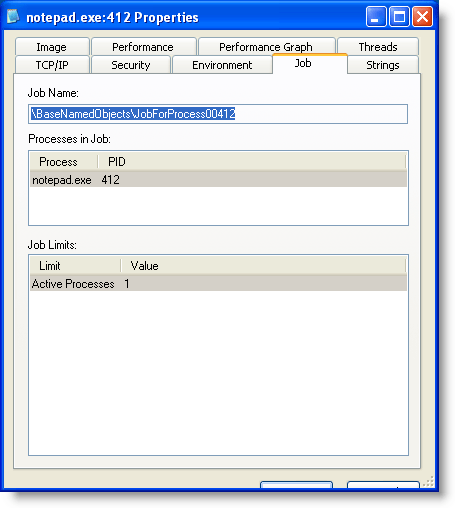
If you try this with my tool, you won’t see the process highlighted brown or the Jobs tab in Process Explorer. Process Explorer does not display the job info when the handle to the job has been closed (the screenshots above are with a modified version of my tool that doesn’t exit and leaves the job handle open). I don’t know yet if this is a bug or a feature in Process Explorer. I need to find out.
The runas command also uses job objects, and these do appear in Process Explorer.
Download:
RunInsideLimitedJob_V0_0_0_1.zip (https)
MD5: 90055BA2928D06EC7A883DEF6E7F37C6
SHA256: EF88A2963436F5893727A90413CE624B473352190E936E35EEF85E246655486D
Microsoft introduced a new kernel security feature with Windows Vista: Integrity Levels. Each process has an integrity level: Low, Medium, High or System. A process with a lower integrity level can’t write to an object with a higher integrity level.
For processes, this means that a process with low integrity level can’t open a handle with full access to a process with medium integrity level. This is what I’ll show in this post: a process with low integrity level can’t inject a DLL in a process with medium (or higher) integrity level.
Normal, non-elevated processes run with medium integrity level by default. Here I inject a DLL into notepad.exe with my bpmtk utility:
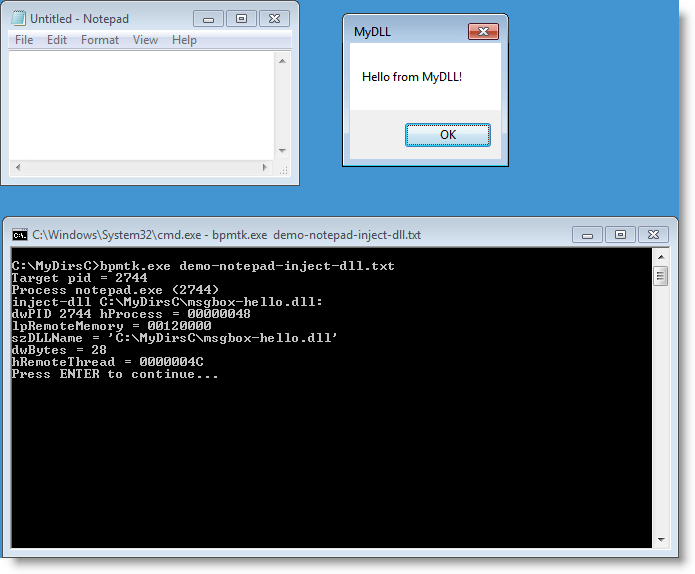
The integrity level of the cmd.exe process is medium, and therefor the integrity level of bpmtk.exe (launched by cmd.exe) is also medium. Because the integrity level of the notepad.exe process is also medium, the DLL injection succeeds.
To help you identify the integrity level of processes on your machine, you can add an integrity level column to process explorer:
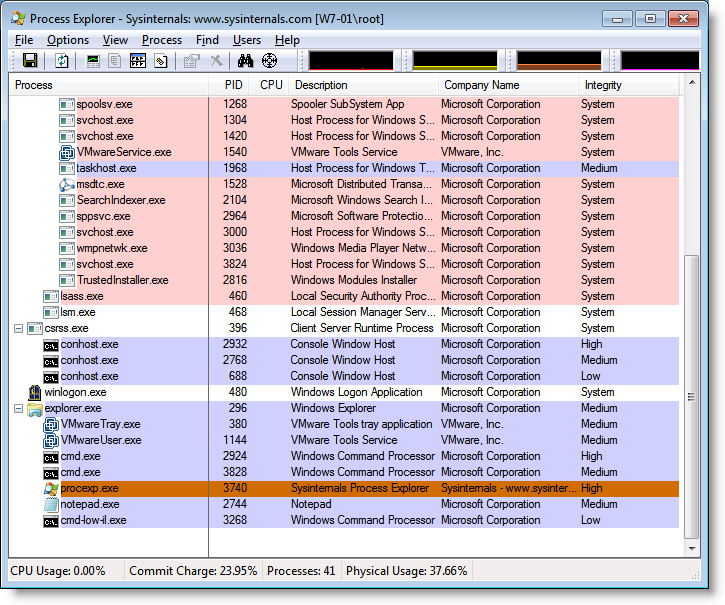
Now we’ll do the same DLL injection from a cmd.exe and bpmtk.exe process with low integrity level.
The icacls.exe utility can be used to view and set integrity levels. Because I don’t want to change the integrity level of the original cmd.exe, I’m making a copy of cmd.exe: cmd-low-il.exe. Cmd-low-il.exe has no explicit integrity level:
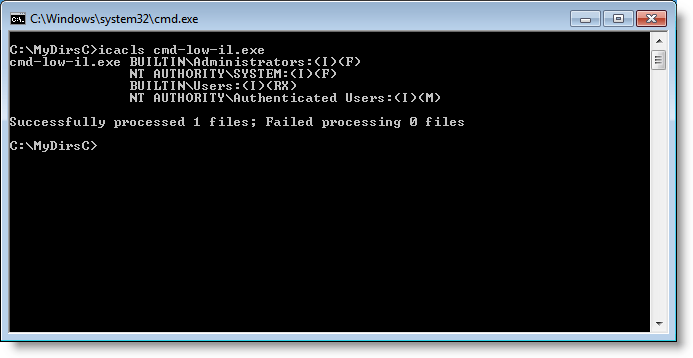
When we set an explicit integrity level (low) on cmd-low-il.exe with icacls.exe, cmd-low-il.exe will run with low integrity level in stead of medium. And every program started by this cmd-low-il.exe process will also run with low integrity level.
You need admin right to assign a low integrity level to cmd-low-il.exe:


Here you can see the low integrity level setting:
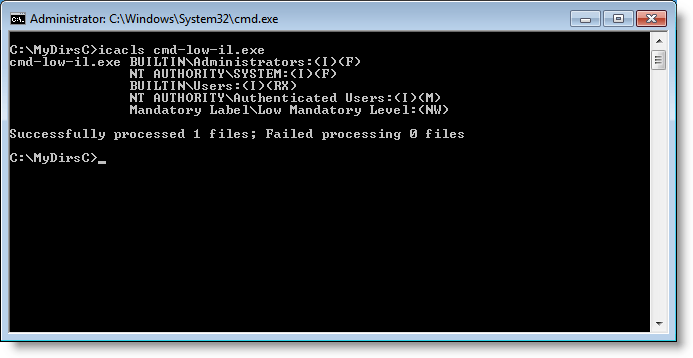
When we start cmd-il-low.exe, it will run with low integrity level. Executing bpmtk.exe from cmd-il-low.exe will force bpmtk.exe to run with low integrity level. bpmtk.exe fails to inject the DLL. When bpmtk.exe tries to open a handle with full access to notepad.exe, the call to OpenProcess fails with access denied. Notepad.exe runs with medium integrity level, and bpmtk.exe running with low integrity level has no right to open a handle to modify the notepad.exe process.

Integrity Levels look like a good security feature to sandbox vulnerable, Internet facing applications. But there are issues I’ll highlight in an upcoming post.
I’m starting a series of posts with new PDF tools and new versions of my PDF tools as preparation to my Brucon workshop.
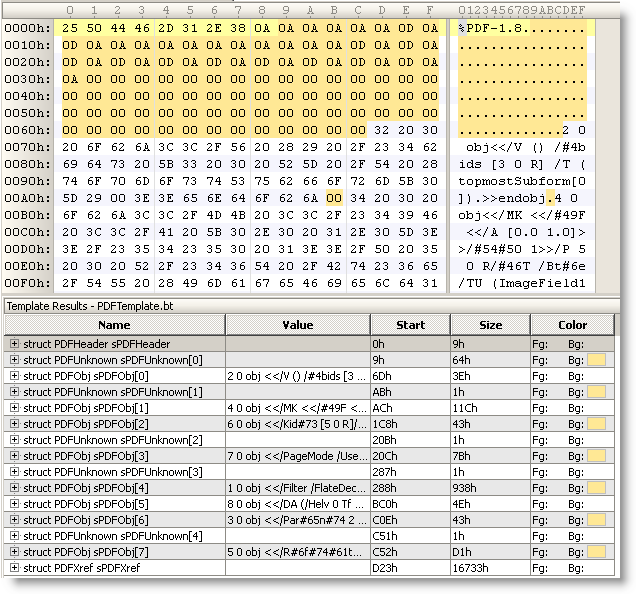
Here is a PDF template for the 010 Editor. It’s particularly useful for malformed PDF files, like this example with PDFUnknown structures:
I’m writing this quickpost just in case you hadn’t figured this out for yourself: the techniques I described to protect machines from the .LNK vulnerability also help you mitigate the DLL preloading issue.
The .LNK vulnerability mitigation examples I gave with Ariad (no file execute) and SRP prevent loading of DLLs from untrusted locations (USB sticks, network drives, …). These will also prevent DLLs from loading from untrusted sources in the case of DLL Preloading exploits.
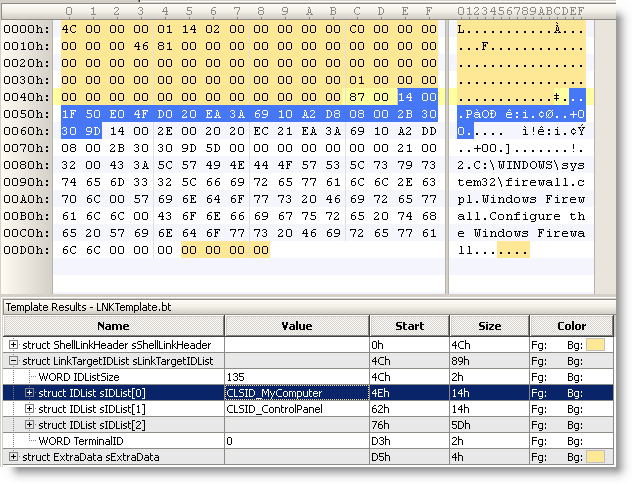
I updated my .LNK template with info I got from comments from WndSks and Forrest Gump. This new version identifies well-known Shell GUIDs:
Microsoft has issued an emergency patch (MS10-046) for the .LNK file vulnerability (CVE-2010-2568).
I’m releasing two small tools I developed to help me investigate this vulnerability.
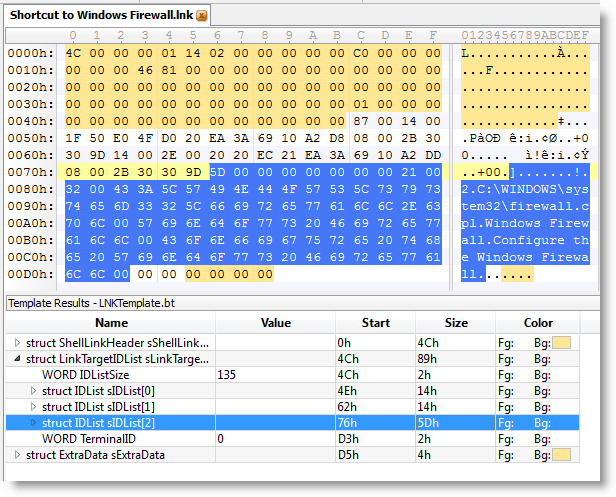
First one is a 010 Editor template file for the .LNK binary file format.
Second one is a ClamAV signature file to find all .LNK shortcuts that load a DLL (malicious or benign).
To scan your drive C, issue command
clamscan.exe -d LNK-CPL-CVE-2010-2568.ndb -l scan.log -r c:\
As I’ve used Software Restriction Policies (SRP) on several occasions in my blogposts, and several people have suggested using SRP to protect against .LNK exploitation as an alternative to Ariad, I’ll describe how to configure SRP for the first time on a workstation that is not a member of a domain. For domain members, you have to configure SRP in the GPO on the domain controller.
Start the Local Security Policy manager from Control Panel / Administrative Tools:
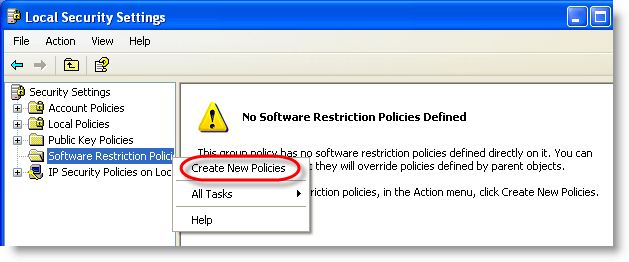
Software Restriction Policies need to be defined the first time:
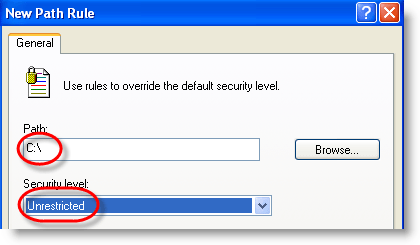
We exclude our system drive (C:) from being restricted (add other drives if you have more):
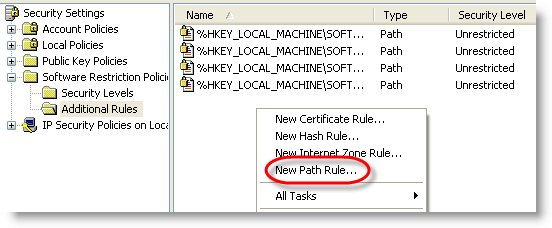
To protect against .LNK exploitation, we need to restrict DLLs too, not only EXEs:
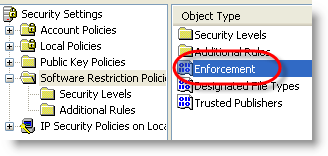
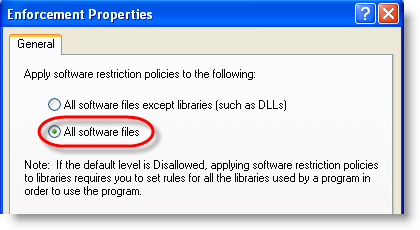
And finally, switch from blacklisting to whitelisting:
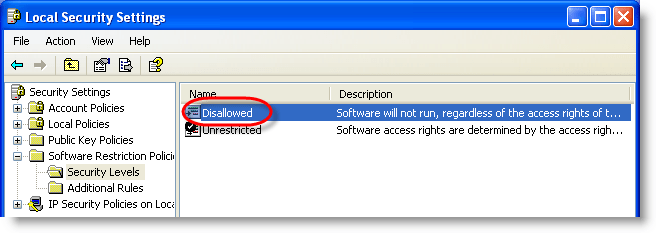
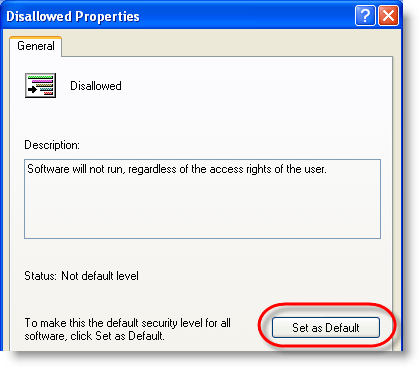
After configuring SRP, execute a logoff/logon to apply them immediately.
From now on, only executables on your C: drive will be allowed to run.
.LNK exploitation from removable media is blocked:

Today I tested @Ivanlef0u ‘s .LNK PoC with my latest Ariad tool.
I adapted the PoC to work on a CD-ROM for drive D. When you load the CD-ROM with the PoC (I use an ISO file inside a VM) and take a look at DbgView’s output, you’ll notice that payload gets executed:
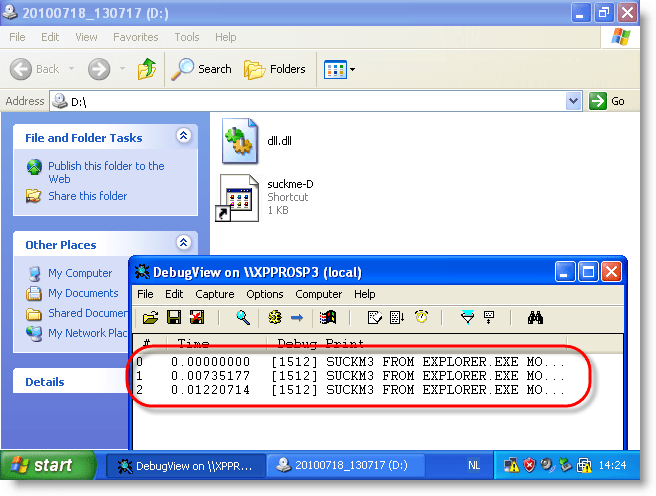
With Ariad installed on the machine in its default configuration (just block \autorun.inf), the PoC still works:
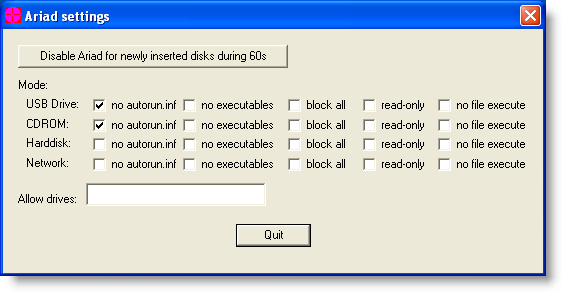
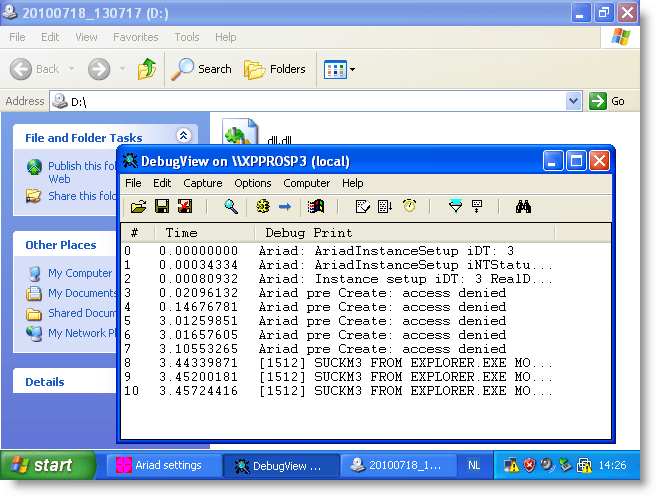
But configuring Ariad to block access to executables (this includes .LNK) prevents the PoC from executing:
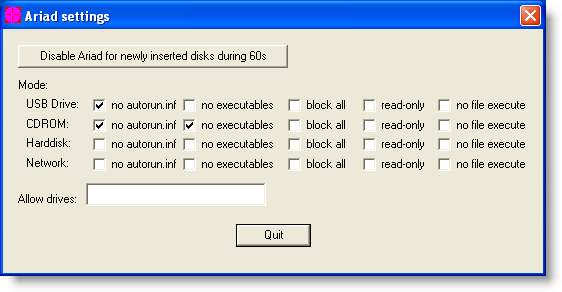

Access to the .LNK file is denied, and Windows Explorer can’t start the payload.
And configuring Ariad to prevent files to be mapped in memory (this is something done by Windows with executables) also prevents the PoC from executing:

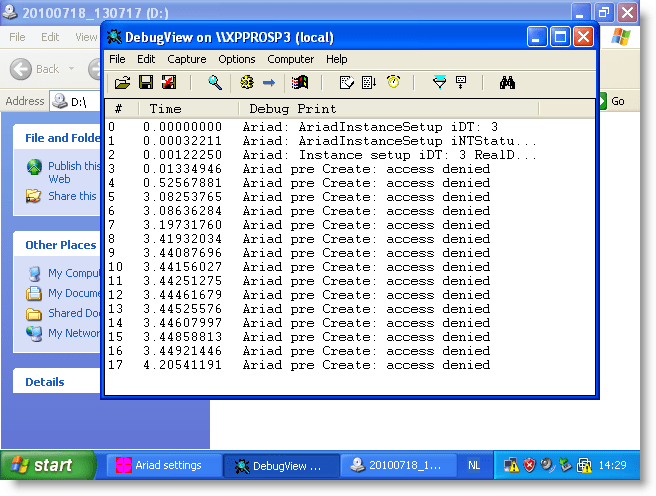
This time, access to the .LNK file is not denied, but dll.dll is prevented from loading into memory, thus again preventing the payload from executing.
You can use Ariad if you want to mitigate attacks with these shortcut links until Microsoft releases a patch. As it is expected that Microsoft will not release a patch for Windows XP SP2, Ariad can offer permanent mitigation.
Be sure to read Ariad‘s documentation before using it.
Last year for Brucon, I produced some reverse engineering challenges (and I’m producing new ones for this year’s edition).
The Hex Factor blog posted the solution for level 300.
The source code for the challenge can be downloaded here. It’s completely written in assembler, even the I/O routines.
Here’s a trick I used to create your own EXE from assembler code, without any library:
A simple assembly program:
    BITS 32

    ret
Assemble with nasm: nasm -f win32 ret.asm -o ret.o
And link with mingw32‘s linker: ld -s ret.o -o ret.exe
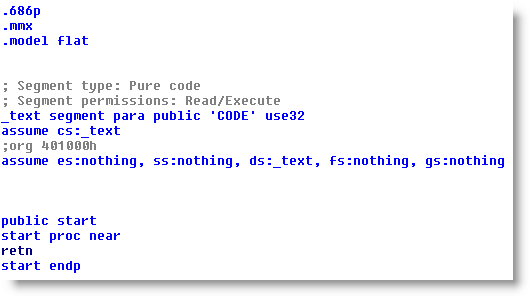
Result:

 Didier Stevens