When Phidget came out with this new IR temperature sensor, a lightbulb went off. This sensor measures temperature without contact. Point it to the chair in front of your computer, and it will measure your body temperature. Or the temperature of your chair, if you’re not sitting in front of your computer.
And that’s the idea: I wrote a program that locks your Windows workstation when you leave your chair (e.g. when the temperature drops).
In this screenshot, LockIfNotHot is configured to lock the workstation when the temperature drops below 25°C during 3 seconds and there is no user input during 2 seconds.
Once the workstation is locked, you need to provide your Windows account password to unlock it.
I’ve been playing with a .NET Micro Framework micro-controller: the USBizi. A few of its interesting characteristics are that you program it in C# with Visual Studio and that in-circuit debugging (including single-stepping) is supported.
The .NET Micro Framework has no assemblies to support USB in host mode (only guest mode), but the USBizi comes with assemblies for host mode providing support for removable drives like USB sticks. To illustrate this feature, I wrote a program to scan the files on a USB stick for the EICAR test file and replace the content with a message appropriate for the time of the year.
Some ideas I’ve for this device: program it as a hardware keylogger, a hardware password vault, …
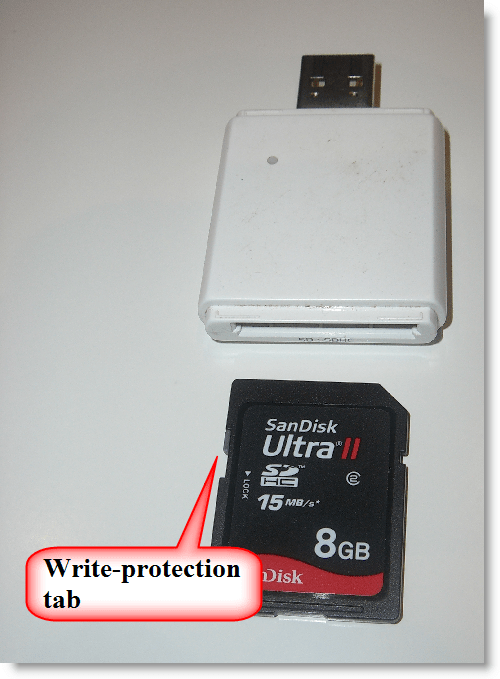
When someone asks me for a read-only USB stick, I recommend to use an SD card with a SD-to-USB adapter, because these are easier to find than USB sticks with write-protection. Most SD cards have a write-protection tab.
But last time I got a surprise: when testing a new SD card reader, I was able to write to the write-protected SD card. Turns out that this particular SD card reader doesn’t support the write-protection tab and always allows the OS to write to the SD card.
What it does: the Arduino reads the sensor (uncalibrated for the moment), displays its value on line 1 of the LCD and also servers it on a web page (with an embedded webserver connecting to the WiFi network via the WiShield).
If the sensor read-out is 900 or more, a LED is turned on.
And I can send a message via the webserver to line 2 of the LCD.
The problem I had to solve: the LCD didn’t work when the WiShield was operating.
The cause: the WiShield library and the LCD library use some common pins.
Solution: change the pin assignment in the LCD library code (LCD4Bit.cpp):
// --------- PINS -------------------------------------
//is the RW pin of the LCD under our control?  If we're only ever going to write to the LCD, we can use one less microcontroller pin, and just tie the LCD pin to the necessary signal, high or low.
//this stops us sending signals to the RW pin if it isn't being used.
int USING_RW = false;

//RS, RW and Enable can be set to whatever you like
int RS = 1;
int RW = 11;
int Enable = 0;
//DB should be an unseparated group of pins  - because of lazy coding in pushNibble()
int DB[] = {3, 4, 5, 6};  //wire these to DB4~7 on LCD.

//--------------------------------------------------------
And don’t forget to delete LCD4Bit.o before recompiling the code. The Arduino IDE doesn’t check dependencies of libraries when compiling.
And yes, once calibrated, you should be able to use this alcohol gas sensor to prevent drunk e-mailing 😉 But you’ll need to add a sensor to verify you’re actually blowing into the alcohol gas sensor. For example a gas pressure sensor.
Stina, Yubico’s CEO, gave me a Yubikey at RSA London last year. It’s a small keyfob simulating a USB keyboard. Each time you press the button while it’s inserted in a USB port, it generates a one-time-password.
But I’ve some issues using the Yubikey in a really secure system. As Twitter plays a role in this, and because lately Twitter started to be used by trojans as a communication channel, I decided it’s time to publish the issues I encountered together with mitigating actions.
Technical details
The OTP generated by the Yubikey is an AES-encrypted data stream. I’ve obtained the AES-key embedded in my Yubikey from Yubico and am able to decode the OTP with a simple Python program.
public_id and secret_id identifies the Yubikey (notice that the public_id is the prefix of the OTP).
counter: this is a persistent register. It is increased with 1 each time the Yubikey is inserted in a USB port.
counter_session: this is a volatile register. It is set to 0 each time the Yubikey is inserted in a USB port, and increased with 1 for each OTP generation
random_number is what it says on the tin: a random number, different per OTP
timestamp is a volatile 32-bit register. It is set to a random value each time the Yubikey is inserted in a USB port, and is then increased with 1 by a 8Hz clock. Yubico specifies an average variation of 20% on the 8Hz clock per Yubikey. With the measurements I made, I calculate that the 8Hz clock of my key has a 32% deviation.
Validating an OTP is done by successfully decrypting the OTP. Replay attacks are mitigated by comparing the counters and timestamp with historical data.
When trying to design a website that uses the Yubikey to authenticate, I imagined the following attack and found a way to mitigate it.
Attack 1:
Assume a website that uses the Yubikey to logon (i.e. an OTP generated with your Yubikey is needed to log on to the site, possibly together with more classic credentials like a username/password combo).
Because this website has my AES key and can decrypt my OTP, my Yubikey authenticates me and I’m granted access to the site.
A web browser trojan could steal an OTP like this:
I generate an OTP (OTP1) with my Yubikey
The trojan intercepts and stores OTP1, doesn’t send OTP1 to the website, but makes the browser display a fake error message (404, server load too high, Yubikey error, …) prompting me to generate a second OTP
I’m fooled by the fake error, and generate a second OTP (OTP2) with my Yubikey
The trojan intercepts and stores OTP2, and sends OTP1 to the website
The website grants me access, and the trojan stops interfering
OTP2 can be used by the operators of the trojan to get access to the website, as long as I’m not first to access the website at a later time with a new OTP (OTP3). Twitter could be used as a channel to communicate the OTPs in real-time to the trojan operators.
Mitigation:
The website can detect this attack (the malicious use of OTP2) if the following algorithm is implemented:
for every account, the last valid OTP is stored, together with a server-side timestamp (when it was received by the website)
if a new OTP is received, the counter value of the previous OTP is compared with the counter value of the new OTP
when both counters have the same value, the website knows that the OTPs were generated in the same session, and thus that it can compare timestamps.
it calculates the delta of the timestamps of the OTPs, and also the delta of the server-side timestamps when it received the OTPs.
if the 2 deltas differ too much (more than 20% margin), then it refuses the OTP and doesn’t grand access to the website
But now comes the second attack for which I have no mitigation, despite some help from the Yubico forum.
Attack 2:
Assume a website which uses the Yubikey OTP to 1) authenticate users and 2) validate transactions. A classic example of such a site is an online banking site. The user generates an OTP to logon, and then has to generate an OTP for each financial transaction.
A web browser trojan could insert its own transaction like this:
I generate an OTP (OTP1) with my Yubikey
The trojan intercepts and stores OTP1 together with a timestamp, doesn’t send OTP1 to the website, but makes the browser display a fake error message (404, server load too high, Yubikey error, …) prompting me to generate a second OTP
I’m fooled by the fake error, and generate a second OTP (OTP2) with my Yubikey
The trojan intercepts and stores OTP2 together with a timestamp, and sends OTP1 to the website
The website grants me access
After an amount of time equal to the delta between the 2 stored timestamps, the trojan starts a transaction (invisible to the user) and uses OTP2 to validate the transaction.
When I start my own transactions, the trojan passes the OTPs on to the website, but delays them with the same timestamp delta to avoid post-exploitation detection.
I can’t device an algorithm to detect this fraud server-side, if the Yubikey is the only authentication and validation mechanism used. This attack would not work with a challenge-response token, because the keys generated by such a token are different for logon and transaction validation. Typically, these tokens generate one type of keys for logon, and another type of keys based on a challenge for transactions. The challenge encodes data of the transaction, so that a particular challenge can’t be used for another transaction.
One Yubico forum member suggests a type of CAPTCHA to ensure that each submitted OTP is submitted by a human (hence the CAPTCHA), but I don’t believe this is practical, as malware is able to defeat some CAPTCHAs and humans are unable to solve some CAPTCHAs.
Feel free to post a comment with your migitation suggestions, but please keep them practical ;-).
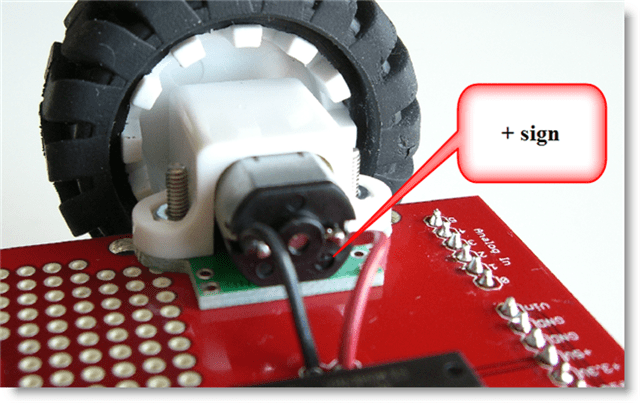
One tip: if you use the large wheels, get a header kit to raise the Arduino Duemilanove, otherwise the wheel will block access to the power and USB connectors:
It’s code I wrote to take surveillance pictures from IP-cameras:
You have to update 2 config files with the data of your IP-cameras: vs.config and credentials.config. Fields in the config files are tab-separated.
vs.config contains the IP cameras, example:
Hall.jpg http://192.168.1.1/IMAGE.JPG -
First field is the prefix for the name when saving the picture (suffix is a timestamp). Second field is the URL to access the picture on the IP camera (depends on the model your using). Third field is a fixed name for the picture, use a hyphen (-) if not used.
credentials.config contains the passwords to access the IP-cameras, example:
This is the Python program I wrote to take a picture every minute:
#!/usr/bin/python

__description__ = 'Tool to take pictures with a Nokia phone at regular intervals'
__author__ = 'Didier Stevens'
__version__ = '0.1.1'
__date__ = '2009/06/22'

"""

Source code put in public domain by Didier Stevens, no Copyright
https://DidierStevens.com
Use at your own risk

History:
 2009/06/17: start
 2009/06/22: refactoring

Todo:
 Get Threading to work
"""

import camera
import time
import os

timelapseFolder = 'e:\\timelapse\\'
sleepTime = 57

def TakeAndSavePicture():
    global timelapseFolder

    now = '%04d%02d%02d-%02d%02d%02d' % time.localtime()[0:6]
    pic = camera.take_photo()
    pic.save(os.path.join(timelapseFolder, now, '.jpeg'))
    print 'Picture taken: %s' % now

def Main():
    global timelapseFolder
    global sleepTime

    print 'Timelapse photography started'
    if not os.path.isdir(timelapseFolder):
        os.mkdir(timelapseFolder)
        print 'Timelapse folder created: %s' % timelapseFolder
    print 'Wait between pictures %d' % sleepTime
    while True:
        TakeAndSavePicture()
        time.sleep(sleepTime)

if __name__ == '__main__':
    Main()
And then I use Avisynth to combine the jpeg pictures in a movie like this (I join pictures 00001.jpg through 00197.jpeg, 5 per second and produce a 25 fps movie):
The XBee shields I obtained use a XBee series 2 module, while the instructions on the Arduino site are for the older XBee module.
After configuring one of my XBee modules as coordinator, the XBee modules were able to communicate with each other.
You need the X-CTU configuration program to configure an XBee series 2 module as coordinator. To connect the XBee module to your PC, you’ve to:
1) remove the ATmega µp from the Arduino board (remember the orientation of the ATmega chip to put it back afterwards):
2: set the jumpers on the XBee shield to USB:
3) Connect the XBee shield to the Arduino, and then connect the Arduino via USB to your computer, run the X-CTU configuration program and read the configuration:
4) Select the coordinator function set and write it to the XBee module:
When the XBee module has restarted and if your other XBee module is powered on, you’ll see the LEDs of both modules starting to flash, indicating they formed a WPAN network.
After configuring the XBee module, revert to the original hardware configuration: disconnect the Arduino board from your PC, set the jumpers on the XBee shield back to XBee and reinsert your ATmega µp in the Arduino board (watch out for the polarity of the chip).






 Didier Stevens