Didier Stevens

Wednesday 22 July 2009

The Ultimate Disaster Recovery Plan

Filed under: Encryption,My Software — Didier Stevens @ 20:34

The ultimate disaster recovery plan is not a corporate plan.

This plan is for your family, to help them take over from you, when you’re not able to take up your role in the family. Hopefully, this will only be a temporary situation, but you have to plan for the worse too: your demise.

List all critical tasks you perform for your family. Think about the information a family member needs to take over your tasks. Document this. Communicate this to your family members.

Most of this documentation is private but not confidential. You don’t want an outsider to read it, but it contains no real secrets. You’ll only want to use encryption for the real secrets, and communicate the key and decryption procedure to your family members and/or lawyer (or another trustworthy outsider). You don’t have to trust a single person with your key if you don’t want to, you can split it over several persons, like Cory Doctorow did.

2 years ago, a very good friend of mine died suddenly. That’s what motivated me to develop a html/javascript page with AES encryption to record and encrypt my will. The advantage of html/javascript is that it’s standalone and very portable.

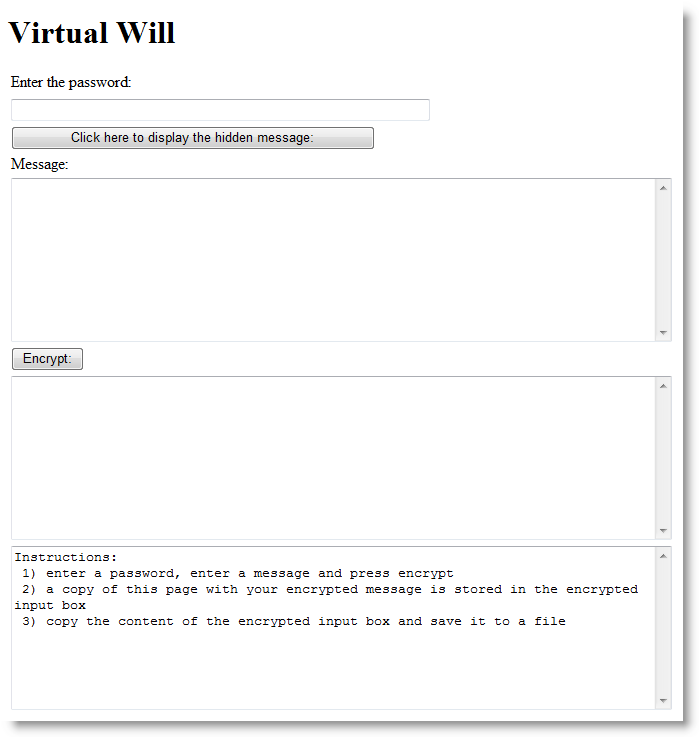
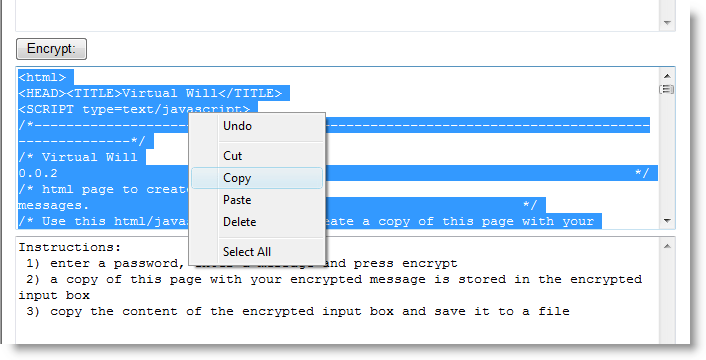
When you open my Virtual Will page, it will detect that it contains no encrypted content, and display the following dialog:
20090722-214245

Use this dialog to create and encrypt your message.

20090722-214421

Copy all html code from the encrypt textbox, and save it as an html file. This html file is identical to the original, but it also contains your message encrypted with AES.
20090722-214458

Provide this document to your family members, together with the (partial) key. For example, you could burn it to a CD-ROM and use autorun to open the page automatically.

To decrypt it, open the html file:

20090722-214601

and enter the password:

20090722-214630

You can also use a Virtual Will page with ciphertext to create a new page or update your will: type encrypt in the password field, and you’ll see the encryption fields appear.

I obtained the JavaScript AES code from Chris Veness.

Some limitations:

  • Chris’ implementation doesn’t use a standard key derivation algorithm (and is limited to first 32 characters of the password)
  • the ciphertext is not compatible with the openssl format
  • it works with many browsers on different operating systems, but not on my S60 Nokia
  • get the enter key to work correctly

I’ll improve these limitations if my software proves to be useful.

Of course, you can use this html page to encrypt anything and then pass it along, it doesn’t have to be a disaster recovery plan.

Download: virtualwill.html
Monday 13 July 2009

Quickpost: TrueCrypt’s Boot Loader Screen Options

Filed under: Encryption,Entertainment,Quickpost — Didier Stevens @ 0:26

Ready for some Security Through Obscurity fun?
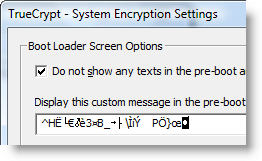
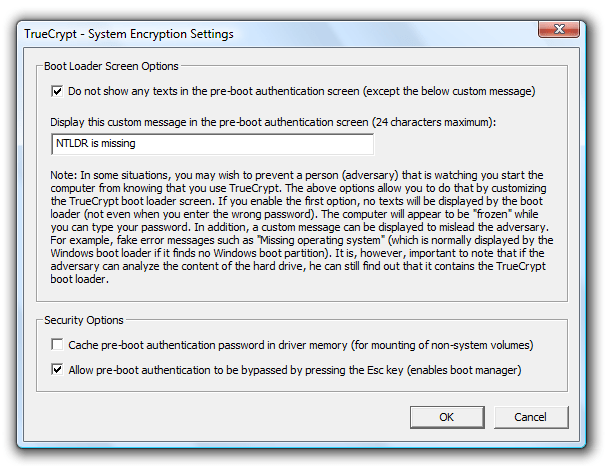
I’ve been playing with TrueCrypt‘s Boot Loader Screen Options to display a custom message when I boot my laptop with full disk encryption.

20090712-130932

It’s probably enough to be misleading during a casual inspection of your laptop:

20090712-131802

The screen doesn’t even display asterisks when you type your TrueCrypt password.
It’s just as unresponsive as the original “NTLDR is missing” screen.
The only difference with the Windows XP NT Loader missing message, is that the original is just a bit longer:

20090712-112128

Or you can just let it display gibberish, like this:

20090712-135343

20090712-135116

And if challenged, say your laptop was infected with a virus from that damned hotel’s WiFi network.


Quickpost info


Thursday 26 March 2009

Poken Peek

Filed under: Encryption,My Software,RFID — Didier Stevens @ 7:35

OK, after getting side-tracked by /JBIG2Decode PDFs, let’s get back on the smartcard and RFID track.

The Poken is a little USB stick you keep on your keychain. You link it to your online identities. To befriend other Poken owners, you just have to hold your Pokens together for a second, and they’ll exchange IDs through RFID. The Poken is popular in The Netherlands, not only among children, but adults too. No more need to exchange business cards.

My 2 guinea pig Pokens were delivered last week. If you want to meet them in person, come to Brucon for my workshop.

20090325-175438

When plugged into a PC, the Poken simulates a USB memory stick containing 3 files:

  • autorun.inf
  • help.txt
  • Start_Poken.html

Start_Poken.html (started by autorun.inf or by you) will navigate to the Poken website and automatically login to your Poken account. It contains a URL with the necessary data to identify you to the Poken website. Having your Poken lost or stolen is an issue (as explained in the Poken FAQ), because of the auto-login feature.
But loosing physical control over your Poken is not the only way to get your account compromised. The URL is actually the only thing needed to gain access to your account. And because this URL uses the HTTP protocol (the Poken site doesn’t support HTTPS), it’s easy to intercept on insecure networks. Insecure networks are not the only issue. Because all the data is in the URL, it will also leave a copy of the URL in different systems on a network, for example in proxy logs.

To prevent unwanted access to your account, disable auto-login for your account (it was enabled by default for my account).

20090325-180505

I was told by the Poken help-desk that they will support HTTPS in the future. But the current Pokens are hard-coded to use HTTP.

When I read the Poken FAQ stating that your data is protected by a “very advanced encryption method” (sic), I interpret that all the data is encrypted with a cipher like AES.
But this isn’t the case. Not all the data is encrypted. Your Poken ID (a 4-byte integer that uniquely identifies your Poken) is not encrypted. And neither are the IDs of the Pokens you befriend. Your personal account data entered on the Poken site is not stored on your Poken. The link between a Poken ID and an account is kept in the database of the Poken web site and is visible for its owner.

The data of a Poken is stored in the URL in file Start_Poken.html:

    URL=http://p.poken.ch/u/ABCDEFGH...

The path (ABCDEFGH…) is encoded in BASE64 (more precisely, a BASE64 variant compatible with URL encoding). I’ve identified the purpose of some of the first 96 bytes of data. It contains your Poken ID and various counters. 2 4-byte integers are changing with each use and appear to be random. These could be a (cryptographic) hash to guarantee the authenticity of the Poken data.
The rest of the data is used to store the IDs of the Pokens you befriended. There is room for 64 records (friends) of 16 bytes each. If you befriend more than 64 Pokens without connecting to the Poken site, the old records get overwritten by new records (like in a circular buffer) and you lose friends.

I’ve a tip for you: if you can’t connect to the Poken web site while befriending more than 64, connect your Poken to your laptop and backup file Start_Poken.html. Later, when you’ve access to the Poken site, open the backuped files in the order you backed them up. Each file will update your data. And after that, use your Poken.

The 16 byte record contains the befriended Poken ID, a status byte (discreet befriending), 3 bytes that look like a timestamp and 8 bytes that appear to be random. These 8 bytes could be a (cryptographic) hash to guarantee the authenticity of befriended Poken data and prevent spoofing or replaying.
So not all the data is encrypted: the Poken IDs are in cleartext. As the link between a Poken ID and the account is safely protected by the Poken web site, even if your data is stolen or intercepted, not much would be disclosed. Traffic analysis could be applied if data of several Pokens is intercepted during an event. Since most people make their friend list public, they shouldn’t care about the interception of the Poken IDs they befriended anyways.

And how about the strenght of the encryption? Well, contrary to what is stated in the Poken FAQ, I don’t believe it is state of the art. Modern, secure ciphers like AES work with blocks of at least 128 bits (16 bytes). In the Poken data, we have blocks of maximum 64 bits (8 bytes). 64 bit encryption is not state of the art anymore. For comparison, DES (and 3DES) work on 64 bits block. You shouldn’t use DES anymore, because it can be brute-forced, although that’s still not trivial to do.

Conclusion: the biggest risk of using a Poken is getting your account compromised, but this can be mitigated. And the encryption of the data on a Poken is not designed to protect your data, but to prevent fraud with the befriending process. The cipher isn’t AES or an equivalent cipher. Yet it is possible to build a small USB device that uses AES to encrypt all data: the YubiKey does it.

20090325-175502

Thursday 29 January 2009

Quickpost: Vigenère Is Beta-Only

Filed under: Encryption,Forensics,Quickpost,Windows 7 — Didier Stevens @ 8:41

I asked Steve Riley if he has inside information on the move from ROT13 to Vigenère for the UserAssist keys. It’s part of the beta program, to test upgrades. The final version of Windows 7 and Windows 2008 R2 will use ROT13 for the UserAssist keys, which has been used since Windows 2000.

The binary format of the UserAssist keys has also changed, I’ve decoded most of it.

Here’s Steve’s complete answer, published with permission:

We used ROT-13 to obfuscate UserAssist for its historical Usenet purpose — not to try to secure the data, but to express that the data shouldn’t be tampered with. Sort of like claiming “Don’t peek and definitely don’t modify unless you’re prepared to deal with the consequences. You’ve been warned.” There are times, like this one, where simple obfuscation is technically justified. ROT-13 was never an encryption scheme, everyone fully expects everyone else to recognize ROT-13 on sight, and some people even developed the ability to read it directly. ROT-13 was an easy and inexpensive way to invoke an implicit social contract.

As you know, UserAssist stores the info about your most frequently used applications for display on the Start menu. (Basic principles at http://blogs.msdn.com/oldnewthing/archive/2007/06/11/3215739.aspx.) The data isn’t confidential and doesn’t need to be encrypted — after all, opening the Start menu displays it. However, its stored format is subject to change, and we don’t want applications or people unintentionally changing it. So we ROT-13ed it, in a geeky attempt to convey exactly the same message that ROT-13 signified on Usenet.

In Windows 7 we made some changes to the way the MFU list is maintained and to the data’s storage format in UserAssist. When you upgrade from a previous version of Windows, we clear the MFU list and start anew. We don’t want old data to carry forward into this key. Changing the encoding from ROT-13 to Vigenère makes it easier for us to test that we’re getting the behavior we want — it’s obvious if old data carries over, because ROT-13ed data makes no sense to Vigenère. This is very useful in pre-release builds while we’re shaking the bugs out.

However, there’s no such benefit to using Vigenère in the final release — it doesn’t convey the same message as ROT-13, and since it’s key-based, it’s easy to mistake Vigenère for true encryption. Therefore, in the final release of Windows 7, we’ll revert to using ROT-13 for UserAssist.

Hope this helps clarify the issue. Feel free to post my email on your blog, too. Incidentally, we have plenty of real crypto in Windows 7 — check out the performance improvements to our AES implementation, for example.


Quickpost info


Sunday 18 January 2009

Quickpost: Windows 7 Beta: ROT13 Replaced With Vigenère? Great Joke!

Filed under: Encryption,Entertainment,Forensics,Quickpost,Windows 7 — Didier Stevens @ 23:17

Remember that the UserAssist keys are encrypted with ROT13?

In Windows 7 Beta, not anymore! Weak ROT13 crypto has been replaced with “stronger” Vigenère crypto!

The Vigenère key I found through some basic cryptanalysis is BWHQNKTEZYFSLMRGXADUJOPIVC.

To the Microsoft developer who designed this: great joke! You really made me laugh. Seriously. 😎

And I thought Easter Eggs were banned in Microsoft products. Maybe you don’t think of it as an Easter Egg, but as a programmer, I do. 😉

20090118-234944


Quickpost info


Saturday 17 January 2009

Playing With Authenticode and MD5 Collisions

Filed under: Encryption,Hacking — Didier Stevens @ 15:11

Back when I researched Microsoft’s code signing mechanism (Authenticode), I noticed it still supported MD5, but that the signtool uses SHA1 by default.

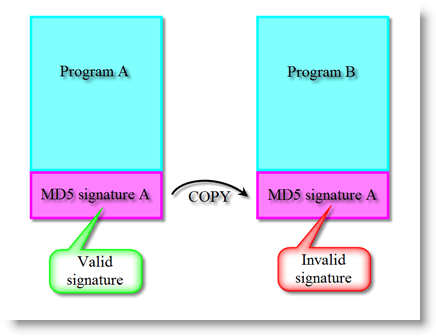
You can extract the signature from one program and inject it in another, but that signature will not be valid for the second program. The cryptographic hash of the parts of the program signed by Authenticode is different for both programs, so the signature is invalid. By default, Microsoft’s codesigning uses SHA1 to hash the program. And that’s too difficult to find a collision for. But Authenticode also supports MD5, and generating collisions for MD5 has become feasible under the right circumstances.
illustration-ab

If both programs have the same MD5 Authenticode hash, the signature can be copied from program A to program B and it will remain valid. Here is the procedure I followed to achieve this.

I start to work with the goodevil program used on this MD5 Collision site. goodevil is a schizophrenic program. It contains both good and evil in it, and it decides to execute the good part or the evil part depending on some data it caries. This data is different for both programs, and also makes that both programs have the same MD5 hash.

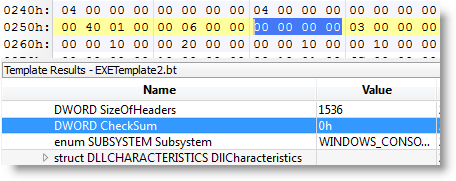
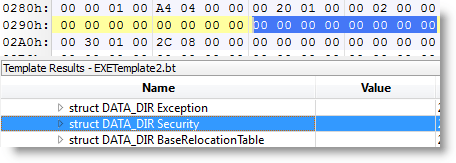
The MD5 collision procedure explained on Peter Selinger’s page will generate 2 different programs, good and evil, with the same MD5 hash. But this is not what I need. I need 2 different programs that generate the same MD5 hash for the byte sequences taken into account by the Authenticode signature. For a simple PE file, the PE Checksum (4 bytes) and the pointer to the digital signature (8 bytes) are not taken into account (complete details here). That shouldn’t be a surprise, because signing a PE file changes these values.

So let’s remove these bytes from PE file goodevil.exe, and call it goodevil.exe.stripped. The hash for goodevil.exe.stripped is the same as the Authenticode hash for goodevil.exe.

20090116-235321

20090116-235400

Now I can compute an MD5 collision for goodevil.exe.stripped, as explained on Peter Selinger’s page. (I could also have modified the MD5 collision programs to skip these fields, but because this is just a one shot demo, I decided not to).

After about an hour, I have 2 new files, good.exe.stripped and evil.exe.stripped, both with the same MD5 hash. I transform them back to standard-compliant PE files by adding the checksum and pointer bytes I removed (giving me good.exe and evil.exe). Now the MD5 hashes are different again, but not the Authenticode MD5 hashes (Authenticode disregards the PE checksum and the signature pointer when calculating the hash).

OK, now I sign good.exe with my own cert. But there’s a little change in the code signing procedure I explained in this other post.

One difference is that I select custom signing:

20090116-232242

This allows me to select MD5 hashing in stead of the default SHA1:

20090116-232318

OK, now good.signed.exe is signed:

20090117-000846

20090117-001029

The signature is valid, and of course, the program still works:

20090117-001333

Let’s summarize what we have. Two programs with different behavior (good.exe and evil.exe), both with the same MD5 Authenticode hash, one with a valid Authenticode signature (good.signed.exe), the other without signature.

Now I extract the signature of good.signed.exe and add it to evil.exe, saving it with the name evil.signed.exe. I use my digital signature tool disitool for this:

disitool.py copy good.signed.exe evil.exe evil.signed.exe

illustration-aa

This transfers the signature from program good.signed.exe (A) to evil.signed.exe (A’). Under normal circumstances, the signature transferred to the second program will be invalid because the second program is different and has a different hash. But this is an exceptional situation, both programs have the same Authenticode hash. Hence the signature for program evil.signed.exe (A’) is also valid:

20090117-001029

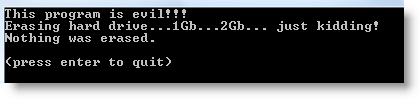
evil.signed.exe executes without problem, but does something else than good.signed.exe:

20090117-004549

This demonstrates that MD5 is also broken for Authenticode code signing, and that you shouldn’t use it. But that’s not a real problem, because Authenticode uses SHA1 by default (I had to use the signtool in wizard mode and explicitly select MD5 hashing). In command-line mode (for batching or makefiles), the signtool provides no option to select the hashing algorithm, it’s always SHA1. And yes, SHA1 is also showing some cracks, but for Authenticode, you have no other choice.

You can download the demo programs and code signing cert here.

Monday 5 January 2009

Howto: Add a Digital Signature to an Office Document

Filed under: Encryption — Didier Stevens @ 21:19

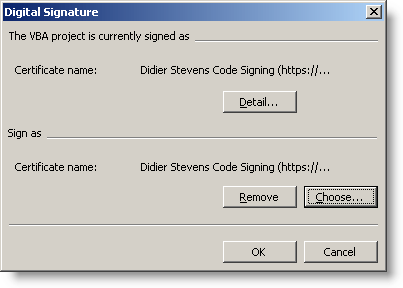
Starting with Microsoft Office 2003, digital signatures can be added to office documents (e.g. a spreadsheet). Macros can also be digitally signed. So if you’ve that special spreadsheet macro to execute, but your Excel configuration requires macros to be signed, this howto is what you’re looking for 😉 .

First step is to import our PKCS12 file.

First we’ll take a look ad signing the document (an Excel spreadsheet).

20090105-131422

Adding a digital sigature is done with Tools / Options…

20090105-132822

20090105-131444

20090105-1314592

20090105-131510

20090105-131531

These actions added our digital signature:

20090105-131548

Of course, when we change the spreadsheet, we have to sign it again:

20090105-131729

The title bar warns us when we opened a signed spreadsheet:

20090105-1321011

The “unverified” word in the title is a reminder that we have to check the signature (via Tools / Options…) to make sure the spreadsheet wasn’t tampered with:

20090105-132151

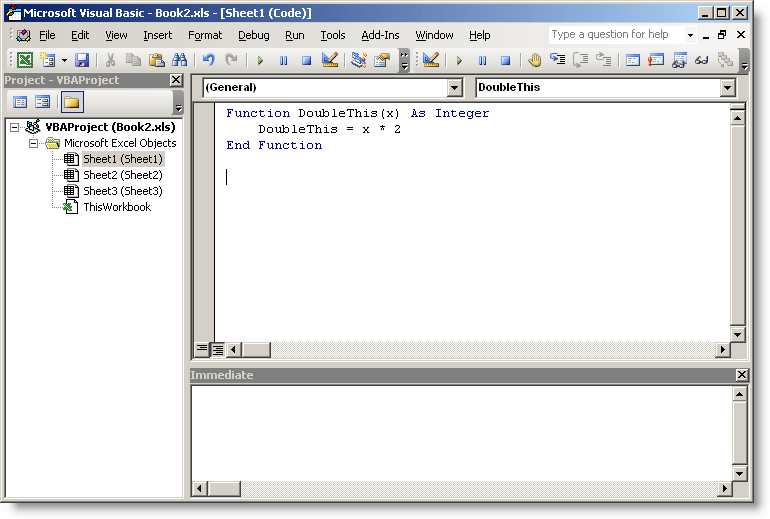
Now let’s sign a macro:

20090105-132615

20090105-132709

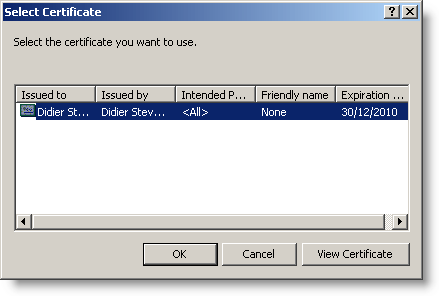
20090105-1327221

20090105-132733

20090105-132744

A default Office 2003 install requires macros to be signed:

20090105-133013

Sunday 4 January 2009

Howto: Add a Digital Signature to a PDF File

Filed under: Encryption,PDF — Didier Stevens @ 21:47

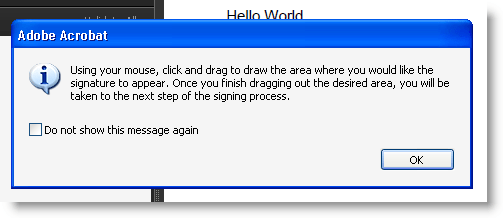
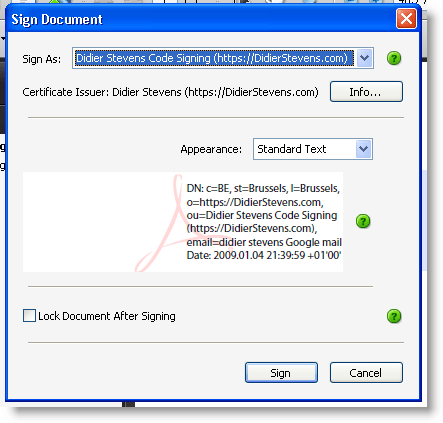
After signing an executable and a Mozilla add-on, let’s sign a PDF document with our certificate.

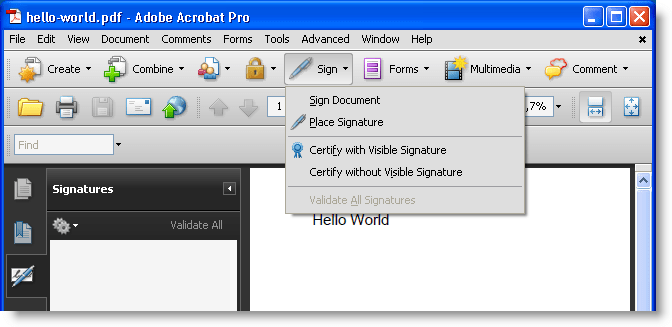
I didn’t manage to use a free tool to sign a PDF document with a certificate, so we’ll use a trial version of Adobe Acrobat Professional.

Our PKCS12 file (with keys and signatures) is imported in our certificate store, so let’s open a PDF document and sign it:
20090104-214956

20090104-215128

20090104-215340

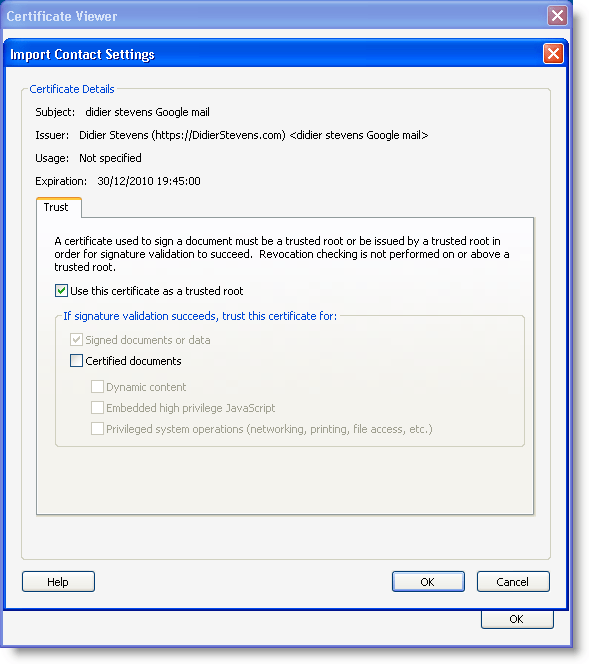
After signing, we notice there’s one issue, our identity is not yet trusted:

20090104-215702

Let’s trust ourself:

20090104-215955

20090104-220023

20090104-220103

20090104-220243

After validation, Adobe Acrobat tells us our signature is valid:

20090104-220644

Thursday 1 January 2009

Howto: Add a Digital Signature to a Firefox Add-on

Filed under: Encryption — Didier Stevens @ 22:02

After signing a Windows executable with our own certificate, let’s sign an XPI file.

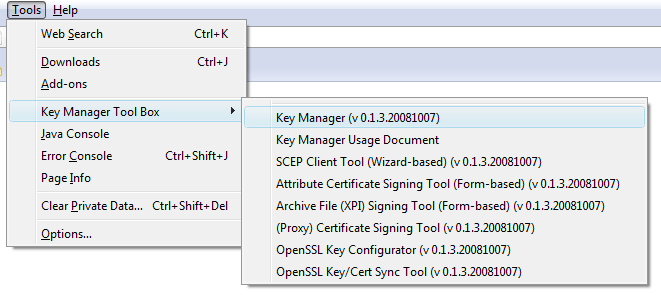
There is a nice Firefox add-on we’ll use to achieve this: Key Manager. But the subordinate CA certificate we create is not suited to sign XPI files, because it doesn’t state explicitly that it can be used for code signing. We have to create another one with an extendedKeyUsage property for code signing.

First we need to create a config file with the extended key usage, eku.cnf:

[eku_codesigning]
extendedKeyUsage=codeSigning

Then we issue the next OpenSSL commands to create a new certificate and PKCS12 file:

openssl x509 -req -days 730 -in ia.csr -CA ca.crt -CAkey ca.key -set_serial 02 -out ia2.crt -extfile eku.cnf -extensions eku_codesigning

openssl pkcs12 -export -out ia2.p12 -inkey ia.key -in ia2.crt -chain -CAfile ca.crt

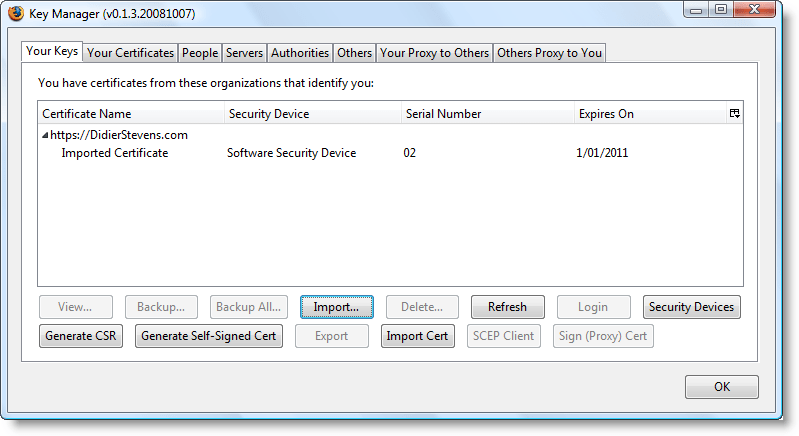
Now we use the Key Manager add-on to import the PKCS12 file (this can also be done with the Firefox options manager):

20090101-220132

20090101-220237

20090101-220326

20090101-2203431

20090101-2203561

20090101-2204091

After importing the certificates and keys, we need to enable the root CA certificate for code signing:

20090101-220428

20090101-220454

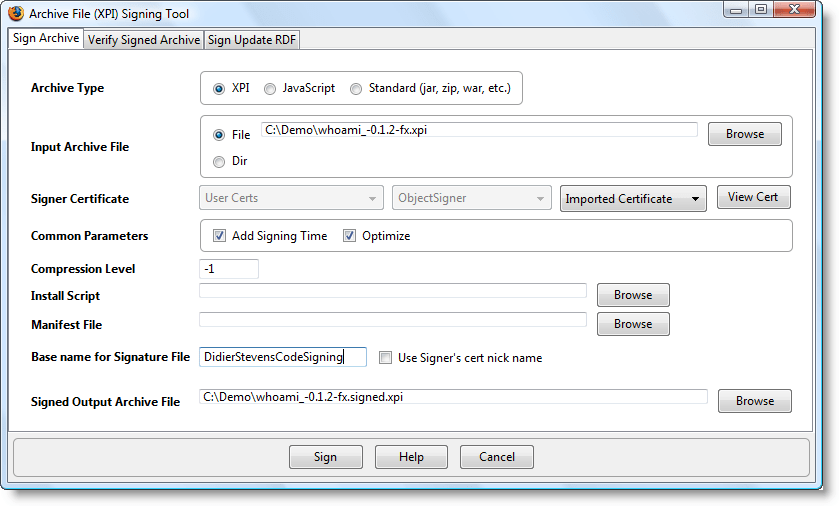
Now this is done, we’re ready to sign an XPI file. As an example, I’m taking my WhoAmI Firefox add-on:

20090101-220543

20090101-220724

20090101-220735

When installing this signed Firefox add-on, we get to see the identity of the signer:

20090101-220802

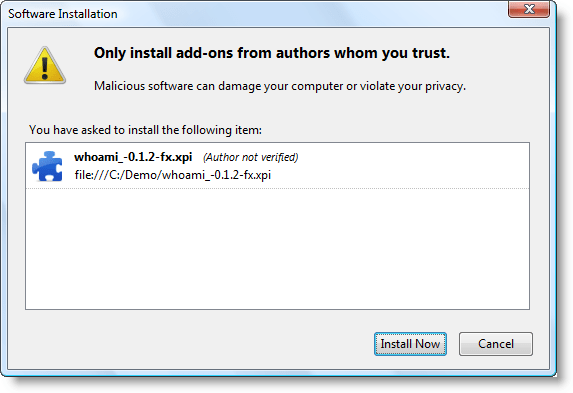
For an unsigned add-on, it says “Author not verified”:

20090101-220010

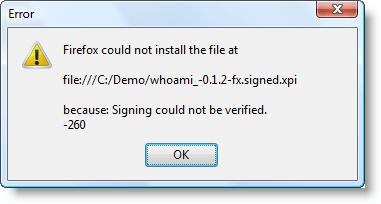
If we don’t trust the root CA for code signing (or the root CA certificate is missing), we can’t install the add-on!

20090101-221028

So it doesn’t make sense to sign a Firefox add-on with your own self-signed certificate if you plan to make it public (e.g. publish it on the Mozilla add-on site). Users will not be able to install your add-on if they don’t have imported and approved your root CA certificate.

Wednesday 31 December 2008

Howto: Add a Digital Signature to Executables

Filed under: Encryption — Didier Stevens @ 10:56

Signtool.exe is the default Windows development tool to add a digital signature (Authenticode) to Windows executables (PE files). This howto shows you how to use signtool. You’ll need to create your own certificate and key (or buy one) to sign code.

To obtain signtool, download the platform SDK or the .NET SDK.

I use signtool in my makefile with command line options to automatically sign compiled code, but in this howto, I’ll show the interactive use.

First we will install the certificate with key we’ll use to sign code. Double-click the file and let the wizard do its work with the default option:

20081231-094329

20081231-094445

Because the wizard will also install the root CA certificate found in the PKCS12 file, it will ask you if you trust it.

20081231-094615

It is not necessary to install this root CA certificate for code signing purposes, but if you don’t, signtool will not include the root CA certificate in the certificate chain. And you also need to install this root CA certificate if you want to automatically trust all certificates issued by this root CA (or its subordinate CAs).

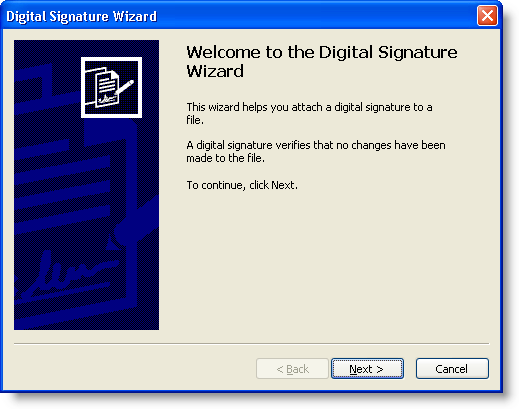
Now start signtool from a command-line like this: signtool signwizard.

20081231-094839

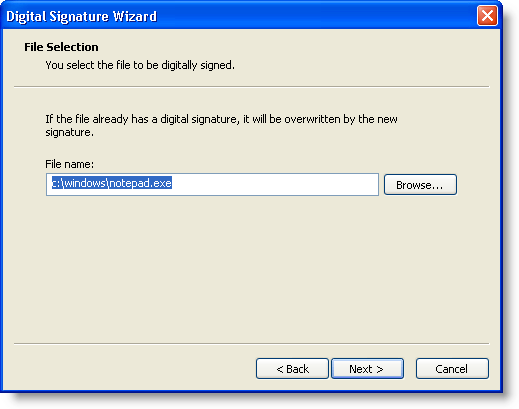
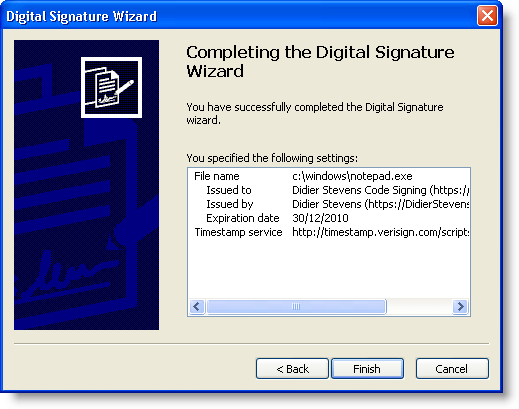
For the purposes of this howto, we’ll sign notepad.exe. When you sign an executable that is already signed, the existing signature is overwritten. Actually, notepad is not signed by Microsoft with an embedded signature, but using a security catalog.

20081231-095047

We’ll use the default options presented by the wizard (except for the timestamp):

20081231-095559

20081231-095812

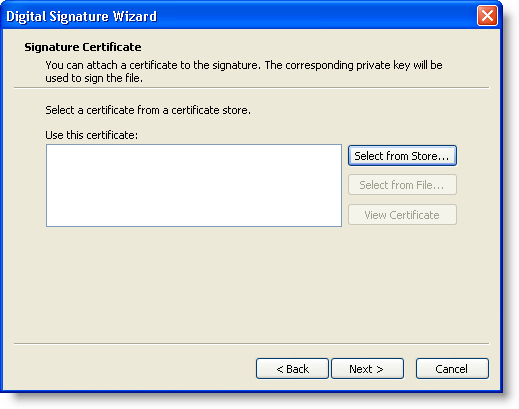
Select the certificate with key we installed: use Select from Store…

20081231-095856

20081231-095950

20081231-100027

By default, the signature doesn’t include a timestamp signed by an external authority (a counter-signature). It’s easy to add one, for example using Verisign’s timestamp service: http://timestamp.verisign.com/scripts/timstamp.dll (of course, using this option requires Internet access).

20081231-100318

Finally, click finish for the wizard to do its work:

20081231-100432

20081231-100504

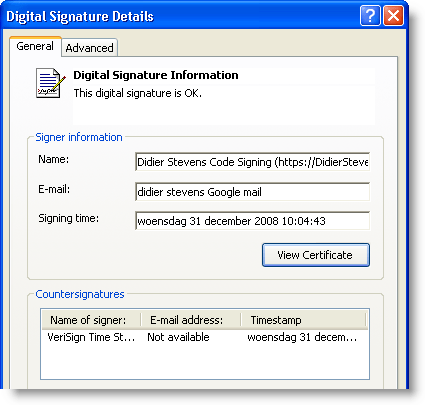
From now on, notepad.exe’s properties displays a Digital Signatures tab:

20081231-100619

20081231-100920

20081231-101005

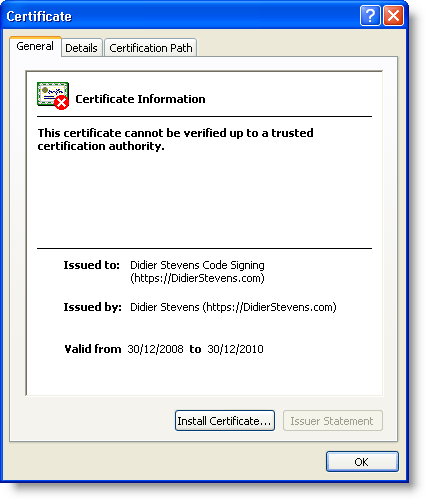
This certificate is OK because we installed the root CA certificate in our certificate store. But if you check this signature on another machine or with another account (which doesn’t trust our root CA), we’ll get a warning that although the signature is valid, we don’t trust the root CA:

20081231-101604

20081231-102020

If you didn’t make a backup of notepad.exe and want to remove the signature, use my digital signature tool disitool.

« Previous PageNext Page »

Blog at WordPress.com.