Didier Stevens

Friday 28 July 2017

Analyzing Password Dumps With My Tools – Part 1

Filed under: My Software — Didier Stevens @ 22:04

I’ve been tweaking some of my tools to help me analyze large password dumps, like exploit.in. And I also have done such analyses with build-in Unix tools (I refer to Unix tools because I started to use Unix in the eighties, before Windows and Linux existed), but I also must be able to do this on Windows machines, where I don’t always have the option to install “Unix-for-Windows” tools like cygwin.

When I started to process the exploit.in files with my CSV tools, I ran into some problems. The data is not very clean, for example, there are lines in the dump that are so long that Python’s csv module will error on it. Normally the format of a line is “email-address:password”, where a colon (:) is a separator between the email address and the password. But sometimes there is no separator in the line, and sometimes there is more than 1 separator. This happens when a password contains a colon (:), but the problem is that the colon (:) is not properly escaped for a CSV parser.

That’s why I made some updates to my python-per-line.py tool.

With python-per-line’s SBC function (Separator Based Cut), I can extract passwords even if the line is too long for other parsers, if there is no separator (:) or more than one separator. This is the expression I use:

SBC(line,’:’,2,1,[])

line is a Python variable, ‘:’ is the separator, 2 is the number of fields, 1 is the field that needs to be selected (index starts from 0, so 1 is the second field, i.e. the password), and [] is the value to return if there is no field with index 1. [] makes that python-per-line will not output a line (e.g. no empty line). SBC will split the line per the : separator, without taking any possible escape characters into account. It will also separate the line into maximum 2 fields, even if there is more than one : character. This is done from left to right, remaining : characters are part of the second field.

The other problem I encountered on Windows is that when I piped the output of python-per-line into count (to count passwords), the process would stop before all files were processed. It turns out that some passwords contain the CTRL-Z character (0x1A), which is the end-of-file marker, so that’s why processing stopped. I solved this problem by escaping the CTRL-Z character with a function I added to python-per-line: RIN (Repr If Needed). This is the expression I use:

RIN(SBC(line,’:’,2,1,[]),’\x1a’)

In this case, RIN will escaped its input (the first argument) with Python’s repr function if the input contains character CTRL-Z (\x1A).

python-per-line can also handle gzip compressed text files, so I was able to free up a couple of gigabytes by compressing the exploit.in text files. My count program version 0.1.0 was able to count the passwords, but it required Python 64 bit and took a long time. That’s why I added sqlite3 support to count.py as a counting method.

Here is the command I used to count the passwords and create a database:

Option -c exploit-in-passwords.db instructs count.py to use a sqlite3 database on disk with name exploit-in-passwords.db as a counting method in stead of a Python dictionary (the default counting method).

Option –ranktop 100 makes count.py output the top 100 most frequent passwords, along with their frequency. -H prints out a header, and -t prints totals.

Option -o passwords-top-100.csv makes count.py write its output to file passwords-top-100.csv, and finally, option -b makes that his output also goes to stdout.

Afterwards, I can use the database to print out other lists, like a top 20:

Option -z makes that count.py does not requires input files, it will just print out data from the database. Option -d sorts the output in descending order (sorted by default per count in ascending order).

From this output, I can see that 123456 is the password with the highest frequency (a bit more than 5 million times), that there are almost 800 million passwords in total and a bit more than 200 million unique passwords.

Thursday 27 July 2017

Update: count.py Version 0.2.0

Filed under: My Software,Update — Didier Stevens @ 18:49

count is a simple program: it takes text files as input and counts how many times each lines appears.

A couple of years ago, I made a video:

count.py uses a Python dictionary to count items, but that requires a lot of memory to process gigabytes of data.

This new version helps with this problem by providing a count method using a database (sqlite3). By default, a dictionary is still used. But counting with a database can be selected with option -c. With option -c you can provide the name of the database to use: if the name is :memory:, the database will be created in memory. Counting with a sqlite3 database in memory requires less memory than counting with a Python dictionary, but is slower. If the name is a filename, the database will be created on disk. This is of course way slower than in memory, but can process even larger files.


count_v0_2_0.zip (https)
MD5: ACF1982045ABEF86FCDBA87A84F5F588
SHA256: 373DDA0B2C176624998B5907261477943F677855CCECCDD42D6BEB758F8E7B79

Wednesday 26 July 2017

The Paste Command

Filed under: My Software — Didier Stevens @ 20:56

Clip is a useful command. Paste would be a useful command, unfortunately Windows has no paste command: paste would do the opposite of clip, read the clipboard and write it to stdout.

So I made my own command a couple of years ago, and yesterday I made it ready for publication.

I don’t use paste as often as clip, but sometimes I copy malware related data from my hex editor and then pipe it into my tools with paste.


Paste_V1_0_0_1.zip (https)
MD5: 2107C78DEA38EA98825BB686DB2291AD
SHA256: 329A0AA96E855219ACB99D7BC35F78CE552645F7829D1B475924F895BA614637

Tuesday 25 July 2017

The Clip Command

Filed under: Malware — Didier Stevens @ 20:17

You probably know that I like to pipe commands together when I analyze malware …

Are you familiar with Windows’ clip command? It’s a very simple command that I use often: it reads input from stdin and copies it to the Windows clipboard.

Here is an example where I use it to copy all the VBA code of a malicious Word document to the clipboard, so that I can paste it into a text editor without having to write it to disk.

Monday 24 July 2017

New Tool: headtail.py

Filed under: My Software — Didier Stevens @ 22:22

Someone asked me what this headtail command was that I’ve used a couple of times in my blog posts, like in this screenshot:

It’s a tool that I wrote (what else ;-)) to help me create screenshots of command-line output. It’s the combination of the well-known head and tail Unix command: headtail takes a text file as input (it accepts stdin too) and outputs the first 10 lines (head) and the last 10 (tail) of its input, with a … line in between. Like with head and tail, option -n can be used to choose the number of lines.

headtail_V0_0_1.zip (https)
MD5: F5FD067F94411D22B939D753B803ACFE
SHA256: CBB66EA335299801A4D3D80A6A9BD686C56058B203ABB1BC6144B3A2E2370979

Sunday 23 July 2017

Update: python-per-line.py Version 0.0.2

Filed under: My Software,Update — Didier Stevens @ 19:48

python-per-line is a tool to apply a Python expression on each line of input.

I updated it because I had to process large credential dumps (I’ll blog about this later).

This new version can process .gz files too, and includes three new predefined Python functions: IFF, RIN and SBC.

From the man page:

IFF is a predefined Python function that implements the if Function
(IFF = IF Function). It takes three arguments: expression, valueTrue,
valueFalse. If expression is true, then valueTrue is returned,
otherwise valueFalse is returned.

RIN is a predefined Python function that uses the repr function if
needed (RIN = Repr If Needed). When a string contains characters that
need to be escaped to be used in Python source code, repr(string) is
returned, otherwise the string itself is returned.

SBC is a predefined Python function that helps with selecting a value
from lines with values and separators (Separator Based Cut = SBC). SBC
takes five arguments: data, separator, columns, column, failvalue.
data is the data we want to parse (usually line), separator is the
separator character, columns is the number of columns per line, column
is the value we want to select (cut) starting from 0, and failvalue is
the value that SBC needs to return if the function fails (for example
because there are less columns in the line than specified by the
columns value).
Here is an example. We use this file with credentials (creds.txt):
username1:password
username2
username3:pass:word
username4:

And this is the command to extract the passwords:
python-per-line.py "SBC(line, ':', 2, 1, [])" creds.txt

The result:
password
pass:word

If a line contains more separators than specified by the columns
argument, then everything past the last expected separator is
considered the last value (this includes the extra separator(s)). We
can see this with line "username3:pass:word". The password is
pass:word (not pass). SBC returns pass:word.
If a line contains less separators than specified by the columns
argument, then the failvalue is returned. [] makes python-per-line
skip an output line, that is why no output is produced for user2.

python-per-line_V0_0_2.zip (https)
MD5: AB2377D366AB33992A535AF1EE489CBD
SHA256: 045F398FBCF6DDFF4A25B38007ADDF89B3256C21C8808B58FBC96855D55E6171

Saturday 22 July 2017

oledump.py *.vir

Filed under: My Software — Didier Stevens @ 22:17

I was asked if oledump.py can “scan” multiple files: it can not, it can only analyze a single file at a time.

However, you can use it in a loop (bash, cmd, …) and call it each time with a different file. oledump.py will return 0 if there were no errors, 1 if there were, and 2 if the analyzed file contains VBA code.

My process-command.py tool can also be used to run a tool on many files. Here is an example with oledump:

process-command.py -r “oledump.py %f%” *.vir

While doing the analysis on all *.vir files in the current directory, 2 log files will be created in the current directory, one being a CSV file with the return value of the command (e.g. oledump):

0;sample1.vir
0;sample2.vir
2;sample3.vir
2;sample4.vir
0;sample5.vir
2;sample6.vir
2;sample7.vir
2;sample8.vir
0;sample9.vir
0;sample10.vir

Friday 21 July 2017

Update: emldump.py Version 0.0.10

Filed under: My Software,Update — Didier Stevens @ 22:15

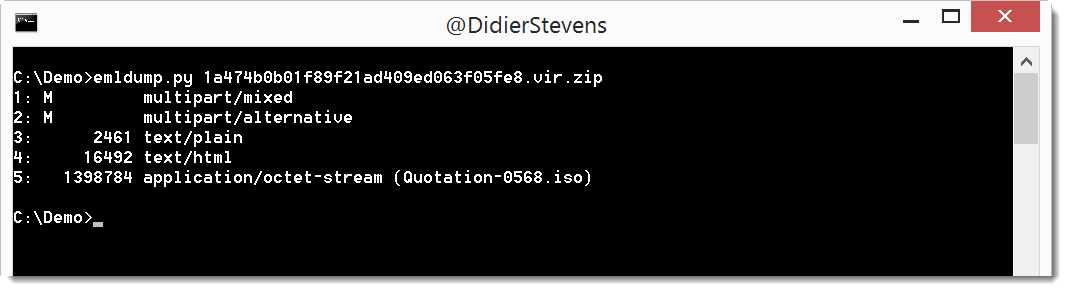
This new version outputs the filename for attachments:

emldump_V0_0_10.zip (https)
MD5: 34DBB3BCB1A2B04C45286C0583F11C07
SHA256: C5877E252DDB61B40BFFCC5403DB500E672DACFE96FAA7D1E0668246C5202DE5

Thursday 20 July 2017

Update: oledump.py Version 0.0.28

Filed under: My Software,Update — Didier Stevens @ 18:45

Like I did with zipdump, this oledump version now also supports YARA rules provided via the command-line (# and #s#).

oledump_V0_0_28.zip (https)
MD5: D89C1E0DA9A95A166EF8F36165F6A873
SHA256: 58F44B68BC997C2A7F329978E13DC50E406CCCCD2017C0375AA144712F029BFB

Wednesday 19 July 2017

Update:zipdump.py Version 0.0.11

Filed under: My Software,Update — Didier Stevens @ 22:20

Sometimes I just need to search for a string in the files of a ZIP container, and for that I need to create a small YARA rule.

With this new version, I can let zipdump generate the rule, I just need to provide the string. The value provided to option -y needs to start with #s# (s stands for string). Here is an example where I search for string HUBBLE:

zipdump_v0_0_11.zip (https)
MD5: E97E0191757230D2C7F9109B91636BF7
SHA256: 6640F971F61F7915D89388D3072854C00C81C47476A96CAC7BE6740DA348467B

« Previous PageNext Page »

Blog at WordPress.com.