Didier Stevens

Saturday 18 August 2018

Quickpost: Revisiting JA3

Filed under: Networking,Quickpost — Didier Stevens @ 0:00

A year ago I tried out JA3. Time for a new test.

This new version no longer crashes on some packets, it’s more stable. However, there’s a bug when producing json output, which is easy to fix.

The JA3 Python program no longer matches TLS fingerprints: it produces a list of data (including fingerprint) for each client Hello packet.

Running this new version on the same pcap file as a year ago (and extracting the fingerprints) yields exactly the same result: 445 unique fingerprints, 7588 in total.

I have more matches this time when matching with the latest version of ja3fingerprint.json: 75 matches compared to 24 a year ago.

Notice that Shodan is one of the matched fingerprints.

Let’s take a closer look:

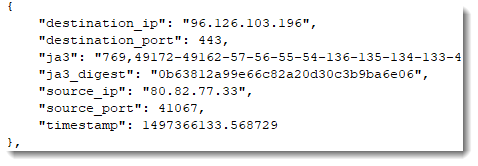
I’m looking for connections with fingerprint digest 0b63812a99e66c82a20d30c3b9ba6e06:

80.82.77.33 is indeed Shodan:

Name: sky.census.shodan.io
Address: 80.82.77.33


Quickpost info


Tuesday 14 August 2018

Update: format-bytes Version 0.0.5

Filed under: My Software,Update — Didier Stevens @ 0:00

This new version has many new features and options.

First there is the remainder (*) when using option -f to specify a parsing format.

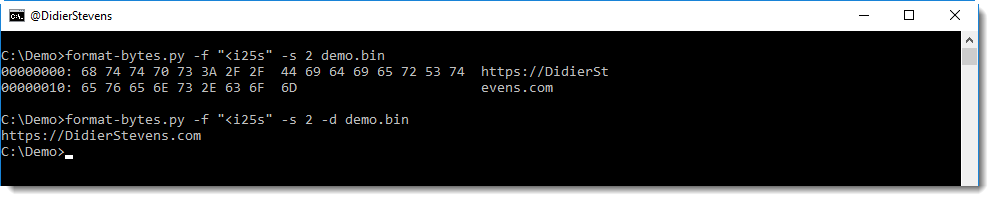
For example, -f “<i25s” directs format-bytes to interpret the provided data as a little-endian integer followed by a 25-byte long string:

With the remainder (-f “<i25s*”), format-bytes will provide info for the remaining bytes (if any) after parsing (e.g. after the 25-byte long string):

Options -c and -s changed ito -C and -S, so that option -s can be used to select items (to be consistent across my tools).

Option -s can be used to select an item, like a string, to be dumped (options -a, -x and -d). If no dump option is provided, an hex-ascii dump (-a) is the default.

And option –jsoninput can be used to process JSON output produced by oledump.py or zipdump.py, for example.


format-bytes_V0_0_5.zip (https)
MD5: 3D92BCAF8E31BFBF6F4917B3AAB64AEF
SHA256: AD43756F69C8C2ABF0F5778BC466AD480630727FA7B03A6D4DEC80743549845A

Monday 13 August 2018

Update: oledump.py Version 0.0.37

Filed under: My Software,Update — Didier Stevens @ 0:00

This new version of oledump.py adds option –vbadecompressskipattributes to decompress VBA code while skipping the initial attribute definitions (those that are hidden in the MS Office VBA Editor).

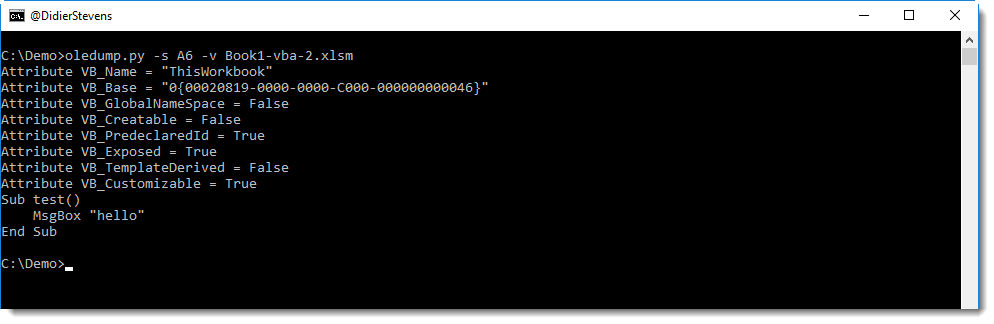
Here is an example of output with option -v you are familiar with:

When replacing option -v with option –vbadecompressskipattributes, the initial attributes are no longer displayed:

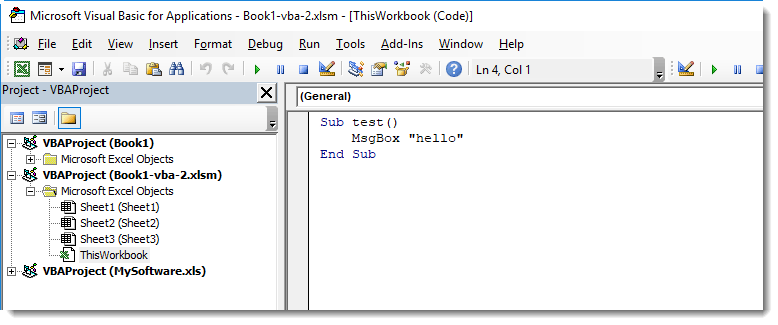
These attributes are actually hidden in the MS Office VBA Editor:

I added this option because lately, I’ve analyzed several samples where I had to extract all strings for further decoding, and the strings in the attribute definitions were interfering with the decoding. With this new options, I can prevent these strings from appearing in the output.


plugin_msg.py was updated to version 0.0.3 to include plugin option -k, to display only known MSG streams.


oledump_V0_0_37.zip (https)
MD5: BBC2F3B57266B557307E12E8BC950F98
SHA256: 573C73110CA35EE6451FD14EE7B7DCA3B53FF624ECCFF824799DA59F7767DA68

Friday 3 August 2018

Update: PDFiD.py Version 0.2.5

Filed under: My Software,PDF,Update — Didier Stevens @ 0:00

It’s the second time now that a friend reports to me that PDFiD produces no output at all when a pdf is analyzed.

In both cases, the filename was something like sample[1].pdf (a file you could find in Internet Explorer’s cache, for example).

PDFiD can process multiple files, and accepts UNIX shell-style wildcards. Not only * and ?, but also []. So with a filename like sample[1].pdf, PDFiD is actually looking for a file with filename sample1.pdf. Which it doesn’t find, and thus produces no output.

About two years ago, when first a friend reported this, I added option -l –literal. If you use this option, then PDFiD will do no wildcard expansion, and will thus find file sample[1].pdf.

Recently, another friend had the same problem. And was not aware of the existence of option -l.

This new version of PDFiD will display a warning when you use wildcard characters in filenames (without option -l) and when no files match. Like this:

I also renamed option –literal to –literalfilenames, to be consistent across my tools.

pdfid_v0_2_5.zip (https)
MD5: 9B835D9E934A7AA7E68C3649A7AA5DAF
SHA256: 4DD43D7BDA885C5A579FC1F797E93A536E1DB5A4AB52A9337759A69D3B0250E0

Thursday 2 August 2018

Overview of Content Published in July

Filed under: Announcement — Didier Stevens @ 0:00

Here is an overview of content I published in July:

Blog posts:

YouTube videos:

Videoblog posts:

SANS ISC Diary entries:

NVISO blog:

Tuesday 31 July 2018

Update: python-per-line.py Version 0.0.5

Filed under: My Software,Update — Didier Stevens @ 0:00

This new version of python-per-line.py adds new options: –grep, –grepoptions, –begingrep, –begingrepoptions, –endgrep and –endgrepoptions

With –grep and –grepoptions, you can select the lines to be processed by python-per-line.py.

If you want to skip lines at the beginning of the file, use option –begingrep to grep for the first line where processing should start.

And if you want to skip lines at the end of the file, use option –endgrep to grep for the last line to be processes.

python-per-line_V0_0_5.zip (https)
MD5: 1CED1F84FD44E64BF448558BA02E0978
SHA256: 8E6845006BD3463135CE7AA0AA05FA596AC10E6E2ACC4B45C5909B624A20D6A5

Monday 30 July 2018

Update: numbers-to-string.py Version 0.0.4

Filed under: My Software,Update — Didier Stevens @ 0:00

This new version of numbers-to-string.py adds new options: –grep, –grepoptions, –begin and –end.

With –grep and –grepoptions, you can select the lines to be processed by numbers-to-string.py.

And if you don’t want the tool to take a whole line into account when processing numbers, but only part of the line, you can use option –begin to specify where in the line processing should start.

Likewise, with –end you can specify where processing should end.

numbers-to-string_v0_0_4.zip (https)
MD5: DFBA2CE60D59A5DF25D7BE415D55B0FF
SHA256: DA75A6BEB7DCD0F71C008EFE43EE3D3831B545BC916AA5176F4E2004FE97A250

Sunday 29 July 2018

Update: re-search.py Version 0.0.12

Filed under: My Software,Update — Didier Stevens @ 0:00

This new version of re-search adds 3 regular expressions to the library: str-e matches quoted strings like str but including the empty string too. str-u matches strings like str, but strips the double quotes. str-eu matches like str-e and also strips double quotes.

re-search_V0_0_12.zip (https)
MD5: 8CA8D767BDB126B097E41F0D4B1F197B
SHA256: 69752CF9862FC4EC29DD96289A21D1C8C82FB4C3C3083BE622C169BA658F0A40

Wednesday 25 July 2018

Extracting DotNetToJScript’s PE Files

Filed under: Forensics,Malware — Didier Stevens @ 0:00

I added a new option (-I, –ignorehex) to base64dump.py to make the extraction of the PE file inside a JScript script generated with DotNetToJScript a bit easier.

DotNetToJScript is James Forshaw‘s “tool to generate a JScript which bootstraps an arbitrary .NET Assembly and class”.

Here is an example of a script generated by James’ tool:
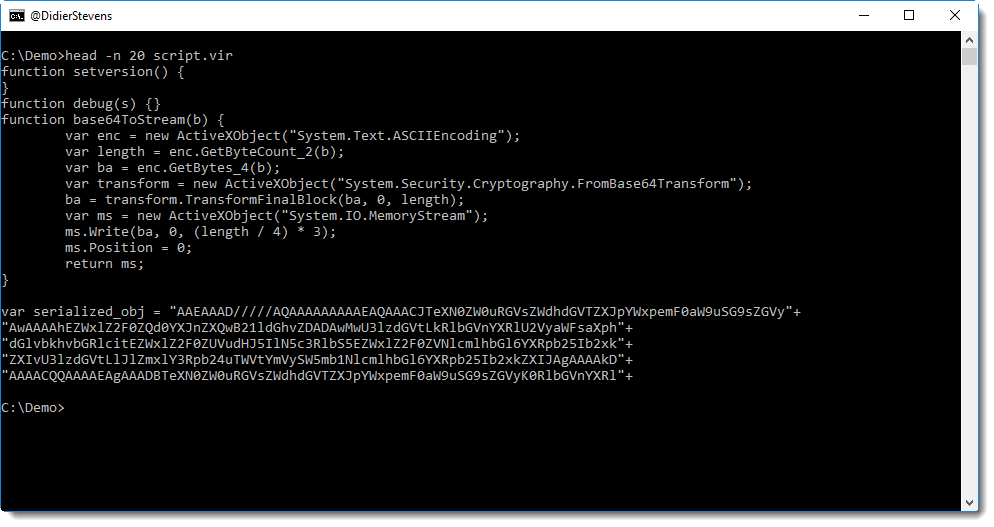
The serialized .NET object is embedded as a string concatenation of BASE64 strings, assigned to variable serialized_obj.

With re-search.py, I extract all strings from the script (e.g. strings delimited by double quotes):
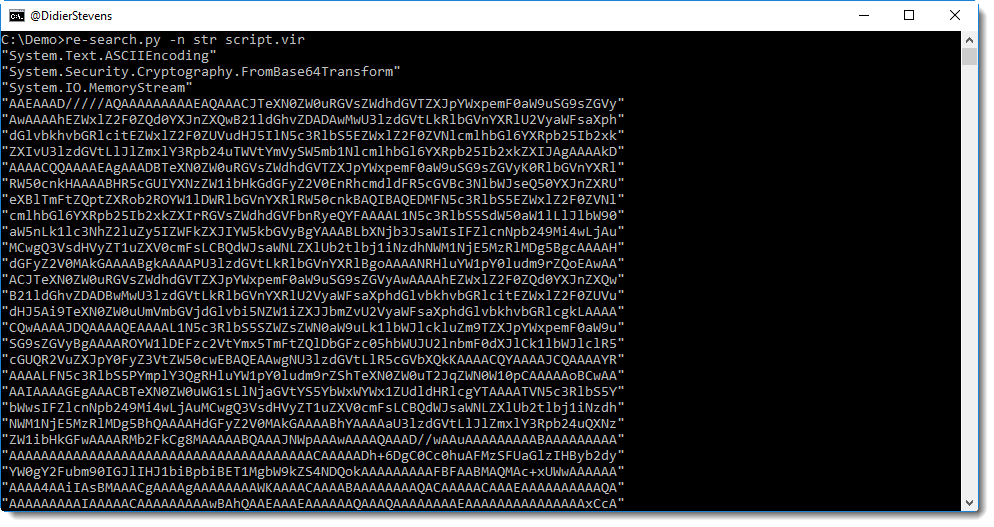
The first 3 strings are not part of the BASE64 encoded object, hence I get rid of them (there are no unwanted strings at the end):

And now I have BASE64 characters, I just have to get rid of the doubles quotes and the newlines (base64dump searches for continuous strings of BASE64 characters). With base64dump‘s -w option I can get rid of whitespace (including newlines), and with option -i I can get rid of the double-quote character. Unfortunately, escaping of this character (\”) works on Windows, but then cmd.exe gets confused for the next pipe (it expects a closing double-quote). That’s why I introduced option -I, to specify characters with their hexadecimal value. Double-quote is 0x22, thus I use option -I 22:

This is the serialized object, and it contains the .NET assembly I want to analyze. .NET assemblies are .DLLs, e.g. PE files. With my YARA rule to detect PE files, I can find it inside the serialized data:
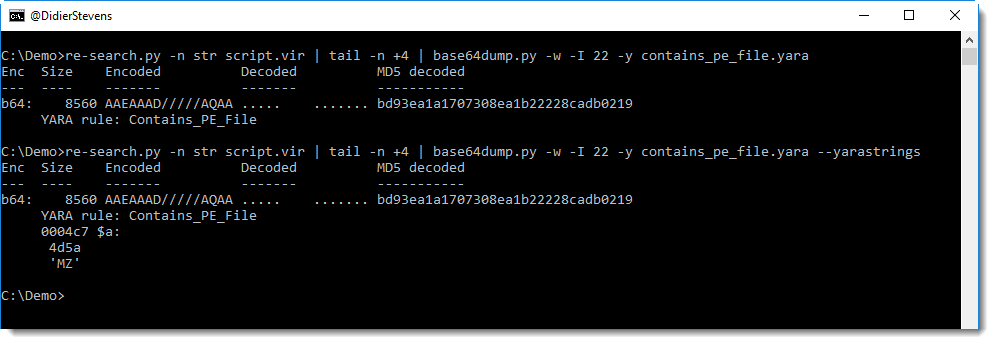
A PE file was found, and it starts at position 0x04C7. I can cut this data out with option -c:
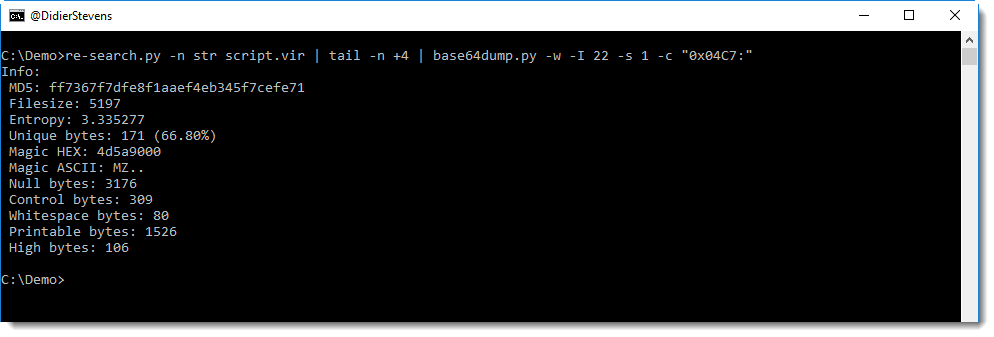
Another method to find the start of the PE file, is to use a cut expression that searches for ‘MZ’, like this:

If there is more than one instance of string MZ, different cut-expressions must be tried to find the real start of the PE file. For example, this is the cut-expression to select data starting with the second instance of string MZ: -c “[‘MZ’]2:”

It’s best to pipe the cut-out data into pecheck, to validate that it is indeed a PE file:

pecheck also helps with finding the length of the PE file (with the given cut-expression, I select all data until the end of the serialized data).

Remark that there is an overlay (bytes appended to the end of the PE file), and that it starts at position 0x1400. Since I don’t expect an overlay in this .NET assembly, the overlay is not part of the PE file, but it is part of the serialization meta data.

Hence I can cut out the PE file precisely like this:

This PE file can be saved to disk now for reverse-engineering.

I have not read the .NET serialization format specification, but I can make an educated guess. Right before the PE file, there is the following data:

Remark the first 4 bytes (5 bytes before the beginning of the PE file): 00 14 00 00. That’s 0x1400 as a little-endian 32-bit integer, exactly the length of the PE file, 5120 bytes:

So that’s most likely another method to determine the length of the PE file.


 

Tuesday 24 July 2018

Update: base64dump.py Version 0.0.11

Filed under: My Software,Update — Didier Stevens @ 0:00

This new version of base64dump adds option -I (ignorehex). Like -i, -I can be used to specify characters to be ignore by base64dump. Option -I takes the characters to be ignored as hexadecimal values, like this:

base64dump.py -I 2209

This will ignore the double-quote character (0x22) and the TAB character (0x09).

base64dump_V0_0_11.zip (https)
MD5: BF9D9EB3E6D574633D7F85345213E3E8
SHA256: 2741F9C3FD7B0897A04F60C741D7125568C8355A82FCF0FD4BB80877EE7FB935

« Previous PageNext Page »

Blog at WordPress.com.