I recorded my “Network Device Forensics” talk.
Supporting media:
I’m talking at infosecurity.be today: “Network Device Forensics”.
Supporting media:
Someone mentioned on a forum that he found a picture with an embedded, XORed executable. You can easily identify such embedded executables by xorsearching for the string “This program must be run under Win32”. But if the author or compiler modifies this DOS-stub string, you will not find it.
That’s how I got the idea to add an option to search for PE-files: search for string MZ, read the offset to the IMAGE_NT_HEADER structure (e_lfanew), and check if it starts with string PE.
Example: XORSearch.exe -p test.jpg
Found XOR A2 position 00005D1D: 000000E8 ........!..L.!This program cannot be r
Found XOR A2 position 0001221D: 00000108 ........!..L.!This program cannot be r
We found 2 embedded executables in test.jpg (XOR key A2). Remark we didn’t provide a search string, only option -p.
XORSearch also reports the value of e_lfanew and the string found in the DOS-stub. This allows you to inspect the results for false positives.
This can also be used on unencoded files, like this installation file:
XORSearch.exe -p c8400.msi
Found XOR 00 position 00236400: 000000E8 ........!..L.!This program cannot be r
Found XOR 00 position 00286000: 00000100 ........!..L.!This program cannot be r
Found XOR 00 position 00346800: 000000F8 ........!..L.!This program cannot be r
Found XOR 00 position 003A7200: 00000080 ........!..L.!This program cannot be r
Found XOR 00 position 003AD200: 00000080 ........!..L.!This program cannot be r
Found XOR 00 position 004B4800: 00000108 ........!..L.!This program cannot be r
Found XOR 00 position 004DE600: 000000F8 ........!..L.!This program cannot be r
Found XOR 00 position 004FE200: 000000E0 ........!..L.!This program cannot be r
Found XOR 00 position 00520C00: 000000E0 ........!..L.!This program cannot be r
Found XOR 00 position 00542000: 000000E0 ........!..L.!This program cannot be r
Found XOR 00 position 00562400: 00000100 ........!..L.!This program cannot be r
Found XOR 00 position 0058F800: 000000E0 ........!..L.!This program cannot be r
Finally, I added option -e (exclude). This excludes a particular byte-value from encoding. If you suspect a file is XOR encoded, but that byte 0x00 is not encoded, you use option -e 0x00.
XORSearch_V1_10_0.zip (https)
MD5: 23809A03C63914B0742B7F75B73E1597
SHA256: 97BFBC5E8C59F60E10ABDA2D65DF4200B10BE14662D4A447797B341C9AAE17D8
Last time I opened a McAfee quarantine file (.bup) with a hex editor, I saw something I didn’t notice before: D0 CF 11 E0
The fileformat used for McAfee quarantine files is the Compound File Binary Format (also used for .doc, .xls, .msi, …).
With this new info and Google’s help I found @herrcore‘s punbup Python program. This program uses a Python module to handle CFB files, it does not rely on 7-zip for this. This has a big advantage: one is no longer required to write the quarantined files to disk to analyze them.
For example, with option -c md5 you can get the md5 hashes of the quarantined files, without these files being written to disk.
I added a couple of extra features which @herrcore has kindly merged into his repository. These new options allow one to perform a hexdump (-x -X), ASCII dump (-a -A) or dump (-f) of the quarantined file(s). Here is a usage example:
punbup.py -f quarantine.bup | pdfid.py
This command performs an analysis with pdfid of the quarantined PDF file, without writing the malicious PDF file to disk.
I found this executable A0000623.sys with 6 detections on VirusTotal. Are these false positives or true positives?
The file was found in the _restore system folder. It looks like it is a Windows system file (tcp.sys), but maybe it is infected. It has no digital signature.
With the help of Google, I was able to trace it back to MS05-019: WindowsXP-KB893066-x86-ENU.exe. But unfortunately, WindowsXP-KB893066-x86-ENU.exe can no longer be downloaded from Microsoft’s site, as they published a new release for this patch: WindowsXP-KB893066-v2-x86-ENU.exe.
Fortunately, I found another file in this _restore folder: A0000615.cat. This is a catalog file that Microsoft uses to sign Windows executables. With Sysinternals’ sigcheck tool and this catalog file, I was able to confirm that this is a signed Windows executable and conclude that the detections are false positives.
I will release a new version of my AnalyzePESig tool that accepts an optional catalog file.
I finally compiled a list of the software I published. You can find it under My Software.
First comes an overview, and then for each software, all the versions you can download with links to the blogposts where they are mentioned.
I’m taking SANS’ “SEC503 Intrusion Detection In-Depth” class here in Brussels.
One of the exercises consisted of extracting the passwords from a capture file of a FTP password dictionary attack.
I was at an advantage for this exercise 😉 I have a Lua script for Wireshark that extracts credentials (HTTP and FTP in this release).

Notice that some entries have no username. A closer look at the capture file with Wireshark revealed missing segments (with the USER admin FTP command).
wireshark-tools-v0_0_1.zip (https)
MD5: 30232A81CBD0DEE275C2A3CDAF7E333C
SHA256: E45CE8AF5417A8A1C857FDF84F2FD92860738CF2E723A64A730F606D2C495064
I produced a new video: a simple howto for users who don’t know how to use Windows explorer’s properties dialog to check a digital signature.
Later in the video, it gets a bit more technical by using tools (AnalyzePESig and sigcheck) to check signatures.
UltraEdit is my text editor on Windows. I developed a couple of simple scripts that I’m going to release.
The first one is SubstituteEachLine.js.
I run this script when I need to transform each line into another form. Take this example where I want to create a Python dictionary with these words:

I start my script and type this template (%% is the placeholder for each original line in the document):

The script replaces each line in the document like this:
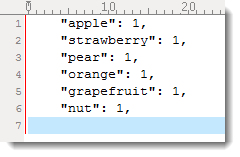
I also often use this in a command-line environment with a limited shell. For example, to rename a bunch of files in “DOS”, I put the list of filenames in a text document and then run my script: “ren %% %%.old”. As shown in this example, you can use the placeholder (%%) more than once in the template. But you can’t escape the placeholder string.
PS: you can also use regex search and replace to do this, but there are cases were I prefer my script.
ultraedit_scripts_v0_0_1.zip (https)
MD5: C218BF518291499600B7B769AD3D14EE
SHA256: CE8FAFF9F7708B6CF596EE455735656F902C5DC99A47EB8AA35F217E6E03656C
This update to my Prefetch File 010 Template adds Sections A through D.

PFTemplate_V0_0_2.zip (https)
MD5: 56A98A78BD4E8D1AED88385AF1DD8446
SHA256: E15D721E46FFB8158C6D14C9A38DE4E3DD5DCD0972896441DF17590C540DBCC3

 Didier Stevens